This is a guide to the integration between Synerise and Auth0, which lets your users authorize with their Auth0 accounts.  


## Benefits
---
- **Centralized user management** - With Auth0, you get to administer users from one central place in your organization.

- **Increased security** - The benefit of a single user account in many applications helps to maintain a single identity and credentials, so users don’t have to remember too many credentials. Authentication takes place only with Auth0, with a single set of security-related policies regardless of the application.

- **Improved user experience** - Your users only need to sign in once to use multiple applications. This approach ensures faster authentication, saves time and relieves users from remembering multiple credentials.

## Prerequisites
---

- You must have an account with an Auth0 identity provider service and create a SAML application within that account.
- You must [verify your domain](/docs/settings/identity-access-management/access-control/managed-domains) or more, if needed.
- You must be granted a user role that allows access to Settings and perform Identity provider configuration in Synerise.

## Configuring Auth0 as an Identity Provider in Synerise
---

1. Log in to Synerise.
2. Select the workspace you want to configure single sign-on for.
3. Go to <img src="/api/docs/image/54176ad07f146575310749eba44b7c2f42c1b327/icons/settings-icon.svg" alt="Settings icon" class="icon"> **Settings > Access Control > Single Sign-On (SSO)**.
4. In the **General settings** section: 
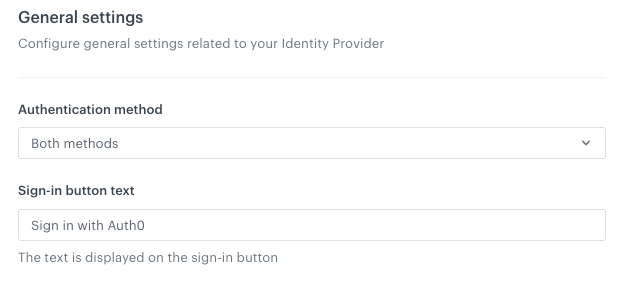
    1. From the **Authentication methods** dropdown list, select the authentication method to the value of your choice. Learn more about it in ["Make log-in screen modifications" section](/docs/settings/identity-access-management/access-control/single-sign-on#make-log-in-screen-modifications).
    
       <div class="admonition admonition-tip"><div class="admonition-icon"><svg xmlns="http://www.w3.org/2000/svg" fill="none" viewBox="0 0 24 24" stroke="currentColor" stroke-width="2.5"><path stroke-linecap="round" stroke-linejoin="round" d="M9.663 17h4.673M12 3v1m6.364 1.636l-.707.707M21 12h-1M4 12H3m3.343-5.657l-.707-.707m2.828 9.9a5 5 0 117.072 0l-.548.547A3.374 3.374 0 0014 18.469V19a2 2 0 11-4 0v-.531c0-.895-.356-1.754-.988-2.386l-.548-.547z" /></svg></div><div class="admonition-body"><div class="admonition-content">

       At the beginning, we suggest setting it to **Both methods** unless you have a separate account that’s in different domain than you will be setting up SSO for.

       </div></div></div>

    2. <span id="button-name"></span> In the **Sign-in button text** field, type the name that is displayed on the sign-in button, for example `Sign in with Auth0`.  

    <figure>
    <img src="/api/docs/image/54176ad07f146575310749eba44b7c2f42c1b327/docs/settings/_gfx/auth0-general-settings.png" alt="General settings" class="large" >
    <figcaption> General settings </figcaption>
    </figure>

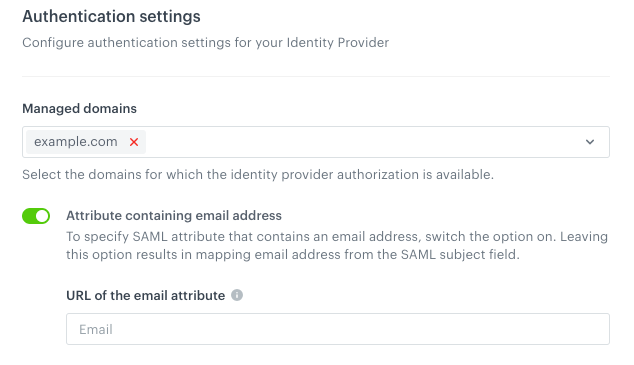
5. In the **Authentication settings** section:
    1. From the **Managed domains**, select the domains you want to use for your SSO.
    2. Enable **Attribute containing email address**.  
        **Result**: The **URL of the email attribute** text field appears.  
            <figure>
            <img src="/api/docs/image/54176ad07f146575310749eba44b7c2f42c1b327/docs/settings/_gfx/auth0-authentication-settings.png" alt="General settings" class="large" >
            <figcaption> Authentication settings </figcaption>
            </figure>
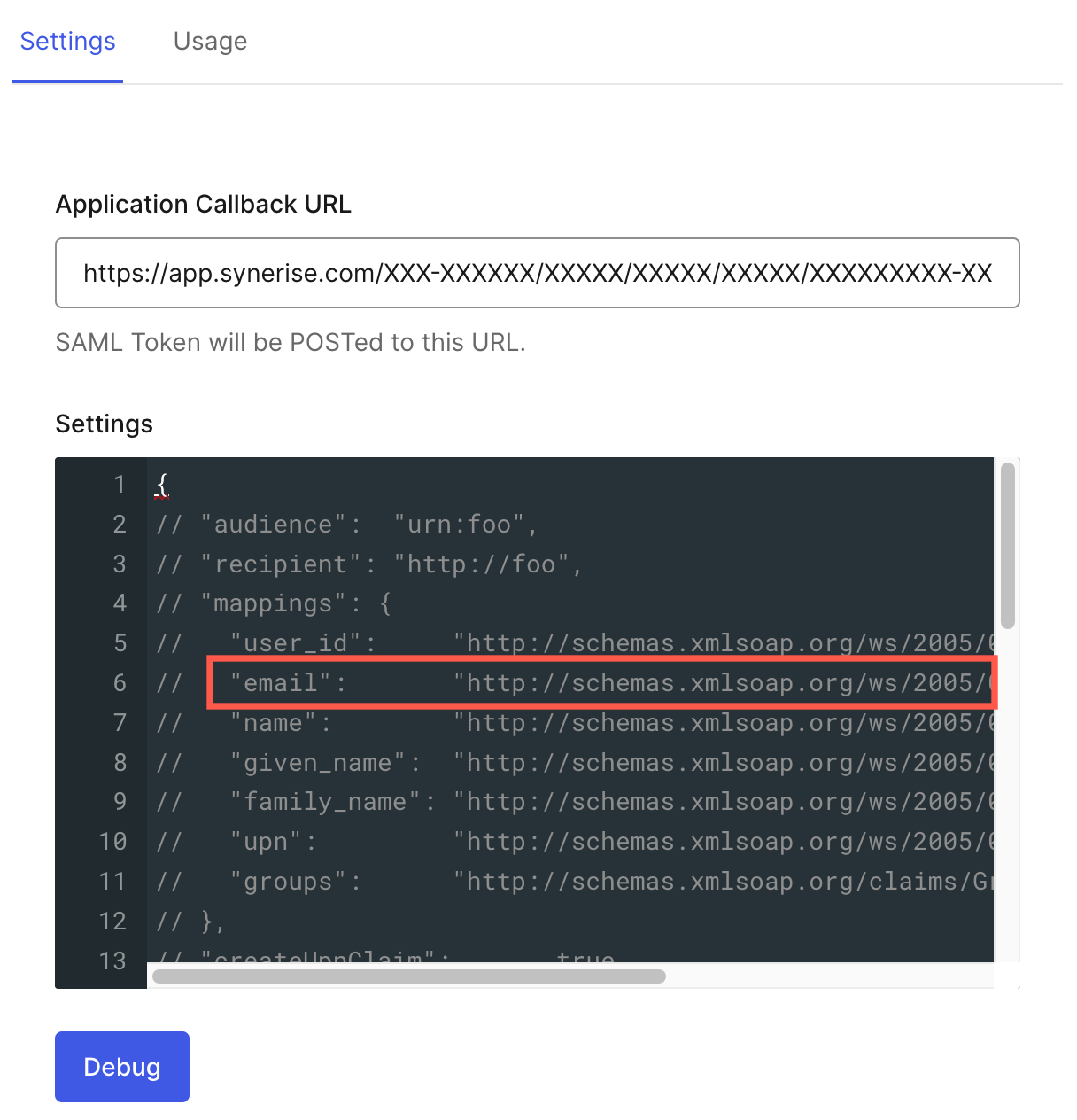
    3. In **URL of the email attribute**, enter the value of the `email` attribute which is available in the settings in your Auth0 account.
    <figure>
    <img src="/api/docs/image/54176ad07f146575310749eba44b7c2f42c1b327/docs/settings/_gfx/oauth-email-attribute.png" alt="The email attribute" class="medium" >
    <figcaption> The email attribute which is available in the settings on Auth0 account</figcaption>
    </figure>

6. <span id="mapping-step"></span>In the **Just-in-Time provisioning** section, follow the procedure described ["Define permissions for users who authorize by identity provider"](/docs/settings/identity-access-management/access-control/single-sign-on#define-permissions-for-users-who-authorize-by-identity-provider) section.
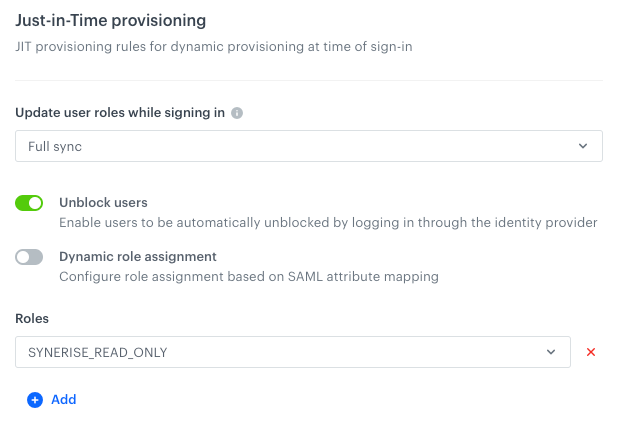
    - If you kept the default role assignment: 
        <figure>
        <img src="/api/docs/image/54176ad07f146575310749eba44b7c2f42c1b327/docs/settings/_gfx/azure-default-roles.png" alt="SAML-based SSO" class="full" >
        <figcaption> Filled in dynamic assignment settings </figcaption>
        </figure>
            
        **Result**: In this model, every authenticated person has a role (or roles) assigned according to the settings defined here regardless of any configuration on Auth0 side and depending on setup in the **Update user roles while signing in** field.
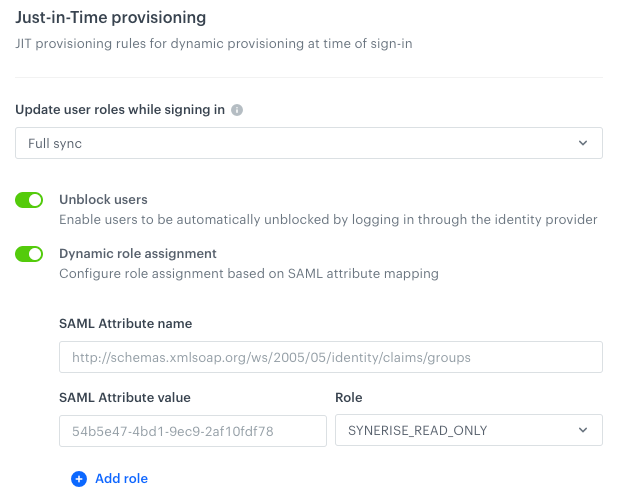
    - If you selected dynamic role assignment:
        <figure>
        <img src="/api/docs/image/54176ad07f146575310749eba44b7c2f42c1b327/docs/settings/_gfx/azure-dynamic-assignment.png" alt="SAML-based SSO" class="full" >
        <figcaption> Filled in dynamic assignment settings </figcaption>
        </figure>
        
        **Result**: Every authenticated person has a role (or roles) assigned based on group/role mapping between Auth0 and Synerise depending on setup in the **Update user roles while signing in** field.
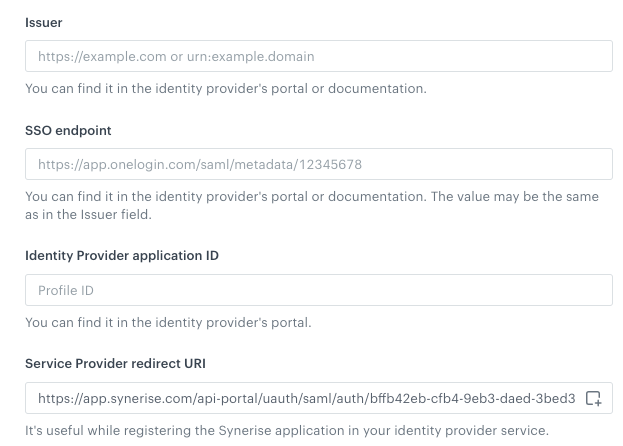
7. For the **SAML protocol settings** section, you must retrieve the values from the settings of the SAML application on the account of your provider:  

    <figure>
    <img src="/api/docs/image/54176ad07f146575310749eba44b7c2f42c1b327/docs/settings/_gfx/auth0-saml-settings.png" alt="Blank SAML settings form" class="large" >
    <figcaption> Blank SAML settings form </figcaption>
    </figure>

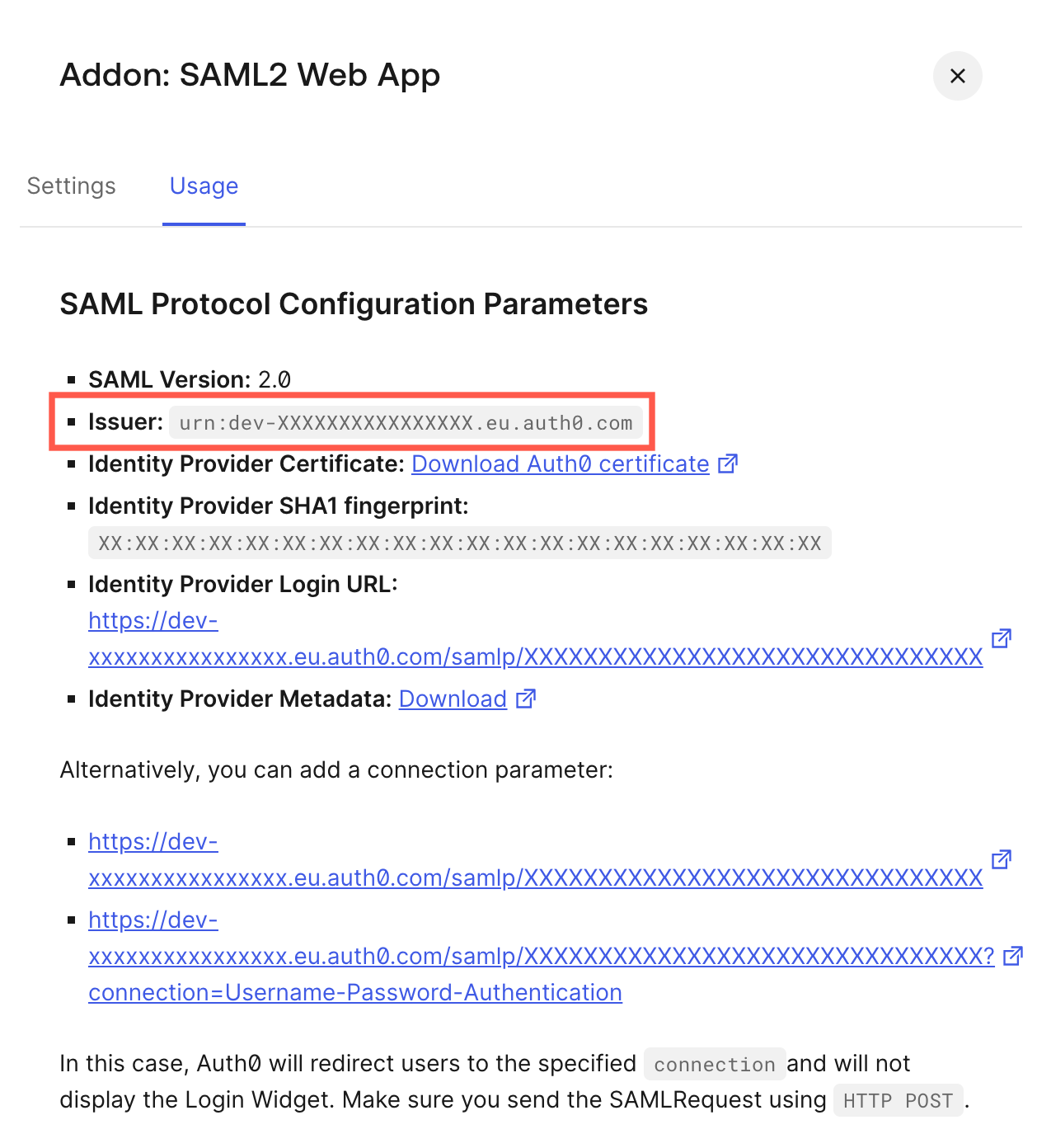
    1. In the **Issuer** field, enter the value of the **Issuer** field, which can be either URL or URN (we recommend this for security reasons).  
        <figure>
        <img src="/api/docs/image/54176ad07f146575310749eba44b7c2f42c1b327/docs/settings/_gfx/okta-identity-provider-entity-id.png" alt="The value for the Identity Provider Entity ID in Auth0" class="medium" >
        <figcaption> The value for the Identity Provider Entity ID in Auth0 </figcaption>
        </figure>
    2.  In the **SSO endpoint** fields, enter the value from the **Identity Provider Login URL**.  
        <figure>
        <img src="/api/docs/image/54176ad07f146575310749eba44b7c2f42c1b327/docs/settings/_gfx/okta-sso-endpoint.png" alt="The value for the SSO endpoint (https) in Auth0" class="medium" >
        <figcaption> The value for the SSO endpoint (https) in Auth0 </figcaption>
        </figure>
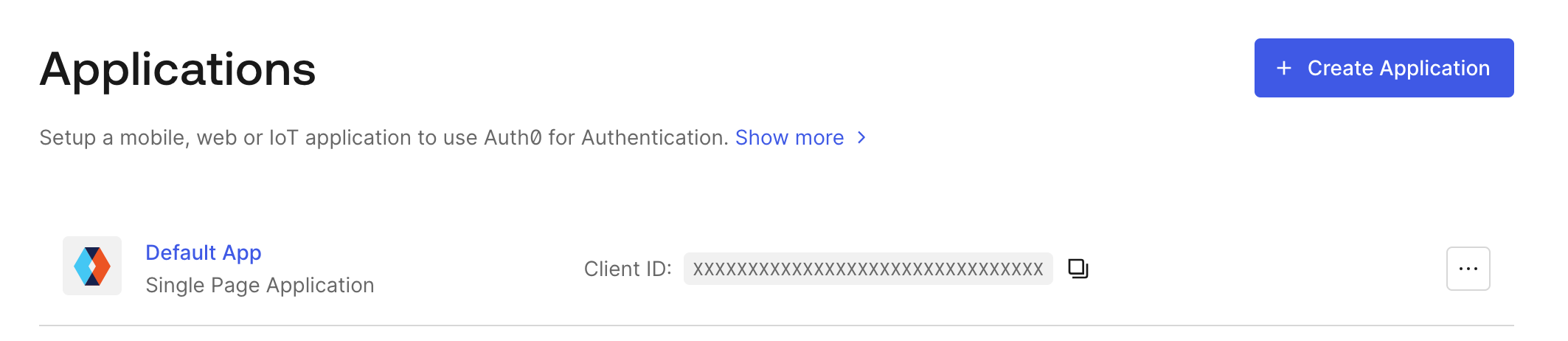
    2. In the **Identity Provider application ID** field, enter the value of the **Client ID** field.  
        <figure>
        <img src="/api/docs/image/54176ad07f146575310749eba44b7c2f42c1b327/docs/settings/_gfx/okta-identity-provider-application-id.png" alt="The value for Identity Provider application ID in Auth0" class="medium" >
        <figcaption> The value for Identity Provider application ID in Auth0 </figcaption>
        </figure>
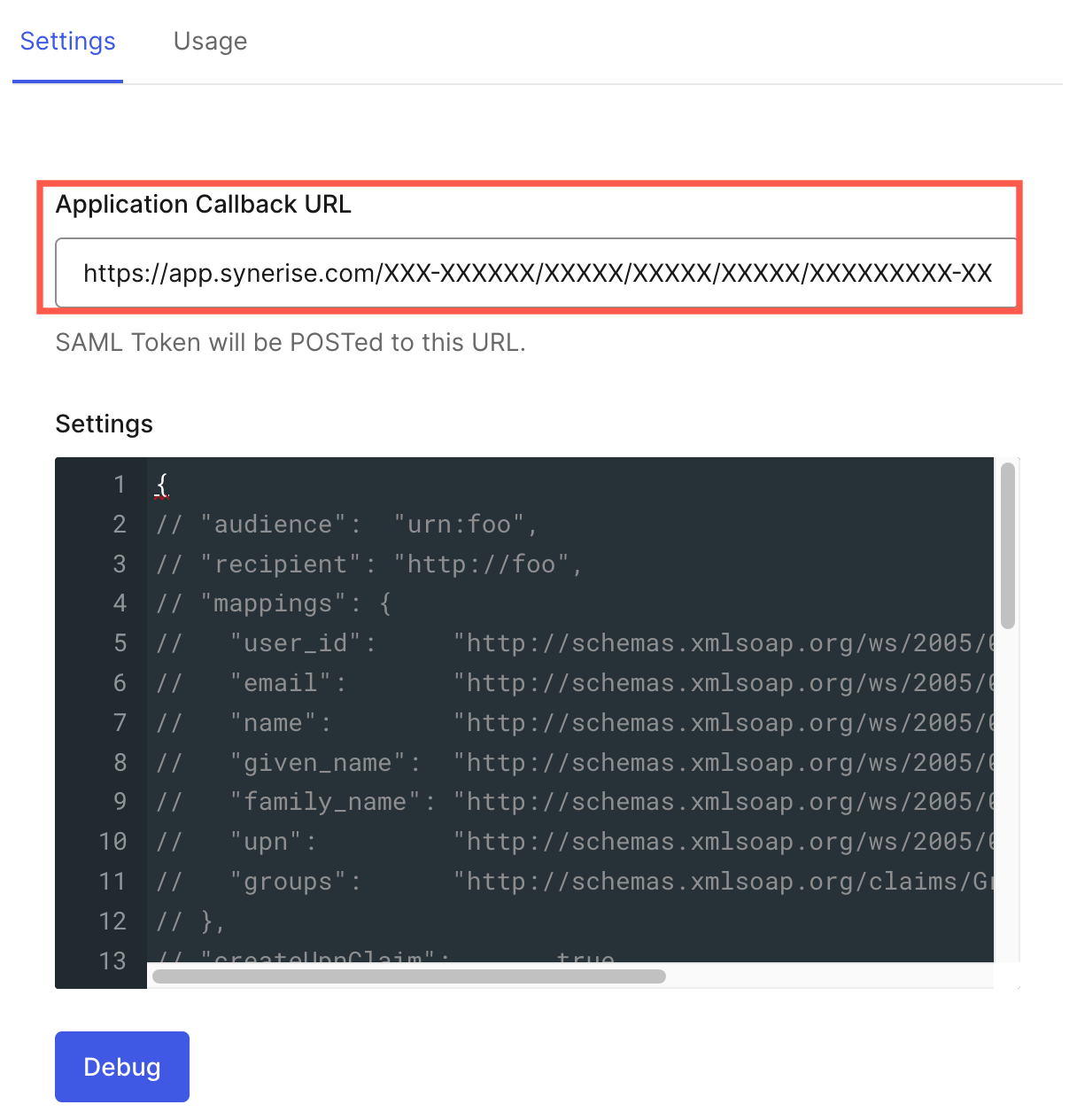
    3. The **Service Provider redirect URI** is filled in by default, copy this link and paste it to **Application Callback URL** in Auth0. A user who authenticates will be redirected to this URL.  
        <figure>
        <img src="/api/docs/image/54176ad07f146575310749eba44b7c2f42c1b327/docs/settings/_gfx/okta-application-callback-url.png" alt="The value for Application Callback URL which must be provided in Auth0" class="medium" >
        <figcaption> The value for Application Callback URL which must be provided in Auth0 </figcaption>
        </figure>
    
    3. In **Request binding**, select the method of communication between the requestors and responders.
    5. In **Response signature verification**, select where the SAML signature is available.
    4. In **Response validation method**, select **Static**.
    4. In the **Identity Provider signature certificate** field, upload the certificate from your Identity Provider account.
        <figure>
        <img src="/api/docs/image/54176ad07f146575310749eba44b7c2f42c1b327/docs/settings/_gfx/okta-request-signature.png" alt="Certificate in Auth0" class="medium" >
        <figcaption> Certificate in Auth0 </figcaption>
        </figure>
7. Optionally, you can configure the rest of the fields in the configuration form.  
    See the reference of [configuration parameters](/docs/settings/identity-access-management/access-control/single-sign-on#configuration-parameters-explanation).
8. Next to the **Identity Providers** headline, click **Apply**.


## Test SSO 
---

After completing the setup, test the integration.

1. If you are logged in to Synerise, log out. 
2. Go [the Synerise portal](https://app.synerise.com/spa/login).
3. Enter your email address.
4. Click **Continue**.
5. Click the **Sign in with Auth0** (the text on the button depends on the value you entered in [this step](#button-name)).  
    **Result**: You will be redirected to Auth0 Identity Provider where you will be authenticated immediately if there is an active session or you will be asked to authenticate and as a result you'll be redirected back to Synerise.


   <div class="admonition admonition-note"><div class="admonition-icon"><svg xmlns="http://www.w3.org/2000/svg" fill="none" viewBox="0 0 24 24" stroke="currentColor" stroke-width="2.5"><path stroke-linecap="round" stroke-linejoin="round" d="M13 16h-1v-4h-1m1-4h.01M21 12a9 9 0 11-18 0 9 9 0 0118 0z" /></svg></div><div class="admonition-body"><div class="admonition-content">

   When the process works as expected, you can switch the **Authentication Mode** setting, so only the SSO authentication method is allowed, excluding the option of authorizing through email and password.

   </div></div></div>