In Synerise, you can use a feature that protects personally identifiable information (PII), letting you designate which workspace users and API keys can access PII. By default, the ID and UUID data are considered PII, but you can flag other attributes and event parameters as PII.
This system lets users without PII access work with the data while ensuring that they cannot view the sensitive information, striking a balance between data usability and protection of personal information.
## What counts as PII
By default, only the `ID` and `UUID` [profile attributes](/docs/assets/customer-properties) are considered PII, but they are not encrypted - only masked. Additionally, users with specific [permissions](/docs/settings/identity-access-management/permissions#permissions) can mark any profile attribute or [event parameter](/docs/assets/events/adding-event-parameters) as PII. It's important to note that once a parameter is marked as PII, it applies to all relevant [events](/docs/assets/events).
## Impact on tracking
Identification of profiles in workspaces with PII protection enabled is only possible in the following ways:
- **Web tracking with JS SDK**: [JWT authentication](/developers/web/jwt-auth) must be enabled. For example, when submitting a form, the JavaScript SDK will send a [`form.submit` event](/docs/assets/events/event-reference/web-and-app#formsubmit), but the request will be rejected without a JWT token by the backend.
- **Mobile app integration**: The client key in a mobile app must have permissions to access PII data.
- [**Integration through API**](https://developers.synerise.com/ProfileManagement/ProfileManagement.html#tag/Profile-management/operation/BatchAddOrUpdateClients): Authorization must be performed with an API key that has permissions to access PII data.
## Enabling the PII protection
When creating a workspace, you must specify whether it will support PII protection. Enabling PII protection must occur before loading event and profile data, as encryption cannot be applied retroactively.
Enabling PII protection is also possible for older workspaces with existing data, however, the data won't be encrypted retroactively.
By default, PII protection is disabled. The process for enabling this feature is the same for both new and existing workspaces. Below you can find a short overview of the process.
| Stage | Description or Result |
|-------------------------------------|----------------------------------------------------------------------------------------------------------------------------|
| [Request enabling access to PII Protection](#request-enabling-access-to-pii-protection) | Request access to settings that allow granting PII data access to user roles, API keys, and marking attributes and event parameters as PII. |
| [Grant or restrict access to PII data](#grant-or-restrict-access-to-pii-data) | After confirmation, in the Synerise platform, update permissions for API keys and user roles, and mark sensitive attributes and event parameters.
Changes are not yet applied; data is not protected yet.
|
| [Start enforcing PII protection](#start-enforcing-pii-protection) | Synerise enforces the settings defined in "Grant or restrict access to PII data" stage, activating PII protection. |
### Request enabling access to PII protection
Make a request for enabling access to the PII protection feature to [Synerise Support](https://hgintelligence.atlassian.net/servicedesk/customer/portals). Enabling the PII protection of the workspace causes:
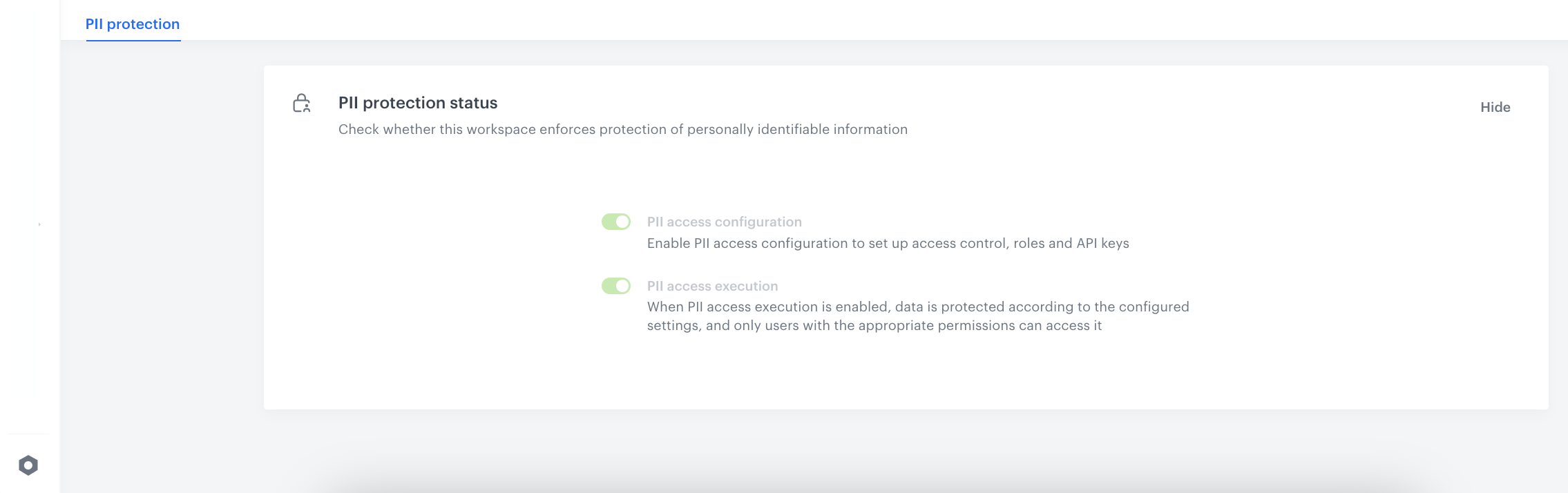
- Access to the **PII protection status** section under this link: https://app.synerise.com/settings/pii
This section shows the state of the PII protection option.
PII protection status section
- Appearance of the PII-related user permissions: **PII settings**
Setting these permissions to:
- **Read**: allows users to set PII access level for API keys and user roles.
- **Update** and **Create**: allows users to mark profile attributes and event parameters as PII.
List of permissions in Settings > Roles that can be accessed by clicking on a role and viewing the Permission section.
The data is not protected yet. Now you have been granted access to the PII settings. The next step is to [grant or restrict access to PII data](#grant-or-restrict-access-to-pii-data). These changes will take effect and become live [after Synerise receives and processes your request to execute PII protection](#start-enforcing-pii-protection).
### Grant or restrict access to PII data
After enabling access to the PII protection feature (the status is reflected in https://app.synerise.com/settings/pii through the **PII access configuration** toggle), perform the following actions:
#### Enable access to PII data for user roles
Update [user roles](/docs/settings/identity-access-management/permissions) by granting them access to PII data. You can also grant access to PII data to the [predefined Synerise roles](/docs/settings/identity-access-management/permissions#predefined-synerise-roles).
To view the scope of actions available to users with roles that have **Full access to PII** data, see the table in the ["Impact on user access and actions" section](#impact-on-user-access-and-actions).
The PII setting applies exclusively to the access rights associated with each specific role. For example, if a user holds two roles:
- Role A, which grants access to Behavioral Data Hub and has PII access
- Role B, which grants access to Decision Hub and doesn't have PII access
The user will have full access to PII data within Behavioral Data Hub, while having no access to PII data within Decision Hub.
When a new role is assigned to a user, they must refresh the page for the changes to take effect.
If an existing role assigned to a user is updated, no action is required - the new settings will be applied automatically.
1. Go to **Settings > Roles**.
2. On the role list, find the role for whom you want to enable access to PII data.
3. Click **> Edit**.
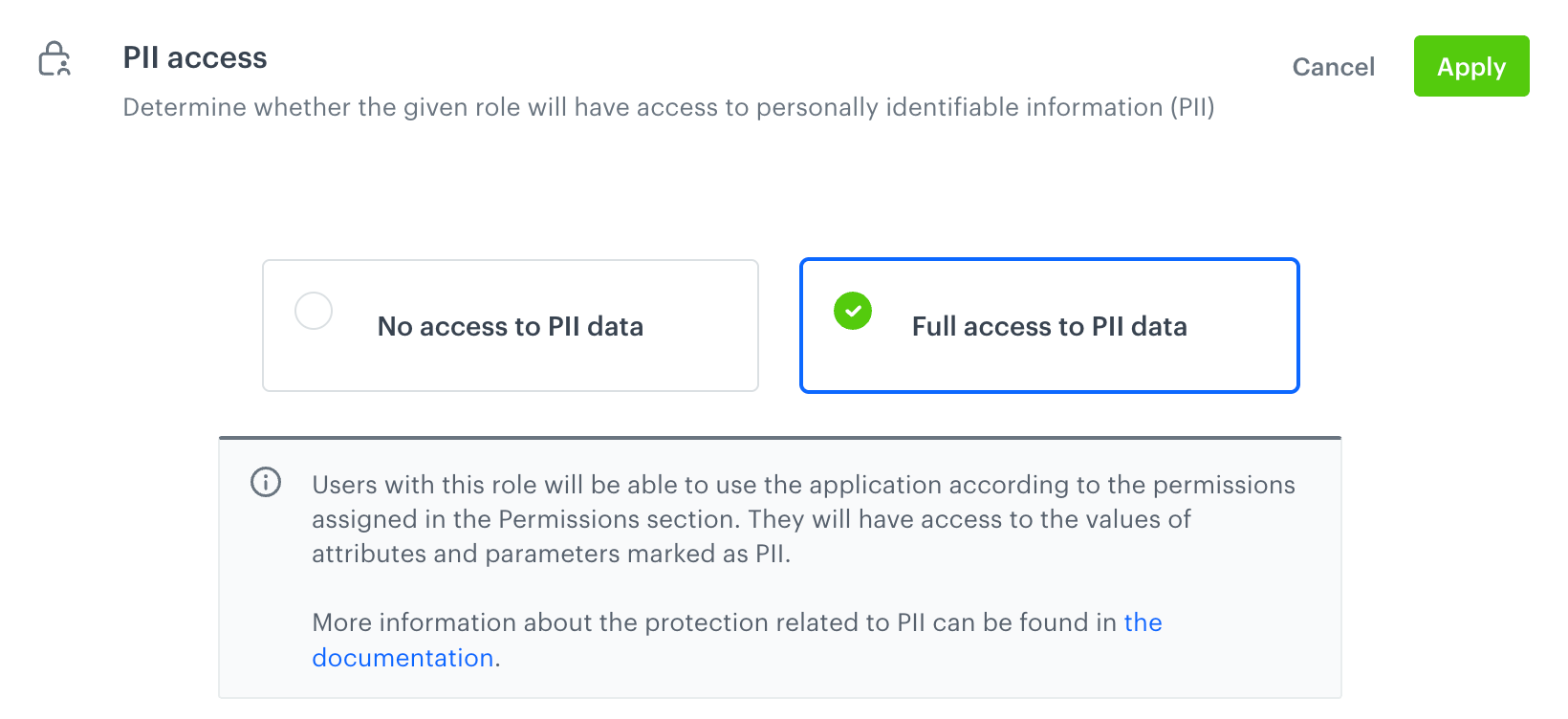
4. On the **PII access** section, click **Define**.
4. Click **Full access to PII data**.
The PII access section available while defining the settings of a role
5. Confirm by clicking **Apply**.
#### Enable access to PII data for API keys
Update existing [API keys](/docs/settings/tool/api) to grant them permissions for operations involving PII data.
There is no need to refresh the JWT for API keys after updating them. The token will automatically reflect the new settings after up to 5 minutes.
1. Go to **Settings > API keys**.
2. To add access to an existing key, open the details of the key to which you want to grant the access.
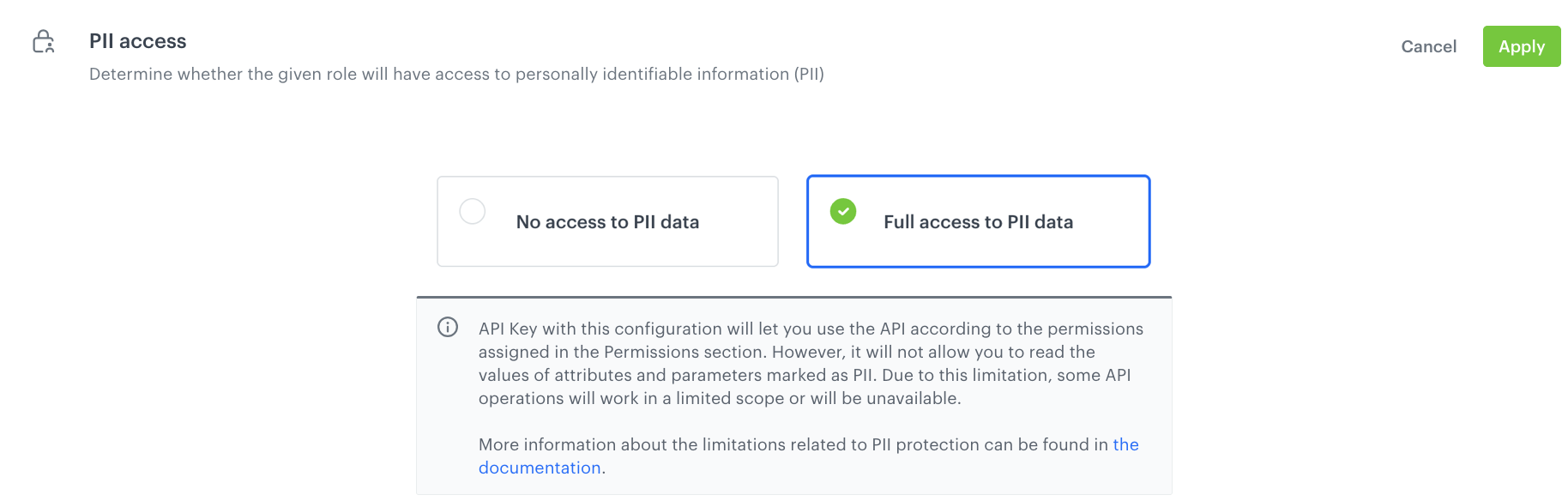
3. On the **PII access** section, click **Define**.
4. Click **Full access to PII data**.
The PII access section available while defining the settings of an API key
#### Mark profile attributes as PII
Label specific [profile attributes](/docs/crm/customer-properties) as PII to ensure their value is accessible only for users who have access to PII data.
Completing this procedure generates [`profile.updated`](/docs/assets/events/event-reference/profiles#profileupdated) events.
1. Go to **Data Modeling Hub > Profile attributes**.
2. On the list of attributes, open the details of the attribute which you want to mark as PII.
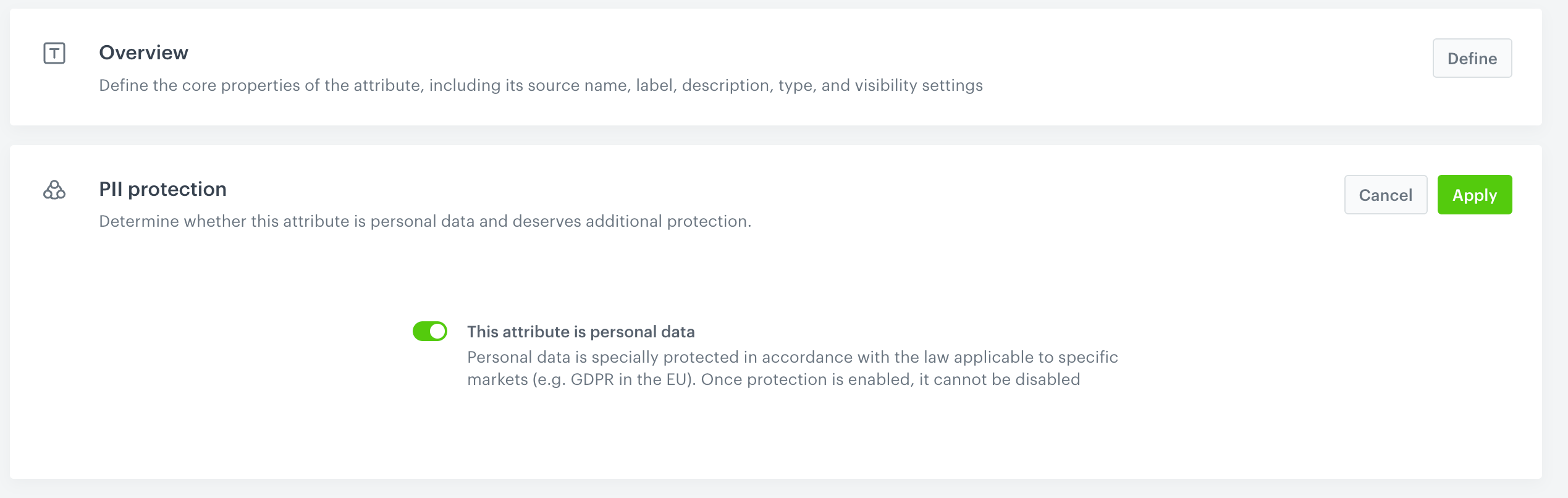
3. In the **PII protection** section, click **Define**.
4. Enable the **This attribute is personal data** option.
**Result**: A `profile.updated` event is generated for all profiles that have this attribute assigned. This event will include the encrypted value of the attribute.
The PII protection section; it's accessible in Behavioral Data Hub > Profile attributes, in the details of a profile attribute
When an attribute is marked as PII, you can only search for profiles by that attribute using the full value. Partial values do not return results. For example, if the `email` attribute is marked as PII, searching for `john` or `johndoe@` returns no results, but searching for `johndoe@example.com` does.
#### Mark event parameters as PII
Label specific [event parameters](/docs/assets/events/adding-event-parameters) as PII to ensure their value is accessible only for users who have access to PII data.
1. Go to **Data Modeling Hub > Event parameters**.
2. On the list of event parameters, open the details of the parameter which you want to mark as PII.
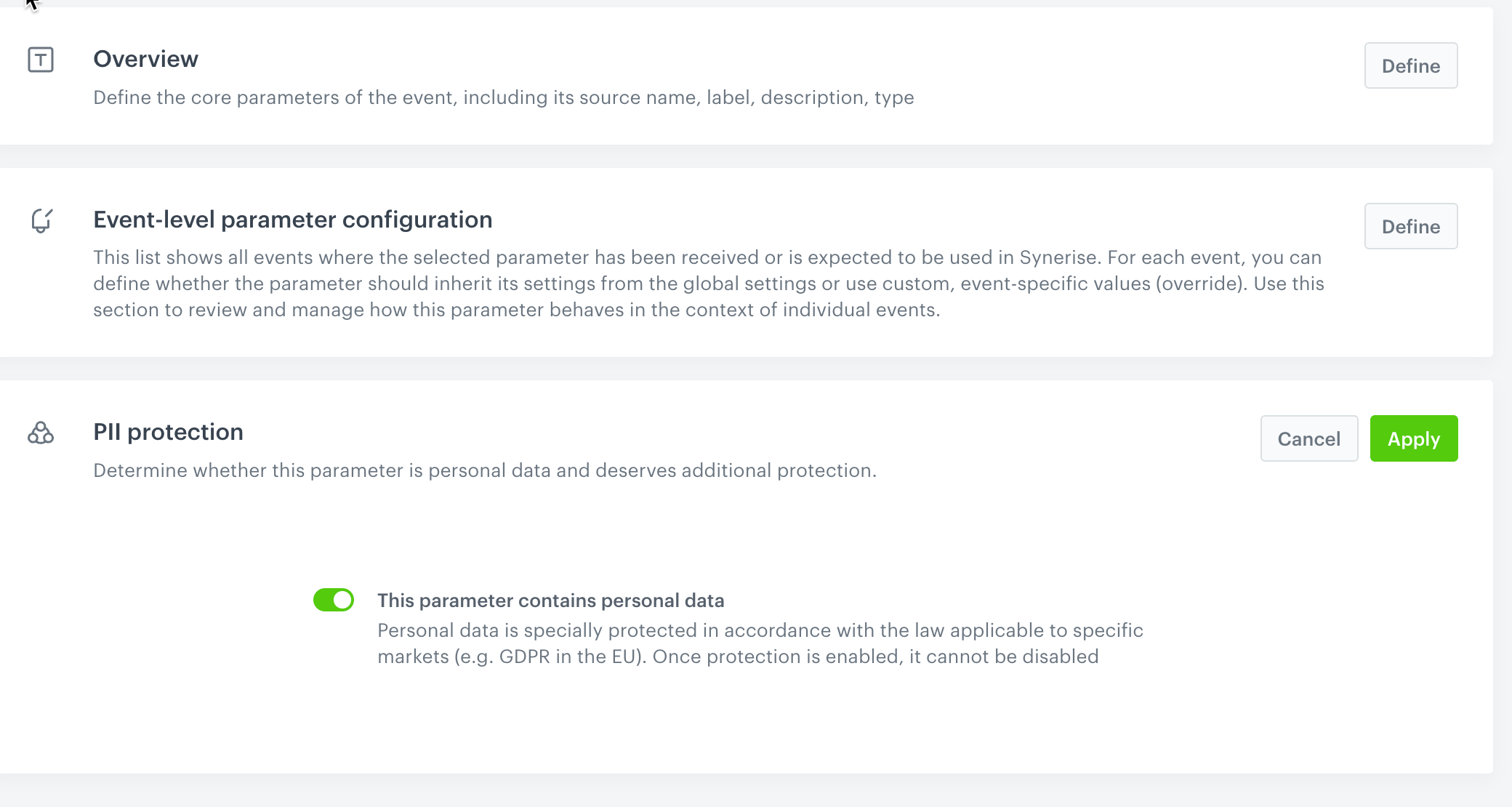
3. In the **PII protection** section, click **Define**.
4. Enable the **This parameter contains personal data** option.
The PII protection section; it's accessible in Data Modeling Hub > Event parameters, in the details of an event parameter
### Start enforcing PII protection
After updating roles for workspace users and API keys, as well as marking profile attributes and event parameters as PII, submit a request to Synerise support to apply the PII settings you defined in the previous steps. Once your request is processed:
- the **PII access execution** toggle in https://app.synerise.com/settings/pii is enabled.
- workspace user roles and API keys with PII permissions will become active.
- profile attributes and event parameters marked as PII are accessible only for users with full access to PII.
## Impact on user access and actions
Apart from PII itself, you also need to have the right permissions. For example, you can have full access to PII data, but without the READ permission for **Behavioral Data Hub** you won't see anything, similarly, all campaigns, and so on.
Because marking attributes and event parameters as PII causes their values to be encrypted, it’s important to understand the differences in what a user can do with full access to PII data versus no access to PII data. Below is a comparison of feature access and actions for each option.
| | Full Access to PII data | No Access to PII data |
|-------------------------|-------------------------------------------------------------------------------------------------------------------------------------------------|-----------------------------------------------------------------------------------------------------------------------------------------------------------|
| [Profile data](/docs/crm/crm-profile) access | Can view [regular profiles](/docs/crm/crm-profile) and [test profiles](/docs/settings/configuration/test-profiles) | Can view only [test profiles](/docs/settings/configuration/test-profiles) |
| Updating profile information | Can [update profile information](/docs/crm/editing-profiles) and [create new profiles](/docs/crm/adding-profiles) | Can't update profile information, can't create new profiles |
| Importing profiles, transactions, and events | Can [import profiles](/docs/assets/imports/importing-clients), [transactions](/docs/assets/imports/importing-transactional-data), and [events](/docs/assets/imports/importing-custom-events) | Cannot import profiles, transactions, and events |
| Campaigns and templates | Can create templates and campaigns, and preview the output of Jinjava and dynamic attributes such as aggregates and expressions | Can build templates and campaigns without exposing real data (they can preview campaigns in the context of test profiles) |
| Sending messages | - Can send messages/campaigns to any audience and preview real contact data; - When defining audience conditions, PII attributes and event parameters can be used **only** with the **Equal** operator to check if a PII-marked attribute or parameter is `null`, `true`, or `false` and compare their value to a specific value—even ignoring differences in capitalization and spaces | - Can send messages and campaigns to any audience, but will not see real contact data, - When defining audience conditions, PII attributes and event parameters can be used **only** with the **Equal** operator to check if a PII-marked attribute or parameter is null or not null |
| Sending test messages | Can send test campaigns to any recipient (profiles, test profiles, recipients who are not available in **Behavioral Data Hub > Profiles**)| Can send test campaign only to test profiles; sending tests to custom email or phone number (not available in Profiles) is impossible. |
| Creating analyses |Attributes and event parameters marked as PII can only be used in specific ways within analyses: - You can test whether a PII-marked attribute or parameter is `null`, `true`, or `false` (analyses with **Equal** operator). - You can compare a PII attribute or parameter’s value using the **Equal** operator to a specific value—even ignoring differences in capitalization and spaces. - You cannot perform function operations on PII-marked attributes or parameters, nor use them inside expressions or aggregated calculations. For example, you cannot include a PII attribute as a value within an expression or aggregate. | Attributes and event parameters marked as PII can only be used in specific ways within analyses: - You can test whether a PII-marked attribute or parameter is null or not null (analyses with **Equal** operator). - You cannot perform function operations on PII-marked attributes or parameters, nor use them inside expressions or aggregated calculations. For example, you cannot include a PII attribute as a value within an expression or aggregate. |
| [Automation Hub](/docs/automation) | Can access sensitive data, use all nodes (where available, PII attributes and event parameters can be used **only** with the **Equal** operator in node filters to check if a PII-marked attribute or parameter is `null`, `true`, or `false` and compare their value to a specific value—even ignoring differences in capitalization and spaces, for example, in ["Profile Filter" node](/docs/automation/conditions/client-filter-node)), import and export data, access export logs | - Have limitations on using PII attributes and event parameters in the filters in nodes: they can **only** be used with the **Equal** operator to check if a PII-marked attribute or parameter is null or not null; - Have limitations on using [Email Alert](/docs/automation/actions/send-email-alert-node) and [SMS Alert](/docs/automation/actions/send-sms-node) nodes, - can't preview the file in [Local File](/docs/automation/operation/local-file-node) node, - can't use [Update Profile](/docs/automation/actions/change-attribute-node), [Import Profiles](/docs/automation/actions/synerise-integrations/import-customers), [Import Events](/docs/automation/actions/synerise-integrations/import-events), [Import Transactions](/docs/automation/actions/synerise-integrations/import-transactions), [Generate Event](/docs/automation/actions/send-client-event) nodes, - can't preview, edit, run, or resume workflows containing nodes mentioned before |
| [Data Transformation](/docs/automation/data-transformation-and-imports) | Can export and import data, access export logs | Can export data to trusted endpoints, cannot import data and access export logs, recommended to use sample data |

 **> Edit**.
4. On the **PII access** section, click **Define**.
4. Click **Full access to PII data**.
**> Edit**.
4. On the **PII access** section, click **Define**.
4. Click **Full access to PII data**.