Connect Synerise with Apple Wallet to let your customers add [wallet passes](/docs/campaign/wallet-passes) to Apple Wallet.
## Requirements
An Apple Developer account with access to **Certificates, Identifiers & Profiles**.
Unlike other integrations, you don't collect credentials from Apple upfront. Instead, Synerise generates a Certificate Signing Request (CSR) that you exchange for a Pass Type ID Certificate in Apple Developer Portal, then upload back to Synerise - see [Enabling Apple Wallet in Synerise](#enabling-apple-wallet-in-synerise).
## Enabling Apple Wallet in Synerise
1. Go to **Settings > Apps & Services**.
2. In the list of integrations, click **Apple Wallet**.
3. Click **New connection**.
**Result**: A configuration form opens.
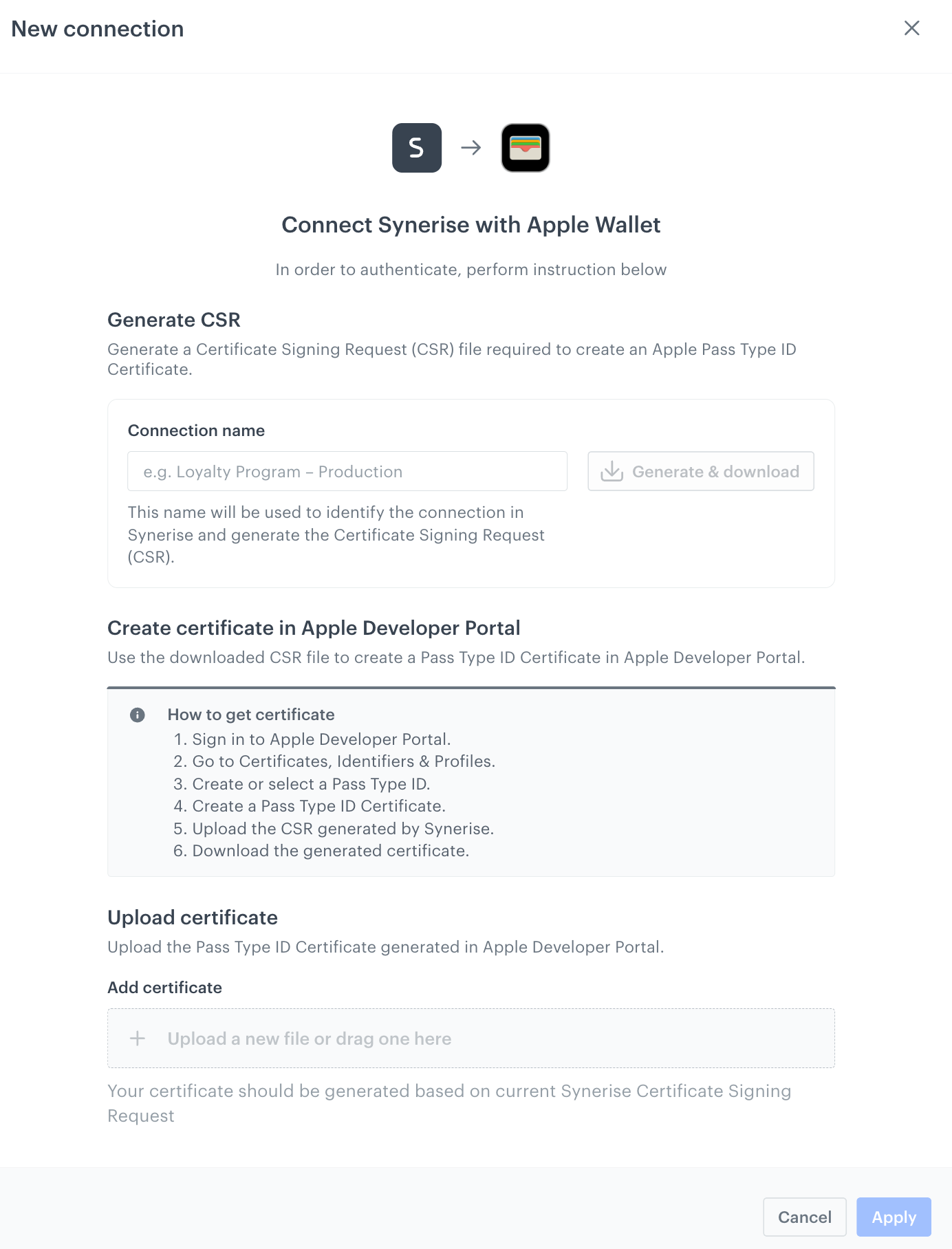
The Apple Wallet connection configuration form
### Generating the CSR
1. Under **Generate CSR**, in the **Connection name** field, enter a name (for example, `Loyalty Program – Production`).
This name identifies the connection in Synerise and is used to generate the Certificate Signing Request (CSR).
2. Click **Generate & download**.
**Result**: Synerise generates a CSR file and downloads it to your computer. You need this file to create an Apple Pass Type ID Certificate in the next step.
### Creating the certificate in Apple Developer Portal
Use the downloaded CSR file to create a Pass Type ID Certificate in Apple Developer Portal.
1. Sign in to Apple Developer Portal.
2. Go to **Certificates, Identifiers & Profiles**.
3. Create or select a Pass Type ID.
4. Create a Pass Type ID Certificate.
5. Upload the CSR file generated by Synerise.
6. Download the generated certificate.
### Uploading the certificate
1. Back in Synerise, under **Upload certificate > Add certificate**, upload the Pass Type ID Certificate you downloaded from Apple Developer Portal, or drag and drop the file onto the upload area.
The certificate must be generated from the current Synerise CSR. If you generate a new CSR, any certificate created from a previous CSR is no longer valid - you must repeat [Creating the certificate in Apple Developer Portal](#creating-the-certificate-in-apple-developer-portal) with the new CSR.
2. Click **Apply**.
**Result**: The connection with Apple Wallet is created and ready to use as the **Apple credential ID** when [configuring a wallet pass's credentials](/docs/campaign/wallet-passes/creating-wallet-passes#configuring-credentials).
 **Settings > Apps & Services**.
2. In the list of integrations, click **Apple Wallet**.
3. Click **New connection**.
**Result**: A configuration form opens.
**Settings > Apps & Services**.
2. In the list of integrations, click **Apple Wallet**.
3. Click **New connection**.
**Result**: A configuration form opens.