Google Firebase is used for notifications in mobile apps and websites.
From May 15, 2024, tokens which are inactive for 270 days become expired. More information is available in [Google Firebase documentation](https://firebase.google.com/docs/cloud-messaging/manage-tokens#stale-and-expired-tokens).
## Requirements
---
- Create a Firebase project.
- Enable [FCM Registration API](https://console.cloud.google.com/apis/library/fcmregistrations.googleapis.com?) for your project.
- If you want to use push encryption, you must implement decryption in your mobile applications. Client apps without decryption implemented will not receive push messages at all. See the following articles:
- [iOS SDK](/developers/mobile-sdk/configuring-push-notifications/ios#configure-notification-encryption)
- [Android SDK](/developers/mobile-sdk/configuring-push-notifications/android#configure-notification-encryption)
- [React Native SDK](/developers/mobile-sdk/configuring-push-notifications/react-native#configure-notification-encryption)
## Collecting integration parameters from Firebase
---
1. Go to Firebase Console website.
3. Go to **Project Settings**.
**Result**: You are redirected to the **General** tab.
4. Copy the value of **Project ID** and save it in a text editor.
5. If you want to use web push:
1. On the **General** tab, scroll down to the **Your apps** section.
5. If you don't have a Web app, create one:
1. Click **Add app** and then ****
2. Enter a name for your app.
3. Leave **Also set up Firebase Hosting for this app** unselected (default).
Synerise doesn't require Firebase Hosting. You can enable it if your other integrations require that.
4. Click **Register App** and wait until the app is registered.
**Result**: The app is created. You don't need to integrate the displayed SDK code. Synerise handles the integration after you configure the integration, as described in the next steps.
5. Click **Continue to console**.
6. Click the Web app.
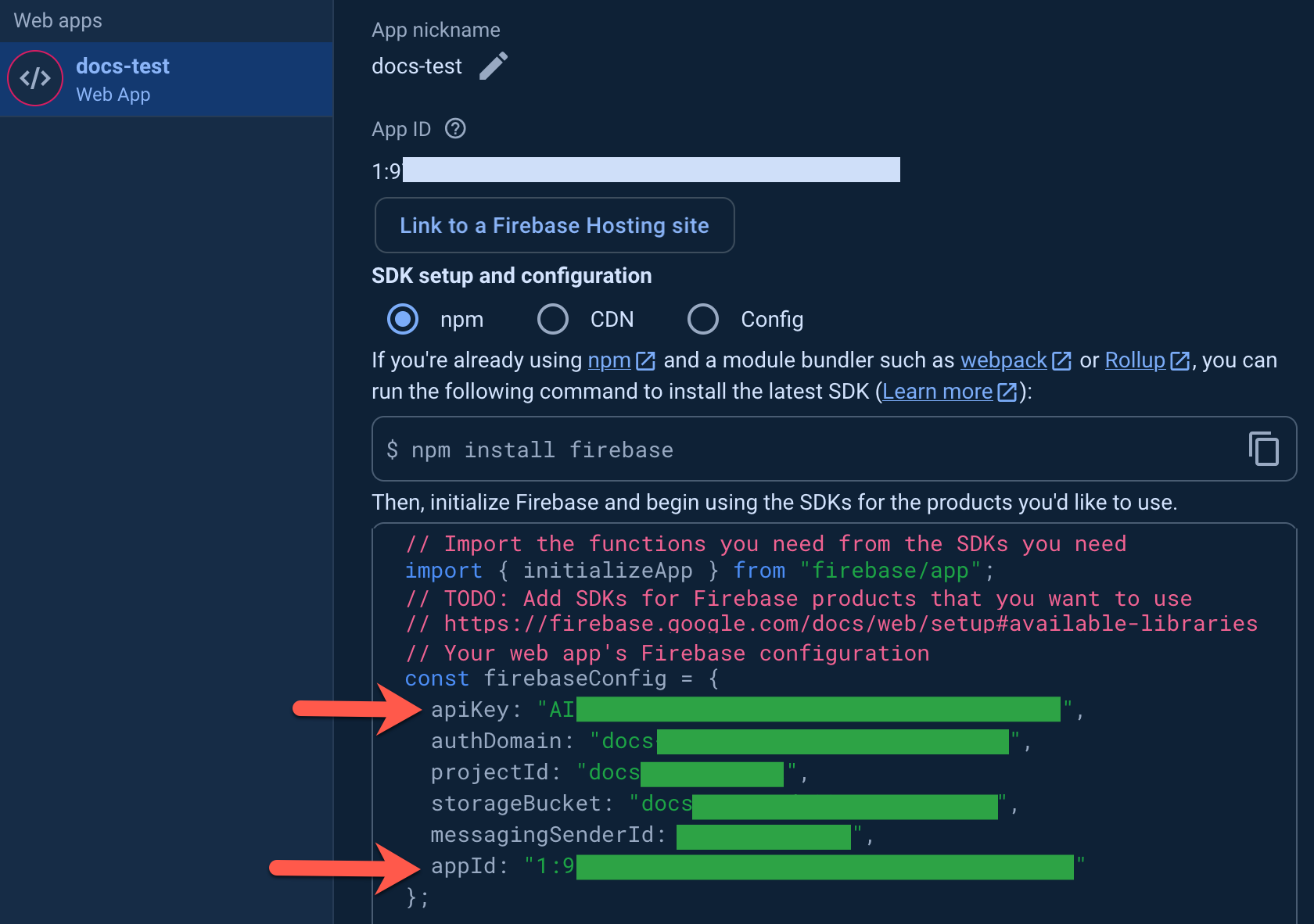
7. From the code snippet shown in **SDK set up and configuration**, copy the following values into a text editor:
- `apiKey`
- `appId`
The values to copy
5. Go to the **Cloud Messaging** tab.
1. Copy the value of **Sender ID** and save it in a text editor.
2. Go to the **Service accounts** tab.
1. Click **Generate new private key**.
3. Confirm with **Generate key** and wait a few seconds.
4. Save the key.
Depending on your browser and settings, the key may open in a window or be saved as a JSON file.
Save the entire contents (all properties).
10. Proceed to [Enabling Firebase in Synerise](/docs/settings/tool/firebase#enabling-firebase-in-synerise).
## Enabling Firebase in Synerise
---
1. [Collect integration parameters from Firebase](Collecting integration parameters from Firebase).
1. Go to **Settings > Apps & Services**.
2. In the list of integrations, next to **Firebase**, click **Show**.
**Result**: A list of existing Firebase connections opens.
3. Click **Add connection**.
4. Under **Connection with Firebase**, switch the toggle on.
5. In the **Connection name** field, enter the name of the connection.
It will be available only on the list of Firebase connections in Synerise.
4. Select the channel for which you are enabling integration:
2. Fill in the following fields, using the data you retrieved in [Collecting integration parameters from Firebase](#collecting-integration-parameters-from-firebase):
- **Sender ID**
This field is required.
- **Project ID**
This is required to send notifications. If you haven’t copied it earlier in the process, you can find it in your Firebase Console project settings on the **General** tab.
- **Private key**
Private key is required to create authentication tokens. In this field , you must paste **the entire JSON file** you downloaded when [Collecting integration parameters from Firebase](#collecting-integration-parameters-from-firebase).
1. Click **Apply**.
2. Fill in the following fields, using the data you retrieved in [Collecting integration parameters from Firebase](#collecting-integration-parameters-from-firebase):
- **Sender ID**
Filling out this field is required to implement web push mechanism into your website.
- **Project ID**
This is required to send notifications. If you haven’t copied it earlier in the process, you can find it in your Firebase Console project settings on the **General** tab.
- **App ID**
If you haven’t copied it earlier in the process, you can find it in your Firebase Console project settings on the **General** tab.
- **Web API key**
If you haven't copied it earlier in the process, you can find it in your Firebase Console project settings on the **General** tab.
- **Private key**
Private key is required to create authentication tokens. In this field , you must paste **the entire JSON file** you downloaded when [Collecting integration parameters from Firebase](#collecting-integration-parameters-from-firebase).
1. Click **Apply**.
## Enabling push encryption
- When you enable encryption, web push agreements of all Profiles are changed to `false`. You must collect new web push agreements.
- When push encryption is enabled, it becomes active both for web push and mobile push. You must enable [decryption is in your mobile application](/developers/mobile-sdk/configuring-push-notifications).
1. **Web push only**:
1. In Firebase Console, open the project settings.
5. Go to the **Cloud Messaging** tab.
3. Retrieve the encryption keys:
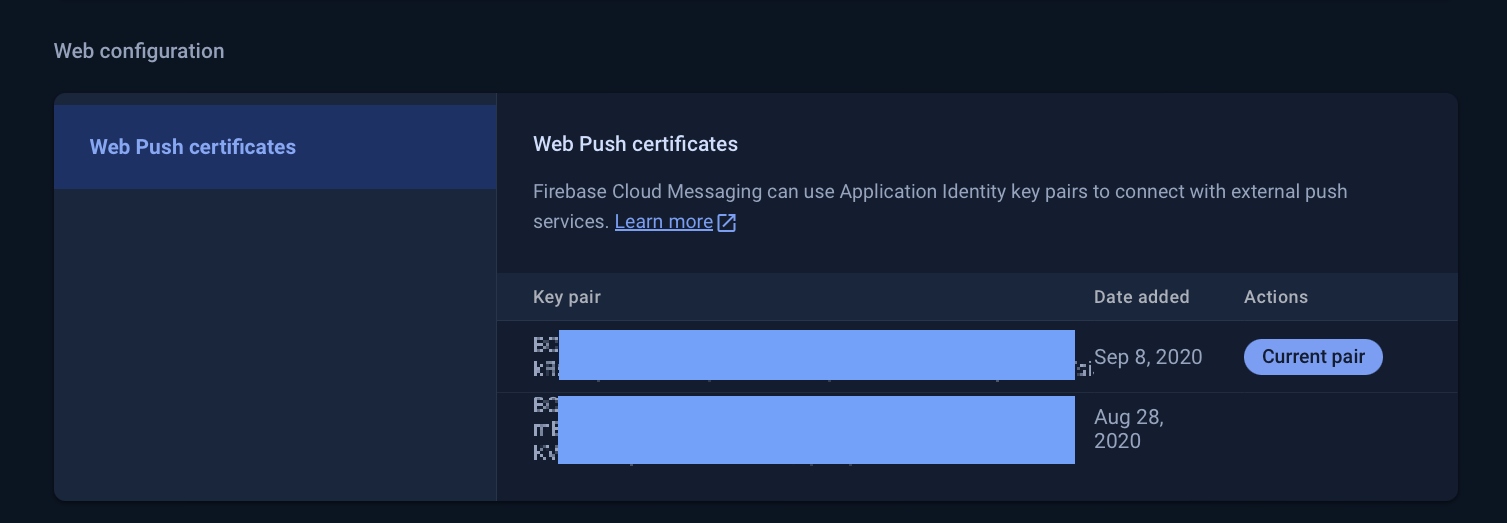
1. Scroll down to **Web configuration**.
4. In **Web Push certificates**, create or retrieve a key pair.
To access the private key, you may need the Owner role in the Firebase project.
Cloud Messaging section
5. Save the key pair in a text editor.
In Synerise, these keys are called **VAPID keys**.
1. In Synerise, go to **Settings > Apps & Services**.
2. In the list of integrations, next to **Firebase**, click **Show**.
**Result**: A list of existing Firebase connections opens.
3. On the connection you want to update, click ** > Edit**.
3. Perform the following actions:
The setting applies both to mobile and web push. You must [implement mobile push decryption](/developers/mobile-sdk/configuring-push-notifications)!
1. Switch on the **Push encryption** toggle.
2. **Web push only**: Fill in the following fields:
If you do not provide the keys, web push messages won't be sent at all.
1. **Public VAPID key**
If you haven’t copied it earlier in the process, you can find it in your Firebase account settings, on the **Cloud Messaging** tab, under **Web push certificates**. To access the private key, you may need the Owner role in the Firebase project.
2. **Private VAPID key**
If you haven’t copied it earlier in the process, you can find it in your Firebase account settings, on the **Cloud Messaging** tab, under **Web push certificates**. To access the private key, you may need the Owner role in the Firebase project.
4. Click **Apply**.
 **Settings > Apps & Services**.
2. In the list of integrations, next to **Firebase**, click **Show**.
**Result**: A list of existing Firebase connections opens.
3. Click **Add connection**.
4. Under **Connection with Firebase**, switch the toggle on.
5. In the **Connection name** field, enter the name of the connection.
It will be available only on the list of Firebase connections in Synerise.
4. Select the channel for which you are enabling integration:
**Settings > Apps & Services**.
2. In the list of integrations, next to **Firebase**, click **Show**.
**Result**: A list of existing Firebase connections opens.
3. Click **Add connection**.
4. Under **Connection with Firebase**, switch the toggle on.
5. In the **Connection name** field, enter the name of the connection.
It will be available only on the list of Firebase connections in Synerise.
4. Select the channel for which you are enabling integration:
 > Edit**.
3. Perform the following actions:
> Edit**.
3. Perform the following actions: