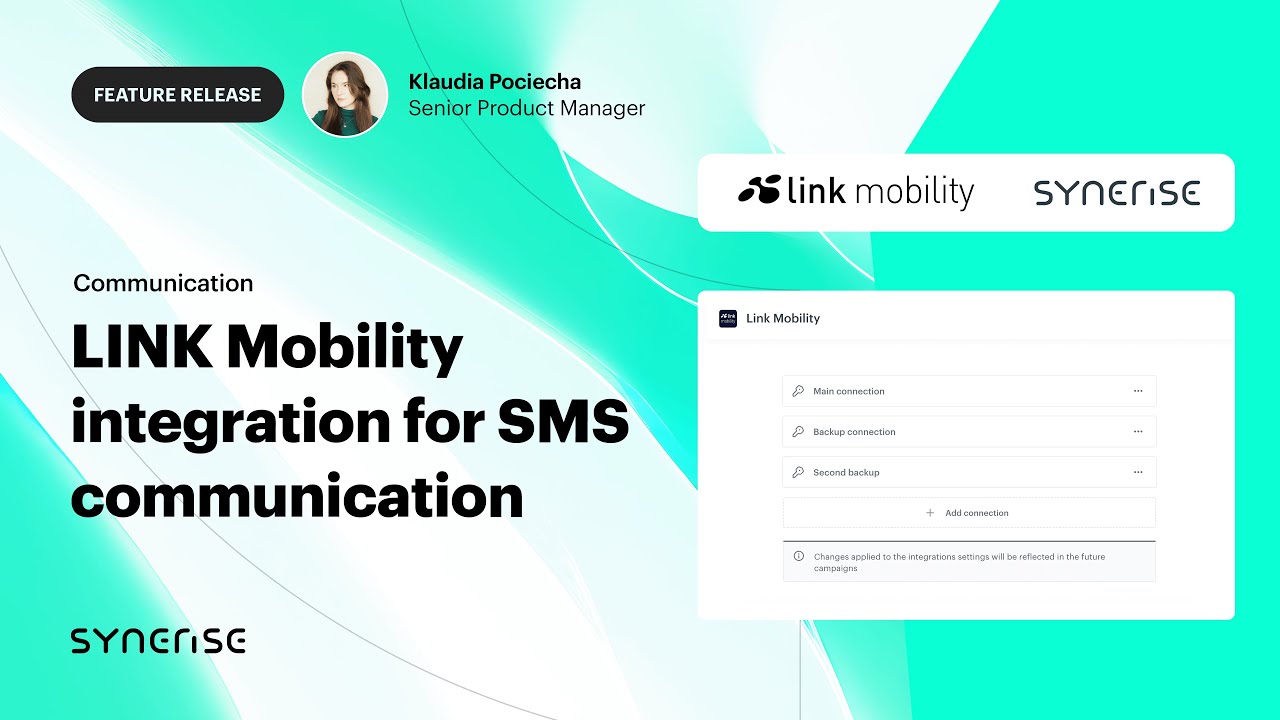
In this article, you will learn how to enable the LINK Mobility integration in Synerise so you can send SMS messages to your customers.
## Prerequisites
- Obtain the following API access data from LINK Mobility support:
- username
- password
- subdomain
- platform partner ID
- platform ID
- Make sure that the target audience for campaigns which will use LINK Mobility integration have phone numbers that start with the regional prefix (for example, `+1` for the USA).
- Become familiar with limits (if any) in your LINK Mobility plan and plan your messaging accordingly.
## Enabling the integration
1. Go to  **Settings > Apps & Services**.
2. In the list of integrations, find **Link Mobility** and next to the name, click **Show**.
- If there is a connection, you may proceed to [Creating Link Mobility SMS account in Synerise](#creating-link-mobility-sms-account-in-synerise)
- If there is no connection or you want a new one, proceed to the next step.
3. Click **Add connection**.
**Result:**: A pop-up appears.
4. On the pop-up, enable the **Enable integration** toggle.
5. Fill in the following fields with the parameters received from LINK Mobility support:
- **Username**
- **Password**
- **Subdomain**
- **Platform partner ID**
- **Platform ID**
6. Click **Next**.
7. In the **Connection name** field, enter the name of the connection which will be visible in the list of LINK Mobility integrations in Synerise in **Settings > Apps & Services**.
8. Click **Apply** and confirm by clicking **Yes**.
9. Proceed to [creating a sender account](#creating-link-mobility-sms-account-in-synerise).
## Creating Link Mobility SMS account in Synerise
After enabling the connection, you need to create a sender account in Synerise, which can be used in communication.
1. Go to **Settings > SMS > Add account**.
7. In the **Account name** field, enter the name of your SMS account. It's used only on the list of SMS accounts in Synerise.
8. In the **From name (SenderId)** field, enter the telephone number or alias (if supported by your plan) which will be shown to the recipients.
9. From the SMS provider list, select **Link Mobility**.
10. From the **Link Mobility integration** dropdown list, select the [connection you created earlier](#enabling-the-integration).
11. Finish by clicking **Apply**.
**Result**: You can now use this sender when configuring SMS communication.
**Settings > Apps & Services**.
2. In the list of integrations, find **Link Mobility** and next to the name, click **Show**.
- If there is a connection, you may proceed to [Creating Link Mobility SMS account in Synerise](#creating-link-mobility-sms-account-in-synerise)
- If there is no connection or you want a new one, proceed to the next step.
3. Click **Add connection**.
**Result:**: A pop-up appears.
4. On the pop-up, enable the **Enable integration** toggle.
5. Fill in the following fields with the parameters received from LINK Mobility support:
- **Username**
- **Password**
- **Subdomain**
- **Platform partner ID**
- **Platform ID**
6. Click **Next**.
7. In the **Connection name** field, enter the name of the connection which will be visible in the list of LINK Mobility integrations in Synerise in **Settings > Apps & Services**.
8. Click **Apply** and confirm by clicking **Yes**.
9. Proceed to [creating a sender account](#creating-link-mobility-sms-account-in-synerise).
## Creating Link Mobility SMS account in Synerise
After enabling the connection, you need to create a sender account in Synerise, which can be used in communication.
1. Go to **Settings > SMS > Add account**.
7. In the **Account name** field, enter the name of your SMS account. It's used only on the list of SMS accounts in Synerise.
8. In the **From name (SenderId)** field, enter the telephone number or alias (if supported by your plan) which will be shown to the recipients.
9. From the SMS provider list, select **Link Mobility**.
10. From the **Link Mobility integration** dropdown list, select the [connection you created earlier](#enabling-the-integration).
11. Finish by clicking **Apply**.
**Result**: You can now use this sender when configuring SMS communication.