In this article, you will find out how to enable Vonage integration in Synerise and how to create an SMS sender account in Synerise which will allow you to send text messages to your profiles (for example, customers).
## Prerequisites
---
- Create a [Vonage account](https://dashboard.nexmo.com/).
- Become familiar with the text message limits imposed by Vonage in the Vonage documentation. While planning SMS campaigns and sending SMS batches, take these limits into consideration.
## Enabling the integration
---
1. Go to **Settings > Apps & Services**.
2. In the list of integrations, find Vonage and next to the integration name, click **Show**.
- If there is a connection, you may proceed to [Creating Vonage SMS account in Synerise](#creating-vonage-sms-account-in-synerise)
- If there is no connection or you want a new one, proceed with the integration settings.
3. Click **Add connection**.
**Result**: A pop-up appears.
4. On the pop-up, switch the **Enable integration** toggle.
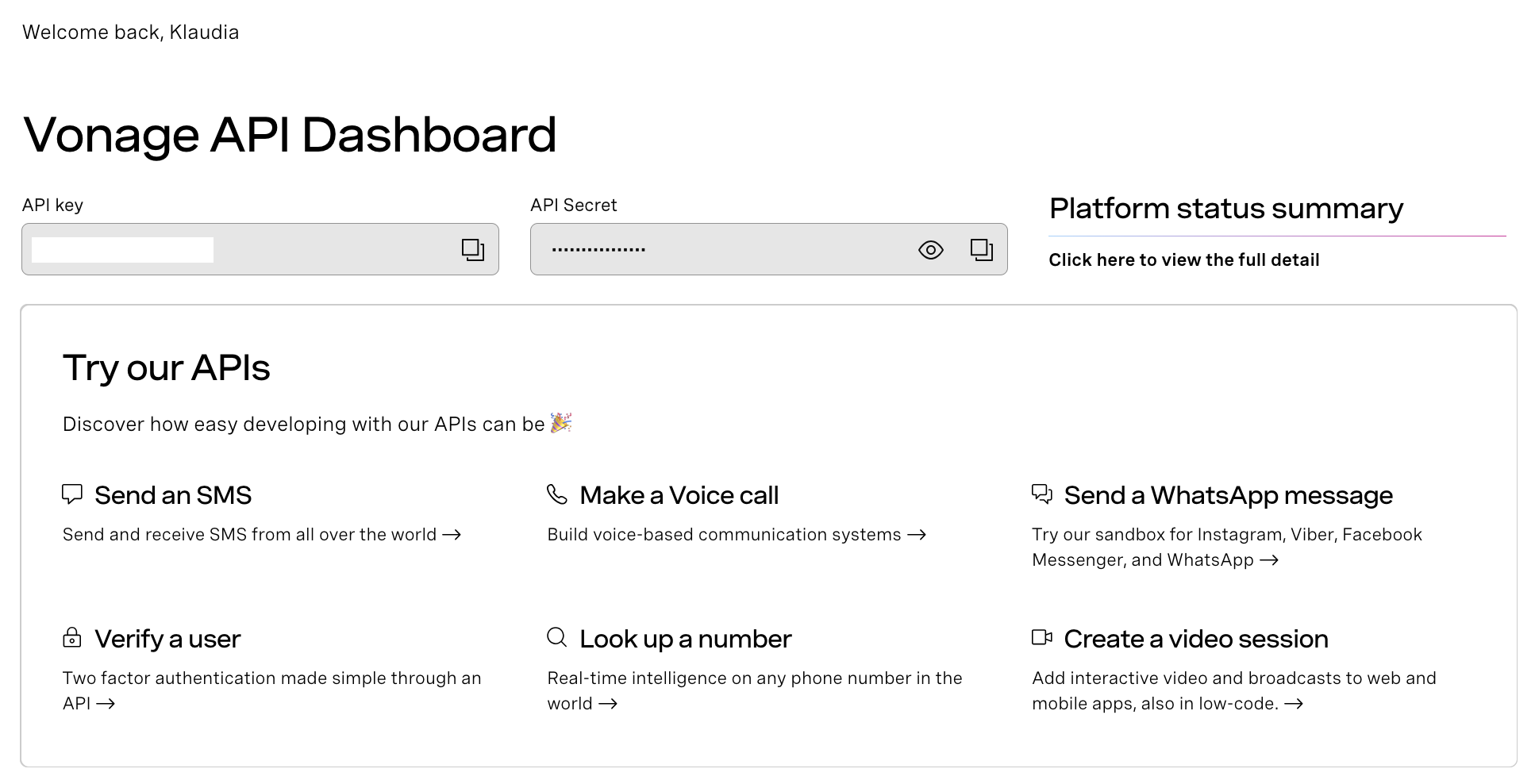
3. In the **API Key** field, enter the API Key available in **Vonage API Dashboard**.
Vonage API Dashboard
4. In the **API Secret** field, enter the API Secret available in **Vonage API Dashboard**.
4. Click **Next**.
5. In the **Connection name** field, enter the name of the connection which will be visible on the list of Vonage integrations in Synerise in **Settings > Apps & Services**.
6. Click **Apply** and confirm by clicking **Yes**.
7. Proceed to [creating a sender account](#creating-vonage-sms-account-in-synerise).
## Creating Vonage SMS account in Synerise
---
After enabling the connection, you need to create a sender account in Synerise, which can be used in communication.
6. Go to **Settings > SMS**.
7. In the **Account name** field, enter the name of your SMS account. It's used only on the list of SMS accounts in Synerise.
8. In the **From name (SenderId)** field, enter the name or number the message will be sent from, configured in the Vonage panel.
9. From the SMS provider list, select **Vonage**.
10. From the **Vonage integration** dropdown list, select the connection you created in [the previous part of the process](#enabling-the-integration).
10. Finish by clicking **Apply**.
**Result**: You can now use this sender when configuring SMS communication.
 **Settings > Apps & Services**.
2. In the list of integrations, find Vonage and next to the integration name, click **Show**.
- If there is a connection, you may proceed to [Creating Vonage SMS account in Synerise](#creating-vonage-sms-account-in-synerise)
- If there is no connection or you want a new one, proceed with the integration settings.
3. Click **Add connection**.
**Result**: A pop-up appears.
4. On the pop-up, switch the **Enable integration** toggle.
3. In the **API Key** field, enter the API Key available in **Vonage API Dashboard**.
**Settings > Apps & Services**.
2. In the list of integrations, find Vonage and next to the integration name, click **Show**.
- If there is a connection, you may proceed to [Creating Vonage SMS account in Synerise](#creating-vonage-sms-account-in-synerise)
- If there is no connection or you want a new one, proceed with the integration settings.
3. Click **Add connection**.
**Result**: A pop-up appears.
4. On the pop-up, switch the **Enable integration** toggle.
3. In the **API Key** field, enter the API Key available in **Vonage API Dashboard**.