The Synerise [AI Search](/docs/ai-hub/ai-search) and [AI recommendation](/docs/ai-hub/recommendations-v2) features are available from the Magento plugin version `3.3.2` and higher. We highly recommend to always update the plugin to the latest version. 

You can use the Synerise AI Search engine to enhance product listings on category pages and improve the quick search functionality throughout your Magento store. Additionally, Synerise AI Recommendations can be integrated into various blocks on your website to deliver personalized product suggestions and boost user engagement.

This allows you to:
- Personalize search results
- [Enable query suggestions](#query-suggestions) and [analyze their statistics](#monitoring-query-suggestions-performance)
- [Enable recommendations on a zero search stage](#zero-search-recommendations)
- [Enable recommendations for no result search](#no-results-view)
- [Insert Synerise AI recommendations in any place](#injecting-synerise-recommendations-into-blocks)
- Analyze [search statistics](#monitoring-synerise-ai-search-performance) based on [search events](/docs/assets/events/event-reference/search) and analyze [AI recommendations statistics](#monitoring-synerise-ai-recommendations-performance) based on [recommendation events](/docs/assets/events/event-reference/recommendations) which will be available in a profile's event history in Synerise


## Prerequisites
---
- [Integrate Synerise with Magento](/docs/settings/tool/magento/magento-integration-multistore-support).
- Make sure your [API key has the following permissions](/docs/settings/tool/magento/magento-integration-multistore-support#create-an-api-key):
    - ITEMS_SEARCH_CONFIG_SEARCH_CREATE,
    - ITEMS_SEARCH_CONFIG_SEARCH_UPDATE,
    - ITEMS_SEARCH_CONFIG_SEARCH_READ,
    - ITEMS_SEARCH_SEARCH_READ,
    - ITEMS_SEARCH_RECENT_SEARCH_CREATE,
    - ITEMS_SEARCH_RECENT_SEARCH_READ,
    - API_MATERIALIZER_V2_RECOMMEND_CAMPAIGNS_RECOMMENDATIONS_READ
- If you want to enable [query suggestions](/docs/ai-hub/ai-search/query-suggestions), [create an index of suggestions](/docs/ai-hub/ai-search/query-suggestions#configuration) in Synerise.
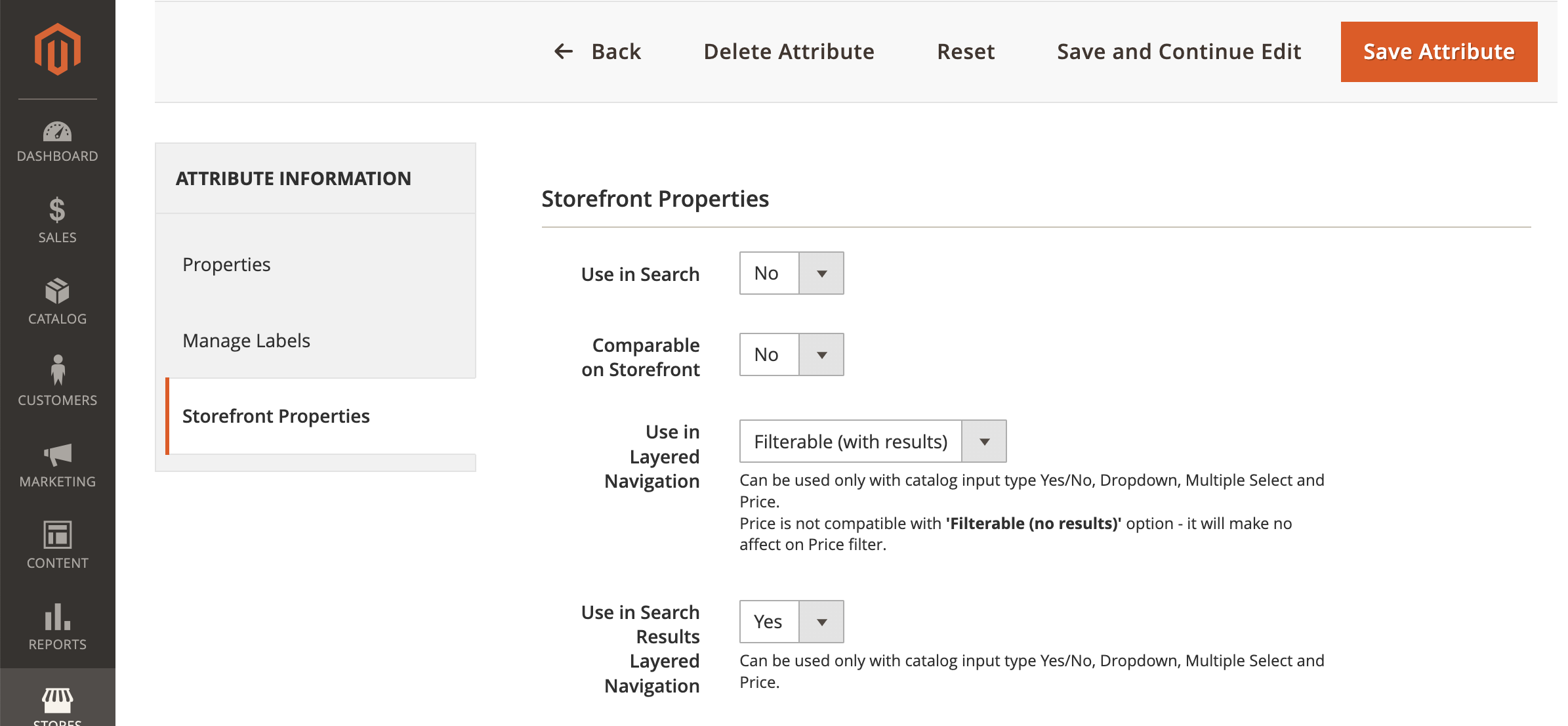
- In the Magento panel (**Stores > Attributes > Product**), review attributes which will be available for selection as searchable, filterable, and sortable attributes, and decide if you want to add some or remove them (after these actions always save the index configuration). You will always manage these attributes in Magento settings, and the plugin automatically transfers those settings to Synerise. During and after completing the integration, you should not change these settings in the Synerise search index used with your Magento shop.

    | Option name                                  | Value | Result                                                         |
    |----------------------------------------------|-------|----------------------------------------------------------------|
    | **Use in Search**                            | Yes   | An attribute is available on the list of searchable attributes |
    | **Use in Layered Navigation**                | Yes   | An attribute is available on the list of filterable (facetable) attributes |
    | **Use in Search Results Layered Navigation** | Yes   | An attribute is available on the list of filterable (facetable) attributes |
    | **Used for Sorting in Product Listing**      | Yes   | An attribute is available on the list of sortable attributes   |


    <figure><img src="/api/docs/image/54176ad07f146575310749eba44b7c2f42c1b327/docs/settings/tool/_gfx/magento-designate-attributes.png" class="large" alt="Assigning an attrtibute to be available on the list of searchable, filterable, and sortable attributes"><figcaption>Assigning an attribute to be available on the list of searchable, filterable, and sortable attributes</figcaption></figure>
    

## Procedure
---
The following steps must be performed in the given order: 

1. [Enable search item attribute synchronization](#enable-search-item-attribute-synchronization) (Magento)
2. [Check if the catalog with Magento data exists in Synerise](#check-if-the-catalog-with-magento-data-exists-in-synerise) (Synerise)
2. [Configure AI engine for the catalog](#configure-ai-engine-for-the-catalog) (Synerise)
3. [Prepare a search index](#prepare-search-index-in-magento) (Magento)
4. [Select attributes for the search index](#select-attributes-for-the-search-index) (Magento)
5. [Select the search engine](#select-search-engine) (Magento)

Optionally, you can:
- [Define the settings for autocomplete search and query suggestions](#define-the-settings-for-autocomplete-search)
- [Inject Synerise recommendations into blocks](#injecting-synerise-recommendations-into-blocks)
- Monitor performance of:
    - [AI Search](#monitoring-synerise-ai-search-performance)
    - [AI Recommendations](#monitoring-synerise-ai-recommendations-performance)
    - [Query suggestions](#monitoring-query-suggestions-performance)

### Enable search item attribute synchronization
---
In this part of the process, you will enable synchronization of item attributes used in search. These attributes will be available in Synerise in **Data Modeling Hub > Catalogs**, in a catalog named `store-{id}`, where `{id}` is the ID of the store.  

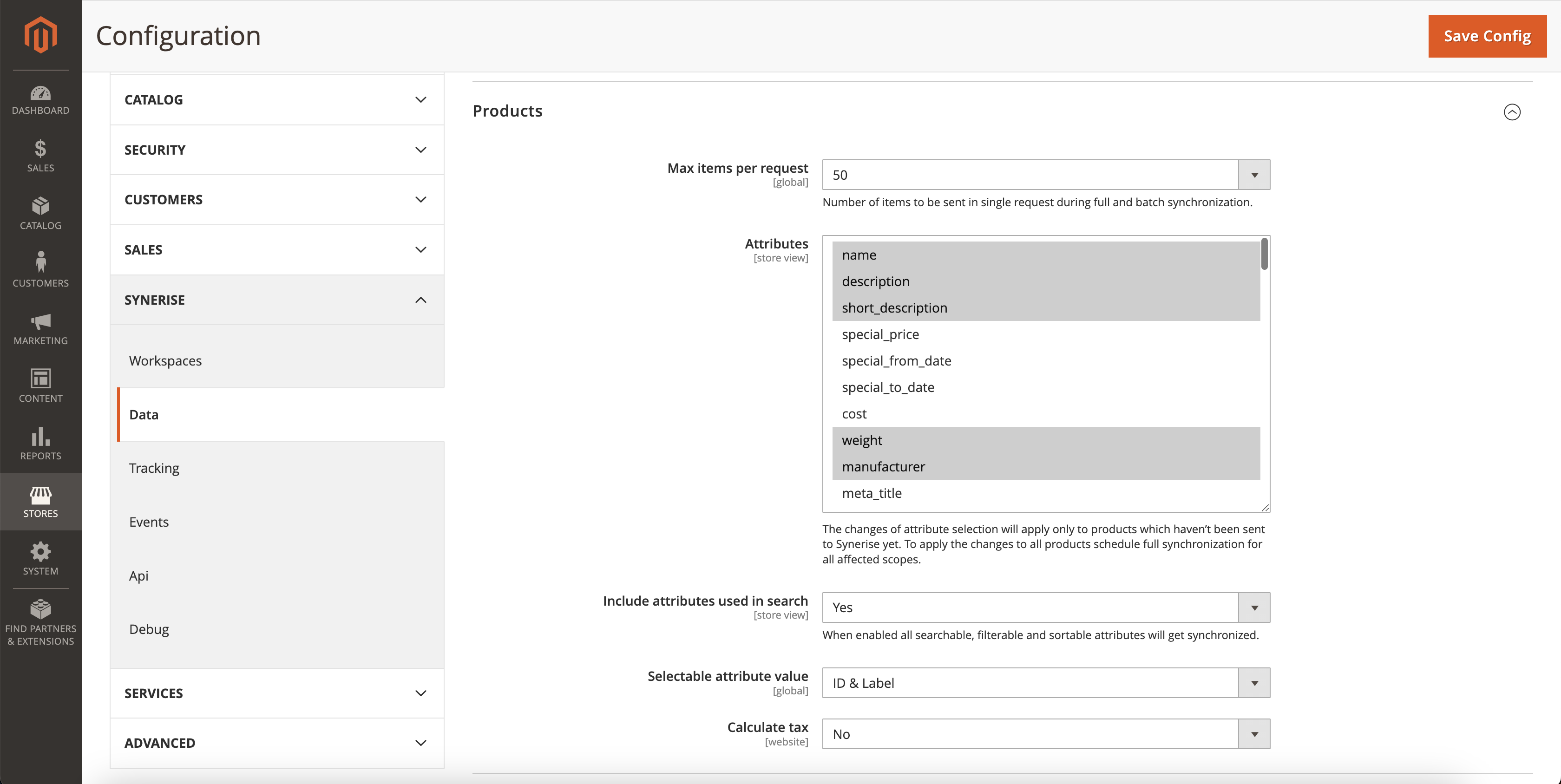
1. In the Magento platform, go to **Marketing > (Synerise) Configuration > Data**.
2. Scroll to the **Products** section.  
3. **Recommended**: Set the value of **Include attributes used in search** to **Yes**.  
    This way all attributes used for searching (attributes selected as searchable, filterable, sortable in the configuration in Magento as a part of [prerequisites](#prerequisites)) will be sent to Synerise catalog. We strongly recommend selecting this option when using Synerise AI Search. 
4. Set **Selectable attribute value** to **ID & Label**.  
    You can choose from two variants of this option:
    - **Label & ID (array)** - The attributes will be sent as an array.
    - **Label & ID (attributes)** - This setting allows you to send both the labels (for example, "red", "shoes", "XYZ brand") and IDs of the attribute options (`attribute_id`). Selecting this option lets search users search and sort results using the labels.  

    <figure><img src="/api/docs/image/54176ad07f146575310749eba44b7c2f42c1b327/docs/settings/tool/_gfx/enable-search-attributes-sync.png" class="large" alt="Configuration of the Products section in Magento"><figcaption>Configuration of the Products section in Magento</figcaption></figure>

5. To confirm the settings, click **Save Config**.  
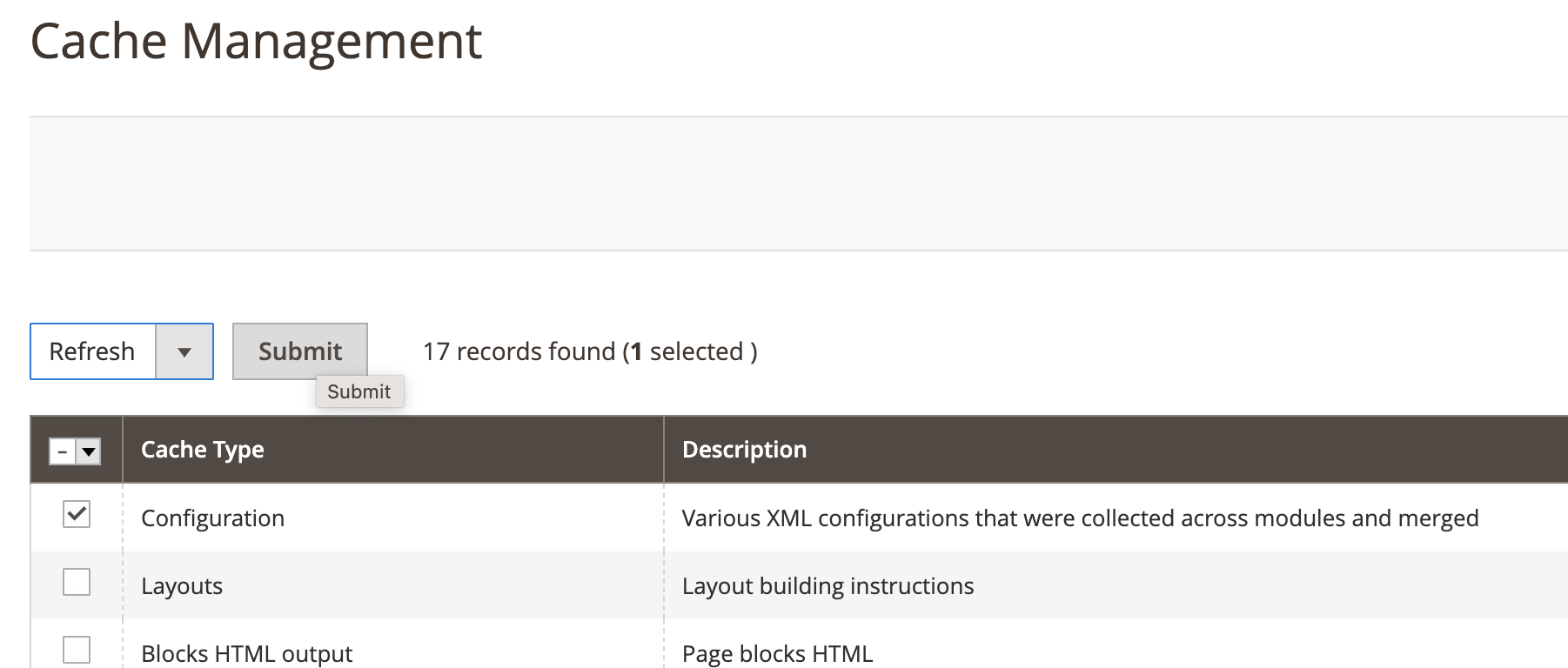
6. Clear configuration cache in **System > Cache Management** by performing the following steps:
    1. Select the checkbox next to **Configuration** cache type.
    2. Set the option above the table to **Refresh**.
    3. Confirm the action by clicking **Submit**.  
    <figure><img src="/api/docs/image/54176ad07f146575310749eba44b7c2f42c1b327/docs/settings/tool/_gfx/magento-clear-cache.png" class="large" alt="Cache management section in Magento"><figcaption>Cache management section in Magento</figcaption></figure>
7. [Schedule full synchronization of data](/docs/settings/tool/magento/synchronizing-data-between-synerise-and-magento#scheduling-full-synchronization) for the **Product** model to reflect the changes you made to the configuration. 


### Check if the catalog with Magento data exists in Synerise
---

The contents of the catalog will be synchronized with data from Magento. You can find it in **Data Modeling Hub > Catalogs** under the name in the following format: `store-{id}`, where `{id}` is the ID of the store. This catalog will be used in the next steps to [create an item feed and configure AI engine for it](#configure-ai-engine-for-the-catalog).  

1. In Synerise, go to <img src="/api/docs/image/54176ad07f146575310749eba44b7c2f42c1b327/icons/data-modeling-hub-icon.svg" alt="Data Modeling Hub icon" class="icon"> **Data Modeling Hub > Catalogs**.  
2. Check the list for the catalog named `store-{id}` (where `{id}` is the ID of the store).
3. If: 
    - you find it, check whether its structure is consistent with the changes you made in ["Enable search item attribute synchronization"](#enable-search-item-attribute-synchronization). If not, wait until the catalog is updated.
    - the catalog isn't created yet, wait until it appears on the list. The duration of creating a catalog depends on the data load.


### Configure AI engine for the catalog
---

In this part of the process, you will create an item feed in Synerise based on the [Synerise catalog](#check-if-the-catalog-with-magento-data-exists-in-synerise) and configure the AI engine for this feed (this lets you use AI Search and AI Recommendations). 

1. To check if the item feed exists and the AI engine is configured, in Synerise, go to **Settings > AI Engine Configuration**.  
    
   <div class="admonition admonition-important"><div class="admonition-icon"><svg xmlns="http://www.w3.org/2000/svg" fill="none" viewBox="0 0 24 24" stroke="currentColor" stroke-width="2.5"><path stroke-linecap="round" stroke-linejoin="round" d="M12 8v4m0 4h.01M21 12a9 9 0 11-18 0 9 9 0 0118 0z" /></svg></div><div class="admonition-body"><div class="admonition-content">

   Creating multiple feeds from the same catalogs is impossible.

   </div></div></div>

2. Find the item feed on the list (its name will be in the following format: `store-{id}`). If it doesn't exist, proceed to ["I need to create an item feedn and configure the AI engine" section](#i-need-to-create-an-item-feed-and-configure-the-ai-engine).  
3. Enter the details of the item feed.  
4. Proceed to ["The item feed is already created"](#the-item-feed-is-already-created).

#### The item feed is already created

If you already created a feed from the `store-{id}` catalog, make sure that:  
- the search engine is enabled for the existing feed in its configuration (see the **Applied search engines** section)
- recommendation models you want to use are enabled (only if you plan to use Synerise AI recommendations) 
    
  <div class="admonition admonition-tip"><div class="admonition-icon"><svg xmlns="http://www.w3.org/2000/svg" fill="none" viewBox="0 0 24 24" stroke="currentColor" stroke-width="2.5"><path stroke-linecap="round" stroke-linejoin="round" d="M9.663 17h4.673M12 3v1m6.364 1.636l-.707.707M21 12h-1M4 12H3m3.343-5.657l-.707-.707m2.828 9.9a5 5 0 117.072 0l-.548.547A3.374 3.374 0 0014 18.469V19a2 2 0 11-4 0v-.531c0-.895-.356-1.754-.988-2.386l-.548-.547z" /></svg></div><div class="admonition-body"><div class="admonition-content">

  You can find information about available recommendation models in [Recommendation types](/docs/ai-hub/recommendations-v2/recommendation-types). Recommendation types work based on the recommendation models with the same names as recommendation types.

  </div></div></div>


#### I need to create an item feed and configure the AI engine

1. Go to <img src="/api/docs/image/54176ad07f146575310749eba44b7c2f42c1b327/icons/settings-icon.svg" alt="Settings icon" class="icon"> **Settings > Configuration > AI Engine Configuration**.  
2. In the upper right corner, click **Add feed**.  
    **Result**: A pop-up appears.
3. On the pop-up, select **Catalog**.  
4. As the catalog type, select **Data catalog**.  
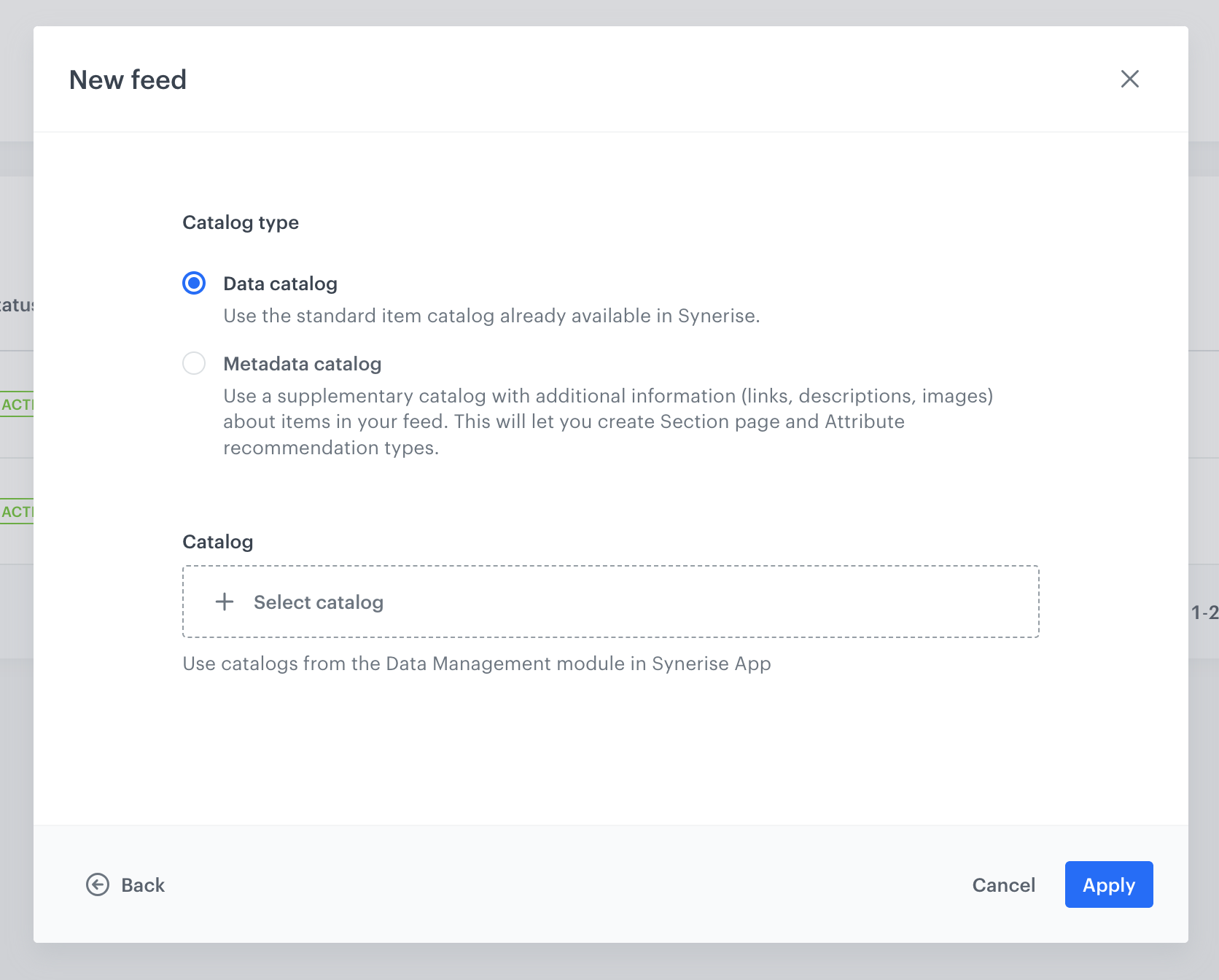
    <figure><img src="/api/docs/image/54176ad07f146575310749eba44b7c2f42c1b327/docs/settings/tool/_gfx/select-type-and-catalog.png" class="large" alt="Selecting a catalog and its type"><figcaption>Selecting a catalog and its type</figcaption></figure>

5. From the list of catalogs, select the catalog that receives synchronized data from Magento.  
    The catalog's name is `store-{id}`, where `{id}` is the ID of the store. If the catalog isn't in the list, make sure that it's not already used in another feed.
6. Confirm by clicking **Apply**.  
    **Result**: The feed is created and added to the list.
6. On the list, find the feed you have just created and click the <img src="/api/docs/image/54176ad07f146575310749eba44b7c2f42c1b327/icons/vtex-threedot-icon.png" alt="Three dot icon" class="icon"> icon and then **Edit**.
7. On the **Applied search engines** section, click **Show**. 
8. Enable the **Search engines** toggle.  
    **Result**:  
    <figure><img src="/api/docs/image/54176ad07f146575310749eba44b7c2f42c1b327/docs/settings/tool/_gfx/enable-synerise-search.png" class="large" alt="Enabling Synerise search"><figcaption>Enabling Synerise search</figcaption></figure>
9. If you want to inject Synerise recommendations in your store:
    1. Enable [the recommendation types you want to use](/docs/settings/configuration/ai-engine-configuration/engine-configuration-for-recommendations#selecting-recommendation-types-and-default-filters).   
    2. Wait for the recommendation model to finish training before creating recommendations. Instructions how to check the training status is available in [Model status](/docs/settings/configuration/ai-engine-configuration/model-status).  
    3. [Create recommendations](/docs/ai-hub/recommendations-v2/creating-recommendation-campaign) and save their IDs, which you will need later. 
10. Confirm the changes by clicking **Apply**.  

### Prepare search index in Magento
---
In this part of the process, you will create and/or select a Synerise search index for a store view. If you don't have any indexes, creating one in the Magento plugin settings will also create it in Synerise, as described below.   

1. Go to **Marketing > (Synerise) Search Indexes**.  
2. Click **Assign Search Index**.  
3. Select the store view for which the search will be applied.  
4. To:
    - assign an existing index to the store view:
        1. Set **Create** to **No**.  
        2. From **Select**, choose the index. The list contains the indexes from the Synerise platform (<img src="/api/docs/image/54176ad07f146575310749eba44b7c2f42c1b327/icons/ai-hub-icon.svg" alt="AI Hub icon" class="icon" > **AI Hub > Indexes**)
            <figure><img src="/api/docs/image/54176ad07f146575310749eba44b7c2f42c1b327/docs/settings/tool/_gfx/magento-select-index.png" class="large" alt="Selecting a search index"><figcaption>Selecting a search index</figcaption></figure>
    - create a new index:  
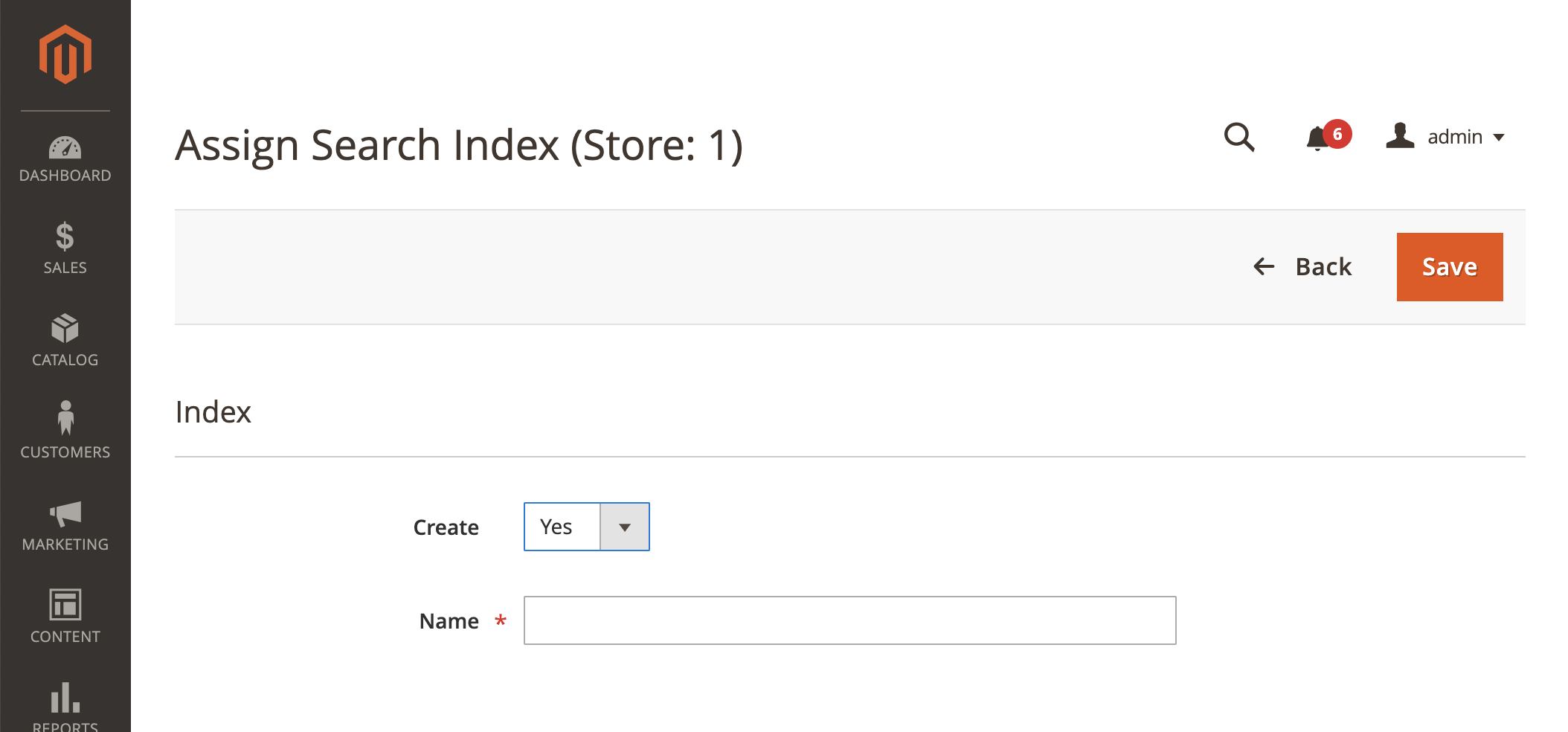
        1. Set **Create** to **Yes**.  
        2. In **Name**, enter the name of the index.  
            <figure><img src="/api/docs/image/54176ad07f146575310749eba44b7c2f42c1b327/docs/settings/tool/_gfx/magento-create-index.png" class="large" alt="Creating a search index"><figcaption>Creating a search index</figcaption></figure>  

            **Result**: The index will also be available in the Synerise platform in <img src="/api/docs/image/54176ad07f146575310749eba44b7c2f42c1b327/icons/ai-hub-icon.svg" alt="AI Hub icon" class="icon" > **AI Hub > Indexes**.  


### Select attributes for the search index
---
In this part of the process, you will select searchable, filterable (facetable), and sortable attributes that will be available for use in search. This is the primary location for managing filterable, searchable, facetable, and sortable attributes. The scope of attributes available for selection is determined by the setup you defined as a part of the [prerequisites](#prerequisites). 

1. Go to **Marketing > (Synerise) Search Indexes**.
2. Find the search index for which you want to select attributes.  
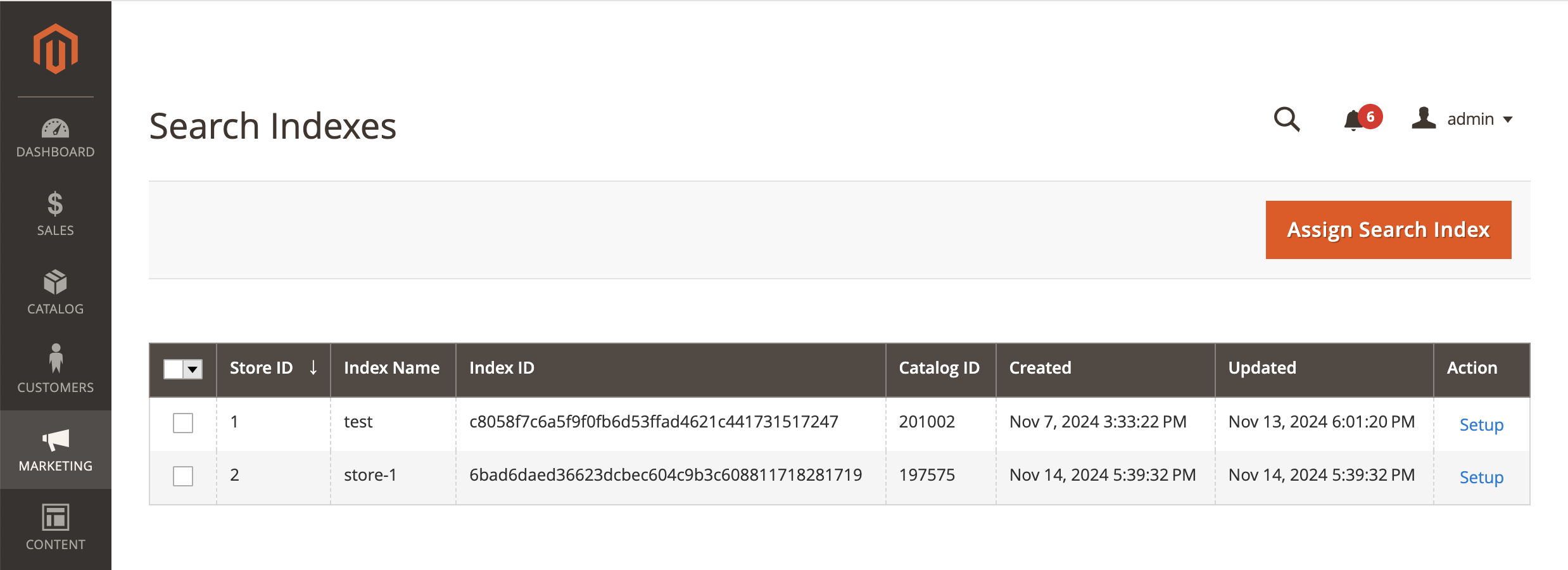
    <figure><img src="/api/docs/image/54176ad07f146575310749eba44b7c2f42c1b327/docs/settings/tool/_gfx/magento-list-search-indexes.png" class="large" alt="List of search indexes in Magento"><figcaption>List of search indexes in Magento</figcaption></figure>
3. For that index, from the **Action** column, click **Setup**.
4. Select searchable, filterable (facetable), and sortable attributes.  
    <figure><img src="/api/docs/image/54176ad07f146575310749eba44b7c2f42c1b327/docs/settings/tool/_gfx/magento-search-index-attributes.png" class="large" alt="List of attributes in Magento"><figcaption>List of attributes in Magento</figcaption></figure>


### Select search engine
---
In this part of the process, you will select the Synerise search engine in the configuration of the Magento platform.  

1. In Magento, go to **Stores > Configuration > Catalog > Catalog Search**.  
2. In **Search Engine**, select **Synerise AI Search**.  
3. Optionally, set **Disable "Catalog Search" index** to **Yes**.  
    Such configuration removes unused search engine indexes from the reindex list.   
    <figure><img src="/api/docs/image/54176ad07f146575310749eba44b7c2f42c1b327/docs/settings/tool/_gfx/select-search-engine.png" class="large" alt="Selecting search engine"><figcaption>Selecting search engine</figcaption></figure>

### Define the settings for autocomplete search

Autocomplete search suggests possible queries or products while users type, helping them find what they’re looking for faster. By predicting and displaying options in real-time, it streamlines the search process and improves user experience.

1. In the Magento administrator panel, go to **Stores > Configuration**.  
2. Select the scope, for example **Default Store View**.  
3. On the left panel, select **Catalog > Catalog**.  
4. In the **Catalog Search** section, to define the length of the query after which search results show, in **Minimal Query Length** enter the number of characters of the query which triggers a search response.  
    <figure><img src="/api/docs/image/54176ad07f146575310749eba44b7c2f42c1b327/docs/settings/tool/_gfx/magento-catalog-search.png" class="large" alt="The configuration of the Catalog Search section in the Magento admin panel"><figcaption>The configuration of the Catalog Search section in the Magento admin panel</figcaption></figure>
5. Click **Save Config**.  
  
#### Query suggestions

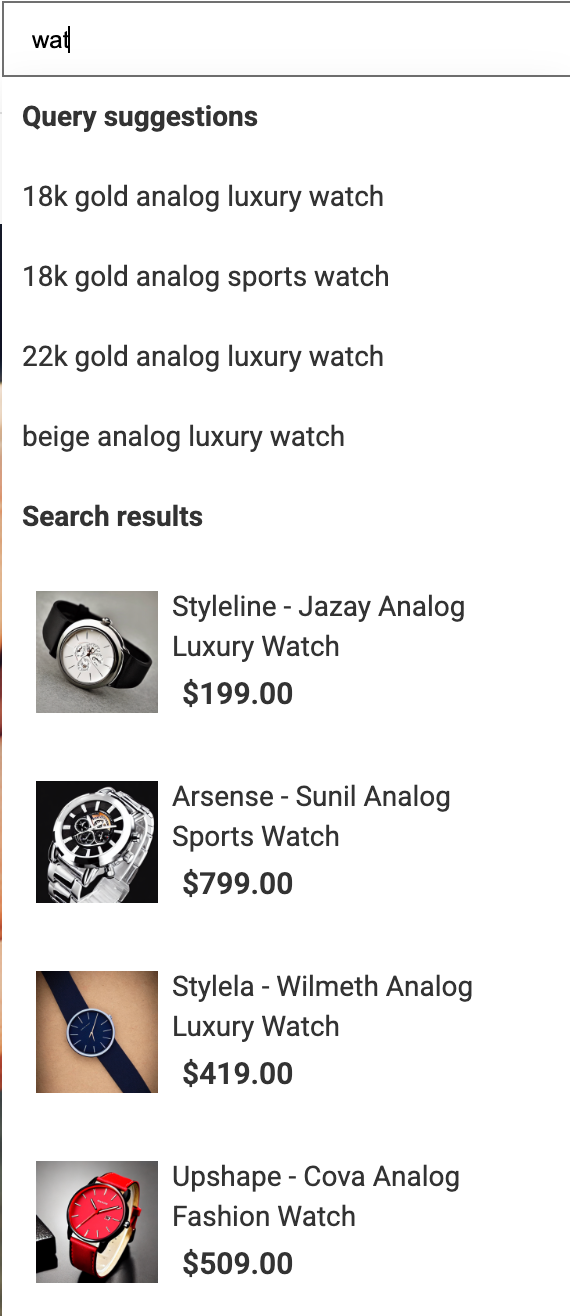
Suggestions are recommended options or predictions that appear while a user types a search query in the form of text strings. Displaying suggestions enhances the search experience by helping users find what they need faster. Enabling query suggestions will cause generation of the following events in the Synerise platform on the profile card of a user who uses search:
- [`suggestion.search` event](/docs/assets/events/event-reference/search#suggestionsearch)
- [`suggestion.search.click` event](/docs/assets/events/event-reference/search#suggestionsearchclick) 

Before enabling this feature in Magento, you must [create an index of suggestions](/docs/ai-hub/ai-search/query-suggestions#configuration) in Synerise. After creating the index, it will be available for selection in the Magento panel.  


1. In the Magento administrator panel, go to **Marketing > Synerise > Configuration**.  
2. Select the scope, for example **Default Store View**.  
3. On the left panel, select **Synerise > AI Search**.  
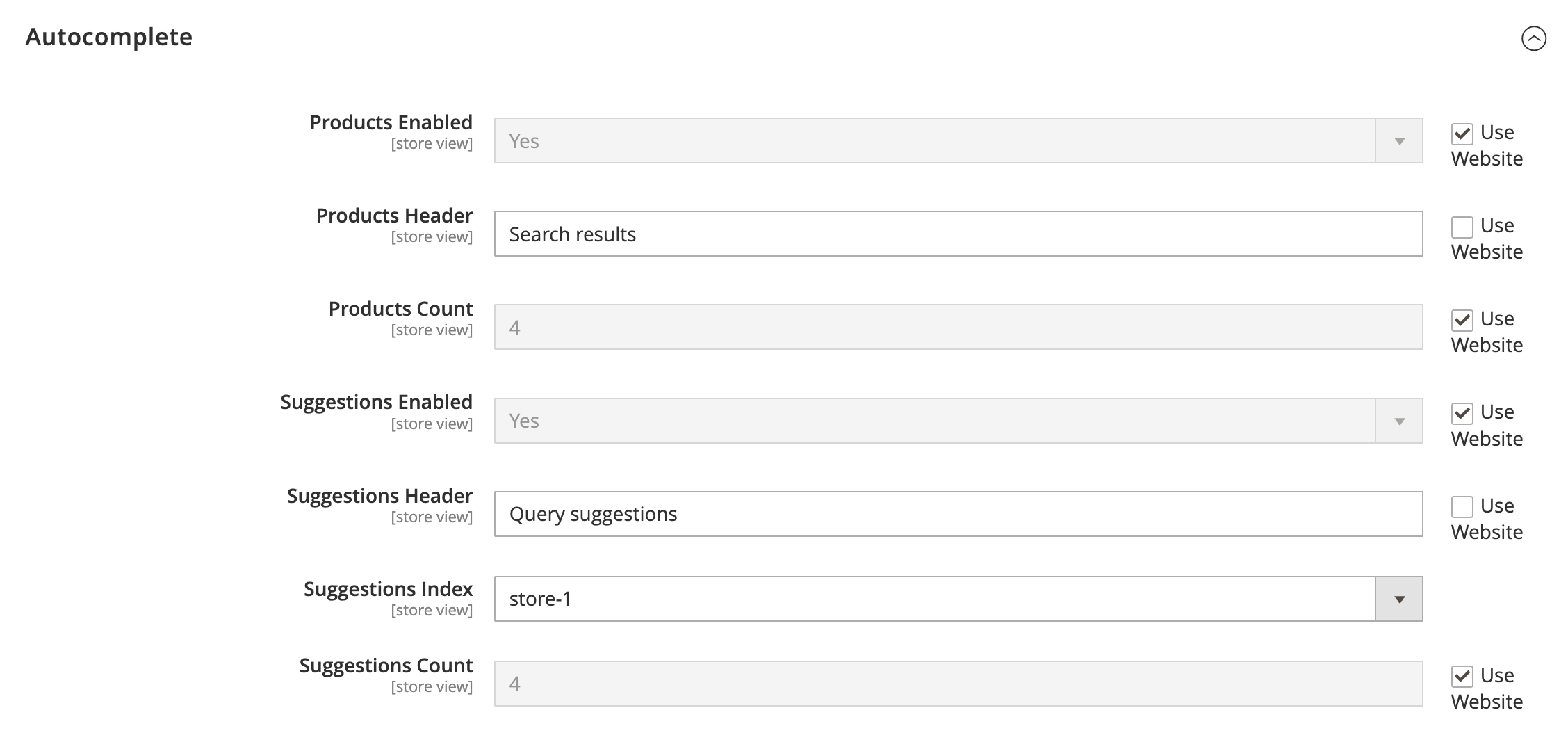
4. In the **Autocomplete** section:  
    1. To enable query suggestions, set **Suggestion Enabled** to **Yes**.  
    2. To define the header of query suggestions in search results dropdown, in **Suggestions Header**, enter a value.
    3. Select the query suggestion index from **Suggestions index**
    4. To define the number of returned suggestion, in **Suggestions Count**, enter the number.  
    <figure><img src="/api/docs/image/54176ad07f146575310749eba44b7c2f42c1b327/docs/settings/tool/_gfx/magento-query-suggestions.png" class="large" alt="The configuration of query suggestions in the Magento admin panel"><figcaption>The configuration of query suggestions in the Magento admin panel</figcaption></figure>
5. In the upper-left corner, click **Save Config**.  
    **Result**:
    <figure><img src="/api/docs/image/54176ad07f146575310749eba44b7c2f42c1b327/docs/settings/tool/_gfx/magento-search-qs.png" class="small" alt="Query suggestions show with search results as a search query is being typed"><figcaption>Query suggestions show with search results as a search query is being typed</figcaption></figure> 


#### Zero search recommendations

Zero search is the stage in the search journey when a user activates the search box but hasn’t typed a query yet. You can use this moment to promote products and enhance the search experience by:

- displaying product recommendations
- showing the user’s recent searches
- displaying top searches (most popular search queries)

To use product recommendations, you must first [run a recommendation campaign](/docs/ai-hub/recommendations-v2/creating-recommendation-campaign) in Synerise.

1. In the Magento administrator panel, go to **Marketing > Synerise > Configuration**.  
2. Select the scope, for example **Default Store View**.  
3. On the left panel, select **Synerise > AI Search**.  
4. In the **Autocomplete zero-state** section: 
    1. To enable recommendations and/or top searches, and/or recent searches when a user clicks the search box but before they type a query, set **Zero-state enabled** to **Yes**. 
    2. To enable top searches, set **Top searches enabled** to **Yes**.
    3. To enable display of recently searched phrases, set **Recent searches enabled**, to **Yes**.  
    3. To define the recommendation whose results will be displayed in the recommended products section in search box, in **Campaign Id**, enter the ID of the Synerise AI recommendation.  
        To get the ID of the Synerise AI Recommendation, in Synerise, go to **AI Hub > (AI Recommendations) Models**. On the list, find the recommendation you want to use, click <img src="/api/docs/image/54176ad07f146575310749eba44b7c2f42c1b327/icons/threedoticon.png" alt="Three dot icon" class="icon" > **> Copy ID**.  
    4. To define the header of the section with recommended products, in **Campaign title**, enter the header.  
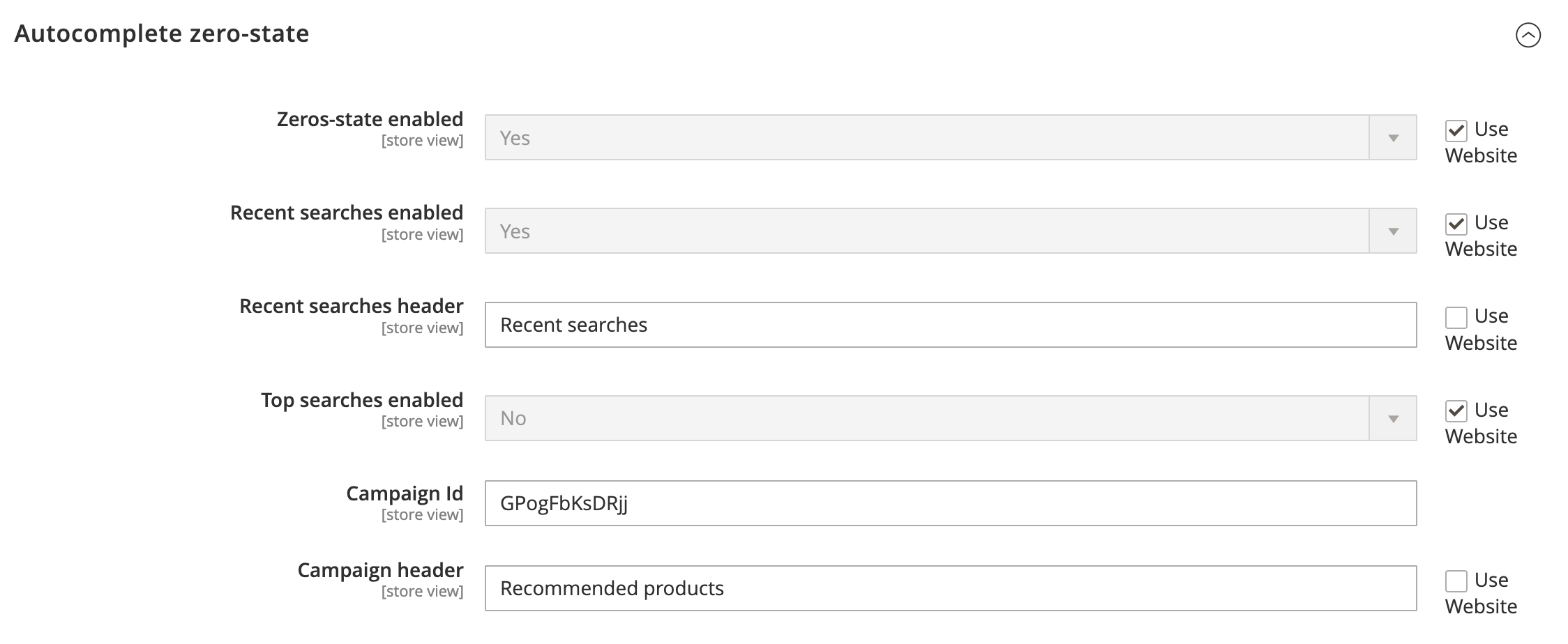
        <figure><img src="/api/docs/image/54176ad07f146575310749eba44b7c2f42c1b327/docs/settings/tool/_gfx/magento-autocomplete-zero-state.png" class="large" alt="Example zero search stage configuration"><figcaption>Example zero search stage configuration</figcaption></figure> 
5. In the upper-left corner, click **Save Config**.  
    **Result**: 
    <figure><img src="/api/docs/image/54176ad07f146575310749eba44b7c2f42c1b327/docs/settings/tool/_gfx/magento-zero-search.png" class="small" alt="A zero search stage with product recommendations and recent searches"><figcaption>A zero search stage with product recommendations and recent searches</figcaption></figure> 


#### No results view

In the search journey, the no results view appears when a query returns no matches. Instead of showing an empty list, users can enable product recommendations, display top searches, and recently searched queries to keep visitors engaged and guide them to relevant content.  

1. In the Magento administrator panel, go to **Marketing > Synerise > Configuration**.  
2. Select the scope, for example **Default Store View**.  
3. On the left panel, select **Synerise > AI Search**.  
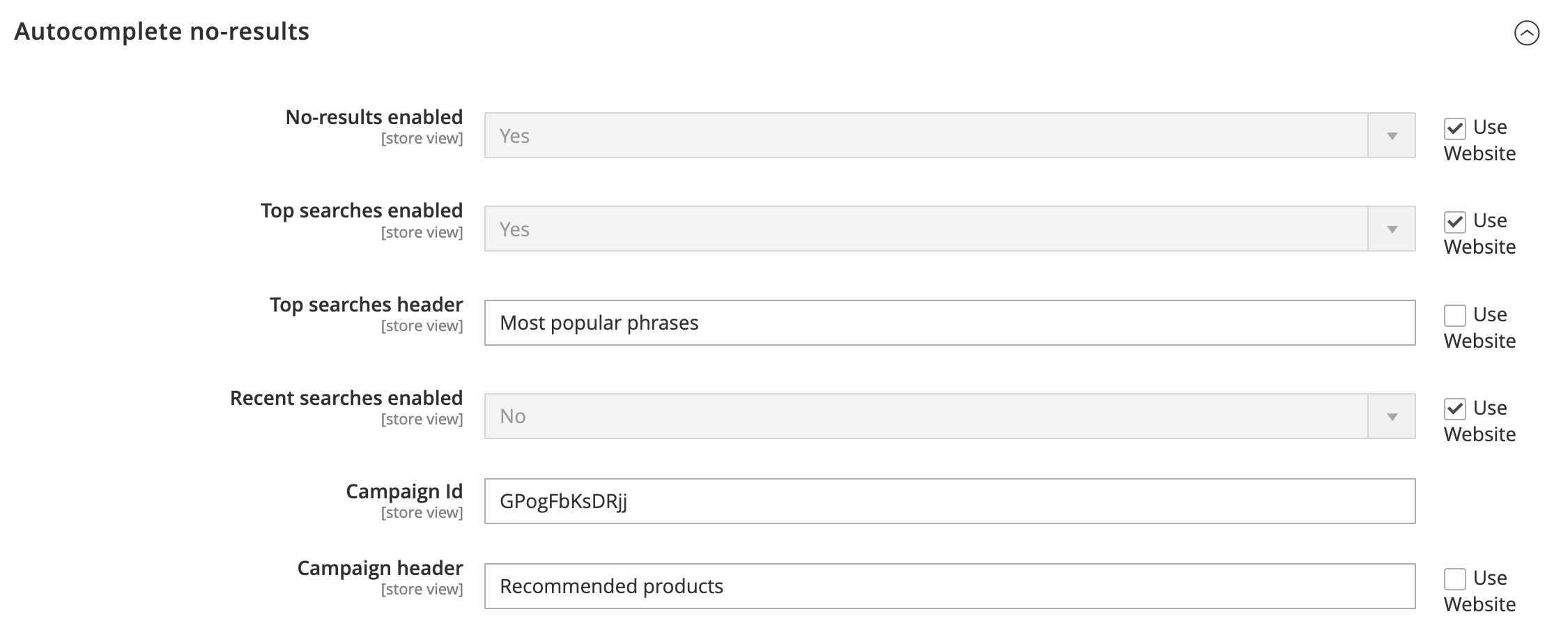
4. In the **Autocomplete no-results** section:  
    1. To enable recommendations and/or top searches, and/or recent searches when a users query produces no results, set **No-results enabled** to **Yes**. 
    2. To enable top searches, set **Top searches enabled** to **Yes**. 
    3. To enable display of recently searched phrases, set **Recent searches enabled**, to **Yes**.    
    3. To define the recommendation whose results will be displayed in the recommended products section in search box, in **Campaign Id**, enter the ID of the Synerise AI recommendation.  
        To get the ID of the Synerise AI Recommendation, in Synerise, go to **AI Hub > (AI Recommendations) Models**. On the list, find the recommendation you want to use, click <img src="/api/docs/image/54176ad07f146575310749eba44b7c2f42c1b327/icons/threedoticon.png" alt="Three dot icon" class="icon" > **> Copy ID**.  
    4. To define the header of the section with recommended products, in **Campaign title**, enter the header.  
        <figure><img src="/api/docs/image/54176ad07f146575310749eba44b7c2f42c1b327/docs/settings/tool/_gfx/magento-autocomplete-no-results.png" class="large" alt="Example no results search stage configuration"><figcaption>Example no results search stage configuration</figcaption></figure> 
5. In the upper-left corner, click **Save Config**.  
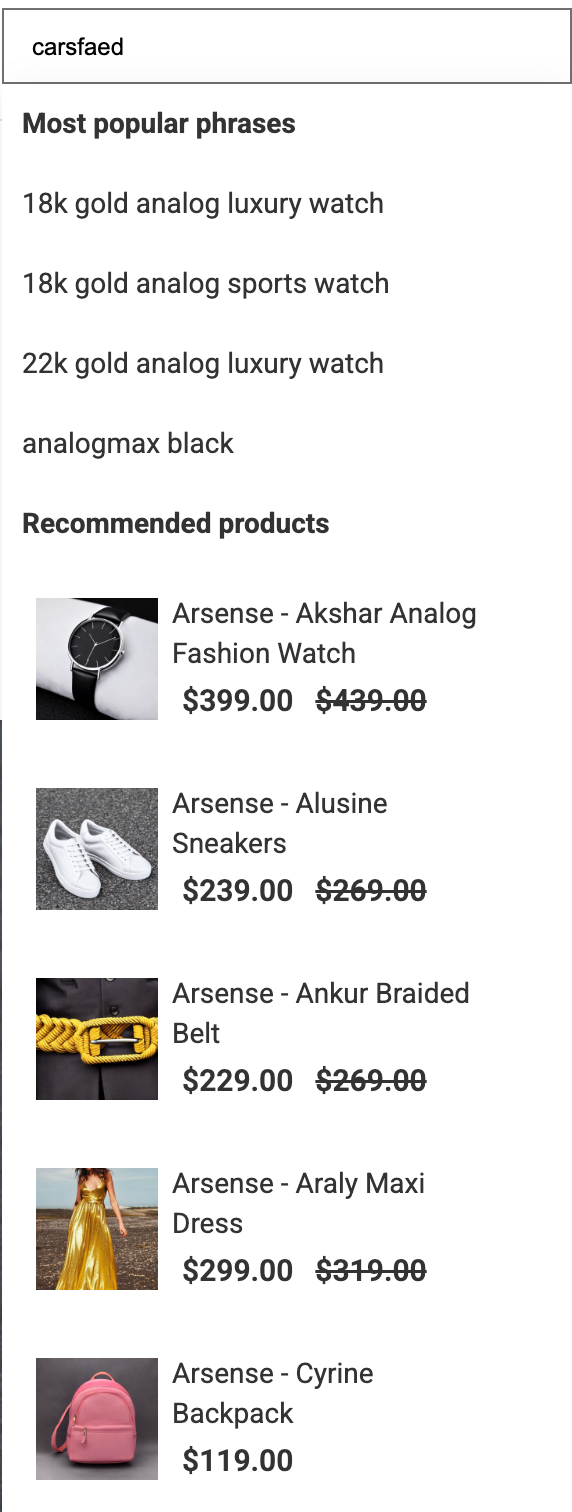
    **Result**: 
    <figure><img src="/api/docs/image/54176ad07f146575310749eba44b7c2f42c1b327/docs/settings/tool/_gfx/magento-search-no-results.png" class="small" alt="A zero search stage with product recommendations and recent searches"><figcaption>A no results search with product recommendations and top searches</figcaption></figure> 

If you want to display AI recommendations on the no results page, you can [inject Synerise recommendations into blocks](#injecting-synerise-recommendations-into-blocks) which you can use on the no results page.

### Injecting Synerise recommendations into blocks

You can display Synerise AI recommendations at any place in your store. In this part of the process, you will create a block in the Magento admin panel which contains a Synerise product recommendation widget type. Then, you will insert this block in an existing page configuration. 

1. In the Magento admin panel, go to **Content > Blocks > Add New Block**.  
    **Result**:  
    <figure><img src="/api/docs/image/54176ad07f146575310749eba44b7c2f42c1b327/docs/settings/tool/_gfx/magento-new-block.png" class="large" alt="Form for creating a block"><figcaption>Form for creating a block</figcaption></figure>
2. Fill out the following fields: **Block Title** and **Identifier**.
3. Select the store view for which the block will be available.  
4. In the bottom-right corner, click **Edit with Page Builder**.  
    **Result**:  
    <figure><img src="/api/docs/image/54176ad07f146575310749eba44b7c2f42c1b327/docs/settings/tool/_gfx/magento-block-editor.png" class="large" alt="Editor"><figcaption>Editor</figcaption></figure>  
    
5. On the left panel, expand **Elements** and select **HTML Code**.
6. Hover the cursor over the HTML code widget you added.  
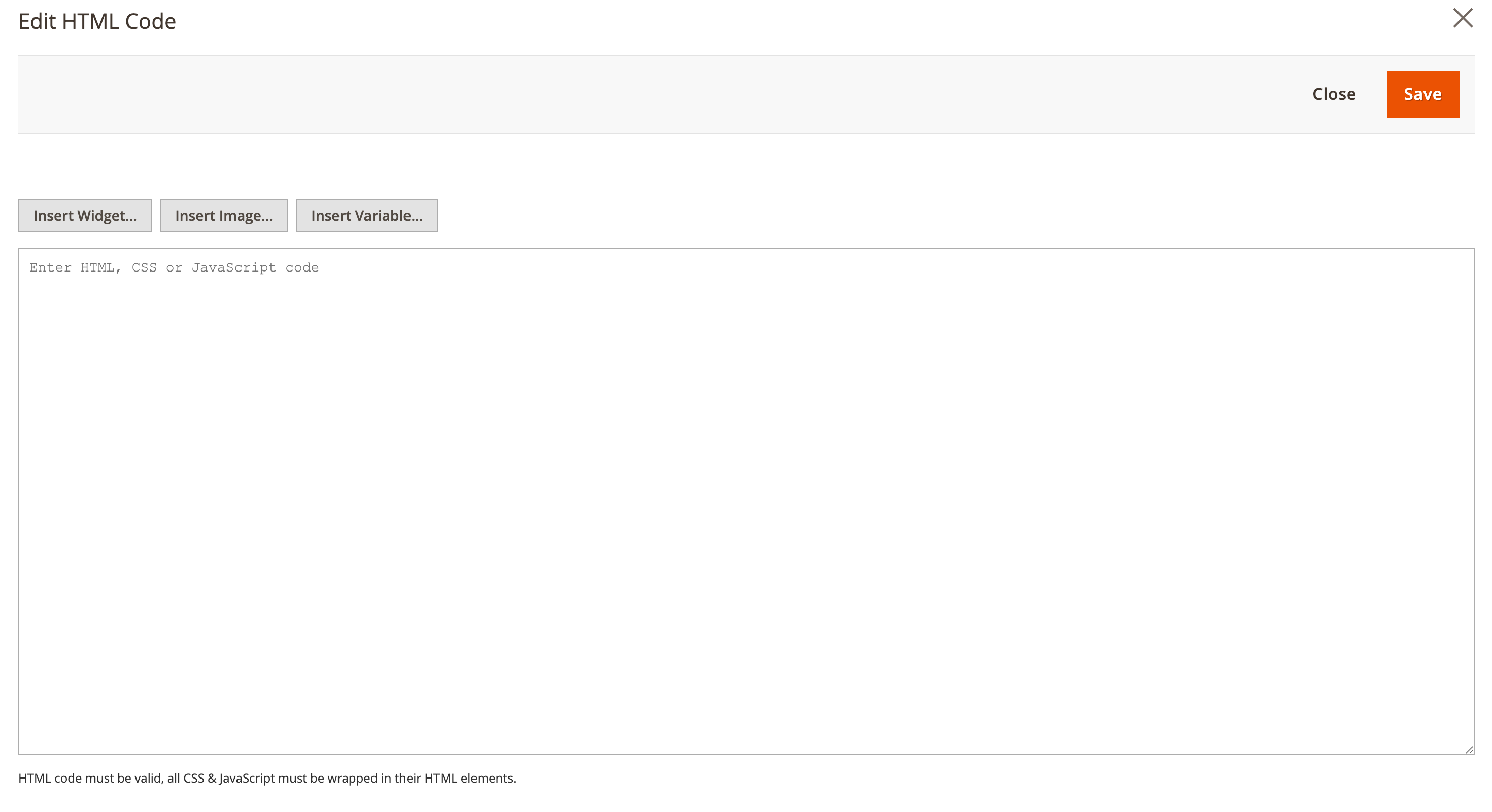
7. Click **HTML Code**.  
    **Result**:  
    <figure><img src="/api/docs/image/54176ad07f146575310749eba44b7c2f42c1b327/docs/settings/tool/_gfx/magento-edit-html-code.png" class="large" alt="diting the HTML code widget"><figcaption>Editing the HTML code widget</figcaption></figure>  

8. Click **Insert Widget**.
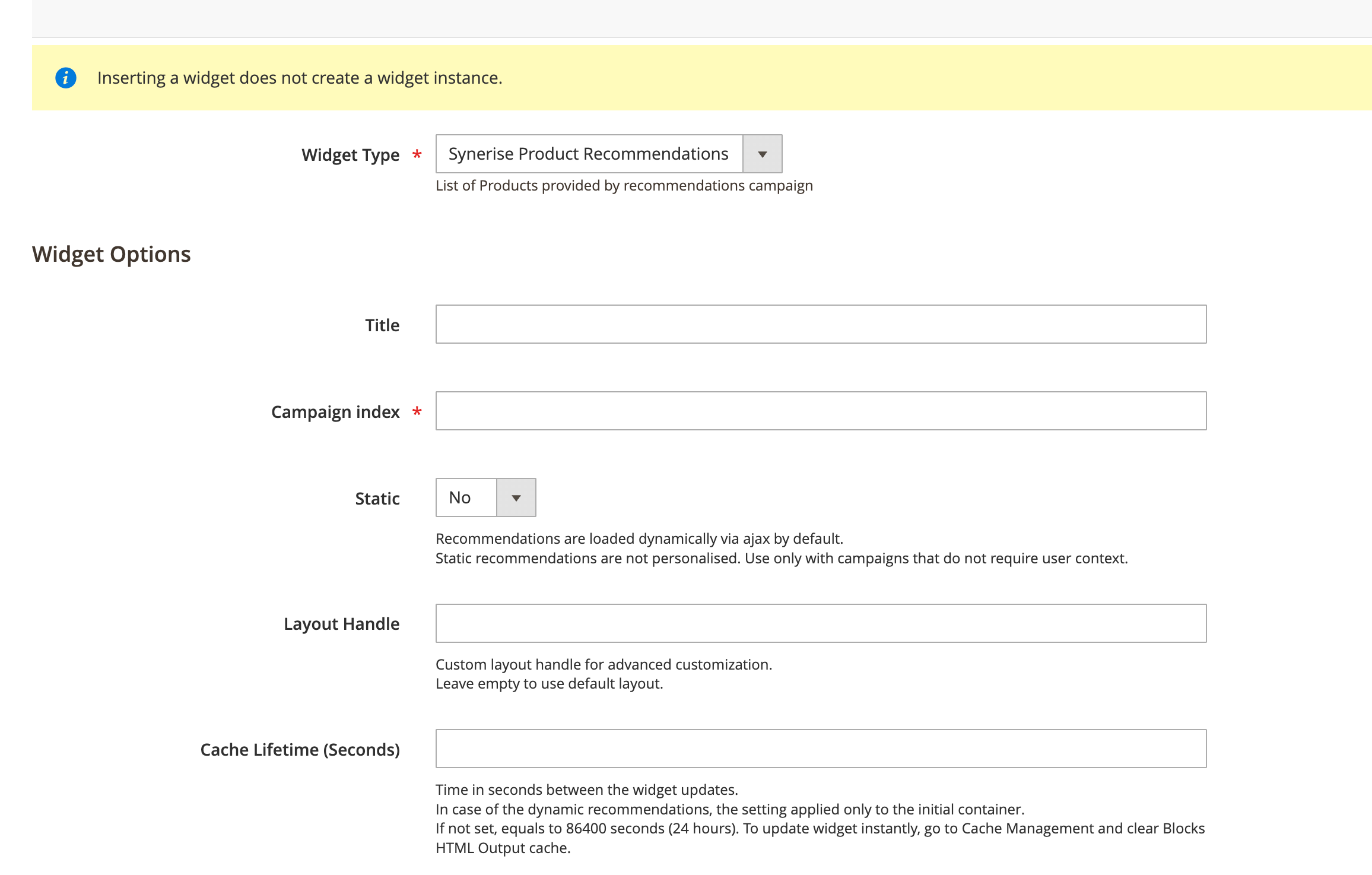
9. From the **Widget Type** dropdown list, select **Synerise Product Recommendations**.  
    **Result**: **Widget Options** configuration appears.  
      <figure><img src="/api/docs/image/54176ad07f146575310749eba44b7c2f42c1b327/docs/settings/tool/_gfx/magento-widget-options.png" class="large" alt="Editing the HTML code widget"><figcaption>Editing the HTML code widget</figcaption></figure>  

10. In the **Campaign index** field, enter the ID of the recommendation.  
11. Confirm by clicking **Insert widget** in the upper-right corner.  
12. Confirm by clicking **Save** in upper-right corner.
13. Confirm by clicking **Save as Template**. 
14. Confirm by clicking **Save** in upper-right corner. 
13. Go to **Content > Pages**.
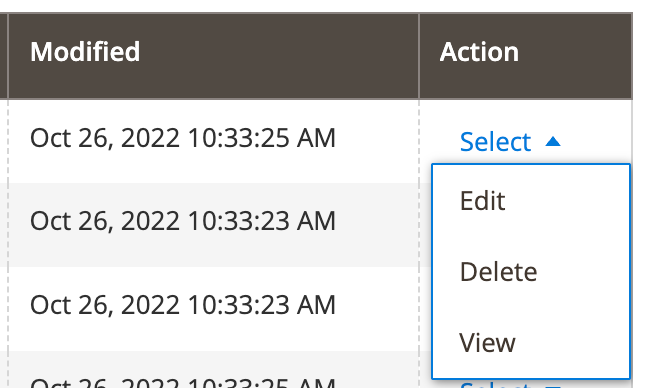
14. Find the page where you want to inject recommendation, go to its editing mode.  
    <figure><img src="/api/docs/image/54176ad07f146575310749eba44b7c2f42c1b327/docs/settings/tool/_gfx/magento-edit-page.png" class="large" alt="Action selection on the list of pages"><figcaption>Action selection on the list of pages</figcaption></figure>
15. Expand the **Content** section.  
    **Result**:  
    <figure><img src="/api/docs/image/54176ad07f146575310749eba44b7c2f42c1b327/docs/settings/tool/_gfx/magento-page-content.png" class="large" alt="The expanded Content section in the page settings"><figcaption>The expanded Content section in the page settings</figcaption></figure>
16. Click **Edit with Page Builder**. 
17. On the left panel, go to **Add Content > Block**.
18. Drag and drop a block on the canvas.  
19. Go to the settings of the block and select the block with the recommendation you created.
20. Save the changes.  

### Defining advanced AI search settings in the Synerise platform

This part of the process is optional.  

To define advanced options which let you optimize search engine performance:
1. In Synerise, go to <img src="/api/docs/image/54176ad07f146575310749eba44b7c2f42c1b327/icons/ai-hub-icon.svg" alt="AI Hub icon" class="icon" > **AI Hub > Indexes**. 
2. Find the search index you selected in ["Prepare a search index in Magento"](#prepare-search-index-in-magento).
3. Open the details of the search index by clicking its name on the list.
4. You can edit or define the following options:

- [Item ranking for sorting search results](/docs/ai-hub/ai-search/define-item-ranking)
- [Management of typos and missing words](/docs/ai-hub/ai-search/define-typos-handling)
- [Response, filterable, facetable, and sortable attributes](/docs/ai-hub/ai-search/define-attributes)  
    
  <div class="admonition admonition-warning"><div class="admonition-icon"><svg xmlns="http://www.w3.org/2000/svg" fill="none" viewBox="0 0 24 24" stroke="currentColor" stroke-width="2.5"><path stroke-linecap="round" stroke-linejoin="round" d="M12 9v2m0 4h.01m-6.938 4h13.856c1.54 0 2.502-1.667 1.732-2.5L13.732 4c-.77-.833-1.964-.833-2.732 0L4.082 16.5c-.77.833.192 2.5 1.732 2.5z" /></svg></div><div class="admonition-body"><div class="admonition-content">

  The primary location for managing filterable, searchable, facetable, and sortable attributes is the Magento panel. While deleting these attributes in Synerise will take immediate effect, any additions of new attributes must be done through the Magento panel. To ensure compatibility, it is important to maintain the same scope of attributes on both platforms when managing them in the Magento panel and Synerise.

  </div></div></div>

    
    The following attributes are **required**:
    - Response attributes:
        - `entity_id`
    - Searchable attributes:
        - `name`
    - Filterable attributes
        - `entity_id`
        - `is_salable`
        - `visibility`
        - `deleted`
        
    - Facetable attributes
        - `category_ids`
        - `entity_id`
        - `is_salable`
        - `visibility`
        - `deleted`

- [Rules](/docs/ai-hub/ai-search/query-rules)
- [Search language](/docs/ai-hub/ai-search/define-language-and-separators)
- [Search method, searchable attributes, and search relevance](/docs/ai-hub/ai-search/define-search-method-and-ranking)
- [Synonyms](/docs/ai-hub/ai-search/add-synonyms)
- [A/B testing](/docs/ai-hub/ai-search/configuring-ab-test)


### Monitoring Synerise AI Search performance

You can monitor the performance of AI Search, you can find out about the metrics and how to get to them in [AI Search Engine statistics](/docs/ai-hub/ai-search/ai-search-statistics).

### Monitoring query suggestions performance

If you enabled query suggestions for the search, you can monitor their statistics. You can find out about the metrics and how to get to them in [Query suggestion statistics](/docs/ai-hub/ai-search/query-suggestions-statistics).

### Monitoring Synerise AI Recommendations performance

You can monitor the performance of the AI recommendations used on your store, you can find out about the metrics and how to get to them in [Recommendation statistics](/docs/ai-hub/recommendations-v2/recommendation-statistics).