
<div class="admonition admonition-warning"><div class="admonition-icon"><svg xmlns="http://www.w3.org/2000/svg" fill="none" viewBox="0 0 24 24" stroke="currentColor" stroke-width="2.5"><path stroke-linecap="round" stroke-linejoin="round" d="M12 9v2m0 4h.01m-6.938 4h13.856c1.54 0 2.502-1.667 1.732-2.5L13.732 4c-.77-.833-1.964-.833-2.732 0L4.082 16.5c-.77.833.192 2.5 1.732 2.5z" /></svg></div><div class="admonition-body"><div class="admonition-content">

Synchronization is disabled by default. Before enabling it, verify the configuration of each item attribute to make sure it contains all data you want to include.

</div></div></div>


## Synchronization options
---

- [Continuous (based on observers)](#enabling-continuous-synchronization) -  Once synchronization is enabled, any updates or creation of new items will be automatically queued to be sent to Synerise. In this approach, the data on each update/creation is sent as a separate request.
- [Full (scheduled for selected scopes)](#scheduling-full-synchronization) - You can send all currently existing data to Synerise. This requires scheduling and can be used for exporting historical data to Synerise.
- [Batch (scheduled for selected item sets)](#scheduling-batch-synchronization) - You can schedule batches of items whose data you want to send to Synerise. This is based on manually selecting items.

## Scope of synchronized data
---

You can synchronize models for the store views you select.


<details class="accordion"><summary>Click here to expand model description</summary><div class="accordion-content"><table> <thead> <tr> <th>Model</th> <th>Description</th> <th>Location of data in Synerise</th> </tr> </thead> <tbody><tr> <td>Customers</td> <td>Customer attributes in Magento are qualities assigned to customers. You can send all attributes to Synerise, including custom ones. The list in the <strong>Attributes</strong> section excludes the required attributes which are sent by default:<br><br>- email, <br>- entity_id, <br>- firstname, <br>- lastname, <br><br>To deselect or select the attributes, go to <strong>Stores &gt; Synerise &gt; Configuration &gt; Data</strong>. The changes of attribute selection will apply only for customers who haven&#39;t been sent to Synerise yet. To apply the changes to all customers, <a href="#scheduling-full-synchronization">run full synchronization</a>.</td> <td>The <strong>Behavioral Data Hub</strong></td> </tr> <tr> <td>Orders</td> <td>Information about orders are stored as <code>product.buy</code>/<code>transaction.charge</code> events.</td> <td>Activity list on the profile of a customer in <strong>Behavioral Data Hub &gt; Profiles</strong></td> </tr> <tr> <td>Products</td> <td>Product attributes in Magento are qualities assigned to items. You can send all attributes to Synerise, including custom ones. The list in the <strong>Attributes</strong> excludes the required attributes which are sent by default:<br><br>- itemId (sku), <br>- price, <br>- productUrl, <br>- parendId, <br>- deleted, <br>- category, <br>- additionalCategories, <br>- image, <br><br>To include tax value in a product price sent to Synerise, set the <strong>Calculate tax</strong> field to <strong>Yes</strong>. <br><br>To enable sending the text values and IDs of the attribute options, set the <strong>Selectable attribute value</strong> to <strong>ID &amp; Labels</strong>. If this option is set to ID, the values are sent to Synerise in the form of IDs, for example, for the <code>color</code> attribute, Magento sends the following values: <code>1</code>, <code>2</code>, <code>3</code> instead of <code>black</code>, <code>white</code>, <code>grey</code>. <br><br>To deselect or select the attributes go to <strong>Stores &gt; Synerise &gt; Configuration &gt; Data</strong>. The changes of products selection will apply only for products which haven&#39;t been sent to Synerise yet. To apply the changes to all products, <a href="#scheduling-full-synchronization">run full synchronization</a>.</td> <td><strong>Data Modeling Hub &gt; Catalogs</strong></td> </tr> <tr> <td>Subscribers</td> <td>The value of the subscription attribute of a customer.</td> <td>Profile of a customer in <strong>Behavioral Data Hub &gt; Profiles</strong></td> </tr> </tbody></table></div></details>


By default, all models and store views are selected to be synchronized.  

### Changing scope of synchronized data
---

To exclude store views from synchronization, go to **Stores > Synerise > Configuration > Workspaces**. In the **Stores** section, select store views to be synchronized.

<div class="admonition admonition-warning"><div class="admonition-icon"><svg xmlns="http://www.w3.org/2000/svg" fill="none" viewBox="0 0 24 24" stroke="currentColor" stroke-width="2.5"><path stroke-linecap="round" stroke-linejoin="round" d="M12 9v2m0 4h.01m-6.938 4h13.856c1.54 0 2.502-1.667 1.732-2.5L13.732 4c-.77-.833-1.964-.833-2.732 0L4.082 16.5c-.77.833.192 2.5 1.732 2.5z" /></svg></div><div class="admonition-body"><div class="admonition-content">

The selection also affects tracking the store views. If you deselect store views from synchronization, you also deselect them from tracking.

</div></div></div>


Synchronization will include the scope of data in accordance with the configuration for store and models.
Entities that do not contain data for models selected for synchronization will also be ignored.

- To exclude models from synchronization, go to **Stores > Synerise > Configuration > Data**. Under **Models** deselect those that you wish to exclude.
- To include or exclude values from particular models in synchronization, go to **Stores > Synerise > Configuration > Data**.

### Enriching requests with custom data
---


<div class="admonition admonition-important"><div class="admonition-icon"><svg xmlns="http://www.w3.org/2000/svg" fill="none" viewBox="0 0 24 24" stroke="currentColor" stroke-width="2.5"><path stroke-linecap="round" stroke-linejoin="round" d="M12 8v4m0 4h.01M21 12a9 9 0 11-18 0 9 9 0 0118 0z" /></svg></div><div class="admonition-body"><div class="admonition-content">

The procedure described in this section may require a developer’s help, as it can’t be performed in the interface.

</div></div></div>


If you want to enrich synchronization requests to Synerise with data which is not available in the [models](#scope-of-synchronized-data), perform the following steps.  
The best way to modify the contents of requests sent to Synerise is to use [Plugins/Interceptors](https://developer.adobe.com/commerce/php/development/components/plugins/).

In the example presented in this section:  
- a custom module has been prepared as prerequisite for this example. To learn more about creating a module, refer to the [Magento documentation](https://experienceleague.adobe.com/en/docs/commerce-learn/tutorials/backend-development/create-module).
- a plugin for `OrderCRUD` class will be prepared


#### Procedure

1. Register a new plugin (interceptor) in the `etc/di.xml` file in the module:  
    
   <pre><code class="language-html">&lt;config&gt;
       &lt;type name="Synerise\Integration\SyneriseApi\Mapper\Data\OrderCRUD"&gt;
           &lt;plugin name="synerise_order_prepare_request" type="CompanyName\ModuleName\Plugin\OrderAttributes" /&gt;
       &lt;/type&gt;
   &lt;/config&gt;</code></pre>


2. Create a plugin class:  

    
   <pre><code class="language-PHP">&lt;?php
   namespace CompanyName\ModuleName\Plugin;

   use Magento\Sales\Model\Order;
   use Synerise\ApiClient\Model\CreateatransactionRequest;
   use Synerise\Integration\SyneriseApi\Mapper\Data\OrderCRUD;

   class OrderAttributes
   {
       public function afterPrepareRequest(
           OrderCRUD $subject,
           CreateatransactionRequest $request,
           Order $order,
           ?string $uuid = null,
           array $snrsParams = []
       ): CreateatransactionRequest
       {
           $metadata = $request-&gt;getMetadata();
           $metadata['customAttribute'] = 'Custom Value';

           $request-&gt;setMetadata($metadata);

           return $request;
       }
   }</code></pre>

3. To add custom data to the request, replace the placeholder `$metadata['customAttribute'] = 'Custom Value';` with your custom logic. 
4. To make sure your changes will produce a valid request, refer to [Synerise API documentation](https://developers.synerise.com/) .

### Deleting customers
---
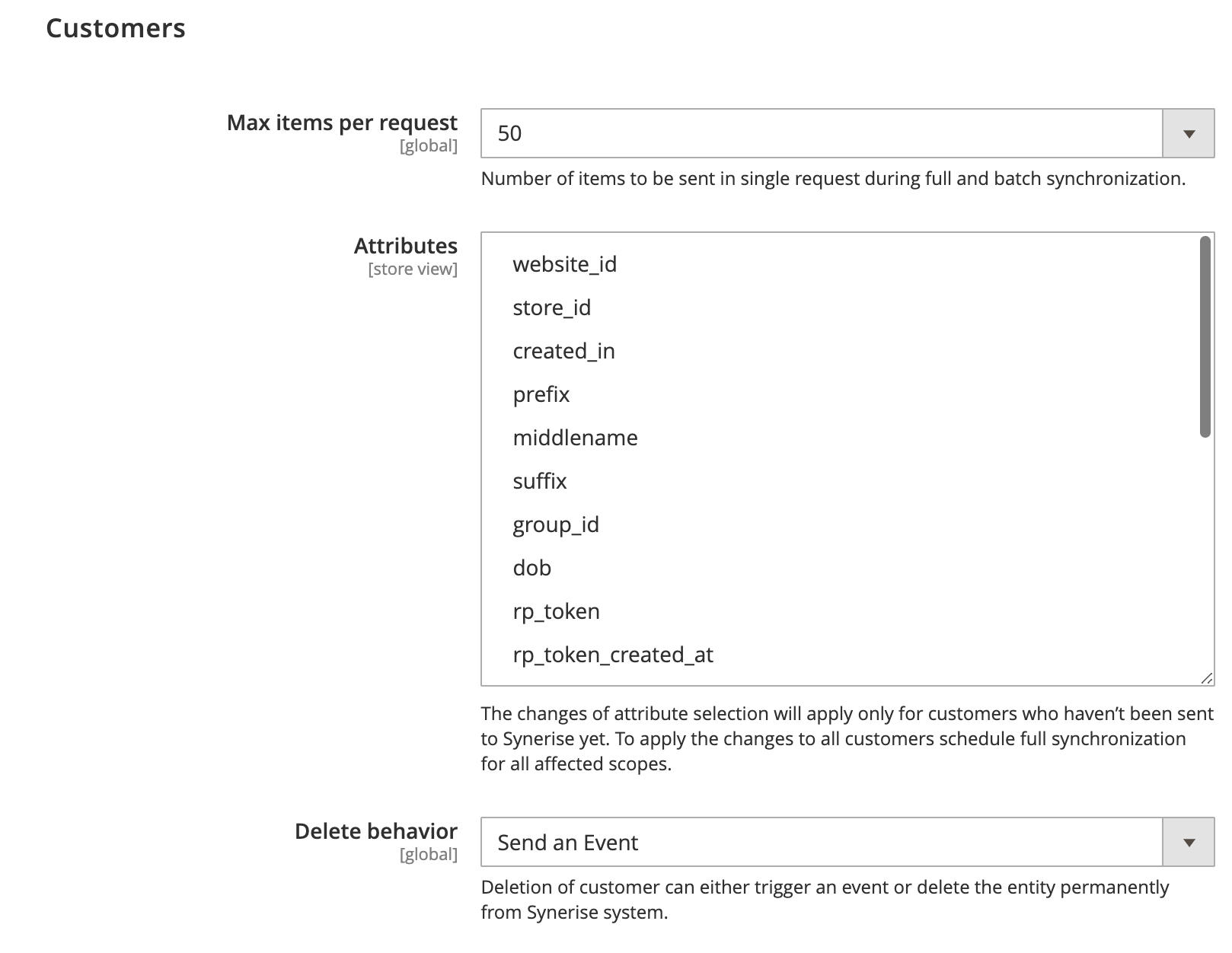
You can define how data is synchronized in Synerise when a customer is deleted in Magento.

1. Go to **Stores > Synerise > Configuration > Data**.
2. Expand the **Customers** model.  
3. From the **Delete behavior** dropdown list, select one of the following options:  
    | Option name        | Behavior in Synerise                                                                                                                                                                                                         |
    |--------------------|----------------------------------------------------------------------------------------------------------------------------------------------------------------------------------------------------------------------------------|
    | Send an Event      | A `client.deleteAccount` event is generated on the profile of the customer deleted in Magento; the customer remains in Synerise. You can create a [workflow](/docs/automation/creating-automation) that anonymizes the customer when this event occurs. |
    | Remove permanently | No event is generated; the customer is deleted                                                                                                                                                                                     |
    | Ignore             | No event is generated; the customer remains                                                                                                                                                                                        |

<figure><img src="/api/docs/image/54176ad07f146575310749eba44b7c2f42c1b327/docs/settings/tool/_gfx/magento-delete-customers.png" class="large" alt="The Customers section in Magento"><figcaption>The Customers section in Magento</figcaption></figure>


## Enabling continuous synchronization
---
The procedure described in this section lets you enable synchronization of real-time data. They will be sent as separate requests each time an entity is created or updated.

1. Go to **Stores > Synerise > Configuration > Data**.  
2. To enable incremental data synchronization, in the **Enabled** field, set the value to **Yes**. In continuous data synchronization, new or modified data will be added to the queue and sent to Synerise.
3. Define the values to be included in the Products and Customers models. These values will be included in full synchronization and incremental data synchronization.
4. In the **Max items per request** fields, enter the number of items which will be sent in a [full synchronization](#scheduling-full-synchronization) request to Synerise.  
    Data is split into smaller requests in order to avoid timeouts or other problems resulting from too large requests.
5. To enable sending the text values of the attribute options instead of their IDs, set the **Labels as Values** to **Yes**.
6. In the upper right corner, click **Save Config**.  

## Scheduling full synchronization
---
This synchronization type lets you send all data (including historical data) to Synerise. 

1. Perform all steps described in the [Enabling continuous synchronization](#enabling-continuous-synchronization) section. If you have done it aready, proceed to the next step.
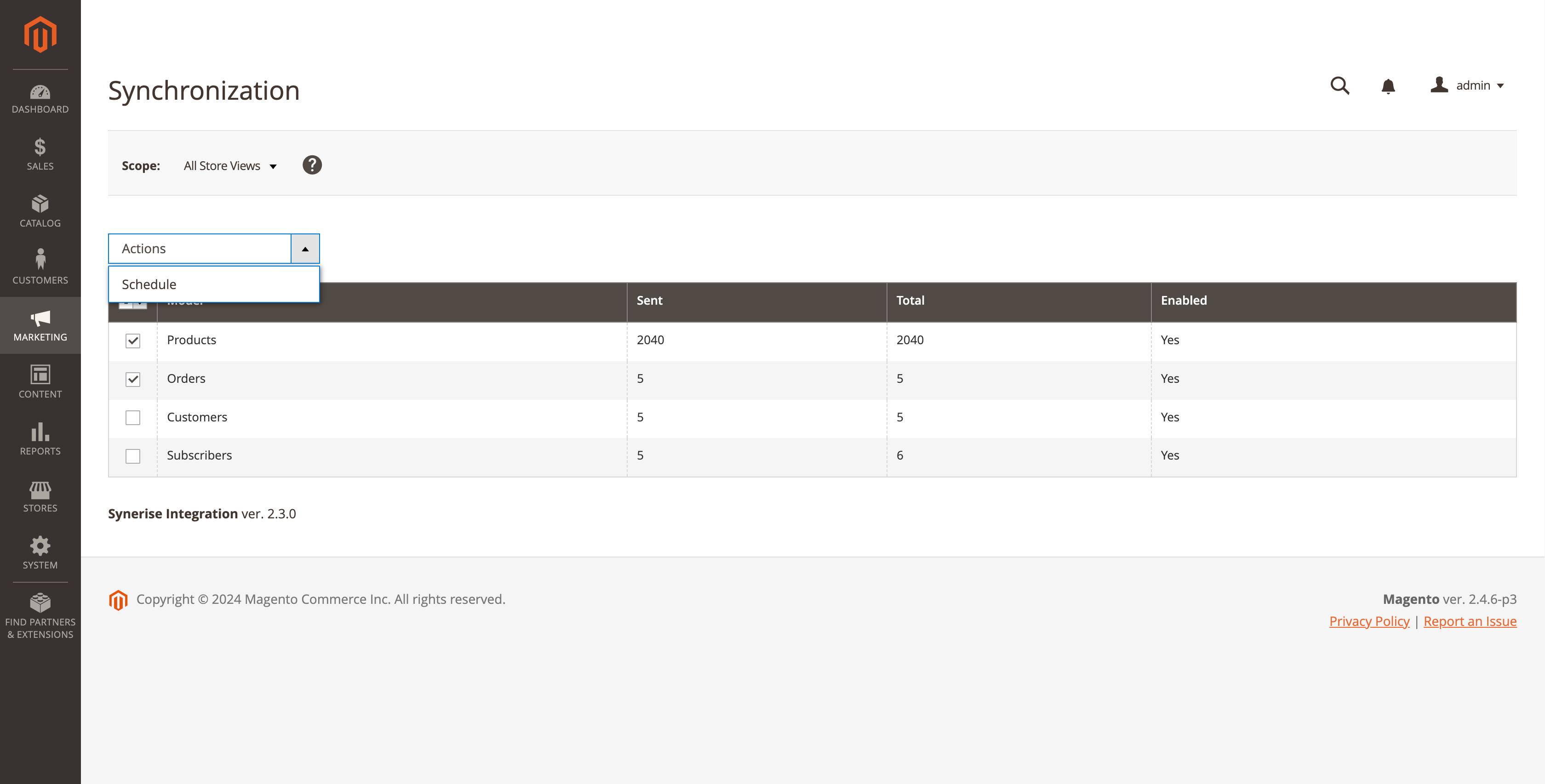
1. Go to **Marketing > Synerise > Synchronization**.
2. From the **Scope** dropdown list, you can select store view or the **All store views** option to be synchronized. If you want to synchronize only a few store views, run full synchronization for one store view at a time. 
2. In the table, in the first left column, select the models you want to synchronize.
3. From the **Actions** dropdown list, select the **Schedule** option.  
    - In result, all data will be sent to Synerise. To preview the synchronization logs, go to **System > Synerise > Bulk Actions Log**.
    - In **Marketing > Synerise > Synchronization**, you can preview amount of data in total and amount of data sent to Synerise for each store view.

    <figure>
    <img src="/api/docs/image/54176ad07f146575310749eba44b7c2f42c1b327/docs/settings/_gfx/magento-synch.png" alt="The Synchronization section in the Magento panel" class="large" >
    <figcaption> The Synchronization section in the Magento panel </figcaption>
    </figure>

## Scheduling batch synchronization
---
To synchronize changes within items, orders, customer data, or subscriptions with Synerise:

1. Go to: 
    - **Catalogs > Products** - to synchronize changes in items.
    - **Sales > Orders** - to synchronize changes in orders.
    - **Customers > All Customers** - to synchronize changes in customer data.
    - **Marketing > Communication > Newsletter Subscribers** - to synchronize changes in subscriptions.
2. From the list, select the items.
3. Above the table, from the dropdown list, select **Send to Synerise**.

## Synchronization debugging
---
You can learn more about the logic of sending data to Synerise through Message Queue Framework and debugging of the synchronization process in the ["Message Queues logic" article](/docs/settings/tool/magento/magento-message-queues).


## On-demand exports
---
If you want to perform an on-demand export of specific set of data to Synerise, follow the instructions in this section.

### Transactions
The output of exporting transaction data from Magento to Synerise is generating [`transaction.charge`](/docs/assets/events/event-reference/items#transactioncharge) and [`product.buy`](/docs/assets/events/event-reference/items#productbuy) events on the profile cards of customers who made orders within the selected period. 

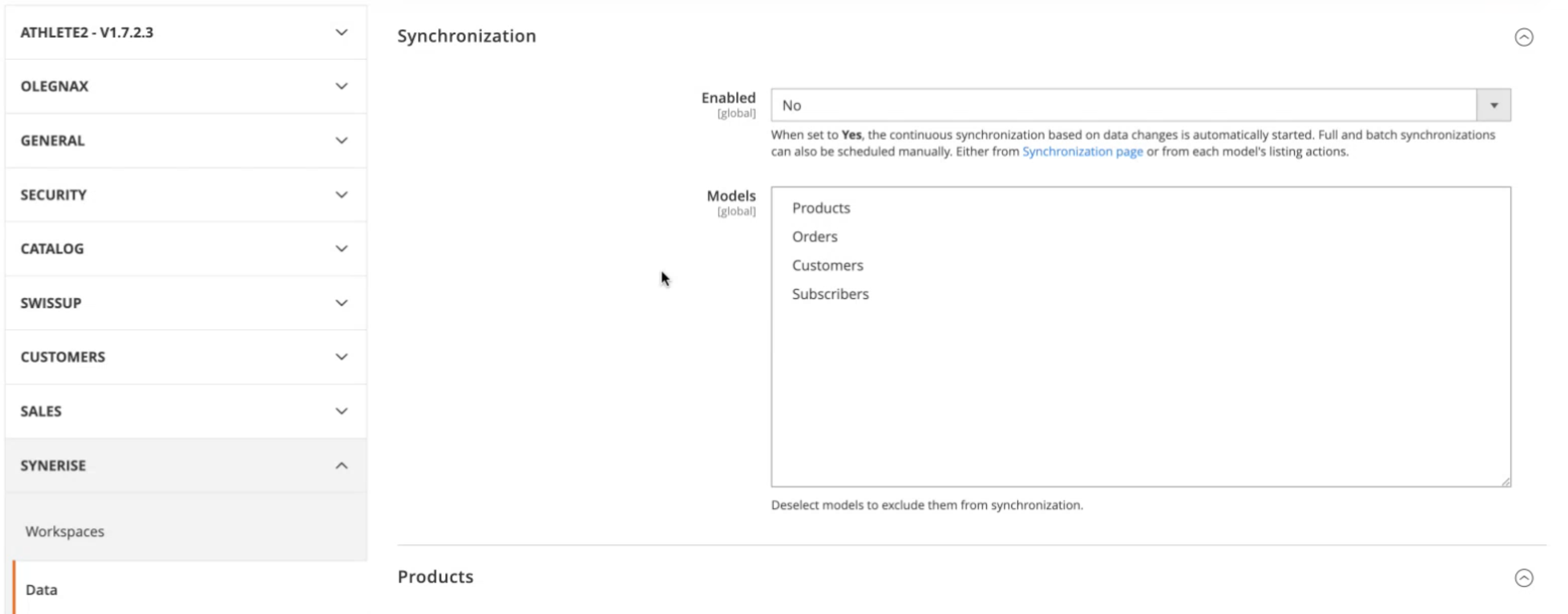
1. Enable synchronization of data from the Orders module.  
    1. Go to **Marketing > Configuration > Synerise > Data**.  

    <figure><img src="/api/docs/image/54176ad07f146575310749eba44b7c2f42c1b327/docs/settings/tool/_gfx/magento-synchronization.png" class="large" alt="Enabling synchronization"><figcaption>Enabling synchronization</figcaption></figure>

    2. On the **Synchronization** tab:  
        1. Set **Enabled** to **Yes**.
        2. From the **Models** field, make sure **Orders** is selected.  
2. Select orders whose information will be exported to Synerise:  
    1. Go to **Sales > Orders**.
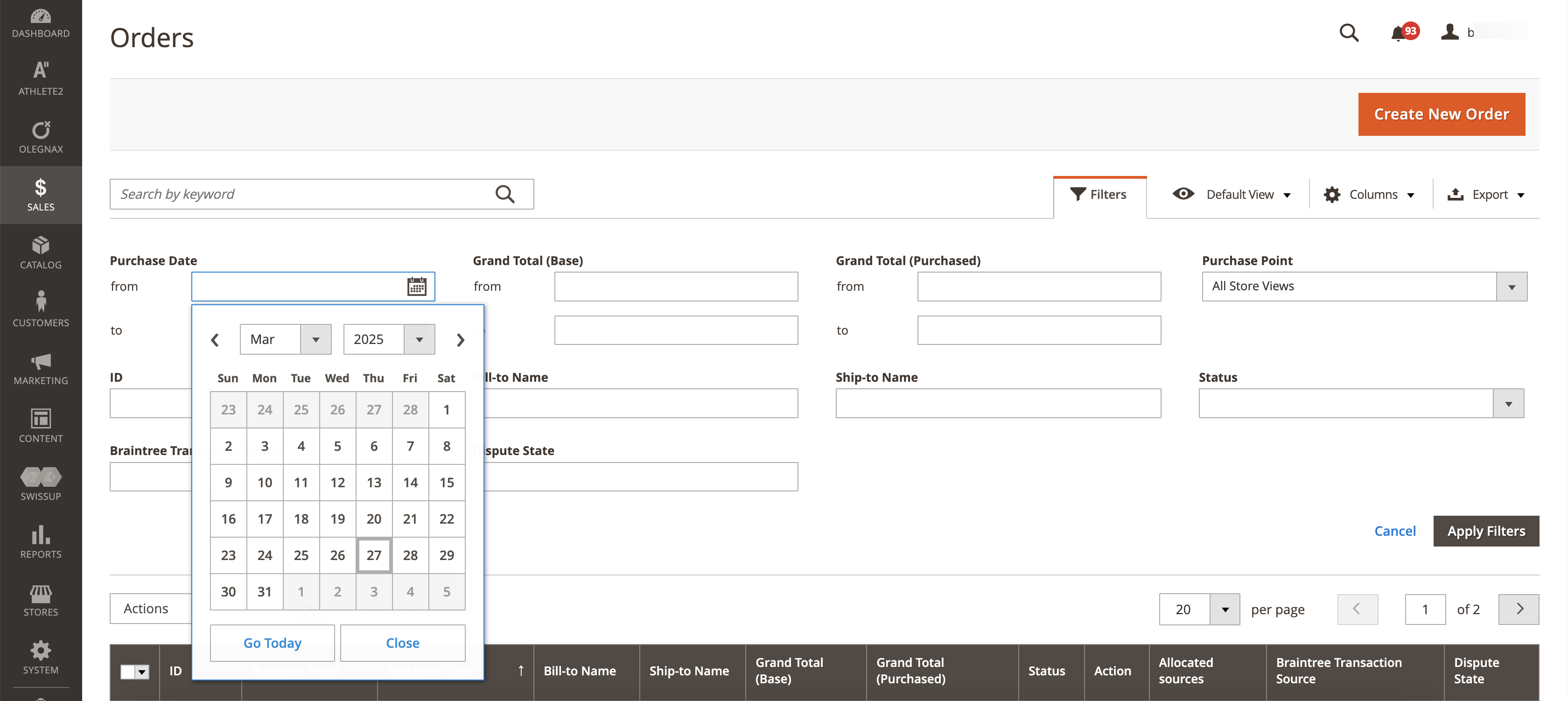
    2. On the **Filters** tab, from **Purchase Date** fields, select the period from which orders will be exported to Synerise.  

        <figure><img src="/api/docs/image/54176ad07f146575310749eba44b7c2f42c1b327/docs/settings/tool/_gfx/magento-orders-filters.png" class="medium" alt="The view of filters in the Orders module"><figcaption>The view of filters in the Orders module</figcaption></figure>

    3. Optionally, you can add more filters, such as **Status** (status of the orders), **Purchase Point** (a store view in which the order was placed), and so on.
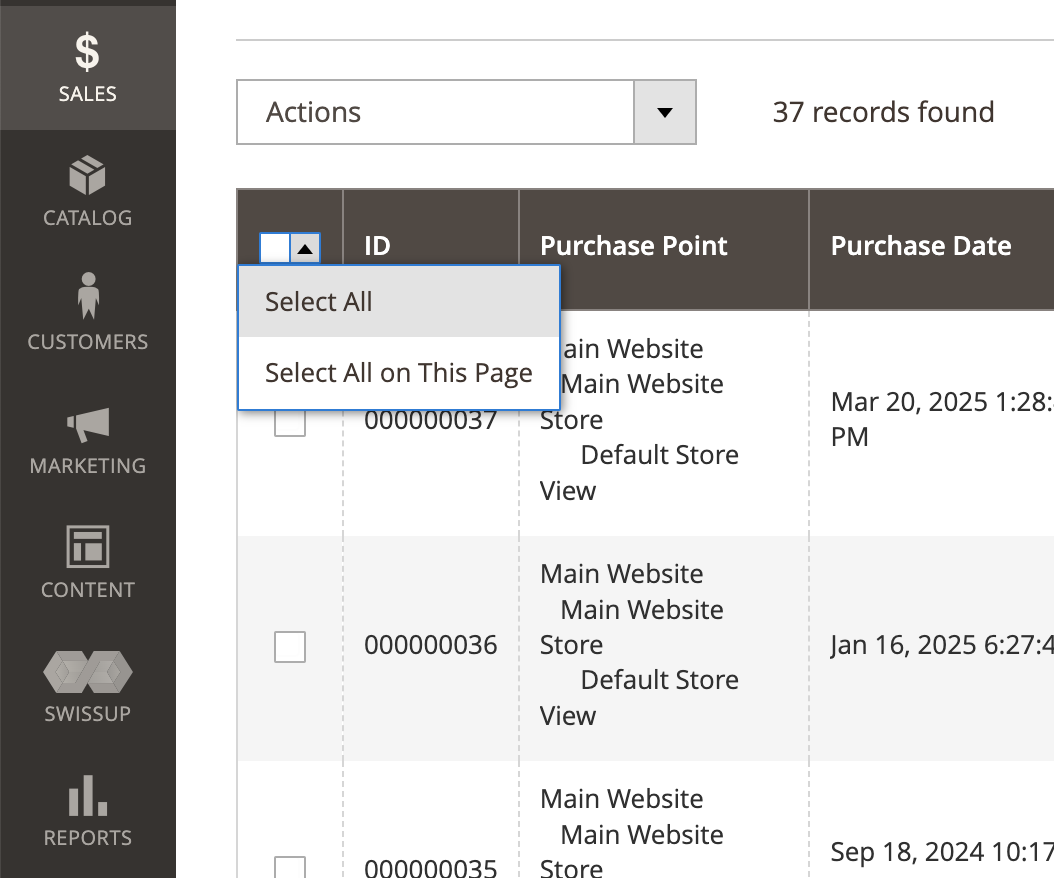
    4. From the table, select the orders which you want to export by selecting the checkbox in the leftmost column. To select multiple orders, you can use the dropdown list in the column header and choose one of the following options: **Select all** or **Select all on this page**.  

        <figure><img src="/api/docs/image/54176ad07f146575310749eba44b7c2f42c1b327/docs/settings/tool/_gfx/magento-table-header.png" class="medium" alt="Batch select option"><figcaption>Batch select option</figcaption></figure>

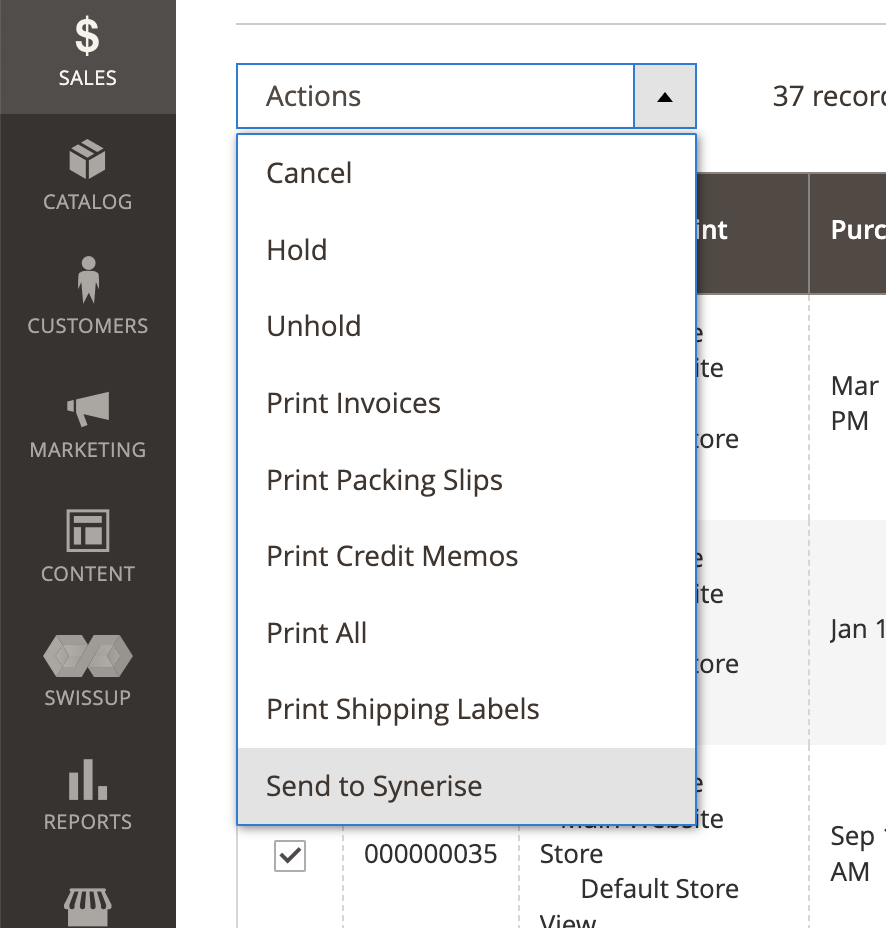
    5. To launch the export, from the **Actions** dropdown list, select **Send to Synerise**.  

        <figure><img src="/api/docs/image/54176ad07f146575310749eba44b7c2f42c1b327/docs/settings/tool/_gfx/magento-actions.png" class="medium" alt="The Actions dropdown"><figcaption>The Actions dropdown</figcaption></figure>

        **Result**: The export request will be queued in the [Batch synchronization queue](/docs/settings/tool/magento/magento-message-queues#queues) and processed in the background. When the queue is processed, the `transaction.charge` and `product.buy` events will be generated on the cards of customers who placed the orders.