After you [create a connection](/docs/settings/tool/shopify/shopify-integration#creating-a-connection-in-synerise) between Synerise and Shopify, create one or more configurations to define what data is synchronized and how it maps to Synerise attributes. You can create a separate configuration for each data type: **Customers**, **Orders**, and **Products**.

Creating a connection automatically creates one **Draft** configuration for each data type. You can use these instead of creating new ones. You can also create additional **Product** configurations if you need more than one (for example, for a different catalog) - **Customer** and **Order** are limited to a single configuration each.

Once you activate a configuration (see [Creating a configuration](#creating-a-configuration)), it has three tabs:
- [**Overview**](#defining-parameter-mapping) - the configuration type and parameter mapping you defined while creating the configuration.
- [**Import preview**](#running-historical-and-live-synchronization) - run a historical import.
- [**Webhook subscription**](#enabling-live-synchronization-events) - select which Shopify events trigger live synchronization.

## Creating a configuration
---
1. Go to <img src="/api/docs/image/b180b0d07a5736de7420ea783f589e45f7394aec/icons/settings-icon.svg" alt="Settings icon" class="icon"> **Settings > (Shopify) Data import**.
2. Click **Create configuration**.
3. Select the configuration type: **Product**, **Order**, or **Customer**.  
    **Result**: A configuration is created in **Draft** status, showing a checklist of setup steps:
    - **Type** - the configuration's data type, already set based on your selection. You can create only one **Customer** and one **Order** configuration, but you can create multiple **Product** configurations.
    - **Parameters mapping** - required. Click **Define** to open the mapping editor described in [Defining parameter mapping](#defining-parameter-mapping).
    - **Catalog** - available only for **Product** configurations, and required for them. From the dropdown, select the [catalog](/docs/assets/catalogs) that will hold the product feed. The catalog is updated whenever the feed changes in Shopify.
    - **Metafields selection** *(optional)*. Click **Define** to select which Shopify metafields to make available in this configuration, as described in [Selecting metafields](#selecting-metafields).
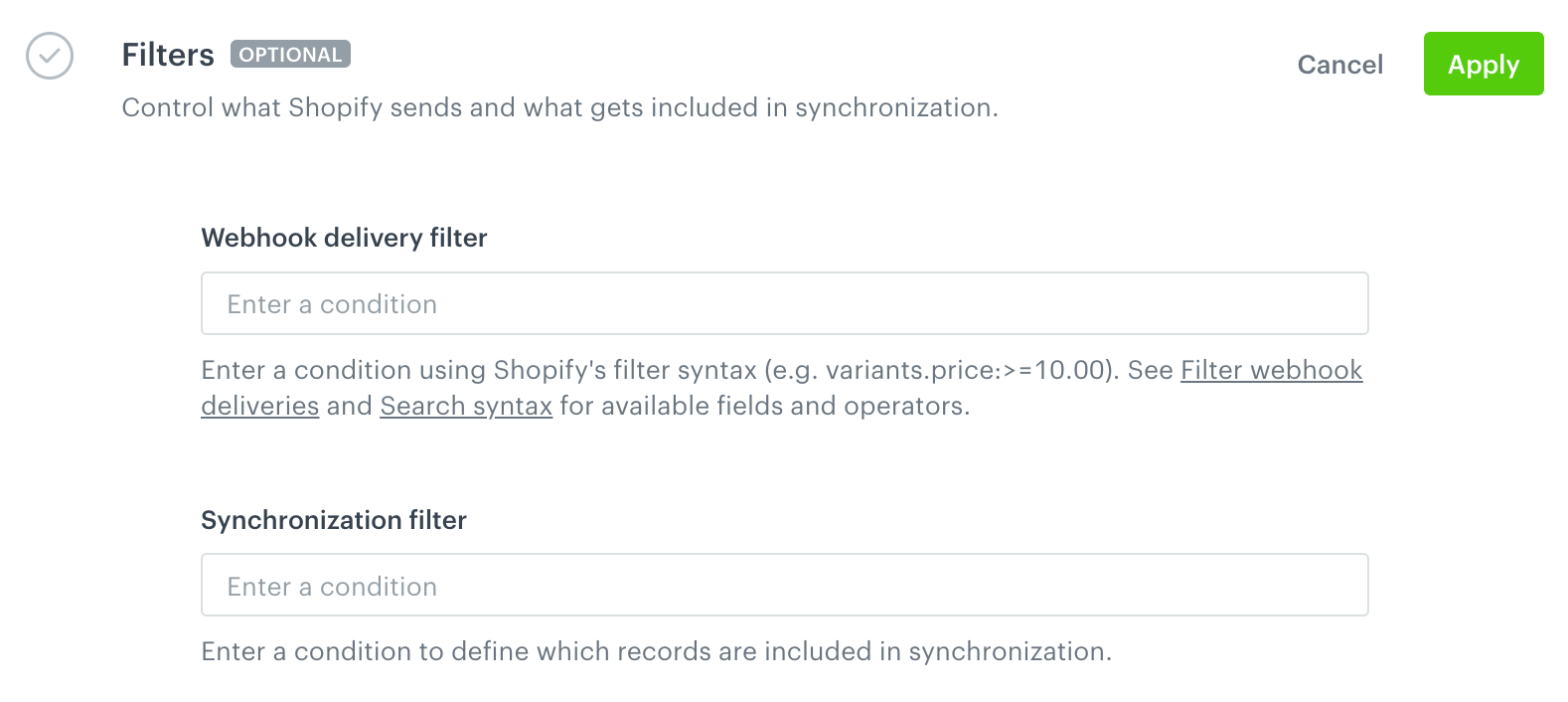
    - **Filters** *(optional)*. Click **Define** to control which Shopify records are included, as described in [Filtering synchronized data](#filtering-synchronized-data).  
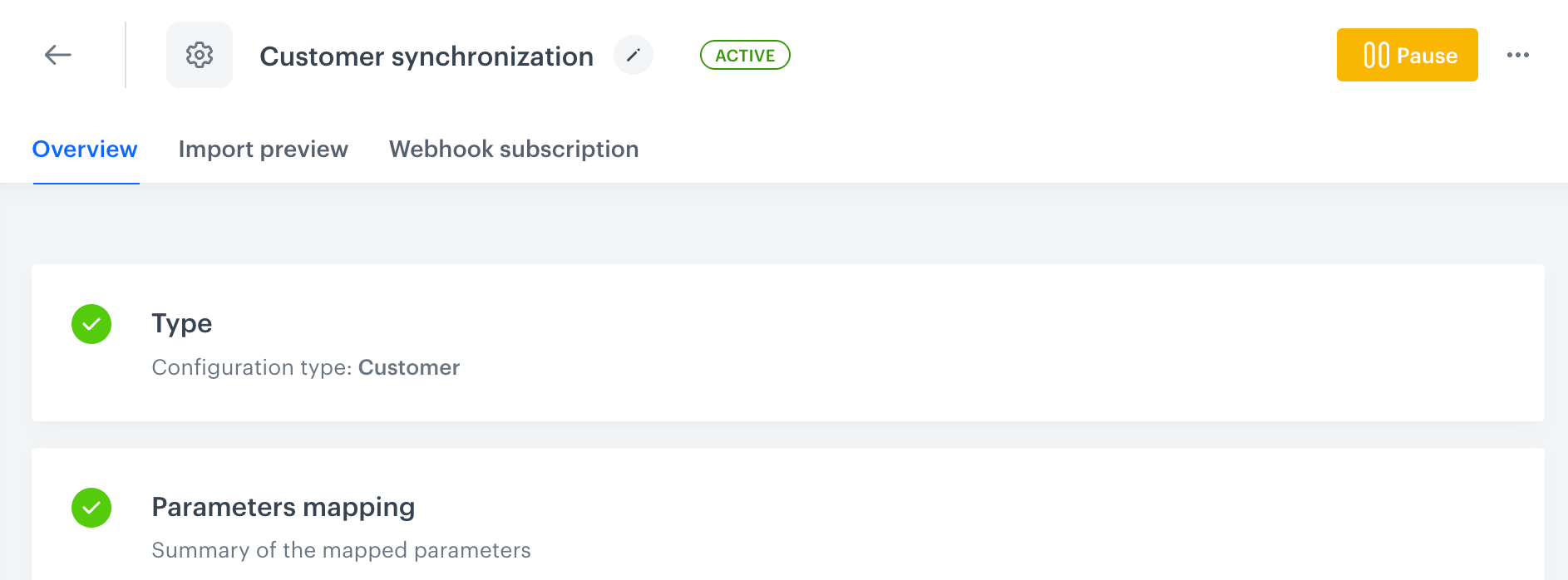
    <figure><img src="/api/docs/image/b180b0d07a5736de7420ea783f589e45f7394aec/docs/settings/tool/_gfx/shopify-empty-configuration.png" class="large" alt="A newly created Customer configuration in Draft status, showing the Type, Parameters mapping, Metafields selection, and Filters setup steps"><figcaption>A newly created Customer configuration in Draft status, showing the Type, Parameters mapping, Metafields selection, and Filters setup steps</figcaption></figure>

4. After you define the configuration, click **Activate** in the top right corner.  
    **Result**: The configuration is activated, and the **Overview**, **Import preview**, and **Webhook subscription** tabs become available. This first activation doesn't start any synchronization.  

    <figure><img src="/api/docs/image/b180b0d07a5736de7420ea783f589e45f7394aec/docs/settings/tool/_gfx/shopify-configuration-tabs.png" class="large" alt="An activated Customer configuration, with the Overview, Import preview, and Webhook subscription tabs"><figcaption>An activated Customer configuration, with the Overview, Import preview, and Webhook subscription tabs</figcaption></figure>

5. Go to the **Import preview** and/or **Webhook subscription** tabs to configure and enable historical or live synchronization, as described in [Running historical and live synchronization](#running-historical-and-live-synchronization) and [Enabling live synchronization events](#enabling-live-synchronization-events).  
   Changes are saved and applied immediately - you don't need to click **Activate** again.

### Selecting metafields

Metafields are custom Shopify fields that store additional information beyond a data type's default fields. On the **Metafields selection** step, Synerise loads the list of metafields available in your Shopify store, and you select which ones to make available in this configuration.

Selecting a metafield only makes it available - on its own, it doesn't affect synchronized data. To use a selected metafield, reference it in the [parameter mapping](#defining-parameter-mapping); you can also use it in [filters](#filtering-synchronized-data).

### Filtering synchronized data

On the **Filters** step, you can define two separate filters, each scoped to a different synchronization mode:  

<figure><img src="/api/docs/image/b180b0d07a5736de7420ea783f589e45f7394aec/docs/settings/tool/_gfx/shopify-filters.png" class="large" alt="The Filters step, with the Webhook delivery filter and Synchronization filter fields"><figcaption>The Filters step, with the Webhook delivery filter and Synchronization filter fields</figcaption></figure>

- **Webhook delivery filter** - controls which records trigger **live synchronization**. It uses Shopify's webhook filter syntax, for example `variants.price:>=10.00`. For available fields and operators, see Shopify's documentation on [filtering webhook deliveries](https://shopify.dev/docs/apps/build/webhooks/delivery-filtering) and [search syntax](https://shopify.dev/docs/api/usage/search-syntax).
- **Synchronization filter** - controls which records are included in a one-time **historical synchronization**. It uses Shopify's search syntax - pairs of a field name and a value, separated by a colon, for example `tag:vip` or `country:US` to only synchronize records from the United States. For the full syntax reference, see [Shopify's documentation on search syntax](https://shopify.dev/docs/api/usage/search-syntax).

## Defining parameter mapping
---
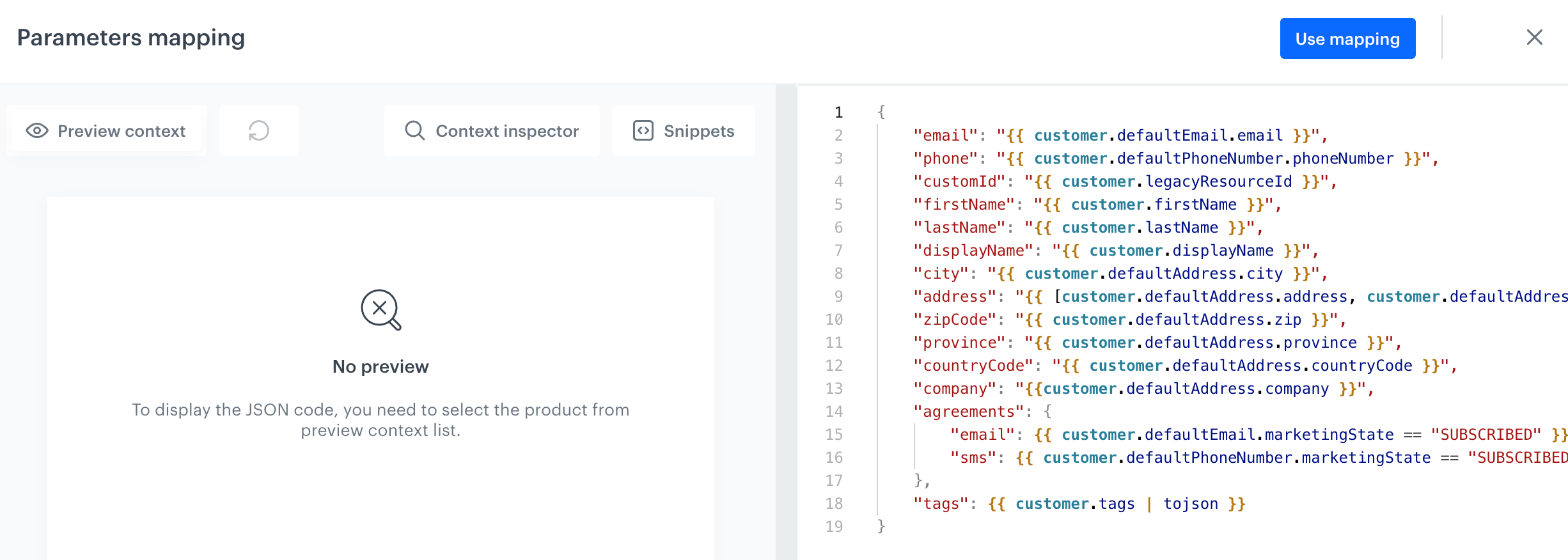
Click **Define** next to **Parameters mapping** (or, once the configuration is activated, open the **Overview** tab) to define how fields from Shopify map to attributes in Synerise.

The mapping editor opens with a default mapping already filled in for the configuration's data type. You can use the default mapping as-is, or adjust it to your needs.

- **Type** - the configuration's data type (**Customer**, **Order**, or **Product**), set when the configuration was created.
- **Parameters mapping** - a JSON code editor where you define the mapping. Keys are Synerise attribute names; values are the corresponding Shopify fields, referenced using inserts.
- **Mapping preview** - shows how the mapping resolves for a sample record, so you can check the result before activating the configuration.
- **Context inspector** - lets you browse the Shopify fields available for the selected data type, with a description of each field. The **Template usage** section shows the exact syntax to insert into the mapping, for example `{{ order.id }}`, so you can reference fields without looking up field names manually.


<figure><img src="/api/docs/image/b180b0d07a5736de7420ea783f589e45f7394aec/docs/settings/tool/_gfx/shopify-parameters-mapping.png" class="large" alt="The Overview tab of a Customers configuration, with the parameters mapping and mapping preview"><figcaption>The Overview tab of a Customers configuration, with the parameters mapping and mapping preview</figcaption></figure>


<div class="admonition admonition-note"><div class="admonition-icon"><svg xmlns="http://www.w3.org/2000/svg" fill="none" viewBox="0 0 24 24" stroke="currentColor" stroke-width="2.5"><path stroke-linecap="round" stroke-linejoin="round" d="M13 16h-1v-4h-1m1-4h.01M21 12a9 9 0 11-18 0 9 9 0 0118 0z" /></svg></div><div class="admonition-body"><div class="admonition-content">

For **Order** configurations, how you map `eventSalt` determines whether an order update overwrites the existing `transaction.charge` event or generates a new one. For details, see [Enabling live synchronization events](#enabling-live-synchronization-events).

</div></div></div>


### Example mapping

The following example maps Shopify customer fields to Synerise attributes:


<pre><code class="language-jinja">{
    "customerMetafield": "{{customer.metafields.custom.customermetafield}}", {# reads a customer metafield by referencing it directly with Jinjava #}
    "email": "{{ customer.defaultEmail.email }}",
    "phone": "{{ customer.defaultPhoneNumber.phoneNumber }}",
    "customId": "{{ customer.legacyResourceId }}",
    "firstName": "{{ customer.firstName }}",
    "lastName": "{{ customer.lastName }}",
    "displayName": "{{ customer.displayName }}",
    "city": "{{ customer.defaultAddress.city }}",
    "address": "{{ [customer.defaultAddress.address, customer.defaultAddress.address2] | join(" ") }}", {# joins the two address lines into a single address attribute with the join filter #}
    "zipCode": "{{ customer.defaultAddress.zip }}",
    "province": "{{ customer.defaultAddress.province }}",
    "countryCode": "{{ customer.defaultAddress.countryCode }}",
    "company": "{{customer.defaultAddress.company}}",
    "agreements": { {# converts marketing consent states into boolean values #}
        "email": {{ customer.defaultEmail.marketingState == "SUBSCRIBED" }},
        "sms": {{ customer.defaultPhoneNumber.marketingState == "SUBSCRIBED" }}
    },
    "tags": {{ customer.tags | tojson }} {# converts the tags array into JSON with the tojson filter #}
}</code></pre>


<div class="admonition admonition-note"><div class="admonition-icon"><svg xmlns="http://www.w3.org/2000/svg" fill="none" viewBox="0 0 24 24" stroke="currentColor" stroke-width="2.5"><path stroke-linecap="round" stroke-linejoin="round" d="M13 16h-1v-4h-1m1-4h.01M21 12a9 9 0 11-18 0 9 9 0 0118 0z" /></svg></div><div class="admonition-body"><div class="admonition-content">

Metafields are custom fields you define on the Shopify side. To reference one in your mapping, use `customer.metafields.<namespace>.<key>`. For details on creating and managing metafields, see the [Shopify documentation](https://help.shopify.com/en/manual/custom-data/metafields).

</div></div></div>


## Running historical and live synchronization
---
On the **Import preview** tab, you can run a one-time **historical synchronization** to import your existing Shopify data into Synerise - recommended when you set up a configuration for the first time. The tab also lists the synchronizations you've run, showing each one's status, progress, selected time range, and start date.

There's no separate toggle for **live synchronization** - once a configuration is active, changes in Shopify are sent to Synerise in real time for the events you select on the [Webhook subscription tab](#enabling-live-synchronization-events).


<div class="admonition admonition-note"><div class="admonition-icon"><svg xmlns="http://www.w3.org/2000/svg" fill="none" viewBox="0 0 24 24" stroke="currentColor" stroke-width="2.5"><path stroke-linecap="round" stroke-linejoin="round" d="M13 16h-1v-4h-1m1-4h.01M21 12a9 9 0 11-18 0 9 9 0 0118 0z" /></svg></div><div class="admonition-body"><div class="admonition-content">

To preview how records look after the mapping is applied, use the **Mapping preview** on the [Overview tab](#defining-parameter-mapping) instead.

</div></div></div>


## Enabling live synchronization events
---
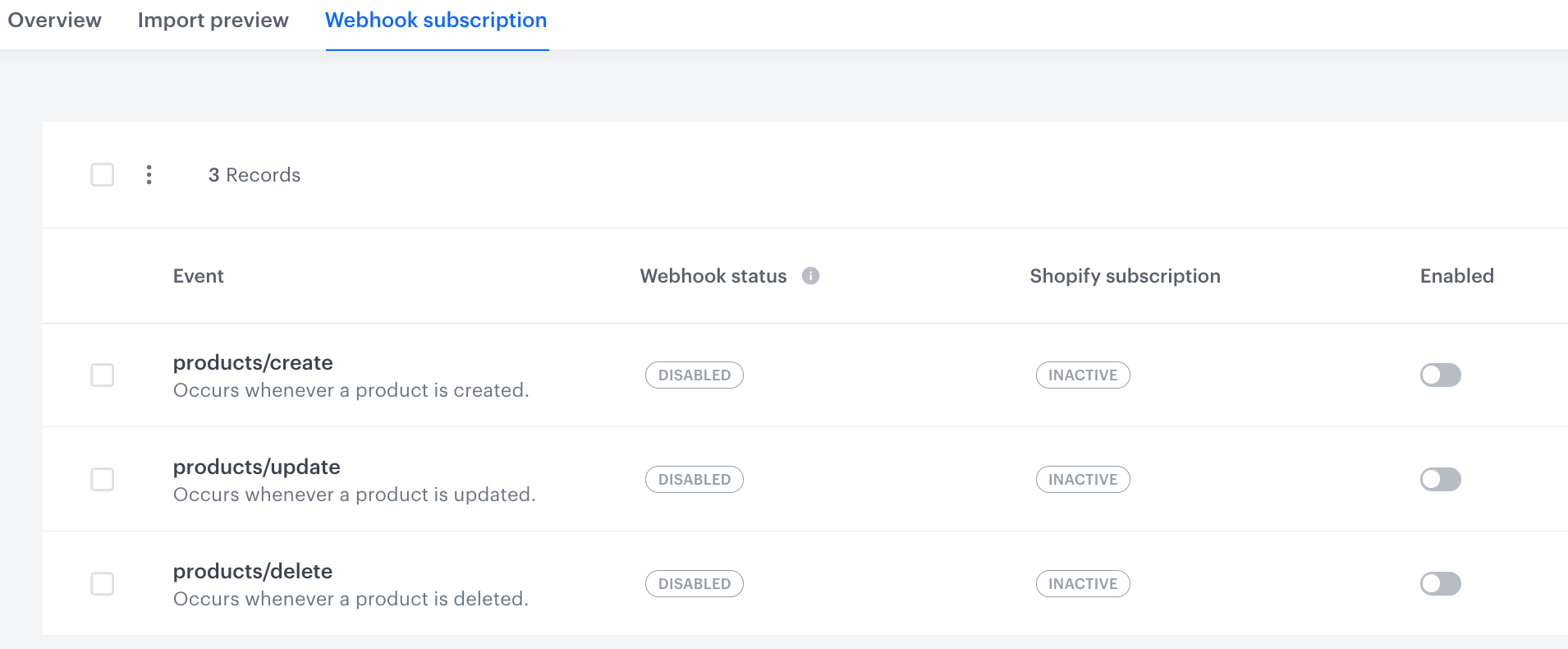
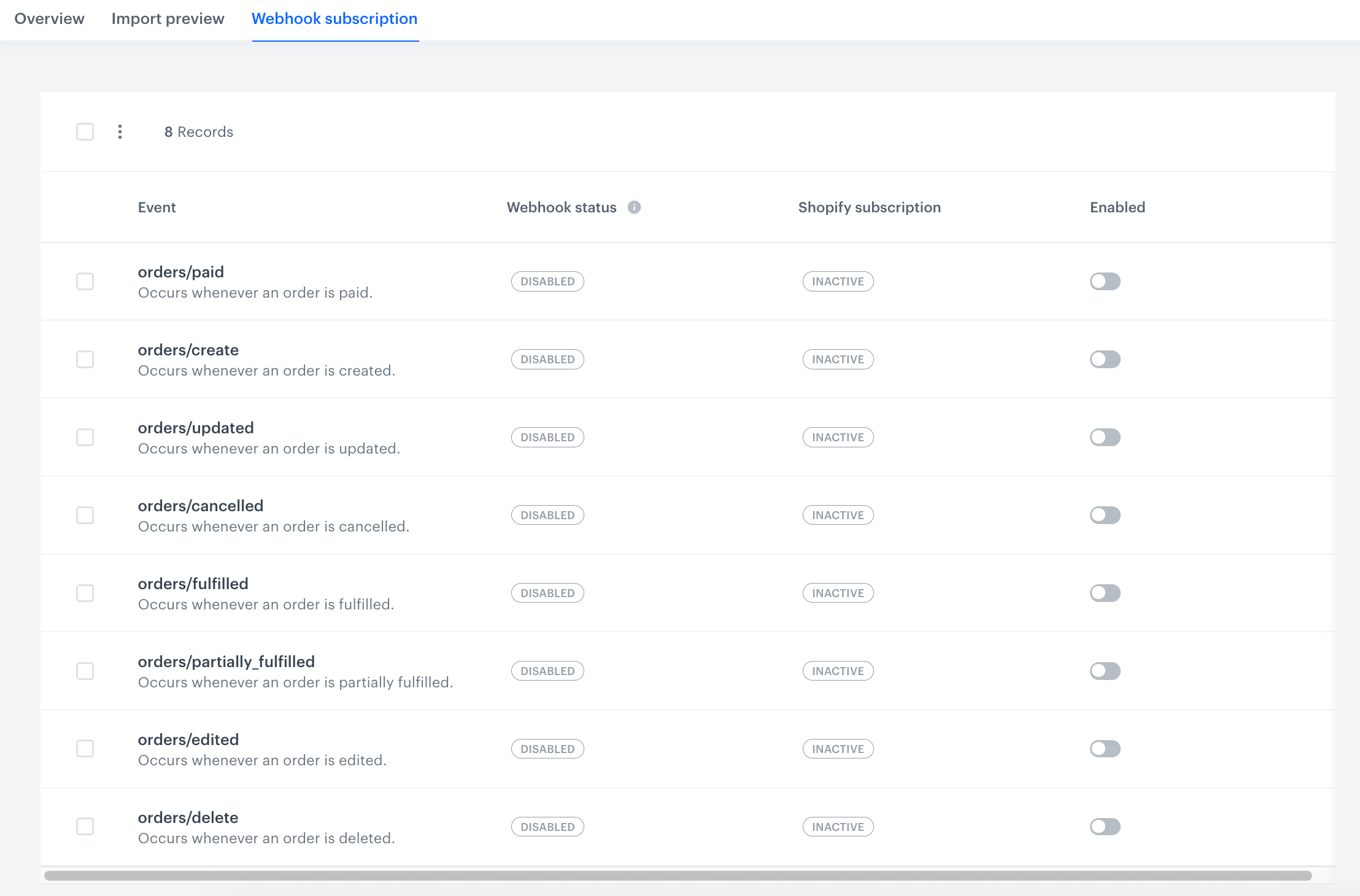
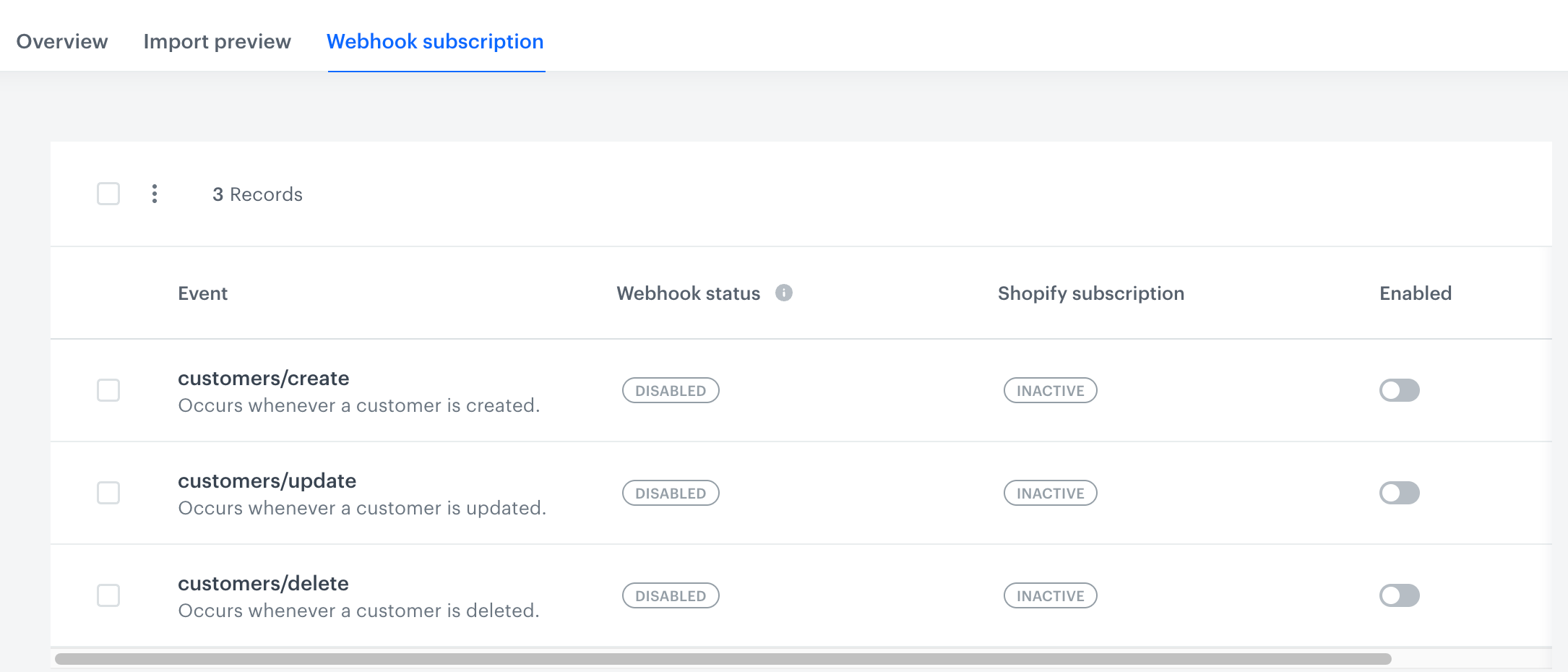
On the **Webhook subscription** tab, select which Shopify events trigger live synchronization to Synerise. For an event to work, both its **Webhook status** and **Shopify subscription** columns must show **Active**. Use the **Enabled** toggle to turn synchronization for that event on or off.

<figure><img src="/api/docs/image/b180b0d07a5736de7420ea783f589e45f7394aec/docs/settings/tool/_gfx/shopify-webhook-subscription-customers.png" class="large" alt="The Webhook subscription tab of a Customers configuration"><figcaption>The Webhook subscription tab of a Customers configuration</figcaption></figure>

### Customers

| Event | Description | Result in Synerise |
|---|---|---|
| `customers/create` | Occurs whenever a customer is created. | A [client.add](/docs/assets/events/event-reference/profiles) event is generated. The customer's profile is created in Synerise, with attributes set according to the [parameter mapping](#defining-parameter-mapping) you defined. |
| `customers/update` | Occurs whenever a customer is updated. | A [profile.updated](/docs/assets/events/event-reference/profiles#profileupdated) event is generated. The customer's profile in Synerise is updated according to the parameter mapping. |
| `customers/delete` | Occurs whenever a customer is deleted. | A profile is deleted from Synerise, no event is generated. |

### Products

| Event | Description | Result in Synerise |
|---|---|---|
| `products/create` | Occurs whenever a product is created. | The item is added to the Synerise catalog associated with the configuration, with attributes set according to the parameter mapping. If the catalog doesn't exist yet, it's created automatically. |
| `products/update` | Occurs whenever a product is updated. | The corresponding item in the Synerise catalog is updated according to the parameter mapping. |
| `products/delete` | Occurs whenever a product is deleted. | The corresponding item is removed from the Synerise catalog. |

<figure><img src="/api/docs/image/b180b0d07a5736de7420ea783f589e45f7394aec/docs/settings/tool/_gfx/shopify-webhook-subscription-products.png" class="large" alt="The Webhook subscription tab of a Products configuration"><figcaption>The Webhook subscription tab of a Products configuration</figcaption></figure>

### Orders

| Event | Description | Result in Synerise |
|---|---|---|
| `orders/paid` | Occurs whenever an order is paid. | A [`transaction.charge` event](/docs/assets/events/event-reference/items#transactioncharge) is created (or updated, see note below) on the customer's profile, according to the parameter mapping. |
| `orders/create` | Occurs whenever an order is created. | A `transaction.charge` event is created (or updated, see note below) on the customer's profile, according to the parameter mapping. |
| `orders/updated` | Occurs whenever an order is updated. | The corresponding `transaction.charge` event is updated. |
| `orders/cancelled` | Occurs whenever an order is cancelled. | The corresponding `transaction.charge` event is updated. |
| `orders/fulfilled` | Occurs whenever an order is fulfilled. | The corresponding `transaction.charge` event is updated. |
| `orders/partially_fulfilled` | Occurs whenever an order is partially fulfilled. | The corresponding `transaction.charge` event is updated. |
| `orders/edited` | Occurs whenever an order is edited. | The corresponding `transaction.charge` event is updated. |
| `orders/delete` | Occurs whenever an order is deleted. |  |

<figure><img src="/api/docs/image/b180b0d07a5736de7420ea783f589e45f7394aec/docs/settings/tool/_gfx/shopify-webhook-subscription-orders.png" class="large" alt="The Webhook subscription tab of an Orders configuration"><figcaption>The Webhook subscription tab of an Orders configuration</figcaption></figure>


<div class="admonition admonition-note"><div class="admonition-icon"><svg xmlns="http://www.w3.org/2000/svg" fill="none" viewBox="0 0 24 24" stroke="currentColor" stroke-width="2.5"><path stroke-linecap="round" stroke-linejoin="round" d="M13 16h-1v-4h-1m1-4h.01M21 12a9 9 0 11-18 0 9 9 0 0118 0z" /></svg></div><div class="admonition-body"><div class="admonition-content">

An order can go through several of the events listed above during its lifecycle (for example, `orders/create`, then `orders/paid`, then `orders/fulfilled`). Whether these events update the same `transaction.charge` event or create separate ones depends on the `eventSalt` value you define in the [parameter mapping](#defining-parameter-mapping). If `eventSalt` stays the same across the order's lifecycle (for example, when it's mapped to the order ID), subsequent events update the same transaction event, reflecting the order's latest status. To get a unique transaction event per status instead, define `eventSalt` so that its value changes with the order's status.

</div></div></div>