This guide contains instructions on integrating Synerise with a store built on the FastStore framework. If you are unsure which framework is used in your project, refer to the [VTEX documentation](https://developers.vtex.com/docs/guides/getting-started-with-storefront-solutions).

You can use the Synerise plugin in your eshop built on VTEX IO ecommerce platform to transmit the data from your website to Synerise, so you can utilize it for analyses and your business campaigns. 

The article is divided into three main parts, each of which contains procedures for specific platforms:
1. [Configuration in the Synerise platform](#configuration-in-synerise).
2. [Configuration in the VTEX platform](#configuration-in-vtex).
3. [Configuration in the application files](#configuration-in-your-application-files).

The further parts of this article show how to:
- [Enable historical synchronization](#historical-data-synchronization)
- [Uninstall the Synerise plugin](#uninstall-the-plugin)


  <div class="admonition admonition-warning"><div class="admonition-icon"><svg xmlns="http://www.w3.org/2000/svg" fill="none" viewBox="0 0 24 24" stroke="currentColor" stroke-width="2.5"><path stroke-linecap="round" stroke-linejoin="round" d="M12 9v2m0 4h.01m-6.938 4h13.856c1.54 0 2.502-1.667 1.732-2.5L13.732 4c-.77-.833-1.964-.833-2.732 0L4.082 16.5c-.77.833.192 2.5 1.732 2.5z" /></svg></div><div class="admonition-body"><div class="admonition-content">

  If there are no requests in 60 minutes, the service deactivates. The first request that re-activates the service after 60 minutes of inactivity is automatically lost.

  </div></div></div>


## Plugin scope
---
- Tracking transaction, cart, and customer activity events
- Tracking the checkout page
- Identifying customers after they fill out a form
- Synchronizing data between Synerise and VTEX through webhooks: creating, updating, and removing accounts; marketing consent changes
- Exporting historical data about customers and orders from VTEX to Synerise.

## Configuration in Synerise

### Generate the tracking code
---

To enable tracking the customer activity on your website, create a tracking code which you will implement into your code files later in the process.

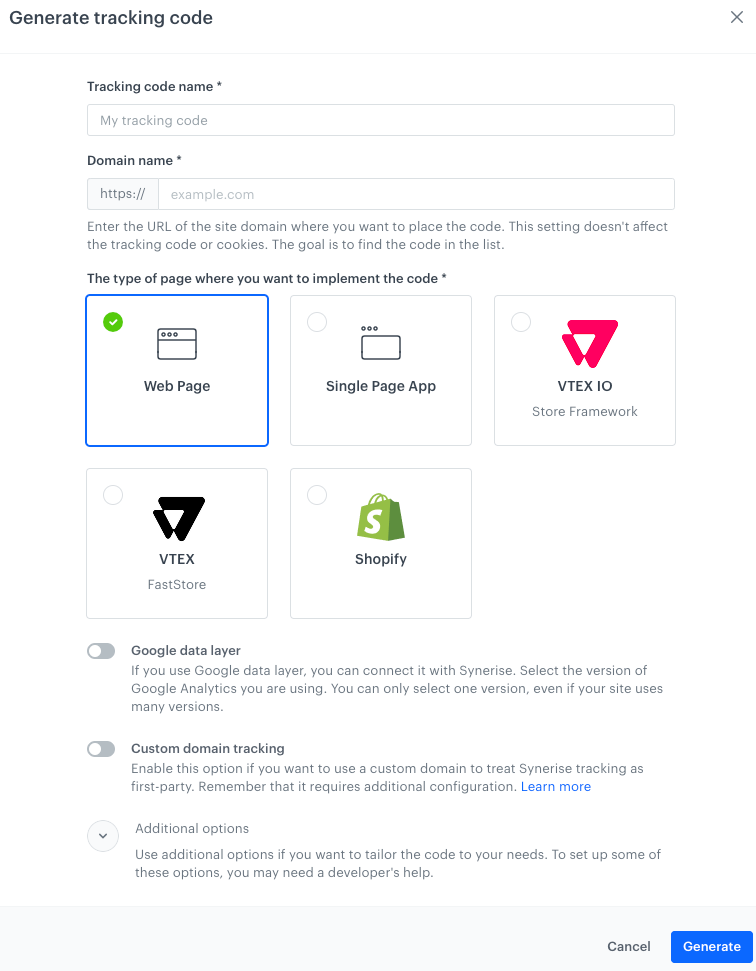
1. In Synerise, go to **Settings > Tracking codes** and generate a tracking code dedicated to **VTEX FastStore**.  
    Full instruction on generating tracking codes is available [here](/developers/web/installation-and-configuration).
    <figure><img src="/api/docs/image/54176ad07f146575310749eba44b7c2f42c1b327/docs/settings/tool/_gfx/tracking-code-blank.png" class="medium" alt="Generating tracking code in Synerise"><figcaption>Generating tracking code in Synerise</figcaption></figure>   

    **Result**: Synerise generates 2 tracking codes. 
2. Copy the generated tracking codes and save them in the notepad.

    <figure><img src="/api/docs/image/54176ad07f146575310749eba44b7c2f42c1b327/docs/settings/tool/_gfx/fast-store-tracking.png" class="medium" alt="Tracking codes generated for VTEX domain"><figcaption>Tracking codes generated for VTEX domain</figcaption></figure>


### Create an API key
---

Create an API key with specific permissions (the list is available in the instruction below), which will enable authorization between Synerise and VTEX.

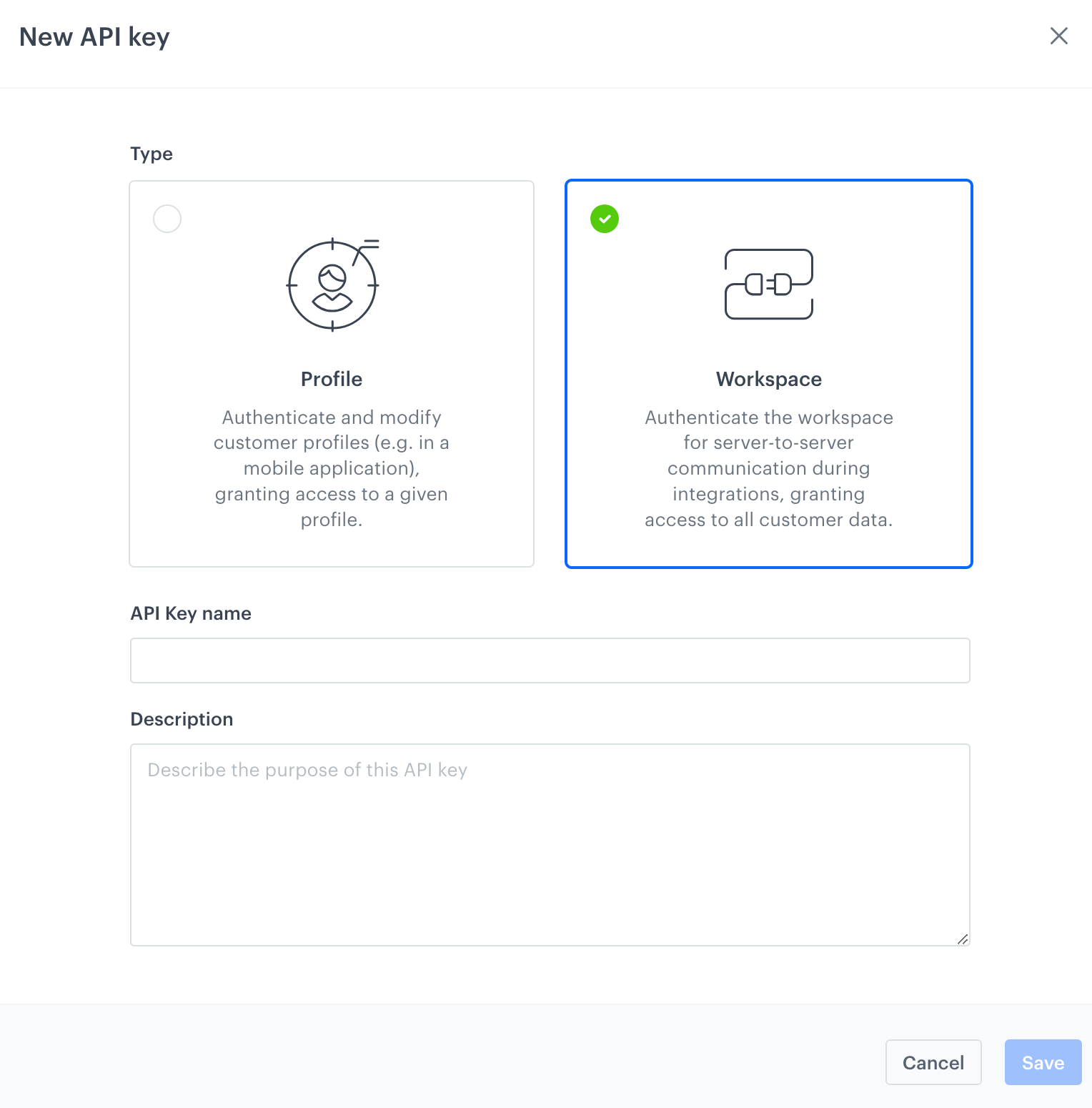
1. In Synerise, go to **Settings > API Keys > Add API key**.
2. On the pop-up:
    1. Select **Workspace**.
    2. Enter the name of the API key (it will be visible on the list of API keys).
    3. Optionally, in the **Description** field, you can provide a brief explanation for the purpose of the key. This will help you and your team in identifying the key promptly on the API key list.
    <figure>
    <img src="/api/docs/image/54176ad07f146575310749eba44b7c2f42c1b327/docs/settings/tool/_gfx/new-api-vtex.png" alt="Adding a new API key for the Vtex integration" class="large" >
    <figcaption> Adding a new API key for the VTEX integration </figcaption>
    </figure>
3. Confirm by clicking **Save**.
4. Find the key on the top of API key list and click **Permissions**.
5. On the pop-up, select all the permissions listed below to enable complete synchronization of data between Synerise and VTEX:  

    
   <details class="accordion"><summary>Click to expand the list of permissions</summary><div class="accordion-content"><ul> <li><strong>CATALOG</strong>:<ul> <li>CATALOGS_CATALOG_CREATE</li> <li>CATALOGS_CATALOG_READ</li> <li>CATALOGS_ITEM_BATCH_CATALOG_CREATE</li> </ul> </li> <li><strong>CLIENT</strong>:<ul> <li>API_BATCH_CLIENT_CREATE</li> <li>API_CLIENT_CREATE</li> </ul> </li> <li><strong>EVENTS</strong>:<ul> <li>API_ADDED_TO_CART_EVENTS_CREATE</li> <li>API_ADDED_TO_FAVORITES_EVENTS_CREATE</li> <li>API_CUSTOM_EVENTS_CREATE</li> <li>API_LOGGED_IN_EVENTS_CREATE</li> <li>API_LOGGED_OUT_EVENTS_CREATE</li> <li>API_REGISTERED_EVENTS_CREATE</li> <li>API_REMOVED_FROM_CART_EVENTS_CREATE</li> </ul> </li> <li><strong>INTEGRATIONS</strong>: <ul> <li>IMPORT_FEEDER_LOGS_INTEGRATIONS_CREATE</li> </ul> </li> <li><strong>TRACKER</strong> <ul> <li>TRACKER_CREATE</li> </ul> </li> <li><strong>TRANSACTION</strong><ul> <li>API_BATCH_TRANSACTION_CREATE</li> <li>API_TRANSACTION_CREATE</li> </ul> </li> <li><strong>VTEX</strong><ul> <li>IMPORT_FEEDER_INTEGRATION_VTEX_CREATE</li> <li>IMPORT_FEEDER_INTEGRATION_VTEX_READ</li> <li>IMPORT_FEEDER_INTEGRATION_VTEX_DELETE</li> <li>IMPORT_FEEDER_INTEGRATION_VTEX_UPDATE</li> <li>IMPORT_FEEDER_LOGS_INTEGRATIONS_CREATE</li> <li>IMPORT_FEEDER_SYNCHRONIZATIONS_VTEX_READ</li> <li>IMPORT_FEEDER_SYNCHRONIZATION_VTEX_CREATE</li> <li>IMPORT_FEEDER_SYNCHRONIZATION_VTEX_DELETE</li> </ul> </li> </ul></div></details>


6. Confirm by clicking **Apply settings**.
5. Close the pop-up with permissions.
8. On the **General** section, click **Show**.
9. Copy the API key into the notepad.  
    <figure>
    <img src="/api/docs/image/54176ad07f146575310749eba44b7c2f42c1b327/docs/settings/tool/_gfx/vtex-api-key-details.png" alt="Details of the API key" class="full" >
    <figcaption> Details of the API key </figcaption>
    </figure>


### Enable updating profile information with specific events
---

To prevent duplicating customers' accounts when they become identified, make it possible for specific events to update profile information without JWT authorization.  

1. Go to **Data Modeling Hub > Events**. 
2. Select the **JS SDK event settings** tab.  
3. In the **Events without JWT allowed for updating profiles' information** section, click **Define**.  
4. From the **Select events** dropdown list, select [form.submit](/docs/assets/events/event-reference/web-and-app#formsubmit)
5. Confirm by clicking **Add**.  
    <figure><img src="/api/docs/image/54176ad07f146575310749eba44b7c2f42c1b327/docs/settings/_gfx/event-update-without-jwt.png" class="full" alt="Configuration of the section"><figcaption>Configuration of the section</figcaption></figure>
6. Confirm the settings by clicking **Apply**.


### Prepare tracking events on the checkout page
---

In this part of the process, you will use a ready-to-use [dynamic content](/docs/campaign/dynamiccontent/creating-dynamic-content) template available in the Synerise platform. This template includes JavaScript that's inserted into the checkout page to identify customers when they fill out a form and to track events on the checkout page. By default, the dynamic content from this template doesn't include any elements visible on the site.


<div class="admonition admonition-note"><div class="admonition-icon"><svg xmlns="http://www.w3.org/2000/svg" fill="none" viewBox="0 0 24 24" stroke="currentColor" stroke-width="2.5"><path stroke-linecap="round" stroke-linejoin="round" d="M13 16h-1v-4h-1m1-4h.01M21 12a9 9 0 11-18 0 9 9 0 0118 0z" /></svg></div><div class="admonition-body"><div class="admonition-content">

This dynamic content starts working after you enable Synerise SDK on the checkout page. This is described later in this article.

</div></div></div>


1. Go to **Experience Hub > Dynamic Content > Create new**.
2. Enter the name of the dynamic content.
3. As the dynamic content type, select **Insert object**.
4. In the **Audience** section, select the **Everyone** tab.
5. In the **Content** section, set the **CSS Selector** option to **After**.
2. In the text field, enter `.snrs-modal-wrapper`  
    This sets the dynamic content to be injected after one of the elements created when Synerise JS SDK is initialized. If you need to, you can set a different selector.
7. Click **Create message**.
8. Select **Script templates**.
9. From the Script templates library, select **VTEX - tracking events on checkout page**.  
    The template is ready to be used, it contains all necessary scripts that track events and identify customers when they fill out the form. 
10. If needed, you can make changes to the templates.  
    
    <div class="admonition admonition-note"><div class="admonition-icon"><svg xmlns="http://www.w3.org/2000/svg" fill="none" viewBox="0 0 24 24" stroke="currentColor" stroke-width="2.5"><path stroke-linecap="round" stroke-linejoin="round" d="M13 16h-1v-4h-1m1-4h.01M21 12a9 9 0 11-18 0 9 9 0 0118 0z" /></svg></div><div class="admonition-body"><div class="admonition-content">

    You can learn more how to edit a template in a dynamic content template builder [here](/docs/campaign/dynamiccontent/creating-dynamic-content-templates/dynamic-content-template-builder#editing-a-ready-made-template).

    </div></div></div>

1. In the upper right corner, click **Use in communication**.
2. Confirm the settings in the **Content** section by clicking **Apply**.
3. In the **Schedule** section, select **Display immediately** and click **Apply**.
    If needed, you can [declare the date when the dynamic content will start and end being active](/docs/campaign/dynamiccontent/creating-dynamic-content/creating-dynamic-content#schedule-dynamic-content)
4. In the **Display settings** section:
    1. Open **Advanced options**.
    2. In **Page targeting**, click **Others**.
    3. In **Display on pages**, click **Add rule**.
    4. Select **Page with URL** and enter the URL of your checkout page.
    5. Confirm the settings by clicking **Apply**.
5. Optionally, in the **UTM & URL parameters** section, [define these parameters](/docs/campaign/dynamiccontent/creating-dynamic-content/creating-dynamic-content#define-the-utm-parameters).
6. In the upper right corner, click **Activate**.


## Configuration in VTEX

### Install the Synerise plugin 
---

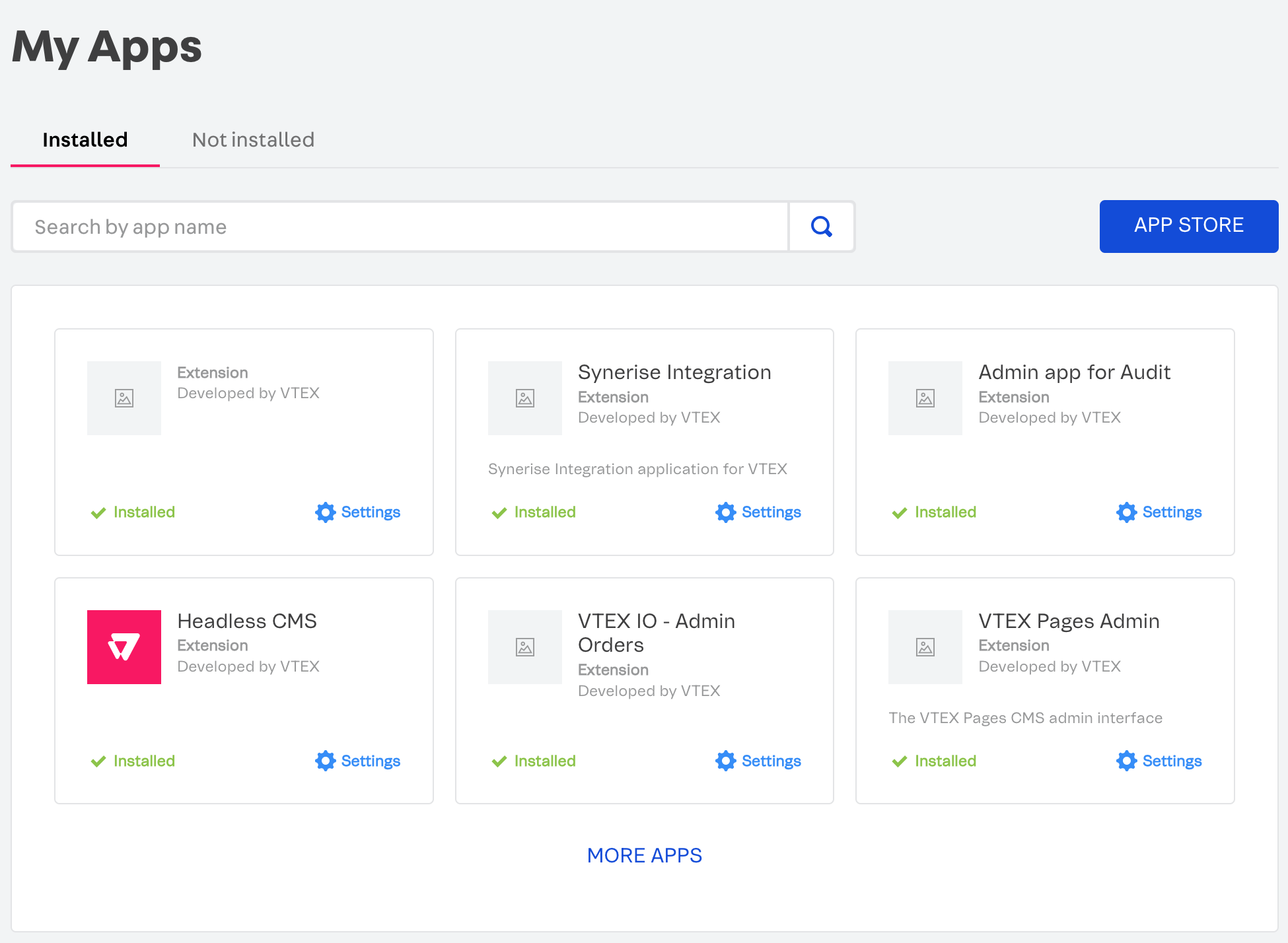
Install the application through the VTEX console:  
1. Download the VTEX console.
2. In the console, log on to your VTEX workspace.
3. Install the Synerise application with the following command: `vtex install synerisepartnerar.synerise-integration`  
    **Result**: A native Synerise integration appears in the **Apps** section in the menu and you will be redirected to the **Configuration** section automatically.  
    <figure><img src="/api/docs/image/54176ad07f146575310749eba44b7c2f42c1b327/docs/settings/tool/_gfx/vtex-apps-synerise.png" class="medium" alt="Synerise integration in the menu in the VTEX panel"><figcaption>Synerise integration in the menu in the VTEX panel</figcaption></figure>


### Select the FastStore plugin configuration
---

In this part of the process, depending on the framework you use, select the configuration scenario.

1. In VTEX, go to **Apps > (Synerise) Configuration**.
2. In the **Plugin configuration for FastStore** section, click **Start configuration**.  

<figure><img src="/api/docs/image/54176ad07f146575310749eba44b7c2f42c1b327/docs/settings/_gfx/vtex-synerise-plugin-config.png" class="medium" alt="Selection of the configuration scenario"><figcaption>Selection of the configuration scenario</figcaption></figure>


### Enable data exchange between Synerise and VTEX
---

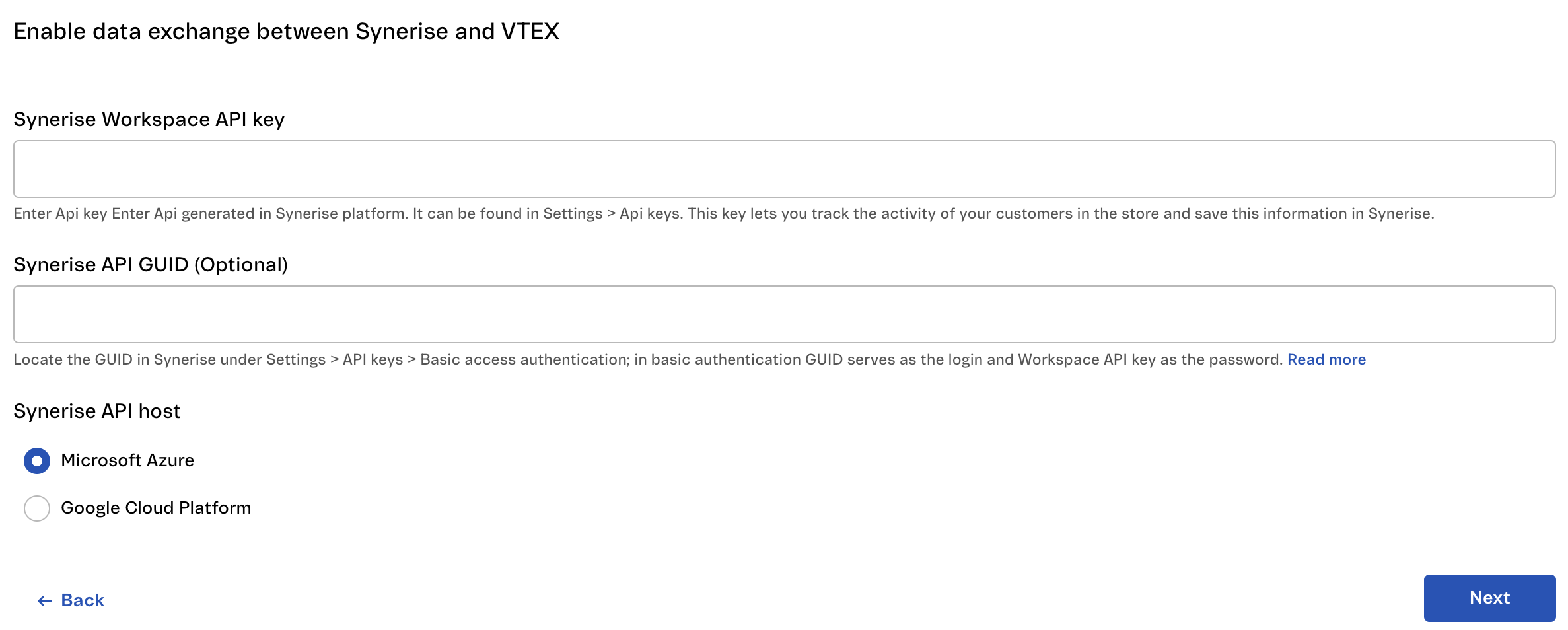
To initiate the exchange of data between Synerise and VTEX, you will provide the workspace API key, Synerise API GUID, and select Synerise API host.

<figure><img src="/api/docs/image/54176ad07f146575310749eba44b7c2f42c1b327/docs/settings/tool/_gfx/vtex-config-data-exchange.png" class="full" alt="Blank configuration form for enabling data exchange between Synerise and VTEX"><figcaption>Blank configuration form for enabling data exchange between Synerise and VTEX</figcaption></figure>

1. In the **Synerise Workspace API key** field, enter the Synerise API key which you created in ["Creating an API key"](#create-an-api-key).
2. If you want to use basic authentication, in the **Synerise API GUID (Optional)** field, enter the workspace GUID.  
    Filling out this field results in setting GUID to be a password and Workspace API key a login for basic authentication.  
    You can find the GUID in the settings of your API key, after enabling **Basic workspace authentication**.  
    
   <div class="admonition admonition-note"><div class="admonition-icon"><svg xmlns="http://www.w3.org/2000/svg" fill="none" viewBox="0 0 24 24" stroke="currentColor" stroke-width="2.5"><path stroke-linecap="round" stroke-linejoin="round" d="M13 16h-1v-4h-1m1-4h.01M21 12a9 9 0 11-18 0 9 9 0 0118 0z" /></svg></div><div class="admonition-body"><div class="admonition-content">

   Read more about [Basic workspace authentication](/developers/api/api-authorization/workspace-login#basic-api-authentication-with-api-keys).

   </div></div></div>

3. From the **Synerise API host** list, select the API host URL. Depending on the cloud where your Synerise workspace is hosted:
    - if your Synerise portal URL starts with `https://app.synerise.com/`, use **Microsoft Azure**.
    - if your Synerise portal URL starts with `https://app.azu.synerise.com/`, use **Microsoft Azure US**.
    - if your Synerise portal URL starts with `https://app.geb.synerise.com/`, use **Google Cloud Platform**.
4. Click **Next**. 

### Define additional settings
---

In this part of the configuration, you will:
- [select order statuses which will overwrite transaction information](#select-order-statuses-for-overwriting-transaction-events)
- [select customer attributes to be added to the transaction event metadata](#select-customer-attributes-added-to-orders)
- [select additional customer attributes to send to Synerise](#select-additional-customer-attributes)

After completing this part of the configuration, at the bottom right corner, click **Configure**.

#### Select order statuses for overwriting transaction events
---

If you want to send transaction updates to Synerise from [subaccounts](https://help.vtex.com/tutorial/managing-a-multistore--4S0lFVBPylRS5KpVgdyDhJ) in which a transaction occurs, [enable sending transaction updates for sub-accounts](#enable-sending-transaction-events-for-sub-accounts).

From the **Order statuses for data updates** dropdown list, select the status or statuses that will update the transaction information in Synerise. As a result, the existing [transaction.charge](/docs/assets/events/event-reference/items#transactioncharge) and [product.buy](/docs/assets/events/event-reference/items#productbuy) events generated by that order will be updated. Refer to the tables below to see which parameters are overwritten:

- product.buy

    | Event parameter | Explanation                                                                                  |
    |-----------------|----------------------------------------------------------------------------------------------|
    | `$quantity`     | - When an item is removed, the value of the parameter is set to `0`. <br> - When the item quantity changes, the value changes accordingly. |
    | `canceled`      | This parameter is added only when an item is removed. The value is set to `true`.          |

- transaction.charge
    | event parameter | description                                                                                                                        |
    |-----------------|------------------------------------------------------------------------------------------------------------------------------------|
    | `$revenue`      | The total value of the transaction may change (for example, as a result of including promotions or removal of items from the order). |
    | `status`        | Contains the name of the order status which triggered overwriting this event.                                                       |


#### Select customer attributes added to orders
---

In the **Customer attributes added to orders** field, you can add customer attributes which will be added to the metadata of the transaction events.


#### Select additional customer attributes
---

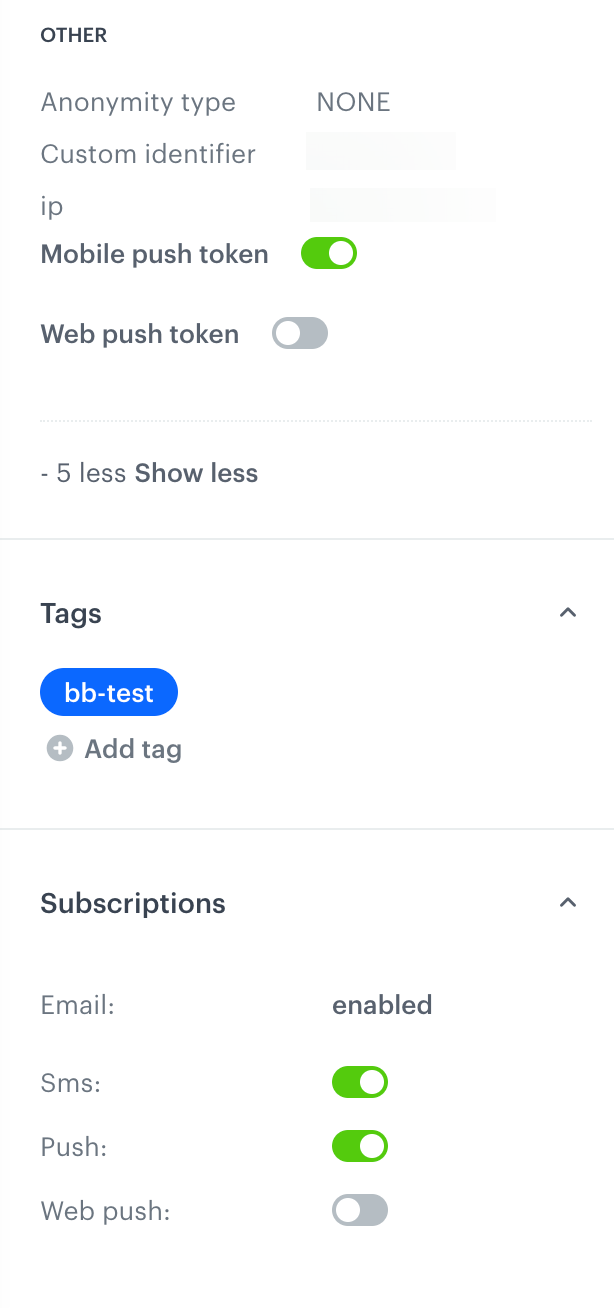
In the **Additional customer attributes** field, select the VTEX attributes which will be sent to the Synerise. These attributes will be saved in the customer's profile.  

<figure><img src="/api/docs/image/54176ad07f146575310749eba44b7c2f42c1b327/docs/settings/tool/_gfx/customer-data.png" class="small" alt="Customer attributes will be saved on the card of a customer in the customer information panel"><figcaption>Customer attributes will be saved on the card of a customer in the customer information panel in Synerise</figcaption></figure>

### Implement SDK on the checkout page
---
The checkout page in VTEX requires a custom script to enable Synerise tracker and SDK. You can implement it in ***one*** of the following ways (the choice of the method depends on your checkout page configuration in VTEX):

- [Standard checkout configured in VTEX settings](#standard-checkout-configured-in-vtex-settings)
- [Custom UI checkout](#custom-ui-checkout)
- [Checkout UI Settings](#checkout-ui-settings)


#### Standard checkout configured in VTEX settings

1. In your VTEX workspace, click the gear icon in the lower left corner and go to **Checkout**.
2. Next to the name of the store that you are configuring, click the gear icon.
3. On the page that opens, go to the **Code** tab.
4. From the **Files** list, open **checkout6-custom.js**
5. In the file, add the **Tracking code for the VTEX checkout page** tracking code you created in ["Generating the tracking code" section](#generate-the-tracking-code).  
    
   <div class="admonition admonition-warning"><div class="admonition-icon"><svg xmlns="http://www.w3.org/2000/svg" fill="none" viewBox="0 0 24 24" stroke="currentColor" stroke-width="2.5"><path stroke-linecap="round" stroke-linejoin="round" d="M12 9v2m0 4h.01m-6.938 4h13.856c1.54 0 2.502-1.667 1.732-2.5L13.732 4c-.77-.833-1.964-.833-2.732 0L4.082 16.5c-.77.833.192 2.5 1.732 2.5z" /></svg></div><div class="admonition-body"><div class="admonition-content">

   Don't add the `customPageVisit` and `dynamicContent` parameters in this tracking code!

   </div></div></div>

    <figure><img src="/api/docs/image/54176ad07f146575310749eba44b7c2f42c1b327/docs/settings/tool/_gfx/vtex-checkout-tracker.png" class="large" alt="Tracking code added to the checkout page scripts"><figcaption>Tracking code added to the checkout page scripts</figcaption></figure>
6. Click **Save**.

**Result**: Synerise SDK is added to the checkout page and the [dynamic content used to track events on the checkout page](#prepare-tracking-events-on-the-checkout-page) becomes enabled.

#### Custom UI checkout

1. Follow the instructions in the [VTEX documentation](https://developers.vtex.com/docs/apps/vtex.checkout-ui-custom). 
2. While performing the procedure described in the documentation, in the JavaScript tab, add the Synerise tracking code from ["Generating the tracking code" section](#generate-the-tracking-code).

#### Checkout UI Settings

1. Follow the instructions in the [VTEX documentation](https://developers.vtex.com/docs/apps/vtex.checkout-ui-settings) described in the Configuration section. 
2. While performing the procedure described in the documentation, in the `checkout-ui-custom` folder, create a `JS` file with the Synerise tracking code from ["Generating the tracking code" section](#generate-the-tracking-code).


### Synchronizing VTEX item feed with the Synerise item feed
---

Synchronizing feeds let you keep your product base up to date both in VTEX and Synerise.

You can use one of the following methods:  
- [Enable synchronization of item feed in the Synerise catalog](/docs/settings/tool/vtex/synchronizing-item-feed#synchronizing-item-feed-changes-with-the-synerise-catalog) (**recommended**) - 
    - This method lets you synchronize entire Synrise catalog with the feed and enable automatic synchronization of every change of the VTEX item feed (editing and adding items);
    - This method requires selecting a Synerise catalog with the item feed and matching VTEX product and variant parameters with the columns in this catalog. 
- [Pull VTEX item feed from URL to AI feed in Synerise](/docs/settings/tool/vtex/synchronizing-item-feed#pulling-vtex-item-feed-from-url)
    - This method generates an item feed in VTEX at defined frequency, then the item feed is pulled from the URL to the AI feed in Synerise.
    - This method requires adding the item feed in VTEX, creating AI feed in Synerise, and pulling the item feed from VTEX from an URL

## Configuration in your application files
---
This part of the process involves making changes to your application files.

### Add the Synerise tracking code

In this part of the process, you will prepare a Synerise tracking code for use with the FastStore framework. Once you add the tracking code in your application files, you will be able to track the following events:


<details class="accordion"><summary>Click to expand the list of events</summary><div class="accordion-content"><table> <thead> <tr> <th>Event name in VTEX</th> <th>Description</th> <th>Event in Synerise</th> </tr> </thead> <tbody><tr> <td>Client login</td> <td>This event is generated when a customer logs in to their account on your website.</td> <td>client.login <br> See details in <a href="/docs/assets/events/event-reference/web-and-app/#clientlogin">Event reference</a></td> </tr> <tr> <td>Client logout</td> <td>This event is generated when a customer logs out from their account on your website.</td> <td>client.logout <br> See details in <a href="/docs/assets/events/event-reference/web-and-app/#clientlogout">Event reference</a></td> </tr> <tr> <td>Add to cart</td> <td>This event is generated when a customer adds an item to the cart.</td> <td>product.addToCart <br> See details in <a href="/docs/assets/events/event-reference/items/#productaddtocart">Event reference</a></td> </tr> <tr> <td>Remove from cart</td> <td>This event is generated when a customer removes an item from the cart.</td> <td>product.removeFromCart <br> See details in <a href="/docs/assets/events/event-reference/items/#productremovefromcart">Event reference</a></td> </tr> <tr> <td>Cart status</td> <td>This event is generated when the customer changes the contents of the cart.</td> <td>cart.status <br> See details in <a href="/docs/assets/events/event-reference/items/#cartstatus">Event reference</a></td> </tr> <tr> <td>Newsletter subscription</td> <td>This event is generated when a customer enables the email marketing agreement.</td> <td>marketingAgreement.turnOn <br> See details in <a href="/docs/assets/events/event-reference/email/#marketingagreementturnon">Event reference</a></td> </tr> <tr> <td>Add to favorite</td> <td>This event is generated when a customer adds an item to wishlist.</td> <td>product.addToFavorite <br> See details in <a href="/docs/assets/events/event-reference/items/#productaddtofavorite">Event reference</a></td> </tr> <tr> <td>Remove from favorite</td> <td>This event is generated when a customer removes an item from wishlist.</td> <td>product.removeFromFavorite <br> See details in <a href="/docs/assets/events/event-reference/items/#productremovefromfavorite">Event reference</a></td> </tr> <tr> <td>Page visit</td> <td>This event is generated when a customer visits any page within the tracked domain.</td> <td>page.view <br> See details in <a href="/docs/assets/events/event-reference/web-and-app/#pagevisit">Event reference</a></td> </tr> <tr> <td>Product review</td> <td>This is a custom event; it is generated when a logged-in customer submits a product review. <div class="admonition admonition-important"><div class="admonition-icon"><svg xmlns="http://www.w3.org/2000/svg" fill="none" viewBox="0 0 24 24" stroke="currentColor" stroke-width="2.5"><path stroke-linecap="round" stroke-linejoin="round" d="M12 8v4m0 4h.01M21 12a9 9 0 11-18 0 9 9 0 0118 0z" /></svg></div><div class="admonition-body"><div class="admonition-content"> If VTEX allows syncing reviews from anonymous customers, no events will be generated in Synerise due to the lack of customer identifiers needed to match reviews with customers. </div></div></div></td> <td>product.addReview <br> See details in <a href="/docs/assets/events/event-reference/items/#productaddreview">Event reference</a></td> </tr> </tbody></table></div></details>


1. Go to the Synerise platform.
2. Go to **Settings > Tracking codes**.  
3. On the list, find the tracking code you generated in the [Generate the tracking code](#generate-the-tracking-code) part of the process.
4. Open the preview of the tracking code.
4. Copy the value of the `trackerKey` parameter and save in the notepad.  
5. Copy the code below to the notepad and in the `trackerKey` parameter value, paste the tracker key you copied in the previous step.
6. Implement the code below according to the instructions in [Adding the third-party scripts](https://developers.vtex.com/docs/guides/faststore/project-structure-handling-third-party-scripts).


<div class="highlight-code-block" data-hl-lines="8">
<pre><code class="language-java">const ThirdPartyScripts = () =&gt; {
    return (
        &lt;script
        dangerouslySetInnerHTML={{
            __html: `
                function onSyneriseLoad() {
                    SR.init({
                        trackerKey: "XXXXXXXX-XXXX-XXXX-XXXX-XXXXXXXXXXXX",
                        plugin: "faststore",
                    }).then(function () {
                        SR.event.pageVisit().then(function () {
                            SR.dynamicContent.get();
                        });
                    });
                }
                (function(s,y,n,e,r,i,se){s["SyneriseObjectNamespace"]=r;s[r]=s[r]||[],
                s[r]._t=1*new Date(),s[r]._i=0,s[r]._l=i;var z=y.createElement(n),
                se=y.getElementsByTagName(n)[0];z.async=1;z.src=e;se.parentNode.insertBefore(z,se);
                z.onload=z.onreadystatechange=function(){var rdy=z.readyState;
                if(!rdy||/complete|loaded/.test(z.readyState)){s[i]();z.onload = null;
                z.onreadystatechange=null;}};})(window,document,"script", "//web.snrbox.com/synerise-javascript-sdk.min.js", "SR", "onSyneriseLoad");
            `,
        }}
        /&gt;
    )
    }
    export default ThirdPartyScripts</code></pre>
</div>


### Implement AI recommendations and AI Search

Optionally, you can implement Synerise [AI recommendations](/docs/ai-hub/recommendations-v2/introduction-to-recommendation-campaigns) and [AI Search](/docs/ai-hub/ai-search/introduction-to-ai-search) to let you display recommendations in your store and let your customers use the AI-powered search. To do so, refer to the [Github documentation](https://github.com/synerise/faststore-examples).


## Historical data synchronization

If you want to export historical information about orders and customers from VTEX to Synerise, you can use the _Synchronization_ feature. It lets Synerise access the VTEX database and fetch data about customers and transactions.

Some customer attributes are sent by default. You can add custom attributes. For details, see ["Attributes sent to Synerise"](#attributes-sent-to-synerise).


<div class="admonition admonition-warning"><div class="admonition-icon"><svg xmlns="http://www.w3.org/2000/svg" fill="none" viewBox="0 0 24 24" stroke="currentColor" stroke-width="2.5"><path stroke-linecap="round" stroke-linejoin="round" d="M12 9v2m0 4h.01m-6.938 4h13.856c1.54 0 2.502-1.667 1.732-2.5L13.732 4c-.77-.833-1.964-.833-2.732 0L4.082 16.5c-.77.833.192 2.5 1.732 2.5z" /></svg></div><div class="admonition-body"><div class="admonition-content">

If the phone number or email are incorrect, the profile is not created or updated at all. If multiple profiles are created/updated as part synchronizing historical data, only the profiles with errors are skipped.<br><br>
The phone number must match the following regular expression:
```
(^\+[0-9 \-()/]{6,19}$)|(^[0-9 \-()/]{6,20}$)
```
The email must match the following regular expression:
```
^(([^<>()\[\]\\.,;:\s@"]+(\.[^<>()\[\]\\.,;:\s@"]+)*)|(".+"))@((\[[0-9]{1,3}\.[0-9]{1,3}\.[0-9]{1,3}\.[0-9]{1,3}])|(([a-zA-Z\-0-9]+\.)+[a-zA-Z]{2,}))$
```

</div></div></div>


After exporting data to Synerise, you can use it to train AI models, build analytics, create communication campaigns, and more.

Synchronization is a one-time transfer, usually used for historical data. Continuous connection (event tracking, transaction tracking, customer data updates) for exchanging new data is achieved by completing the integration as described in ["Pre-configuration in Synerise"](#configuration-in-synerise) and ["Configuration in VTEX"](#configuration-in-vtex).

Each exported transaction is saved in Synerise as a [`transaction.charge` event](/docs/assets/events/event-reference/items#transactioncharge) and a number of related [`product.buy` events](/docs/assets/events/event-reference/items#productbuy). Exported customers are saved as profiles. If a transaction or profile already exists in Synerise and the synchronization contains new data, the transaction or profile is updated.

#### Create a role


You must first create a role which allows for sending historical data to Synerise.

1. In your VTEX workspace, create a role with a set of permissions required for historical imports:  
    1. Go to **Account settings > User roles > New role**.
    2. Select the following permissions for **Product**:
        - **OMS**  
            - Notify payment
            - Notify invoice
            - View order
            - Notify refund
            - Order feed subscription
            - View store sales stats
            - Feed v3 and Hook Admin
            - Feed v3 and Hook view only
            - Subscription view only
            - Subscription metrics and reports
            - List Orders
        - **Dynamic Storage**
            - Full access to all documents
            - Insert or update document (not remove)
            - List data entity
            - Create data entity
            - Remove data entity
            - View data entity details
        - **CMS**
            - CMS GraphQL API
        - **Pricing**
            - Read prices
            - Read trade policy configurations
        - **Search**
            - General Settings

#### Schedule synchronization

1. In your VTEX workspace, go to **Apps > (Synerise) Access to VTEX**.
2. If this is the first time that you're accessing this feature, you are asked to allow Synerise access to VTEX API. To do so:
    1. In a new browser tab, open your VTEX admin panel.
    2. Generate an internal application key and token as described in [VTEX documentation](https://help.vtex.com/en/tutorial/application-keys--2iffYzlvvz4BDMr6WGUtet#generating-internal-application-keys).
        
       <div class="admonition admonition-important"><div class="admonition-icon"><svg xmlns="http://www.w3.org/2000/svg" fill="none" viewBox="0 0 24 24" stroke="currentColor" stroke-width="2.5"><path stroke-linecap="round" stroke-linejoin="round" d="M12 8v4m0 4h.01M21 12a9 9 0 11-18 0 9 9 0 0118 0z" /></svg></div><div class="admonition-body"><div class="admonition-content">

       When you generate the token, copy it immediately. It won't be accessible later.

       </div></div></div>

    3. Assign [the role you created](#create-a-role) to the VTEX API key. 
    4. Paste values from step 2 in **VTEX API key** and **VTEX app token**, respectively.  
    3. Return to the tab where you need to enter the app key and token in the Synerise plugin.
    4. Paste the key and token into the corresponding fields.
    5. Click **Save**.
3. If you want to synchronize marketing consents:  
    1. Enable the **marketing consent** toggle.  
        This works in both directions; any changes in marketing consent in either Synerise or VTEX will be synchronized.  
    2. To create a new user who doesn't exist in VTEX database, but exists already in Synerise, select the **Adding new users while synchronizing marketing consents** checkbox.  
    

4. Select the **Synchronization** tab.
3. Click **New synchronization**.  
    There is a limit of 2 active synchronizations.
4. In the pop-up that opens:
    1. Select the scope of data to be exported:
        - **Customer (Creation date)** - Exports data about customers whose accounts were created in a specific time range (you will select the dates in the next step). 
        - **Customer (Last updated date)** - Exports data about customers whose accounts were updated in a specific time range (you will select the dates in the next step).
        - **Orders** - Exports data about transactions and creates/updates `transaction.charge` and `product.buy` events.
    2. Select the date range for the export. For example, if in the previous step you selected **Customer (Creation date)**, the data of customers whose profiles were created within the chosen date range will be exported.

     <figure><img src="/api/docs/image/54176ad07f146575310749eba44b7c2f42c1b327/docs/settings/_gfx/vtex-new-synchronization.png" class="medium" alt="Scheduling synchronization"><figcaption>Scheduling synchronization</figcaption></figure>

    3. Click **Save**.

**Result**: The transfer starts. You can check its progress in the **Status** column on the list of synchronizations.

## Optional

### Enable sending transaction events for sub-accounts
---
If you use [multistore](https://help.vtex.com/tutorial/managing-a-multistore--4S0lFVBPylRS5KpVgdyDhJ) and you want to send transaction updates to Synerise from each subaccount, follow these instructions: 

1. Go to the main VTEX account.
2. Go to **Apps > App Management**.  
2. Search for **Orders Broadcast IO** and open its settings
4. Select the **Notify Subaccounts** checkbox.
5. Click **Save**.

### Enable sending customer data
---

In this part of the process, you will: 
1. [Configure the attributes to send (or leave them at default)](#attributes-sent-to-synerise).
2. Enable sending data to Synerise when a customer account is:  
    1. [created](#customer-created-an-account),
    4. [updated](#customer-updated-the-account),
    5. [deleted](#customer-account-has-been-deleted).

This process involves creating webhooks.


<div class="admonition admonition-important"><div class="admonition-icon"><svg xmlns="http://www.w3.org/2000/svg" fill="none" viewBox="0 0 24 24" stroke="currentColor" stroke-width="2.5"><path stroke-linecap="round" stroke-linejoin="round" d="M12 8v4m0 4h.01M21 12a9 9 0 11-18 0 9 9 0 0118 0z" /></svg></div><div class="admonition-body"><div class="admonition-content">

If you store marketing agreements outside Synerise, it is necessary to configure a separate webhook for updating the status of these agreements in the database where you keep them.

</div></div></div>


#### Attributes sent to Synerise

The following table lists the customer data that is sent to Synerise.

The same data is sent when [synchronizing historical data](#historical-data-synchronization).


<div class="admonition admonition-warning"><div class="admonition-icon"><svg xmlns="http://www.w3.org/2000/svg" fill="none" viewBox="0 0 24 24" stroke="currentColor" stroke-width="2.5"><path stroke-linecap="round" stroke-linejoin="round" d="M12 9v2m0 4h.01m-6.938 4h13.856c1.54 0 2.502-1.667 1.732-2.5L13.732 4c-.77-.833-1.964-.833-2.732 0L4.082 16.5c-.77.833.192 2.5 1.732 2.5z" /></svg></div><div class="admonition-body"><div class="admonition-content">

If the phone number or email are incorrect, the profile is not created or updated at all. If multiple profiles are created/updated as part synchronizing historical data, only the profiles with errors are skipped.<br><br>
The phone number must match the following regular expression:
```
(^\+[0-9 \-()/]{6,19}$)|(^[0-9 \-()/]{6,20}$)
```
The email must match the following regular expression:
```
^(([^<>()\[\]\\.,;:\s@"]+(\.[^<>()\[\]\\.,;:\s@"]+)*)|(".+"))@((\[[0-9]{1,3}\.[0-9]{1,3}\.[0-9]{1,3}\.[0-9]{1,3}])|(([a-zA-Z\-0-9]+\.)+[a-zA-Z]{2,}))$
```

</div></div></div>


| Property in VTEX | Property in Synerise |
| --- | --- |
| `email` | `email` |
| `firstName` | `firstName` |
| `lastName` | `lastName` |
| `userId` | `customId` |
| 1. `businessPhone`<br>2. `phone`<br>3. `homePhone` | `phone`<sup>1</sup> |
| `isNewsletterOptIn` | `agreements.email` |
| `birthDate` | `birthDate` |
| `gender` | `sex` |
| `profilePicture` | `avatarUrl` |
| `country` | `countryCode` |
| `state` | `province` |
| `city` | `city` |
| `postalCode` | `zipCode` |
| `street` + `number` + `complement` | `address` |
| other attributes | Additional attributes that you add. See ["Sending custom attributes"](#sending-custom-attributes) |

<sup>1</sup>The numbers are checked in the listed order. The first non-empty one is saved in Synerise.

##### Sending custom attributes

If you want to send additional customer attributes:
1. In your VTEX workspace, go to **Stores > (Synerise) Settings**.
2. Open the **Data** tab.
3. In the **Customer attributes** selector, from the dropdown, select the additional attributes that you want to send to Synerise.
4. Click **Save settings**.

#### Customer created an account

1. In the VTEX workspace, go to **Store Settings > Master Data**.  
    You can find the **Master Data** section using the search box.
2. Click the **Advanced settings** tab.  
3. On the left **Settings** menu, select **Data structure**.  
    **Result**: You are redirected to the following URL: `https://{account}.ds.vtexcrm.com.br/`; account is replaced with the name of your store.
2. Select the method of authentication.
3. After you have been authenticated, select the **Trigger** tab. 
1. From the **Action** dropdown list, select **Send an HTTP request**.
1. In the **Name** field, enter a meaningful name of the trigger (for example, "Create customer").
2. From the **Data Entity** dropdown list, select **Customer**.  
3. Set the **Status** option to **Enabled**.  
4. In the **Rules** tab, from the **Trigger rule** dropdown list, select **A record is created**.  
5. In the **Schedule** tab, select **Run ASAP**.  
6. In the **If Positive** tab:  
    1. In the **URL** field, type the endpoint: `https://yourshopsubdomain.myvtex.com/_v/private/synerise/triggers/customer`  
        Replace `yourshopsubdomain` with your shop's subdomain.  
    2. As the method, select **POST**.
    3. In the headers, add `x-synerise-api-key` with your API key as the value.
    4. In the request body, enter the following code:
        
       <pre><code class="language-json">{
          "id":"{!id}"
       }</code></pre>
 
        where `{!id}` will automatically be replaced with the ID of the record.
7. Click **Save**.

#### Customer updated the account

1. In the VTEX workspace, go to **Store Settings > Master Data**.  
    You can find the **Master Data** section using the search box.
2. Click the **Advanced settings** tab.  
3. On the left **Settings** menu, select **Data structure**.  
    **Result**: You are redirected to the following URL: `https://{account}.ds.vtexcrm.com.br/`; account is replaced with the name of your store.   
2. Select the method of authentication.
3. After you have been authenticated, select the **Trigger** tab. 
1. From the **Action** dropdown list, select **Send an HTTP request**.
1. In the **Name** field, enter a meaningful name of the trigger (for example, "Update customer").
2. From the **Data Entity** dropdown list, select **Customer**.  
3. Set the **Status** option to **Enabled**.  
4. In the **Rules** tab, from the **Trigger rule** dropdown list, select **A record is changed**.  
5. In the **Schedule** tab, select **Run ASAP**.  
6. In the **If Positive** tab:  
    1. In the **URL** field, type the endpoint: `https://yourshopsubdomain.myvtex.com/_v/private/synerise/triggers/customer`  
        Replace `yourshopsubdomain` with your shop's subdomain.  
    2. As the method, select **PATCH**.
    3. In the headers, enter the `x-synerise-api-key` parameters and as a value your API key.
    4. In the request body, enter the following code:
        
       <pre><code class="language-json">{
          "id":"{!id}"
       }</code></pre>

        where `{!id}` will automatically be replaced with the ID of the record.
7. Click **Save**.

#### Customer account has been deleted


1. In the VTEX workspace, go to **Store Settings > Master Data**.  
    You can find the **Master Data** section using the search box.
2. Click the **Advanced settings** tab.  
3. On the left **Settings** menu, select **Data structure**.  
    **Result**: You are redirected to the following URL: `https://{account}.ds.vtexcrm.com.br/`; account is replaced with the name of your store.  
2. Select the method of authentication.
3. After you have been authenticated, select the **Trigger** tab. 
1. From the **Action** dropdown list, select **Send an HTTP request**.
1. In the **Name** field, enter a meaningful name of the trigger (for example, "Delete customer").
2. From the **Data Entity** dropdown list, select **Customer**.  
3. Set the **Status** option to **Enabled**.  
4. In the **Rules** tab, from the **Trigger rule** dropdown list, select **A record is deleted**.  
5. In the **Schedule** tab, select **Run ASAP**.  
6. In the **If Positive** tab:  
    1. In the **URL** field, type the endpoint: `https://yourshopsubdomain.myvtex.com/_v/private/synerise/triggers/customer`  
        Replace `yourshopsubdomain` with your shop's subdomain.  
    2. As the method, select **DELETE**.
    3. In the headers, enter the `x-synerise-api-key` parameters and as a value your API key.
    4. In the request body, enter the following code:
        
       <pre><code class="language-json">{
          "email":"{!email}",
          "userId": "{!userId}"
       }</code></pre>

        where `{!email}` and `{!userId}` will automatically be replaced with the email of the customer and the ID of a customer respectively. In Synerise, `userId` is the equivalent of `customId`.
7. Click **Save**.

## Uninstalling the Synerise plugin
---

The process of uninstalling the Synerise plugin consists of the following steps:

1. [Uninstall the plugin](#uninstall-the-plugin) through administration panel or through the console. 
2. Optionally, [remove the Synerise application](#remove-the-synerise-application-from-orderform) from the settings applied to [orderForm](https://developers.vtex.com/docs/guides/orderform-fields) through API.


### Uninstall the plugin

You can do it in one of the following ways:


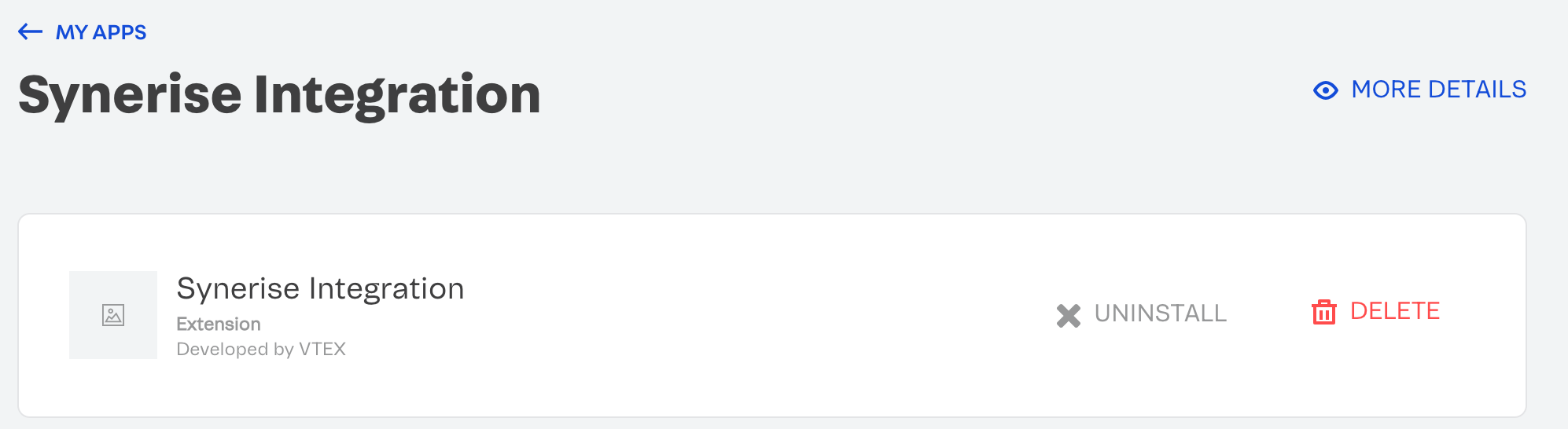
<details class="accordion"><summary>Through the administration panel - click to expand the instruction</summary><div class="accordion-content"><ol> <li><p>In the administration panel, select <strong>Apps &gt; App Management</strong>.</p> </li> <li><p>On the list of installed apps, locate the <strong>Synerise Integration</strong> plugin.<br> <strong>Results</strong>: </p> <figure><img src="/api/docs/image/54176ad07f146575310749eba44b7c2f42c1b327/docs/settings/_gfx/vtex-installed-apps.png" class="medium" alt="The list of installed apps in VTEX admin panel"><figcaption>The list of installed apps in VTEX administration panel</figcaption></figure> </li> <li><p>On the <strong>Synerise Integration</strong> plugin, click <strong>Settings</strong>. </p> <figure><img src="/api/docs/image/54176ad07f146575310749eba44b7c2f42c1b327/docs/settings/_gfx/vtex-uninstall-plugin.png" class="medium" alt="Settings of the plugin"><figcaption>Settings of the Synerise Integration plugin</figcaption></figure> </li> <li><p>Click <strong>Delete</strong>.<br> <strong>Result</strong>: A pop-up appears.</p> </li> <li><p>On the pop-up, confirm the action by clicking <strong>Delete</strong>.</p> </li> </ol></div></details>


<details class="accordion"><summary>Through the console - click to expand instruction</summary><div class="accordion-content"><ol> <li>Open the console through the VTEX Toolbelt.</li> <li>Execute the following command: <code>vtex uninstall synerisepartnerar.synerise-integration</code></li> </ol></div></details>


### Remove the Synerise application from orderForm

Apart from removing the integration, you can edit the order form configuration to prevent sending data that won't be used anymore.

1. Get the current configuration with a GET API request to `https://{accountName}.vtexcommercestable.com.br/api/checkout/pvt/configuration/orderForm`  
    - Replace `{account}` with the name of your account
    - `vtexcommercestable` is the name of the environment, leave it at default
        
   <div class="admonition admonition-note"><div class="admonition-icon"><svg xmlns="http://www.w3.org/2000/svg" fill="none" viewBox="0 0 24 24" stroke="currentColor" stroke-width="2.5"><path stroke-linecap="round" stroke-linejoin="round" d="M13 16h-1v-4h-1m1-4h.01M21 12a9 9 0 11-18 0 9 9 0 0118 0z" /></svg></div><div class="admonition-body"><div class="admonition-content">

   You can check the documentation of this endpoint in [VTEX API reference](https://developers.vtex.com/docs/api-reference/checkout-api#get-/api/checkout/pvt/configuration/orderForm).

   </div></div></div>

2. Copy the response into a text editor and delete the highlighted lines: 
    
   <div class="highlight-code-block" data-hl-lines="15,16,17,18,19,20,21,22,23">
   <pre><code class="language-json">{
       "paymentConfiguration": {
           "requiresAuthenticationForPreAuthorizedPaymentOption": false,
           "allowInstallmentsMerge": null,
           "blockPaymentSession": null,
           "paymentSystemToCheckFirstInstallment": null,
           "defaultPaymentSystemToApplyOnUserOrderForm": null,
           "alwaysShowMarketplacePaymentSystems": false
       },
       "taxConfiguration": null,
       "minimumQuantityAccumulatedForItems": 1,
       "decimalDigitsPrecision": 2,
       "minimumValueAccumulated": null,
       "apps": [
           {
               "fields": [
                   "snrs_params",
                   "uuid",
                   "source"
               ],
               "id": "synerise",
               "major": 1
           },
           {
               "fields": [
                   "cartEtag"
               ],
               "id": "faststore",
               "major": 1
           }
       ],
       "allowMultipleDeliveries": true,
       "allowManualPrice": null,
       "savePersonalDataAsOptIn": false,
       "maxNumberOfWhiteLabelSellers": null,
       "recaptchaValidation": "vtexcriteria",
       "recaptchaMinScore": null,
       "recaptchaKeys": null,
       "maskStateOnAddress": true,
       "enableSecureCookies": true,
       "useOwnershipCookie": null,
       "ignoreProfileData": null,
       "useIndividualShippingEstimates": false
   }</code></pre>
   </div>


3. Update the configuration by sending the edited response as the body of a POST request to the same URL: `https://{accountName}.vtexcommercestable.com.br/api/checkout/pvt/configuration/orderForm`