Before cloning AI predictions between workspaces, we recommend reading the [Introduction to cloning](/docs/settings/workspace/cloning-objects/introduction-to-cloning) article.


## Prerequisites
---
- To clone objects between workspaces, you must be assigned a user role that has the following permissions in the source and target workspaces:
    - [clone objects](/docs/settings/identity-access-management/permissions/settings-permissions#clone-objects)
    - [all Prediction permissions](/docs/settings/identity-access-management/permissions/ai-hub-permissions#access-predictions)
- In the target workspace, enable [models for the types of predictions you want to clone to the workspace](/docs/settings/configuration/ai-engine-configuration/engine-configuration-for-propensity).  
- Make sure item feeds in the source and target workspaces have equivalent attributes. 


## Select prediction to clone
---
1. Go to <img src="/api/docs/image/54176ad07f146575310749eba44b7c2f42c1b327/icons/ai-hub-icon.svg" alt="AI Hub icon" class="icon">  **(AI Predictions) Models**.   
2. On the list of predictions, find the prediction you want to clone.
3. To the right side of the prediction author information, click <img src="/api/docs/image/54176ad07f146575310749eba44b7c2f42c1b327/icons/threedoticon.png" alt="Three-dot icon" class="icon">.
4. From the context menu, select **Clone to workspace**.  
    **Result**: The **Choose destination** pop-up appears.
5. On the pop-up, select up to 5 workspaces to which you want to clone your prediction.  
    <figure><img src="/api/docs/image/54176ad07f146575310749eba44b7c2f42c1b327/docs/settings/_gfx/choose-workspace-to-clone.png" class="large" alt="A pop-up with selection of workspaces"><figcaption>A pop-up with selection of workspaces</figcaption></figure>
6. Confirm your choice by clicking **Next**.  
    **Result**: The mapping wizard opens.  


## Cloning a prediction
---

The procedure of cloning a prediction takes place in the mapping wizard and involves:
- selecting an item feed in the target workspace based on which you will map prediction elements (such as segmentations, expressions, events, and so on)
- mapping the elements of the predictions (see the full list below)  
    
  <div class="admonition admonition-important"><div class="admonition-icon"><svg xmlns="http://www.w3.org/2000/svg" fill="none" viewBox="0 0 24 24" stroke="currentColor" stroke-width="2.5"><path stroke-linecap="round" stroke-linejoin="round" d="M12 8v4m0 4h.01M21 12a9 9 0 11-18 0 9 9 0 0118 0z" /></svg></div><div class="admonition-body"><div class="admonition-content">

  You can't add new item attributes to the item feed in the target workspace while mapping. Make sure item feeds in the source and target workspaces have equivalent attributes.

  </div></div></div>
  

    | Element name                  | Description                                                                                                                                                                                                                                                                                                               
|-------------------------------|---------------------------------------------------------------------------------------------------------------------------------------------------------------------------------------------------------------------------------------------------------------------------------------------------------------------------|
| Mapping item attributes       | It involves mapping the attributes selected in the **Item attribute** field with their equivalent in the target workspace. <figure><img src="/api/docs/image/54176ad07f146575310749eba44b7c2f42c1b327/docs/settings/_gfx/item-attribute-field.png" class="large" alt="The item attribute field"><figcaption>The item attribute field </figcaption></figure>                                                                                                                                                                                                                          |
| Mapping expressions                | It is required only if the cloned prediction uses expressions or if the segmentation used in the prediction contains expressions in its conditions.                                                                                                                                                           |
| Mapping aggregates                | It is required only if the cloned prediction uses the segmentation that contains an aggregate in segmentation's conditions.                                                                                                                                                                  |
| Mapping segmentations                | It is required while cloning any prediction.                                                                                                                                                     |
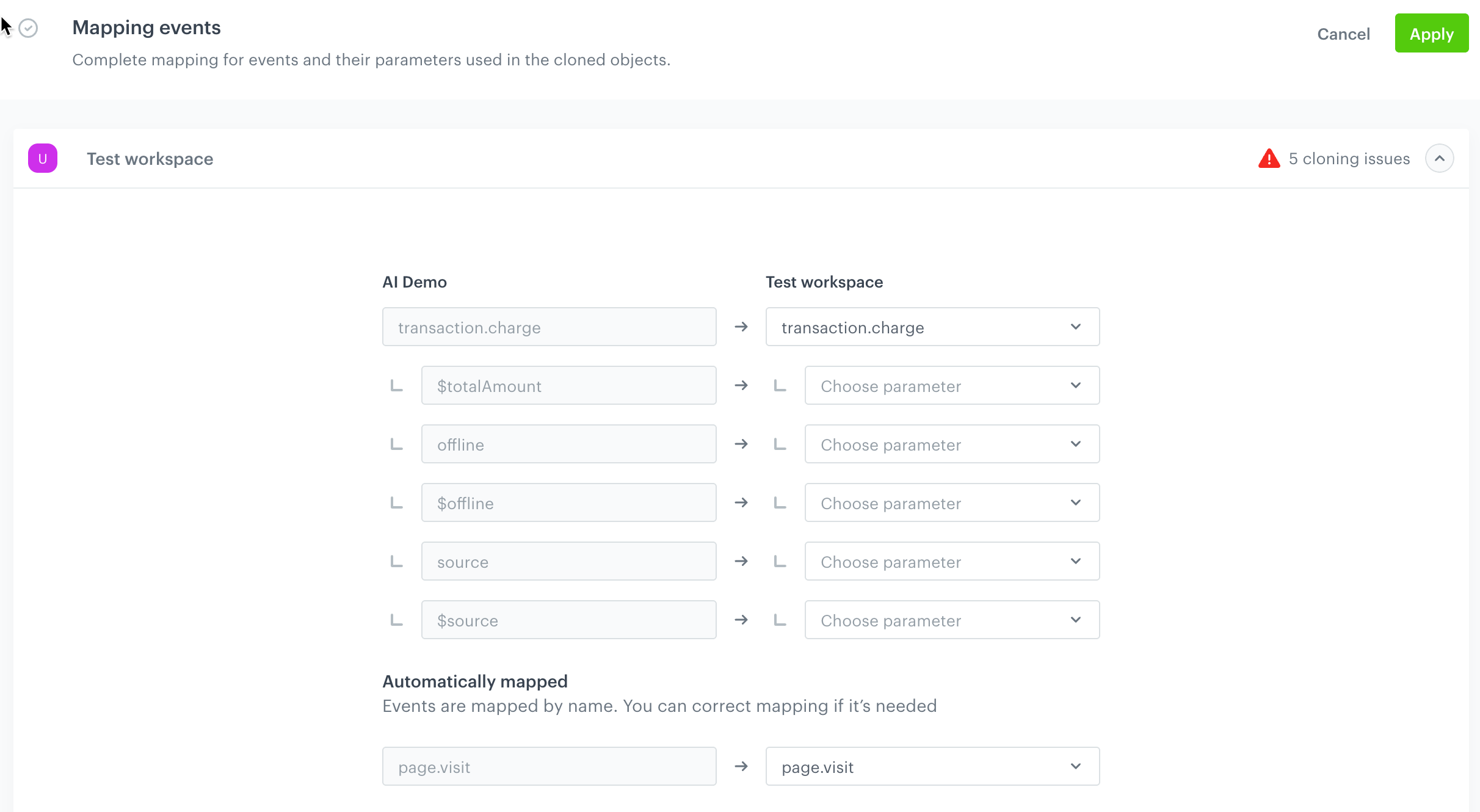
| Mapping events                | It involves mapping the event or events of the aggregate, segmentation, or expression selected in the settings of the cloned prediction with their equivalents in the target workspace.                                                                                                                                                            |
| Mapping parameter             | It involves mapping the event parameters of the aggregate, segmentation, or expression selected in the settings of the cloned prediction with their equivalents in the target workspace.                                                                                                                                                           |
| Mapping tags                  | It involves mapping profile tags used in the conditions of a segmentation with their equivalents in the target workspace.                                                                                                                                                                                                                    |


The following table lists the nested objects within a prediction that will be cloned:  

| Prediction type/Object | Prediction | Segmentation | Events | Expression | Item feed |
|------------------------|------------|--------------|--------|------------|-----------|
| Propensity             |  <img src="/api/docs/image/54176ad07f146575310749eba44b7c2f42c1b327/icons/check-s.svg" class="icon" alt="Green checkmark">           | <img src="/api/docs/image/54176ad07f146575310749eba44b7c2f42c1b327/icons/check-s.svg" class="icon" alt="Green checkmark">              |  <img src="/api/docs/image/54176ad07f146575310749eba44b7c2f42c1b327/icons/check-s.svg" class="icon" alt="Green checkmark">       |   <img src="/api/docs/image/54176ad07f146575310749eba44b7c2f42c1b327/icons/close-s.svg" class="icon" alt= "Red checkmark">         |  <img src="/api/docs/image/54176ad07f146575310749eba44b7c2f42c1b327/icons/check-s.svg" class="icon" alt="Green checkmark">          |
| Best Fit               |  <img src="/api/docs/image/54176ad07f146575310749eba44b7c2f42c1b327/icons/check-s.svg" class="icon" alt="Green checkmark">           |  <img src="/api/docs/image/54176ad07f146575310749eba44b7c2f42c1b327/icons/check-s.svg" class="icon" alt="Green checkmark">             |  <img src="/api/docs/image/54176ad07f146575310749eba44b7c2f42c1b327/icons/check-s.svg" class="icon" alt="Green checkmark">       | <img src="/api/docs/image/54176ad07f146575310749eba44b7c2f42c1b327/icons/close-s.svg" class="icon" alt= "Red checkmark">           |  <img src="/api/docs/image/54176ad07f146575310749eba44b7c2f42c1b327/icons/check-s.svg" class="icon" alt="Green checkmark">          |
| Lookalikes             |  <img src="/api/docs/image/54176ad07f146575310749eba44b7c2f42c1b327/icons/check-s.svg" class="icon" alt="Green checkmark">           |  <img src="/api/docs/image/54176ad07f146575310749eba44b7c2f42c1b327/icons/check-s.svg" class="icon" alt="Green checkmark">             | <img src="/api/docs/image/54176ad07f146575310749eba44b7c2f42c1b327/icons/check-s.svg" class="icon" alt="Green checkmark">        |   <img src="/api/docs/image/54176ad07f146575310749eba44b7c2f42c1b327/icons/close-s.svg" class="icon" alt= "Red checkmark">         |  <img src="/api/docs/image/54176ad07f146575310749eba44b7c2f42c1b327/icons/check-s.svg" class="icon" alt="Green checkmark">         |
| Custom                 |   <img src="/api/docs/image/54176ad07f146575310749eba44b7c2f42c1b327/icons/check-s.svg" class="icon" alt="Green checkmark">          |  <img src="/api/docs/image/54176ad07f146575310749eba44b7c2f42c1b327/icons/check-s.svg" class="icon" alt="Green checkmark">             | <img src="/api/docs/image/54176ad07f146575310749eba44b7c2f42c1b327/icons/check-s.svg" class="icon" alt="Green checkmark">       |   <img src="/api/docs/image/54176ad07f146575310749eba44b7c2f42c1b327/icons/check-s.svg" class="icon" alt="Green checkmark">          |  <img src="/api/docs/image/54176ad07f146575310749eba44b7c2f42c1b327/icons/close-s.svg" class="icon" alt= "Red checkmark">         |


### Procedure

1. In the **Mapping product feed** section, click **Solve issues**.  
2. From the dropdown list, for the target workspace, select the item feed based on which you will map the elements from the cloned prediction with their equivalents in the target workspace.
3. If:
    - the button on the **Objects to clone** section says **Change solution**, this means the prediction with this name does not exist in the target workspace. Then, follow [this procedure](#a-prediction-does-not-exist-yet-in-the-target-workspace).
    - the button on the **Objects to clone** section says **Solve issues**, the prediction with this name already exists in the target workspace. In such case, follow [this procedure](#a-prediction-already-exists-in-the-target-workspace).

### A prediction does not exist yet in the target workspace

1. After you select the item feed in the target workspace, map the prediction settings with their equivalents in the target workspace by clicking **Solve conflicts** in each section and selecting the equivalent events/parameters/tags. 
    <figure><img src="/api/docs/image/54176ad07f146575310749eba44b7c2f42c1b327/docs/settings/_gfx/clone-prediction-map-events.png" class="large" alt="Mapping events used in one of the objects in the prediction"><figcaption>Mapping events used in one of the objects in the prediction</figcaption></figure>

5. If applicable, repeat step 1 for other workspaces.
2. Confirm the settings in each section by clicking **Apply**.
3. Before cloning, at the bottom of the page, you can view the summary of mapping by clicking **Summary**.
4. When you complete mapping, in the upper right corner, to clone the prediction to the target workspace, click **Clone**.


### A prediction already exists in the target workspace

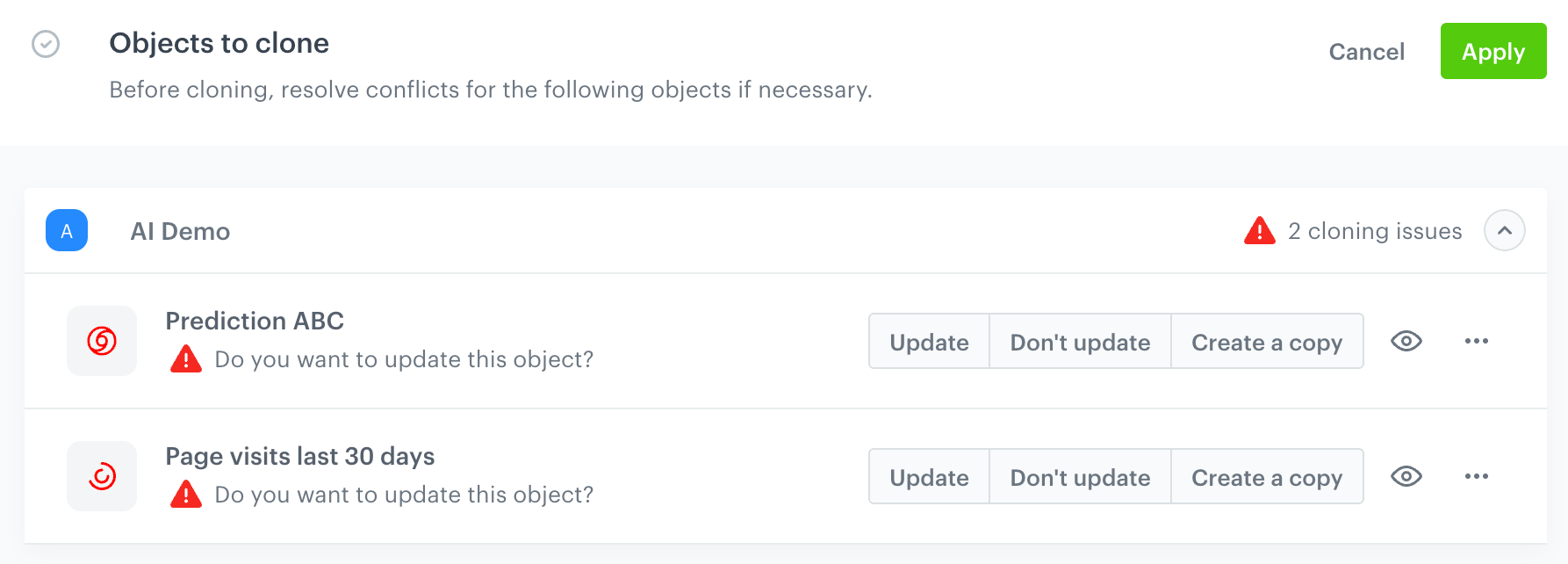
When you clone a prediction and the prediction with the same name and of the same type exists, you need to resolve the conflict. 

1. In the **Objects to clone** section, click **Solve issues**.  
2. Next to the target workspace name, click the downward arrow icon.  
    **Result**: The list displays the prediction to be cloned which also exists in the target workspace. 
3. You can perform one of the following actions for each conflicting object:
    - To overwrite the object in the target workspace with the object from the source workspace, click **Update**. 
        
      <div class="admonition admonition-important"><div class="admonition-icon"><svg xmlns="http://www.w3.org/2000/svg" fill="none" viewBox="0 0 24 24" stroke="currentColor" stroke-width="2.5"><path stroke-linecap="round" stroke-linejoin="round" d="M12 8v4m0 4h.01M21 12a9 9 0 11-18 0 9 9 0 0118 0z" /></svg></div><div class="admonition-body"><div class="admonition-content">

      Remember that prediction may be named identically by coincidence. Before you decide to use the "update" option, make sure that you're not overwriting something that should not be overwritten.

      </div></div></div>
 
    - To skip cloning the object to the target workspace, click **Don't update**.  
    - To create a copy of the object from the source workspace in the target workspace, click **Create a copy**. The word `copy` will be added to the name of the cloned object in the target workspace.

    <figure><img src="/api/docs/image/54176ad07f146575310749eba44b7c2f42c1b327/docs/settings/_gfx/clone-existing-objects-prediction.png" class="large" alt="Resolving conflicts"><figcaption>Resolving conflicts</figcaption></figure>

5. If applicable, repeat steps 2 and 3 for other workspaces.
4. Confirm the settings by clicking **Apply**.
5. In the remaining sections in **Cloning details**, map the prediction settings with their equivalents in the target workspace by clicking **Solve conflicts** in each section and selecting the equivalent segmentation/expression/events. Confirm the settings in each section by clicking **Apply**.
     <figure><img src="/api/docs/image/54176ad07f146575310749eba44b7c2f42c1b327/docs/settings/_gfx/clone-prediction-map-events.png" class="large" alt="Mapping events used in one of the objects in the prediction"><figcaption>Mapping events used in one of the objects in the prediction</figcaption></figure>
3. Before cloning, at the bottom of the page, you can view the summary of mapping by clicking **Summary**.
4. When you complete mapping, in the upper right corner, to clone the prediction to the target workspace, click **Clone**.


## Events and tags created while cloning

### Events

Events and their parameters created while cloning will be available in the target workspace in **Data Modeling Hub > Events**.


<div class="admonition admonition-important"><div class="admonition-icon"><svg xmlns="http://www.w3.org/2000/svg" fill="none" viewBox="0 0 24 24" stroke="currentColor" stroke-width="2.5"><path stroke-linecap="round" stroke-linejoin="round" d="M12 8v4m0 4h.01M21 12a9 9 0 11-18 0 9 9 0 0118 0z" /></svg></div><div class="admonition-body"><div class="admonition-content">

These events/parameters will only have `name` and `display name` defined. The remaining metadata are empty and the JWT authorization settings for the event are disabled.

</div></div></div>


### Tags

Tags created while cloning will be available in the target workspace in **Data Modeling Hub > Tags**.

## Cloning logs

To check whether the predictions were successfully cloned, go to **Settings > Cloning logs**.