In Synerise, your account is protected by:
- your password, which must comply with the password policy set by your workspace administrator.
- two-factor authentication (2FA), which is mandatory for all Synerise users.
You can also log on with Security Assertion Markup Language (SAML) if your organization allows it. A SAML log-on is treated as a successful 2FA log-on.
## Changing password
---
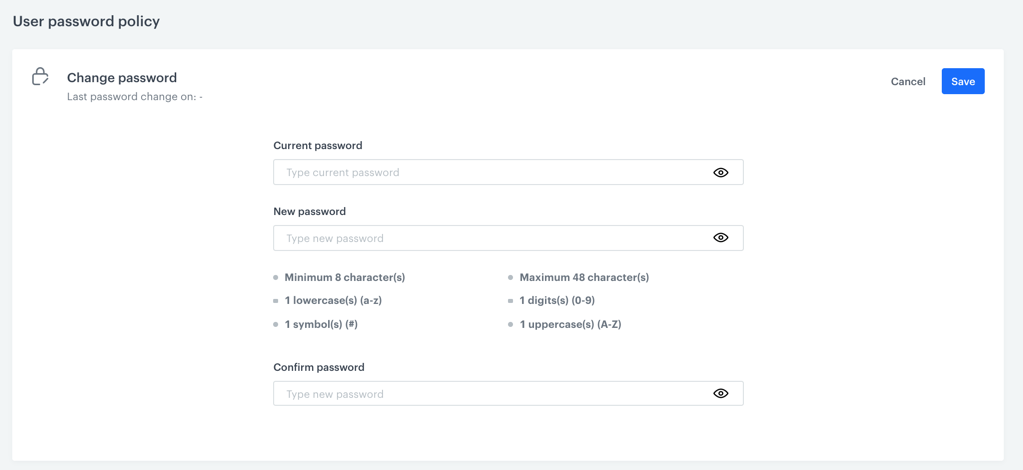
A blank password change section
1. Go to **Settings > Account Security**.
2. In the **Current password** field, enter a password you used so far.
3. In the **New password** field, enter a password that meets the requirements listed under the fields.
These requirements are sourced from the Password policy section. If a user belongs to more than one workspace, the system selects here the strongest password policy among the workspaces a user is assigned to.
4. In the **Confirm password** field, enter the new password.
5. Confirm the change of the password by clicking **Save**.
## Two-factor authentication
---
After completing the following procedures, you will be logged out of all devices!
If you're not using SAML, you must select a method of two-factor authentication (2FA) individually for your account to verify your identity while logging in (apart from the password).
You can choose to verify your identity while logging in by:
- an authenticator app on your smartphone
- email with code - Synerise sends an email with a security code to the user
Log-in view with a default 2FA method, when both methods are enabled, users can switch between them
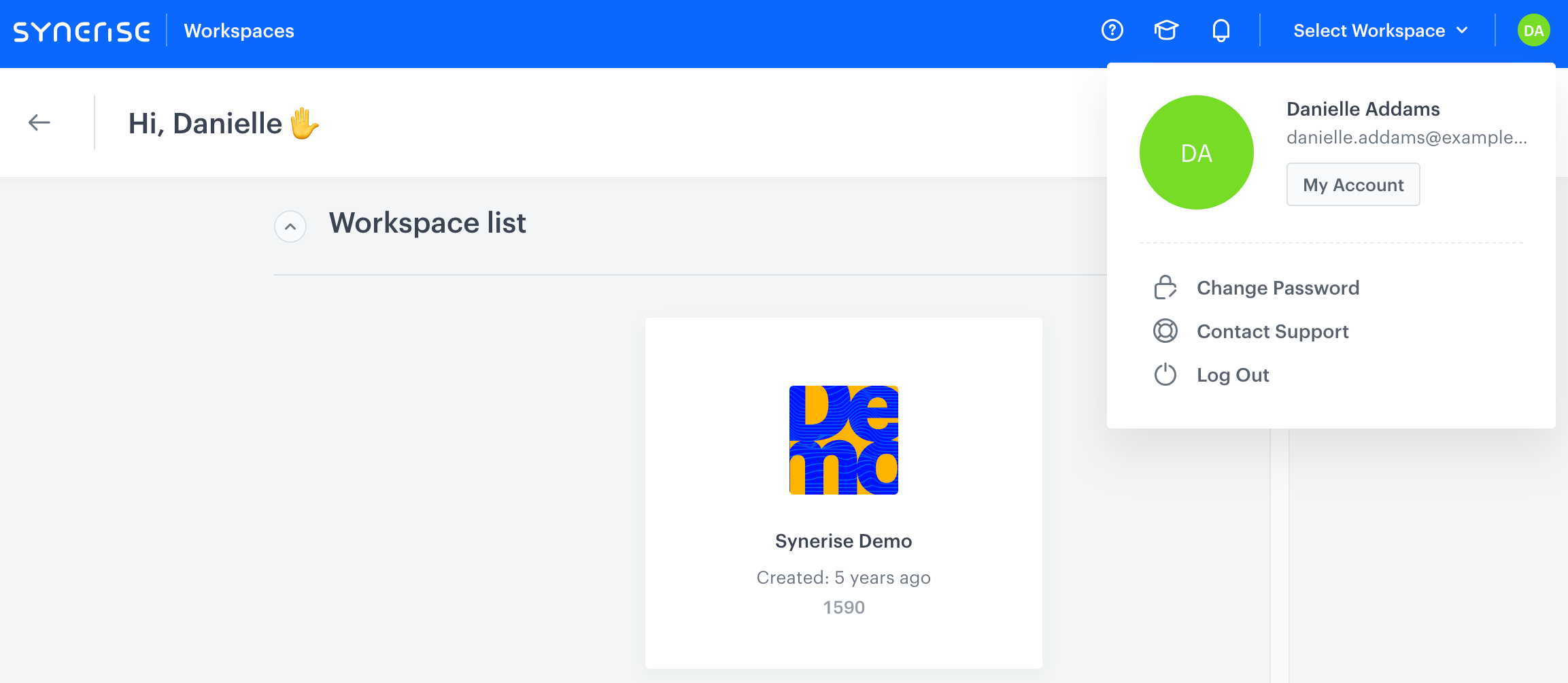
If you haven't enabled any method yet or you [disabled all two factor authentication methods](#disabling-2fa-methods-for-individual-account) and you're not using SAML, you won't be able to enter any workspace. In such case, you must go to **My account** and perform the instructions from [step 2 in Enabling 2FA methods for individual account](#show-2fa-settings).
Workspace list view
### Enabling 2FA methods for individual account
1. Go to **Settings > Account Security**.
2. In the **Two-factor authentication** section, click **Show**.
3. From the **Add method** dropdown list, select a method or methods by means of which you will have to additionally verify your identity while logging in:
- **Authenticator application** - You will have to download any Time-Based One Time Password (TOTP) application to your mobile device and provide the code the application generates while logging in to Synerise.
Example applications: Microsoft Authenticator, Google Authenticator.
- If you're not sure which authenticator app you should use, consult the security department in your company.
- Make sure that the date and time in your phone are correct. They should be fetched from a time server.
- **Email with code** - when logging in, you will need to enter a code from an email.
4. If you select multiple authentication methods, use the **Default method** dropdown list to define which method will be selected by default on the log-in screen.
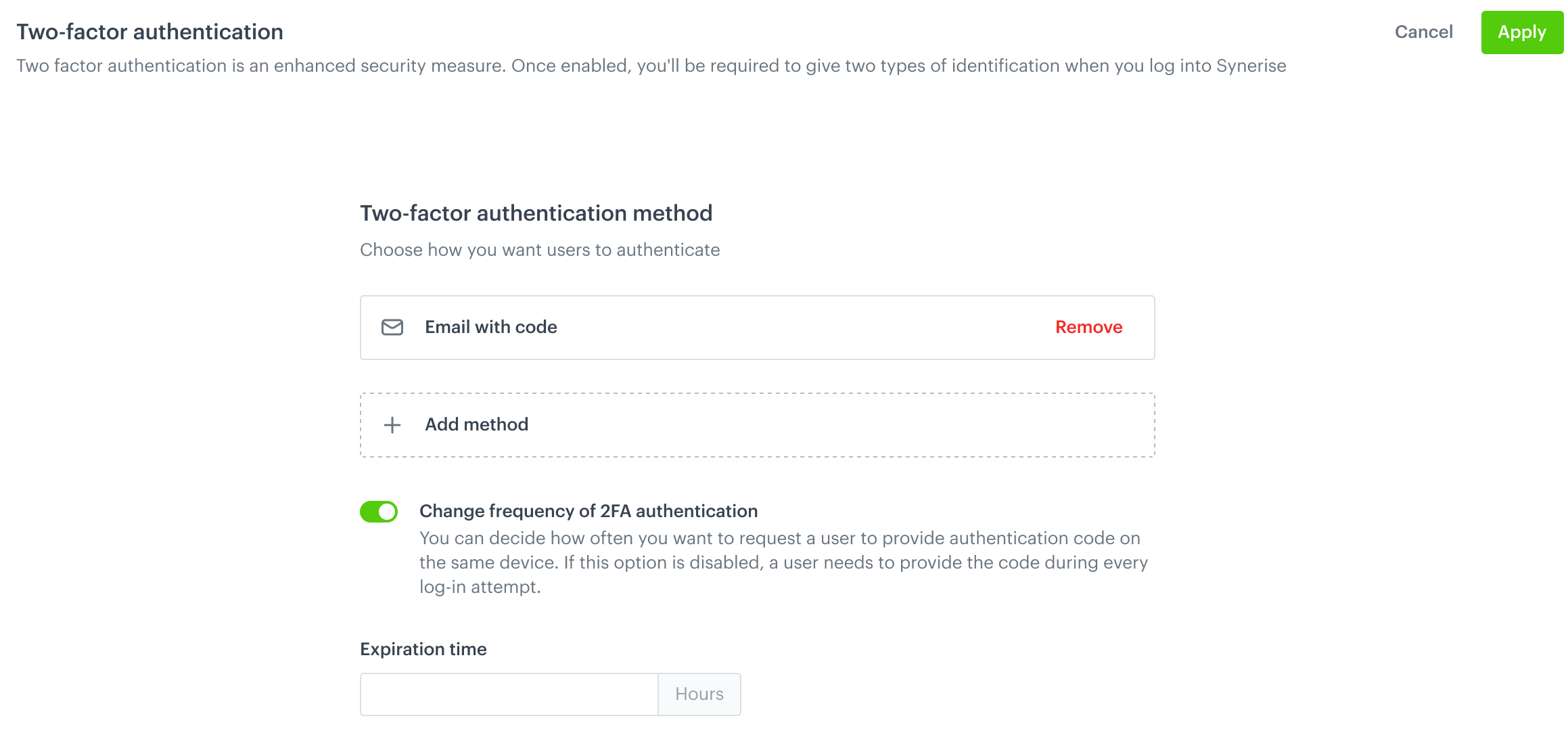
5. By default, you must enter an authentication code during each log-in attempt on the same device. If you would like to customize the frequency of authentication code requests, you can enable the **Change frequency of 2FA authentication** option and in the **Expiration time** field, provide a value that specifies the duration after which a new authentication code will be required.
Two-factor authentication configuration form
6. In the upper-right corner of the **Two-factor authentication** section, click **Apply** and continue depending on the selected method:
We highly recommend choosing the Authenticator application method as it is the most secure option available.
A QR code is displayed.
1. With the authenticator app, scan the QR code that corresponds to the operating system of your mobile device.
4. Click **Next**.
5. In the mobile application, locate the account you added.
6. In Synerise, in the **Verification code** field, enter the 6-digit code from the application.
**Result**: A backup code is displayed.
This is the last time the backup code is shown to you.
7. Store the backup code securely.
The code is needed to recover an account when you lose access to the authenticator app or to disable 2FA.
8. Click **Close & Logout**.
The **Send email with verification code** pop-up appears.
1. Click **Send email**.
**Result**: An email with the verification code is sent to your email.
2. On the pop-up, in the **Verification code** field, enter the code you received in the message.
3. Click **Close & Logout**.
**Result**:
- When logging in, in addition to password, you must provide the 6-digit code from the application or from the email.
- The backup code which is generated when you select the **Authenticator app** method can be used to:
- Recover your account if you lose access to the authentication app.
- Disable 2FA on your account.
## Disabling 2FA methods for individual account
If you're not using SAML, once you [disable all two factor authentication methods](#disabling-2fa-methods-for-individual-account), you won't be able to access any workspace. In such case, you must go to **My account** and perform the instructions from [step 2 in Enabling 2FA methods for individual account](#show-2fa-settings).
Workspace list view
1. To disable a 2FA method, go to **Settings > Account Security**.
2. In the **Two-factor authentication** section, click **Show**.
3. If you want to:
- disable The Authenticator application method, on the pop-up, in the **Backup code** field, enter the code you received after enabling this method. Confirm by clicking **Disable & Logout**
- disable The Email with code method, on the pop-up, request a code for disabling the method. Enter the code you receive through email and click **Disable & Logout**.
 **Settings > Account Security**.
2. In the **Current password** field, enter a password you used so far.
3. In the **New password** field, enter a password that meets the requirements listed under the fields.
**Settings > Account Security**.
2. In the **Current password** field, enter a password you used so far.
3. In the **New password** field, enter a password that meets the requirements listed under the fields.