## How long are tokens for establishing connections between Synerise and Google services valid?
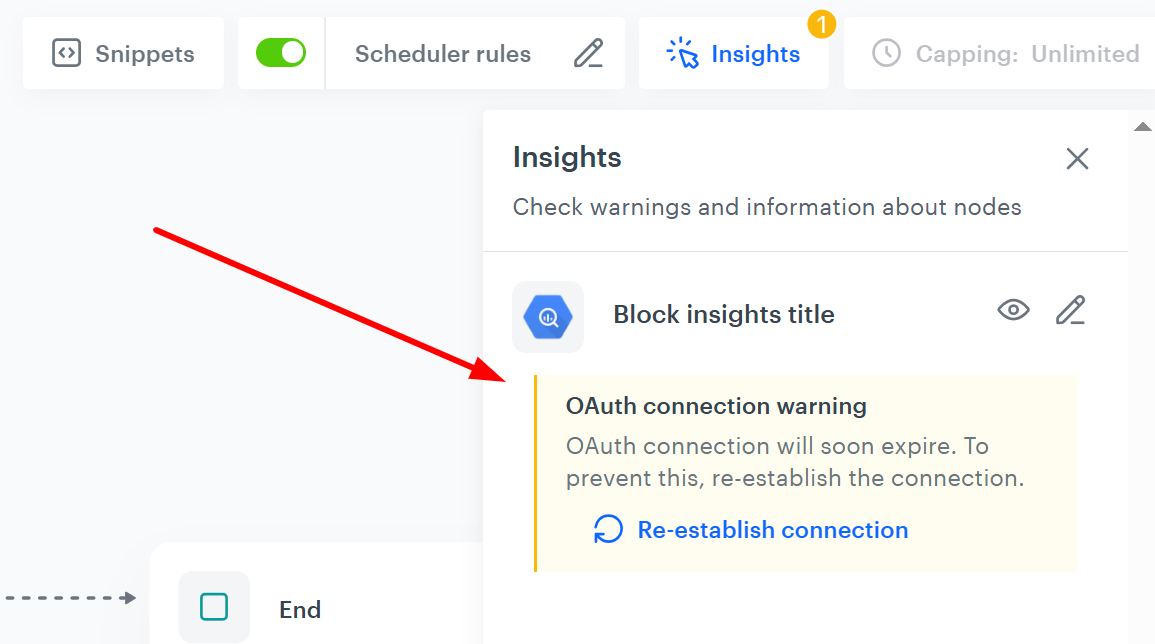
Tokens are valid for approximately 183 days (about 6 months) from the moment they are generated or last refreshed. This means that if you use such a token to establish [connection](/docs/settings/tool/connections) between Synerise and Google service, you can generally expect the token to stay active for up to 6 months without needing to refresh it. To help you manage this, reminders about token expiration will appear in the Insights tab of your workflow, ensuring you have enough time to renew it on schedule.
Token expiration warning displayed in the Insights tab in a workflow view in the Automation module
## Issues with sending data to Google BigQuery
Verify the size of the request body - for a fast and error-free process of your request, we recommend preparing a request body that does not exceed 500 KB.
## Can I edit a structure in a running workflow?
You can't edit the structure of a running workflow due to the inconsistencies in the statistics this action can cause. To edit a running workflow, pause it, duplicate it, make change to the duplicate and run the duplicate as a new workflow.
## Email display issues
When the content of your message is displayed correctly except for the dynamic elements (recommendations, inserts, and so on), check if Jinjava is correctly embedded into the email.
## Email is displayed incorrectly or differently than in the editor
Email clients and providers may interpret your content in various ways. Test your content on different email clients to make sure that it's displayed correctly regardless of the customer's software.
## The email is not displayed correctly on mobile devices
In the drag & drop creator, you can check how your message will be displayed on mobile devices. Remember that if you use an HTML editor to create your message, the template may not be responsive and adaptive to all devices.
## The email looks different than the template that was used in the automation
Changes made to the email template do not affect an already launched automation. When you introduce changes, create a copy of the automation, stop the old automation and start the copy.
If your analytics are based on the ID of an email sent from an automation, you need to update those analytics. The start of each copy of a workflow generates a new message ID.
Each irregularity in sending messages is best checked on the customer's card. In the Synerise platform, go to **Behavioral Data Hub > Profiles** and click a customer to see the details and identify the problem.
1. There is a `message.notSent` event present in the customer's card. This event has a parameter called **extra**, which contains information on why the message was not sent. Here are the two most common reasons:
- missing **parameter** value - There is a parameter in the message based on an aggregation or a catalog that the system could not retrieve. In this case, check the following items:
- the event on which the aggregate is based is present in the customer's card
- the aggregate or elements retrieved from the catalog are correctly embedded in the email message
- the aggregate used in the email message is properly constructed
- the elements used in the email are present in the catalog
- missing **attribute** value for **tag** - There is an insert in the message based on a customer attribute that the system could not retrieve. In this case, check the following items:
- the parameter is present on the customer's card
- the parameter is embedded correctly in the email
2. There is no `message.notSent` event on the customer's card, and the automation has been completed. In this case, check the following items:
- the customer's marketing agreements were enabled when sending the message
- if messages were to be sent without checking the marketing consent, please make sure that the **Send without marketing agreement** option was switched on in the automation's email block
- the embedded elements that use jinjava do not contain mistakes
- the communication created by the node was not deleted. The UUID of the communication is available in the node's details. If that communication was deleted, you need to re-create the automation so that a new communication is created.
3. The `message.send` event is present on the customer's card, but the customer **did not** receive the message. In this case, check the following items:
- the SMTP integration is configured correctly (please confirm that you can send test emails with the content "test" from the level of **Experience Hub**)
- the customer has a valid email address
- the customer has checked their SPAM folder
- ensure that your email provider is not blocking the messages that you're trying to send
4. The message has been sent, but there is a **soft/hard bounced** event on the customer's card. This is information sent by the recipient's mail server about the inability to deliver a message. There are two types of bounces:
- soft bounce - the reason for not delivering the message is temporary (for example, caused by a full inbox) and the message can be delivered at the next attempt
- hard bounce - the reason for not delivering the message is permanent (for example, a recipient's email address does not exist) and you should not attempt to re-deliver the message or send any subsequent messages to the given email address. Such addresses will be blacklisted by EmailLabs, but if you are integrated with a different provider, you need to handle blacklisting yourself (for example, by building your segmentation in a way that filters out customers with a hard bounce event).
If you are sure that a given email address hard bounced but should not have been blacklisted, contact your provider.
- Check if the **SMS gateway** is configured correctly. Confirm that you can send test SMS with the word "test" from the level of **Experience Hub**.
- Check if the customer meets the requirements to receive the message (has a valid phone number and consent given to receiving SMS messages).
- If **inserts** are used in the text of the SMS message, check that those inserts are correct and confirm that the user has the information necessary to display the contents of the insert.
- If the `sms.send` event is on the customer's card, confirm that the SMS gateway does not currently have errors on its side. In that case, confirmation with the external supplier is necessary.
- Verify that the communication created by the node was not deleted. The UUID of the communication is available in the node's details. If that communication was deleted, you need to re-create the automation so that a new communication is created.
## Mobile push notification not sent
- Check if the customer meets the requirements to receive the notification and has given consent to receive Mobile Pushes.
- Check if **inserts** are used in the body of the mobile message. If they are, make sure that the customer has the information necessary to display the contents of the insert.
- Test mobile messages using **Experience Hub**. Check if sending mobile messages works outside of automation. If it does, review the rules of your automation again.
- Verify that the communication created by the node was not deleted. The UUID of the communication is available in the node's details. If that communication was deleted, you need to re-create the automation so that a new communication is created.
## Web push not displayed
- Check if the customer meets the requirements to receive the notification, has given consent to receiving Web Pushes, and uses a browser that displays this type of notifications correctly.
- Check if anything had been changed in the Web Push configuration before the error occurred. For example, a service worker on the website may have been moved.
- Check if **inserts** are used in the body of the Web Push message. If they are, confirm that the customer has the information necessary to display the contents of the insert.
- Test Web Pushes using **Experience Hub**. Check if Web Push works outside of automation. If it does, review the rules of your automation again.
- Verify that the communication created by the node was not deleted. The UUID of the communication is available in the node's details. If that communication was deleted, you need to re-create the automation so that a new communication is created.
If you didn't find the answer to your issue, please collect all relevant information and provide our [help desk](https://hgintelligence.atlassian.net/servicedesk/customer/portal/1) with examples or screenshots.