Before you contact the Synerise support, you can try the solutions described below. The solutions are sorted according to how common each issue is. 

## Debugging
---

1. Check if your website has HTTPs protocol enabled. If it’s not enabled, Synerise’s SDK will not process any campaign data due to UUID not being saved in your browser.
1. Use the console in your browser to check if your dynamic content is uploaded. To do so, enter the `SR.dynamicContent.getRendered()` command in the console. This command returns the list of dynamic content on your website.
2. Perform one of the following actions:
- If the command returns an `SR is not defined` error, go to [tracking code implementation](/developers/web/installation-and-configuration#creating-a-tracking-code) 
    - If the dynamic content is in the list, go to this [section](/troubleshooting/campaign/dynamic-content-troubleshooting#if-the-dynamic-content-was-downloaded)
    - If the dynamic content is not the list, go to this [section](/troubleshooting/campaign/dynamic-content-troubleshooting#if-the-dynamic-content-wasnt-downloaded)

### If the dynamic content wasn't downloaded

Perform the following steps:

1. Make sure a tracking code is implemented in the website - use the developer tools in your browser and in the console, enter `SyneriseTC`. If no errors are returned, the code is implemented correctly.
2. Check if you (your UUID in your browser) belong to the audience of the dynamic content.   
    1. In Synerise app, include the test user (you) in the group of dynamic content recipients (add this user to the segmentation which is selected as the audience of the dynamic content).
    2. If the **Show in profile card** toggle is off, enable it.
    3. Preview the dynamic content on the website.
        
   <div class="admonition admonition-tip"><div class="admonition-icon"><svg xmlns="http://www.w3.org/2000/svg" fill="none" viewBox="0 0 24 24" stroke="currentColor" stroke-width="2.5"><path stroke-linecap="round" stroke-linejoin="round" d="M9.663 17h4.673M12 3v1m6.364 1.636l-.707.707M21 12h-1M4 12H3m3.343-5.657l-.707-.707m2.828 9.9a5 5 0 117.072 0l-.548.547A3.374 3.374 0 0014 18.469V19a2 2 0 11-4 0v-.531c0-.895-.356-1.754-.988-2.386l-.548-.547z" /></svg></div><div class="admonition-body"><div class="admonition-content">

   Checking if UUID is present in the segmentation for more advanced users:
   1. Retrieve UUID of a user out of `_snrs_p` cookie, under the `uuid` key.  
   2. Use this UUID to get the user's details through API with this [method](https://developers.synerise.com/AnalyticsSuite/AnalyticsSuite.html#operation/addSegmentationPOST_v3).  
   3. In the response, check the ID of the user.  
   4. Check if the ID of the user belongs to the segmentation.
   </div></div></div>

3. In the settings of the dynamic content, check for the typos in the URL where dynamic content is supposed to be displayed.
4. Check if the aggregates, expressions and other attributes included in the dynamic content template return the values for your UUID. 
5. If the dynamic content template contains AI recommendations:
    - Check if the AI recommendation is active.
    - Verify if the ID of the recommendation used in the dynamic content template is correct.
    - If the recommendation requires the item context, ensure that the page where you show the dynamic content includes `product:retailer_part_no` in its OG tags or, alternatively, if an item context is included in the Jinjava code in the dynamic content template.
    - If the recommendation requires the item context, check if this item exists in the feed.
    - Check if the attributes to which you refer in the template are defined in the feed and returned in the recommendation.
    - Check if the attributes you refer to are of the correct type, for example, mathematical operations on the string attributes won't produce a valid result. Make sure that price or other attributes that must be numbers are defined correctly.
6. Check if the preview of the AI recommendation included in the dynamic content template returns items for your item ID and user ID. If not:  
    - Check if the filters used in the AI recommendation are not too restrictive - make sure that the feed contains items that meet the conditions of the filter.
    - Verify the number of items you set to be returned in the AI recommendation - make sure there is sufficient number of items in the feed that meet the conditions of the filter. 
    - Check if the ID of the item in the feed is the same as the ID of this item on your website. (`product_retailer_part_no`) and in transactional events.
        
7. If the dynamic content template contains a reference to a [catalog](/docs/assets/catalogs):
    - Check if the catalog contains the element to which you refer to.
    - Check if the reference to a catalog item is made by using the column that is used as the unique identifier in the catalog.
    - Check if the referenced column exists in the catalog and its value for the item is not null, for example, if the template contains the `{{ item.title }}` insert, the `title` column must exist in the catalog and have a non-null value.  
    - Ensure the catalog name doesn't contain the `_` character.   
8. If you performed all the steps and corrected the mistakes, check if the dynamic content can be correctly previewed for a selected customer in a browser. 
    - If the preview isn't correctly displayed, check the Jinjava syntax. Look for loop constructs, conditionals, references to aggregates, recommendations and other types of inserts. Check if all variables used in the templates are defined.  
  
### If the dynamic content was downloaded

Perform the following steps:
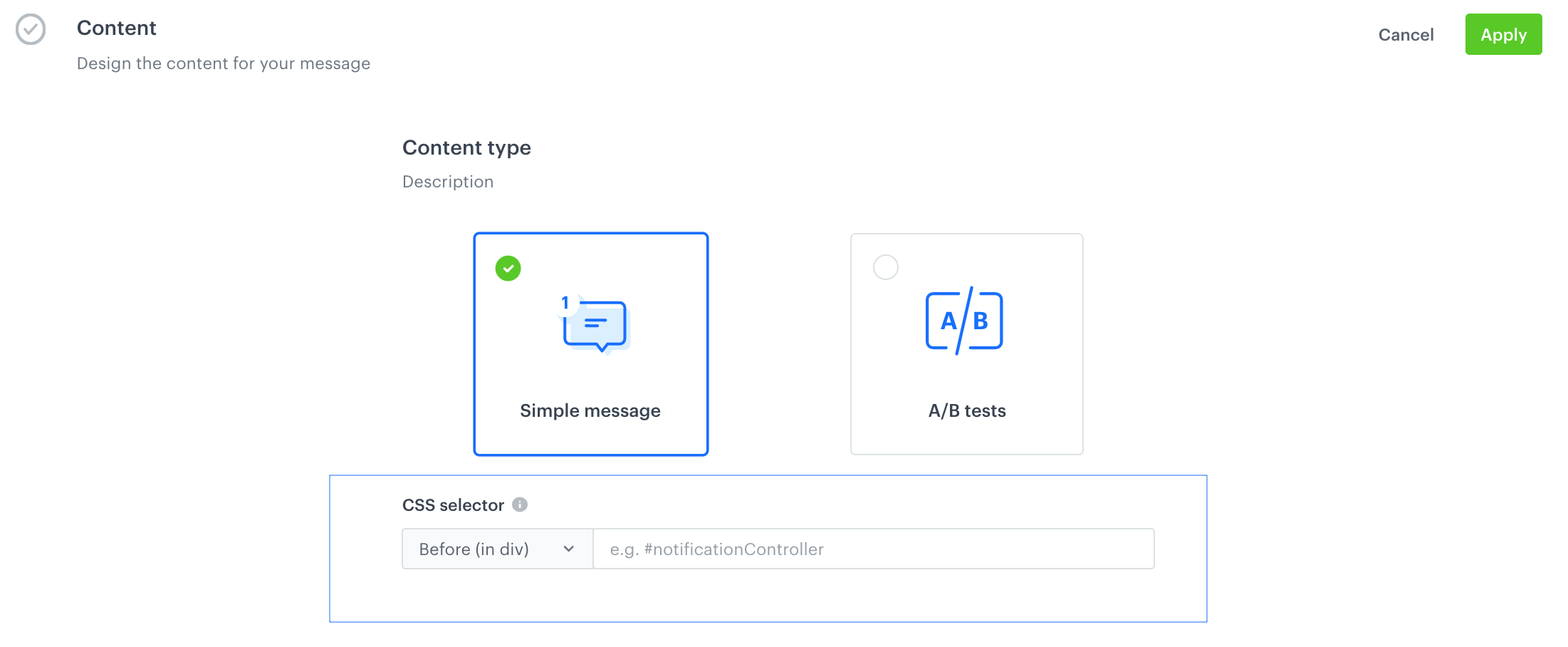
1. Check if the page contains the selector targeted by the dynamic content: 
    1. To verify it, copy the selector from the Dynamic content settings in the Synerise application:  
        <figure>
        <img src="/api/docs/image/54176ad07f146575310749eba44b7c2f42c1b327/docs/campaign/_gfx/css-selector-dynamic-content.png" alt="CSS selector in the Dynamic content settings" class="full">
        <figcaption>CSS selector in the Dynamic content settings</figcaption>
        </figure>

    2. In the browser, right-click and select the Inspect option. Press CTR + F and paste the name of the selector.
2. In the Dynamic content settings, check if the selector name is correct. If it's a CSS class, the name must contain `.` at the beginning, for example `.example_class.css`. If the class is an ID, the name must contain `#` at the beginning, for example `#notificationController`.
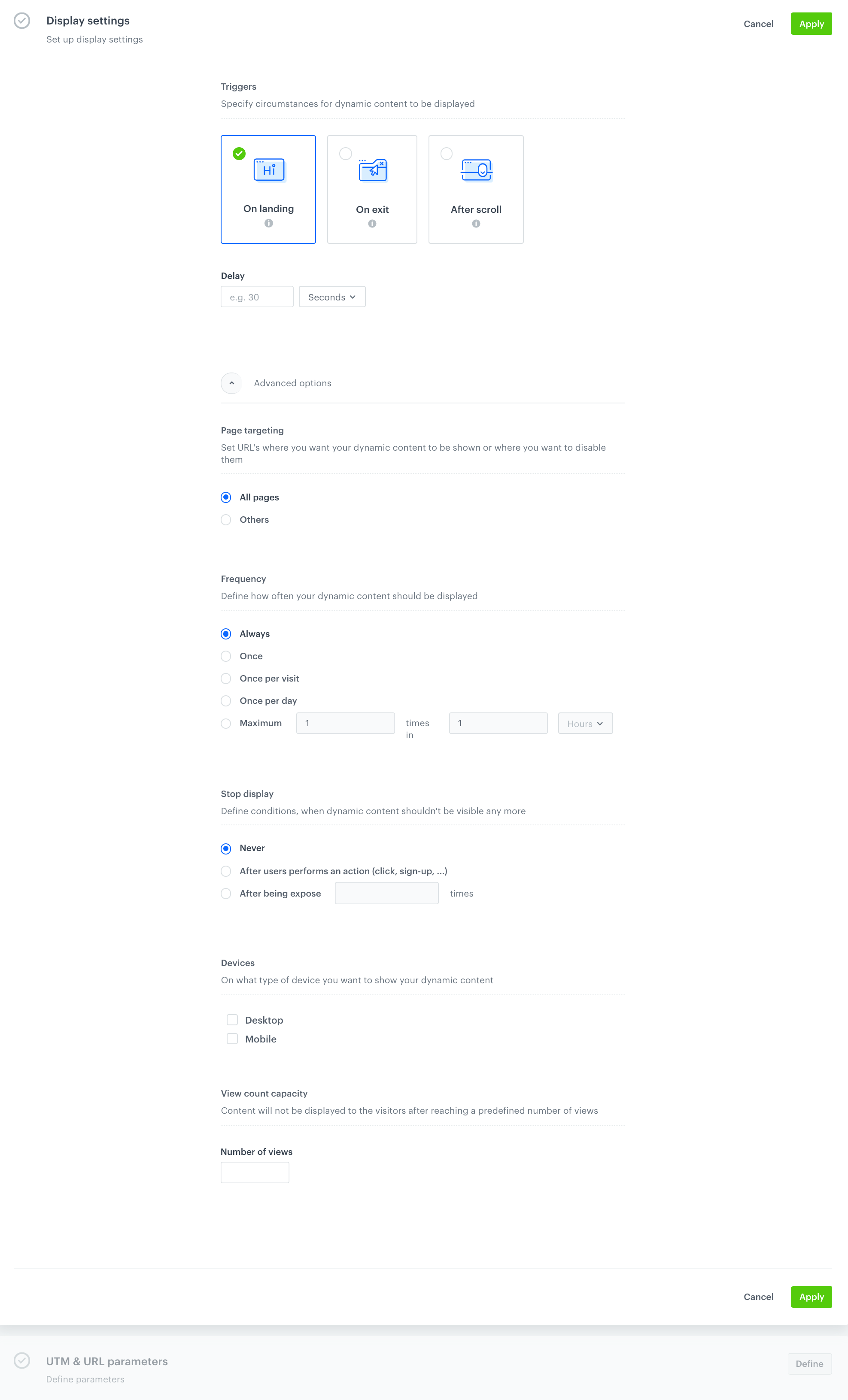
3. Check if the settings defined in the **Display settings** section don't block the display of your dynamic content.
    <figure>
    <img src="/api/docs/image/54176ad07f146575310749eba44b7c2f42c1b327/docs/campaign/_gfx/dynamic-content-display-settings.png" alt="Display setting section" class="full">
    <figcaption>Display setting section </figcaption>
    </figure>

4. Check if your dynamic content wasn't overwritten by other dynamic content for the same selector.
5. Verify that the template container does not have the CSS display attribute set to `none`.
6. The browser plugins (for example, Adblock) may set the CSS to `display:none`- check if the display of the dynamic content is not blocked by the plugin settings.