## Filters


<details class="accordion"><summary>There are no clients in the list after applying the filter</summary><div class="accordion-content"><ul> <li>Check if there are customers who actually meet the filtering conditions.</li> <li>Make sure that the filtering conditions are set correctly.</li> <li>Check if the time range in the filter is within the data retention period for your workspace.</li> </ul></div></details>


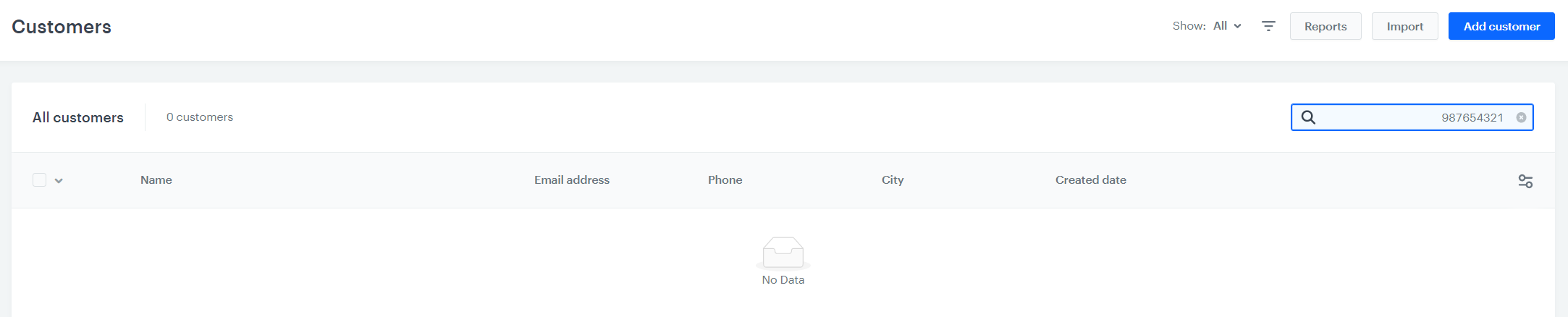
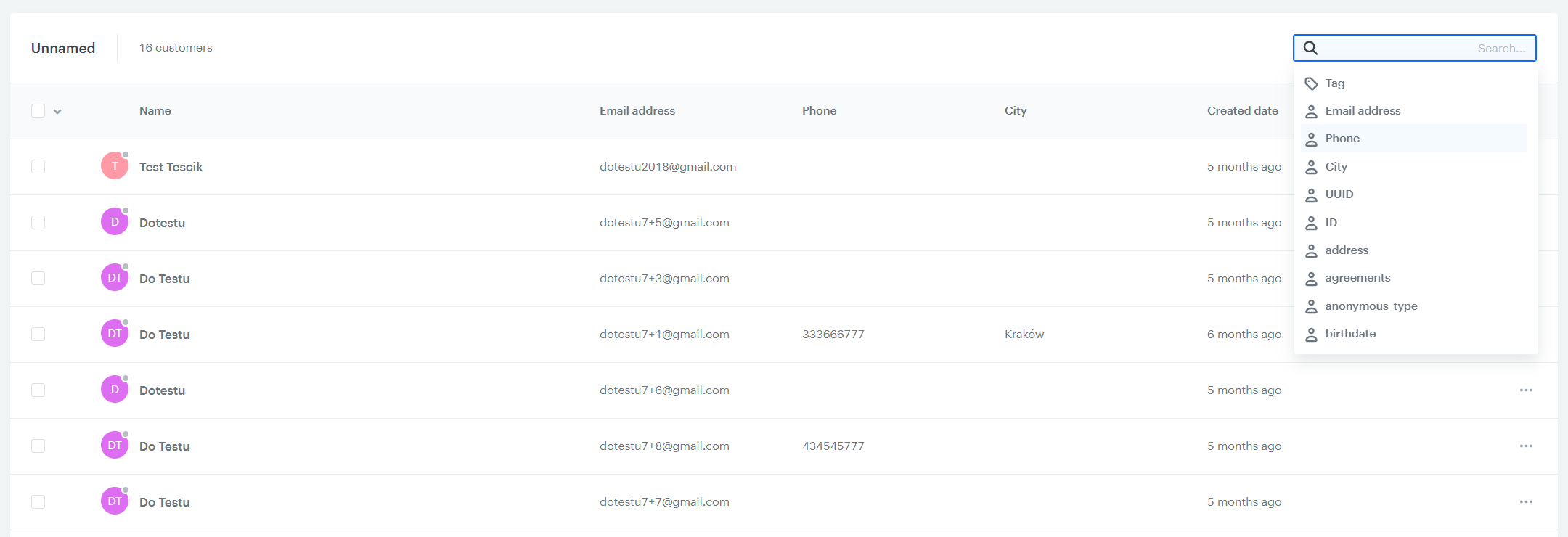
<details class="accordion"><summary>The search engine doesn't return people with a given attribute</summary><div class="accordion-content"><p>Make sure that customers with the given attribute exist.</p> <p>If you want to search for a specific name, surname, email or UUID, just enter it in the box.</p> <div class="admonition admonition-note"><div class="admonition-icon"><svg xmlns="http://www.w3.org/2000/svg" fill="none" viewBox="0 0 24 24" stroke="currentColor" stroke-width="2.5"><path stroke-linecap="round" stroke-linejoin="round" d="M13 16h-1v-4h-1m1-4h.01M21 12a9 9 0 11-18 0 9 9 0 0118 0z" /></svg></div><div class="admonition-body"><div class="admonition-content"> <p>You can enter only one attribute at a time. A combination of the name and surname will not show any results.</p> </div></div></div> <p>If you want to search for another attribute, select it from the list in the upper-right area of the list. It can be an attribute, tag, or any other data. You must select an attribute to search for. Entering only the value, for example, a phone number, will not yield any results.</p> <p><img src="/api/docs/image/54176ad07f146575310749eba44b7c2f42c1b327/troubleshooting/crm/_gfx/filter3.png" alt="No results when an attribute is not selected"></p> <p>Click the search box and choose the type of search. In this case, by <strong>Phone</strong>.</p> <p><img src="/api/docs/image/54176ad07f146575310749eba44b7c2f42c1b327/troubleshooting/crm/_gfx/filter1.png" alt="Selecting an attribute to search by"></p> <p>When you choose the attribute, enter the value to search for.</p> <p><img src="/api/docs/image/54176ad07f146575310749eba44b7c2f42c1b327/troubleshooting/crm/_gfx/filter2.png" alt="Entering the search query"></p></div></details>


## Client cards


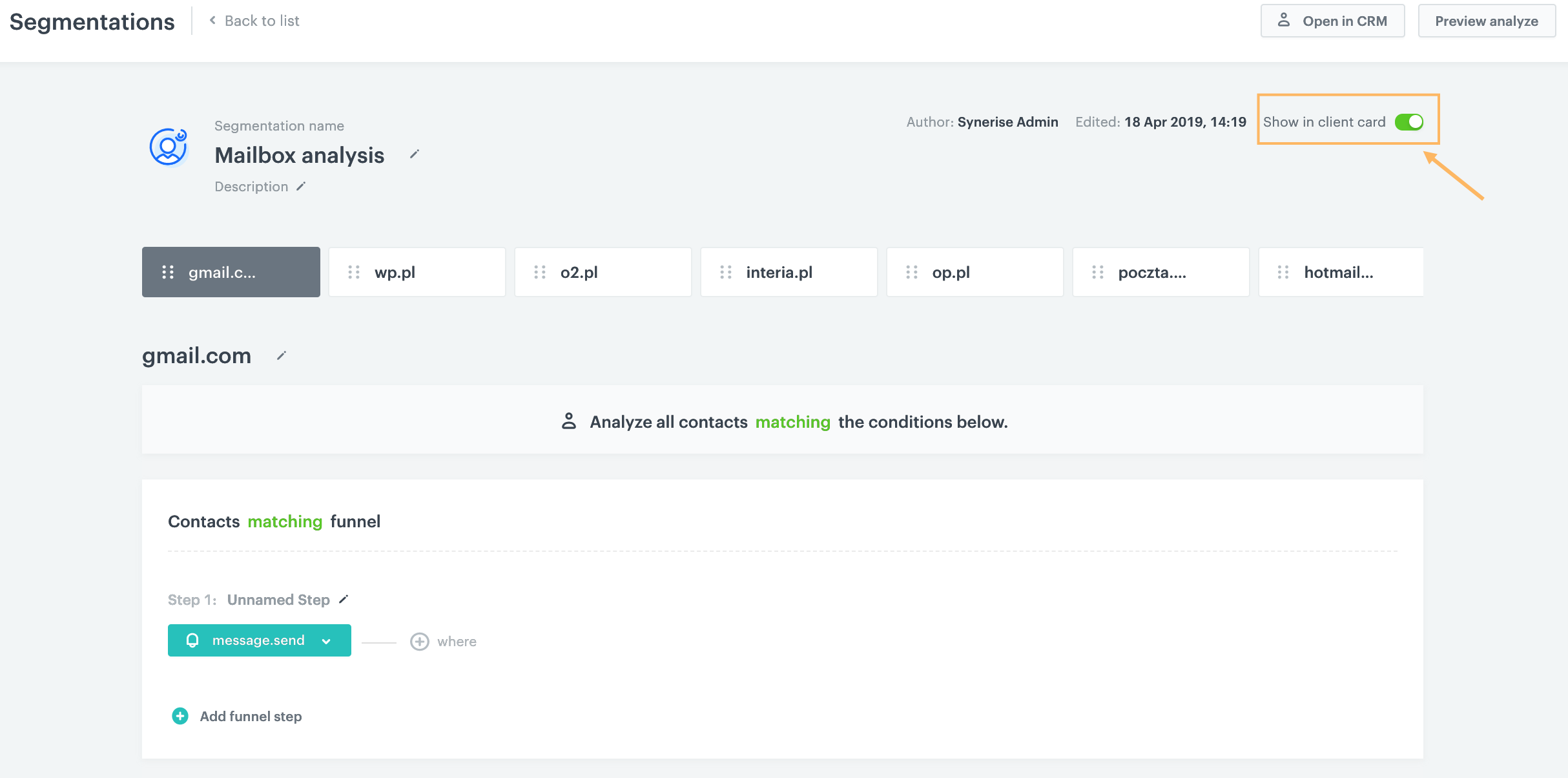
<details class="accordion"><summary>I can't see any aggregates, segments, or expressions on the customer's card</summary><div class="accordion-content"><p>Check that you added the segments, aggregates, or expressions to customers by using the <strong>Show in profile card</strong> option in Decision Hub.</p> <p><img src="/api/docs/image/54176ad07f146575310749eba44b7c2f42c1b327/troubleshooting/crm/_gfx/import3.1.png" alt="Location of the &quot;Show in profile card&quot; slider"> </p></div></details>


## Imports


<details class="accordion"><summary>No columns shown in the CSV import</summary><div class="accordion-content"><p>Please make sure that every column in your source file has a header and that the file is a properly-formatted <code>.csv</code> document.</p></div></details>


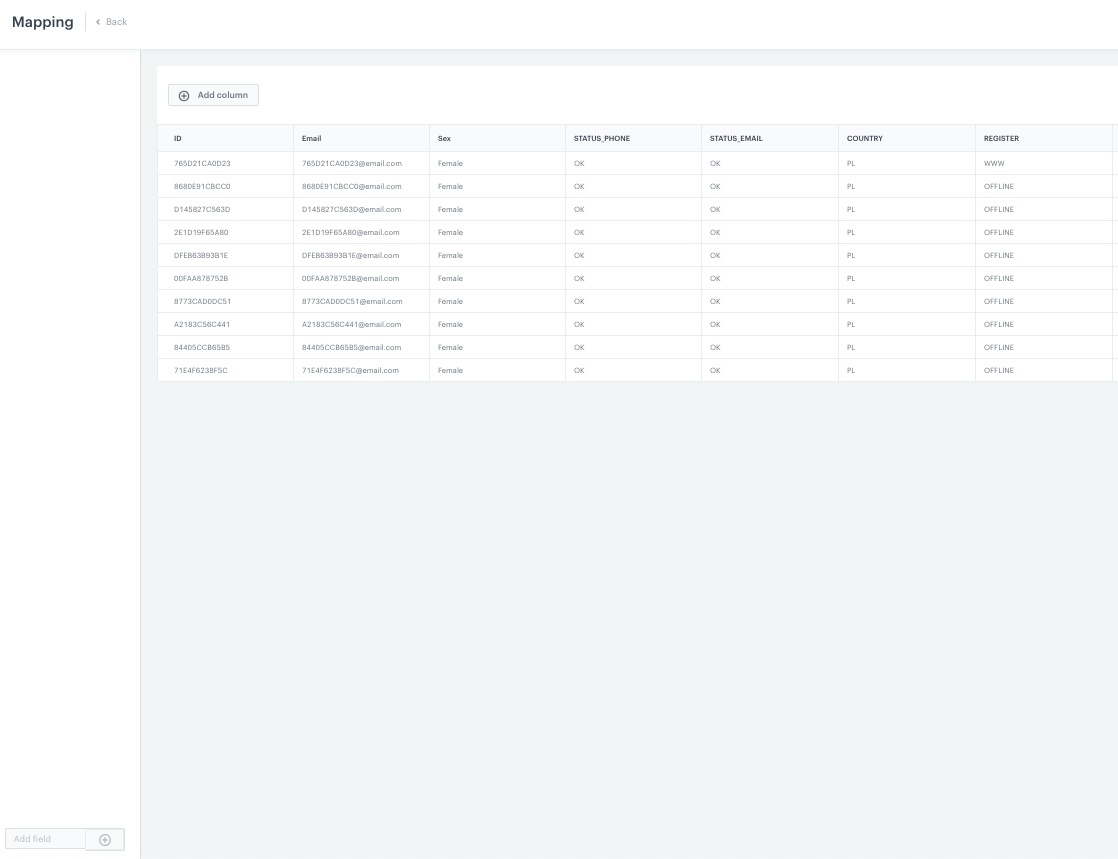
<details class="accordion"><summary>Mapping menu is missing the left panel</summary><div class="accordion-content"><p><img src="/api/docs/image/54176ad07f146575310749eba44b7c2f42c1b327/troubleshooting/crm/_gfx/import1.png" alt="Import with error"></p> <p>This means that you don&#39;t have an appropriate API key generated. Create an API key with a proper scope <a href="https://app.synerise.com/spa/modules/settings/apikeys/list">here</a>.</p></div></details>


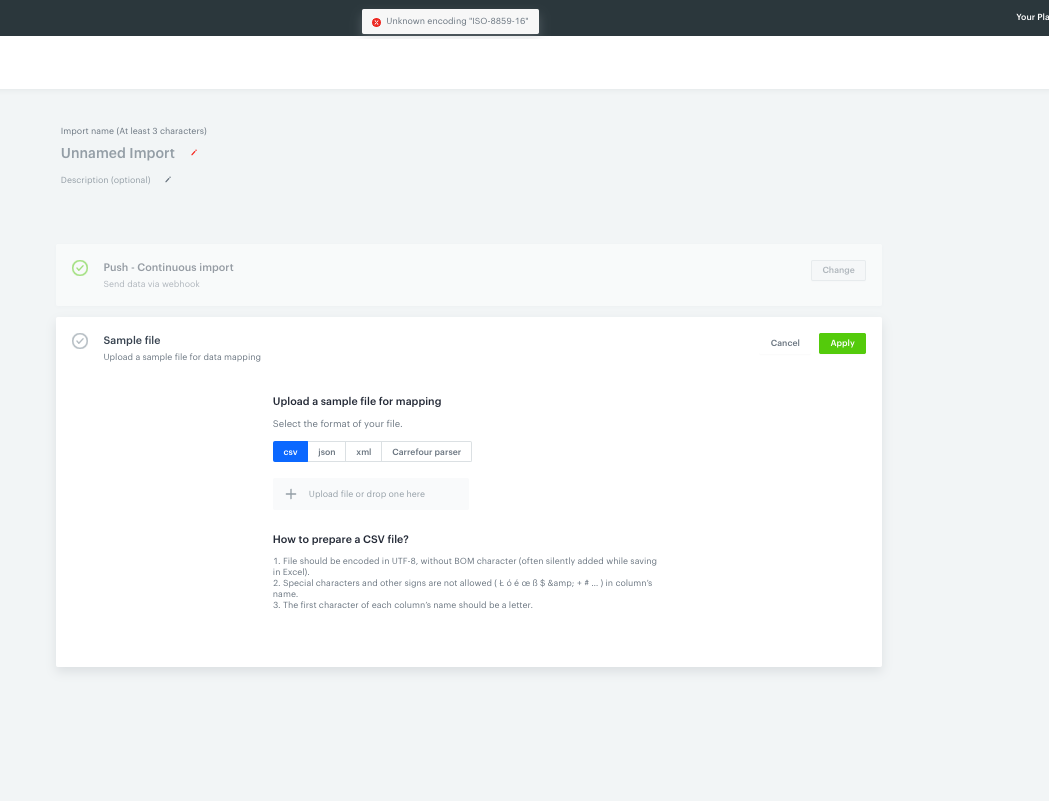
<details class="accordion"><summary>Upload error</summary><div class="accordion-content"><p><img src="/api/docs/image/54176ad07f146575310749eba44b7c2f42c1b327/troubleshooting/crm/_gfx/import4.png" alt="Import upload error"></p> <p>Please make sure that your file is saved with UTF-8 formatting.</p></div></details>


## Exporting clients


<details class="accordion"><summary>Export takes too long</summary><div class="accordion-content"><p>Waiting times may vary, but exports of under 100,000 entries may take up to 10 or 15 minutes, with larger exports taking more time. Factors that may influence this time include:</p> <ul> <li>the number of exported clients </li> <li>the number of marked attributes </li> <li>the number of clients waiting for export</li> </ul></div></details>


Try again and wait some time. If this doesn't help, report the task to the [help desk](https://hgintelligence.atlassian.net/servicedesk/customer/portal/1) with this information:

- Workspace ID/Name 
- Date and time when the problem occurred 
- CampaignId, ClientId, AutomationId, and so on, in link format - if applicable
- Screenshot/attachment if possible

We will check if the export is queued or if it's necessary to execute it once more.


<div class="admonition admonition-note"><div class="admonition-icon"><svg xmlns="http://www.w3.org/2000/svg" fill="none" viewBox="0 0 24 24" stroke="currentColor" stroke-width="2.5"><path stroke-linecap="round" stroke-linejoin="round" d="M13 16h-1v-4h-1m1-4h.01M21 12a9 9 0 11-18 0 9 9 0 0118 0z" /></svg></div><div class="admonition-body"><div class="admonition-content">

If you didn't find the answer to your issue, please collect all relevant information and provide our [help desk](https://hgintelligence.atlassian.net/servicedesk/customer/portal/1) with examples or screenshots.

</div></div></div>