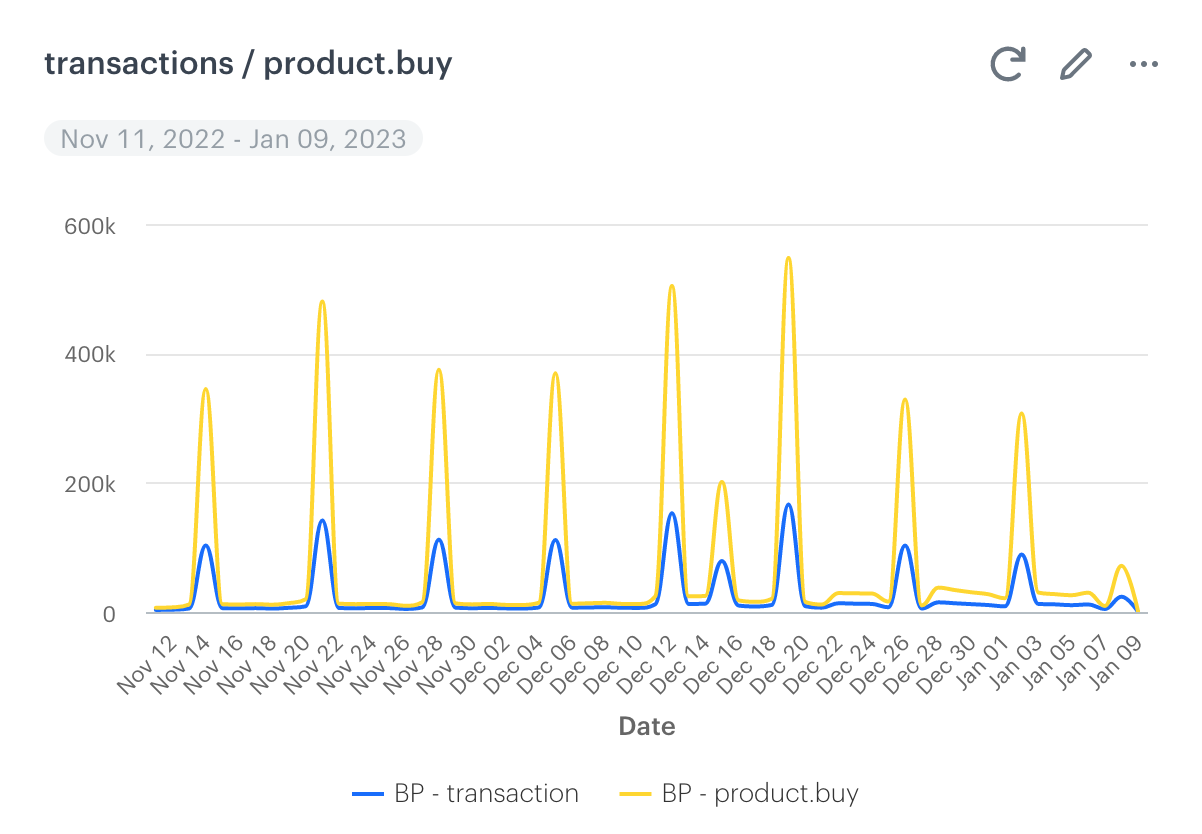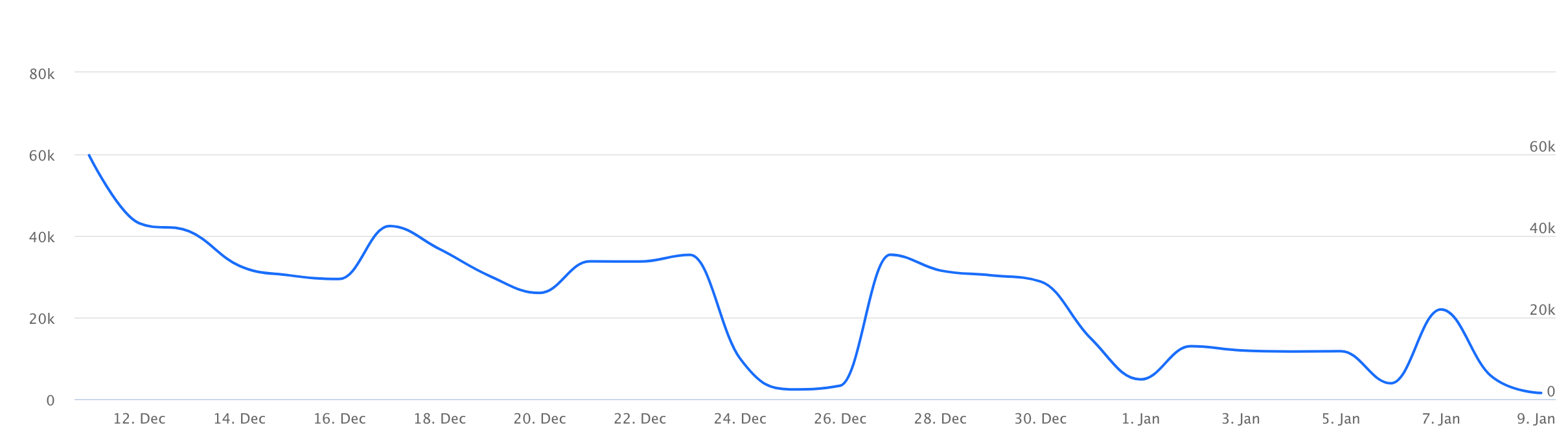
 - The alert concerns the metric connected with unsent messages
-
- The alert concerns the metric connected with unsent messages
-  - The alert concerns the increase in one or more metrics by 150%
-
- The alert concerns the increase in one or more metrics by 150%
-  - The alert concerns the decrease in one or more metrics by 80%
- The name of the workspace
- Event name the email alert is concerned with
In the case when the anomaly is detected in more than one metric (for example, there is a decrease in the number of `transaction.charge` and `page.visit` events), the title includes only the name of one metric anyway. In such case, the name of the metric in the title is selected according to the following hierarchy:
1. `page.visit`
2. `screen.view`
3. `transaction.charge`
4. `item.search`
5. `recommendation.view`
6. `dynamicContent.show`
7. `inApp.show`
7. `form.submit`
8. `marketingAgreement.turnOn`
9. `sms.notSent`
10. `push.notSent`
11. `webpush.notSent`
12. `message.notSent`
## When is an email alert sent?
---
The email alert is sent when the number of critical events decreases or increases by a specific value:
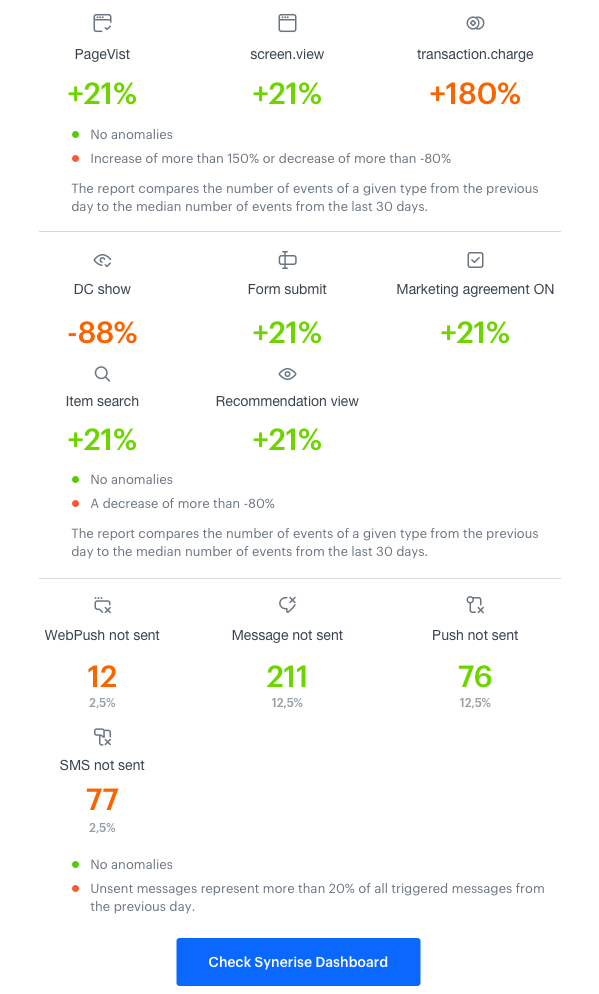
- For `page.visit`, `screen.view`, and `transaction.charge` events the email alert is sent when:
- A `80%` decrease is detected
- A `150%` increase is detected
- For `dynamicConent.show`,`inApp.show`, `form.submit`, `marketingAgreement.turnOn`, `item.search`, and `recommendation.view` events the email alert is sent when a `80%` decrease is detected
- For `message.notSent`, `webpush.notSent`, `push.notSent`, and `sms.notSent` events the email alert is sent when the unsent messages count for `20%` or more triggered messages from the day before or when the number of unsent messages is higher than 20 000
## How often is the email alert sent?
---
The email alert on non-message related events is sent only if an anomaly is detected, once per given anomaly. It means that when a given anomaly is detected (for example, sharp decrease in the `page.visit` event is detected), you receive the email alert about this particular anomaly only once. After the issue is fixed, the email alert is sent if the anomaly concerning the same event happens again.
**EXAMPLE**
You received an alert on the 9th of January, 2023 about decrease in the `page.visit` event. The issue is fixed on the 11th of January. And between these two dates, the alert about decrease from the 9th of January isn't resent.
The email alert on message-related events can be delivered on a daily basis. If it's too frequently, you can contact the Synerise Support team and disable particular metrics.
## What does "below limit" mean?
---
#### Message related events
---
For message related events, "below limit" means that the number of unsent messages from the day before didn't exceed the threshold that triggers the email alert. The threshold is counted based on the metrics that calculate the number of **unsent messages** the day before. Below you can find the limits that must be exceeded in order to trigger the alert:
- `message.notSent` - number is greater than 200
- `webpush.notSent` - number is greater than 200
- `push.notSent` - median is greater than 200
- `sms.notSent`- median is greater than 200
#### Other events
---
For other events, "below limit" means that the number of events from the day before didn't exceed the threshold that triggers the email alert. The threshold is counted based on the metrics that calculate the median of the event number from the last 30 days. Below you can find the limits that must be exceeded in order to trigger the alert:
- `page.visit` - median is greater than 200
- `screen.view` - median is greater than 200
- `transaction.charge` - median is greater than 20
- `dynamicContent.show` - median is greater than 200
- `marketingAgreement.turnOn`- median is greater than 10
- `form.submit` - median is greater than 50
- `item.search` - median is greater than 10
- `recommendation.view` - median is greater than 100
- `inApp.show` - median is greater than 200
## What does "disabled" status mean?
---
The "disabled" status means that the metric has been excluded manually from the alert. The metric can be included again any time by contacting the Synerise Support Team through the service desk.
## Can I select metrics in the alert?
---
By default, we include a complete set of metrics in the email alert. In some cases, we can exclude a metric for unsent messages (email, sms, web push or push). To do so, contact the Synerise Support Team through the service desk.
- The alert concerns the decrease in one or more metrics by 80%
- The name of the workspace
- Event name the email alert is concerned with
In the case when the anomaly is detected in more than one metric (for example, there is a decrease in the number of `transaction.charge` and `page.visit` events), the title includes only the name of one metric anyway. In such case, the name of the metric in the title is selected according to the following hierarchy:
1. `page.visit`
2. `screen.view`
3. `transaction.charge`
4. `item.search`
5. `recommendation.view`
6. `dynamicContent.show`
7. `inApp.show`
7. `form.submit`
8. `marketingAgreement.turnOn`
9. `sms.notSent`
10. `push.notSent`
11. `webpush.notSent`
12. `message.notSent`
## When is an email alert sent?
---
The email alert is sent when the number of critical events decreases or increases by a specific value:
- For `page.visit`, `screen.view`, and `transaction.charge` events the email alert is sent when:
- A `80%` decrease is detected
- A `150%` increase is detected
- For `dynamicConent.show`,`inApp.show`, `form.submit`, `marketingAgreement.turnOn`, `item.search`, and `recommendation.view` events the email alert is sent when a `80%` decrease is detected
- For `message.notSent`, `webpush.notSent`, `push.notSent`, and `sms.notSent` events the email alert is sent when the unsent messages count for `20%` or more triggered messages from the day before or when the number of unsent messages is higher than 20 000
## How often is the email alert sent?
---
The email alert on non-message related events is sent only if an anomaly is detected, once per given anomaly. It means that when a given anomaly is detected (for example, sharp decrease in the `page.visit` event is detected), you receive the email alert about this particular anomaly only once. After the issue is fixed, the email alert is sent if the anomaly concerning the same event happens again.
**EXAMPLE**
You received an alert on the 9th of January, 2023 about decrease in the `page.visit` event. The issue is fixed on the 11th of January. And between these two dates, the alert about decrease from the 9th of January isn't resent.
The email alert on message-related events can be delivered on a daily basis. If it's too frequently, you can contact the Synerise Support team and disable particular metrics.
## What does "below limit" mean?
---
#### Message related events
---
For message related events, "below limit" means that the number of unsent messages from the day before didn't exceed the threshold that triggers the email alert. The threshold is counted based on the metrics that calculate the number of **unsent messages** the day before. Below you can find the limits that must be exceeded in order to trigger the alert:
- `message.notSent` - number is greater than 200
- `webpush.notSent` - number is greater than 200
- `push.notSent` - median is greater than 200
- `sms.notSent`- median is greater than 200
#### Other events
---
For other events, "below limit" means that the number of events from the day before didn't exceed the threshold that triggers the email alert. The threshold is counted based on the metrics that calculate the median of the event number from the last 30 days. Below you can find the limits that must be exceeded in order to trigger the alert:
- `page.visit` - median is greater than 200
- `screen.view` - median is greater than 200
- `transaction.charge` - median is greater than 20
- `dynamicContent.show` - median is greater than 200
- `marketingAgreement.turnOn`- median is greater than 10
- `form.submit` - median is greater than 50
- `item.search` - median is greater than 10
- `recommendation.view` - median is greater than 100
- `inApp.show` - median is greater than 200
## What does "disabled" status mean?
---
The "disabled" status means that the metric has been excluded manually from the alert. The metric can be included again any time by contacting the Synerise Support Team through the service desk.
## Can I select metrics in the alert?
---
By default, we include a complete set of metrics in the email alert. In some cases, we can exclude a metric for unsent messages (email, sms, web push or push). To do so, contact the Synerise Support Team through the service desk.