You can alert your call center when a customer doesn’t complete a purchase of high value. Send an email alert with their contact details, the products from their abandoned cart and some personalized recommendations for the customer. After your call center receive the email alert, they can contact the customer directly and convince them to finish their purchase.

This use case describes how to prepare an automated workflow that is triggered by customer adding products to a cart exceeding specified value. In response, the workflow sends an email alert to your call center with products that the customer abandoned in the cart and contact data of this customer such as phone number after 48 hours, if they have not made a purchase. One of the challenges addressed in this use case is the use of Email Alert node.

## Prerequisites
---
- [Create an email account](/docs/campaign/e-mail/configuring-email-account).
- [Create an email template](/docs/campaign/e-mail/creating-email-templates) with an alert.
- Implement customer identification [on the website](/developers/web/tracking-form-data) and [in your mobile app](/developers/mobile-sdk/user-identification-and-authorization).
- Implement a custom event for adding a product to cart, which will be available in the customer profile. In this example, the event is called `product.addToCart`. Implement custom events in your [mobile application](/developers/mobile-sdk/event-tracking#product-added-to-cart) or [website](/developers/web/event-tracking#declarative-tracking-custom-events).

## Prepare a workflow
---
Create a workflow which sends an email alert to your call center, after a customer abandons their shopping cart with value exceeding a specific amount. Optionally, you can add additional nodes, depending on your business needs.

1. Go to <img src="/api/docs/image/54176ad07f146575310749eba44b7c2f42c1b327/icons/automation-hub-icon.svg" alt="Automation Hub icon" class="icon" > **Automation Hub > Workflows > New workflow**.  
2. Enter the name of the workflow.

### Define the Profile Event trigger node
---
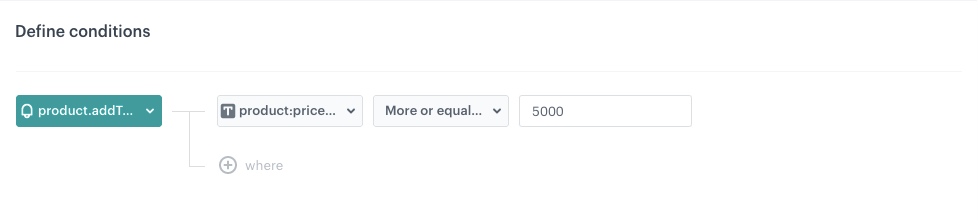
At this stage, we will configure conditions that launch the workflow. As a trigger, we will use the `product.addToCart` event.

1. As the first node of the workflow, add **Profile Event**. In the configuration of the node: 
    1. From **Choose event** dropdown menu, choose `product.addToCart` event.
    2. Click the + where button, from the **Choose parameter** dropdown menu, choose **product:price:amount**.    
    3. From the **Choose operator** dropdown, choose **Number**, and then select **More or equal to**.
    4. In the next field, type the price amount of the items.
2. Confirm by clicking **Apply**.
 <figure><img src="/api/docs/image/54176ad07f146575310749eba44b7c2f42c1b327/use-cases/all-cases/_gfx/over5000.png" class="full" alt="Configuration of the Profile Event node"><figcaption>Configuration of the Profile Event node</figcaption></figure>

### Configure the Event Filter node
---
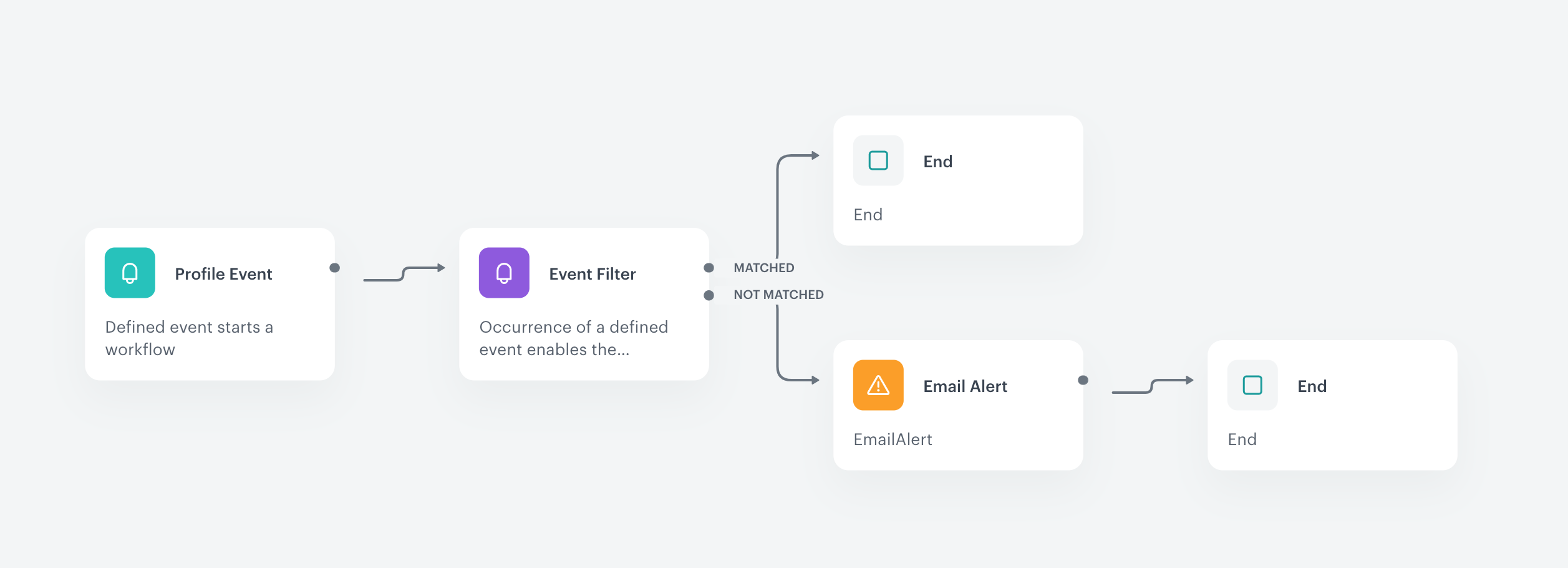
This node will set the workflow to wait for 48 hours for customer conversion (`product.buy`). If the purchase occurs, then the workflow ends. If it doesn't happen, the workflow moves on because the customer meets the abandoned cart scenario. This setting is just an example and can be configured according to your business needs.

1. As the next node, add **Event Filter**. In the configuration of the node: 
    1. In the **Check** field, from the dropdown menu choose **for period of time**.
    2. Set the time range. In our case, it is 48 hours.
    3. In the **Define conditions** section, from the **Choose event** dropdown menu, choose `product.buy` event.
    4. Click the + where button and from **Choose parameter** dropdown menu, choose **product:price:amount**.    
    5. From the **Choose operator** dropdown, choose **Number**, and then select **More or equal to**.
    6. In the next field, type the price amount of the items, the same as in the previous step.
4. Confirm by clicking **Apply**.
5. For the **Matched** path, add the **End** node.

### Configure the Email Alert node
---
1.  To the **Not matched** path, add **Email Alert**. Configure according to your business needs.
2. Define Content:
    1. In the **Template for content** field, select an alert email template prepared earlier.
    2. In the **Subject** field, enter your message subject.
3. In the **Recipent** section, create a list of call center recipients of the alert email.
4. Confirm by clicking **Apply**.


   <div class="admonition admonition-important"><div class="admonition-icon"><svg xmlns="http://www.w3.org/2000/svg" fill="none" viewBox="0 0 24 24" stroke="currentColor" stroke-width="2.5"><path stroke-linecap="round" stroke-linejoin="round" d="M12 8v4m0 4h.01M21 12a9 9 0 11-18 0 9 9 0 0118 0z" /></svg></div><div class="admonition-body"><div class="admonition-content">

   You need to enrich your email template with customer's contact data and with the data of the product from their abandoned cart. Use [customer attributes inserts](/developers/inserts/insert-usage#customer-attributes) to enrich template with customer's information such as phone number, email address etc. Use [automation inserts](/developers/inserts/automation#event-parameters) to insert the product the customer abandoned in their cart.

   </div></div></div>


<div class="admonition admonition-tip"><div class="admonition-icon"><svg xmlns="http://www.w3.org/2000/svg" fill="none" viewBox="0 0 24 24" stroke="currentColor" stroke-width="2.5"><path stroke-linecap="round" stroke-linejoin="round" d="M9.663 17h4.673M12 3v1m6.364 1.636l-.707.707M21 12h-1M4 12H3m3.343-5.657l-.707-.707m2.828 9.9a5 5 0 117.072 0l-.548.547A3.374 3.374 0 0014 18.469V19a2 2 0 11-4 0v-.531c0-.895-.356-1.754-.988-2.386l-.548-.547z" /></svg></div><div class="admonition-body"><div class="admonition-content">

You can also include 5 last seen products by this customer, and 5 products from personalized recommendations. Check this [use case](/use-cases/saving-abandoned-carts-using-dynamic-email-recommendations) for inspiration.

</div></div></div>


### Add the finishing node
---
9. Add the **End** node.
10. In the upper right corner, click **Save & Run**.  

    <figure><img src="/api/docs/image/54176ad07f146575310749eba44b7c2f42c1b327/use-cases/all-cases/_gfx/emailalert.png" class="full" alt="The workflow configuration"><figcaption>The workflow configuration</figcaption></figure>

## Check the use case set up on the Synerise Demo workspace
---
You can also check the [workflow configuration](https://app.synerise.com/automations/workflows/automation-diagram/39f6f5ac-fb0b-4195-8875-c474754a2f8f) directly in Synerise Demo workspace. 

If you’re our partner or client, you already have automatic access to the **Synerise Demo workspace (1590)**, where you can explore all the configured elements of this use case and copy them to your workspace.  

If you’re not a partner or client yet, we encourage you to fill out the contact [form](https://demo.synerise.com/request) to schedule a meeting with our representatives. They’ll be happy to show you how our demo works and discuss how you can apply this use case in your business. 

## Read more
---
- [Creating email templates](/docs/campaign/e-mail/creating-email-templates)
- [Creating workflows](/docs/automation/creating-automation)