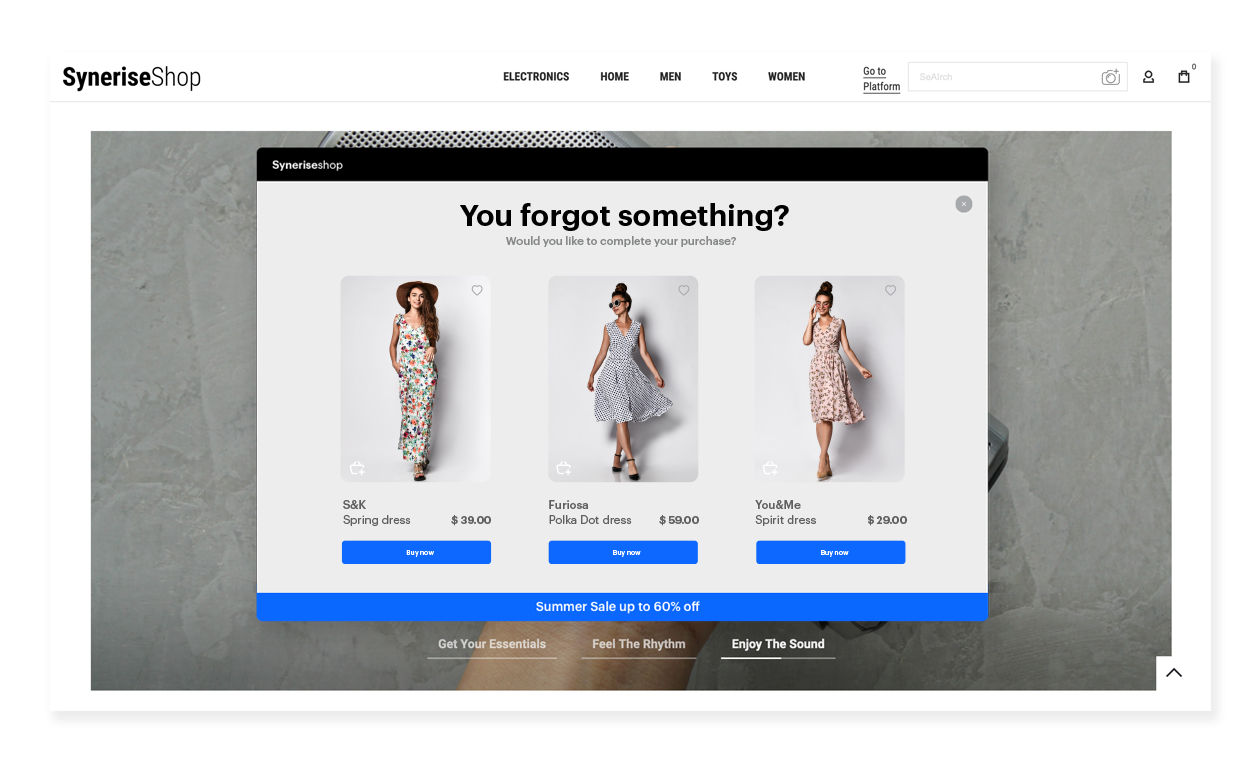
An effective strategy for online businesses to retrieve lost sales is through an abandoned cart pop-up message. Such notifications serve as a reminder to customers about the products they have left in their shopping cart and urges them to finalize their purchase. They often include a personalized message, a list of items left in the cart, and a call-to-action button to encourage the customer to complete their purchase. By using this method, online businesses can potentially increase sales and improve customer engagement while being cost-efficient. 

This use case describes the implementation of dynamic content (DC) with abandoned cart notification. With predefined dynamic content web layer templates, you can create such a DC much faster without having to create a template from scratch.

<figure>
<img src="/api/docs/image/54176ad07f146575310749eba44b7c2f42c1b327/use-cases/all-cases/_gfx/dc_ac_main.png" alt="The view of the dynamic content pop-up message"  class="full no-frame">
</figure> 

## Prerequisites 
---
- [Implement a tracking code](/docs/settings/tool/tracking_codes).
- Implement the [transaction events](/developers/web/transactions-sdk) using [SDK](/developers/web/transactions-sdk) or [API](https://developers.synerise.com/DataManagement/DataManagement.html#operation/CreateATransaction).
- [Implement the `cart.status` event](/developers/web/cart), which stores the current status of the basket in the form of an event on the profile's card. The event has to be sent to Synerise after every change in the cart status.
- Collect [product.addToCart event](/docs/assets/events).

## Process 
---

In this use case, you will go through the following steps:
1. [Create an aggregate](#create-an-aggregate) that returns the products in the cart for every individual customer.
2. [Create a dynamic content](#create-a-dynamic-content) with the contents of the abandoned cart using the predefined template.

## Create an aggregate 
---
In this step, create an aggregate that returns the list of products in a cart. The result of the aggregate will be used to display products in your dynamic content.

1. Go to <img src="/api/docs/image/54176ad07f146575310749eba44b7c2f42c1b327/icons/behavioral-data-hub-icon.svg" alt="Behavioral Data Hub icon" class="icon"> **Behavioral Data Hub > Live Aggregates > Create aggregate**.
2. As the aggregate type, select **Profile**.  
2. Enter the name of the aggregate.
3. Click **Analyze profiles by** and select **Last**.
5. From the **Choose event** dropdown list, select the `cart.status` event.
6. As the event parameter, select **products**.
7. Set the period from which the aggregate will analyze the results to **Lifetime**. 
12. Save the aggregate.

<figure>
<img src="/api/docs/image/54176ad07f146575310749eba44b7c2f42c1b327/use-cases/all-cases/_gfx/ac-aggregate.png" class="full" alt="The view of the configuration of the aggregate">
<figcaption>Configuration of the aggregate</figcaption>
</figure>


## Create a dynamic content
---
Create a dynamic content campaign with abandoned cart items using a predefined web dynamic content layer template. This dynamic content will be displayed as a pop-up on your site for customers who haven't made a transaction within an hour from adding the product to cart.

1. Go to <img src="/api/docs/image/54176ad07f146575310749eba44b7c2f42c1b327/icons/experience-hub-icon.svg" alt="Experience Hub icon" class="icon" > **Experience Hub > Dynamic Content > Create new**.
2. Enter the name of the content.
3. Choose **Web layer** type.

### Define Audience

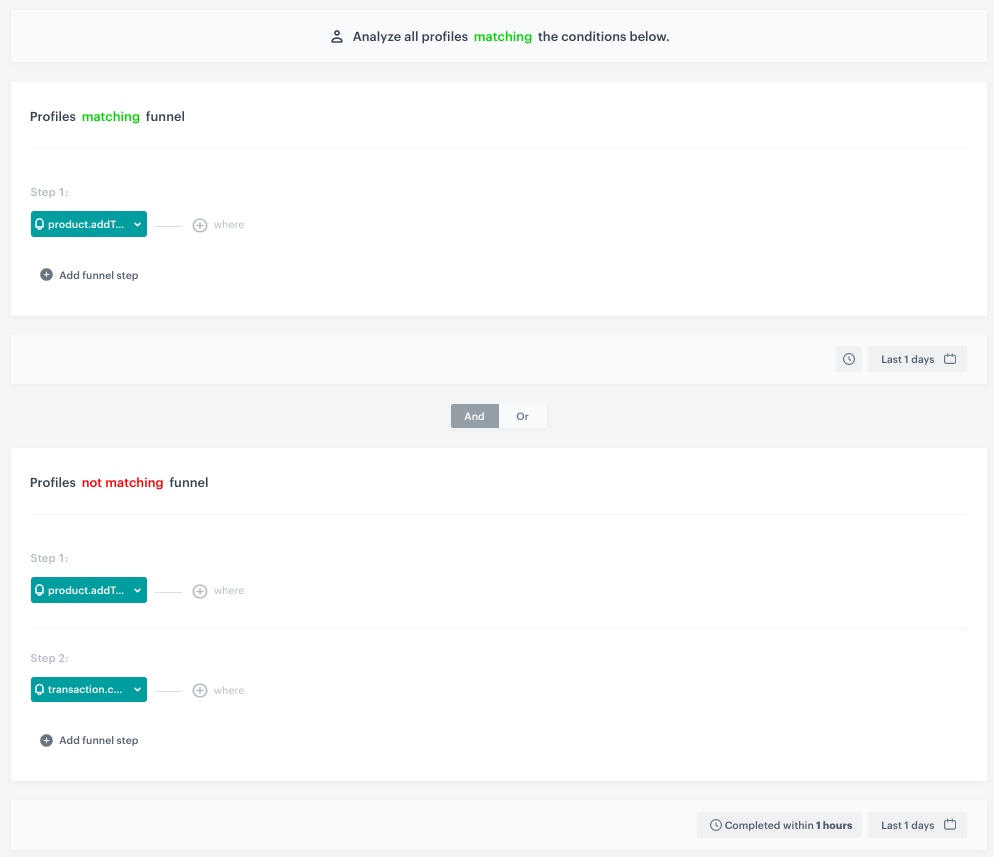
1. In the **Audience** section, select **New Audience** and click **Define conditions**.
    1. From the **Choose filter** dropdown list, select the `product.addToCart` event.
    2. Click the calendar in the right bottom of the page.
        1. In the **Relative date range** section, define the analyzed period. In this case, choose **Today**.
        2. Click **Apply**.
    3. Click **Choose filter**, from the dropdown list, select the `product.addToCart` event.
    4. Click **add funnel step**.
    5. From the **Choose event** dropdown list, select the `transaction.charge` event.
    6. Change **matching** to **not matching**.
    7. Click the calendar in the right bottom of the page.
        1. In the **Relative date range** section, define the analyzed period. In this case, choose **Today**.
        2. Click **Apply**.
    8. Click the clock next to the calendar.
        1. Type `1` and from the dropdown list, select **Hours**.
        2. Click **Apply**.
    <figure>
    <img src="/api/docs/image/54176ad07f146575310749eba44b7c2f42c1b327/use-cases/all-cases/_gfx/ac_dc_audience.png" alt="The view of the Dynamic Content Audience configuration"  class="large">
    <figcaption>Audience configuration</figcaption>
    </figure> 

8. To save the audience, click **Apply**.

### Define content

1. In the **Content** section, click **Create Message**.
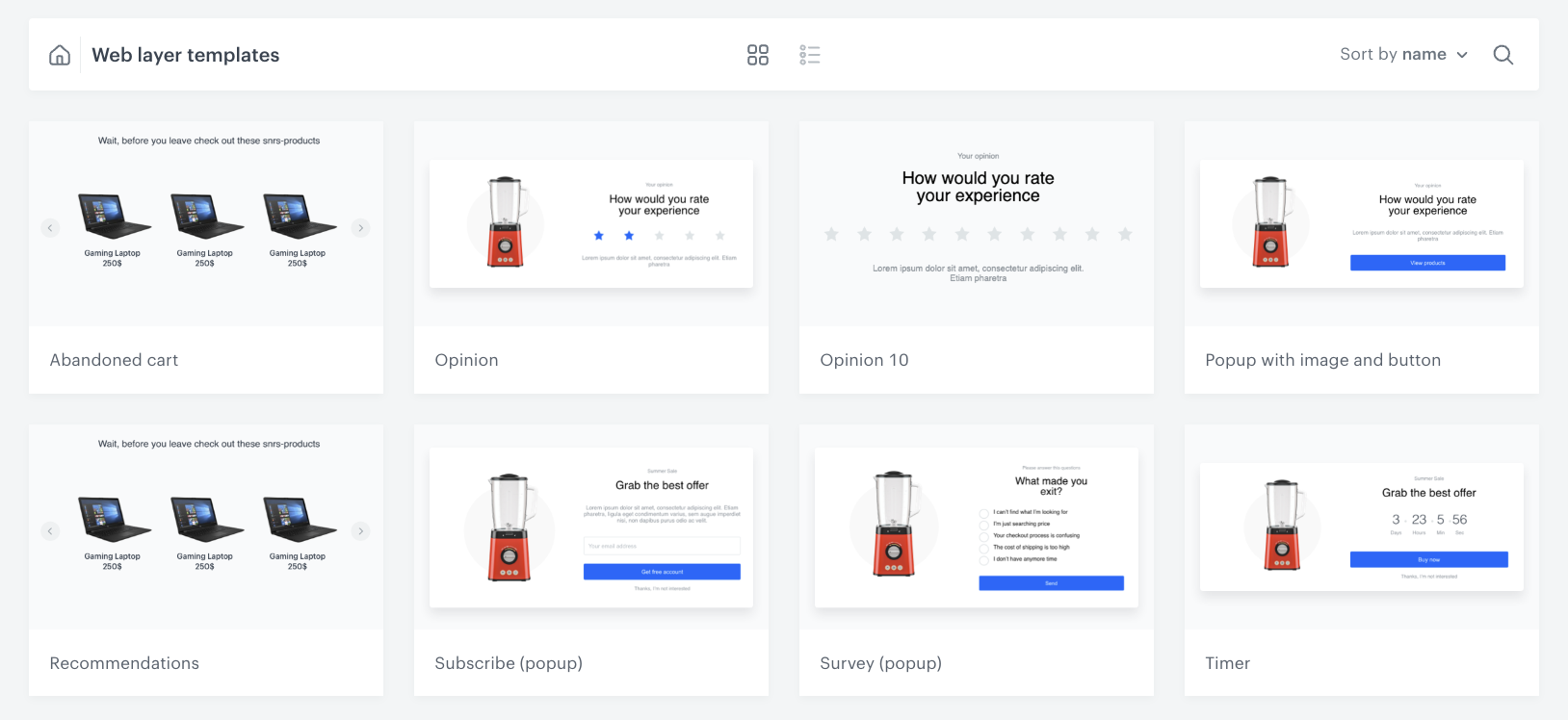
2. From the list of template folders, select a folder with the predefined **Web layer templates**.  
    **Result:** You are redirected to the list of predefined templates.

    <figure>
    <img src="/api/docs/image/54176ad07f146575310749eba44b7c2f42c1b327/use-cases/all-cases/_gfx/web-layer.png" alt="The view of the Web layer templates folder"  class="large">
    <figcaption>Web layer templates folder</figcaption>
    </figure> 

3. Select the **Abandoned cart** template.   
    **Result:** You are redirected to the template builder.

   <div class="admonition admonition-note"><div class="admonition-icon"><svg xmlns="http://www.w3.org/2000/svg" fill="none" viewBox="0 0 24 24" stroke="currentColor" stroke-width="2.5"><path stroke-linecap="round" stroke-linejoin="round" d="M13 16h-1v-4h-1m1-4h.01M21 12a9 9 0 11-18 0 9 9 0 0118 0z" /></svg></div><div class="admonition-body"><div class="admonition-content">

   You can edit the template in two ways, by editing the code of the template ([add snippets](/docs/campaign/dynamiccontent/creating-dynamic-content-templates/dynamic-content-template-builder#adding-a-snippet-to-the-template-code), [add variables](/docs/campaign/dynamiccontent/creating-dynamic-content-templates/dynamic-content-template-builder#adding-a-variable) and/or by filling out the form in the Config tab. In this use case, we will use the capabilities of the predefined Config tab.

   </div></div></div>


#### Edit the form in the Config tab 
The form in the Config tab is already filled in with default values. You can keep them or change them to fit your business needs.

1. From the **Aggregate with products left in the cart** dropdown list, select the ID of the aggregate you created [in the previous step](#create-an-aggregate). You can find it by typing its name or ID in the search box.
2. In the **Header text** field, define the header you want to display in the pop-up message.
3. In the **Currency** field, specify the currency in which you want to display the prices of the items.
4. In the **Bottom text** field, define the copy you want to appear on the bottom of the page.
5. In the **Font** field, define the font of all text displayed in the dynamic content.
6. Define the colors in the **Bottom bar background** and **Bottom bar text color**.
7. Choose the most suitable carousel scrolling method for you by enabling one or all toggles the same time:
    - **Carousel autoplay**: activation of this toggle allows automatic scrolling of items in the carousel;
    - **Carousel loop**: activation of this toggle allows users to navigate to the first article in the carousel by clicking the arrow after the last article displayed in the carousel;
    - Enabling these two options at the same time will combine these functionalities. In this case, the recommendation carousel will scroll automatically and return to the first item automatically after displaying the last one.
    - If you don’t activate any of the toggles, users will have to scroll through the carousel on their own, and when they get to the last item, it won’t automatically redirect them to the beginning of the carousel
8. In the following fields, define the item amount that you would like to display in small, medium, large and extra large screens.
9. After you make changes to the template, you can check the preview.
    1. Click the **Preview** button on the upper left side.
    2. Enter the ID of a customer.
    
       <div class="admonition admonition-important"><div class="admonition-icon"><svg xmlns="http://www.w3.org/2000/svg" fill="none" viewBox="0 0 24 24" stroke="currentColor" stroke-width="2.5"><path stroke-linecap="round" stroke-linejoin="round" d="M12 8v4m0 4h.01M21 12a9 9 0 11-18 0 9 9 0 0118 0z" /></svg></div><div class="admonition-body"><div class="admonition-content">

       Select a customer who has the `product.addToCart` event in their activity list in **Behavioral Data Hub > Profiles**.

       </div></div></div>

    3. Click **Apply**.

    
   <div class="admonition admonition-important"><div class="admonition-icon"><svg xmlns="http://www.w3.org/2000/svg" fill="none" viewBox="0 0 24 24" stroke="currentColor" stroke-width="2.5"><path stroke-linecap="round" stroke-linejoin="round" d="M12 8v4m0 4h.01M21 12a9 9 0 11-18 0 9 9 0 0118 0z" /></svg></div><div class="admonition-body"><div class="admonition-content">

   If you are using custom attributes in your product feed, you need to replace the names of the standard attributes used in the template code with the names of the attributes used in your feed.

   </div></div></div>

10. If the template is ready, in the upper right corner, click **Save this template > Save as**.
11. On the popup:
    1. In the **Template name** field, enter the name of the template.
    2. From the **Template folder** dropdown list, select the folder where the template will be saved.
    3. Confirm by clicking **Apply**.
12. To continue the process of configuring the dynamic content campaign, click **Next**.
13. To save your content changes, click **Apply**.

### Define schedule and display settings 

1. In the **Schedule** section, click **Define** and set the time when the message will be active.
2. In the **Display Settings** section, click **Define**.
3. Specify circumstances for dynamic content to be displayed. Optionally, you can also define the Advanced options. In our case, we will define the frequency of dynamic content to be displayed to **Once per day**. You can also define the type of device you want to show your dynamic content.
4. Click **Apply**.
5. Optionally, you can define the UTM parameters and additional parameters for your dynamic content campaign.
6. Click **Activate**.

## Check the use case set up on the Synerise Demo workspace
---
You can check the the configuration of each step from this use case in our Synerise Demo workspace:
- [Aggregate](https://app.synerise.com/analytics/aggregates/17d214c4-5644-33b1-b0c6-9fab96b26b3e)
- [Dynamic Content](https://app.synerise.com/campaigns/create/3cbc322f-74e4-4fb8-8897-8ef9d96fdd9c)

If you’re our partner or client, you already have automatic access to the **Synerise Demo workspace (1590)**, where you can explore all the configured elements of this use case and copy them to your workspace.  

If you’re not a partner or client yet, we encourage you to fill out the contact [form](https://demo.synerise.com/request) to schedule a meeting with our representatives. They’ll be happy to show you how our demo works and discuss how you can apply this use case in your business. 

## Read more
---

- [Aggregates](/docs/analytics/aggregates)
- [Dynamic content](/docs/campaign/dynamiccontent)
- [Dynamic content template builder](/docs/campaign/dynamiccontent/dynamic-content-template-builder)
- [Snippets](/docs/assets/snippets)