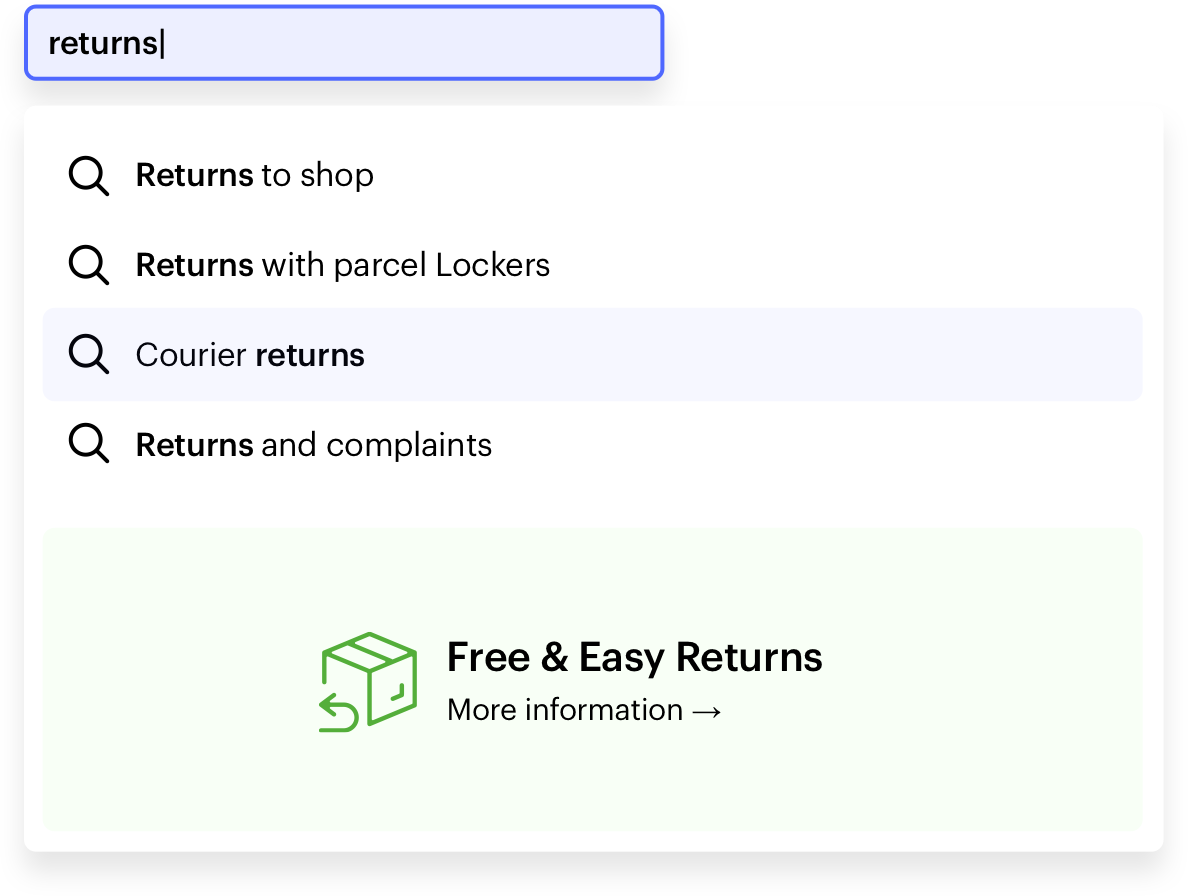
To make navigating the site for our customers easier, we can use the product search bar to find returns, policy, contact pages, and so on. With Synerise AI search, you have the possibility to add native hints of the pages in the product search space. You can use custom queries to create matches linked to predefined pages.

This use case describes the process of returning a specified by us phrase linked to return subpage, when a specific phrase like `returns` is searched. Implementation is based on using query rules and returning custom data.

<figure>
<img src="/api/docs/image/54176ad07f146575310749eba44b7c2f42c1b327/use-cases/all-cases/_gfx/adding-linked-main.png" alt="The view of linked pages in the search engine"  class="full no-frame">
</figure>

## Prerequisites 
---
- Enable [the Search Engine](/docs/ai-hub/ai-search/introduction-to-ai-search) for your workspace and create an [index](/docs/ai-hub/ai-search/create-index).
- [Implement AI search](https://developers.synerise.com/AISearch/AISearch.html) in any of your channels (mobile app, website, and so on).

## Add Rules
---
In this use case, when a customer types `returns` into a search engine, it will return linked pages containing this phrase as a relevant search result.

1. Go to <img src="/api/docs/image/54176ad07f146575310749eba44b7c2f42c1b327/icons/ai-hub-icon.svg" alt="AI Hub icon" class="icon" > **AI Hub > Indexes**.
2. Select an index from the list.
3. Click the **Rules** tab.
4. On the right side of the screen, click **Add rule**.
5. Name the rule.
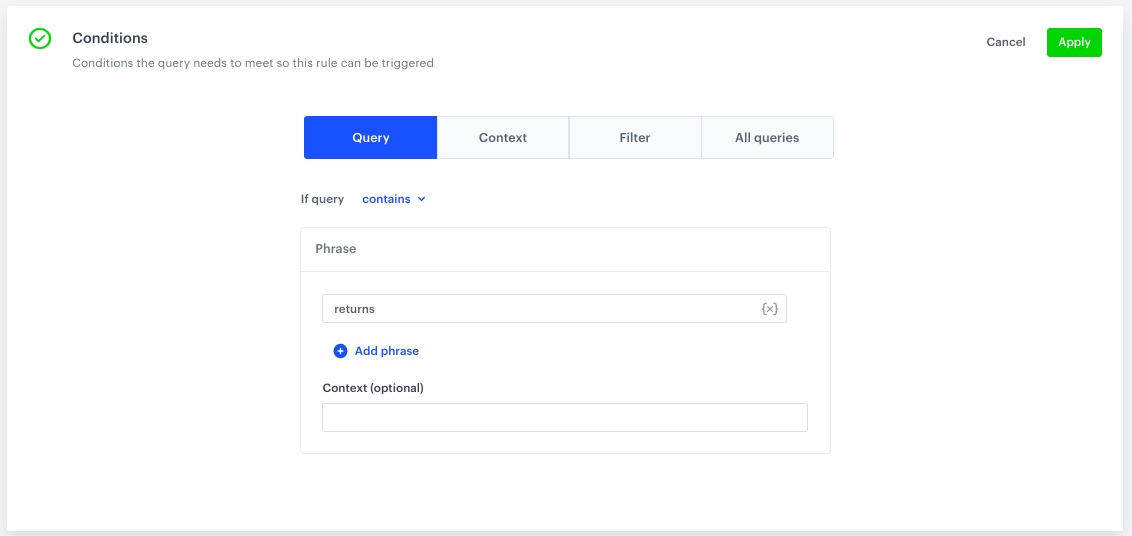
6. To adjust the query conditions, in the **Conditions** section, click **Define**.
    1. Choose the **Query** tab.
    2. Next to **If query**, choose **Contains** from the dropdown list.
    3. In the **Phrase** section, in the **Type word** field, enter `returns`. 
    4. You can add more phrases.
    5. Click **Apply**.
        <figure>
        <img src="/api/docs/image/54176ad07f146575310749eba44b7c2f42c1b327/use-cases/all-cases/_gfx/query_returns.png" alt="Example of conditions the query needs to meet so the rule can be triggered" class="full no-frame">   
        <figcaption> Example of the query conditions </figcaption>
        </figure>

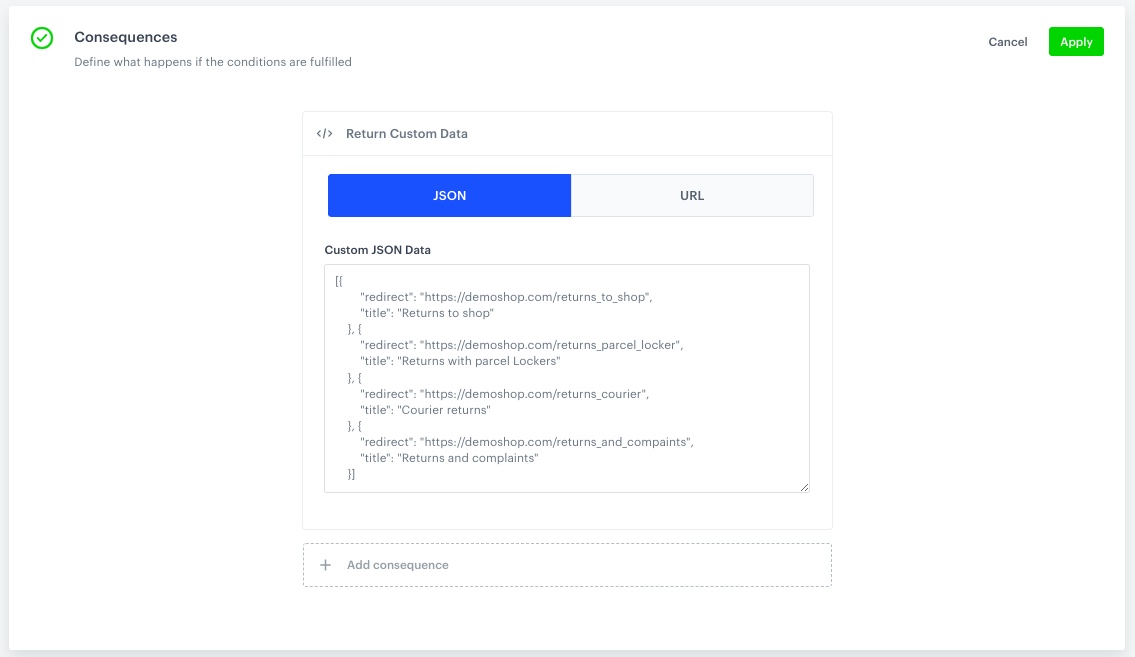
7. To define how the search engine reacts to the defined conditions, in the **Consequences** section, click **Define**.
    1. Click **Add consequence** and choose **Return Custom Data** from the dropdown list.
    2. Enter a custom JSON data, based on the scrypt below.
        
       <pre><code class="language-json">[{
               "redirect": "https://demoshop.com/returns_to_shop",
               "title": "Returns to shop"
           }, {
               "redirect": "https://demoshop.com/returns_parcel_locker",
               "title": "Returns with parcel Lockers"
           }, {
               "redirect": "https://demoshop.com/returns_courier",
               "title": "Courier returns"
           }, {
               "redirect": "https://demoshop.com/returns_and_compaints",
               "title": "Returns and complaints"
               }]</code></pre>


       <div class="admonition admonition-important"><div class="admonition-icon"><svg xmlns="http://www.w3.org/2000/svg" fill="none" viewBox="0 0 24 24" stroke="currentColor" stroke-width="2.5"><path stroke-linecap="round" stroke-linejoin="round" d="M12 8v4m0 4h.01M21 12a9 9 0 11-18 0 9 9 0 0118 0z" /></svg></div><div class="admonition-body"><div class="admonition-content">

       This is just an example for reference, you should create JSON according to your business needs.

       </div></div></div>
  
    
    3. Click **Apply**.
        <figure>
        <img src="/api/docs/image/54176ad07f146575310749eba44b7c2f42c1b327/use-cases/all-cases/_gfx/conseq_query.png" alt="Example of what happens if the conditions are fulfilled" class="full no-frame">   
        <figcaption> Consequences configuration</figcaption>
        </figure>
8. In the **Schedule** section, you can define when the query rule applies.
8. Click **Save & Publish**.

## What's next
---
In the code that is responsible for the implementation of this AI Search, you need to implement support for the JSON returned by the query rules in order to display the links.

## Check the use case set up on the Synerise Demo workspace
---
You can check the [query rules configuration](https://app.synerise.com/ai-v2/search/indices/755f0b11de79e2233d48f31ba05c71481730272262/query-rules/35598) directly in Synerise Demo workspace. 

If you’re our partner or client, you already have automatic access to the **Synerise Demo workspace (1590)**, where you can explore all the configured elements of this use case and copy them to your workspace.  

If you’re not a partner or client yet, we encourage you to fill out the contact [form](https://demo.synerise.com/request) to schedule a meeting with our representatives. They’ll be happy to show you how our demo works and discuss how you can apply this use case in your business. 

## Read more
---
- [Configuring AI Search](/docs/ai-hub/ai-search/introduction-to-ai-search#configuring-ai-search).
- [Creating rules](/docs/ai-hub/ai-search/query-rules)