The Customer Age Calculation offers businesses a robust solution to automatically calculate their customers' age based on the birthdate attribute. 

This approach has several noteworthy benefits for businesses:

- Improved Customer Insights: Access to age demographics enables more informed decision-making, enhancing the effectiveness of marketing initiatives and customer engagement strategies.
- Personalized Customer Experiences: Armed with accurate age data, businesses can provide tailored interactions and experiences, such as age-specific discounts, content recommendations, and product suggestions.
- Compliance and Age Verification: In industries governed by age-related regulations, such as age-restricted products or services, this use case serves as a robust tool for age verification, ensuring compliance and safeguarding against unauthorized access.

In this use case, you will verify the presence of the birthdate attribute within a customer's profile. Upon confirmation, the use case proceeds with a series of precise calculations. In summary, this process simplifies age calculations, it will enrich customer understanding, enable personalized interactions, and contribute to more effective marketing campaigns and age-related compliance. What's more, this calculation also takes leap years into account.

## Prerequisites 
---
- Implement [tracking code](/developers/web/installation-and-configuration#creating-a-tracking-code) on your website.
- Import of customer base with birthdate attribute.


  <div class="admonition admonition-note"><div class="admonition-icon"><svg xmlns="http://www.w3.org/2000/svg" fill="none" viewBox="0 0 24 24" stroke="currentColor" stroke-width="2.5"><path stroke-linecap="round" stroke-linejoin="round" d="M13 16h-1v-4h-1m1-4h.01M21 12a9 9 0 11-18 0 9 9 0 0118 0z" /></svg></div><div class="admonition-body"><div class="admonition-content">

  To collect birthdates from customers already in the database without this attribute, consider using targeted email campaigns with incentives, implementing loyalty programs that require birthdate information, engaging customers on social media with contests, and training customer support to politely request this missing data during interactions, emphasizing the benefits of sharing it. These methods will enhance your customer relationships and enable tailored marketing strategies.

  </div></div></div>


## Process
---

In this use case, you will go through the following steps:
2. [Create an expression](#create-an-expression).
2. [Create a segmentation](#create-a-segmentation).


## Create an expression
---
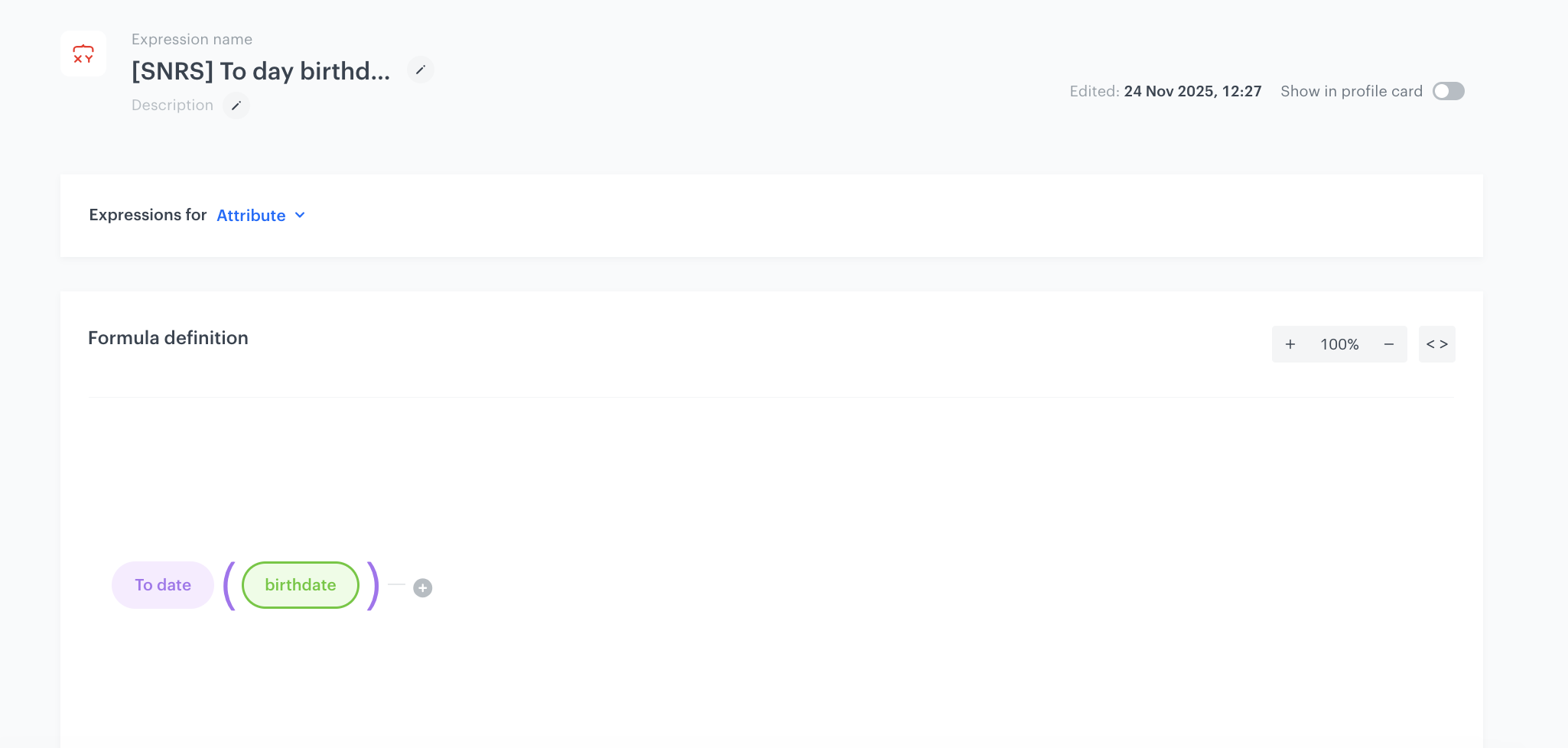
Create an expression that will calculate age of a customer based on the birthdate attribute. 

1. Go to <img src="/api/docs/image/54176ad07f146575310749eba44b7c2f42c1b327/icons/behavioral-data-hub-icon.svg" alt="Behavioral Data Hub icon" class="icon"> **Behavioral Data Hub > Expressions > New expression**. 
2. Enter the name of the expression. 
2. As a type of expression, select **Attribute**. 
3. Click the **Select** button and select **Function**.
4. From the dropdown list, select **To date**.  
5. Click the **Select** button. 
6. From the dropdown list, select **Profile**.
6. Click **Unnamed** to display the settings.
7. Choose the **birthdate** attribute.
6. Save the expression.


<figure>
<figure>
<img src="/api/docs/image/54176ad07f146575310749eba44b7c2f42c1b327/use-cases/all-cases/_gfx/age-calculation.png" alt="Expression settings"  class="full">
<figcaption>Expression with age calculation</figcaption></figure>
</figure> 

## Create a segmentation

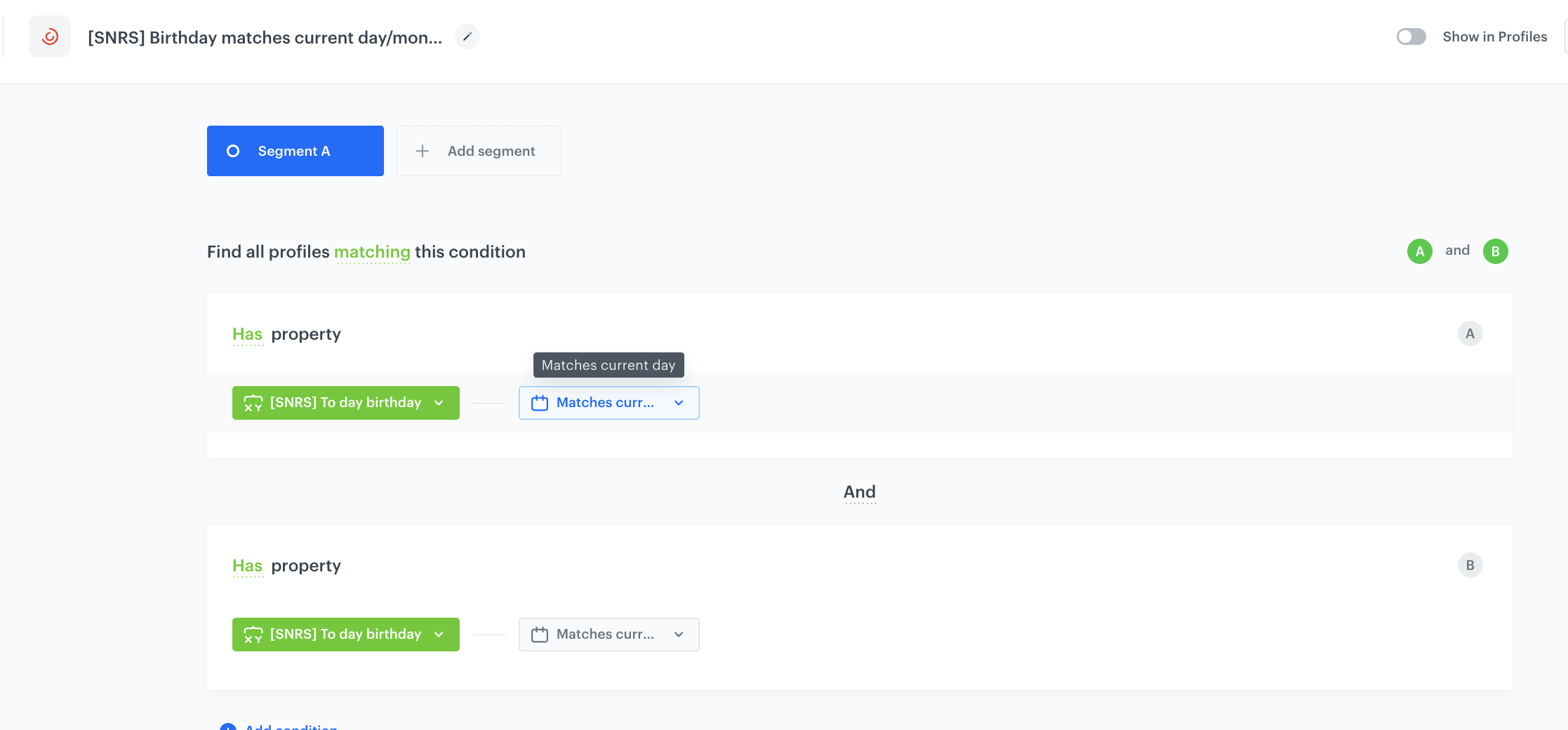
Create a segmentation that groups profiles whose birthday falls on the current date. In the settings of the segmentation, you will use the expression you created in the [previous step](#create-an-expression).

1. Go to <img src="/api/docs/image/54176ad07f146575310749eba44b7c2f42c1b327/icons/decision-hub-icon.svg" alt="Behavioral Data Hub icon" class="icon"> **Decision Hub > Segmentation > New Segmentation**.
2. Enter the name of segmentation.
3. From the list, select an expression created in the [previous step](#create-an-expression).
7. Choose the **Matches current day** operator.
7. From the **Add condition** dropdown list, select again the expression created in the [previous step](#create-an-expression).
7. Choose the **Matches current month** operator.
9. Click **Save**. 
<figure>
<img src="/api/docs/image/54176ad07f146575310749eba44b7c2f42c1b327/use-cases/all-cases/_gfx/segment_configuration2.png" class="large" alt="Segment configuration">
<figcaption>Segment configuration</figcaption>
</figure>


## Check the use case set up on the Synerise Demo workspace
---
Check the prepared [expression](https://app.synerise.com/analytics/expressions/61824dcd-6689-490b-838d-d31c0998be0c) and [segmentation](https://app.synerise.com/analytics-v2/segmentations/cdb3467d-a292-4916-b075-0e14a63ec2f2) directly in the Synerise Demo workspace.

If you’re our partner or client, you already have automatic access to the **Synerise Demo workspace (1590)**, where you can explore all the configured elements of this use case and copy them to your workspace.  

If you’re not a partner or client yet, we encourage you to fill out the contact [form](https://demo.synerise.com/request) to schedule a meeting with our representatives. They’ll be happy to show you how our demo works and discuss how you can apply this use case in your business. 


## Read more
---
- [Expressions](/docs/analytics/expressions)
- [Functions in expressions](/docs/crm/expressions/functions-in-expressions)
- [Birthday-related use cases](/use-cases/?query=birthday&ordering=DESC&sortBy=publishDate)