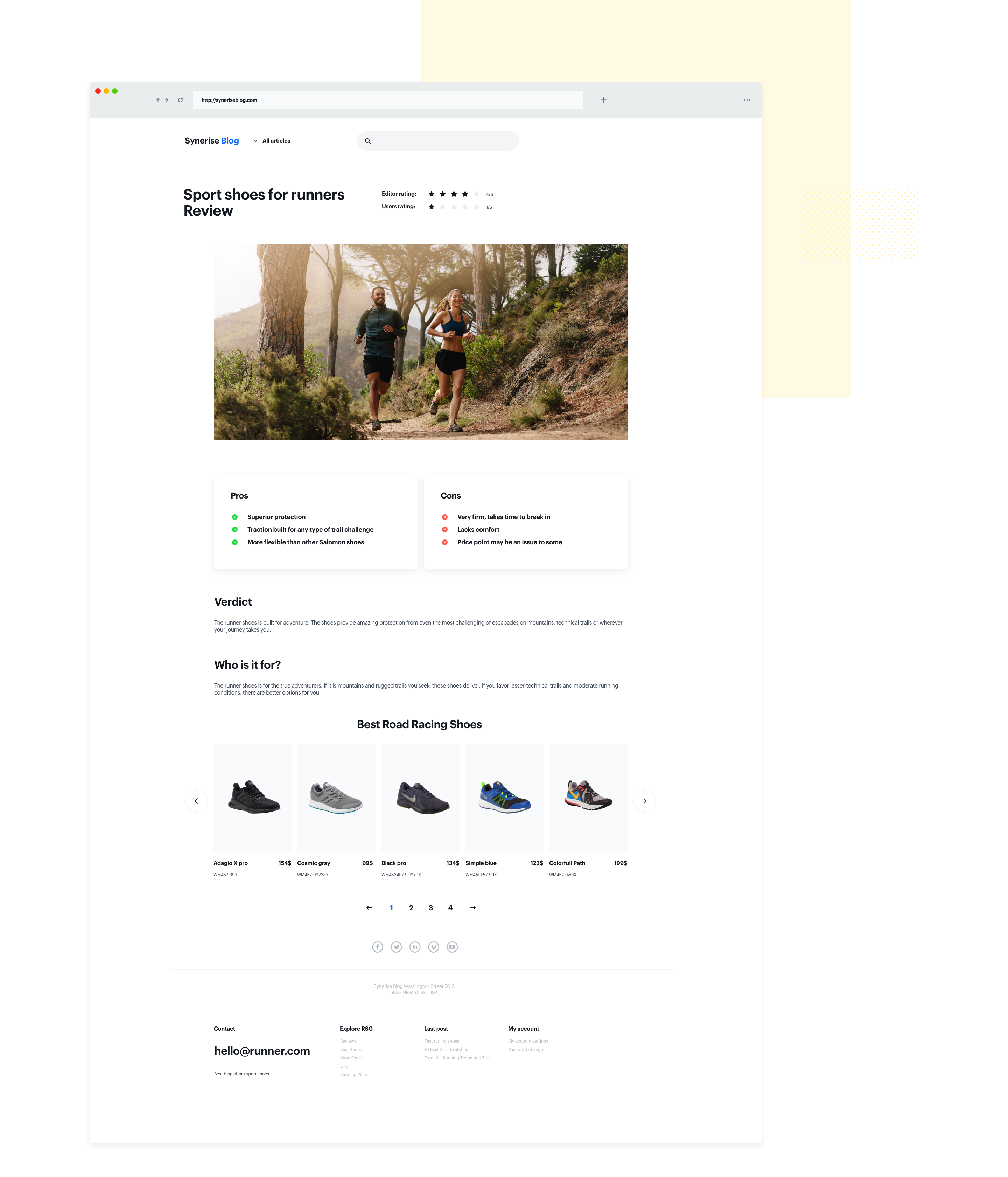
Blogging enables you to reach your target group in an easier way than other conventional marketing channels. Preparing articles connected with your offer can promote your products or brand, attract an audience, and establish you as an authority in the field. 

If you have a blog with a lot of readers, there may be a great opportunity to boost revenue because you can implement recommended products below your blog posts or inside them and make it easier to find the products that engage readers. 

This use case describes how to enrich a blog with recommendations of outdoor running shoes suitable for specific terrains. The output of the use case are two separate frames which present the following recommendations:

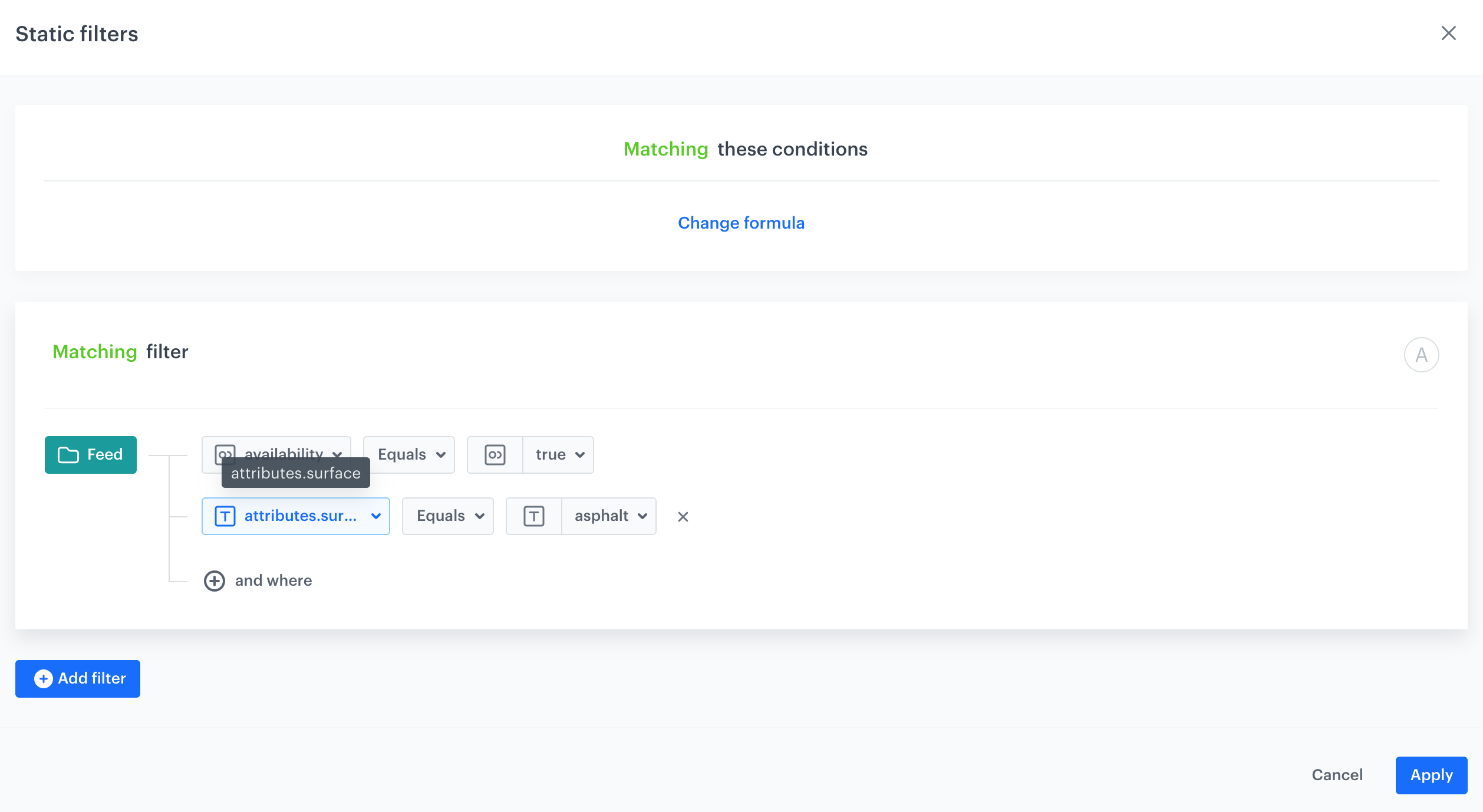
- Bestselling road racing shoes - the filters of the recommendation use custom `surface` attribute set to `asphalt`. 

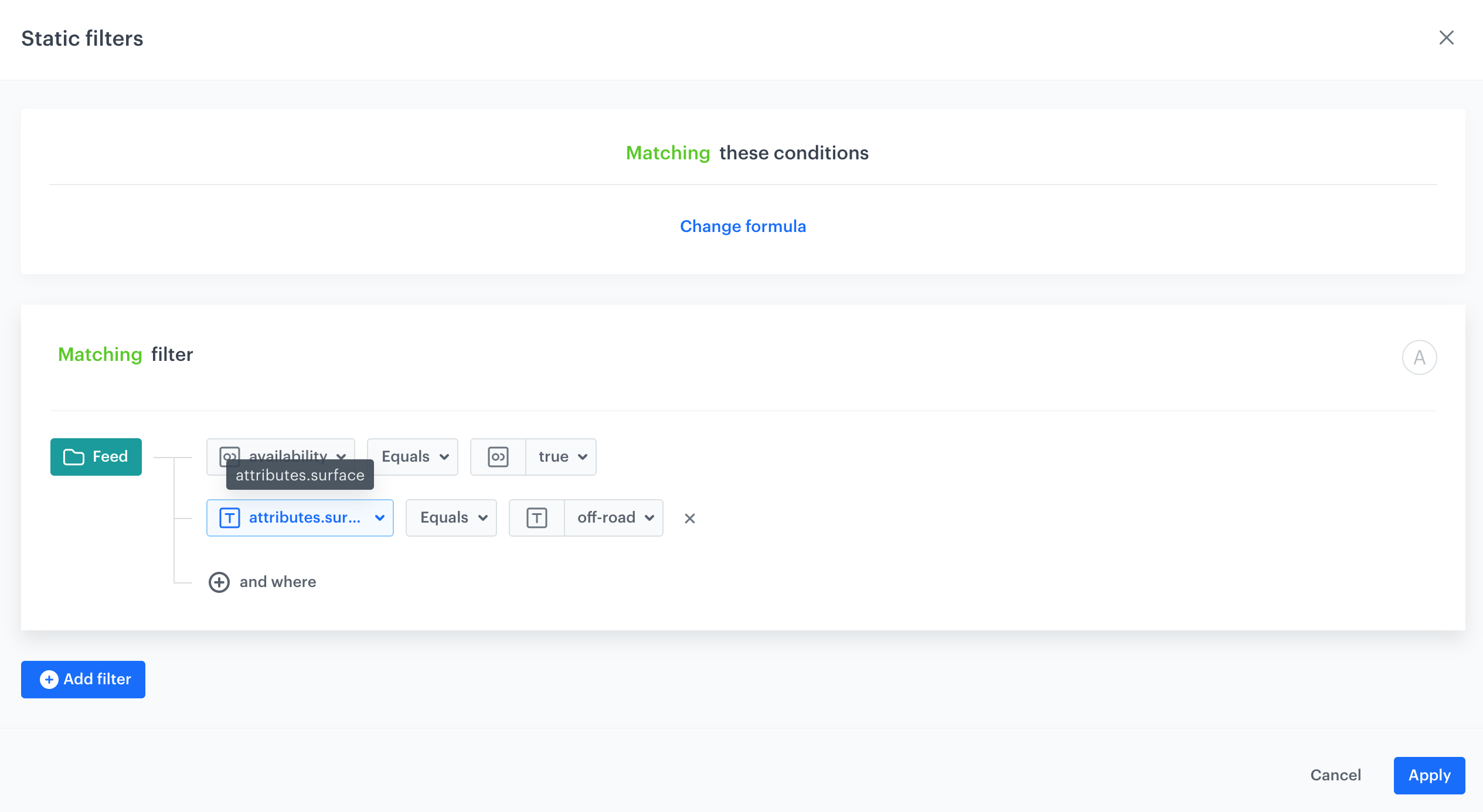
- Bestselling trail racing shoes - the filters of the recommendation use custom `surface` attribute set to `off-road`. 

<figure>
<img src="/api/docs/image/54176ad07f146575310749eba44b7c2f42c1b327/use-cases/all-cases/_gfx/ai_recommendations_blog_post2.png" alt="AI recommendations in a blog post" class="full no-frame">
<figcaption> AI recommendations in a blog post </figcaption>
</figure>

## Prerequisites
---
- Implement a [tracking code](/developers/web/installation-and-configuration#creating-a-tracking-code) to the blog.
- [Import a product feed](/use-cases/import-product-feed-to-catalog).

## Process
---
In this use case, you will go through the following steps:
1. [Preparing AI recommendations](/use-cases/ai-recommendations-blog-post#prepare-ai-recommendations).
2. [Create dynamic content campaign](/use-cases/ai-recommendations-blog-post#create-dynamic-content).

## Prepare AI recommendations 
---
As the first part of the process, create two separate AI recommendations:
- Bestselling racing shoes suitable for running on asphalt
- Bestselling racing shoes suitable for running off-road

The recommendations will differ only in the filter conditions.

1. Go to <img src="/api/docs/image/54176ad07f146575310749eba44b7c2f42c1b327/icons/ai-hub-icon.svg" alt="AI Hub icon" class="icon" > **AI Hub > (AI Recommendations) Models > Add recommendation**.
2. Enter the name of the recommendation (it is only visible on the list of recommendations).
3. In the **Type & Items feed** section and click **Define**.
4. From the **Items feed** dropdown list, select a product feed that has a trained model.
5. Select the **Top products** recommendation type.  

    <figure>
    <img src="/api/docs/image/54176ad07f146575310749eba44b7c2f42c1b327/use-cases/all-cases/_gfx/ai-blog-recommendation-type-source.png" alt="Selected type and product feed of the recommendation" class="full">
    <figcaption> Selected type and product feed of the recommendation </figcaption>
    </figure>
6. In the **Items** section, click **Define**.  
7. Click **Add slot**.  
8. Click the **Unnamed slot** that was created.    
8. Define the minimum and maximum number of products displayed in the frame according to your needs.
9. In the settings of the **Static filters**:  
    - For the bestselling racing shoes suitable for running on asphalt:  
        <figure>
        <img src="/api/docs/image/54176ad07f146575310749eba44b7c2f42c1b327/use-cases/all-cases/_gfx/ai-blog-recommendations-asphalt-shoes.png" alt="Configuration of static filters for asphalt shoes" class="full">
        <figcaption> Configuration of static filters for racing shoes suitable for running on asphalt </figcaption>
        </figure>
    - For the bestselling racing shoes suitable for running off-road:  
        <figure>
        <img src="/api/docs/image/54176ad07f146575310749eba44b7c2f42c1b327/use-cases/all-cases/_gfx/ai-blog-recommendations-offroad-shoes.png" alt="Configuration of static filters for racing shoes suitable for running off-road" class="full">
        <figcaption> Configuration of static filters for racing shoes suitable for running off-road </figcaption>
        </figure>
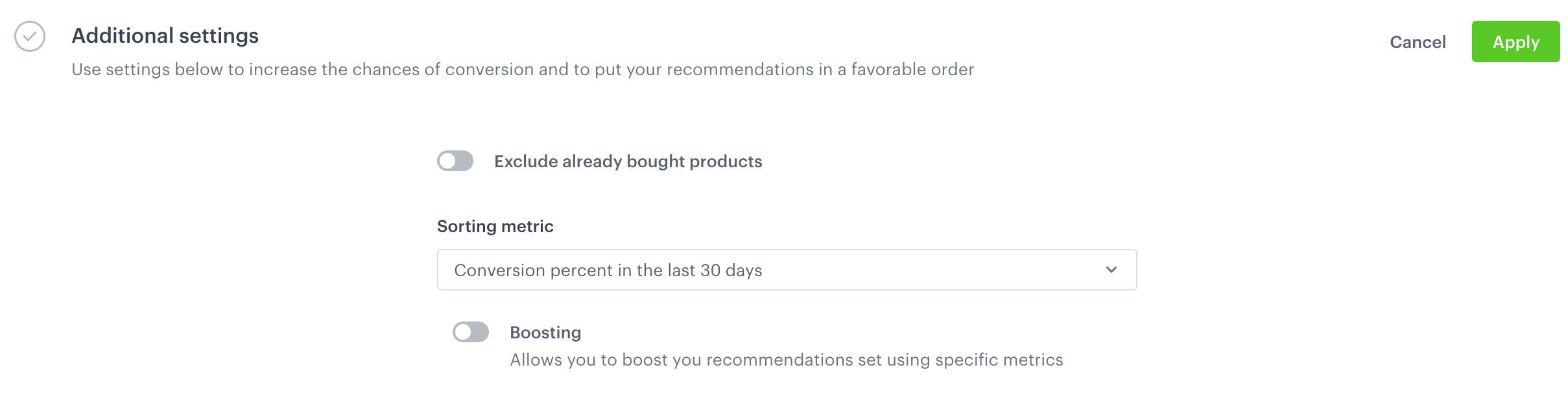
10. In the **Additional settings**, click **Define**.  
11. From the **Sort metric** dropdown list, select **Conversion Percent in the last 30 days**.  
    <figure>
    <img src="/api/docs/image/54176ad07f146575310749eba44b7c2f42c1b327/use-cases/all-cases/_gfx/ai-blog-recommendations-metric.png" alt="A metric that arranges the order of the items in the recommendation according to the conversion percentage" class="full">
    <figcaption> A metric that arranges the order of the items in the recommendation according to the conversion percentage</figcaption>
    </figure>
12. Click **Save**.
13. Create the second recommendation. Repeat the steps.

## Create dynamic content
---
Create two sets of dynamic content to insert the recommendations on your blog. The first set will use in the dynamic content template the AI recommendation that contains bestselling racing shoes suitable for running on asphalt, the other bestselling racing shoes suitable for running off-road. Apart from that, you will put them in different blog posts. 


<div class="admonition admonition-tip"><div class="admonition-icon"><svg xmlns="http://www.w3.org/2000/svg" fill="none" viewBox="0 0 24 24" stroke="currentColor" stroke-width="2.5"><path stroke-linecap="round" stroke-linejoin="round" d="M9.663 17h4.673M12 3v1m6.364 1.636l-.707.707M21 12h-1M4 12H3m3.343-5.657l-.707-.707m2.828 9.9a5 5 0 117.072 0l-.548.547A3.374 3.374 0 0014 18.469V19a2 2 0 11-4 0v-.531c0-.895-.356-1.754-.988-2.386l-.548-.547z" /></svg></div><div class="admonition-body"><div class="admonition-content">

If you don’t want to use dynamic content, you can retrieve recommendations through API, [using this method](https://developers.synerise.com/AIRecommendations/AIRecommendations.html#operation/GetRecommendationsByCampaignV2)

</div></div></div>


1. Go to **Experience Hub > Dynamic content > Create new**.
2. Enter the name of the dynamic content.
1. Choose **Insert Object** type.
2. As the audience, select **everyone**.
3. In the **Content** section, select **Simple message**, and specify the CSS selector where you want to insert recommendations.
4. In the **Content** tab, click **Create Message**.
5. In the code editor, insert Jinjava with the AI recommendation and add your own CSS. 

   
   <details class="accordion"><summary>Click to see Jinjava</summary><div class="accordion-content"><p>Replace <code>your_campaign_ID</code> with the ID of the AI recommendation (either of the bestselling shoes suitable for asphalt or off-road). The ID of the AI campaign is contained in the URL of the recommendation.</p> <pre><code class="language-jinja">&lt;!-- Downloading the AI campaign --&gt; {% recommendations3 campaignId=your_campaign_ID %} {% for p in recommended_products3 %} &lt;li data-snr-ai-product-id="{{p.itemId}}"&gt; &lt;a class="snrs-AI--item-link" href="{{p.link}}" title="{{p.title}}"&gt; &lt;img src="{{ p.imageLink }}"class="products-slider__item-image snrAI-product-image snrAI-product-image-{{p.itemId}}" width="90" alt="{{p.title}}" id="snrAI-image-{{p.itemId}}"&gt; &lt;h3 class="snrs-AI-product--product-name"&gt; &lt;span class="snrs-AI-product--name-first"&gt;{{p.title}}&lt;/span&gt; &lt;/h3&gt; &lt;span class="snrs-AI-product--series"&gt;{{p.attributes.series}}&lt;/span&gt; &lt;/a&gt; &lt;/li&gt; {% endfor %} {% endrecommendations3 %}</code></pre></div></details>


8. Save the template.
5. In the **Schedule** section, select the date when the dynamic content is activated.
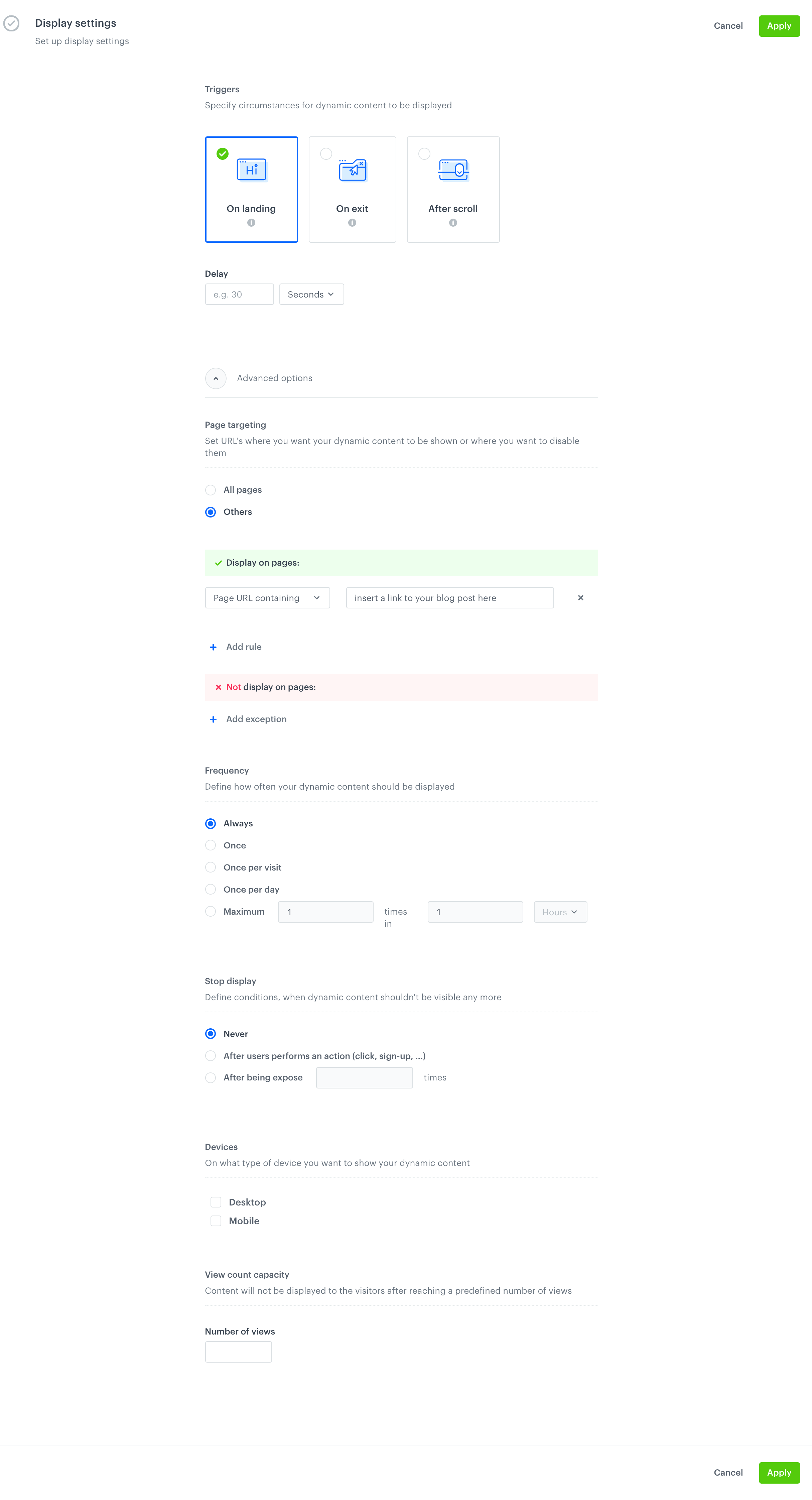
6. In **Display settings**, configure the settings:
    - **Triggers** set to **On landing**.  
    - Leave **Delay** at default.  
    - In the **Page targeting** section, select **Others**:
        - Under **Display on pages** banner, click **Add rule**.
        - From the dropdown list, select **Page containing URL**. 
        - In the text field, enter the link to your blog post.
        - Leave the rest of the settings at default.

    <figure>
    <img src="/api/docs/image/54176ad07f146575310749eba44b7c2f42c1b327/use-cases/all-cases/_gfx/ai-blog-recommendations-dynamic-content.png" alt="`Screenshot presenting display settings`" class="medium">
    <figcaption> Display settings </figcaption>
    </figure>

6. Confirm by clicking **Apply**.
7. In the **UTM & URL parameters** section, click **Skip step**.  
8. Activate the dynamic content.
9. Create the second dynamic content template to display the recommendations with the other group bestselling shoes for specific terrain. Repeat all the steps.  
    **Result**: The recommendation frames are displayed at the URLs with the blog posts.

## Read more
---
- [API Recommendations](https://developers.synerise.com/AIRecommendations/AIRecommendations.html#tag/Recommendations) 
- [Dynamic content campaigns](/docs/campaign/dynamiccontent)
- [Recommendations](/docs/ai-hub/recommendations-v2)