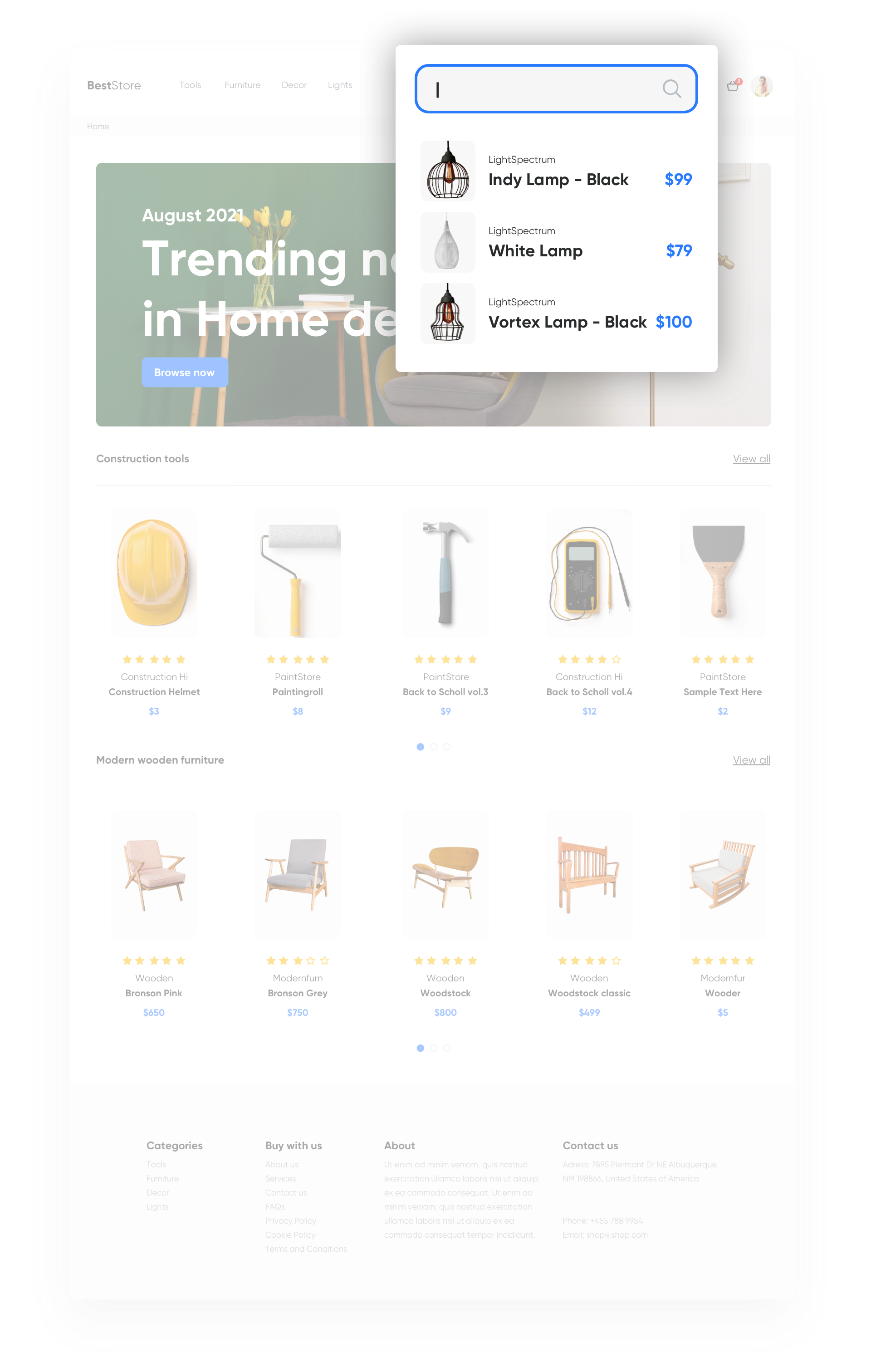
AI search phrases that are well-built and adaptable can become a key tool enabling maximum shortening of the user's path, leading to more purchases. 

To enable customers to find items they need as quickly as possible, it is important to take care of the accuracy of search results, monitor its behavior and calibrate it accordingly. Various types of recommendations allow **adding** other modules with **recommended products to the search engine**.

<figure>
<img src="/api/docs/image/54176ad07f146575310749eba44b7c2f42c1b327/use-cases/all-cases/_gfx/ai_search_improvements.png" alt="Screenshot presenting AI search filter" class="full no-frame">
<figcaption> AI search </figcaption>
</figure>

---

## Example of use - construction industry

**Challenge**

A client from the construction industry wanted to shorten the user's path as much as possible to find the needed product using AI search. For this purpose, the client decided to display product suggestions in the form of a list already at the stage when the user clicks on the search engine, but has not yet enter the desired phrase. The displayed offers were selected based on a personalized recommendations model. 

**Results**

- CTR **11%** 
- Campaign conversion **1.4%** 
- Increase in the number of people using the search engine by **9%** within **21 days** from introducing the AI search modification. 

## Prerequisites 
---

Before you start implementing this use case, you must fulfill the requirements listed below:
- [Implement event tracker](/developers/mobile-sdk/event-tracking).
- [Implement OG tags](/developers/web/og-tags).
- [Import product feed to Synerise](/developers/product-feed).
- [Track transaction events](/developers/web/event-tracking).

## Process
---
To prepare such a scenario, you have to follow 2 important steps. 

1. [Prepare personalized recommendations](/use-cases/ai-search-improvements#prepare-personalized-recommendations).
2. [Set up dynamic content](/use-cases/ai-search-improvements#set-up-a-dynamic-content).

## Prepare personalized recommendations
---
1. Go to <img src="/api/docs/image/54176ad07f146575310749eba44b7c2f42c1b327/icons/ai-hub-icon.svg" alt="AI Hub icon" class="icon" > **AI Hub > (AI Recommendations) Models > Add recommendation**.
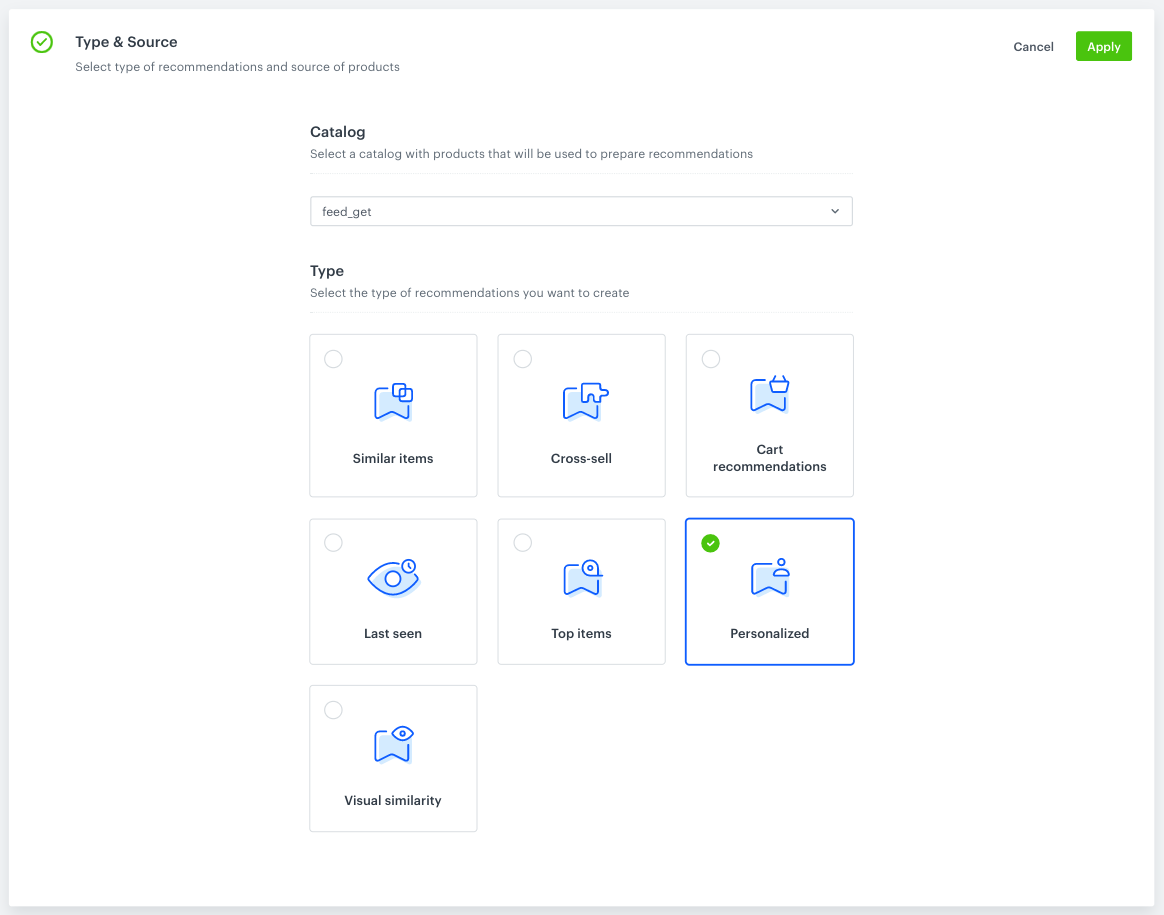
2. From the drop down list, choose **Catalog** based on which your recommendations will be built.
3. Choose **Personalized** as the recommendation type.
   <figure>
     <img src="/api/docs/image/54176ad07f146575310749eba44b7c2f42c1b327/use-cases/all-cases/_gfx/ai_search_improvements_1.png" alt="Screenshot presenting site with type and source of recommendation"  class="large">
     <figcaption> Select the type of recommendation </figcaption>
     </figure>
4. In **Items** define more details about your recommendation.
   
   <div class="admonition admonition-important"><div class="admonition-icon"><svg xmlns="http://www.w3.org/2000/svg" fill="none" viewBox="0 0 24 24" stroke="currentColor" stroke-width="2.5"><path stroke-linecap="round" stroke-linejoin="round" d="M12 8v4m0 4h.01M21 12a9 9 0 11-18 0 9 9 0 0118 0z" /></svg></div><div class="admonition-body"><div class="admonition-content">

   You must select the minimum and maximum number of products displayed in the recommendation frame. Optionally, you can set the filters (for example, narrow down the number of items from a specific category), however, in this use case the client didn't add the filters. You can also create filters by following the instructions in [this](/docs/ai-hub/recommendations-v2/recommendation-filters) article.

   </div></div></div>


## Set up a dynamic content
---

To insert personalized recommendations in the search results right before a user starts typing a search phrase, use dynamic content.

1. Choose **Insert Object** type.
2. Select your **Audience**. You can target your communication to everyone or select segment of users. In our example we target communcation to **everyone**.
3. In the **Content** section, click **simple message** and specify the CSS selector where you want to insert recommendations. 
4. In the **Content** tab section, click **Create message** insert Jinjava code with AI recommendation and add your own CSS. 

   
   <details class="accordion"><summary>Check the Jinjava code</summary><div class="accordion-content"><pre><code class="language-jinja">&lt;!-- Opening the tag that retrieves the value from recommendation prepared in point 1--&gt; {% recommendations3 campaignId=xxx %} for loop below: &lt;!-- In the section {% for r in recommended_products3 %} a {% endfor %} there is access to all variables from a given object (products here) - which parameters you add to the template depends on you. --&gt; {% for r in recommended_products3 %} &lt;!-- {{ r.itemId }} {{ r.title }} {{ r.imageLink }}{{r.price.value}}{{r.salePrice.value}} - parameters taken from the recommendation. The itemId is a standard name, but others (like category, price, salePrice, title, imageLink) only depend on names defined in the feed--&gt; {{r.itemId}} {{r.title}} {{r.imageLink}} {{r.price.value}} {{r.salePrice.value}} {% endfor %} &lt;!-- Closing of the tag that gets the value from the recommendation prepared in point 1 --&gt; {% endrecommendations3 %}</code></pre></div></details>


   <div class="admonition admonition-important"><div class="admonition-icon"><svg xmlns="http://www.w3.org/2000/svg" fill="none" viewBox="0 0 24 24" stroke="currentColor" stroke-width="2.5"><path stroke-linecap="round" stroke-linejoin="round" d="M12 8v4m0 4h.01M21 12a9 9 0 11-18 0 9 9 0 0118 0z" /></svg></div><div class="admonition-body"><div class="admonition-content">

   Implementation of the script above results in displaying recommendation personalized for individual user after clicking the AI search. Remember to replace `xxx` in the `campaignID` with the ID of the recommendation you prepared in the previous steps.

   </div></div></div>


6. Skip **UTM** section. 
7. In **Display Settings**, define where dynamic content is shown: **Always**, **On landing**, on **All pages**. 
8. In the upper right corner, click **Schedule** and **Activate** when the dynamic content has to be active. 


## Check the use case set up on the Synerise Demo workspace
---
You can check [recommendations](https://app.synerise.com/ai-v2/recommendations/PsDLh5DdTlk3) directly in Synerise Demo workspace.

If you’re our partner or client, you already have automatic access to the **Synerise Demo workspace (1590)**, where you can explore all the configured elements of this use case and copy them to your workspace.  

If you’re not a partner or client yet, we encourage you to fill out the contact [form](https://demo.synerise.com/request) to schedule a meeting with our representatives. They’ll be happy to show you how our demo works and discuss how you can apply this use case in your business. 

## Read more
---
- [AI recommendation](/docs/ai-hub/recommendations-v2/creating-recommendation-campaign)
- [Dynamic content](/docs/campaign/dynamiccontent)
- [Jinjava inserts](/developers/inserts/filter)
- [Recommendations](/docs/ai-hub/recommendations-v2)