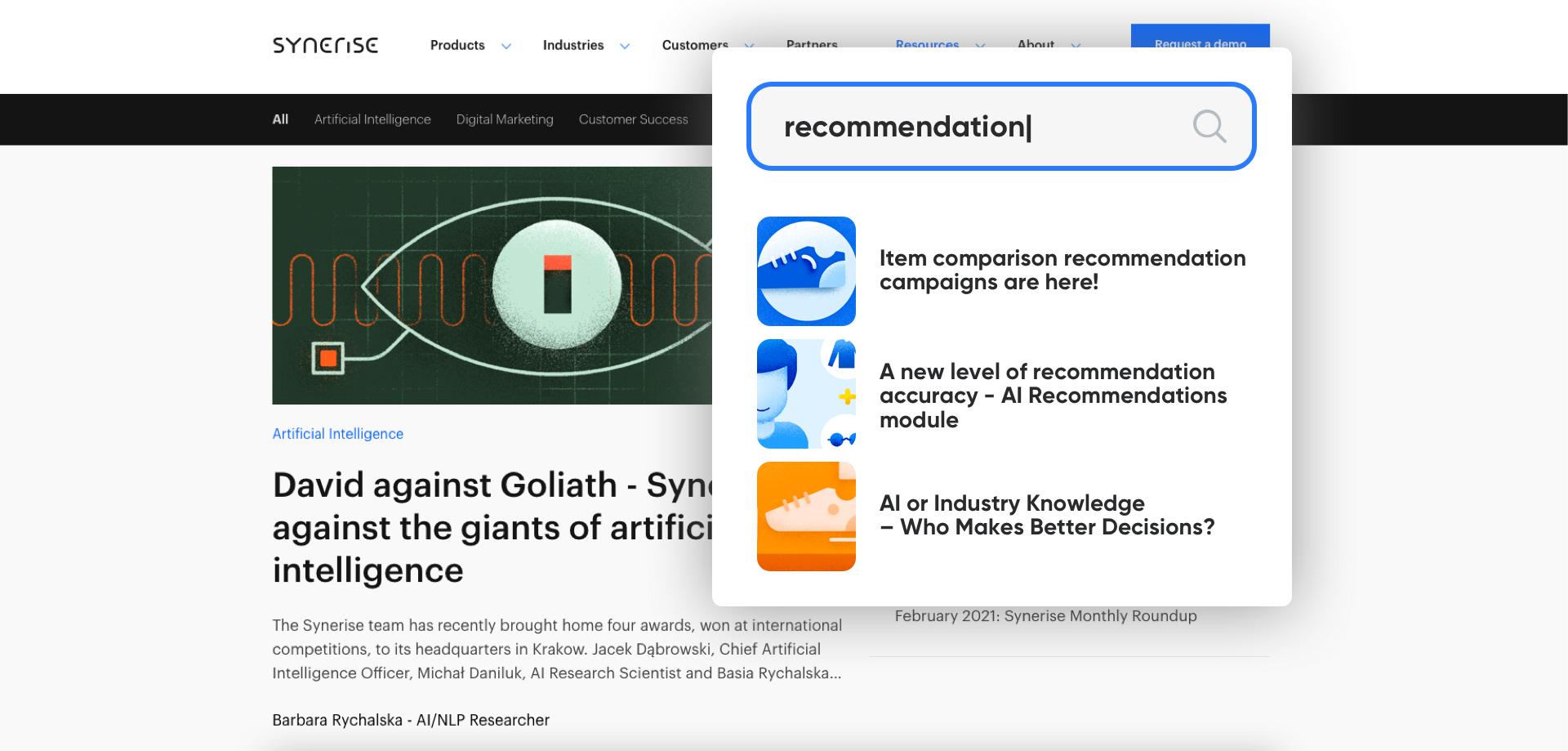
AI Search is really helpful not only in ecommerce sites but also in searching for content e.g. in blogs. The main challenge which can be meet with the help of this search in blogs is optimizing the user experience, based on searched website content. It can increase the effectiveness of searching on your blog or any other website which is based on text content.  

## Example of use - Synerise

**Challenge**

In our daily operations we use AI search in three main places on our website: 

- in our [help center](/)
- in our [blog](https://synerise.com/blog) 
- in our [API documentation](https://developers.synerise.com/)

<figure>
  <img src="/api/docs/image/54176ad07f146575310749eba44b7c2f42c1b327/use-cases/all-cases/_gfx/ai_search_blogs.png" alt="AI Search on the Synerise blog" class="full no-frame">
  <figcaption> AI Search on the Synerise blog </figcaption>
  </figure>

We have decided to make it as personalized as it is possible and to increase our user experience by making it more effective and easier-to-use.

At the beginning, we had to prepare an inventory of the website so we can get all information gathered from each subpage, articles from the help center, methods from API Developers Section. Then we prepared a ranking formula and selected searchable attributes and defined their importance. Based on that we are able to display proper results based on searched words. 
 
## Prerequisites 
---
To be able to implement this use case, you must:
- [Create AI search](/docs/ai-hub/ai-search/introduction-to-ai-search).
- [Prepare catalogs](/docs/assets/catalogs/creating-catalogs).

## Process
---
To set up ai serach on your website, perform the steps in the following order:

1. [Create a catalog](/use-cases/ai-search-in-blog#create-a-catalog).
2. [Create AI search](/use-cases/ai-search-in-blog#create-ai-search).
3. [Add additional query rules](/use-cases/ai-search-in-blog#add-additional-query-rules).

## Create a catalog
---
1. Go to **Data Modeling Hub > Catalogs > New Catalog**.
2. Enter the name of the catalog and confirm it by clicking **Apply**. 
3. Click the catalog on the list and choose **import CSV button**.
4. Click Upload file button and select the file to be uploaded, then confirm with button - **OK**.
5. In the Order key field, type the name of the column whose values are treated as the key.

<figure>
  <img src="/api/docs/image/54176ad07f146575310749eba44b7c2f42c1b327/use-cases/all-cases/_gfx/aisearchblog2.png" alt="Screenshot an example catalog" class="large">
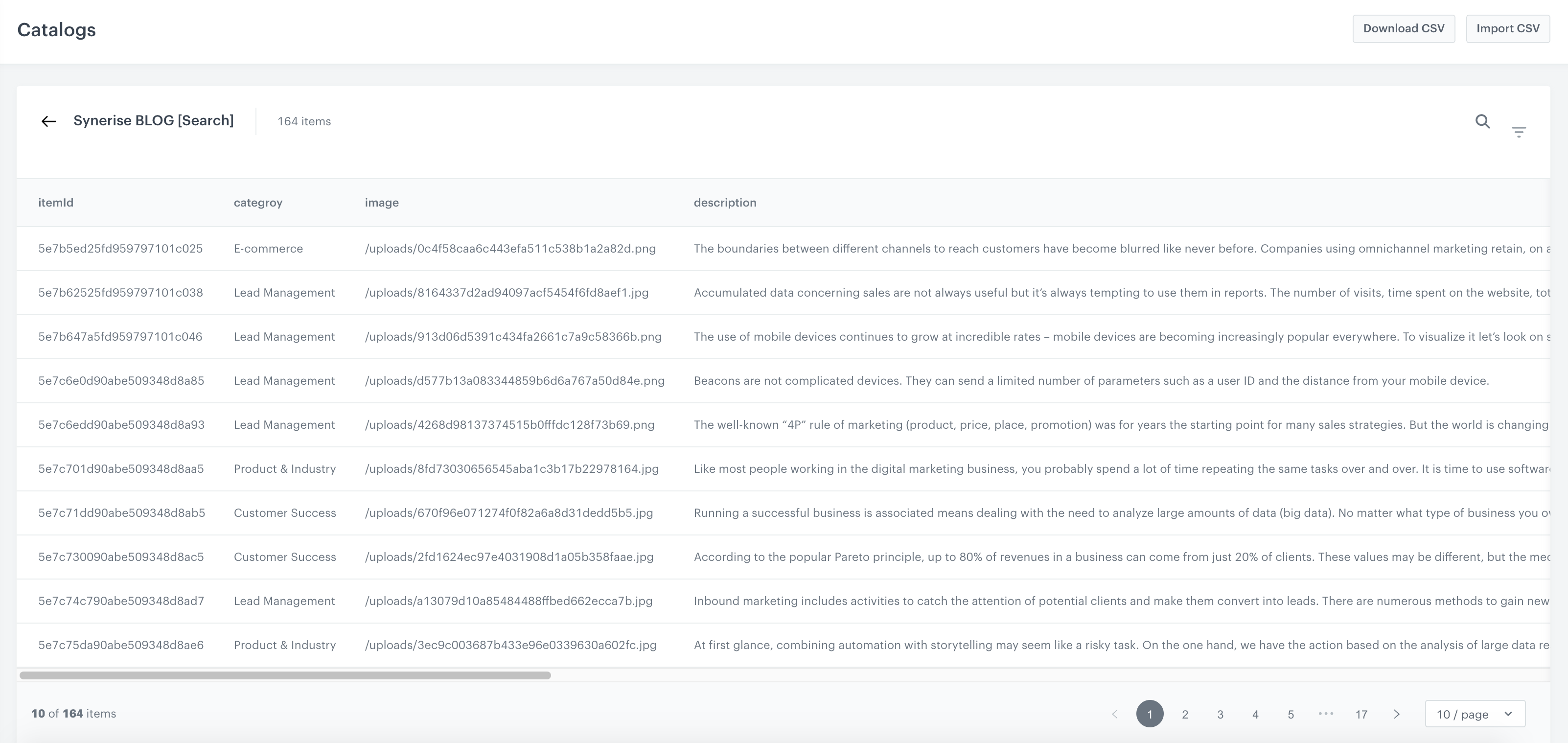
  <figcaption> An example catalog looks like </figcaption>
  </figure>


<div class="admonition admonition-important"><div class="admonition-icon"><svg xmlns="http://www.w3.org/2000/svg" fill="none" viewBox="0 0 24 24" stroke="currentColor" stroke-width="2.5"><path stroke-linecap="round" stroke-linejoin="round" d="M12 8v4m0 4h.01M21 12a9 9 0 11-18 0 9 9 0 0118 0z" /></svg></div><div class="admonition-body"><div class="admonition-content">

Go to items of your website, which has one obligatory tag—the item ID. This individual ID indicates the content we want to show. Apart from that, the catalog can contain additional attributes which describe the content.

</div></div></div>
 

## Create AI search
---

You can use AI Search for every case (Blog, Developers, Help Center). Each of them in our case was based on different attributes.

1. Go to <img src="/api/docs/image/54176ad07f146575310749eba44b7c2f42c1b327/icons/ai-hub-icon.svg" alt="AI Hub icon" class="icon" > **AI Hub > Indexes**.
2. To select the data structure a search engine refers to while searching, click **Add index**.  
    1. In the **Index name** field, type the human-readable name of the index. 
    2. From the **Catalog** dropdown list, select an item catalog the search engine refers to.
    3. Optionally, to let other users know about the purpose of the index, in the **Description** text field, add the description of the index. 
    4. Confirm by clicking **Save**.  
3. Further configuration requires adjusing the settings in the **Ranking**, **Synonyms** and **Settings** sections.

More information about creating AI search you will find in the video.  
  
<details class="accordion"><summary>Click for video tutorial</summary><div class="accordion-content"><div class="youtube-embed youtube-facade not-prose" data-youtube-id="cBekmZWkcPo" role="button" tabindex="0" aria-label="Play YouTube video"><img src="https://img.youtube.com/vi/cBekmZWkcPo/hq720.jpg" alt="YouTube video" class="youtube-facade-thumb" loading="lazy" /><span class="youtube-facade-play" aria-hidden="true"><svg viewBox="0 0 68 48" width="68" height="48"><path d="M66.52 7.74c-.78-2.93-2.49-5.41-5.42-6.19C55.79.13 34 0 34 0S12.21.13 6.9 1.55c-2.93.78-4.64 3.26-5.42 6.19C.06 13.05 0 24 0 24s.06 10.95 1.48 16.26c.78 2.93 2.49 5.41 5.42 6.19C12.21 47.87 34 48 34 48s21.79-.13 27.1-1.55c2.93-.78 4.64-3.26 5.42-6.19C67.94 34.95 68 24 68 24s-.06-10.95-1.48-16.26z" fill="red"/><path d="M45 24 27 14v20" fill="white"/></svg></span></div></div></details>


<div class="admonition admonition-note"><div class="admonition-icon"><svg xmlns="http://www.w3.org/2000/svg" fill="none" viewBox="0 0 24 24" stroke="currentColor" stroke-width="2.5"><path stroke-linecap="round" stroke-linejoin="round" d="M13 16h-1v-4h-1m1-4h.01M21 12a9 9 0 11-18 0 9 9 0 0118 0z" /></svg></div><div class="admonition-body"><div class="admonition-content">

AI search can have different goals, depending on where we will implement it and on what database it will work.

</div></div></div>
  

---

Take a look at how it's working on Synerise websites. Below we present three examples. 

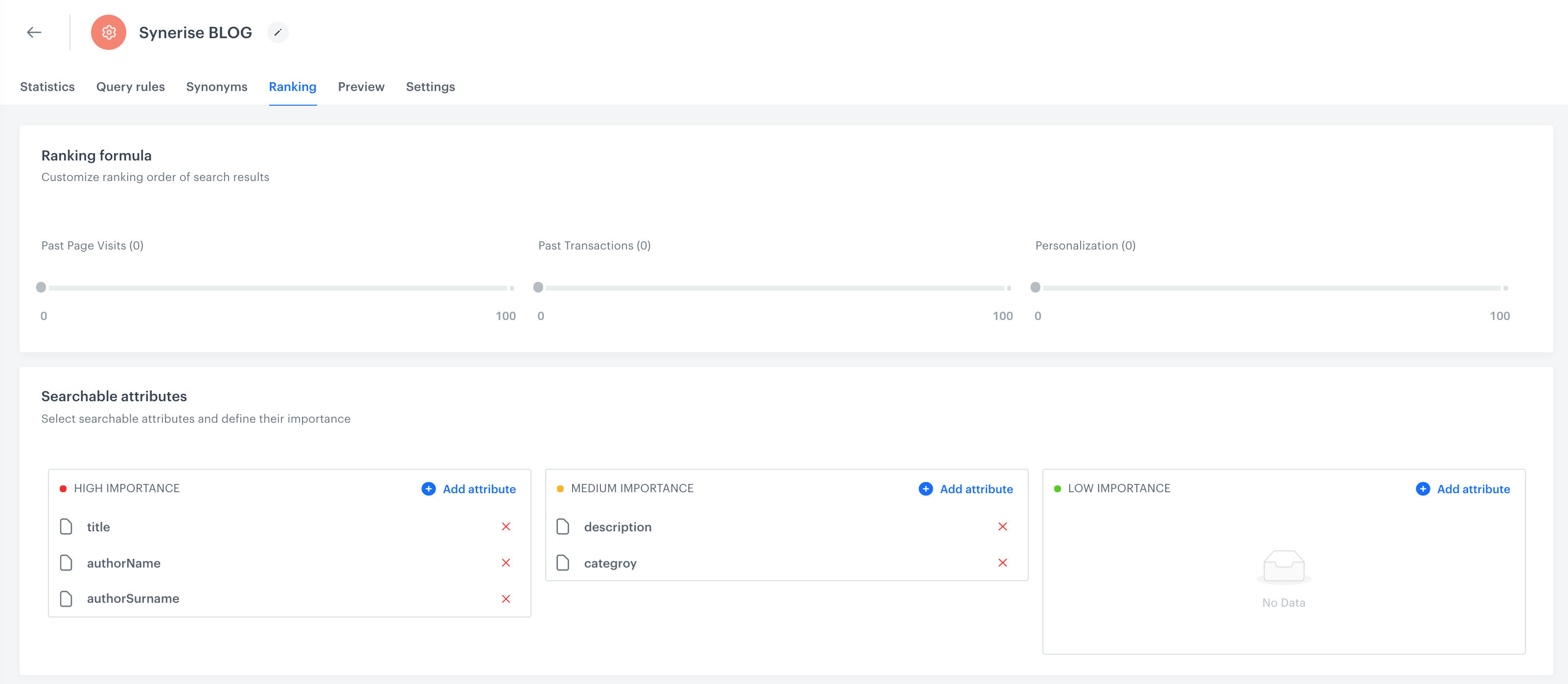
- **Synerise Blog** 

In the case of the Synerise Blog, we have information like: title, author name, author surname, description and category. That information was collected from our website and was used to prepare the AI search. 

<figure>
  <img src="/api/docs/image/54176ad07f146575310749eba44b7c2f42c1b327/use-cases/all-cases/_gfx/aisearchblog3.png" alt="Screenshot ai search" class="large">
  <figcaption> Ranking formula for AI Search </figcaption>
  </figure>


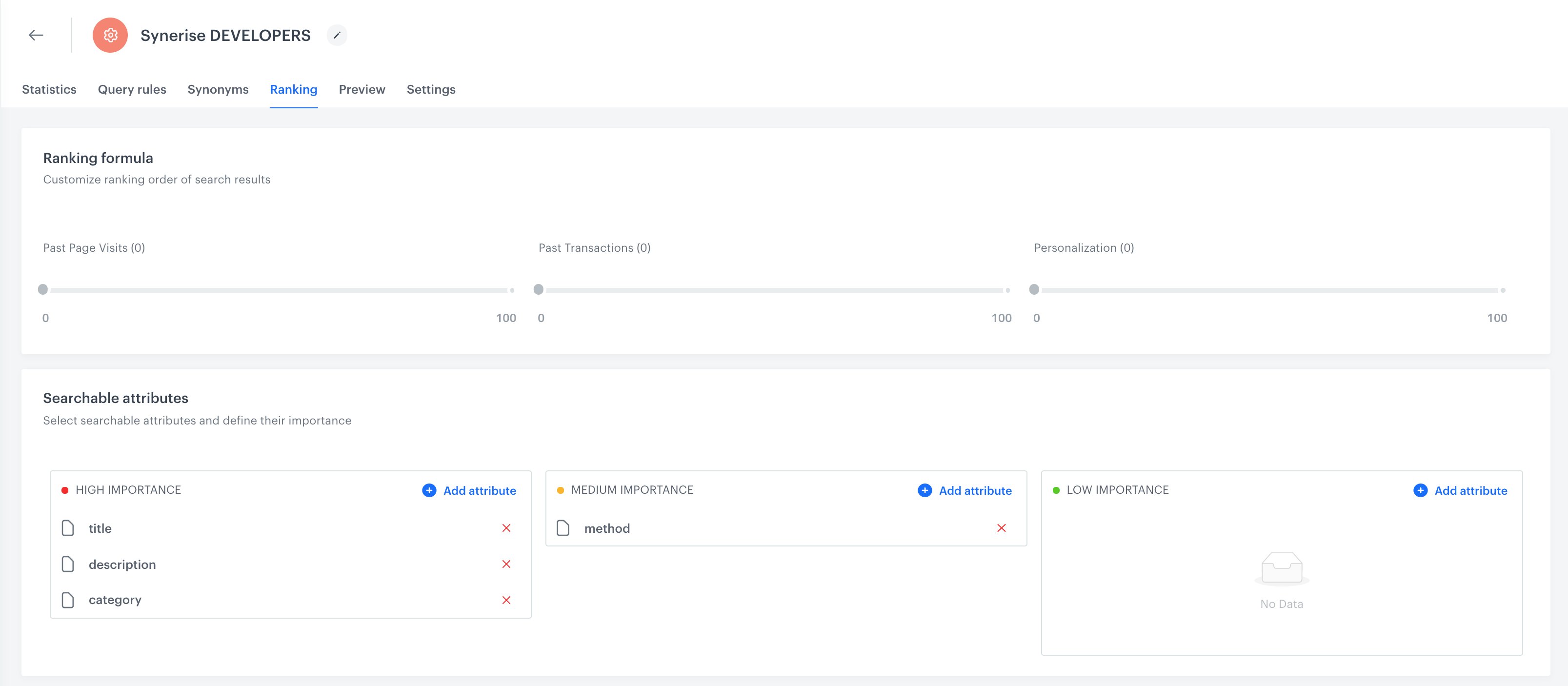
- **Synerise Developers**

In the developer section, we have some additional information that’s a little different than what we saw before. Here we have category, description, and item ID and links as well. But additionally, we have, for example, a method in which we want to send something to Synerise. We have also information about permissions for each method and additional information like service, tags and a title that describes those methods.  

<figure>
  <img src="/api/docs/image/54176ad07f146575310749eba44b7c2f42c1b327/use-cases/all-cases/_gfx/aisearchblog4.png" alt="Screenshot presenting ai search" class="large">
  <figcaption> Ranking formula for AI Search </figcaption>
  </figure>

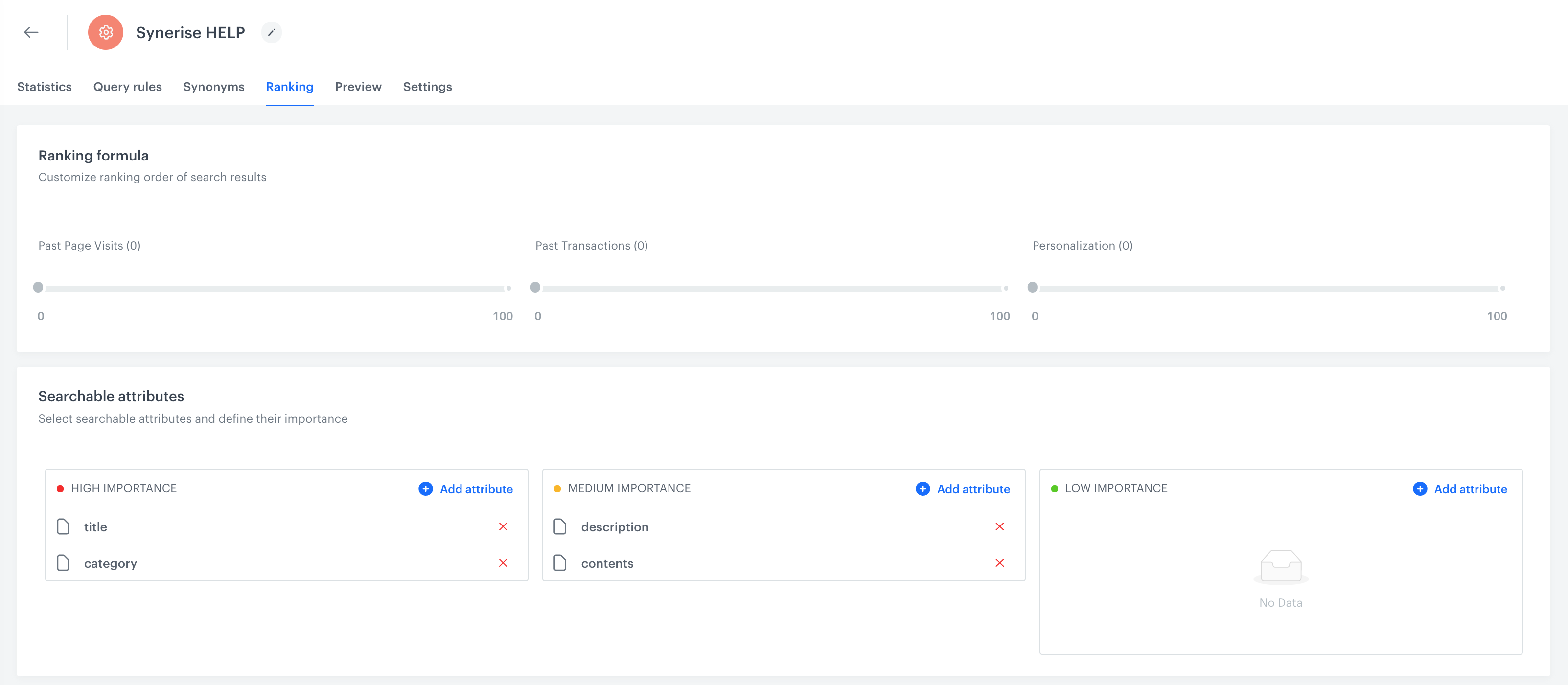
- **Synerise Hub**
 
In the case of the Help Center, we have attributes like category, link, ID, title and description. But one additional thing is involved here – we have a table of contents. So, what you can find in each article is also described here. 

<figure>
  <img src="/api/docs/image/54176ad07f146575310749eba44b7c2f42c1b327/use-cases/all-cases/_gfx/aisearchblog5.png" alt="Screenshot ai search" class="large">
  <figcaption> Ranking formula for AI Search </figcaption>
  </figure>


## Add additional query rules
---

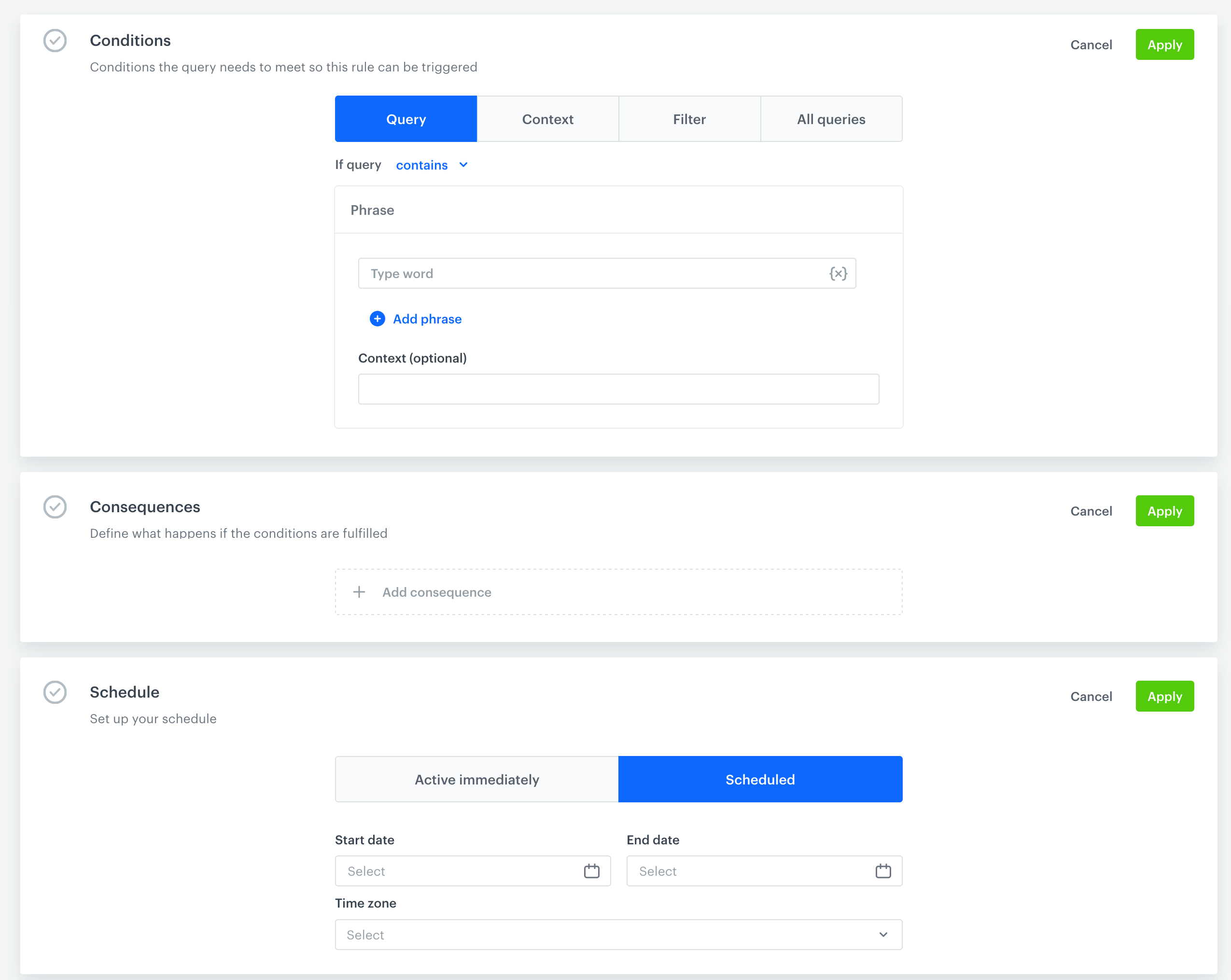
Based on query rules, in just a few steps you can decide that if somebody enters a query, you can replace it with a different phrase or also synonym and show in the search results a specific article.

1. Prepare such query rules in **AI Hub > Indexes** > choose index from the list **> Rules**.
2. Click **create new** in query rules and complete 3 sections: 
   - Conditions  
   - Consequences 
   - Schedule 

   <figure>
    <img src="/api/docs/image/54176ad07f146575310749eba44b7c2f42c1b327/use-cases/all-cases/_gfx/aisearchblog6.png" alt="Screenshot presenting settings for AI search" class="full">
    <figcaption> Final settings for AI search </figcaption>
    </figure> 


   <div class="admonition admonition-important"><div class="admonition-icon"><svg xmlns="http://www.w3.org/2000/svg" fill="none" viewBox="0 0 24 24" stroke="currentColor" stroke-width="2.5"><path stroke-linecap="round" stroke-linejoin="round" d="M12 8v4m0 4h.01M21 12a9 9 0 11-18 0 9 9 0 0118 0z" /></svg></div><div class="admonition-body"><div class="admonition-content">

   As an example, if somebody enters **onboarding** in the search box, we can prepare a rule that replaces this query with a new one (first steps)

   </div></div></div>
 

## Read more
---
- [AI Search](/docs/ai-hub/ai-search/introduction-to-ai-search)
- [AI Search statistic](/docs/ai-hub/ai-search/ai-search-statistics)
- [Catalogs](/docs/assets/catalogs/creating-catalogs)