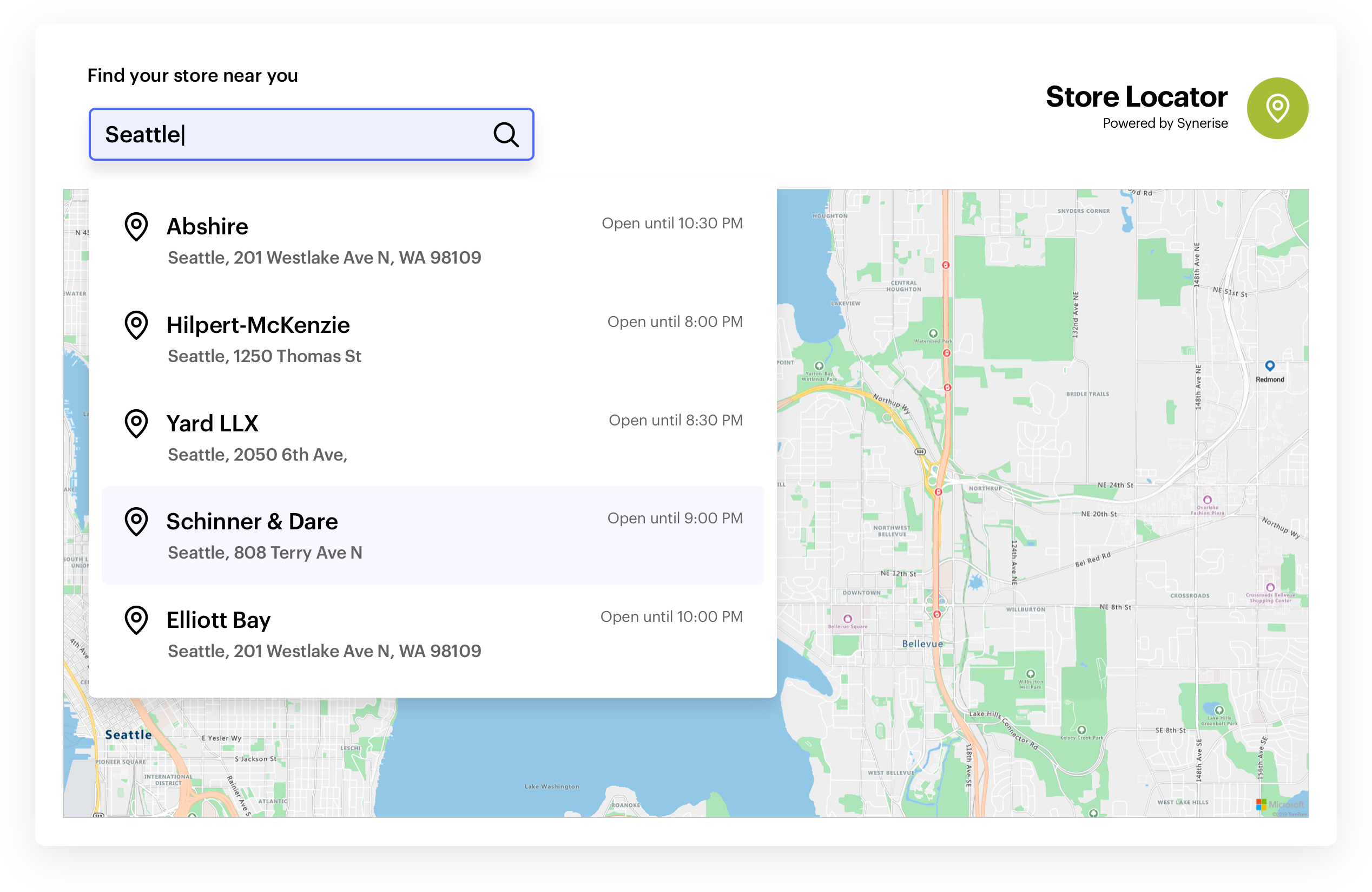
Customers are looking for solutions that maximize their benefits and allow them to meet their needs promptly. A widespread behavior among customers is to check store locations on the store page, which enables them to find a store in the most convenient location. Therefore, it is beneficial to have a solution prepared to satisfy this need.

This use case describes configuring an AI search to return information about a company's store locations.

<figure><img src="/api/docs/image/54176ad07f146575310749eba44b7c2f42c1b327/use-cases/all-cases/_gfx/azure-maps.png" class="full no-frame" alt="Example of store location Search Engine"></figure>

## Prerequisites 
---
- Prepare `.CSV` file with main information regarding a store location.  
The file should contain required columns - **itemId** and **category** and other custom values like postal code, street address, city, and so on.  
You can find the requirements for the `.CSV` file format [here](/docs/assets/catalogs/creating-catalogs#requirements).

    
<details class="accordion"><summary>Click to see a sample CSV file</summary><div class="accordion-content"><p>category,city,itemId,lat,lon,postalCode,state,streetAddress,streetName,streetNumber,title STORE,Washington,497,38.897,-77.0251,20073,District of Columbia,3960 Killdeer Terrace,Hanson,8,Nienow and Sons STORE,Brooklyn,69,40.6924,-73.9666,11205,New York,7720 Mockingbird Circle,Bultman,39231,Baumbach-Glover STORE,Los Angeles,742,33.9754,-118.417,90094,California,85774 Stone Corner Street,Washington,652,Grimes LLC STORE,Little Rock,197,34.6725,-92.3529,72209,Arkansas,97498 Bunting Road,Boyd,712,Frami Inc STORE,Salem,622,44.8685,-123.0438,97306,Oregon,40 Dorton Court,Esch,79,Roberts and Sons STORE,Brea,550,33.9187,-117.8892,92822,California,92 Di Loreto Street,Golden Leaf,16877,Hermann-Bergnaum STORE,Sacramento,966,38.3774,-121.4444,94207,California,7250 Green Ridge Center,Kensington,6,Jacobson-Cronin STORE,Baton Rouge,492,30.3795,-91.1671,70820,Louisiana,3351 Grim Lane,Del Mar,5638,Bahringer Inc STORE,Dallas,710,32.7673,-96.7776,75387,Texas,0 Talisman Junction,Glendale,480,&quot;Rippin, Wiza and Borer&quot;</p></div></details>


## Process
---
1. Import `.CSV` file to a [catalog](/use-cases/ai-search-store-location#create-a-catalog).
2. [Configure AI Engine](/use-cases/ai-search-store-location#configure-ai-engine). 
3. Create and configure [search index](/use-cases/ai-search-store-location#create-an-ai-search-index).

## Create a catalog
---
In the first part of the process, import the `.CSV` file into the catalog.  

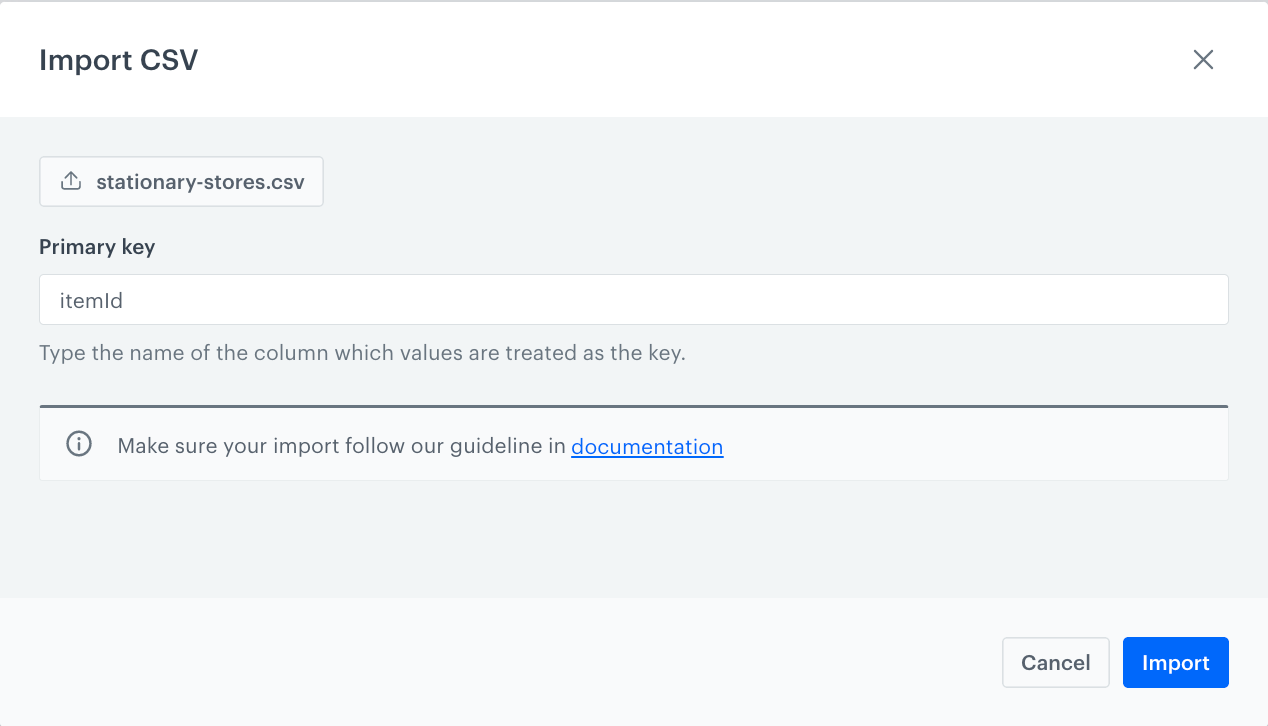
<figure><img src="/api/docs/image/54176ad07f146575310749eba44b7c2f42c1b327/use-cases/all-cases/_gfx/import-csv.png" class="large" alt="Import CSV"><figcaption>Import CSV</figcaption></figure>

1. Go to <img src="/api/docs/image/54176ad07f146575310749eba44b7c2f42c1b327/docs/assets/_gfx/assets-icon.png" alt="Data Modeling Hub icon" class="icon"> **Data Modeling Hub > Catalogs > New Catalog**.  
  **Result**: A pop-up opens.
2. Enter the name of the catalog.
3. Confirm it by clicking **Apply**.
  **Result**: A catalog appears on the list. Its position on the list is defined by alphabetic order (the list is arranged from Z-A).
4. Click the catalog on the list.
5. On the upper right corner, click **Import CSV** button.  
  **Result**: A pop-up opens.
6. Click **Upload file** button.  
  **Result**: A pop-up opens. 
7. Select the file to be uploaded. Confirm with **OK**.
8. In the **Order key** field, type the name of the column whose values are treated as the key.   
  In our case, the `itemId` value will function as the key.
9. Confirm by clicking **Import**.  
  **Result**: Imported records are available in the catalog.
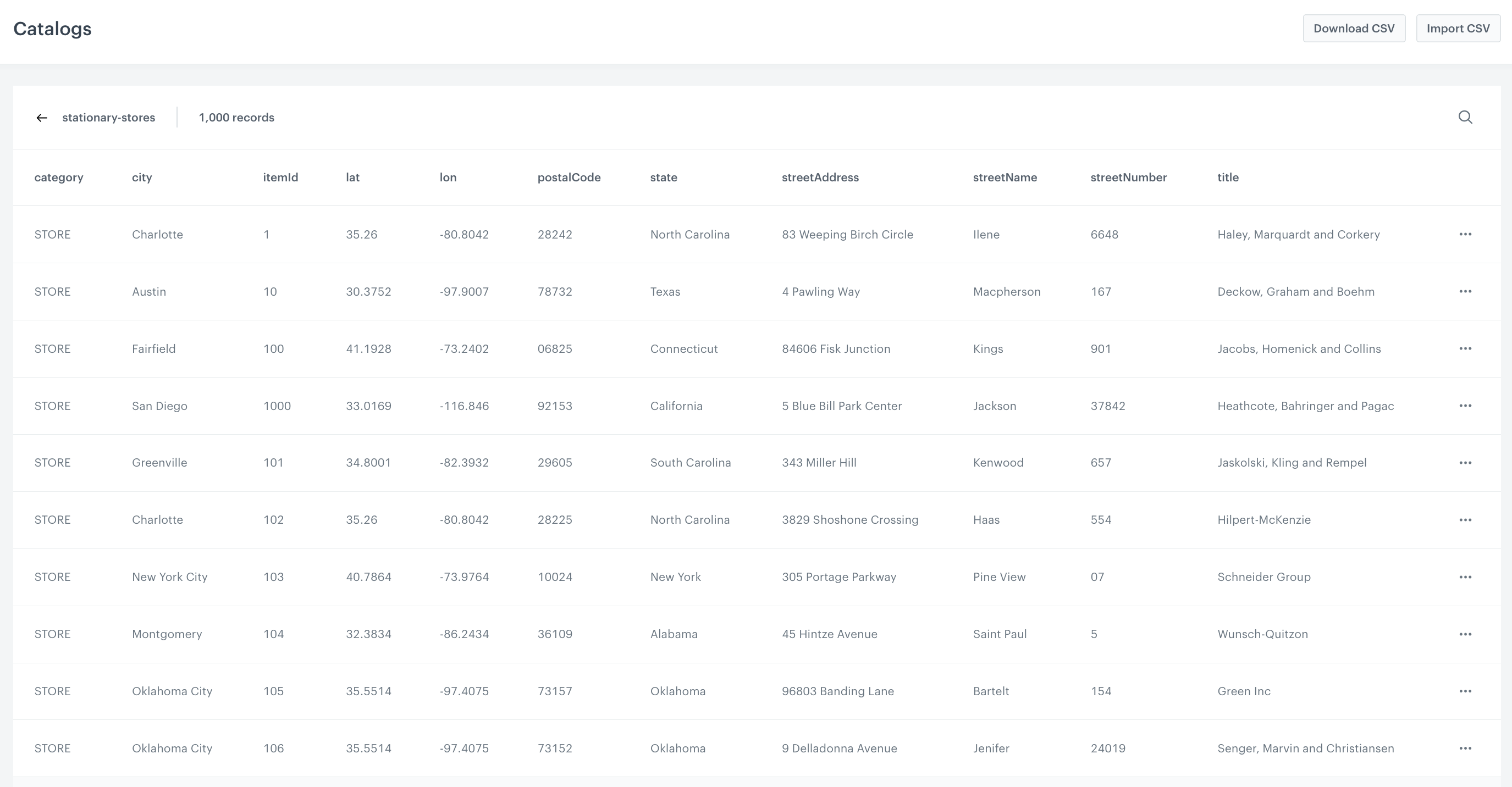
<figure><img src="/api/docs/image/54176ad07f146575310749eba44b7c2f42c1b327/use-cases/all-cases/_gfx/catalogs-startionary-stores-location.png" class="large" alt="Example of a catalog"><figcaption>Example of a catalog</figcaption></figure>

## Configure AI Engine
---
In this part of the process, create and configure feed for AI engine based on the catalog created [earlier](/use-cases/ai-search-store-location#create-a-catalog). 

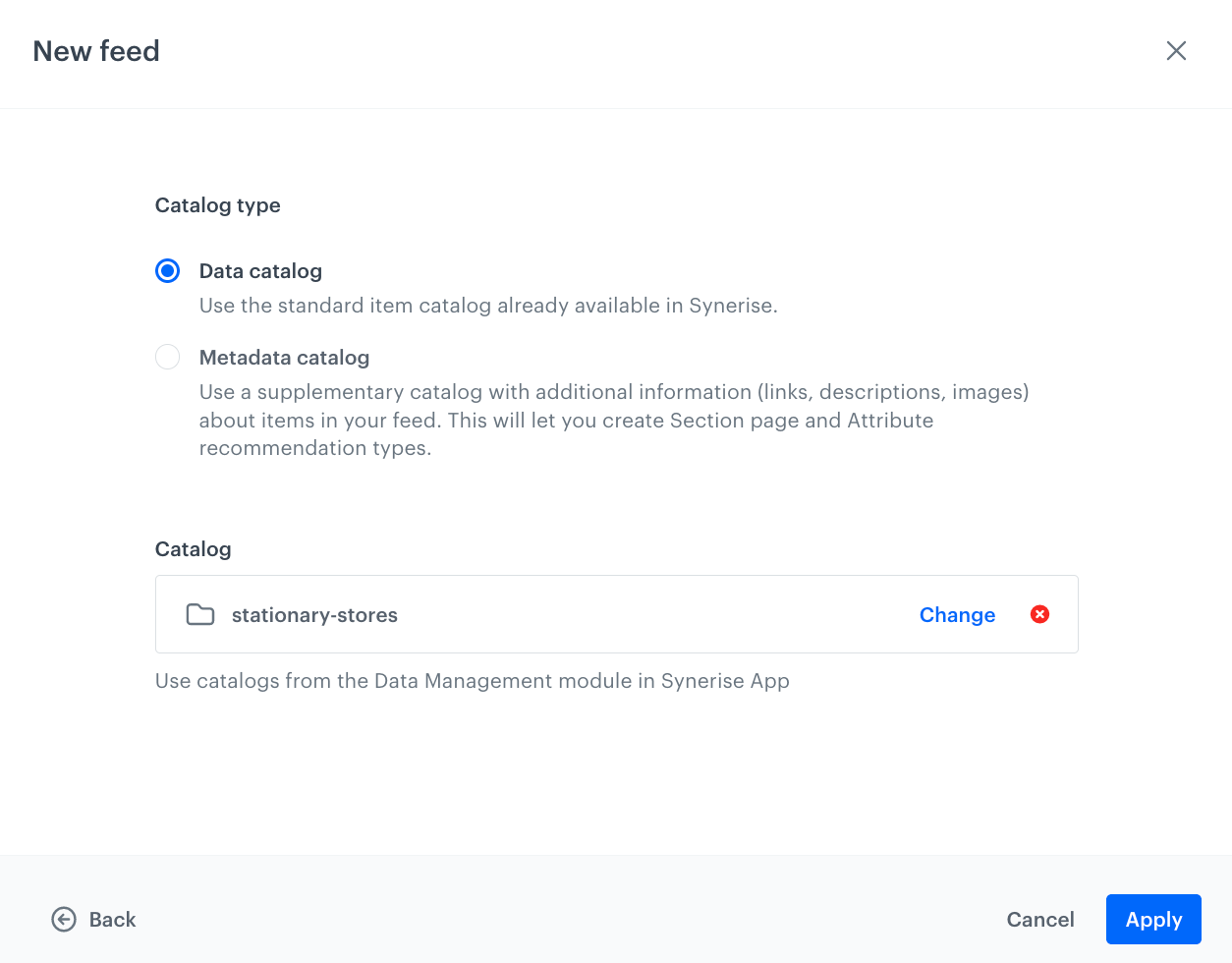
<figure><img src="/api/docs/image/54176ad07f146575310749eba44b7c2f42c1b327/use-cases/all-cases/_gfx/data-catalog.png" class="medium" alt="A product feed uploaded to a catalog"><figcaption>A catalog configured for AI engine</figcaption></figure>

1. Go to **Settings > AI engine configuration**.
2. Click **Add feed**.  
    **Result**: A pop-up appears.
3. Select the product feed you want to use. In this case select **Catalog**.
4. On the pop-up, select the type of catalog: **Data catalog**.
5. From the dropdown list, select a catalog created in the [previous step](/use-cases/ai-search-store-location#create-a-catalog). 
6. Confirm by clicking **Apply**.
7. On the list of feeds, click the feed created earlier. 
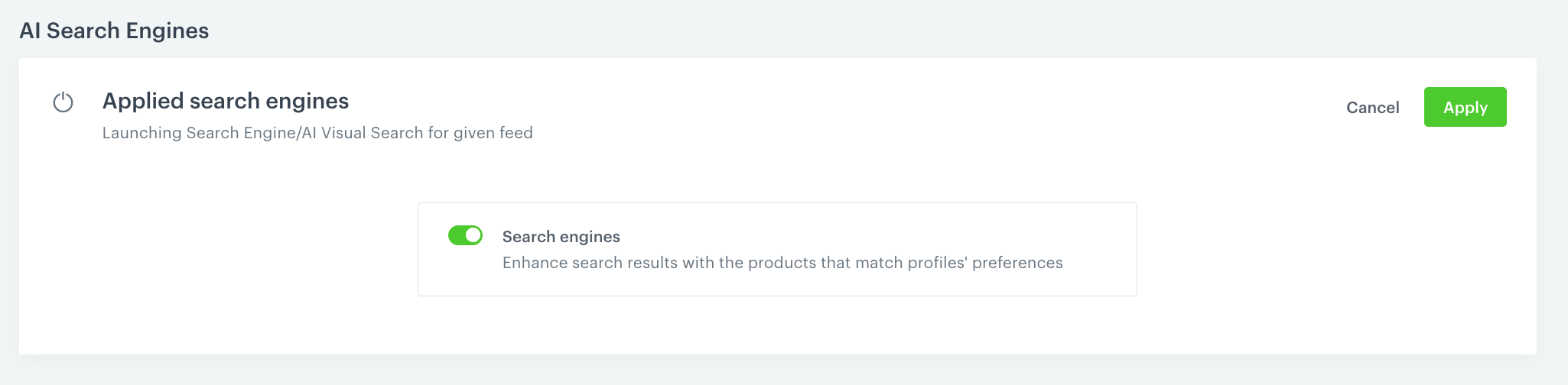
8. In the **Applied search engines** tab, click **Show**.
9. Switch the **Search engines** toggle on.
10. Confirm by clicking **Apply**.
11. Click **Save**. 

<figure><img src="/api/docs/image/54176ad07f146575310749eba44b7c2f42c1b327/use-cases/all-cases/_gfx/applied-search-engines.png" class="full" alt="Launching Search Engine"><figcaption>Launching Search Engine</figcaption></figure>

## Create an AI Search index
---
In this part of the process, create an index of AI search that facilitates searching for a store by city, postal code, street address, and street name.

1. Go to <img src="/api/docs/image/54176ad07f146575310749eba44b7c2f42c1b327/icons/ai-hub-icon.svg" alt="AI Hub icon" class="icon" > **AI Hub > Indexes**.
2. Click **Add index**.  
  **Result**: The index creation screen opens. 
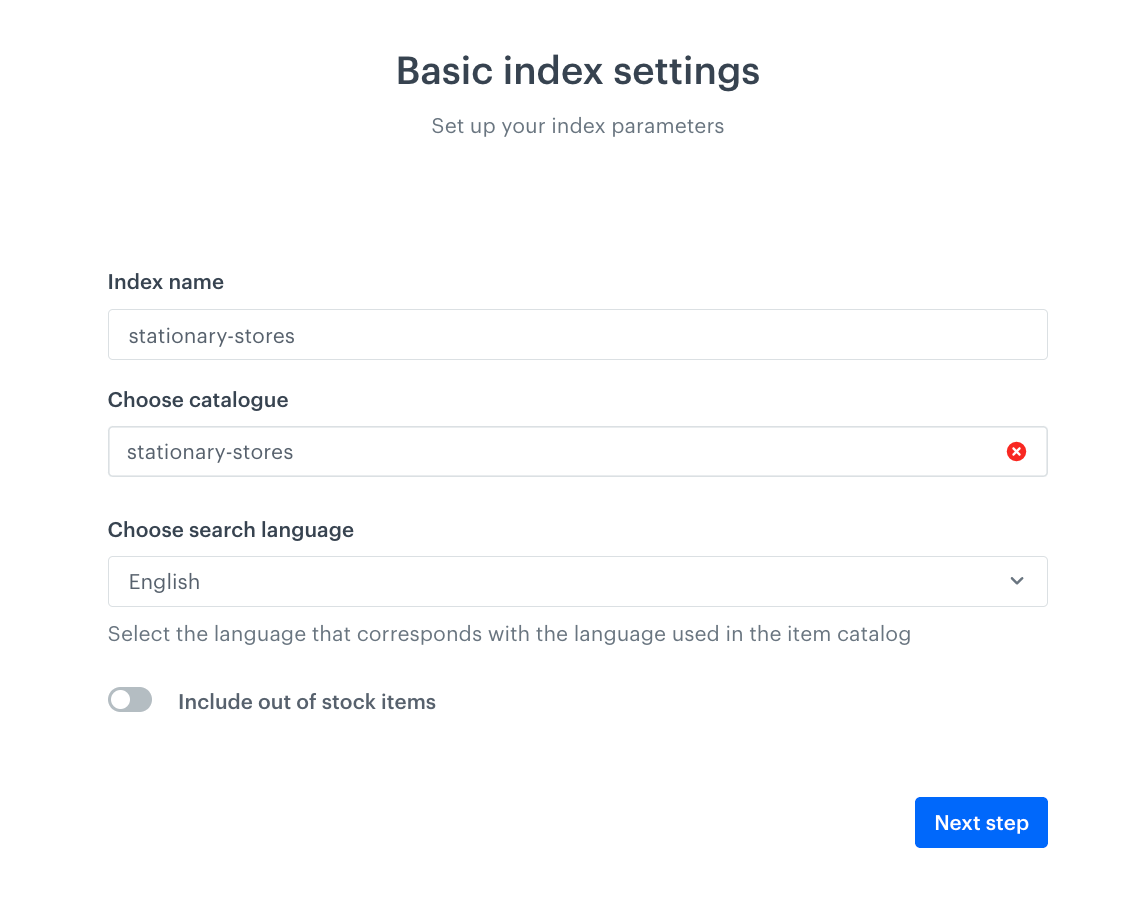
3. In the **Index name** field, type the meaningful name of the index. 
    1. From the **Choose catalog** dropdown list, select an [item catalog](/use-cases/ai-search-store-location#configure-ai-engine) to use as the source for the search results.   
       
       <div class="admonition admonition-warning"><div class="admonition-icon"><svg xmlns="http://www.w3.org/2000/svg" fill="none" viewBox="0 0 24 24" stroke="currentColor" stroke-width="2.5"><path stroke-linecap="round" stroke-linejoin="round" d="M12 9v2m0 4h.01m-6.938 4h13.856c1.54 0 2.502-1.667 1.732-2.5L13.732 4c-.77-.833-1.964-.833-2.732 0L4.082 16.5c-.77.833.192 2.5 1.732 2.5z" /></svg></div><div class="admonition-body"><div class="admonition-content">

       Remember that the value of an item attribute in the item catalog cannot be longer than 1000 characters. It applies both for creating a new index and updating it.

       </div></div></div>

    2. From the **Choose search engine language** dropdown, select the language of your search engine.
4. Click **Next step**.

    <figure><img src="/api/docs/image/54176ad07f146575310749eba44b7c2f42c1b327/use-cases/all-cases/_gfx/basic-index-settings.png" class="medium" alt="Example of basic index settings"><figcaption>Example of basic index settings</figcaption></figure>  

5. Define response and searchable attributes.  
More detailed information about these attributes can be found [here](/docs/ai-hub/ai-search/define-attributes/?helpCenterAi=define#response-attributes).  
In this case, `city`, `postal code`, `street address`, and `street name` are selected a searchable attributes, so the customer will be able to search for stores using them.

6. Click **Next step**.
    **Result**: The Filters & Facets screen opens.
7. Skip this step by clicking **Next step**.  
    **Result**: The Ranking screen opens.
8. Click **Complete**.
7. The Ranking screen opens. Click **Complete**.
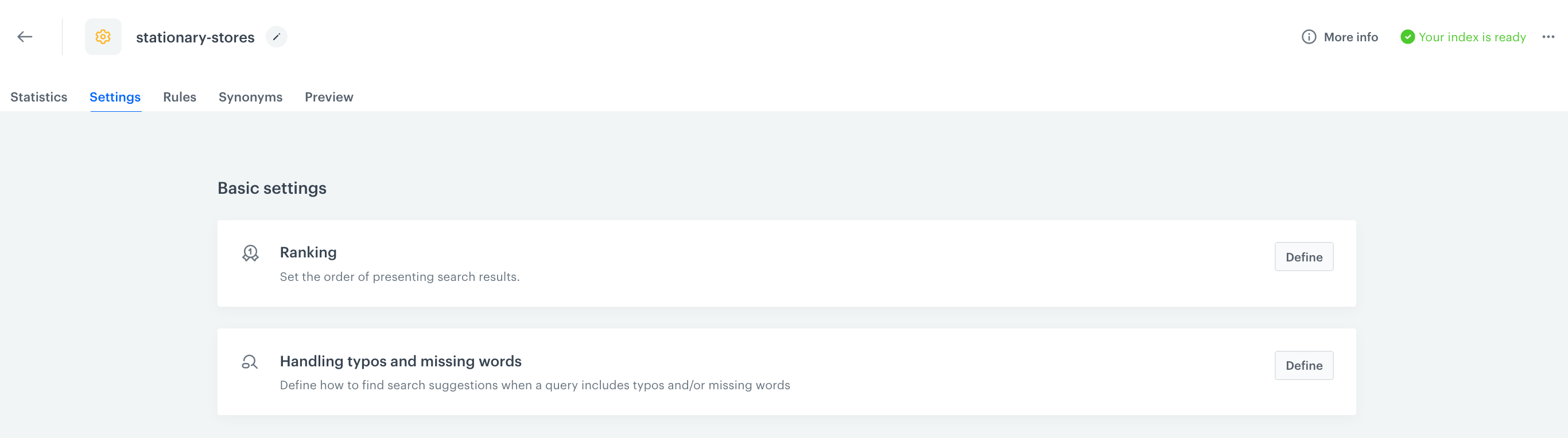
8. Wait until the index is ready. Refresh the page until you receive information in the upper right corner of the screen that the index is ready. 

    <figure><img src="/api/docs/image/54176ad07f146575310749eba44b7c2f42c1b327/use-cases/all-cases/_gfx/your-index-is-ready.png" class="full" alt="Your index is ready"><figcaption>Your index is ready</figcaption></figure>  

9. Check the results by clicking **Preview**.
10. In the search field, enter the name of the store or store location.  
    **Result**: A list with the defined search results appears.


## What's next
---
Once AI search is configured, it can be implemented in any channel, such for example a website using [dynamic content](/docs/campaign/dynamiccontent/creating-dynamic-content). 


<div class="admonition admonition-tip"><div class="admonition-icon"><svg xmlns="http://www.w3.org/2000/svg" fill="none" viewBox="0 0 24 24" stroke="currentColor" stroke-width="2.5"><path stroke-linecap="round" stroke-linejoin="round" d="M9.663 17h4.673M12 3v1m6.364 1.636l-.707.707M21 12h-1M4 12H3m3.343-5.657l-.707-.707m2.828 9.9a5 5 0 117.072 0l-.548.547A3.374 3.374 0 0014 18.469V19a2 2 0 11-4 0v-.531c0-.895-.356-1.754-.988-2.386l-.548-.547z" /></svg></div><div class="admonition-body"><div class="admonition-content">

We recommend enriching the integration with a store location map. This can be achieved using public tools such as **Azure Maps**. You can find extensive documentation for Azure Maps [here](https://docs.microsoft.com/en-gb/azure/azure-maps/) or use this [quick demo application](https://docs.microsoft.com/en-gb/azure/azure-maps/quick-demo-map-app). The `.CSV` file to be used in this case must contain the longitude and latitude to create the map.

</div></div></div>


## Check the use case set up on the Synerise Demo workspace
---

You can also check the [AI search configuration](https://app.synerise.com/ai-v2/search/indices/cbc43b41c46dea9f6d187e9f32b3dc7f1729689355/settings) directly in Synerise Demo workspace. 

If you’re our partner or client, you already have automatic access to the **Synerise Demo workspace (1590)**, where you can explore all the configured elements of this use case and copy them to your workspace.  

If you’re not a partner or client yet, we encourage you to fill out the contact [form](https://demo.synerise.com/request) to schedule a meeting with our representatives. They’ll be happy to show you how our demo works and discuss how you can apply this use case in your business. 

## Read more
---
- [AI engine configuration](/docs/settings/configuration/ai-engine-configuration/engine-configuration-for-search#selecting-attributes-for-preview)
- [AI search](/docs/ai-hub/ai-search/introduction-to-ai-search)
- [Catalogs](/docs/assets/catalogs)
- [Dynamic content](/docs/campaign/dynamiccontent/creating-dynamic-content)