Product unavailability can stem from various factors like sudden trends or seasonal demands, leading to customer frustration when they're unable to purchase desired items promptly. 

Effectively managing these out-of-stock situations is important. Offering customers the option to subscribe to product availability notifications is a proactive strategy. By enabling customers to receive mobile push alerts when items are restocked, you can mitigate revenue loss.

This use case presents a mobile push notification campaign for back-in-stock updates. By sending timely notifications to interested customers, it enhances their shopping experience and fosters brand loyalty. The example involves notifying customers who previously expressed interest in specific products and signed up for notifications when those products are back in stock.


<figure>
<img src="/api/docs/image/54176ad07f146575310749eba44b7c2f42c1b327/use-cases/all-cases/_gfx/back-in-stock-campaign-mobile.png" alt="Back in stock campaign"  class="medium no-frame">
</figure> 

## Prerequisites 
---
- Send an event when a customer signs up for a product availability notification. Such an event must contain the ID of the product that the customer signed up for in order to be notified when the product is back in stock. This event will appear on the profile of the customer who signed up for such notification. You can send this event using the [API](https://developers.synerise.com/DataManagement/DataManagement.html#operation/CustomEvent) or [JS SDK](/developers/web/tracking-form-data/tracking-form-data-sdk#calling-the-sdk-directly).

  
  <div class="admonition admonition-note"><div class="admonition-icon"><svg xmlns="http://www.w3.org/2000/svg" fill="none" viewBox="0 0 24 24" stroke="currentColor" stroke-width="2.5"><path stroke-linecap="round" stroke-linejoin="round" d="M13 16h-1v-4h-1m1-4h.01M21 12a9 9 0 11-18 0 9 9 0 0118 0z" /></svg></div><div class="admonition-body"><div class="admonition-content">

  In this use case, we will use the [`form.submit` event](/docs/assets/events/event-reference/web-and-app#formsubmit).

    You can use the [dynamic content](/docs/campaign/dynamiccontent) to display a sign-up form for product availability notifications on the card of unavailable product and send an event to Synerise when the form is filled out using the [JS SDK](/developers/web/tracking-form-data/tracking-form-data-sdk#calling-the-sdk-directly) method.

  </div></div></div>


- [Create item catalog](/use-cases/import-product-feed-to-catalog) containing information about product availability. 
- Integrate Synerise [mobile SDK](/developers/mobile-sdk) in your mobile application. 
- Implement mobile pushes in your mobile application: [iOS](/developers/mobile-sdk/configuring-push-notifications/ios) and/or [Android](/developers/mobile-sdk/configuring-push-notifications/android).
- Implement all additional information about the transactions based on the documentation for our [transactional API](https://developers.synerise.com/DataManagement/DataManagement.html#operation/CreateATransaction). 

## Proces
---
1. [Create a product.backInStock event](/use-cases/back-in-stock-mobile-push#create-a-productbackinstock-event)
2. [Create an aggregate that returns products for which the customer has signed up for notifications ](/use-cases/back-in-stock-mobile-push#create-an-aggregate-with-products-for-which-the-customer-has-signed-up-for-notifications)
3. [Create an aggregate that returns SKUs of products about which the customer got information that are back in stock](/use-cases/back-in-stock-mobile-push#create-an-aggregate-collecting-skus-of-products-already-received-by-the-customer-that-are-back-in-stock)
4. [Create a mobile push template](/use-cases/back-in-stock-mobile-push#create-a-mobile-push-template) with the back in stock campaign.
4. [Create a workflow](/use-cases/back-in-stock-mobile-push#create-a-workflow)

## Create a product.backInStock event
---
In this part of the process, add the definition of the **product.backInStock** event, which will later be generated in the workflow that checks whether the product is back in stock. In addition, this event must include the **sku** parameter, which contains the SKUs of all restocked products the customer signed up for.

1.  Go to <img src="/api/docs/image/54176ad07f146575310749eba44b7c2f42c1b327/icons/data-modeling-hub-icon.svg" alt="Data Modeling Hub icon" class="icon"> **Data Modeling Hub > Events > Add event**.
3. In the **Name** field, enter `product.backInStock`.  
    In the API and SDK, the name parameter is usually called `action` or `action name`.
4. Optionally, define a human-friendly display name that will be shown in the **Data Modeling Hub** and **Decision Hub**.
5. Optionally, in the **Description** field, enter the description of the event.
6. Enable the **Make this event available to anonymous profiles without JWT** toggle.
7. Click **Apply**. 
8. In the list of events, find the event you just created. 
9. On the right side of the screen, click **Add property**.
10. In the **Source parameter** field, enter `sku`.
11. In the **Property name** field, enter a human-readable label for display in the Synerise platform.
12. Optionally, in the **Description** field, you can add an explanation about the purpose of this parameter. 
13. To complete the process, click **Save**.  

## Create an aggregate with products for which the customer has signed up for notifications 
---
The aggregate created will later be used in workflow to check which products have returned to stock. 


<div class="admonition admonition-note"><div class="admonition-icon"><svg xmlns="http://www.w3.org/2000/svg" fill="none" viewBox="0 0 24 24" stroke="currentColor" stroke-width="2.5"><path stroke-linecap="round" stroke-linejoin="round" d="M13 16h-1v-4h-1m1-4h.01M21 12a9 9 0 11-18 0 9 9 0 0118 0z" /></svg></div><div class="admonition-body"><div class="admonition-content">

The event action name and the parameter name used in this use case are only demonstrative and may be different depending on the event implementation.

</div></div></div>


1. Go to <img src="/api/docs/image/54176ad07f146575310749eba44b7c2f42c1b327/icons/behavioral-data-hub-icon.svg" alt="Behavioral Data Hub icon" class="icon"> **Behavioral Data Hub > Live Aggregates > Create aggregate**.
2. As the aggregate type, select **Profile**.  
2. Enter the name of the aggregate.
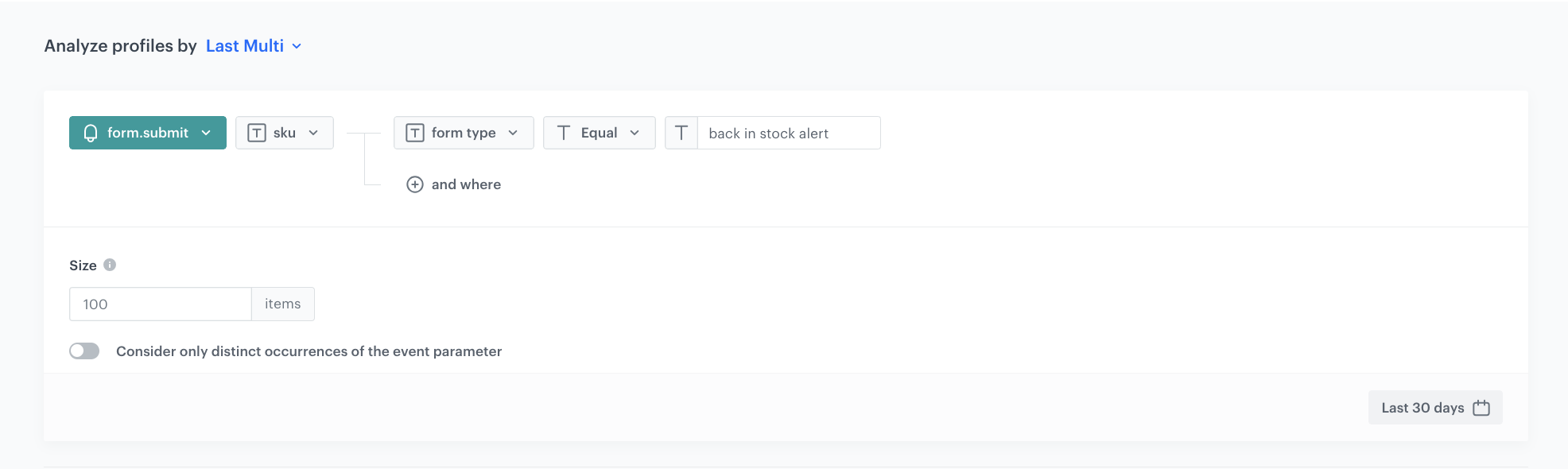
3. Click **Analyze profiles by** and select **Last multi** and in the **Size** field, enter `100`.
5. From the **Choose event** dropdown list, select the **form.submit** event.
6. As the event parameter, select **sku**.
7. Click **+ where** button.
8. From the **Choose parameter** dropdown list, select the **formType** parameter.
9. From the **Choose operator** dropdown list, select **Equal**.
10. Enter the name of the form. In our case it's `back_in_stock_alert`. 
11. Set the period from which the aggregate will analyze the results to the last **30 days**. 
12. Save the aggregate.
<figure>
<img src="/api/docs/image/54176ad07f146575310749eba44b7c2f42c1b327/use-cases/all-cases/_gfx/back-in-stock-form.submit.png" class="full" alt="Configuration of the aggregate">
<figcaption>Configuration of the aggregate</figcaption>
</figure>

## Create an aggregate collecting SKUs of products already received by the customer that are back in stock
---
This aggregate will be used later in the process to exclude products already sent to customers when sending the next notification. 


1. Go to <img src="/api/docs/image/54176ad07f146575310749eba44b7c2f42c1b327/icons/behavioral-data-hub-icon.svg" alt="Behavioral Data Hub icon" class="icon"> **Behavioral Data Hub > Live Aggregates > Create aggregate**.
2. As the aggregate type, select **Profile**.  
2. Enter the name of the aggregate.
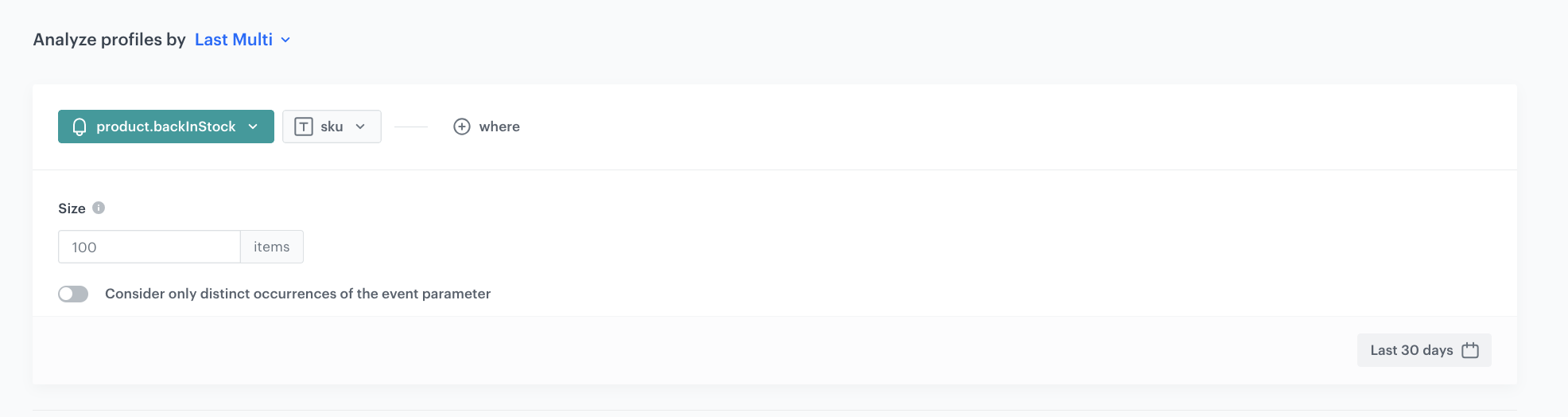
3. Click **Analyze profiles by** and select **Last multi** and in the **Size** field, enter `100`.
5. From the **Choose event** dropdown list, select the **product.backInStock** event.
6. As the event parameter, select **sku**.
7. Set the period from which the aggregate will analyze results to the last **30 days**. 
8. Save the aggregate.
<figure>
<img src="/api/docs/image/54176ad07f146575310749eba44b7c2f42c1b327/use-cases/all-cases/_gfx/back-in-stock-sku-aggregate.png" class="full" alt="Configuration of the aggregate">
<figcaption>Configuration of the aggregate</figcaption>
</figure>


## Create a mobile push template
---

Prepare a mobile push with information about restocking products.

1. Go to **Experience Hub > Mobile Push > Templates**.
2. You can use the ready-to-use template and edit it in the mobile ush visual builder. Click **New Template > Simple Push**.
2. Create your mobile push in the visual editor.
3. You can use Jinja to retrieve from the template a list of products that have been restored to the assortment from the **Event Filter** block, which has not yet been defined because it will be done in subsequent steps.
   You can learn more how to reuse event parameters [here](/docs/automation/event-params-reuse).  

    The following code is an example of how to do it:       
  
   <pre><code class="language-jinja">Great news, the product: 
     {%set eventParams = event.params%}
     {%set sku = eventParams.sku|split(',')|last%}
     {%catalogitemv2.items-demo(sku)%}
     {%set itemObject=catalog_result%}
     {{itemObject.title}}
     {%endcatalogitemv2%}
     you were waiting for is back in stock!</code></pre>


4. In the **URL** box, add the following code, which will redirect the customer to the page of the specific product after clicking the notification:

    
   <pre><code class="language-jinja">{%set eventParams = event.params%}
     {%set sku = eventParams.sku|split(',')|last%}
     {%catalogitemv2.items-demo(sku)%}
     {%set itemObject=catalog_result%}
     {{itemObject.link}}
     {%endcatalogitemv2%}</code></pre>
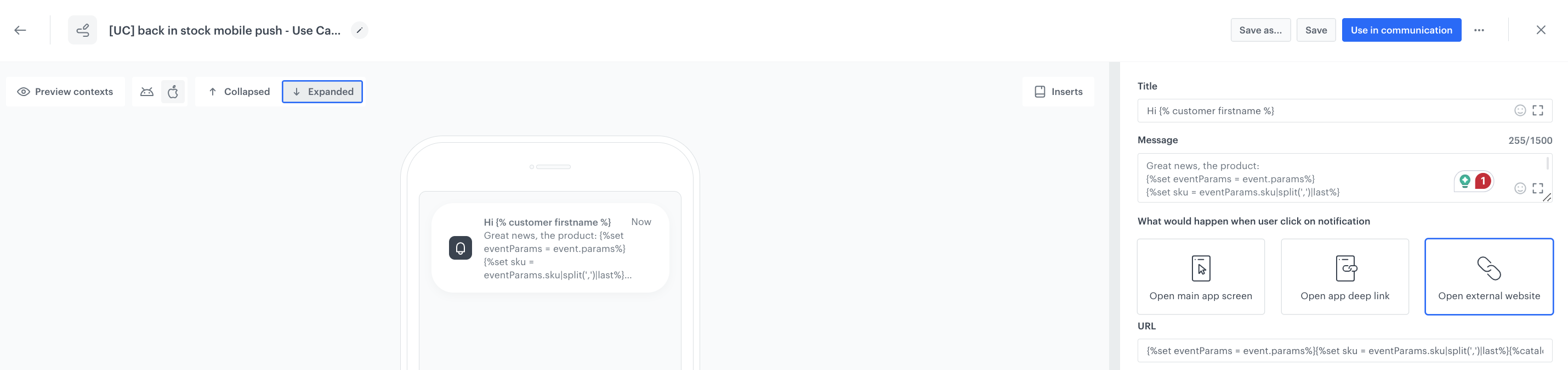

5. Personalize other settings in the templates like style for your business needs.
6. **Save** the changes.

<figure>
<img src="/api/docs/image/54176ad07f146575310749eba44b7c2f42c1b327/use-cases/all-cases/_gfx/back-mobile-push.png" class="large" alt="Example of mobile push notification">
<figcaption>Example of mobile push notification</figcaption>
</figure>

## Create a workflow
---
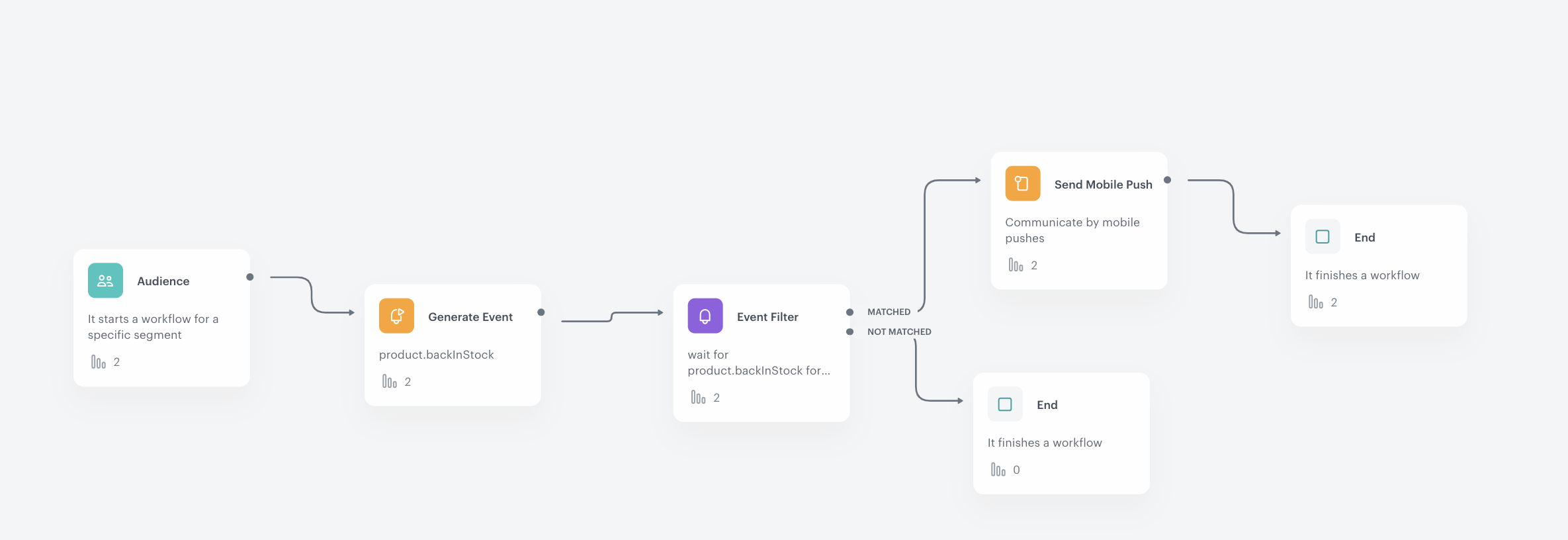
Create a workflow that will check daily whether the products that customers have signed up for notifications have returned to stock. If so, the prepared workflow will send a push notification to the customer with the relevant information. 

1. Go to **Automation Hub > Workflows > New workflow**.
2. Enter the name of the workflow.

### Configure the trigger
---
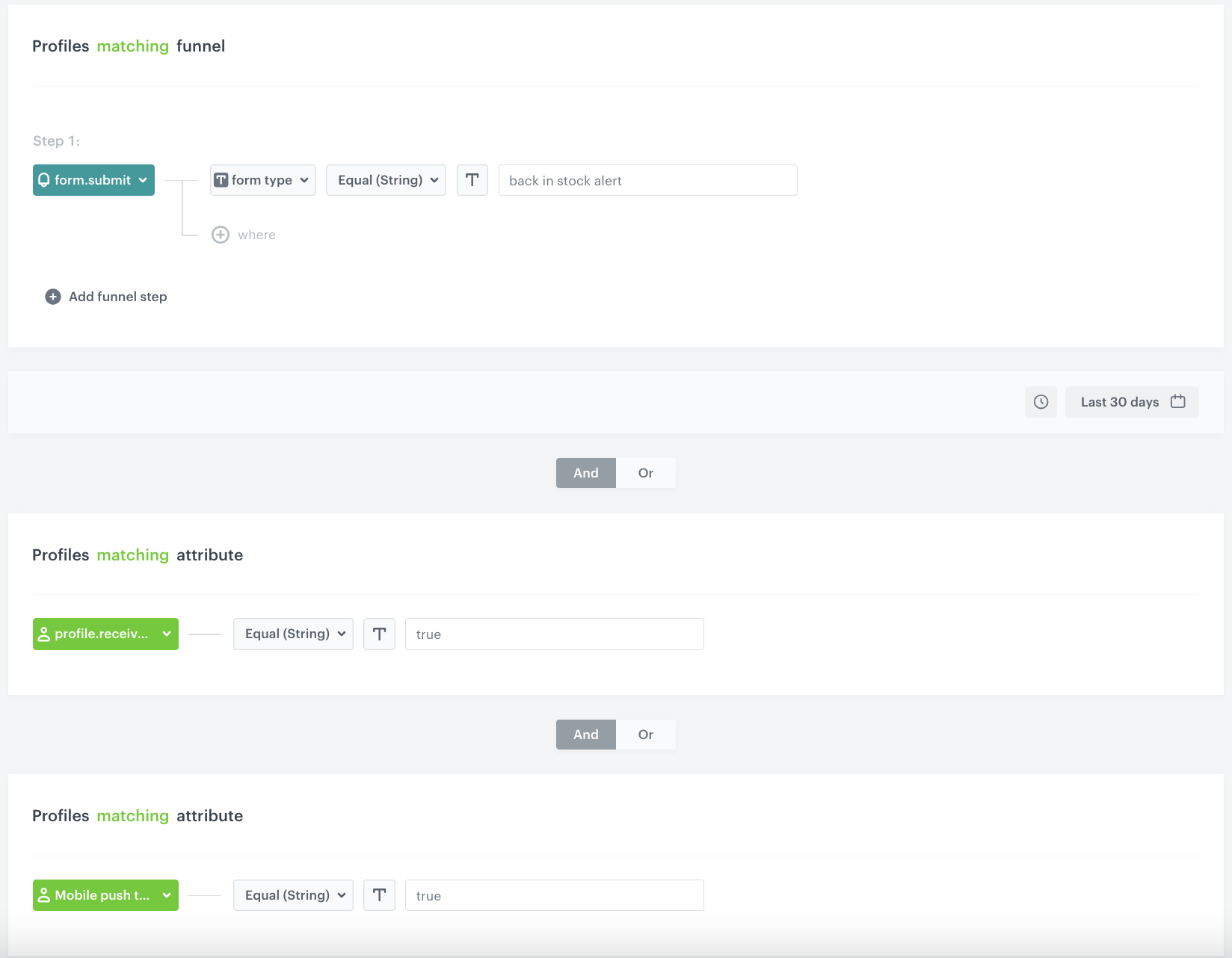
In this part of the process, select the segmentation for which you will run this campaign. In our case, these are those customers who have signed up for product availability notifications in the last 30 days and agreed to receive messages through the mobile application.

1. Start the workflow with the **Audience** node. In the configuration of the node:  
    1. Set the **Run trigger** option to **repeatable**.
    2. Set the interval at which you want to run the workflow.
    3. Select the time zone.
    4. Select the **New audience** tab.
    5. Click **Define conditions**. 
    6. From the **Choose filter** dropdown list, select the **form.submit** event. 
    7. Click **+ where** button.
    8. From the **Choose parameter** dropdown list, select the **formType** parameter.
    9. From the **Choose operator** dropdown list, select **Equal**.
    10. Enter the name of the form. In our case it's `back_in_stock_alert`. 
    11. Define the time period for the **last 30 days**. 
    12. From the **Choose filter** drop-down list, select the `profile.receive_push_messages`. This attribute containing the marketing consent status for push notifications.
    13. From the **Choose parameter** drop-down list, select the **Equal** operator and specify the condition as **true**.
    14. Click **Choose filter** and from the drop-down list, select the `snrs_has_mobile_push_devices`. It includes information on whether the customer has an active FCM token or not. For more information, please visit [this material](/docs/campaign/Mobile/mobile_campaign#conditions-for-sending-and-displaying-mobile-notifications).
    13. From the **Choose parameter** drop-down list, select the **Equal** operator and specify the condition as **true**.
    14. Confirm by clicking **Apply**.  

  <figure>
  <img src="/api/docs/image/54176ad07f146575310749eba44b7c2f42c1b327/use-cases/all-cases/_gfx/back-in-stock-audience-mobile.png" class="full" alt="Configuration of the Audience node">
  <figcaption>Configuration of the Audience node</figcaption>
  </figure>  

  ### Configure the Generate event node
---
Before sending the push notification to the customer, an event must be generated on the customer's profile, which will be defined in this step. The event must contain the SKUs of restocked products (these are the products that will be sent to the customer in the notification). 
The system will verify the restocking based on the availability parameter in the item catalog which was created as part of the prerequisites.  
Additionally, the [products for which notifications have already been sent to the customer previously](/use-cases/back-in-stock#create-an-aggregate-collecting-skus-of-products-already-received-by-the-customer-that-are-back-in-stock) are excluded. 

1. Add the **Generate event** node. 
    In the configuration of the node:
    1. Enter the **Event name**. In our case, we are using `product.backInStock` event.  
    2. In the **Body** section, use the following Jinjava and modify it to your needs:  
    
   <div class="admonition admonition-note"><div class="admonition-icon"><svg xmlns="http://www.w3.org/2000/svg" fill="none" viewBox="0 0 24 24" stroke="currentColor" stroke-width="2.5"><path stroke-linecap="round" stroke-linejoin="round" d="M13 16h-1v-4h-1m1-4h.01M21 12a9 9 0 11-18 0 9 9 0 0118 0z" /></svg></div><div class="admonition-body"><div class="admonition-content">

   Jinjava inserted in **Generate event** body must have all empty spaces deleted.

   </div></div></div>


   <pre><code class="language-jinja">{
   "sku": "{% set signedProducts=[] %}{% set receivedProducts=[] %}{% set finalSku=[] %}{% aggregate b4173b56-cf83-3ce8-90c8-f35f36a91368 %}{% for sku in aggregate_result|reverse %}{% do signedProducts.append(sku) %}{% endfor %}{% endaggregate %}{% aggregate e55cae5e-2d48-3e29-a2a2-5122913e4e96 %}{% for sku in aggregate_result|reverse %}{% do receivedProducts.append(sku) %}{% endfor %}{% endaggregate %}{% for sku in signedProducts %}{% catalogvar.items-demo(sku).availability %}{% if catalog_result=='in stock' %}{% if sku in receivedProducts|join(',') %}{% else %}{% do finalSku.append(sku) %}{% endif%}{% endif %}{% endcatalogvar %}{% endfor %}{% set counter=0 %}{% for sku in finalSku %}{% set counter=counter + 1 %}{{sku}}{% if counter &lt; finalSku|length%},{% endif %}{%endfor%}"
   }</code></pre>
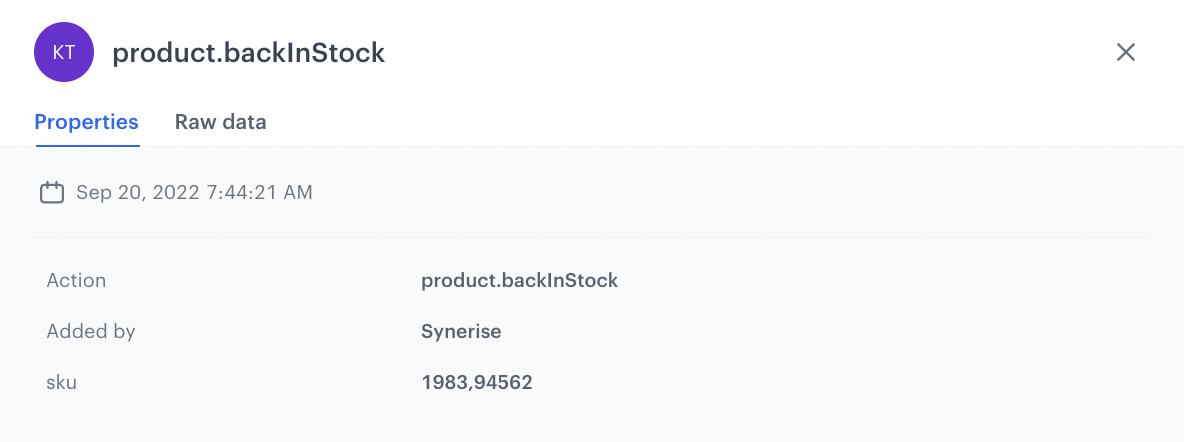

   As a result, a `product.backInStock` event is generated. The `sku` parameter contains the SKUS of products that are back in stock. The list of the products will be sent in the notification, separated by commas. If the event is empty, it means that none of the products have met the back in stock conditions.

   An example of a generated event:

   <figure>
   <img src="/api/docs/image/54176ad07f146575310749eba44b7c2f42c1b327/use-cases/all-cases/_gfx/product.backInStock-event.png" class="large" alt="An example of a generated product.backInStock event">
   <figcaption>An example of a generated product.backInStock event</figcaption>
   </figure>

   ### Configure the Event filter node
   ---
   The workflow waits for the event generation from the previous step and sends the push notification based on it.

1. Add the **Event filter** node. In the configuration of the node:  
    1. Check event **for period of time**.
    2. Define the time range to **1 minute**.
    3. From the **Choose event** dropdown list, select the **product.backInStock** event.
    4. As the event parameter, select **sku**.
    5. From the **Choose operator** dropdown list, select **Regular expression**.
    6. As the value, enter `.+`
    
       <div class="admonition admonition-note"><div class="admonition-icon"><svg xmlns="http://www.w3.org/2000/svg" fill="none" viewBox="0 0 24 24" stroke="currentColor" stroke-width="2.5"><path stroke-linecap="round" stroke-linejoin="round" d="M13 16h-1v-4h-1m1-4h.01M21 12a9 9 0 11-18 0 9 9 0 0118 0z" /></svg></div><div class="admonition-body"><div class="admonition-content">

       The `.+` value means any number of characters. We add this value to exclude from the communication customers for whom an empty SKU parameter was generated in the previous event. It happens when none of the products the customer signed up for were returned to stock.

       </div></div></div>

    7. Confirm by clicking **Apply**. 
2. For the **not matched** path, select the **End** node. 
3. For the matched path, select the **Send Mobile Push** node. 

### Configure the Send mobile push node 
---
At this stage, a mobile push is sent to customers, which contains the products returned in the event from the previous step.

1. In the node configuration, select the template you previously prepared for the back in stock campaign.   
2. Confirm by clicking **Apply**. 

### Add final setting to your workflow
---
1. Add the **End** node. 
2. Launch the workflow by clicking **Save&Run**.

  <figure>
  <img src="/api/docs/image/54176ad07f146575310749eba44b7c2f42c1b327/use-cases/all-cases/_gfx/back-in-stock-workflow-mobile.png" class="full" alt="Configuration of the workflow">
  <figcaption>Configuration of the workflow</figcaption>
  </figure>

  ## Check the use case set up on the Synerise Demo workspace
---
You can check the configuration of each step directly in the Synerise Demo workspace:  

- [Aggregate that returns products for which the customer has signed up for notifications ](https://app.synerise.com/analytics/aggregates/b4173b56-cf83-3ce8-90c8-f35f36a91368)

- [Aggregate that returns SKUs of products about which customer has received information that they are back in stock](https://app.synerise.com/analytics/aggregates/e55cae5e-2d48-3e29-a2a2-5122913e4e96)

- [Mobile push template](https://app.synerise.com/campaigns/mobile-push/content-manager/template/130038)

- [Workflow](https://app.synerise.com/automations/automation-diagram/223e895e-1327-41cc-8f3a-8fd193f1ab52)

If you’re our partner or client, you already have automatic access to the **Synerise Demo workspace (1590)**, where you can explore all the configured elements of this use case and copy them to your workspace.  

If you’re not a partner or client yet, we encourage you to fill out the contact [form](https://demo.synerise.com/request) to schedule a meeting with our representatives. They’ll be happy to show you how our demo works and discuss how you can apply this use case in your business. 

## Read more
---
- [Aggregates](/docs/analytics/aggregates)
- [Automation Hub](/docs/automation)
- [Catalogs](/docs/assets/catalogs/introduction-to-catalogs)
- [Email campaigns](/docs/campaign/e-mail)
- [Product feed](/developers/product-feed)
- [Reusing event context from preceding nodes](/docs/automation/event-params-reuse)
- [Segmentation](/docs/analytics/segmentations)