There are many reasons why products go out-of-stock. As an example, it can be caused by a sudden trend or seasonal demands. As a result, customers can get a bit frustrated as they cannot buy the product they want at the time they need it. Leaving customers with this feeling in this situation is a very bad idea, as it can trigger them to move on to a competitor in hopes of finding a substitute for the product they were unable to buy in your store. At that point it not only causes you to lose sales, but also makes a long-term impact on customer satisfaction that was caused by the frustrating experience. 

If you don't want to lose your customers, it's important to properly manage the out-of-stock situation and turn it into a positive customer interaction. One of the most effective actions in this regard is to allow the customer to sign up for a product availability notification list, so that when the product is back in stock, the customer receives an email notification about it. This simple action helps recover potentially lost revenue while keeping customers engaged with your brand. 

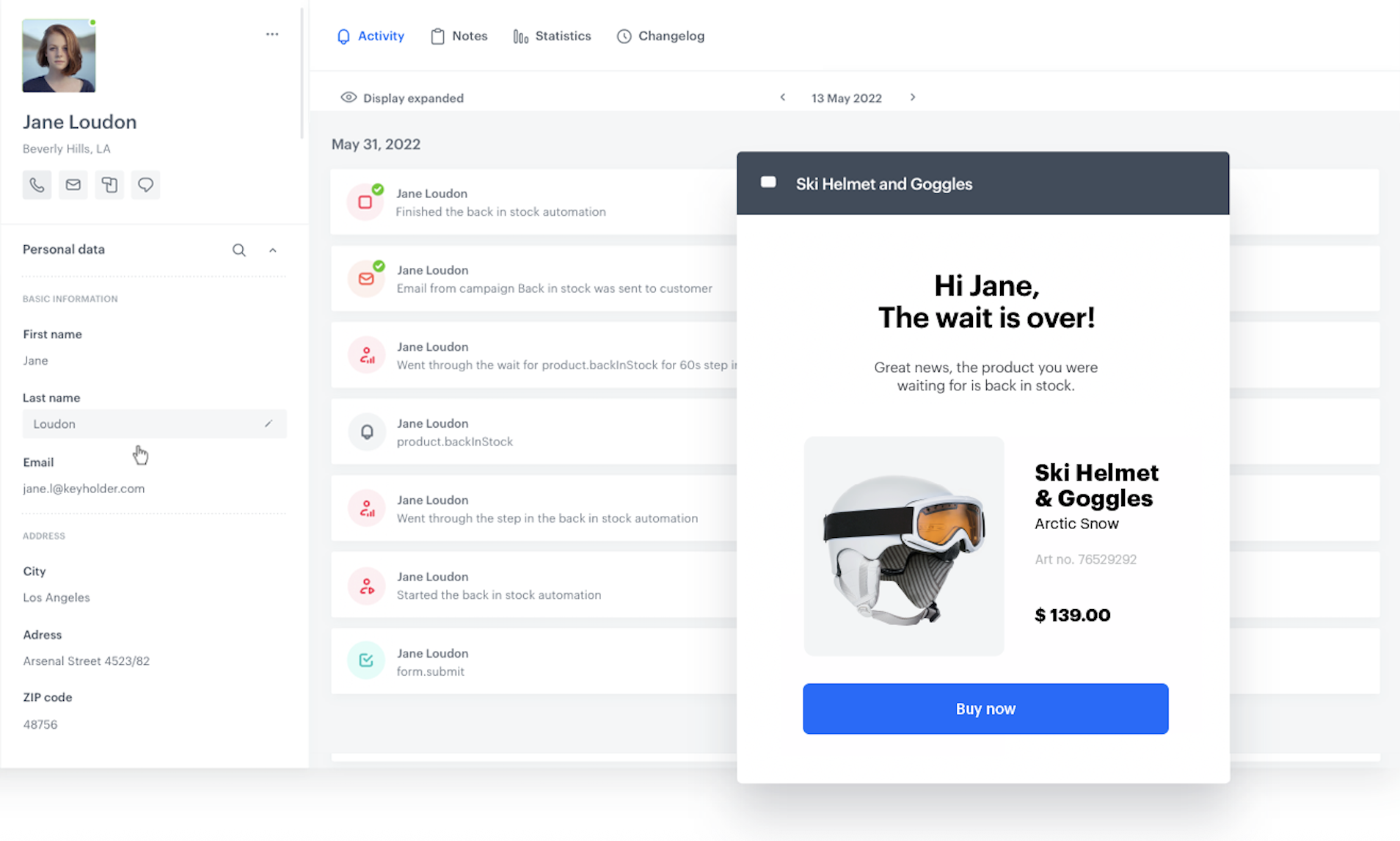
This use case describes an example of a back in stock campaign that you can implement in your business. The scenario described involves sending email communications to customers with products that they were previously interested in and signed up for notifications about those products, and which are now back in stock. 

<figure>
<img src="/api/docs/image/54176ad07f146575310749eba44b7c2f42c1b327/use-cases/all-cases/_gfx/back-in-stock-campaign.png" alt="Back in stock campaign"  class="full no-frame">
</figure> 

## Prerequisites 
---
- Send an event when a customer signs up for a product availability notification. Such an event should contain the ID of the product that the customer signed up for in order to be notified when the product is back in stock. This event will appear on the profile of the customer who signed up for such notification. You can send this event using the [API](https://developers.synerise.com/DataManagement/DataManagement.html#operation/CustomEvent) or [JS SDK](/developers/web/tracking-form-data/tracking-form-data-sdk#calling-the-sdk-directly).

  
  <div class="admonition admonition-note"><div class="admonition-icon"><svg xmlns="http://www.w3.org/2000/svg" fill="none" viewBox="0 0 24 24" stroke="currentColor" stroke-width="2.5"><path stroke-linecap="round" stroke-linejoin="round" d="M13 16h-1v-4h-1m1-4h.01M21 12a9 9 0 11-18 0 9 9 0 0118 0z" /></svg></div><div class="admonition-body"><div class="admonition-content">

  In this use case, this event is named `form.submit`. We will use the nomenclature of this event in the subsequent steps of this use case. The name of the implemented event used in this case is just an example and depends on your implementation.

  </div></div></div>


  <div class="admonition admonition-tip"><div class="admonition-icon"><svg xmlns="http://www.w3.org/2000/svg" fill="none" viewBox="0 0 24 24" stroke="currentColor" stroke-width="2.5"><path stroke-linecap="round" stroke-linejoin="round" d="M9.663 17h4.673M12 3v1m6.364 1.636l-.707.707M21 12h-1M4 12H3m3.343-5.657l-.707-.707m2.828 9.9a5 5 0 117.072 0l-.548.547A3.374 3.374 0 0014 18.469V19a2 2 0 11-4 0v-.531c0-.895-.356-1.754-.988-2.386l-.548-.547z" /></svg></div><div class="admonition-body"><div class="admonition-content">

  You can use the [dynamic content](/docs/campaign/dynamiccontent) to display a sign-up form for product availability notifications on the card of unavailable product and send an event to Synerise when the form is filled out using the [JS SDK](/developers/web/tracking-form-data/tracking-form-data-sdk#calling-the-sdk-directly) method.

  </div></div></div>


- [Create an email template](/docs/campaign/e-mail/creating-email-templates) to be used in the back in stock campaign. 

  
  <div class="admonition admonition-note"><div class="admonition-icon"><svg xmlns="http://www.w3.org/2000/svg" fill="none" viewBox="0 0 24 24" stroke="currentColor" stroke-width="2.5"><path stroke-linecap="round" stroke-linejoin="round" d="M13 16h-1v-4h-1m1-4h.01M21 12a9 9 0 11-18 0 9 9 0 0118 0z" /></svg></div><div class="admonition-body"><div class="admonition-content">

  You can find an example of Jinjava code that you may use in your mailing in the [configuration of the Send Email node](/use-cases/back-in-stock#configure-the-send-email-node).

  </div></div></div>


- [Configure email account](/docs/campaign/e-mail/configuring-email-account).
- [Create item catalog](/use-cases/import-product-feed-to-catalog) containing information about product availability. 

## Process
---
1. [Create a product.backInStock event](/use-cases/back-in-stock#create-a-productbackinstock-event)
2. [Create an aggregate with products for which the customer has signed up for notifications ](/use-cases/back-in-stock#create-an-aggregate-with-products-for-which-the-customer-has-signed-up-for-notifications)
3. [Create an aggregate collecting SKUs of products already received by the customer that are back in stock](/use-cases/back-in-stock#create-an-aggregate-collecting-skus-of-products-already-received-by-the-customer-that-are-back-in-stock)
4. [Create a workflow](/use-cases/back-in-stock#create-a-workflow)

## Create a product.backInStock event
---
In this part of the process, add the **product.backInStock** event, which will later be generated in the workflow that checks whether the product is back in stock. In addition, this event must include the parameter **sku**, which contains the SKUs of all restocked products the customer signed up for.

1.  Go to <img src="/api/docs/image/54176ad07f146575310749eba44b7c2f42c1b327/icons/data-modeling-hub-icon.svg" alt="Data Modeling Hub icon" class="icon"> **Data Modeling Hub > Events > Add event**.
3. In the **Name** field, enter `product.backInStock`.  
    In the API and SDK, the name parameter is usually called `action` or `action name`.
4. Optionally, define a human-friendly display name that will be shown in the **Data Modeling Hub** and **Decision Hub**.
5. Optionally, in the **Description** field, enter the description of the event.
6. Enable the **Make this event available to anonymous profiles without JWT** toggle.
7. Click **Apply**. 
8. In the list of events, find the event you just created. 
9. On the right side of the screen, click **Add property**.
10. In the **Source parameter** field, enter `sku`.
11. In the **Property name** field, enter a human-readable label for display in the Synerise platform.
12. Optionally, in the **Description** field, you can add an explanation about the purpose of this parameter. 
13. To complete the process, click **Save**.  

## Create an aggregate with products for which the customer has signed up for notifications 
---
The aggregate created will later be used in workflow to check which products have returned to stock. 


<div class="admonition admonition-note"><div class="admonition-icon"><svg xmlns="http://www.w3.org/2000/svg" fill="none" viewBox="0 0 24 24" stroke="currentColor" stroke-width="2.5"><path stroke-linecap="round" stroke-linejoin="round" d="M13 16h-1v-4h-1m1-4h.01M21 12a9 9 0 11-18 0 9 9 0 0118 0z" /></svg></div><div class="admonition-body"><div class="admonition-content">

The event action name and the parameter name used in this use case are only demonstrative and may be different depending on the event implementation.

</div></div></div>


1. Go to <img src="/api/docs/image/54176ad07f146575310749eba44b7c2f42c1b327/icons/behavioral-data-hub-icon.svg" alt="Behavioral Data Hub icon" class="icon">> **Behavioral Data Hub > Live Aggregates > Create aggregate**.
2. As the aggregate type, select **Profile**.  
2. Enter the name of the aggregate.
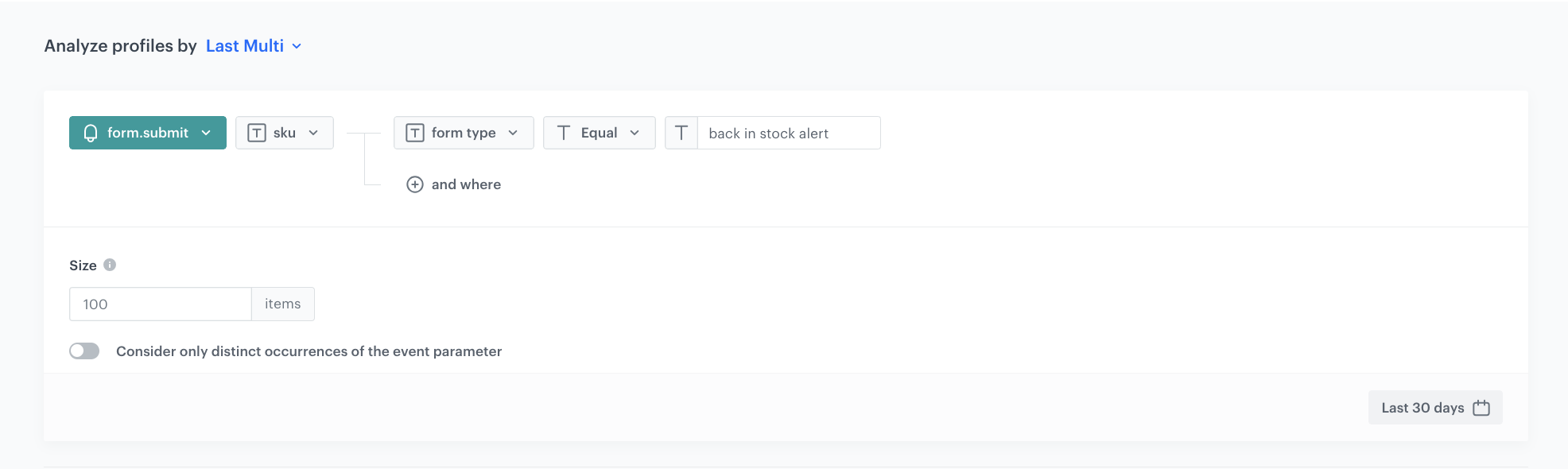
3. Click **Analyze profiles by** and select **Last multi** and in the **Size** field, enter `100`.
5. From the **Choose event** dropdown list, select the **form.submit** event.
6. As the event parameter, select **sku**.
7. Click **+ where** button.
8. From the **Choose parameter** dropdown list, select the **form type** parameter.
9. From the **Choose operator** dropdown list, select **Equal**.
10. Enter the name of the form. In our case it's `back in stock alert`. 
11. Set the period from which the aggregate will analyze the results to the last **30 days**. 
12. Save the aggregate.
<figure>
<img src="/api/docs/image/54176ad07f146575310749eba44b7c2f42c1b327/use-cases/all-cases/_gfx/back-in-stock-form.submit.png" class="full" alt="Configuration of the aggregate">
<figcaption>Configuration of the aggregate</figcaption>
</figure>

## Create an aggregate collecting SKUs of products already received by the customer that are back in stock
---
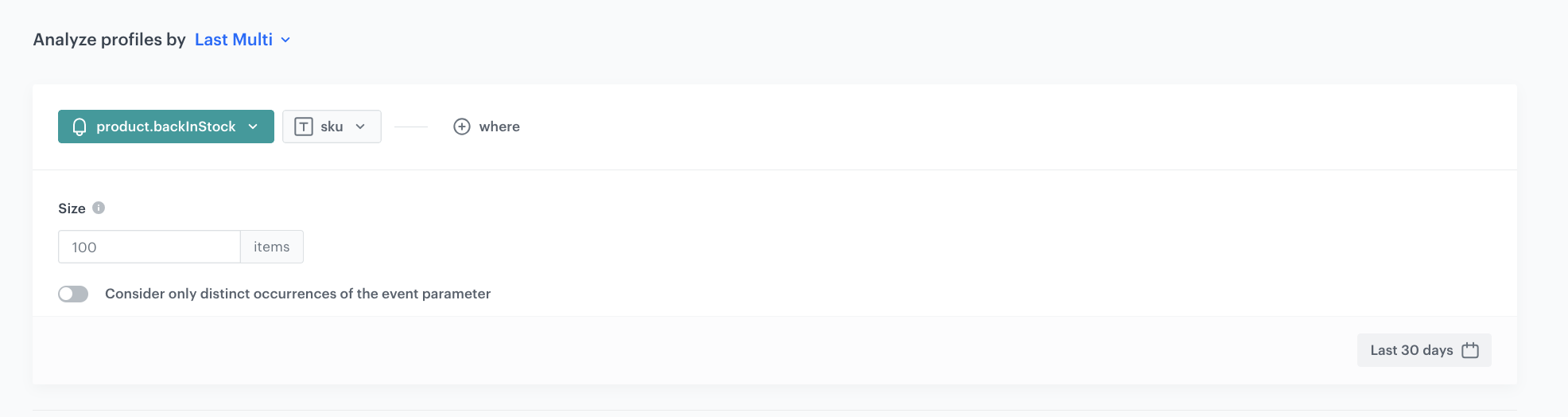
This aggregate will be used later in the process to exclude products already sent to customers when sending the next notification email. 

1. Go to <img src="/api/docs/image/54176ad07f146575310749eba44b7c2f42c1b327/icons/behavioral-data-hub-icon.svg" alt="Behavioral Data Hub icon" class="icon"> **Behavioral Data Hub > Live Aggregates > Create aggregate**.
2. As the aggregate type, select **Profile**.  
2. Enter the name of the aggregate.
3. Click **Analyze profiles by** and select **Last multi** and in the **Size** field, enter `100`.
5. From the **Choose event** dropdown list, select the **product.backInStock** event.
6. As the event parameter, select **sku**.
7. Set the period from which the aggregate will analyze results to the last **30 days**. 
8. Save the aggregate.
<figure>
<img src="/api/docs/image/54176ad07f146575310749eba44b7c2f42c1b327/use-cases/all-cases/_gfx/back-in-stock-sku-aggregate.png" class="full" alt="Configuration of the aggregate">
<figcaption>Configuration of the aggregate</figcaption>
</figure>

## Create a workflow
---
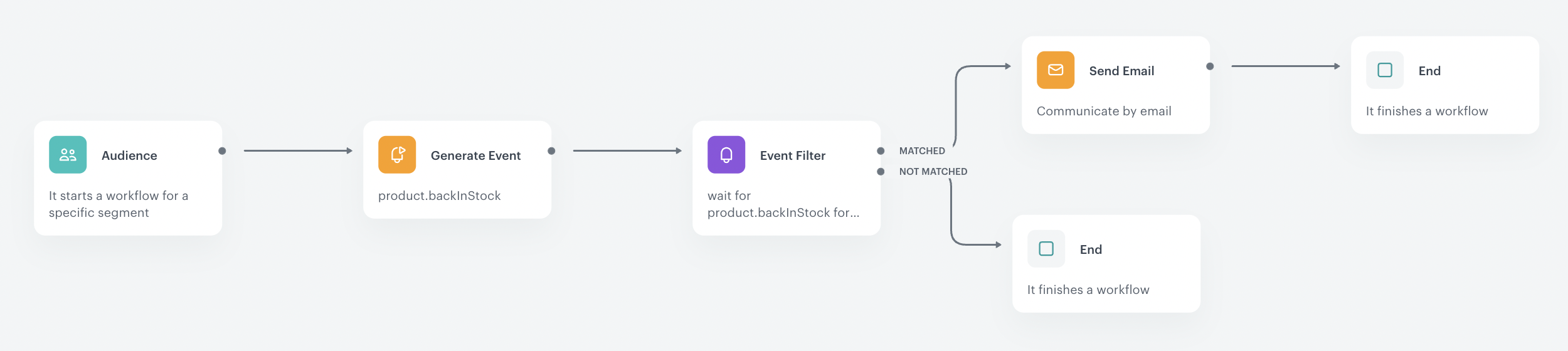
Create a workflow that will check daily whether the products that customers have signed up for notifications have returned to stock. If so, the prepared workflow will send an email to the customer with the relevant information. 

1. Go to **Automation Hub > Workflows > New workflow**.
2. Enter the name of the workflow.

### Configure the trigger
---
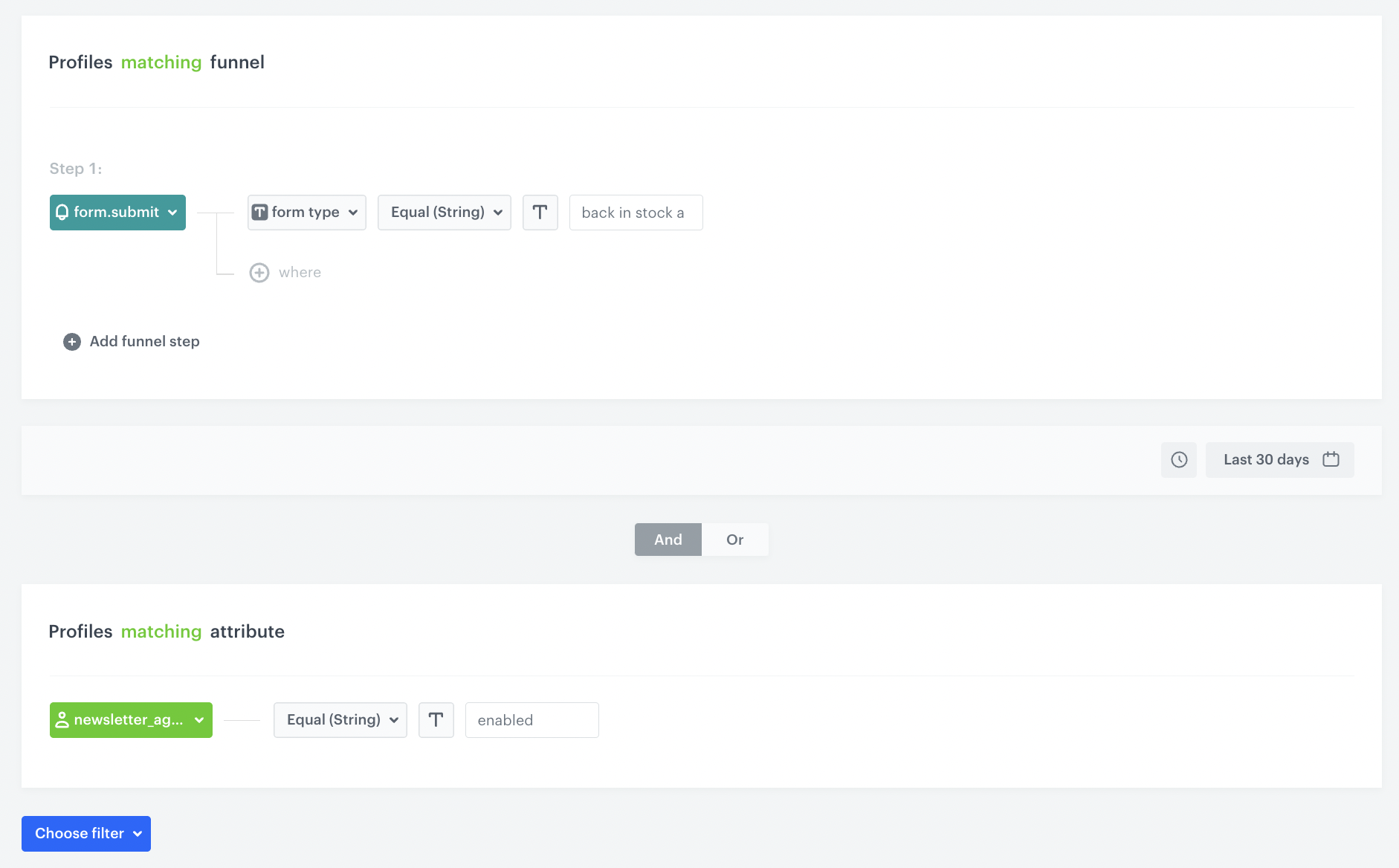
In this part of the process, select the segmentation for which you will run this campaign. In our case, these are those customers who have signed up for product availability notifications in the last 30 days and agreed to receive messages through the email channel.

1. Start the workflow with the **Audience** node. In the configuration of the node:  
    1. Set the **Run trigger** option to **repeatable**.
    2. Set the interval at which you want to run the workflow.
    3. Select the time zone.
    4. Select the **New audience** tab.
    5. Click **Define conditions**. 
    6. From the **Choose filter** dropdown list, select the **form.submit** event. 
    7. Click **+ where** button.
    8. From the **Choose parameter** dropdown list, select the **form type** parameter.
    9. From the **Choose operator** dropdown list, select **Equal**.
    10. Enter the name of the form. In our case it's `back in stock alert`. 
    11. Define the time period for the **last 30 days**. 
    12. From the **Choose filter** drop-down list, select the **newsletter_agreement** parameter.
    13. From the **Choose parameter** drop-down list, select the **Equal** operator and specify the condition as **enabled**.
    14. Confirm by clicking **Apply**.  

  <figure>
  <img src="/api/docs/image/54176ad07f146575310749eba44b7c2f42c1b327/use-cases/all-cases/_gfx/back-in-stock-audience.png" class="full" alt="Configuration of the Audience node">
  <figcaption>Configuration of the Audience node</figcaption>
  </figure>  

  ### Configure the Generate Event node
---
Before sending the email to the customer, an event must be generated on the customer's profile, which will be defined in this step. The event must contain the SKUs of restocked products (these are the products that will be sent to the customer in the email). 
The system will verify the restocking based on the availability parameter in the item catalog which was created as part of the prerequisites.  
Additionally, the [products for which notifications have already been sent to the customer previously](/use-cases/back-in-stock#create-an-aggregate-collecting-skus-of-products-already-received-by-the-customer-that-are-back-in-stock) are excluded. 

1. Add the **Generate event** node. 
    In the configuration of the node:
    1. Enter the **Event name**. In our case, we are using `product.backInStock` event.  
    2. In the **Body** section, use the following Jinjava and modify it to your needs:  
    
   <div class="admonition admonition-note"><div class="admonition-icon"><svg xmlns="http://www.w3.org/2000/svg" fill="none" viewBox="0 0 24 24" stroke="currentColor" stroke-width="2.5"><path stroke-linecap="round" stroke-linejoin="round" d="M13 16h-1v-4h-1m1-4h.01M21 12a9 9 0 11-18 0 9 9 0 0118 0z" /></svg></div><div class="admonition-body"><div class="admonition-content">

   Jinjava inserted in **Generate event** body must have all empty spaces deleted.

   </div></div></div>


   <pre><code class="language-jinja">{
    "sku":"
    {% set signedProducts = [] %}
    {% set receivedProducts = [] %}
    {% set finalSku = [] %}
      {% aggregate LAST-SKU-SIGNED %} {# aggregate collecting product sku #}
      {% for sku in aggregate_result|reverse %} {# saving sku from aggregate to signedProducts variable #}
        {% do signedProducts.append(sku) %}
      {% endfor %}
    {% endaggregate %}
      {% aggregate LAST-SKU-RECEIVED %} {# aggregate collecting product sku sended to user #}
      {% for sku in aggregate_result|reverse %} {# saving sku from aggregate to receivedProducts variable #}
        {% do receivedProducts.append(sku) %}
      {% endfor %}
    {% endaggregate %}
    {% for sku in signedProducts %}
      {% catalogvar.catalog(sku).availability %}
          {% if catalog_result == 'in stock' %}  {# condition to check if products are availability#}
              {% if sku in receivedProducts|join(',') %} {# condition that adds a comma to items #}
              {% else %}
                  {% do finalSku.append(sku) %}
              {% endif%}
          {% endif %}
      {% endcatalogvar %}
    {% endfor %}
    {% set counter = 0 %} 
    {% for sku in finalSku %} {# listing the final sku in the sku parameter #}
    {% set counter = counter + 1 %}
        {{sku}}
    {% if counter &lt; finalSku|length%},{% endif %}{%endfor%}" 
   }</code></pre>
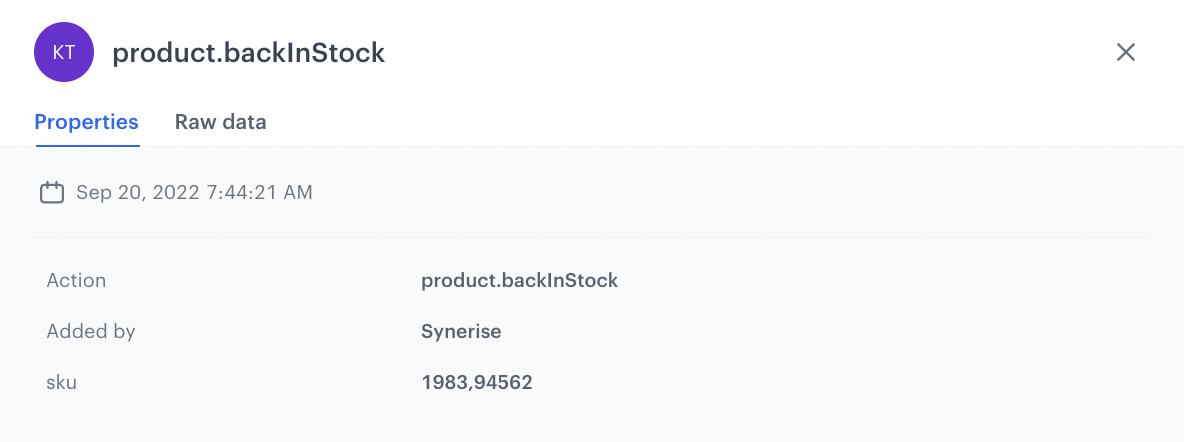

   As a result is a `product.backInStock` event which in the `sku` parameter contains the SKUS of products that are back in stock. The list of the products will be sent in the email, separated by commas. If the event is empty, it means that none of the products have met the back in stock conditions.

   An example of a generated event:

   <figure>
   <img src="/api/docs/image/54176ad07f146575310749eba44b7c2f42c1b327/use-cases/all-cases/_gfx/product.backInStock-event.png" class="large" alt="An example of a generated product.backInStock event">
   <figcaption>An example of a generated product.backInStock event</figcaption>
   </figure>

   ### Configure the Event Filter node
   ---
   The workflow waits for the event generation from the previous step and sends the email based on it.

1. Add the **Event Filter** node. In the configuration of the node:  
    1. Check event **for period of time**.
    2. Define the time range to **1 minute**.
    3. From the **Choose event** dropdown list, select the **product.backInStock** event.
    4. As the event parameter, select **sku**.
    5. From the **Choose operator** dropdown list, select **Regular expression**.
    6. As the value, enter `.+`
    
       <div class="admonition admonition-note"><div class="admonition-icon"><svg xmlns="http://www.w3.org/2000/svg" fill="none" viewBox="0 0 24 24" stroke="currentColor" stroke-width="2.5"><path stroke-linecap="round" stroke-linejoin="round" d="M13 16h-1v-4h-1m1-4h.01M21 12a9 9 0 11-18 0 9 9 0 0118 0z" /></svg></div><div class="admonition-body"><div class="admonition-content">

       The `.+` value means any number of characters. We add this value to exclude from the communication customers for whom an empty SKU parameter was generated in the previous event. It happens when none of the products the customer signed up for were returned to stock.

       </div></div></div>

    7. Confirm by clicking **Apply**. 
2. For the **not matched** path, select the **End** node. 
3. For the matched path, select the **Send Email** node. 

### Configure the Send Email node
---
At this stage, an email is sent to customers, which contains the products returned in the event from the previous step.

1. In the email configuration, select the template you previously prepared for the back in stock campaign.   
   In the template, you can retrieve event data from the **Event Filter** node.   
   You can learn more how to reuse event parameters [here](/docs/automation/event-params-reuse).  

    The following code is an example of how to do it:       
    
   <details class="accordion"><summary>Example Jinjava code</summary><div class="accordion-content"><pre><code class="language-jinja">{% set sku_array = event.params.sku %} {% set sku_from_array = sku_array|split(',') %} &lt;ul&gt; {% for sku in sku_from_array %} &lt;li data-snr-ai-product-id="{% catalog.Snrs-produktu-ogTag(sku).product:retailer_part_no %}"&gt; &lt;a class="snrs-AI--item-link" href="{% catalog.Snrs-produktu-ogTag(sku).og:url %}" title="{% catalog.Snrs-produktu-ogTag(sku).og:title %}"&gt; &lt;img src="{% catalog.Snrs-produktu-ogTag(sku).og:image %}" class="products-slider__item-image snrAI-product-image snrAI-product-image-{% catalog.Snrs-produktu-ogTag(sku).og:image %}" width="90" alt="{% catalog.Snrs-produktu-ogTag(sku).og:title %}" id="snrAI-image-{% catalog.Snrs-produktu-ogTag(sku).product:retailer_part_no %}"&gt; &lt;h3 class="snrs-AI-product--product-name"&gt; &lt;span class="snrs-AI-product--name-first"&gt;{% catalog.Snrs-produktu-ogTag(sku).og:title %}&lt;/span&gt; &lt;/h3&gt; &lt;/a&gt; &lt;/li&gt; {% endfor %} &lt;/ul&gt;</code></pre></div></details>
  

   In addition, you can retrieve, for example, images or other parameters from your [catalog](/developers/inserts/insert-usage#extracting-values-from-catalogs).

2. Confirm by clicking **Apply**. 

### Add final setting to your workflow
---
1. Add the **End** node. 
2. Launch the workflow by clicking **Save&Run**.

  <figure>
  <img src="/api/docs/image/54176ad07f146575310749eba44b7c2f42c1b327/use-cases/all-cases/_gfx/back-in-stock-workflow.png" class="full" alt="Configuration of the workflow">
  <figcaption>Configuration of the workflow</figcaption>
  </figure>

  ## Check the use case set up on the Synerise Demo workspace
---
You can check the configuration of each step directly in the Synerise Demo workspace:  

- [Create an aggregate with products for which the customer has signed up for notifications ](https://app.synerise.com/analytics/aggregates/b4173b56-cf83-3ce8-90c8-f35f36a91368)

- [Create an aggregate collecting sku's of products already received by the customer that are back in stock](https://app.synerise.com/analytics/aggregates/e55cae5e-2d48-3e29-a2a2-5122913e4e96)

- [Create a workflow](https://app.synerise.com/automations/automation-diagram/14d5a2dc-3cc9-4fcf-97fc-d0d328004484)

If you’re our partner or client, you already have automatic access to the **Synerise Demo workspace (1590)**, where you can explore all the configured elements of this use case and copy them to your workspace.  

If you’re not a partner or client yet, we encourage you to fill out the contact [form](https://demo.synerise.com/request) to schedule a meeting with our representatives. They’ll be happy to show you how our demo works and discuss how you can apply this use case in your business. 

## Read more
---
- [Aggregates](/docs/analytics/aggregates)
- [Automation Hub](/docs/automation)
- [Catalogs](/docs/assets/catalogs/introduction-to-catalogs)
- [Email campaigns](/docs/campaign/e-mail)
- [Product feed](/developers/product-feed)
- [Reusing event context from preceding nodes](/docs/automation/event-params-reuse)
- [Segmentation](/docs/analytics/segmentations)