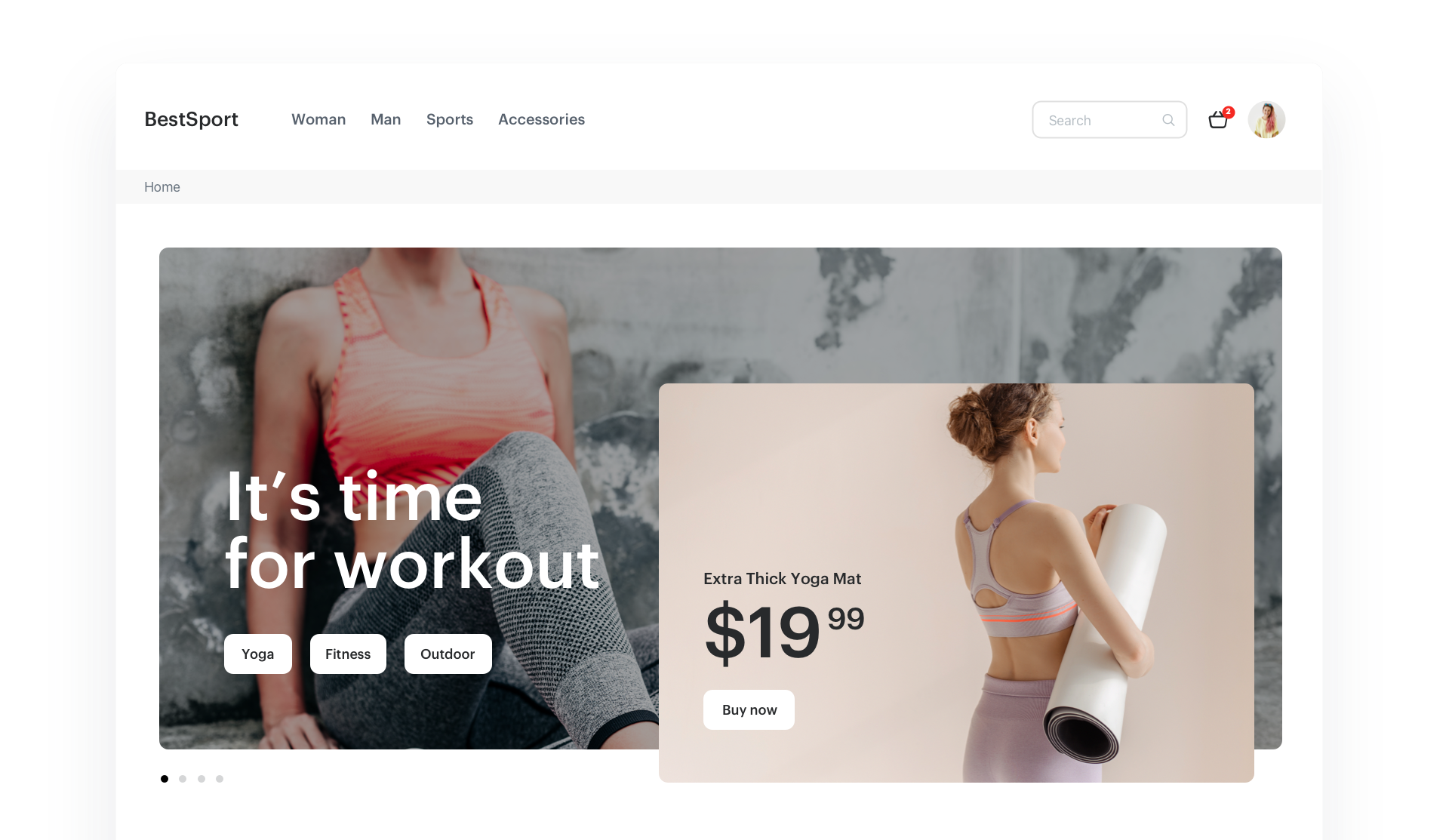
Customers are looking for personalized experiences that make their shopping journey more enjoyable. To extend the solutions you have already implemented on your site, you can combine several features to deliver greater value to the customer. You might consider creating a personalized banner on the homepage with product recommendations from a specific category and subcategories presented in a customized form. For example, you can display the product from a specific category with a personalized background matching the featured category and subcategories presented in the form of linked tiles.
This use case describes the process of creating a personalized banner on the main page using section and attribute recommendations.
## Prerequisites
---
- Implement [Synerise tracking code](/developers/web/installation-and-configuration#creating-a-tracking-code) on your website.
- Create an [item catalog](/docs/ai-hub/recommendations-v2/item-feed-requirements).
- You must [configure the AI engine](/docs/settings/configuration/ai-engine-configuration/engine-configuration-for-recommendations):
- Enable the Section page model.
- In the **Attributes for distinct filters** section, you must select the attributes which will be available for use in the **Item attribute** field when [creating a section page recommendation](/docs/ai-hub/recommendations-v2/creating-section-recommendations#configure-item-settings). In the **Item attribute** field you will choose the item feature (for example, brand) based on which the items will be selected for a slot in the recommendation. If this step is skipped, the field will remain empty, making it impossible to complete the recommendation.
- Create [Metadata catalogs](/docs/ai-hub/item-feed/metadata-catalog) that include additional information about section attributes.
For example, suppose your section attribute is a category. In that case, such a metacatalog must include additional category information, such as an image or link to the category and other custom information to help you represent the category.
Click to see a sample metacatalog
Example of a metacatalog
## Process
---
In this use case, you will go through the following steps:
1. [Create section recommendation](/use-cases/banner-personalization-on-homepage#create-section-recommendation).
2. [Create attribute recommendation](/use-cases/banner-personalization-on-homepage#create-attribute-recommendation).
## Create section recommendation
---
Create a section recommendation to display a slot with personalized item recommendations based on item categories.
1. Go to **AI Hub > (AI Recommendations) Models > Add recommendation**.
2. Enter the name of the recommendation.
3. In the **Type & Items feed** section, click **Define**.
4. From the **Items feed** dropdown list, select an item feed.
5. Below, select the **Section page** recommendation type.
6. From the **Metadata catalog** dropdown, select the catalog that includes additional information about items in your feed.
7. Confirm the settings by clicking **Apply**.
8. In the **Items** section, click **Define**.
9. Click **Add slot**.
10. In the **Number of sections** field, enter the number of rows you want to dedicate to display recommendations.
In this case, enter `1` to create only one raw.
11. In the **Number of items in a section**, enter the maximum number of items to be displayed in one section.
In this case, enter `1` to display only one item in the section.
12. From the **Item attribute** dropdown, choose the attribute of the item based on which the item will be selected to the section.
13. Optionally, define **Static filters** and **Elastic filters**.
14. Save the changes by clicking **Apply**.
15. Optionally, define the **Boosting** factors.
16. Configure the **Additional settings** section.
17. Save the recommendation.
## Create attribute recommendation
---
Create an attribute recommendation to recommend an item attribute without showing the item in the recommendation frame. In this case, you will return the linked product subcategory titles based on the category returned in the [first recommendation](/use-cases/banner-personalization-on-homepage#create-section-recommendation).
1. Go to **AI Hub > (AI Recommendations) Models > Add recommendation**.
2. Enter the name of the recommendation.
3. In the **Type & Items feed** section, click **Define**.
4. From the **Items feed** dropdown list, select an item feed.
5. Below, select the **Attribute** recommendation type.
6. From the **Metadata catalog** dropdown, select the catalog that include additional information about items in your feed.
7. In the **Items** section, click **Define**.
9. Click **Add slot**.
10. In the **Number of items**, enter the minimum and maximum number of items to be displayed in a recommendation frame.
In this case, enter `1` in **Minimum number of items** and `3` in **Maximum number of items**.
11. From the **Item attribute** dropdown, choose the attribute that will represent an item in the recommendation frame.
12. Save the changes by clicking **Apply**.
13. Optionally, define the **Boosting** factors.
14. Configure the **Additional settings** section.
15. Save the recommendation.
## What's next
---
You can display the recommndation to customer for example by using the [recommendation insert](/developers/inserts/recommendations-v2) in [dynamic content](/docs/campaign/dynamiccontent/creating-dynamic-content).
## Check the use case set up on the Synerise Demo workspace
You can also check the [section recommendation](https://app.synerise.com/ai-v2/recommendations/YgSVYsukXhBb) and [attribute recommendation](https://app.synerise.com/ai-v2/recommendations/9Y2tPsBpccw8) directly in Synerise Demo workspace
If you’re our partner or client, you already have automatic access to the **Synerise Demo workspace (1590)**, where you can explore all the configured elements of this use case and copy them to your workspace.
If you’re not a partner or client yet, we encourage you to fill out the contact [form](https://demo.synerise.com/request) to schedule a meeting with our representatives. They’ll be happy to show you how our demo works and discuss how you can apply this use case in your business.
## Read more
---
- [Creating catalogs](/docs/assets/catalogs/creating-catalogs)
- [Dynamic content](/docs/campaign/dynamiccontent/creating-dynamic-content/?helpCenterAi=dynamic)
- [Recommendations](/docs/ai-hub/recommendations-v2/creating-recommendation-campaign)

 **AI Hub > (AI Recommendations) Models > Add recommendation**.
2. Enter the name of the recommendation.
3. In the **Type & Items feed** section, click **Define**.
4. From the **Items feed** dropdown list, select an item feed.
5. Below, select the **Section page** recommendation type.
6. From the **Metadata catalog** dropdown, select the catalog that includes additional information about items in your feed.
7. Confirm the settings by clicking **Apply**.
8. In the **Items** section, click **Define**.
9. Click **Add slot**.
10. In the **Number of sections** field, enter the number of rows you want to dedicate to display recommendations.
In this case, enter `1` to create only one raw.
11. In the **Number of items in a section**, enter the maximum number of items to be displayed in one section.
In this case, enter `1` to display only one item in the section.
12. From the **Item attribute** dropdown, choose the attribute of the item based on which the item will be selected to the section.
13. Optionally, define **Static filters** and **Elastic filters**.
14. Save the changes by clicking **Apply**.
15. Optionally, define the **Boosting** factors.
16. Configure the **Additional settings** section.
17. Save the recommendation.
## Create attribute recommendation
---
Create an attribute recommendation to recommend an item attribute without showing the item in the recommendation frame. In this case, you will return the linked product subcategory titles based on the category returned in the [first recommendation](/use-cases/banner-personalization-on-homepage#create-section-recommendation).
1. Go to
**AI Hub > (AI Recommendations) Models > Add recommendation**.
2. Enter the name of the recommendation.
3. In the **Type & Items feed** section, click **Define**.
4. From the **Items feed** dropdown list, select an item feed.
5. Below, select the **Section page** recommendation type.
6. From the **Metadata catalog** dropdown, select the catalog that includes additional information about items in your feed.
7. Confirm the settings by clicking **Apply**.
8. In the **Items** section, click **Define**.
9. Click **Add slot**.
10. In the **Number of sections** field, enter the number of rows you want to dedicate to display recommendations.
In this case, enter `1` to create only one raw.
11. In the **Number of items in a section**, enter the maximum number of items to be displayed in one section.
In this case, enter `1` to display only one item in the section.
12. From the **Item attribute** dropdown, choose the attribute of the item based on which the item will be selected to the section.
13. Optionally, define **Static filters** and **Elastic filters**.
14. Save the changes by clicking **Apply**.
15. Optionally, define the **Boosting** factors.
16. Configure the **Additional settings** section.
17. Save the recommendation.
## Create attribute recommendation
---
Create an attribute recommendation to recommend an item attribute without showing the item in the recommendation frame. In this case, you will return the linked product subcategory titles based on the category returned in the [first recommendation](/use-cases/banner-personalization-on-homepage#create-section-recommendation).
1. Go to