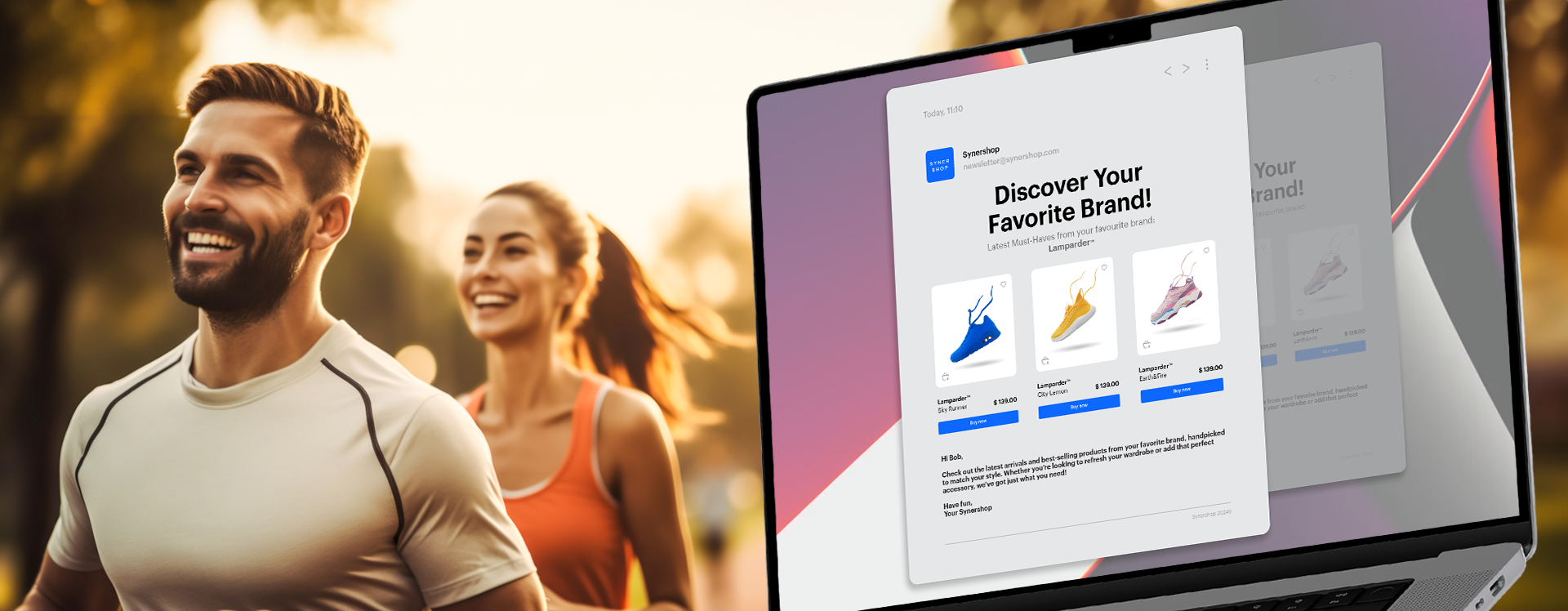
Best Fit prediction model returns the best item attribute value for the each customer in the analyzed group. It can be either color, brand, category or any other attribute value you would like to recommend.

In this use case, the goal is to reach customers with a personalized newsletter featuring products from their "Favorite Brand," based on predictions made by Synerise's AI. By leveraging the Best Fit model, products presented in the email campaign can be customized to match the preferences of individual customers and display products from their favorite brand to make it more personalized. 

By offering personalized content to each customer, focusing on products from the brand most likely to resonate with their preferences, you can increase engagement and conversion rates.


<figure>
<img src="/api/docs/image/54176ad07f146575310749eba44b7c2f42c1b327/use-cases/all-cases/_gfx/bestfit-main.png" alt="The view of the bestfit"  class="full no-frame">
</figure> 

## Prerequisites 
---
- [Create item catalog](/docs/ai-hub/recommendations-v2/item-feed-requirements) that contain `brand` attribute.
- [Enable the best fit predictions](/docs/ai-hub/predictions/enabling-predictions). It usually takes several hours to initialize  Predictions and perform necessary calculations.
- The attributes that you want to use for best fit predictions must be configured as [filterable attributes](/docs/settings/configuration/ai-engine-configuration/engine-configuration-for-propensity#selecting-filters).
- Implement transaction events using [SDK](/developers/web/transactions-sdk) or [API](https://developers.synerise.com/DataManagement/DataManagement.html#operation/CreateATransaction) to track customer transaction-related interactions.

## Process
---
1. [Create a segmentation](/use-cases/bestfit-brand#create-a-segmentation) of people who made minimum 1 purchase during last year to be sure that we generate brand prediction for users based on their previous choices. 
1. [Create a best fit prediction](/use-cases/bestfit-brand#create-a-best-fit-prediction) to return the brand which a customer is most likely to purchase from.
3. [Create an aggregate](/use-cases/bestfit-brand#create-an-aggregate) that retrieves the result of the prediction.
4. [Create AI recommendations](/use-cases/bestfit-brand#create-ai-recommendations) with personalized products from specific brand.
2. [Create an email campaign](/use-cases/bestfit-brand#create-an-email-campaign) template with AI recommendations.

## Create a segmentation
---
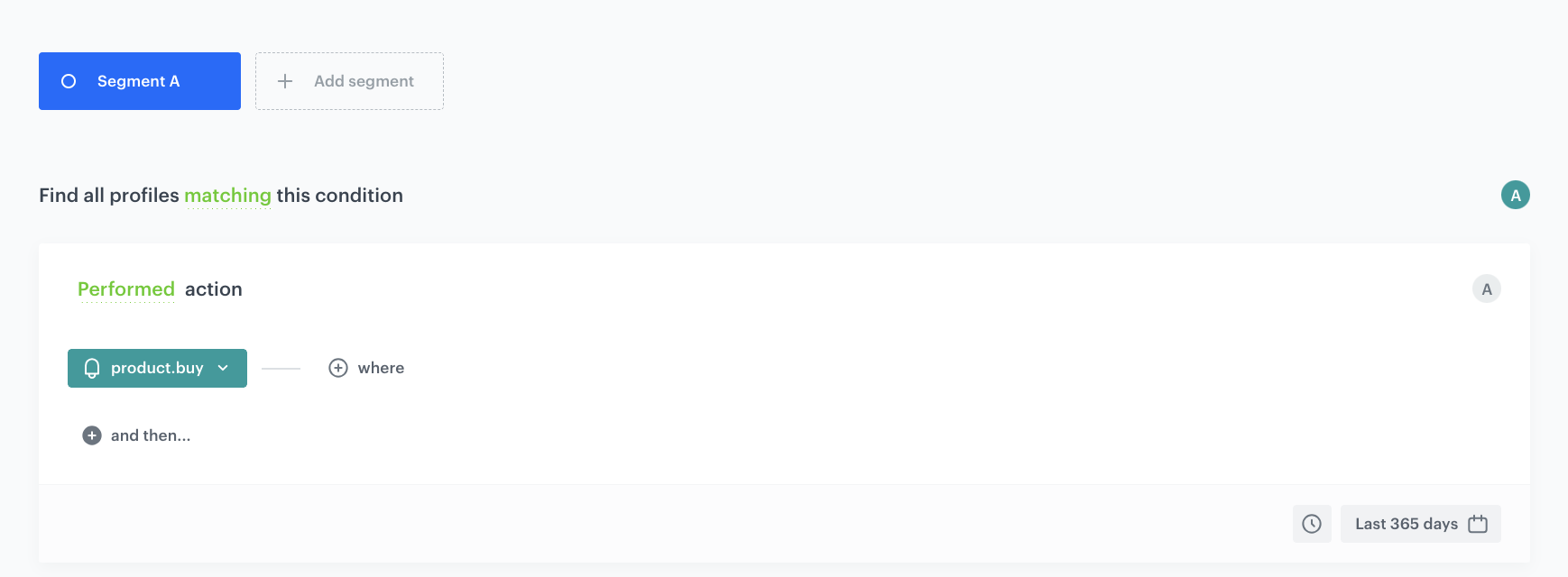
In this part of the process, we will create a group of customers who have made transaction during last year. This group will be the selected as the subject of prediction analysis in further part of the process.

1. Go to <img src="/api/docs/image/54176ad07f146575310749eba44b7c2f42c1b327/icons/decision-hub-icon.svg" alt="Decision Hub icon" class="icon">**Decision Hub > Segmentations > New segmentation**.
3. Enter the name of the segmentation.
4. Click **Add condition**.
4. From the dropdown list, select the `product.buy` event.
6. From the **Choose operator** dropdown, choose **Boolean**, and then select **Is true**.
7. Using the date picker in the lower-right corner, set the time range to **Relative time range > Last 365 days**. Confirm by clicking **Apply**.
6. Save the segmentation.
 <figure><img src="/api/docs/image/54176ad07f146575310749eba44b7c2f42c1b327/use-cases/all-cases/_gfx/segmentation-transactions.png" class="full" alt="The view of the segmentation configuration"><figcaption>Segmentation configuration</figcaption></figure>  


## Create a best fit prediction
---
In this part of the process, you will create a prediction that analyzes the group of customers you created in the previous part of the process. The prediction will predict which brand each customer in your selected group is most likely to buy from. The prediction results will be available on the profile card of each customer from the segmentation in the form of a `snr.bestfit.score` event. The `attribute` parameter will contain the name of the brand.
1. Go to <img src="/api/docs/image/54176ad07f146575310749eba44b7c2f42c1b327/icons/ai-hub-icon.svg" alt="AI Hub icon" class="icon" > **AI Hub > (AI Predictions) Models > New prediction**.
2. On the pop-up select one **Create from scratch**, and then select **Best Fit**.

### Go to Audience section 
---

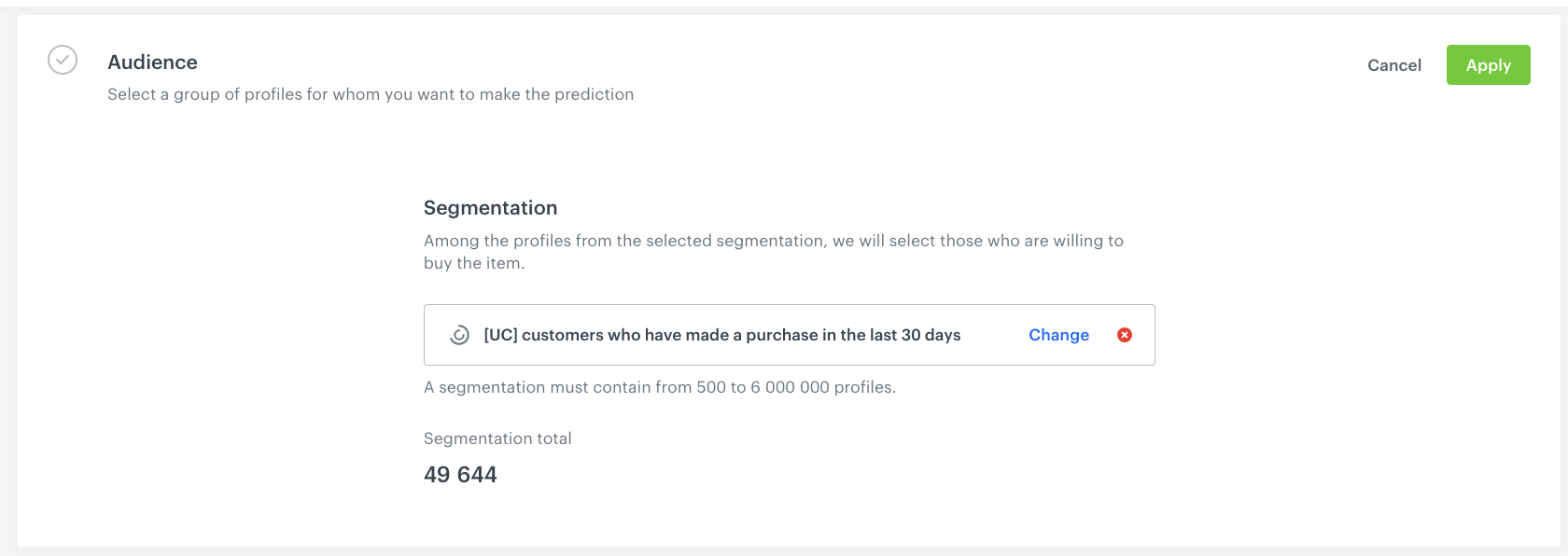
1. In the **Audience** section, click **Define**.
2. Click **Choose segmentation** and select the [segmentation](/use-cases/bestfit-brand#create-a-segmentation) created in the previous step.
3. Confirm by clicking **Apply**.

**Result**: The result of this prediction will be saved on the activity list on the profile of each customer from the segmentation as the **snr.bestfit.score** event.
 <figure><img src="/api/docs/image/54176ad07f146575310749eba44b7c2f42c1b327/use-cases/all-cases/_gfx/segmentation-audience.png" class="full" alt="The view of the segmentation configuration"><figcaption>Segmentation configuration</figcaption></figure>  


### Select items
---
1. In the **Item selection** section, click **Define**.
2. Click **Choose item feed**.
3. From the list of available catalogs, select the item feed which you created as a part of [prerequisites](/use-cases/bestfit-brand#prerequisites).
4. From the **Choose item attribute** dropdown list, select **brand**.
5. Optionally, from the **Define item filter** dropdown list, you can define the filters to include the item or items that you want to include in the analysis.
3. Click **Apply**.


### Launch the Prediction
---

1. If you want to leave the settings as default, the prediction is ready to calculate.
2. If you want to change the settings, in the **Settings** section, click **Change**.
3. To schedule a recurring calculation:
    1. Select the **Set up recurring prediction calculation** checkbox.
    2. In the input field, enter the number of days between calculations.
4. To change the start date of the prediction, in the **Settings** section, click **Change**.  
    1. Select the **Scheduled** checkbox.  
    2. In the **Select start date and time** field, specify the date and time for launching the calculation of the prediction.
5. Click **Apply**.

**Results** will be saved in the form of an event: **snr.bestfit.score.**

## Create an aggregate
---

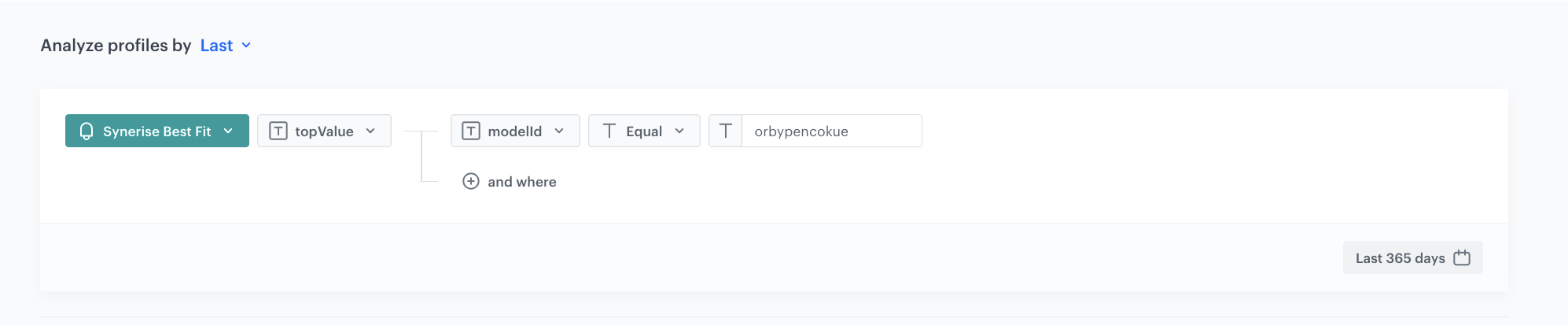
Create an aggregate which will return the latest value from the `topValue` parameter of the **snr.bestfit.score** event. This aggregate will be referenced in the filters of AI recommendation configuration.

1. Go to <img src="/api/docs/image/54176ad07f146575310749eba44b7c2f42c1b327/icons/behavioral-data-hub-icon.svg" alt="Behavioral Data Hub icon" class="icon"> **Behavioral Data Hub > Live Aggregates > Create aggregate**.
2. As the aggregate type, select **Profile**. 
2. Enter the name of the aggregate.
3. Click **Analyze profiles by** and select **Last**.
5. From the **Choose event** dropdown list, select the **snr.bestfit.score** event.
6. As the event parameter, select **topValue***.
7. Click **+ where** button.
8. From the **Choose parameter** dropdown list, select the **modelID** parameter.
9. From the **Choose operator** dropdown list, select **Equal (string)**.
10. Enter the ID of the created prediction. 
 
    <div class="admonition admonition-note"><div class="admonition-icon"><svg xmlns="http://www.w3.org/2000/svg" fill="none" viewBox="0 0 24 24" stroke="currentColor" stroke-width="2.5"><path stroke-linecap="round" stroke-linejoin="round" d="M13 16h-1v-4h-1m1-4h.01M21 12a9 9 0 11-18 0 9 9 0 0118 0z" /></svg></div><div class="admonition-body"><div class="admonition-content">

    You can find the ID in the URL of the Prediction, it is the last string of characters.

    </div></div></div>

11. Set the period from which the aggregate will analyze the results to the last **365 days**. 
12. Save the aggregate.

<figure>
<img src="/api/docs/image/54176ad07f146575310749eba44b7c2f42c1b327/use-cases/all-cases/_gfx/bestfit-aggregate.png" class="full" alt="Configuration of the aggregate">
<figcaption>Configuration of the aggregate</figcaption>
</figure>


## Create AI recommendations
---
In this part of the process, you will create an AI recommendation that will display items from the customer's brand returned in the prediction results.

1. Go to <img src="/api/docs/image/54176ad07f146575310749eba44b7c2f42c1b327/icons/ai-hub-icon.svg" alt="AI Hub icon" class="icon" > **AI Hub > (AI Recommendations) Models > Add recommendation**.
2. Enter the name of the recommendation (it is only visible on the list of recommendations).
3. In the **Type & Items feed** section, click **Define**.
4. From the **Items feed** dropdown list, select a product feed.
5. Select the **Personalized** recommendation type.  
6. Confirm the recommendation type by clicking **Apply**.  
6. In the **Items** section, click **Define**.  
8. Define the minimum and maximum number of products displayed in the frame according to your needs.
9. Use filters to include specific items in the recommendation frame.
6. Click **Elastic filter**.  
    
   <div class="admonition admonition-note"><div class="admonition-icon"><svg xmlns="http://www.w3.org/2000/svg" fill="none" viewBox="0 0 24 24" stroke="currentColor" stroke-width="2.5"><path stroke-linecap="round" stroke-linejoin="round" d="M13 16h-1v-4h-1m1-4h.01M21 12a9 9 0 11-18 0 9 9 0 0118 0z" /></svg></div><div class="admonition-body"><div class="admonition-content">

   Learn about the difference among [elastic, static filters](/docs/ai-hub/recommendations-v2/creating-recommendation-campaign#select-conditions-of-displaying-items), and [distinct filters](/docs/ai-hub/recommendations-v2/creating-recommendation-campaign#distinct-filter).

   </div></div></div>

7. From the dropdown list, choose **Visual Builder**.
7. Click **Select attribute**.
7. From the dropdown list, choose the **brand** attribute.
8. Click **Operator**.
9. From the dropdown menu, choose **Equals**.
10. Click the icon next to **Select value**.
11. Select **Aggregate**
12. Click **Select value**.
11. From the dropdown list, choose the aggregate created in the [previous step](/use-cases/bestfit-brand#create-an-aggregate).
11. At the bottom of the elastic filter pop-up, click **Apply**.
12. In the **Items** section, click **Apply**. 
1.  In **Boosting**, you can enable [boosting](/docs/ai-hub/recommendations-v2/creating-recommendation-campaign#define-the-boosting-factors).
13. In **Additional settings**, optionally you can exclude already bought products and set a metric to sort by. Remember that you can define the order of slots if you have created more than one.
14. Save the recommendation by clicking **Save**. 

## Create an email campaign 
---
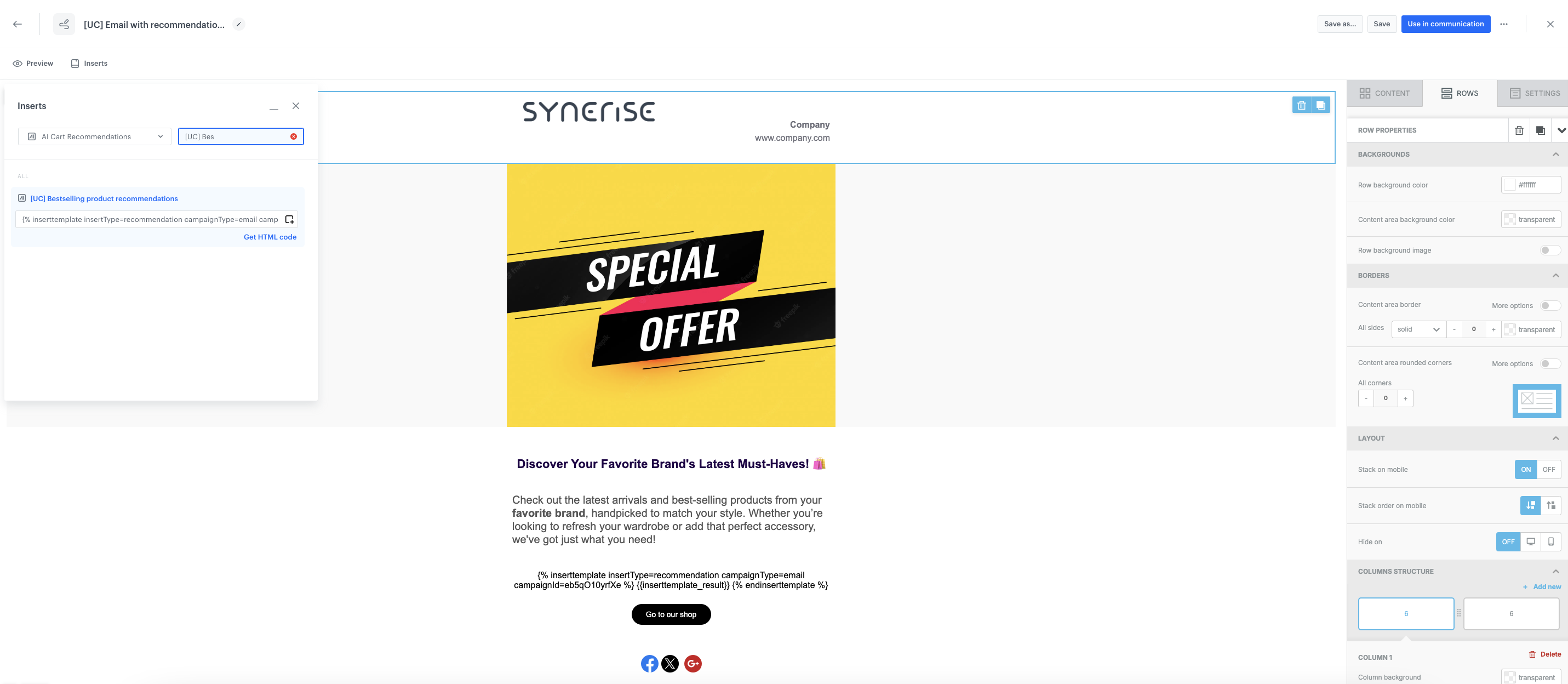
To distribute the product recommendations based on the results from the best fit prediction, prepare an email template that contains the recommendation you created in the previous part of the process.

   1. Go to **Experience Hub > Emails > Templates > Drag&drop builder** or **Code editor** to create an email template..
   2. Click **Inserts** in the upper right corner, find **AI Recommendations** on the list of inserts, then choose the recommendation you prepared in the [previous step](/use-cases/bestfit-brand#create-ai-recommendations). 
   4. Save the template.

 <figure>
    <img src="/api/docs/image/54176ad07f146575310749eba44b7c2f42c1b327/use-cases/all-cases/_gfx/bestfit_email.png" alt="Screenshot presenting email template for anniversarie coupon"  class="full">
    <figcaption> Prepare an email template </figcaption>
    </figure>

Use the template in an [email campaign](/docs/campaign/e-mail/creating-email-campaigns) which you can send to the group of customers created [at the beginning of the process](/use-cases/bestfit-brand#create-a-segmentation) to encourage them to make another purchase from their favorite brand.

## Check the use case set up on the Synerise Demo workspace
---

You can also check on our demo account the:
- [segmentation](https://app.synerise.com/analytics-v2/segmentations/c39f2834-3f44-4f1d-96d8-0ed6fb272221), 
- [aggregate](https://app.synerise.com/analytics/aggregates/673eb2b8-8869-329c-b6d4-b79e3a0f99bf),
- [prediction](https://app.synerise.com/ai-v2/predictions/best-fit-propensity/orbypencokue),
- [AI recommendations](https://app.synerise.com/ai-v2/recommendations/eb5qO10yrfXe).

If you’re our partner or client, you already have automatic access to the **Synerise Demo workspace (1590)**, where you can explore all the configured elements of this use case and copy them to your workspace.  

If you’re not a partner or client yet, we encourage you to fill out the contact [form](https://demo.synerise.com/request) to schedule a meeting with our representatives. They’ll be happy to show you how our demo works and discuss how you can apply this use case in your business. 

## Check our latest Case Study
---

Check our [Case Study](https://www.synerise.com/case-study/modivo) with **Modivo** and discover how they leveraged Synerise BaseModel.AI to send personalized mailing with customers's favourite brand.

## Read more
---
- [Aggregates](/docs/analytics/aggregates)
- [Creating recommendations](/docs/ai-hub/recommendations-v2/creating-recommendation-campaign)
- [Email](/docs/campaign/e-mail)
- [Predictions](/docs/ai-hub/predictions/predictions-introduction)


