If your customers are at risk of churn, you can increase the probability of discounted items appearing in their recommendations. Thanks to this, they are more likely to make a purchase.
This can be done by using **recommendation boosting** to promote discounted items. Boosting rules are built using the same editor as the filters, but unlike filtering, boosting does not entirely exclude items that do not meet the conditions - it only tells the AI model to assign more weight to the discount value parameter when calculating the final recommendation score (relevance to a particular customer) of an item.
## Prerequisites
---
1. **Recommended**: Become familiar with [creating recommendations](/docs/ai-hub/recommendations-v2/creating-recommendation-campaign) and [recommendation filters](/docs/ai-hub/recommendations-v2/recommendation-filters) (using the IQL query editor).
This article does not explain every step of creating a recommendation in detail.
1. The item feed must contain information about discounts.
In this example, the discount is defined as a percentage.
2. Predict churn for a group of customers.
The [Predict churn](/use-cases/churn-prediction) use case includes detailed instructions.
3. Create a segmentation of customers for whom the `score-label` parameter in the `snr.prediction.score` event from the prediction was `high` or `very high`.
This segment of customers will be needed to set up the boosting conditions.
[Learn more about creating segmentations](/docs/analytics/segmentations/creating-segmentations).
## Creating the recommendation
---
### Choose source, type, and add slots
1. Go to **AI Hub > (AI Recommendations) Models > Add recommendation**.
2. In the **Type & Items feed** section:
1. Select an item catalog.
2. Select a recommendation type.
Boosting can be used with all recommendation types.
3. Click **Apply**.
3. In the **Items** section, configure at least one slot and click **Apply**.
### Build the boosting rule in IQL query editor
In this part of the process, you build the following rule:
- If the customer is at risk of churn, filter the boosting to only apply to items that are discounted 10% or more.
- If the customer is NOT at risk of churn, apply boosting to all items (so, effectively, no items are boosted).
1. In the **Boosting** section, click **Define**.
2. Click **Add rule**.
3. Click **Define rule** and select **IQL query**.
**Result**: The IQL query editor opens.
4. Click **Select > Function**.
5. Click the added function and select **IF**.
The IF function accepts three variables, from the left: the condition, the result if the condition evaluates to TRUE, and the result if the condition evaluates to FALSE.
6. Add the condition that customer must be at risk of churn:
1. Click the first **Select** node and select **Segmentation**.
2. To the right from **client.segmentations**, click the plus icon and select **Attribute**.
2. Click the **null** element that appeared.
4. From the **Property** drop-down list below the canvas, select **Segmentation**.
5. Click **Select value** and select the segmentation that includes customers at risk of churn.
You can use the search field.
6. Click the plus icon between **client.segmentations** and the segmentation ID and select the **HAS** operator.
7. Add the `if TRUE` result:
1. Click the **Select** node and select **Attribute**.
2. Click the **null** element that appeared.
3. In the attribute selector below the canvas, click **Select value**.
4. Select the discount `special.price` attribute.
You can use the search field.
5. To the right from the attribute node, click the plus icon and select **Number**.
6. Click the plus icon between the attribute and the number and select the **equal** operator.
7. In the input field enter `true`.
9. Click **Apply**.
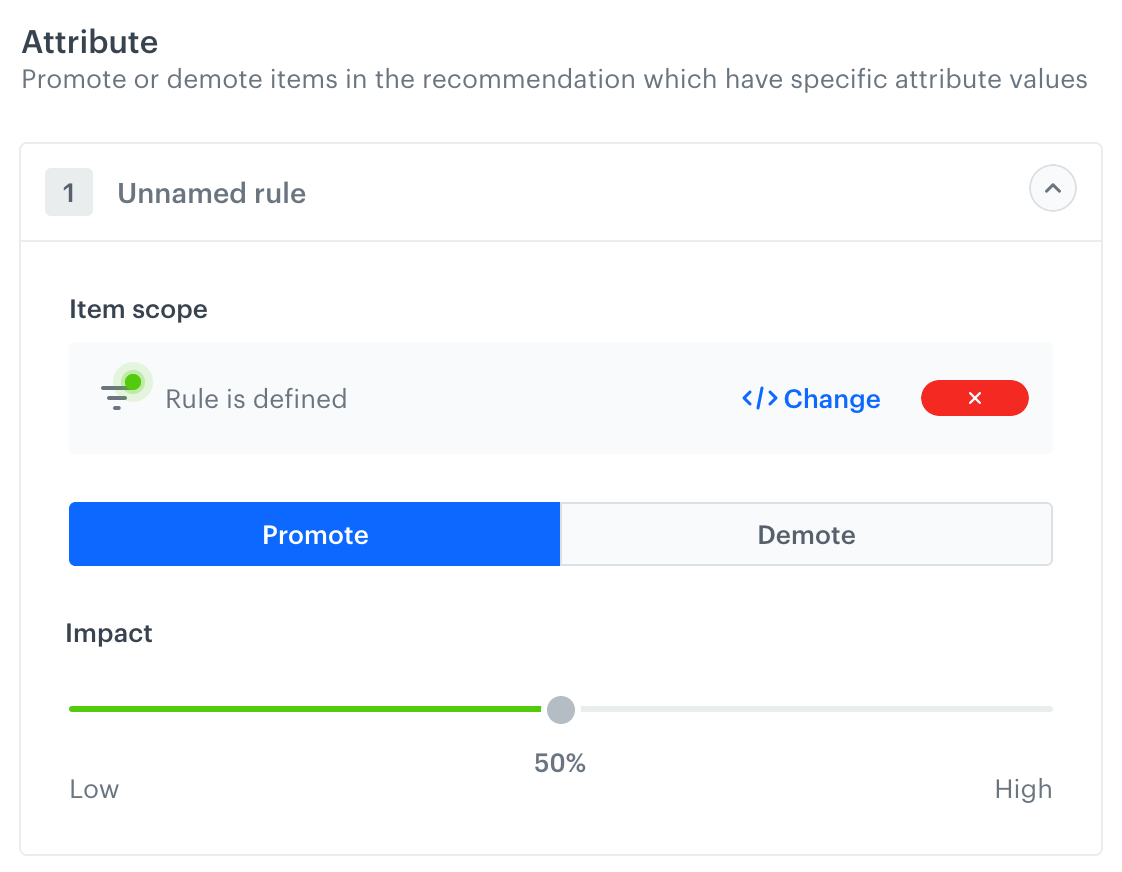
10. In the **Promote/Demote** selector, select **Promote** (default value).
11. Use the slider to adjust how much you want the rule to affect the results.
The boosting strength slider
12. Save the **Boosting** section settings by clicking **Apply**.
After applying the settings, you can use the **Preview** tab (available in the upper left part of the recommendation creator screen) to see how your rule changed the recommendation result. If necessary, you can return to the settings and adjust the boosting strength to meet your expectations.
Boosting rule for including items that are discounted 10% or more when the customer is at risk of churn
### Additional settings and saving
1. Configure the **Additional settings** section and click **Apply**.
2. Save the recommendation.
## What's next
---
You can use the ID of the recommendation and [inject it with a snippet](/docs/assets/snippets) in other types of communication, such as:
- [dynamic content](/docs/campaign/dynamiccontent) - this way you can show the recommendations on your website.
- [email](/docs/campaign/e-mail) - this way you can send out recommended items through emails.
- mobile application - you can use [documents](/docs/assets/documents) to build your own mobile app and show the recommended items.
- [mobile push](/docs/campaign/Mobile) - you can send recommendations through notifications in your mobile application.
- [web push](/docs/campaign/Webpush) - this way you can send notifications to your customers through a web browser.
- [SMS](/docs/campaign/SMS) - this way you can reach your customers with recommendations on their mobile.
## Check the use case set up on the Synerise Demo workspace
---
You can find the analyses created in this use case in our Synerise Demo workspace at the following links:
- [Propensity prediction](https://app.synerise.com/ai-v2/recommendations/W2JGxpllqirV)
- [Segmentation](https://app.synerise.com/analytics-v2/segmentations/9ec901b4-2ea0-47dc-9285-023d2000e8cf)
If you’re our partner or client, you already have automatic access to the **Synerise Demo workspace (1590)**, where you can explore all the configured elements of this use case and copy them to your workspace.
If you’re not a partner or client yet, we encourage you to fill out the contact [form](https://demo.synerise.com/request) to schedule a meeting with our representatives. They’ll be happy to show you how our demo works and discuss how you can apply this use case in your business.
## Read more
---
- [Recommendations](/docs/ai-hub/recommendations-v2)
 **AI Hub > (AI Recommendations) Models > Add recommendation**.
2. In the **Type & Items feed** section:
1. Select an item catalog.
2. Select a recommendation type.
**AI Hub > (AI Recommendations) Models > Add recommendation**.
2. In the **Type & Items feed** section:
1. Select an item catalog.
2. Select a recommendation type.
