Similar product recommendations are one of the popular ways of showing customers products that align with their preferences. In addition, this type of recommendation helps the customer make a purchase decision more quickly by choosing among products that are similar to those they have seen before, thus showing interest in those products.
Additional reinforcement of these recommendations with customers' favorite brands makes them even more aligned with their preferences and intrinsic expectations. In this case, such reinforcement is accomplished by using an aggregator that returns the brands of products that have been viewed most frequently by customers.
The personalization enhancement factor takes recommendations to a whole new level, where in addition to a similar product recommendation model and boosting filters, the personalization model influences the scoring of items according to each customer's preferences. The combination of all these features allows you to get the best value for customers by presenting them with the most relevant products.
## Prerequisites
---
- [Create items catalog](/docs/ai-hub/recommendations-v2/item-feed-requirements). The item catalog must include an attribute which will be used to denote (in this use case, it's the brand attribute).
- [Configure an item catalog for recommendations](/docs/settings/configuration/ai-engine-configuration/engine-configuration-for-recommendations). Enable similar recommendations.
- Implement transaction events using [SDK](/developers/web/transactions-sdk) or [API](https://developers.synerise.com/DataManagement/DataManagement.html#operation/CreateATransaction).
## Process
---
1. [Create an aggregate](/use-cases/boost-favorite-brand#create-an-aggregate).
2. [Create recommendation](/use-cases/boost-favorite-brand#create-a-recommendation).
## Create an aggregate
---
In this part of the process, create an aggregate that returns the customer's most frequently purchased product brands.
1. Go to **Behavioral Data Hub > Live Aggregates > Create aggregate**.
2. As the aggregate type, select **Profile**.
2. Enter the name of the aggregate.
3. Click **Analyze profiles by** and select **Top**.
4. From the **Choose event** dropdown list, select the **product.buy** event.
5. As the event parameter, select **brand**.
6. Define the period from which the aggregate will return products from the event.
7. Save the aggregate.
Configuration of the aggregate
## Create a recommendation
---
1. Go to **AI Hub > (AI Recommendations) Models > Add recommendation**.
2. In the top left corner, enter the name of your recommendation.
3. In the **Type & Items feed** section, click **Define**.
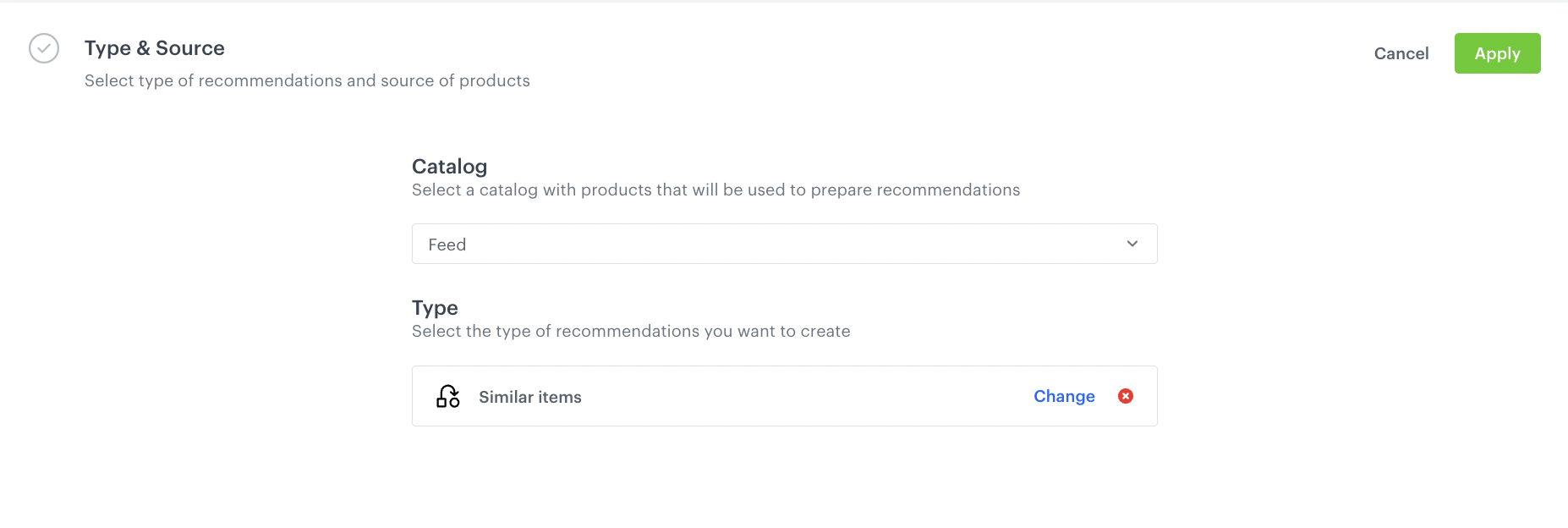
4. From the **Items feed** dropdown menu, choose the provided feed.
5. Choose the **Similar items** recommendation type.
Configuraion of the catalog and recommendation type section
6. Click **Apply**.
7. In the **Items** section, click **Define**.
1. Click **Add slot**.
2. Define the minimum and maximum number of items that will be recommended to the user in each slot.
3. Confirm by clicking **Apply**.
8. In the **Boosting** section:
1. Click **Define**.
2. Click **Add rule**.
3. Click **Define rule** and select **Visual Builder**.
**Result**: The Visual Builder window opens.
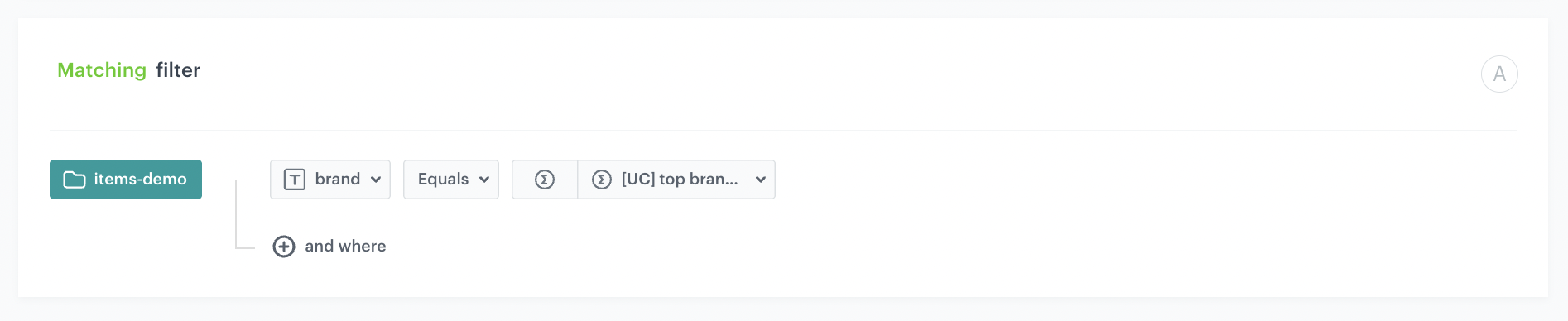
4. From the **Select attribute** dropdown list, select the **brand** attribute.
You can use the search field.
5. From the **Operator** dropdown list, select **Equals**.
6. Click the value type icon () and choose **Aggregate**.
7. From the **Choose aggregate** dropdown list, select an aggregate created in [the previous step](/use-cases/boost-favorite-brand#create-an-aggregate).
8. Click **Apply**.
Boosting items with the most popular customer brands
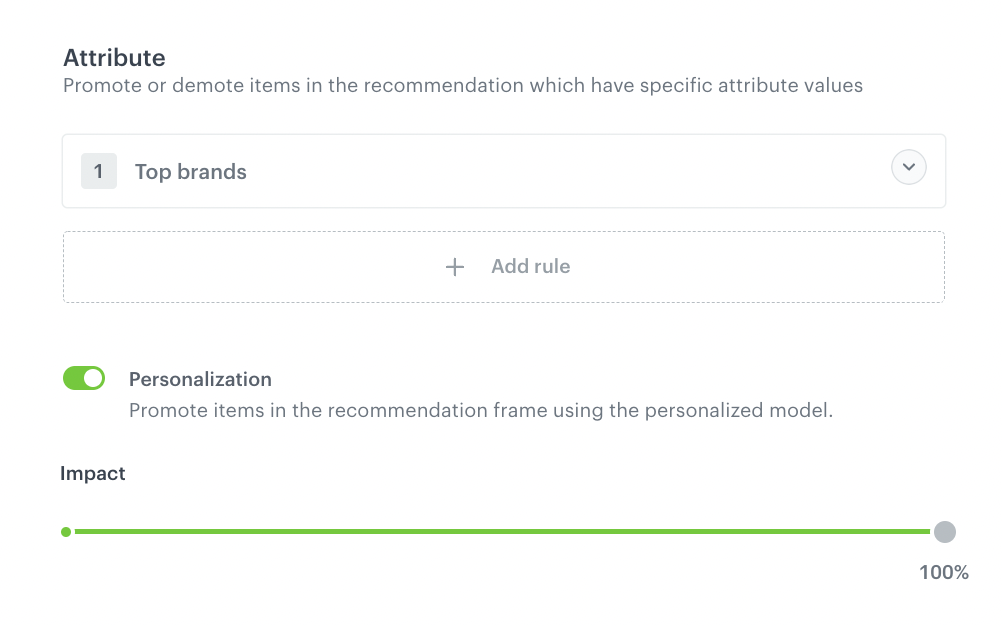
9. In the **Promote/Demote** selector, select **Promote** (default value).
10. Use the slider to adjust how much you want the rule to affect the results.
11. Enable the **Personalization** toggle.
12. From the Impact scrollbar, select how much you want the personalization model to influence the arrangement of items in the recommendation.
13. Confirm the settings by clicking **Apply**.
Example of boosting configuration
14. Save the **Boosting** section settings by clicking **Apply**.
15. Optionally, you can define the settings in the **Additional settings** section.
16. Save the recommendation.
## What's next
---
You can display the recommendation to customers in several ways, for example by using the [recommendation insert](/developers/inserts/recommendations-v2) in [dynamic content](/docs/campaign/dynamiccontent/creating-dynamic-content) or in a mobile app ([Android](/developers/mobile-sdk/displaying-recommendations/content-widget/android) and [iOS](/developers/mobile-sdk/displaying-recommendations/content-widget/ios)).
If you decide to implement recommendations through dynamic content then you need to implement [Synerise JS SDK](/developers/web/installation-and-configuration) and [OG tags](/developers/web/og-tags) into your website. Alternatively, you can also implement campaigns through [API](https://developers.synerise.com/AIRecommendations/AIRecommendations.html#operation/GetRecommendationsByCampaignV2).
## Check the use case set up on the Synerise Demo workspace
---
You can also check the [aggregate](https://app.synerise.com/analytics/aggregates/04a8575c-9c62-37bb-a4ee-c99238e38ba5) and [AI recommendation](https://app.synerise.com/ai-v2/recommendations/DSdqtmHxXDXS) configuration directly in Synerise Demo workspace.
If you’re our partner or client, you already have automatic access to the **Synerise Demo workspace (1590)**, where you can explore all the configured elements of this use case and copy them to your workspace.
If you’re not a partner or client yet, we encourage you to fill out the contact [form](https://demo.synerise.com/request) to schedule a meeting with our representatives. They’ll be happy to show you how our demo works and discuss how you can apply this use case in your business.
## Read more
---
- [Creating aggregates](/docs/analytics/aggregates/creating-aggregates)
- [Creating recommendations](/docs/ai-hub/recommendations-v2/creating-recommendation-campaign)
- [Filters in recommendations](/docs/ai-hub/recommendations-v2/recommendation-filters)
- [Requirements for item feed](/docs/ai-hub/recommendations-v2/item-feed-requirements)

 **Behavioral Data Hub > Live Aggregates > Create aggregate**.
2. As the aggregate type, select **Profile**.
2. Enter the name of the aggregate.
3. Click **Analyze profiles by** and select **Top**.
4. From the **Choose event** dropdown list, select the **product.buy** event.
5. As the event parameter, select **brand**.
6. Define the period from which the aggregate will return products from the event.
7. Save the aggregate.
**Behavioral Data Hub > Live Aggregates > Create aggregate**.
2. As the aggregate type, select **Profile**.
2. Enter the name of the aggregate.
3. Click **Analyze profiles by** and select **Top**.
4. From the **Choose event** dropdown list, select the **product.buy** event.
5. As the event parameter, select **brand**.
6. Define the period from which the aggregate will return products from the event.
7. Save the aggregate.
 **AI Hub > (AI Recommendations) Models > Add recommendation**.
2. In the top left corner, enter the name of your recommendation.
3. In the **Type & Items feed** section, click **Define**.
4. From the **Items feed** dropdown menu, choose the provided feed.
5. Choose the **Similar items** recommendation type.
**AI Hub > (AI Recommendations) Models > Add recommendation**.
2. In the top left corner, enter the name of your recommendation.
3. In the **Type & Items feed** section, click **Define**.
4. From the **Items feed** dropdown menu, choose the provided feed.
5. Choose the **Similar items** recommendation type.
 ) and choose **Aggregate**.
7. From the **Choose aggregate** dropdown list, select an aggregate created in [the previous step](/use-cases/boost-favorite-brand#create-an-aggregate).
8. Click **Apply**.
) and choose **Aggregate**.
7. From the **Choose aggregate** dropdown list, select an aggregate created in [the previous step](/use-cases/boost-favorite-brand#create-an-aggregate).
8. Click **Apply**.