Customers are looking for the most convenient solutions to make their experience smooth and intuitive, allowing them to find what they are looking for quickly.
Adding products to the favorites is an excellent enhancement that helps customers collect products they like while browsing the site and return to them later to make a purchase. It's also a perfect opportunity for marketers to use knowledge of customer preferences to promote products they've expressed interest in, encouraging visitors to return and increasing sales.
This use case describes creating personalized recommendations with filters that will boost products customers have added to their favorites.
## Prerequisites
---
- [Configure an item catalog for recommendations](/docs/settings/configuration/ai-engine-configuration/engine-configuration-for-recommendations). Enable personalized recommendations.
- Implement a custom event for adding a product to favorites, which will be available in the customer profile.
In this example, the event is called `product.addToFavorite`.
Implement custom events in your [mobile application](/developers/mobile-sdk/event-tracking#product-added-to-favorites) or [website](/developers/web/event-tracking#declarative-tracking-custom-events).
## Process
---
In this use case, you will go through the following steps:
1. [Create an aggregate](/use-cases/boost-favorite-products#create-an-aggregate).
2. [Create a recommendation](/use-cases/boost-favorite-products#create-a-recommendation).
## Create an aggregate
---
In this part of the process, create an aggregate that will return the products the user added to favorites.
1. Go to **Behavioral Data Hub > Live Aggregates > Create aggregate**.
2. As the aggregate type, select **Profile**.
2. Enter the name of the aggregate.
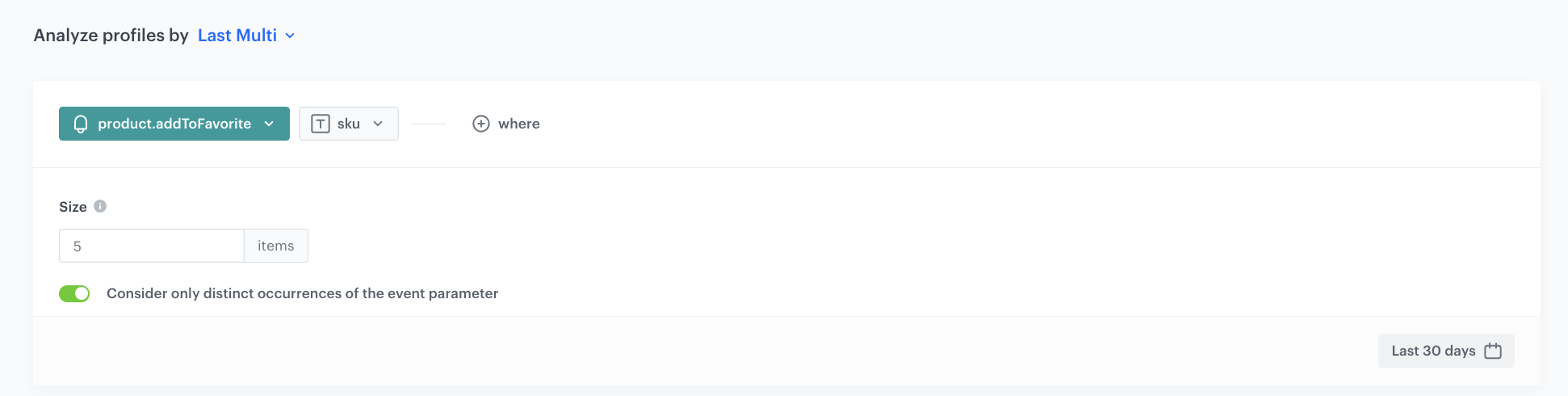
3. Click **Analyze profiles by** and select **Last Multi**.
4. Select **Consider only unique occurence of the event parameter**.
5. In the **Size** field, enter the number of returned SKUs.
6. Select the **product.addToFavorite** event.
7. Select the **sku** parameter.
8. Define the period from which the aggregate will return products from the event.
9. Save the aggregate.
Configuration of the aggregate
## Create a recommendation
---
1. Go to **AI Hub > (AI Recommendations) Models > Add recommendation**.
2. In the top left corner, enter the name of your recommendation.
3. In the **Type & Items feed** section, click Define.
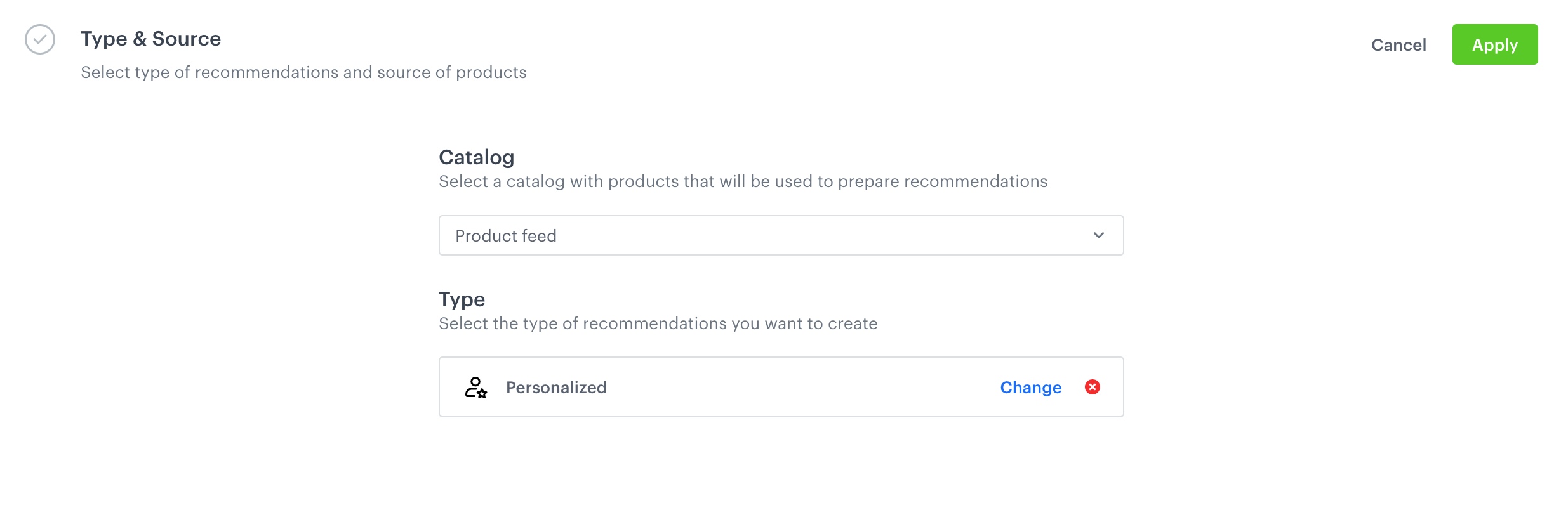
4. From the **Items feed** dropdown menu, choose the provided feed.
5. Choose the **Personalized** recommendation type.
Configuraion of the catalog and recommendation type section
6. Click **Apply**.
7. In the **Items** section, click **Define**.
1. Click **Add slot**.
2. Define the minimum and maximum number of items that will be recommended to the user in each slot.
In our example, one slot returns from 5 (minimum) to 10 (maximum) products.
3. Confirm by clicking **Apply**.
8. In the **Boosting** section:
1. Click **Define**.
2. Click **Add rule**.
3. Click **Define rule** and select **Visual Builder**.
**Result** The Visual Builder window opens.
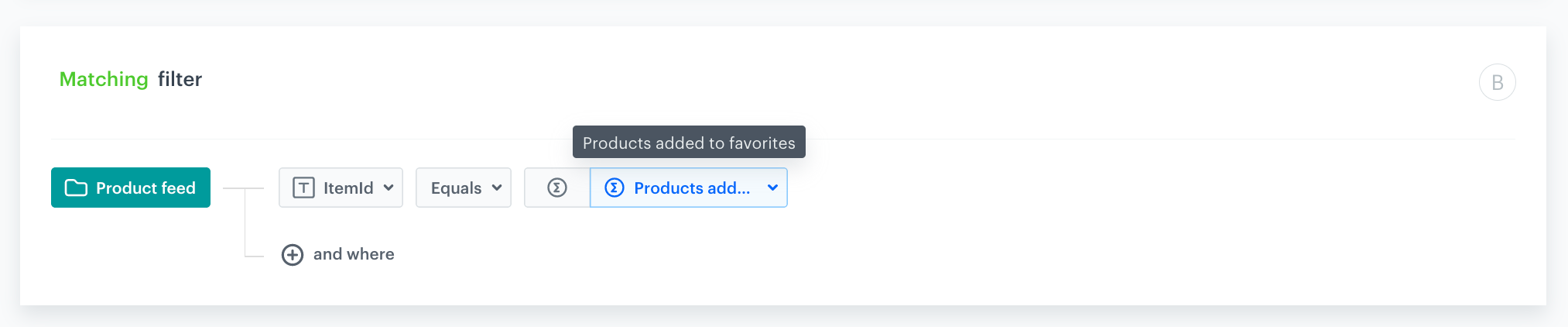
4. From the **Select attribute** dropdown list, select the **itemId** attribute.
You can use the search field.
5. From the **Operator** dropdown list, select **Equals**.
6. Click the value type icon () a few times until it changes to the aggregate icon.
7. From the **Choose aggregate** drop-down list, select an aggregate created in [the previous step](/use-cases/boost-favorite-products#create-an-aggregate).
8. Click **Apply**.
Boosting items added to favorites
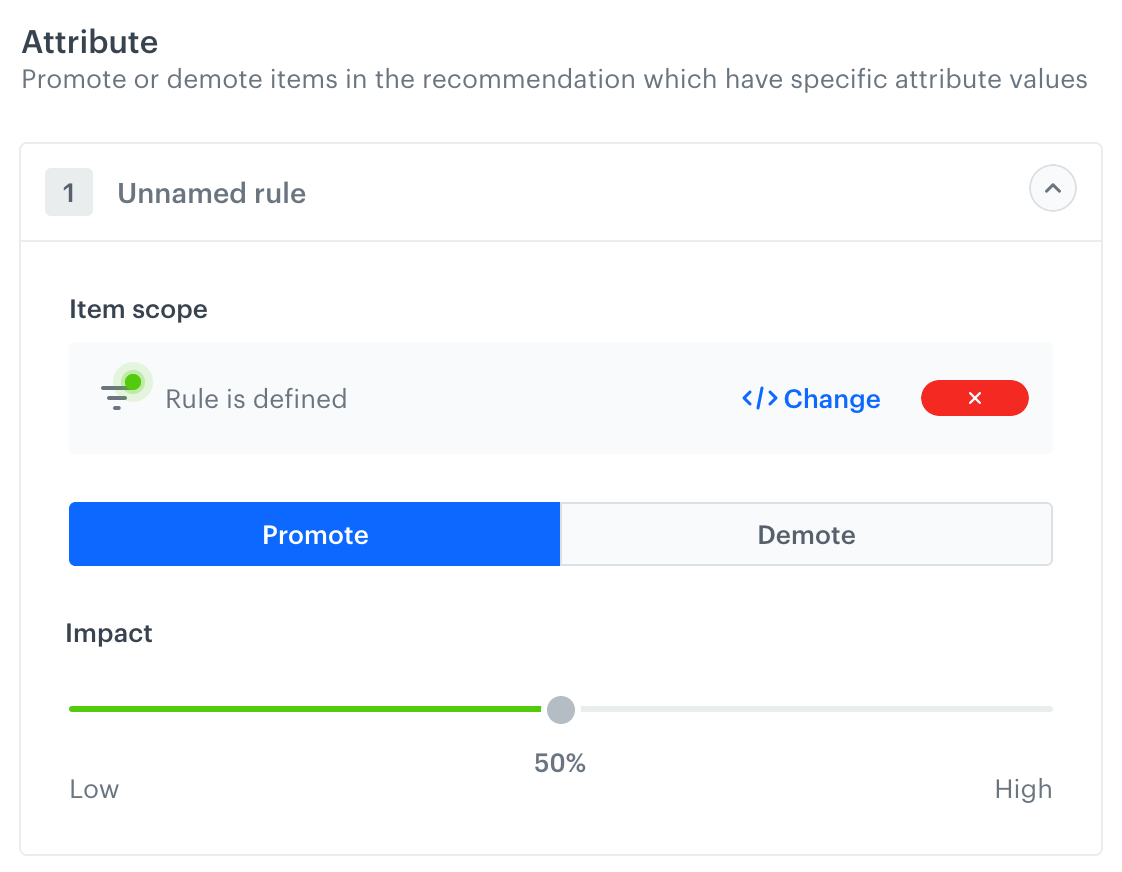
9. In the **Promote/Demote** selector, select **Promote** (default value).
10. Use the slider to adjust how much you want the rule to affect the results.
11. Save the **Boosting** section settings by clicking **Apply**.
The boosting strength slider
9. Optionally, you can define the settings in the **Additional settings** section.
10. Save the recommendation.
## What's next
---
You can display the recommendation to customers in several ways, for example by using the [recommendation insert](/developers/inserts/recommendations-v2) in [dynamic content](/docs/campaign/dynamiccontent/creating-dynamic-content) or in a mobile app using documents - [iOS SDK](/developers/mobile-sdk/displaying-recommendations/content-widget/ios), [Android SDK](/developers/mobile-sdk/displaying-recommendations/content-widget/android).
## Check the use case set up on the Synerise Demo workspace
---
You can also check the [AI recommendation configuration](https://app.synerise.com/ai-v2/recommendations/dqc05RBMvEwO) and [aggregate](https://app.synerise.com/analytics/aggregates/8b2c2e9e-24e0-30ff-aca6-a9f024a99306) directly in Synerise Demo workspace.
If you’re our partner or client, you already have automatic access to the **Synerise Demo workspace (1590)**, where you can explore all the configured elements of this use case and copy them to your workspace.
If you’re not a partner or client yet, we encourage you to fill out the contact [form](https://demo.synerise.com/request) to schedule a meeting with our representatives. They’ll be happy to show you how our demo works and discuss how you can apply this use case in your business.
## Read more
---
- [Creating aggregates](/docs/analytics/aggregates/creating-aggregates)
- [Creating recommendations](/docs/ai-hub/recommendations-v2/creating-recommendation-campaign)
- [Filters in recommendations](/docs/ai-hub/recommendations-v2/recommendation-filters)
- [Requirements for item feed](/docs/ai-hub/recommendations-v2/item-feed-requirements)
 **Behavioral Data Hub > Live Aggregates > Create aggregate**.
2. As the aggregate type, select **Profile**.
2. Enter the name of the aggregate.
3. Click **Analyze profiles by** and select **Last Multi**.
4. Select **Consider only unique occurence of the event parameter**.
5. In the **Size** field, enter the number of returned SKUs.
6. Select the **product.addToFavorite** event.
7. Select the **sku** parameter.
8. Define the period from which the aggregate will return products from the event.
9. Save the aggregate.
**Behavioral Data Hub > Live Aggregates > Create aggregate**.
2. As the aggregate type, select **Profile**.
2. Enter the name of the aggregate.
3. Click **Analyze profiles by** and select **Last Multi**.
4. Select **Consider only unique occurence of the event parameter**.
5. In the **Size** field, enter the number of returned SKUs.
6. Select the **product.addToFavorite** event.
7. Select the **sku** parameter.
8. Define the period from which the aggregate will return products from the event.
9. Save the aggregate.
 **AI Hub > (AI Recommendations) Models > Add recommendation**.
2. In the top left corner, enter the name of your recommendation.
3. In the **Type & Items feed** section, click Define.
4. From the **Items feed** dropdown menu, choose the provided feed.
5. Choose the **Personalized** recommendation type.
**AI Hub > (AI Recommendations) Models > Add recommendation**.
2. In the top left corner, enter the name of your recommendation.
3. In the **Type & Items feed** section, click Define.
4. From the **Items feed** dropdown menu, choose the provided feed.
5. Choose the **Personalized** recommendation type.
 ) a few times until it changes to the aggregate icon.
7. From the **Choose aggregate** drop-down list, select an aggregate created in [the previous step](/use-cases/boost-favorite-products#create-an-aggregate).
8. Click **Apply**.
) a few times until it changes to the aggregate icon.
7. From the **Choose aggregate** drop-down list, select an aggregate created in [the previous step](/use-cases/boost-favorite-products#create-an-aggregate).
8. Click **Apply**.