It's hard to disagree that the ultimate goal of business is to make a profit. To achieve specific profit margin targets, marketers need to create an effective plan to achieve these goals. One of the ways to increase profits is to recommend higher-margin items to customers than the average margin of items typically purchased by customers while personalizing the results of product recommendations. This approach can streamline sales efforts without involving high costs.
## Prerequisites
---
- [Create items catalog](/docs/ai-hub/recommendations-v2/item-feed-requirements). The item catalog must include an attribute which will be used to denote (in this use case, it's the `margin` attribute, which contains the margin value for each product).
- [Configure an item catalog for recommendations](/docs/settings/configuration/ai-engine-configuration/engine-configuration-for-recommendations). Enable personalized recommendations.
- Implement transaction events using [SDK](/developers/web/transactions-sdk) or [API](https://developers.synerise.com/DataManagement/DataManagement.html#operation/CreateATransaction).
When implementing transaction events, remember to add a `margin` parameter, which will contain the value of the margin on the sold product.
## Process
---
1. [Create an aggregate](/use-cases/boost-higher-margin-products#create-an-aggregate).
2. [Create recommendation](/use-cases/boost-higher-margin-products#create-a-recommendation).
## Create an aggregate
---
In this part of the process, create an aggregate that returns the average margin value of the products bought by an individual customer.
1. Go to **Behavioral Data Hub > Live Aggregates > Create aggregate**.
2. As the aggregate type, select **Profile**.
2. Enter the name of the aggregate.
3. Click **Analyze profiles by** and select **Average**.
4. From the **Choose event** dropdown list, select the **product.buy** event.
5. As the event parameter, select **margin**.
6. Define the period from which data will be analyzed.
7. Save the aggregate.
Configuration of the aggregate
## Create a recommendation
---
1. Go to **AI Hub > (AI Recommendations) Models > Add recommendation**.
2. In the top left corner, enter the name of your recommendation.
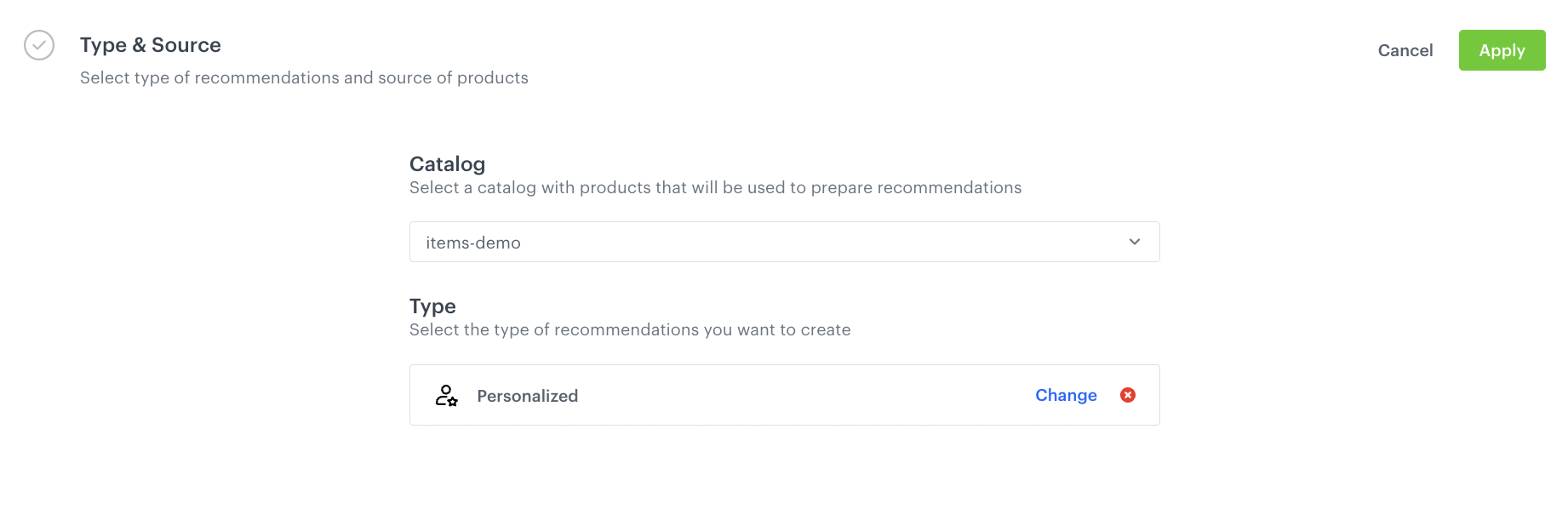
3. In the **Type & Items feed** section, click **Define**.
4. From the **Items feed** dropdown menu, choose the provided feed.
5. Choose the **Personalized** recommendation type.
Configuraion of the catalog and recommendation type section
6. Click **Apply**.
7. In the **Items** section, click **Define**.
1. Click **Add slot**.
2. Define the minimum and maximum number of items that will be recommended to the user in each slot.
3. Confirm by clicking **Apply**.
8. In the **Boosting** section:
1. Click **Define**.
2. Click **Add rule**.
3. Click **Define rule** and select **Visual Builder**.
**Result**: The Visual Builder window opens.
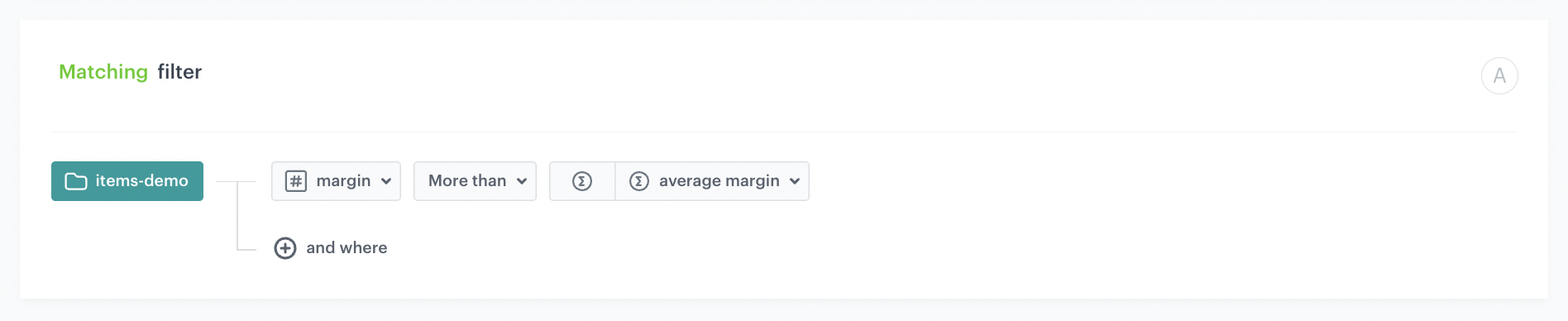
4. From the **Select attribute** dropdown list, select the **margin** attribute.
You can use the search field.
5. From the **Operator** dropdown list, select **More than**.
6. Click the value type icon () and choose **Aggregate**.
7. From the **Choose aggregate** dropdown list, select an aggregate created in [the previous step](/use-cases/boost-higher-margin-products#create-an-aggregate).
The configured filter allows you to boost items with a margin higher than the one returned in the created aggregate.
8. Click **Apply**.
Boosting items with margins higher than the average margin of products purchased by the customer
9. In the **Promote/Demote** selector, select **Promote** (default value).
10. Use the slider to adjust how much you want the rule to affect the results.
11. Save the **Boosting** section settings by clicking **Apply**.
12. Optionally, you can define the settings in the **Additional settings** section.
13. Save the recommendation.
## What's next
---
You can display the recommendation to customers in several ways, for example by using the [recommendation insert](/developers/inserts/recommendations-v2) in [dynamic content](/docs/campaign/dynamiccontent/creating-dynamic-content) or in a mobile app using documents - [iOS SDK](/developers/mobile-sdk/displaying-recommendations/content-widget/ios), [Android SDK](/developers/mobile-sdk/displaying-recommendations/content-widget/android).
If you decide to implement recommendations through dynamic content then you need to implement [Synerise JS SDK](/developers/web/installation-and-configuration) and [OG tags](/developers/web/og-tags) into your website. Alternatively, you can also implement campaigns through [API](https://developers.synerise.com/AIRecommendations/AIRecommendations.html#operation/GetRecommendationsByCampaignV2).
## Check the use case set up on the Synerise Demo workspace
---
You can also check the [aggregate](https://app.synerise.com/analytics/aggregates/f8a165a0-1deb-3ab8-8e20-9b1a520ebe72) and [AI recommendation](https://app.synerise.com/ai-v2/recommendations/Pk2EKr9IlyTw) configuration directly in Synerise Demo workspace.
If you’re our partner or client, you already have automatic access to the **Synerise Demo workspace (1590)**, where you can explore all the configured elements of this use case and copy them to your workspace.
If you’re not a partner or client yet, we encourage you to fill out the contact [form](https://demo.synerise.com/request) to schedule a meeting with our representatives. They’ll be happy to show you how our demo works and discuss how you can apply this use case in your business.
## Read more
---
- [Creating aggregates](/docs/analytics/aggregates/creating-aggregates)
- [Creating recommendations](/docs/ai-hub/recommendations-v2/creating-recommendation-campaign)
- [Filters in recommendations](/docs/ai-hub/recommendations-v2/recommendation-filters)
- [Requirements for item feed](/docs/ai-hub/recommendations-v2/item-feed-requirements)

 **Behavioral Data Hub > Live Aggregates > Create aggregate**.
2. As the aggregate type, select **Profile**.
2. Enter the name of the aggregate.
3. Click **Analyze profiles by** and select **Average**.
4. From the **Choose event** dropdown list, select the **product.buy** event.
5. As the event parameter, select **margin**.
6. Define the period from which data will be analyzed.
7. Save the aggregate.
**Behavioral Data Hub > Live Aggregates > Create aggregate**.
2. As the aggregate type, select **Profile**.
2. Enter the name of the aggregate.
3. Click **Analyze profiles by** and select **Average**.
4. From the **Choose event** dropdown list, select the **product.buy** event.
5. As the event parameter, select **margin**.
6. Define the period from which data will be analyzed.
7. Save the aggregate.
 **AI Hub > (AI Recommendations) Models > Add recommendation**.
2. In the top left corner, enter the name of your recommendation.
3. In the **Type & Items feed** section, click **Define**.
4. From the **Items feed** dropdown menu, choose the provided feed.
5. Choose the **Personalized** recommendation type.
**AI Hub > (AI Recommendations) Models > Add recommendation**.
2. In the top left corner, enter the name of your recommendation.
3. In the **Type & Items feed** section, click **Define**.
4. From the **Items feed** dropdown menu, choose the provided feed.
5. Choose the **Personalized** recommendation type.
 ) and choose **Aggregate**.
7. From the **Choose aggregate** dropdown list, select an aggregate created in [the previous step](/use-cases/boost-higher-margin-products#create-an-aggregate).
The configured filter allows you to boost items with a margin higher than the one returned in the created aggregate.
8. Click **Apply**.
) and choose **Aggregate**.
7. From the **Choose aggregate** dropdown list, select an aggregate created in [the previous step](/use-cases/boost-higher-margin-products#create-an-aggregate).
The configured filter allows you to boost items with a margin higher than the one returned in the created aggregate.
8. Click **Apply**.