To create a flexible in-app promotional experience, start by building a promotion layout schema that stores all necessary details for each offer—such as descriptions, expiration dates, images, button text, and target URLs. Each promotion is saved as a separate record, which makes managing and updating promotions simple.

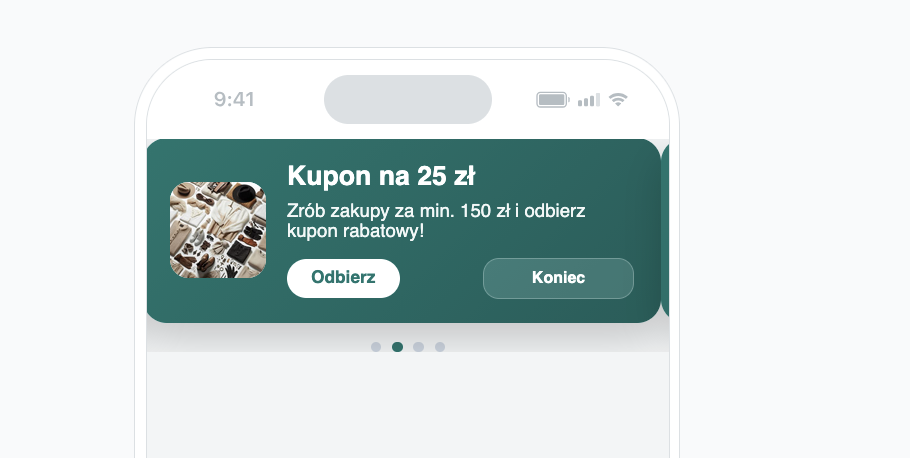
While you can display a single promotion record in an in-app message, the main advantage comes from creating a schema retrieving a list of promotions that acts as a selector to retrieve multiple records from the promotion layout schema. This approach allows your app to present multiple promotion banners in various formats—such as a scrollable list, a carousel, or another layout based on your design and placement needs.

By organizing all promotional content within one schema, you ensure consistent messaging across channels, while still having full control over how many and which promotions are shown and where. Whether you display all promotions or select specific ones, this schema-driven setup offers precise control over promotion visibility and placement across different formats.

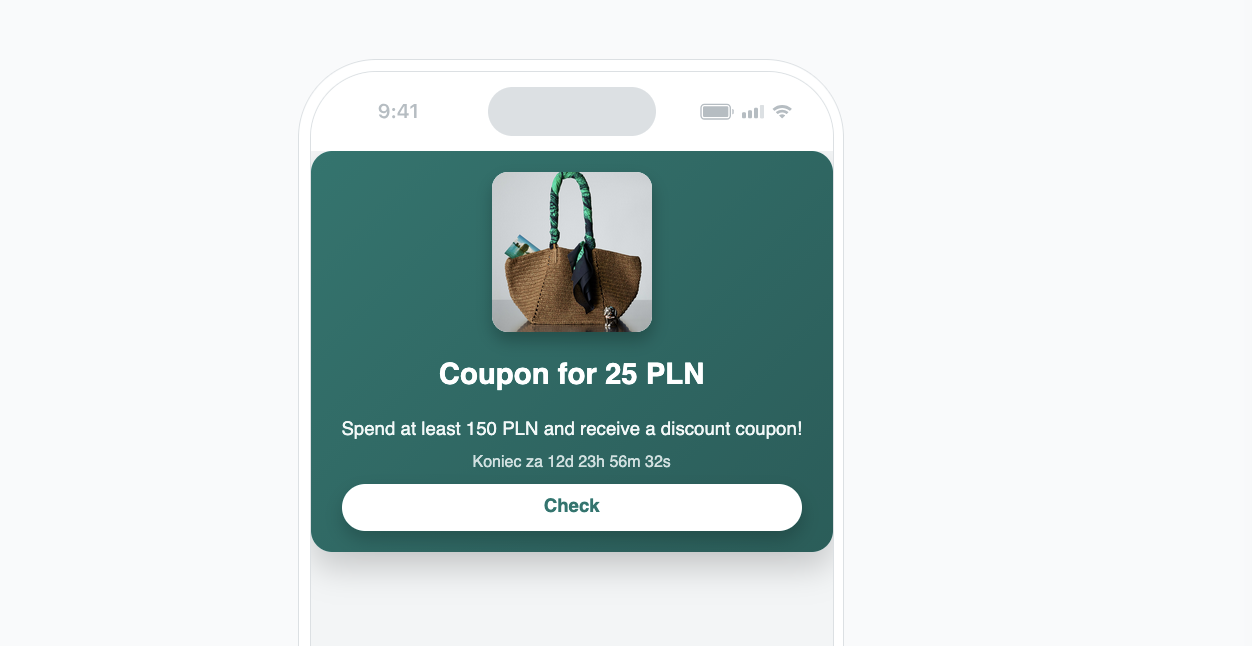
In this setup, a single in-app banner containing promotional information and a countdown timer will be shown when the user enters a specific category related to the promotion. The full list of promotional banners—displayed as a carousel or list—is intended to appear after a product is added to the cart.

<figure>
<img src="/api/docs/image/54176ad07f146575310749eba44b7c2f42c1b327/use-cases/all-cases/_gfx/brickworks-preview2.png" alt="In-app message example"  class="full no-frame">
</figure> 

## Prerequisites 
---
- Implement a [tracking code](/developers/web/installation-and-configuration) into your website.
- Implement promotions in your [mobile application](/developers/mobile-sdk/loyalty) and [API](https://developers.synerise.com/LoyaltyandEngagement/LoyaltyandEngagement.html#tag/Promotions).
- In **Data Modeling Hub > Files**, add an image or images which you will use in promotions.
## Process
---

In this use case, you will go through the following steps:

1. [Schema with the promotion layout](#schema-with-the-promotion-layout) with banners with the end date and a link to the page with promotions.
2. [Create a record with promotion details](#create-a-record-with-promotion-details).
3. [In-app campaign that displays a single promotion](#in-app-campaign-that-displays-a-single-promotion).
4. [Schema retrieving a list of promotions](#schema-retrieving-a-list-of-promotions) from the previous schema.
3. [Create the second record](#create-the-second-record).
4. [In-app campaign that displays a list of promotions](#in-app-campaign-that-displays-a-list-of-promotions).


## Schema with the promotion layout
---
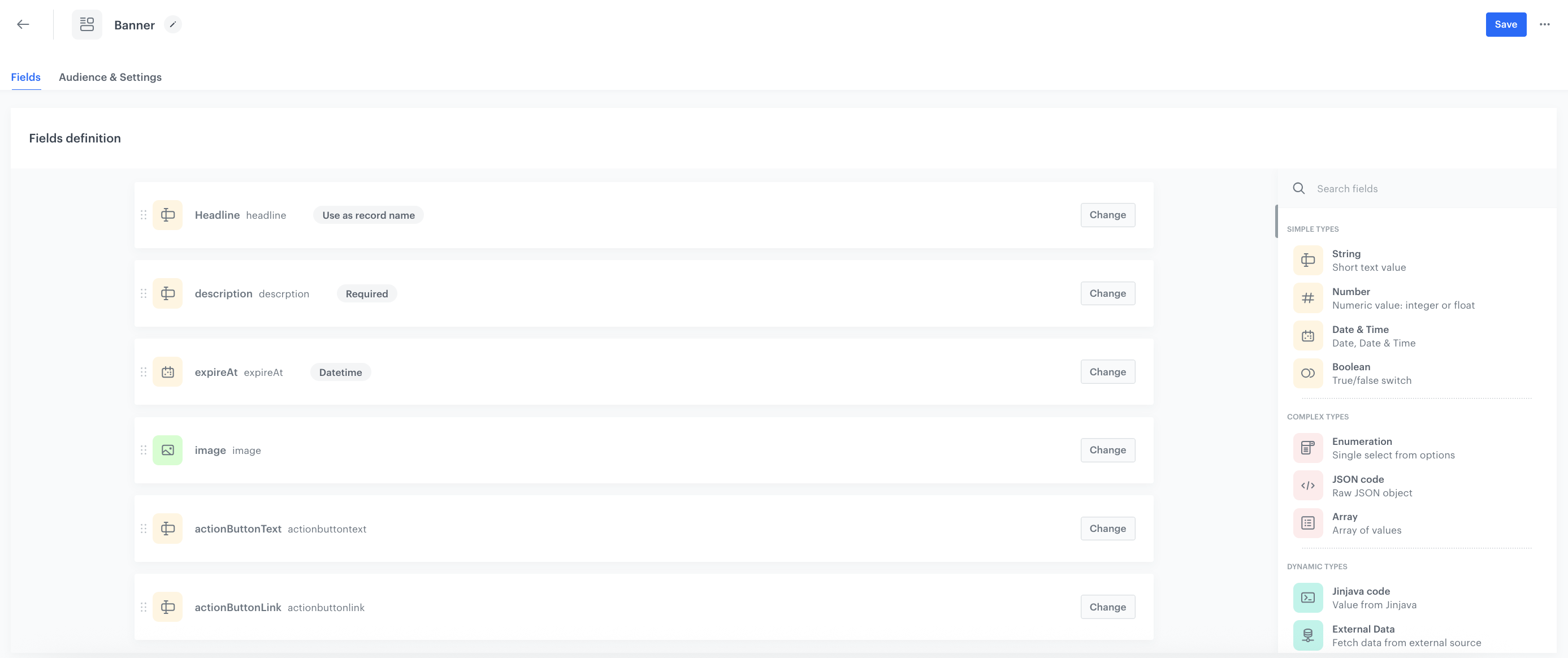
In this section, you will [create a schema](/docs/assets/brickworks/quick-start/creating-a-schema) with fields for information about specific promotion, CTA button and counter which counts the minutes till the end of the promotion. By defining fields here, you create a single place where product-related information is stored, updated, and reused across templates, campaigns, and runtime contexts. 
This schema will serve as a catalog of promotions because each record will be a separate promotion.


1. Go to **Data Modeling Hub > Schemas > New schema**.  
2. Choose **Simple Schema**.
3. Enter a name for the schema, in **Display name** for example **Banner template**. **API names** value is pre-filled with the value from Display name. The value in this field is the unique identifier used to reference this schema in API requests.
4. Optionally, fill in the **Description** field.

<figure>
<img src="/api/docs/image/54176ad07f146575310749eba44b7c2f42c1b327/use-cases/all-cases/_gfx/brickworks-schema2.png" alt="The view of the brickworks configuration"  class="full">
<figcaption>Brickworks configuration</figcaption>
</figure> 


### Add Headline

5. Click **Add new field** and choose **String**.
3. Complete the fields: 
    - In **Display name**, enter `Headline`. 
    - **API name** will be pre-filled automatically.
4. Check the field: **Use as record title**.
5. Check the field: **Character limits** and set it from 5 to 60.
5. To save your changes, click **Apply**.


### Add Description

5. Click **Add new field** and choose **String**.
3. Complete the fields: 
    - In **Display name**, enter `Description`. 
    - **API name** will be pre-filled automatically.
4. Set the field as **Required**.
5. Check the field: **Character limits** and set it from 5 to 60.
5. To save your changes, click **Apply**.


### Add Expiration date

5. Click **Add new field** and choose **Date&time**.
3. Complete the fields: 
    - In **Display name**, enter `expireAt`. 
    - **API name** will be pre-filled automatically.
4. Choose the format as a **Date**.
5. To save your changes, click **Apply**.


### Add Image

5. Click **Add new field** and choose **Image**
3. Complete the fields: 
    - In **Display name**, enter `image`. 
    - **API name** will be pre-filled automatically.
5. To save your changes, click **Apply**.

### Add action button text

5. Click **Add new field** and choose **String**.
3. Complete the fields: 
    - In **Display name**, enter `actionButtonText`. 
    - **API name** will be pre-filled automatically.
5. To save your changes, click **Apply**.


### Add action button link

5. Click **Add new field** and choose **String**.
3. Complete the fields: 
    - In **Display name**, enter `actionButtonLink`. 
    - **API name** will be pre-filled automatically.
4. Set the **validation patter** field as: `^([a-zA-Z]{2,}):\/\/([^\s\/]+)(\/[^\s]*)?$`
5. To save your changes, click **Apply**.


### Set up the Audience & Settings

1. Click the **Audience & Settings** tab.
2. In the **Audience** section, click **Define**.
3. Choose the schema recipients, in our case, choose **Everyone**.
4. Click **Apply**.
5. In the upper-right corner, click **Save.**

## Create a record with promotion details 
---
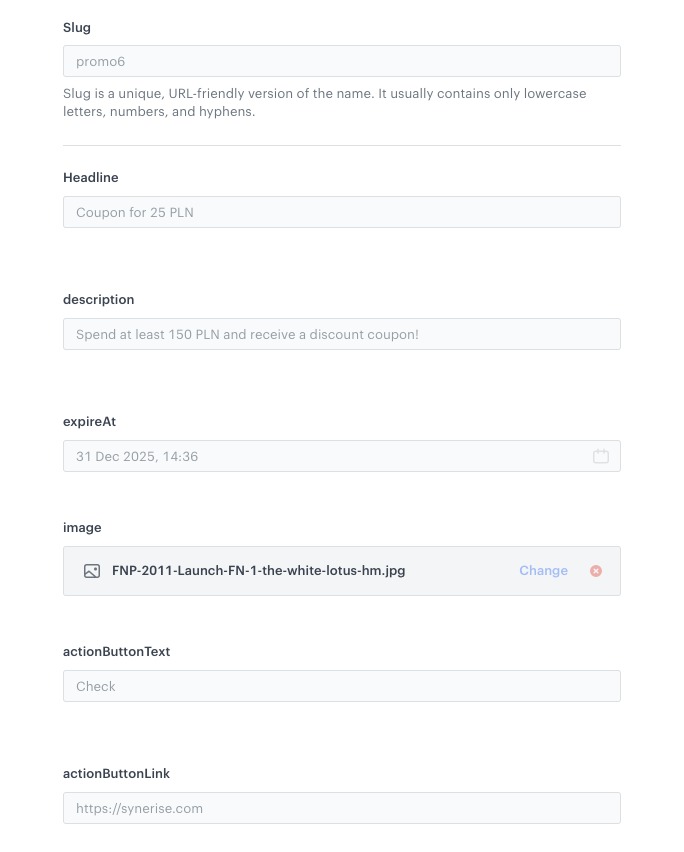
[Creating a record](/docs/assets/brickworks/quick-start/creating-a-record) means adding the data to the schema. It means that you fill out schema fields with the actual values.
This step fills the structure you created earlier with real data that will be rendered to the user. Anything you enter here becomes the source of truth for templates. By storing product-specific information inside the record, you ensure that all in-app messages, PDP blocks, or emails referencing this schema always draw from the same, consistent data set.
The records are created based on the promotion banner layout schema and each record will be a separate promotional banner.

1. Go to **Data Modeling Hub > Data collection > Select schema**.  
2. Choose [schema created in the previous part of the process](#schema-with-the-promotion-layout).
3. Click **Add record**.
4. Add a name for the record.
5. Add a slug for the record. Slug is a unique, URL-friendly version of the name. It usually contains only lowercase letters, numbers, and hyphens. In our case it will be `promo6`.
6. Fill in the values in the **Headline** and **description** fields for the specific promotion.
7. From the **expireAt** field, choose the expiration date of the specific promotional action.
8. From the **Image** dropdown list, select an image to be used in a promotion which you added in **Data Modeling Hub > Files** as a part of prerequisites.
9. Fill the **actionButtonText** and **ActionButtonLink** fields.
7. To save and publish your record, click **Publish**.


    <figure>
    <img src="/api/docs/image/54176ad07f146575310749eba44b7c2f42c1b327/use-cases/all-cases/_gfx/brickworks-record1.png" alt="The view of the brickworks configuration"  class="full">
    <figcaption>Brickworks configuration</figcaption>
    </figure> 


8. To create more promotional banners with info about specific action, duplicate the record and add different data to the fields described in schema. They will be important in the further partof the use case.


## In-app campaign that displays a single promotion
---
In this part of the process, you [create an in-app campaign](/docs/campaign/in-app-messages/create-inapp-message) triggered by the `product.addToCart` event. The data used in this in-app will be retrieved from the record with promotion details created in the [previous step](#create-a-record-with-promotion-details).

1. Go to <img src="/api/docs/image/54176ad07f146575310749eba44b7c2f42c1b327/icons/experience-hub-icon.svg" alt="Experience Hub icon" class="icon" > **Experience Hub > In-app messages> Create in-app**.
2. Enter the name of the in-app.

### Define the audience
---
As the first step, define the target group of customers for the in-app message. Make sure the conditions for in-app and schema audiences are not mutually exclusive.

1. In the **Audience** section, click **Define**.
4. Click **Everyone**.
8. To save the audience, click **Apply**.

### Define content
---
In this part of the process, you will create the content of the in-app message that will appear in the mobile application with the help of ready-made template.

1. In the **Content** section, click **Define**.
2. Click **Create message**.


   <div class="admonition admonition-important"><div class="admonition-icon"><svg xmlns="http://www.w3.org/2000/svg" fill="none" viewBox="0 0 24 24" stroke="currentColor" stroke-width="2.5"><path stroke-linecap="round" stroke-linejoin="round" d="M12 8v4m0 4h.01M21 12a9 9 0 11-18 0 9 9 0 0118 0z" /></svg></div><div class="admonition-body"><div class="admonition-content">

   Create your template according to your needs, but make sure it pulls data from the record returned by this schema — the first line of the template should reference to the ID of the schema and ID of the record (in our case: `schemaId=banner recordId=promo6` )

   </div></div></div>


<details class="accordion"><summary>Check the HTML code</summary><div class="accordion-content"><pre><code class="language-HTML">{% brickworksgeneratevar schemaId=banner recordId=promo6 %}{%set data = brickworks_result %} &lt;div class="banner" data-slug="{{ data.__slug }}"&gt; &lt;div class="banner-image"&gt; &lt;img src="{{ data.image.medium | default(data.image.large) }}" alt="{{ data.headline }}" /&gt; &lt;/div&gt; &lt;div class="banner-content"&gt; &lt;h1 class="headline"&gt;{{ data.headline }}&lt;/h1&gt; &lt;p class="description"&gt; {{ data.descrption }} &lt;/p&gt; &lt;div id='expiry' class="meta" data-expiry="{{ data.expireAt }}"&gt; &lt;span id="countdown"&gt; &lt;/div&gt; &lt;a class="cta" href="{{ data.actionbuttonlink }}" target="_blank"&gt; {{ data.actionbuttontext }} &lt;/a&gt; &lt;/div&gt; &lt;/div&gt; {% endbrickworksgeneratevar %}</code></pre></div></details>


### Select events that trigger the in-app message display
---
In this part of the process, you will define the event triggering the display of the in-app message.

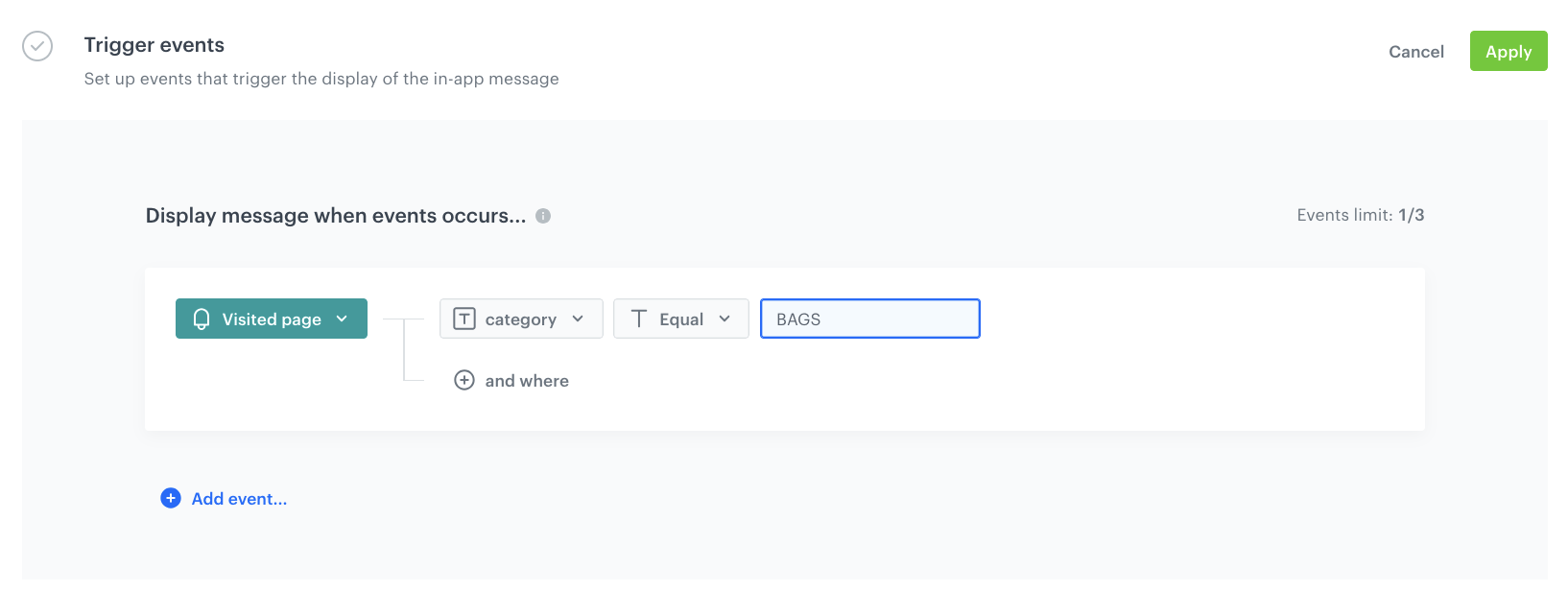
1. In the **Trigger events** section, click **Define**.
2. Select **Add event** and from the dropdown list, choose the `page.visit` event.
3. Click the **+ where** button and select `category`.
4. As the logical operator, select **Equal**.
6. As the value add the name fo the specific category in which this in-app with the information about the specific promotional action should be displayed.
5. Click **Apply**.

<figure>
<img src="/api/docs/image/54176ad07f146575310749eba44b7c2f42c1b327/use-cases/all-cases/_gfx/brickworks-inapp.png" alt="The view of the brickworks configuration"  class="full">
<figcaption>Brickworks configuration</figcaption>
</figure> 

### Schedule the message and configure display settings
---
As the final part of the process, you will set [the display settings of the in-app](/docs/campaign/in-app-messages/create-inapp-message#define-the-display-settings) message such as schedule, capping, priority of the message among other in-app messages.

1. In the **Schedule** section, click **Define** and set the time when the message will be active. 
2. In the **Display Settings** section, click **Change**.
3. Define the **Delay display**, **Priority index** and enable the **Frequency limit** toggle to manage the frequency of in-app message display in the application.  . 

    
   <div class="admonition admonition-note"><div class="admonition-icon"><svg xmlns="http://www.w3.org/2000/svg" fill="none" viewBox="0 0 24 24" stroke="currentColor" stroke-width="2.5"><path stroke-linecap="round" stroke-linejoin="round" d="M13 16h-1v-4h-1m1-4h.01M21 12a9 9 0 11-18 0 9 9 0 0118 0z" /></svg></div><div class="admonition-body"><div class="admonition-content">

   You can additionally enable the **Capping limit** toggle to limit the amount of time the in-app message can be displayed to a user in general.

   </div></div></div>
  

16. Click **Apply**. 

17. Optionally, you can define the UTM parameters and additional parameters for your in-app campaign.
18. Click **Activate**.

<figure>
<img src="/api/docs/image/54176ad07f146575310749eba44b7c2f42c1b327/use-cases/all-cases/_gfx/brickworks-preview2.png" alt="The view of the brickworks configuration"  class="full">
<figcaption>Brickworks configuration</figcaption>
</figure> 


## Schema retrieving a list of promotions

In this step, we will [create a schema](/docs/assets/brickworks/quick-start/creating-a-schema) that retrieves data from the Schema with the promotion layout, collecting all created banners for different promotional actions at once. This aggregated output will be used in the next step to build an in-app view displaying promotional banners as a list or a carousel, depending on business needs.
This approach also demonstrates how one Brickworks schema can pull data from another, enabling more flexible content structures. The schema will contain a field which will let you indicate a schema whose records will be retrieved.


1. Go to **Data Modeling Hub > Schemas > New schema**.  
2. Choose **Simple Schema**.
3. Enter a name for the schema, in **Display name** for example **Banner template**. **API names** value is pre-filled with the value from Display name. The value in this field is the unique identifier used to reference this schema in API requests.
4. Optionally, fill in the **Description** field.

<figure>
<img src="/api/docs/image/54176ad07f146575310749eba44b7c2f42c1b327/use-cases/all-cases/_gfx/brickworks-schema3.png" alt="The view of the brickworks configuration"  class="full">
<figcaption>Brickworks configuration</figcaption>
</figure> 


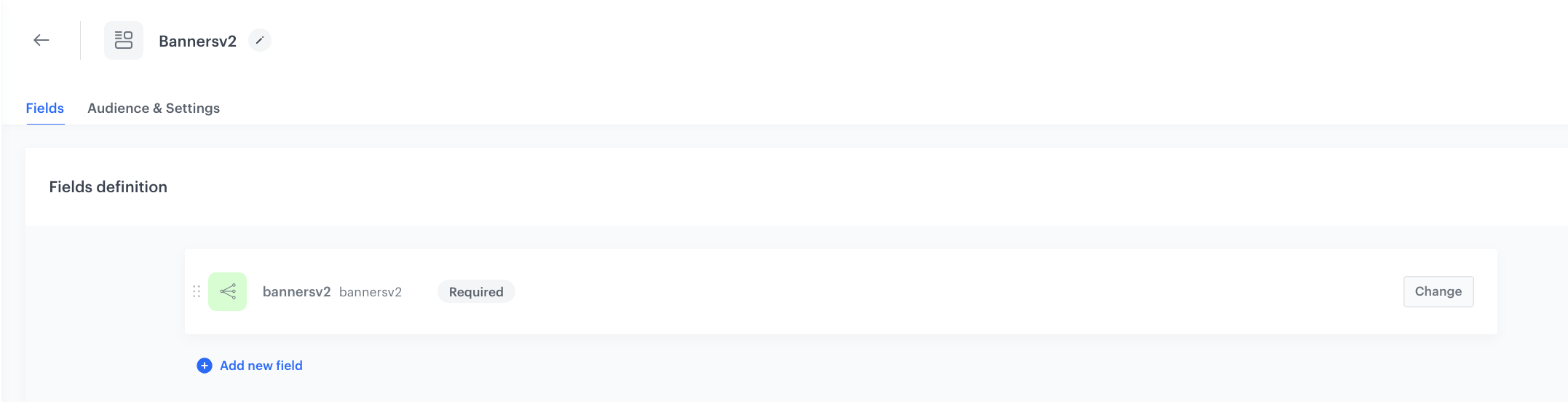
### Add the reference to the previous schema

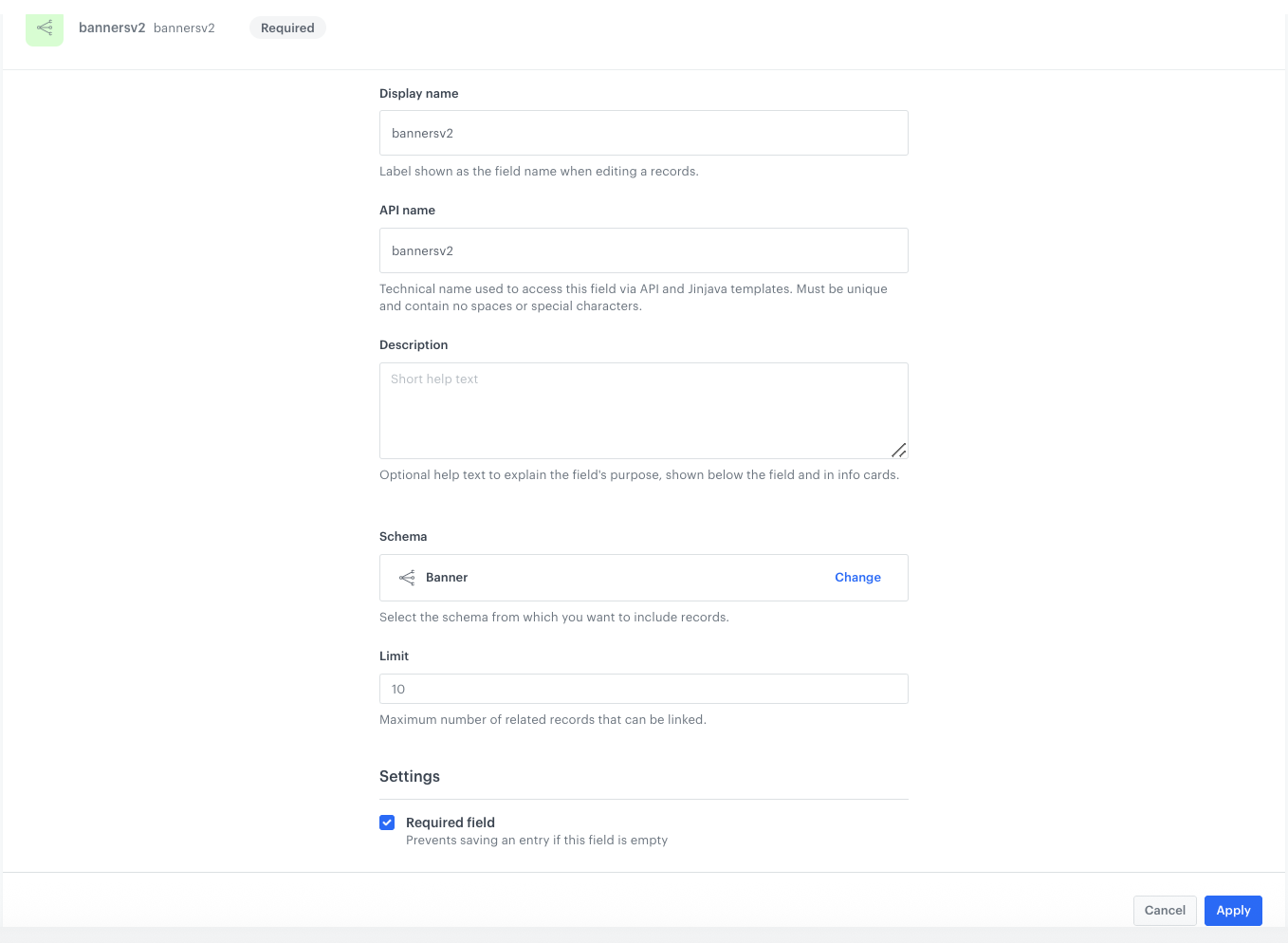
5. Click **Add new field** and choose **One to many**.
3. Complete the fields: 
    - In **Display name**, enter `bannersv2`. 
    - **API name** will be pre-filled automatically.
4. From the **Schema** dropdown list, select the [schema created in the previous step](#schema-with-the-promotion-layout).
5. Select the **Required filed** checkbox.
5. To save your changes, click **Apply**.

<figure>
<img src="/api/docs/image/54176ad07f146575310749eba44b7c2f42c1b327/use-cases/all-cases/_gfx/brickworks-schema9.png" alt="The view of the brickworks configuration"  class="full">
<figcaption>Brickworks configuration</figcaption>
</figure> 

## Create the second record
---
This step fills the structure you created earlier with real data that will be rendered to the user. Anything you enter here becomes the source of truth for templates.
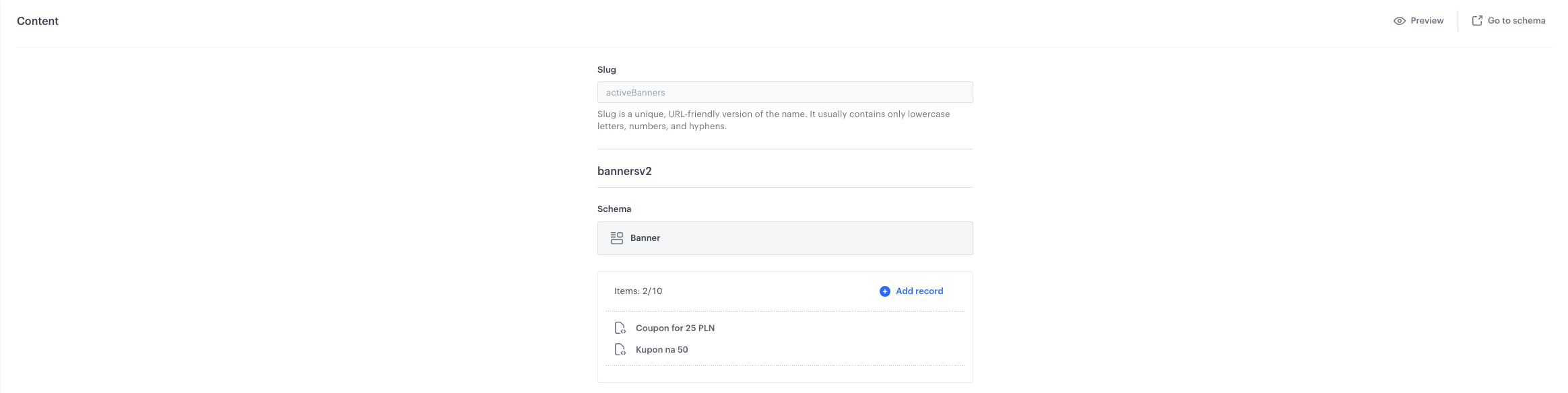
In this part of the process, you will create a record based on a [schema that references the schema containing the list of promotions](#schema-retrieving-a-list-of-promotions). The purpose of this record is to retrieve and consolidate the records with promotions for use within the system.

This created record will play an important role in later stages of the process - it will be referenced in the in-app message template designed to display a list of promotions to users. By linking this record to the template, the system can dynamically present promotion details within the mobile application interface.  

While [creating a record](/docs/assets/brickworks/quick-start/creating-a-record) you will select the promotion banner layout schema created as the first part of the process, this way you can retrieve all records (promotional banners) available in the schema.

1. Go to **Data Modeling Hub > Data collection > Select schema**.  
2. Choose [Schema retrieving a list of promotions](#schema-retrieving-a-list-of-promotions).
3. Click **Add record**.
4. Add a name for the record.
5. Add a slug for the record. Slug is a unique, URL-friendly version of the name. It usually contains only lowercase letters, numbers, and hyphens. In our case it will be `activeBanners`.
6. Choose [the schema with the promotion layout ](#schema-with-the-promotion-layout).
7. Click **Add record**.
8. Choose the records (promotions) from the list which will be retrieved from the previous schema.
7. To save and publish your record, click **Publish**.


<figure>
<img src="/api/docs/image/54176ad07f146575310749eba44b7c2f42c1b327/use-cases/all-cases/_gfx/brickworks-record2.png" alt="The view of the brickworks configuration"  class="full">
<figcaption>Brickworks configuration</figcaption>
</figure> 


## In-app campaign that displays a list of promotions
---
In this part of the process, you [create an in-app campaign](/docs/campaign/in-app-messages/create-inapp-message) triggered by the `product.addToCart` event. The data used in this in-app is set of banners with the information about promotions retrieved from the schema retrieving a list of promotions, created in the [previous step](#schema-retrieving-a-list-of-promotions).

1. Go to <img src="/api/docs/image/54176ad07f146575310749eba44b7c2f42c1b327/icons/experience-hub-icon.svg" alt="Experience Hub icon" class="icon" > **Experience Hub > In-app messages> Create in-app**.
2. Enter the name of the in-app.

### Define the audience
---
As the first step, define the target group of customers for the in-app message. Make sure the conditions for in-app and schema audiences are not mutually exclusive.


1. In the **Audience** section, click **Define**.
4. Click **Everyone**.
8. To save the audience, click **Apply**.

### Define content
---
In this part of the process, you will create the content of the in-app message that will appear in the mobile application with the help of ready-made template.

1. In the **Content** section, click **Define**.
2. Click **Create message**.


   <div class="admonition admonition-important"><div class="admonition-icon"><svg xmlns="http://www.w3.org/2000/svg" fill="none" viewBox="0 0 24 24" stroke="currentColor" stroke-width="2.5"><path stroke-linecap="round" stroke-linejoin="round" d="M12 8v4m0 4h.01M21 12a9 9 0 11-18 0 9 9 0 0118 0z" /></svg></div><div class="admonition-body"><div class="admonition-content">

   Create your template according to your needs, but make sure it pulls data from the record returned by this schema — the first line of the template should reference to the ID of the schema and Id of the record (in our case: `schemaId=bannersv2 recordId=activeBanners` )

   </div></div></div>


<details class="accordion"><summary>Check the HTML code</summary><div class="accordion-content"><pre><code class="language-HTML">{% brickworksgeneratevar schemaId=bannersv2 recordId=activeBanners %}{%set data = brickworks_result.bannersv2 %} &lt;div class="carousel" id="carousel"&gt; &lt;div class="track"&gt; {% for item in data %} &lt;div class="banner"&gt; &lt;div class="image"&gt; &lt;img src="{{ item.image.thumb | default(item.image.large) }}" alt="{{ item.headline }}" /&gt; &lt;/div&gt; &lt;div class="content"&gt; &lt;div class="headline"&gt;{{ item.headline }}&lt;/div&gt; &lt;div class="description"&gt;{{ item.descrption }}&lt;/div&gt; &lt;div class="footer"&gt; &lt;a class="cta" href="{{ item.actionbuttonlink }}"&gt;{{ item.actionbuttontext }}&lt;/a&gt; &lt;div class="expiry" data-expiry="{{ item.expireAt }}"&gt;—&lt;/div&gt; &lt;/div&gt; &lt;/div&gt; &lt;/div&gt; {% endfor %} &lt;/div&gt; &lt;div class="dots"&gt;&lt;/div&gt; &lt;/div&gt; {% endbrickworksgeneratevar %} {% endbrickworksgeneratevar %}</code></pre></div></details>


### Select events that trigger the in-app message display
---
In this part of the process, you will define the event triggering the display of the in-app message.

1. In the **Trigger events** section, click **Define**.
2. Select **Add event** and from the dropdown list, choose `product.addToCart` event.
3. Click the **+ where** button and select `mobile`.
4. As the logical operator, select **Exists**.
5. Click **Apply**.

### Schedule the message and configure display settings
---
As the final part of the process, you will set the display settings of the in-app message such as schedule, capping, priority of the message among other in-app messages.

1. In the **Schedule** section, click **Define** and set the time when the message will be active. 
2. In the **Display Settings** section, click **Change**.
3. Define the **Delay display**, **Priority index** and enable the **Frequency limit** toggle to manage the frequency of in-app message display in the application.  . 

    
   <div class="admonition admonition-note"><div class="admonition-icon"><svg xmlns="http://www.w3.org/2000/svg" fill="none" viewBox="0 0 24 24" stroke="currentColor" stroke-width="2.5"><path stroke-linecap="round" stroke-linejoin="round" d="M13 16h-1v-4h-1m1-4h.01M21 12a9 9 0 11-18 0 9 9 0 0118 0z" /></svg></div><div class="admonition-body"><div class="admonition-content">

   You can additionally enable the **Capping limit** toggle to limit the amount of time the in-app message can be displayed to a user in general.

   </div></div></div>
  

16. Click **Apply**. 

17. Optionally, you can define the UTM parameters and additional parameters for your in-app campaign.
18. Click **Activate**.

<figure>
<img src="/api/docs/image/54176ad07f146575310749eba44b7c2f42c1b327/use-cases/all-cases/_gfx/brickworks-preview3.png" alt="The view of the brickworks configuration"  class="full">
<figcaption>Brickworks configuration</figcaption>
</figure> 


## What's next
---

After defining these schemas, you can reuse the template across other placements as needed. It can be applied not only in PDP blocks, emails, or in-app views, but also in any additional surfaces supported by your setup—for example homepage modules, product carousels, or campaign-specific placements.

What’s more, the values retrieved from these schemas can be used to dynamically display multiple banners—either as a list or in a carousel format—depending on the design and placement requirements. This flexibility allows you to maintain consistency in your content while customizing the layout and volume of displayed items based on the context. Whether you want to show all available banners or just selected, the schema setup gives you full control over what is shown and where—across different channels and placements.

## Check the use case set up on the Synerise Demo workspace
---
In Synerise Demo workspace, you can check the configuration of:  
- [Schema1](https://app.synerise.com/assets/brickworks/schemas/07f11534-3244-45a7-9094-a6df71fc53da)
- [Schema2](https://app.synerise.com/assets/brickworks/schemas/bf202dba-e641-462b-a441-4cb40afd3d1c)
- [In-app campaign 1](https://app.synerise.com/communications/in-app/5aaf1b76-2df1-47ca-a77b-8b32c67ca6ac)
- [In-app campaign 2](https://app.synerise.com/communications/in-app/5e1fd07c-ad57-4a98-9321-3632bc6cd7ce/content-manager/template/editor?variant=0)


If you’re our partner or client, you already have automatic access to the **Synerise Demo workspace (1590)**, where you can explore all the configured elements of this use case and copy them to your workspace.  

If you’re not a partner or client yet, we encourage you to fill out the contact [form](https://demo.synerise.com/request) to schedule a meeting with our representatives. They’ll be happy to show you how our demo works and discuss how you can apply this use case in your business. 

## Read more
---
- [Brickworks](/docs/assets/brickworks)
- [In-app messages](/docs/campaign/in-app-messages)