Weather APIs return more data than a content template needs. A Brickworks response transformer combines the temperature and its unit into one field that a content consumer can use.
In this use case, you will connect Open-Meteo as an external source, create a Singleton schema with an External Data field, and transform the response into a temperature value such as `23.6°C`
## Prerequisites
---
- Access to **Data Modeling Hub**, with [permission](/docs/settings/identity-access-management/permissions/data-management-permissions#work-with-brickworks) to create the required connection, external source, schema, and response transformer.
- A weather API endpoint that returns the current temperature and its unit. This example uses [Open-Meteo](https://open-meteo.com/).
- Latitude and longitude values to pass when generating the record. This example uses `lat: 50` and `lng: 20`
## Process
---
In this use case, you will go through the following steps:
1. [Create an external source](#create-an-external-source) that retrieves weather data.
2. [Create a schema with an External Data field](#create-a-schema-with-an-external-data-field) that uses this source.
3. [Create a response transformer](#create-a-response-transformer) that combines the temperature and unit.
4. [Preview the transformed response](#preview-the-transformed-response) result before activating the transformer.
## Create an external source
---
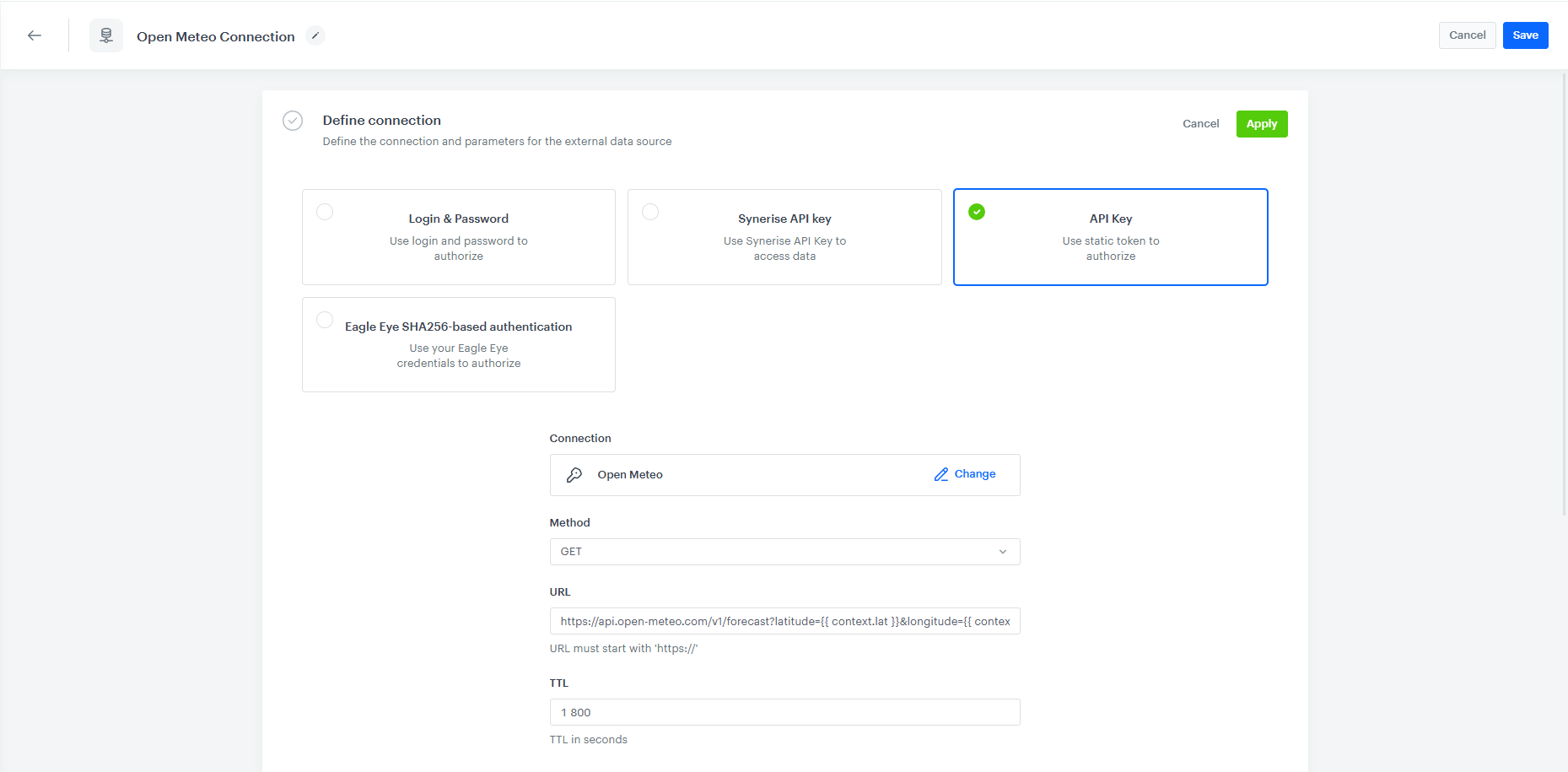
In this part of the process, you will define where Brickworks fetches weather data from. The external source defines the request to the weather provider. It can be reused by the error-handling example described in the [follow-up use case](/use-cases/brickworks-handle-weather-api-error-responses).
1. Go to **Data Modeling Hub > External sources > New external source**.
2. Name the source `Open Meteo Connection`
3. Select or [create](/docs/assets/brickworks/creating-external-source#procedure) the connection required by the external source.
4. From the **Method** dropdown list, select the **GET** request method.
5. In **URL**, provide the Open-Meteo forecast endpoint with the coordinates passed from the generation context:
`https://api.open-meteo.com/v1/forecast?current=temperature_2m,[OTHER_CURRENT_PARAMETERS]&latitude={{ context.lat }}&longitude={{ context.lng }}`
1. Replace [OTHER_CURRENT_PARAMETERS] with the list of current parameters you need. The response shown in this use case was generated with a query that requested `temperature_2m`, `relative_humidity_2m`, `apparent_temperature`, `is_day`, `precipitation`, `rain`, `weather_code`, `cloud_cover`, `wind_speed_10m`, `wind_direction_10m`, and `wind_gusts_10m`. The full query string is [to be completed / TBC].
Configure the request method, endpoint, and parameters for your weather API. Pass the latitude and longitude from the generation context to the request.
6. In **TTL**, set the response cache TTL to match your data freshness requirements. Cached responses can be reused until the TTL expires. A shorter TTL returns more current weather, a longer TTL reduces the number of calls to the API. The maximum is 1800 seconds.
6. Save the external source.
External source configuration for the weather provider
## Create a schema with an External Data field
---
Create a singleton schema that makes the external response available to the transformer.
1. Go to **Data Modeling Hub > Schemas > New schema**.
2. Set **Display name** to `Current Temperature`
3. Set the schema type to **Singleton**.
4. Add an **External Data** field with the display name `Open Meteo Connection`
5. Set the field's API name to `openMeteoConnection`, which the transformer below references.
6. Select the external source [created in the previous step](#create-an-external-source).
7. Save the schema. This example includes the following values inside the external response. This is an excerpt, not the full generated object:
## Create a response transformer
---
When you make a request to generate an object from the schema, the external resource returns more data than necessary to show the temperature. The temperature is also split into two objects - one for the number and one for the unit:
```json
{
"current": {
"temperature_2m": 23.6
},
"current_units": {
"temperature_2m": "°C"
}
}
```
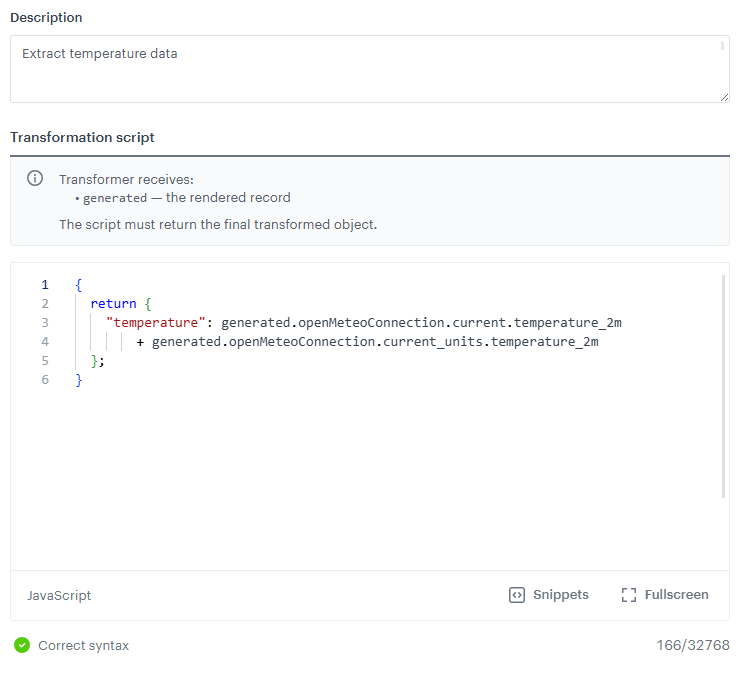
The transformer accesses this response through `generated.openMeteoConnection`
To remove the unnecessary data and turn the temperature into a single string that is returned as the field value, create a data transformer:
1. In the schema editor, open **Response transformers**.
2. Select **Edit > Add transformer**.
3. Enter `Extract temperature data` as the name.
4. Add a description, such as `Combines the temperature value and unit into one field`
5. Enter the transformation script.
This script returns a new object that contains only the `temperature` field. It does not preserve other generated fields.
Transformer editor with the script
## Preview the transformed response
---
Test the transformer before selecting it as the active transformer for the schema.
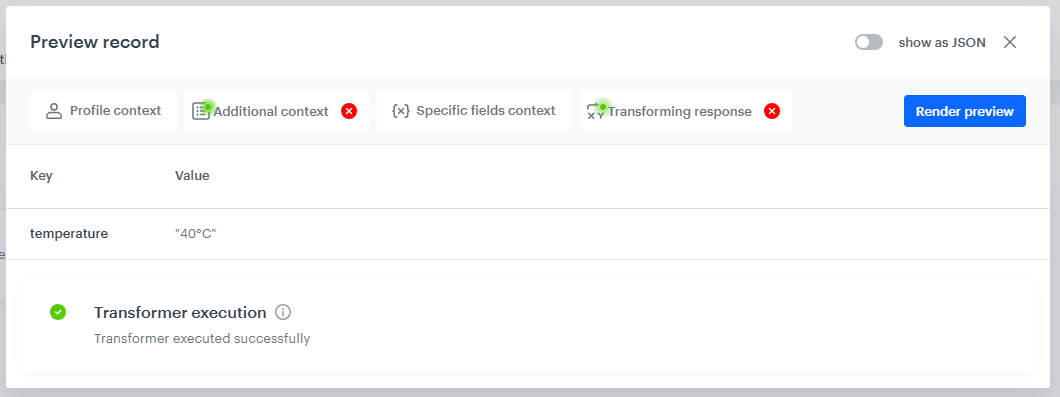
1. Open the record preview for this schema.
2. Set the coordinates for the example: latitude `50`, longitude `20`
3. On the **Transforming response** tab, select `Extract temperature data`
4. Generate the preview and inspect the response. For the sample weather response shown earlier, the transformed result is:
{
       "temperature": "23.6°C"
     }
Record preview with the temperature
5. After checking the preview, select the transformer as the active one on the schema's **Response transformers** tab.
6. Click **Apply**.
7. Save the schema when ready to use this output.
## Limitations
---
- The transformer runs on the top-level record requested for generation. Transformers on nested records are not processed automatically.
- Only one transformer can be active for a schema, although other transformers can be selected in preview.
- This example expects a successful weather response. It does not handle a missing response or an error returned by the provider.
## What's next
---
Extend the example to [handle weather API error responses](/use-cases/brickworks-handle-weather-api-error-responses). The companion article uses the same external source and returns different results for valid and invalid coordinates.
## Read more
---
- [Brickworks](/docs/assets/brickworks)
- [Response transformers](/docs/assets/brickworks/response-transformers)