You can calculate the value of sold items including items sold by weight and volume. It helps you analyze the sold products statistics in more effective way.

## Prerequisites 
---
- Implement [tracking code](/developers/web/installation-and-configuration#creating-a-tracking-code) on your website.
- Implement [transactions](/docs/automation/actions/synerise-integrations/import-transactions).

## Process
---

In this use case, you will go through the following steps:
1. [Create an expression](/use-cases/calculate-items-sold-by-weight/?helpCenterAi=calc#create-an-expression) that will be available as a variable when including the `product.buy` event in analytics.
2. [Create a metric](/use-cases/calculate-items-sold-by-weight/?helpCenterAi=calc#create-a-metric) that calculates all sold items.

## Create an expression
---
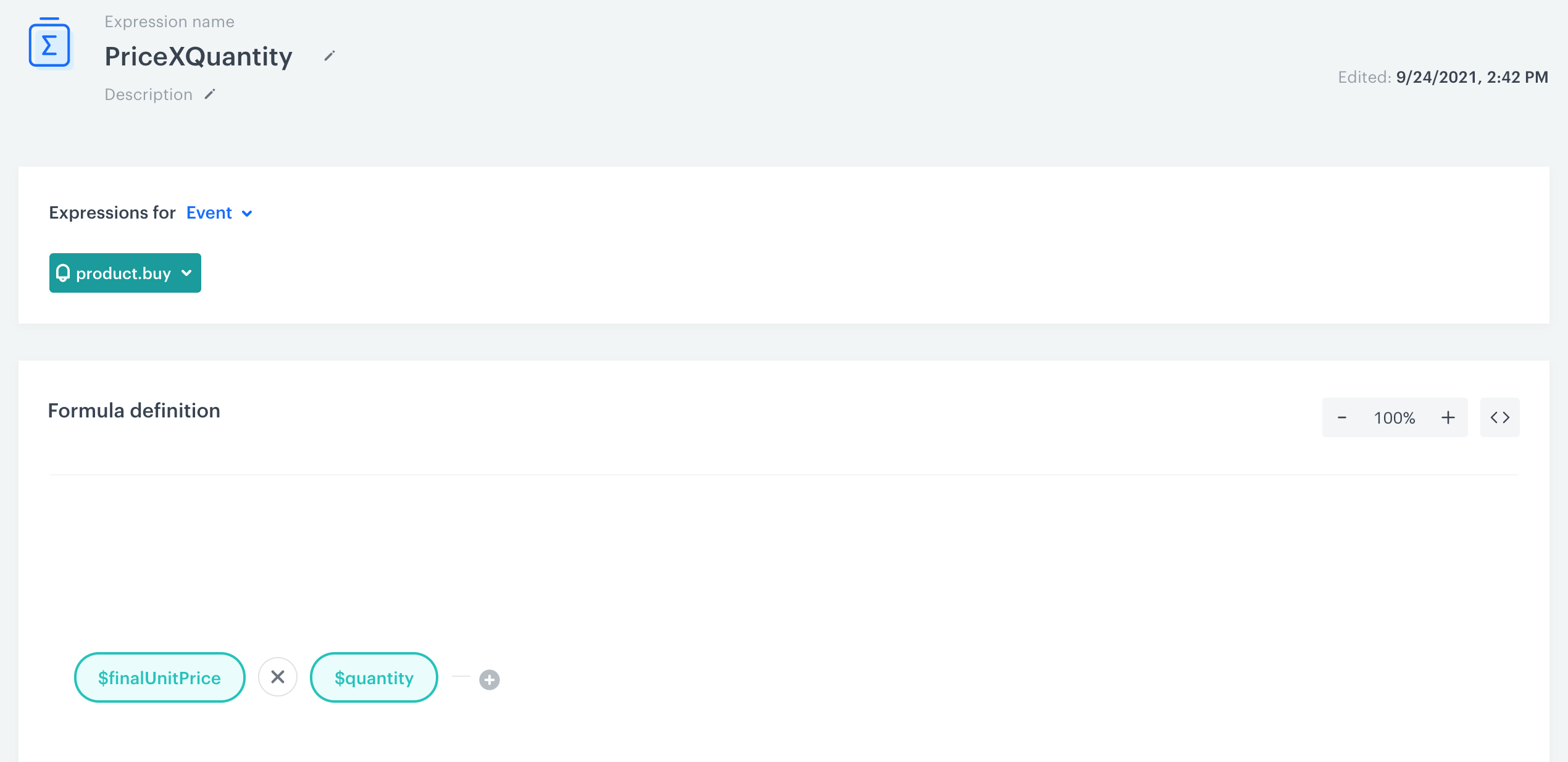
In this part of the process, create an expression that will be available as a variable when including the `product.buy` event in analytics. The formula of the expression multiplies the quantity of the item by the price of a single item.

1. Go to <img src="/api/docs/image/54176ad07f146575310749eba44b7c2f42c1b327/icons/behavioral-data-hub-icon.svg" alt="Behavioral Data Hub icon" class="icon"> **Behavioral Data Hub > Expressions > New expression**. 
2. Enter the name of the expression. 
    
   <div class="admonition admonition-note"><div class="admonition-icon"><svg xmlns="http://www.w3.org/2000/svg" fill="none" viewBox="0 0 24 24" stroke="currentColor" stroke-width="2.5"><path stroke-linecap="round" stroke-linejoin="round" d="M13 16h-1v-4h-1m1-4h.01M21 12a9 9 0 11-18 0 9 9 0 0118 0z" /></svg></div><div class="admonition-body"><div class="admonition-content">

   The name of the expression is also used as the name of the event's parameter.

   </div></div></div>

2. As a type of expression, select **Event**. 
2. From the **Choose event** dropdown, select the `product.buy` event. 
4. In the **Formula definition** section of the page, click **Select**.  
    **Result**: A dropdown list appears.
6. From the dropdown list, select **Event attribute**.
5. Open the settings of the event attribute by clicking the **unnamed** expression element that appeared.
6. From the **Choose parameter** dropdown, select `$finalUnitPrice`.
7. Next to the added event attribute, click the plus button.  
    **Result**: A dropdown list appears. 
8. From the dropdown list, select **Event attribute**. 
9. Open the settings of the event attribute by clicking the **unnamed** expression element that appeared.
10. From the **Choose parameter** dropdown, select `$quantity`.
11. Click the mathematical operator between the attributes and change it to multiplication.  
12. Click **Save**. 

 <figure>
    <img src="/api/docs/image/54176ad07f146575310749eba44b7c2f42c1b327/use-cases/all-cases/_gfx/price-multiplied-by-quantity.png" alt="The final form of an expression" class="full">
    <figcaption>The final form of an expression</figcaption>
    </figure>

## Create a metric
---
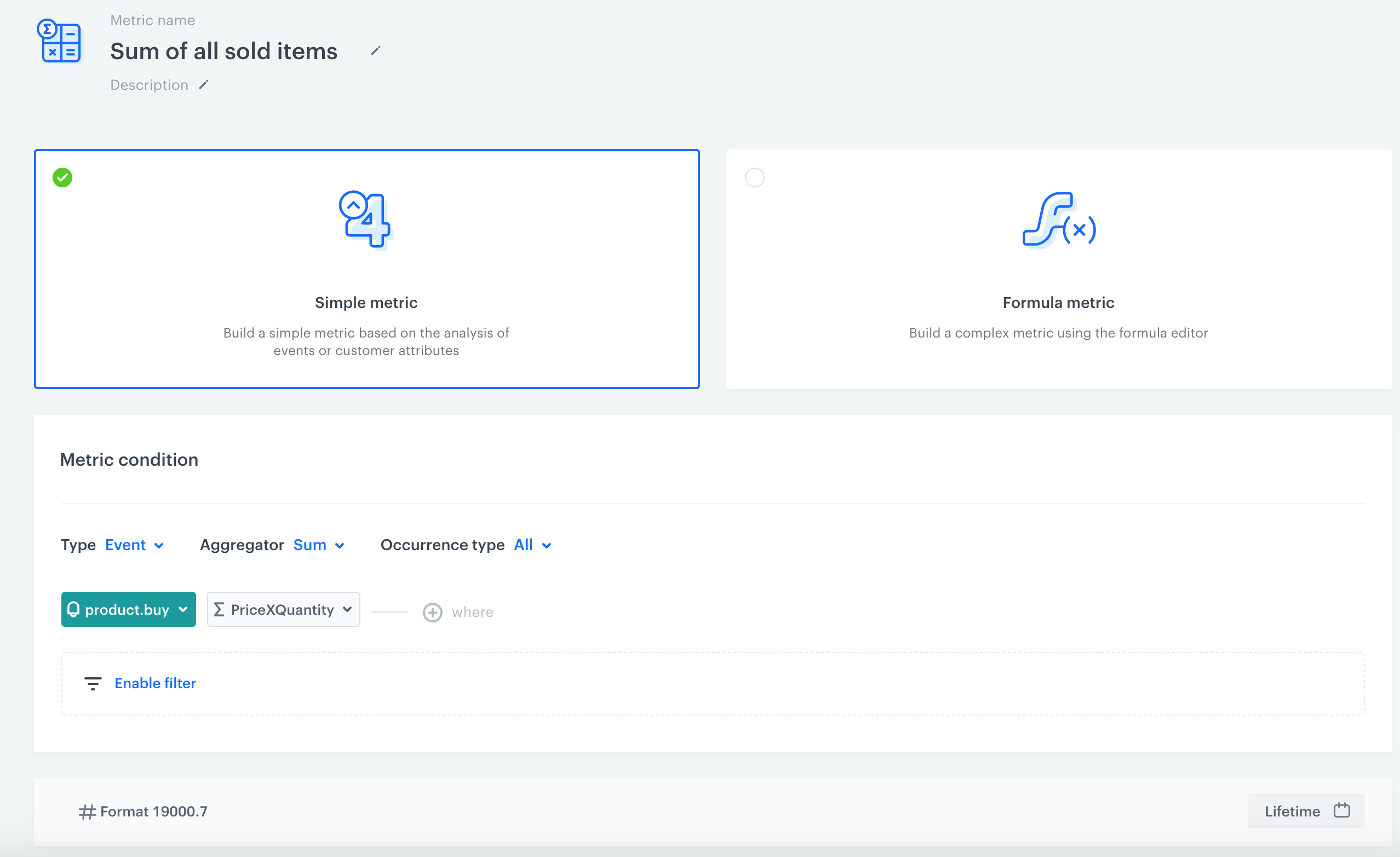
In this part of the process, create a metric that calculates all sold items. The metric reuses the expression you created in the previous part of the process.

1.  Go to <img src="/api/docs/image/54176ad07f146575310749eba44b7c2f42c1b327/icons/decision-hub-icon.svg" alt="Decision Hub icon" class="icon"> **Decision Hub > Metrics > New metric**.
2. Enter the name of the metric.
3. As a metric kind, select **Simple metric**.
3. As the aggregator, set `Sum`.
4. As the occurrence type, set `All`. 
5. From the **Choose event** dropdown list, select `product.buy`.
6. Click <img src="/api/docs/image/54176ad07f146575310749eba44b7c2f42c1b327/docs/analytics/_gfx/where-icon.png" alt="where icon" class="icon"> button.  
    **Result**: The **Choose parameter** button appears. 
7. Click the **Choose parameter** button.  
    **Result**: A pop-up appears.
8. On the pop-up, click the three-dot button.  
    **Result**: A dropdown shows.
9. From the dropdown, select **Expressions**. 
10. In the list of expressions, find the event expression you have created earlier.
11. To select a specific time range, click the calendar icon. In our case it will be **Lifetime**. Confirm your choice with the **Apply** button.
12. Click **Save**.
<figure>
<img src="/api/docs/image/54176ad07f146575310749eba44b7c2f42c1b327/use-cases/all-cases/_gfx/calculate-sold-items-metric.png" alt="The final form of a metric" class="full">
<figcaption>The final form of a metric </figcaption>
</figure>

## What's next
---
You can reuse the expression and metric while preparing the analyses to calculate items purchased in a given campaign. You can find more instructions [here](/docs/analytics/analytics-scenarios/items-bought-after-clicking).  

## Check the use case set up on the Synerise Demo workspace
---
Check the [expression](https://app.synerise.com/analytics/expressions/1302fb26-5895-40c0-8bbf-547e798329c5) and [metric](https://app.synerise.com/analytics/metrics/db5f94fa-4a80-48e0-9bab-79130d1281a8) settings directly in Synerise Demo workspace.

If you’re our partner or client, you already have automatic access to the **Synerise Demo workspace (1590)**, where you can explore all the configured elements of this use case and copy them to your workspace.  

If you’re not a partner or client yet, we encourage you to fill out the contact [form](https://demo.synerise.com/request) to schedule a meeting with our representatives. They’ll be happy to show you how our demo works and discuss how you can apply this use case in your business. 


## Read more
---
- [Expressions](/docs/analytics/expressions)
- [Metrics](/docs/analytics/metrics)