 **Decision Hub > Segmentations > New segmentation**.
2. Enter the name of the segmentation, for example `Campaign A - high priority`.
3. Click **Add condition**.
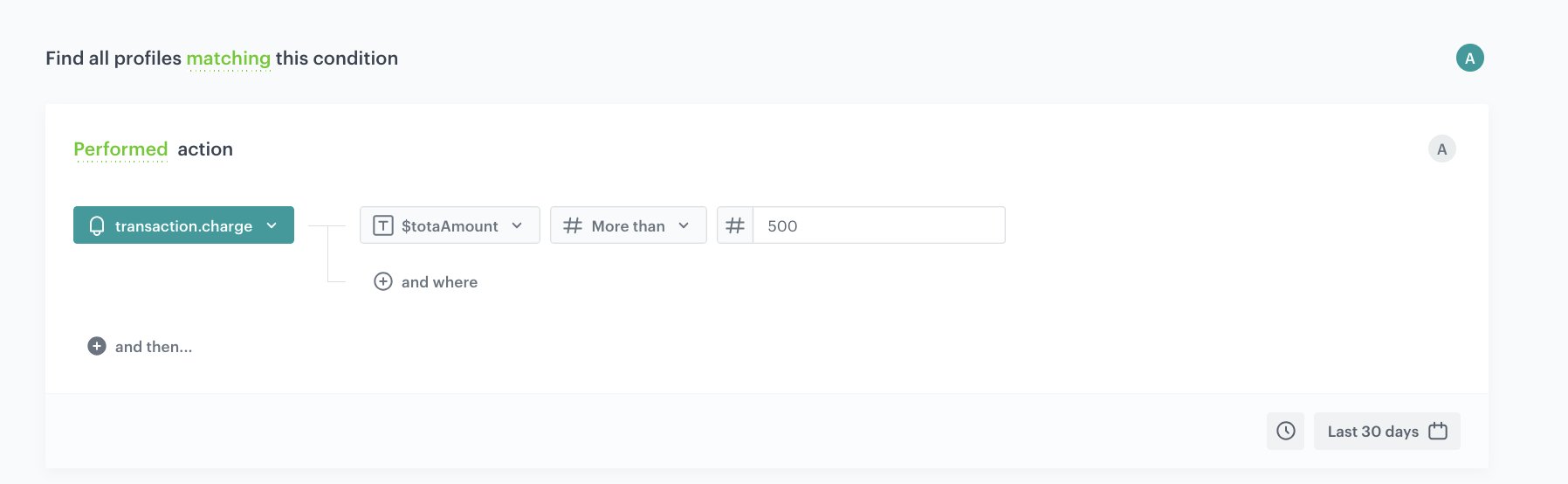
4. From the dropdown list, select the `transaction.charge` event.
5. Click the **+ where** button, from the **Choose parameter** dropdown menu, choose `$totalAmount`.
6. From the **Choose operator** dropdown, choose **More than**.
7. In the next field, type the value `500`.
8. Using the date picker in the lower-right corner, set the time range to **Last 30 days**. Confirm by clicking **Apply**.
9. Save the segmentation.
**Decision Hub > Segmentations > New segmentation**.
2. Enter the name of the segmentation, for example `Campaign B - high priority`.
3. Click **Add condition**.
4. Define the conditions that identify customers who qualify for this campaign (for example, customers who performed the `product.addToCart` event but did not complete a purchase within the last 7 days).
5. Using the date picker in the lower-right corner, set the appropriate time range. Confirm by clicking **Apply**.
6. Save the segmentation.
### Create Campaign C segmentation
1. Go to **Decision Hub > Segmentations > New segmentation**.
2. Enter the name of the segmentation, for example `Campaign C - medium priority`.
3. Click **Add condition**.
4. Define the conditions that identify customers who qualify for this campaign (for example, customers who visited a specific product category page more than 3 times without purchasing).
5. Using the date picker in the lower-right corner, set the appropriate time range. Confirm by clicking **Apply**.
6. Save the segmentation.
### Create Campaign D segmentation
1. Go to **Decision Hub > Segmentations > New segmentation**.
2. Enter the name of the segmentation, for example `Campaign D - medium priority`.
3. Click **Add condition**.
4. Define the conditions that identify customers who qualify for this campaign (for example, customers who were active on the website but haven't purchased in the last 30 days).
5. Using the date picker in the lower-right corner, set the appropriate time range. Confirm by clicking **Apply**.
6. Save the segmentation.
### Create Campaign E segmentation
1. Go to **Decision Hub > Segmentations > New segmentation**.
2. Enter the name of the segmentation, for example `Campaign E - low priority`.
3. Click **Add condition**.
4. Define the conditions that identify customers who qualify for this campaign (for example, customers who signed up for the newsletter in the last 14 days).
5. Using the date picker in the lower-right corner, set the appropriate time range. Confirm by clicking **Apply**.
6. Save the segmentation.
## Create expressions
---
Expressions are central to this use case. They provide real-time computed values used inside segmentation conditions. You will create the following expressions:
- **Current timestamp expression** — returns the current date and hour so the system can match it against each campaign's planned send time.
- **High priority campaign count expression** — counts how many high priority campaigns the customer qualifies for (used in medium priority segmentations).
- **Medium priority campaign count expression** — counts how many medium priority campaigns the customer qualifies for.
- **Combined high + medium priority campaign count expression** — sums the two above expressions (used in low priority segmentations).
### Create the current timestamp expression
---
This expression returns the current date and hour in the format `yyyy-mm-ddThh`, which allows the system to compare the current moment against each campaign's scheduled send time. The first 13 characters of the timestamp are used so that when the workflow runs every hour, it matches exactly the planned send hour.
1. Go to
**Decision Hub > Segmentations > New segmentation**.
2. Enter the name of the segmentation, for example `Campaign A - high priority`.
3. Click **Add condition**.
4. From the dropdown list, select the `transaction.charge` event.
5. Click the **+ where** button, from the **Choose parameter** dropdown menu, choose `$totalAmount`.
6. From the **Choose operator** dropdown, choose **More than**.
7. In the next field, type the value `500`.
8. Using the date picker in the lower-right corner, set the time range to **Last 30 days**. Confirm by clicking **Apply**.
9. Save the segmentation.
**Decision Hub > Segmentations > New segmentation**.
2. Enter the name of the segmentation, for example `Campaign B - high priority`.
3. Click **Add condition**.
4. Define the conditions that identify customers who qualify for this campaign (for example, customers who performed the `product.addToCart` event but did not complete a purchase within the last 7 days).
5. Using the date picker in the lower-right corner, set the appropriate time range. Confirm by clicking **Apply**.
6. Save the segmentation.
### Create Campaign C segmentation
1. Go to **Decision Hub > Segmentations > New segmentation**.
2. Enter the name of the segmentation, for example `Campaign C - medium priority`.
3. Click **Add condition**.
4. Define the conditions that identify customers who qualify for this campaign (for example, customers who visited a specific product category page more than 3 times without purchasing).
5. Using the date picker in the lower-right corner, set the appropriate time range. Confirm by clicking **Apply**.
6. Save the segmentation.
### Create Campaign D segmentation
1. Go to **Decision Hub > Segmentations > New segmentation**.
2. Enter the name of the segmentation, for example `Campaign D - medium priority`.
3. Click **Add condition**.
4. Define the conditions that identify customers who qualify for this campaign (for example, customers who were active on the website but haven't purchased in the last 30 days).
5. Using the date picker in the lower-right corner, set the appropriate time range. Confirm by clicking **Apply**.
6. Save the segmentation.
### Create Campaign E segmentation
1. Go to **Decision Hub > Segmentations > New segmentation**.
2. Enter the name of the segmentation, for example `Campaign E - low priority`.
3. Click **Add condition**.
4. Define the conditions that identify customers who qualify for this campaign (for example, customers who signed up for the newsletter in the last 14 days).
5. Using the date picker in the lower-right corner, set the appropriate time range. Confirm by clicking **Apply**.
6. Save the segmentation.
## Create expressions
---
Expressions are central to this use case. They provide real-time computed values used inside segmentation conditions. You will create the following expressions:
- **Current timestamp expression** — returns the current date and hour so the system can match it against each campaign's planned send time.
- **High priority campaign count expression** — counts how many high priority campaigns the customer qualifies for (used in medium priority segmentations).
- **Medium priority campaign count expression** — counts how many medium priority campaigns the customer qualifies for.
- **Combined high + medium priority campaign count expression** — sums the two above expressions (used in low priority segmentations).
### Create the current timestamp expression
---
This expression returns the current date and hour in the format `yyyy-mm-ddThh`, which allows the system to compare the current moment against each campaign's scheduled send time. The first 13 characters of the timestamp are used so that when the workflow runs every hour, it matches exactly the planned send hour.
1. Go to  **Behavioral Data Hub > Expressions > New expression**.
2. Enter the name, for example `Now (yyyy-mm-dd hh)`.
3. Set the expression type to **Attribute**.
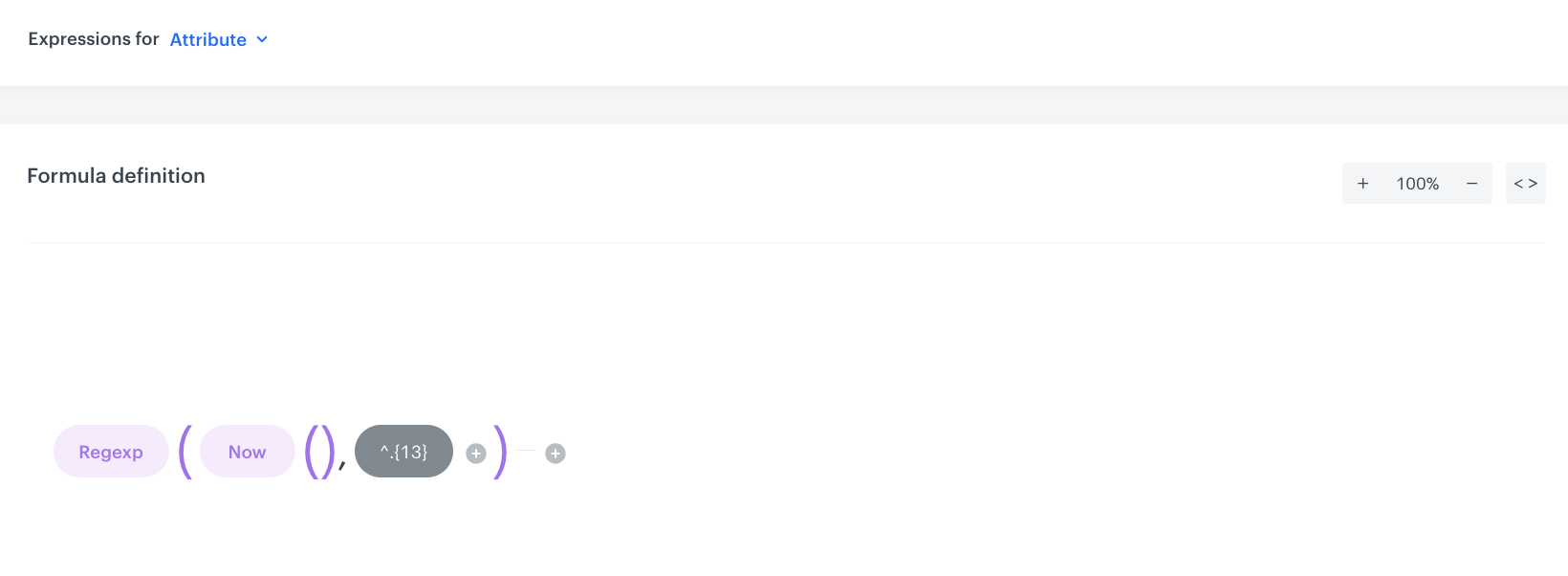
4. In the **Formula definition** section, build the formula using the `Regexp` function.
5. Then add function `Now`.
6. Add the `Constant` pattern to extract the first 13 characters of the current timestamp, adding it as the value: `^.{13}`.
7. Save the expression.
**Behavioral Data Hub > Expressions > New expression**.
2. Enter the name, for example `Now (yyyy-mm-dd hh)`.
3. Set the expression type to **Attribute**.
4. In the **Formula definition** section, build the formula using the `Regexp` function.
5. Then add function `Now`.
6. Add the `Constant` pattern to extract the first 13 characters of the current timestamp, adding it as the value: `^.{13}`.
7. Save the expression.
 **Behavioral Data Hub > Expressions > New expression**.
2. Enter the name, for example `How many high priority campaigns user qualifies for`.
3. Set the expression type to **Attribute**.
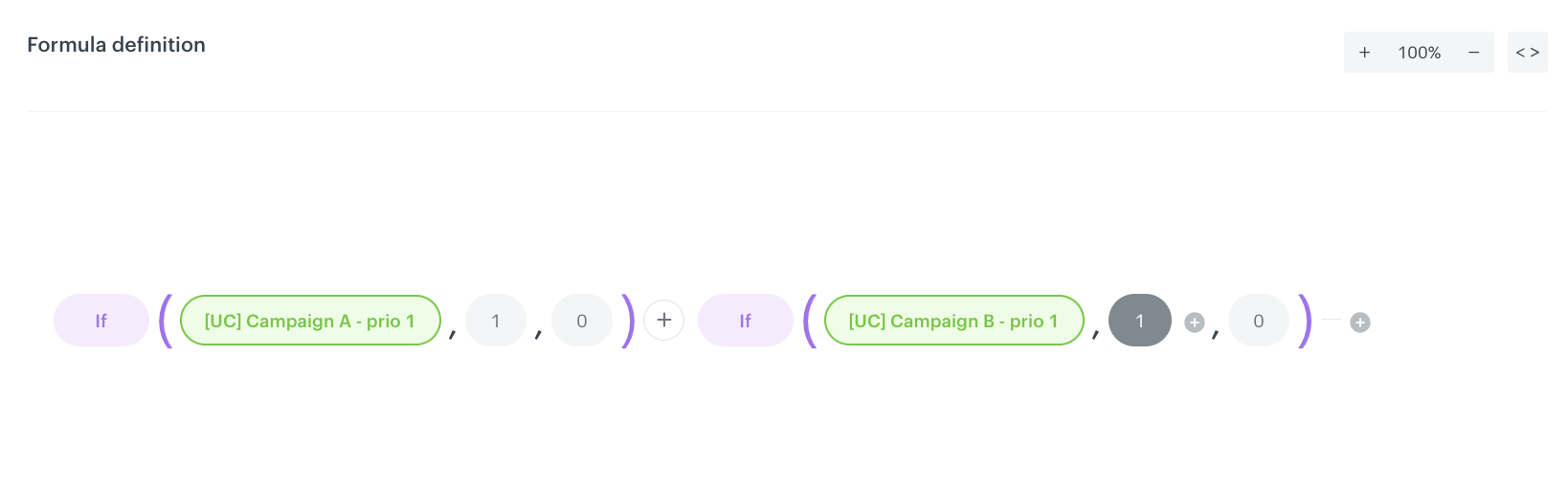
4. Build the formula to check membership in the [Campaign A](#create-campaign-a-segmentation) and [Campaign B](#create-campaign-b-segmentation) segmentations and return the sum.
5. Save the expression.
**Behavioral Data Hub > Expressions > New expression**.
2. Enter the name, for example `How many high priority campaigns user qualifies for`.
3. Set the expression type to **Attribute**.
4. Build the formula to check membership in the [Campaign A](#create-campaign-a-segmentation) and [Campaign B](#create-campaign-b-segmentation) segmentations and return the sum.
5. Save the expression.
 **Behavioral Data Hub > Expressions > New expression**.
2. Enter the name, for example `How many medium priority campaigns user qualifies for`.
3. Set the expression type to **Attribute**.
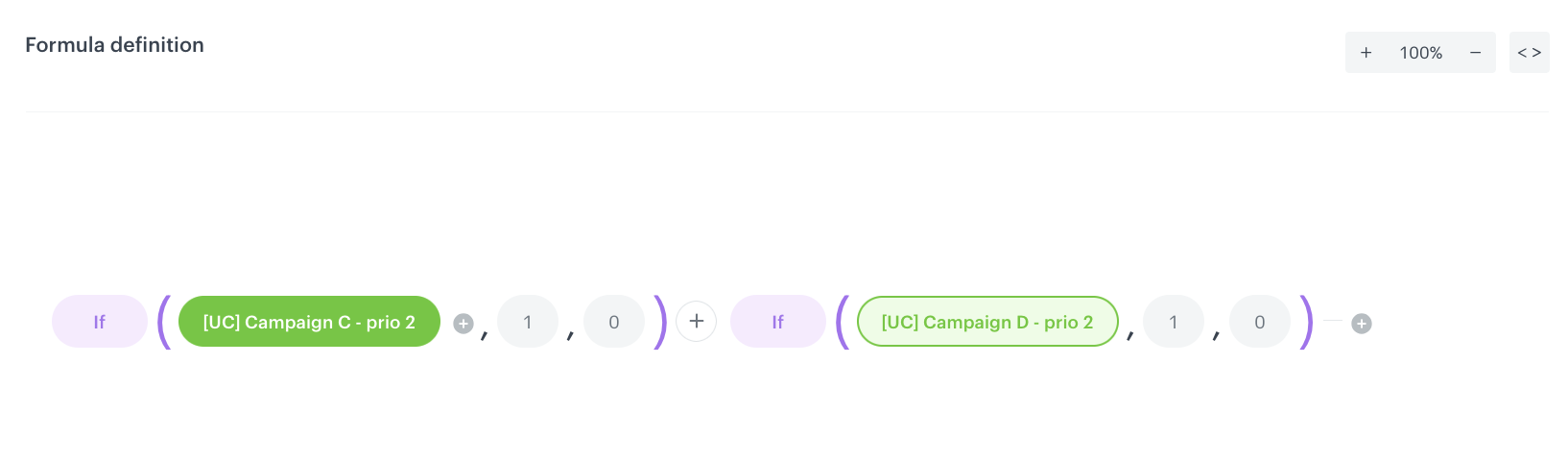
4. Build the formula to check membership in the [Campaign C](#create-campaign-c-segmentation) and [Campaign D](#create-campaign-d-segmentation) segmentations and return the sum. Build it in the same way as the [previous expression](#create-the-high-priority-campaign-count-expression), replacing the high priority segmentations with medium priority ones.
5. Save the expression.
**Behavioral Data Hub > Expressions > New expression**.
2. Enter the name, for example `How many medium priority campaigns user qualifies for`.
3. Set the expression type to **Attribute**.
4. Build the formula to check membership in the [Campaign C](#create-campaign-c-segmentation) and [Campaign D](#create-campaign-d-segmentation) segmentations and return the sum. Build it in the same way as the [previous expression](#create-the-high-priority-campaign-count-expression), replacing the high priority segmentations with medium priority ones.
5. Save the expression.
 **Behavioral Data Hub > Expressions > New expression**.
2. Enter the name, for example `How many high + medium priority campaigns user qualifies for`.
3. Set the expression type to **Attribute**.
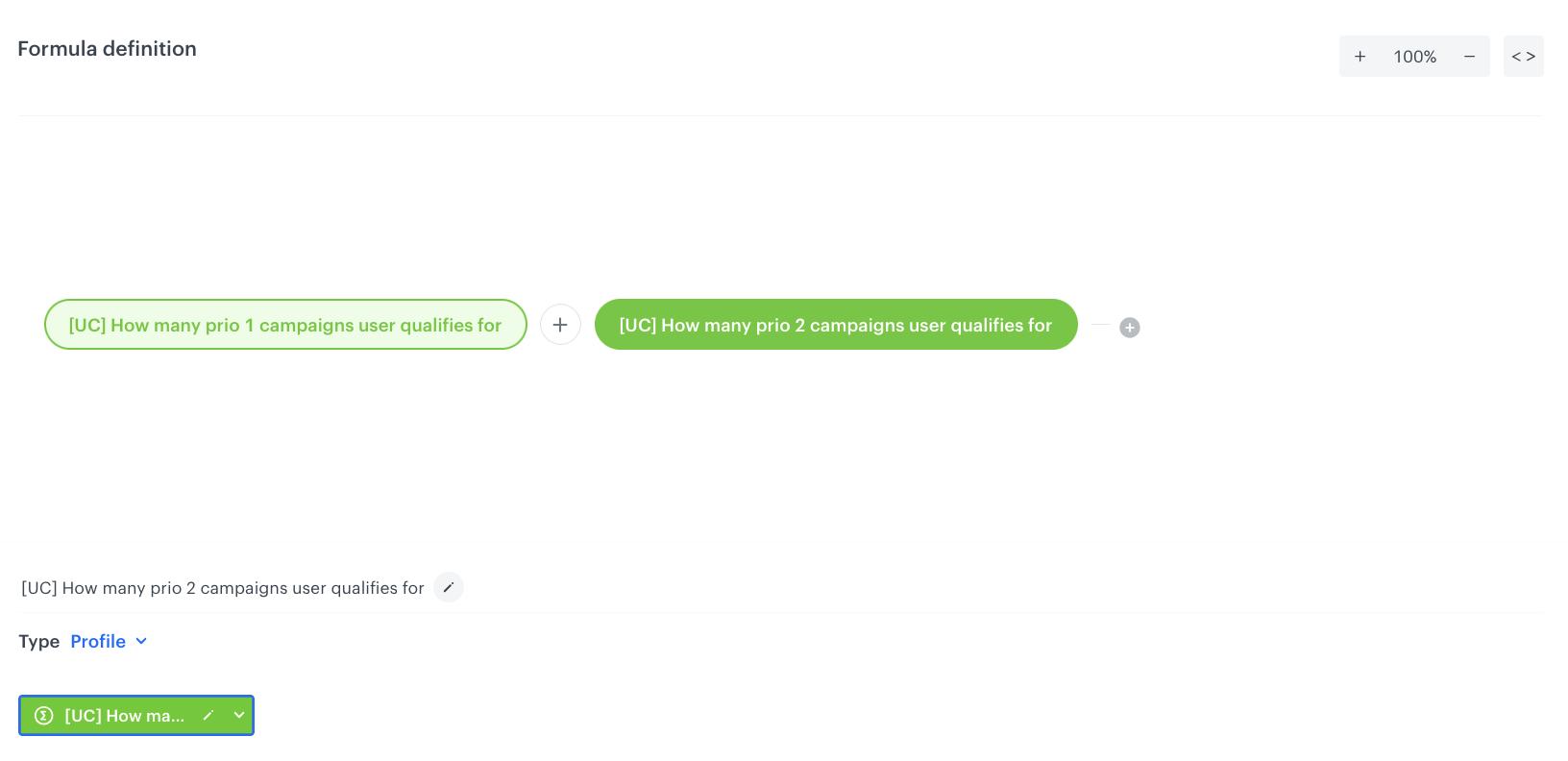
4. Build the formula as a sum of the two previously created expressions: the high priority campaign count expression and the medium priority campaign count expression, as presented on the screen below.
5. Save the expression.
**Behavioral Data Hub > Expressions > New expression**.
2. Enter the name, for example `How many high + medium priority campaigns user qualifies for`.
3. Set the expression type to **Attribute**.
4. Build the formula as a sum of the two previously created expressions: the high priority campaign count expression and the medium priority campaign count expression, as presented on the screen below.
5. Save the expression.
 **Automation Hub > Workflows > New workflow**.
2. Enter the name of the workflow, for example `Split audience - high priority`.
#### Define the Audience trigger node
1. Start the workflow with the **Audience** node. In the configuration:
1. Set the **Action limit** to `1` times per workflow.
2. In the **Schedule** section, select **Repeat runs**.
3. Select the timezone, for example `Europe/Warsaw (Central European Standard Time) UTC+01:00`.
4. Set the interval type to **Interval**.
5. Set the interval to `1 Hour`.
6. Set the **Begin at** date to the start of the campaign week.
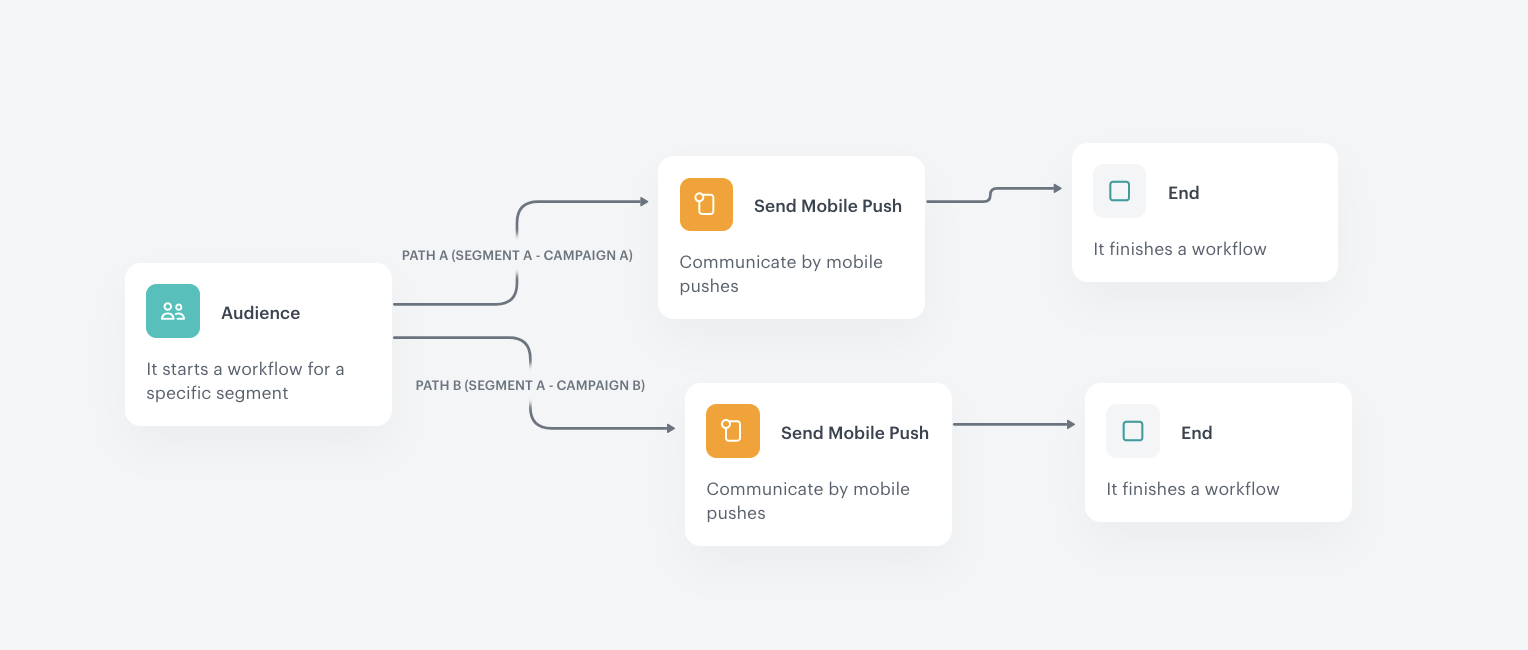
7. In the **Audience** section, select **Split audience**.
8. Select the `Split audience - high priority` segmentation (you will create this segmentation in a [later step](#create-the-high-priority-split-audience-segmentation) — for now, you can leave this field empty or use a placeholder and update it later).
9. Map **Segment A** to **Path A** (Campaign A).
10. Map **Segment B** to **Path B** (Campaign B).
2. Click **Apply**.
#### Configure Path A (Campaign A)
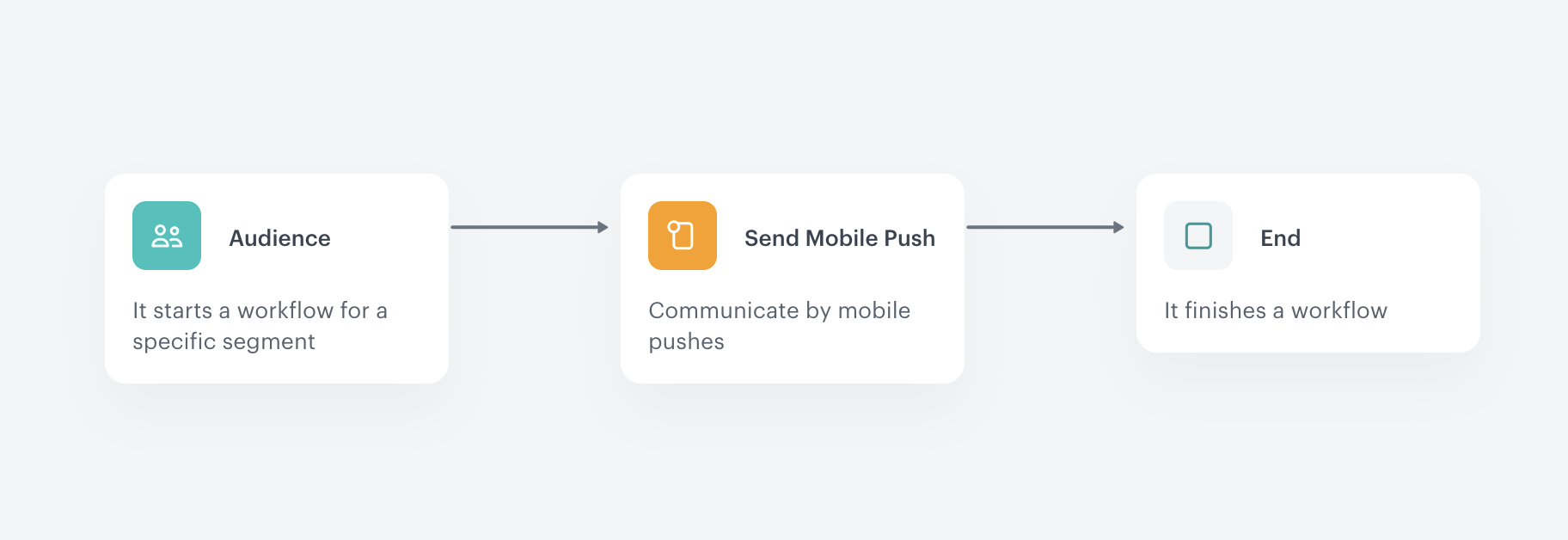
1. On Path A (Segment A), add the **Send Mobile Push** node.
2. Configure the mobile push message content for Campaign A according to your business needs.
3. Add the **End** node after the Send Mobile Push node.
#### Configure Path B (Campaign B)
1. On Path B (Segment B), add the **Send Mobile Push** node.
2. Configure the mobile push message content for Campaign B.
3. Add the **End** node.
4. In the upper right corner, click **Save & Run**.
**Automation Hub > Workflows > New workflow**.
2. Enter the name of the workflow, for example `Split audience - high priority`.
#### Define the Audience trigger node
1. Start the workflow with the **Audience** node. In the configuration:
1. Set the **Action limit** to `1` times per workflow.
2. In the **Schedule** section, select **Repeat runs**.
3. Select the timezone, for example `Europe/Warsaw (Central European Standard Time) UTC+01:00`.
4. Set the interval type to **Interval**.
5. Set the interval to `1 Hour`.
6. Set the **Begin at** date to the start of the campaign week.
7. In the **Audience** section, select **Split audience**.
8. Select the `Split audience - high priority` segmentation (you will create this segmentation in a [later step](#create-the-high-priority-split-audience-segmentation) — for now, you can leave this field empty or use a placeholder and update it later).
9. Map **Segment A** to **Path A** (Campaign A).
10. Map **Segment B** to **Path B** (Campaign B).
2. Click **Apply**.
#### Configure Path A (Campaign A)
1. On Path A (Segment A), add the **Send Mobile Push** node.
2. Configure the mobile push message content for Campaign A according to your business needs.
3. Add the **End** node after the Send Mobile Push node.
#### Configure Path B (Campaign B)
1. On Path B (Segment B), add the **Send Mobile Push** node.
2. Configure the mobile push message content for Campaign B.
3. Add the **End** node.
4. In the upper right corner, click **Save & Run**.
 **Automation Hub > Workflows > New workflow**.
2. Enter the name, for example `Split audience - medium priority`.
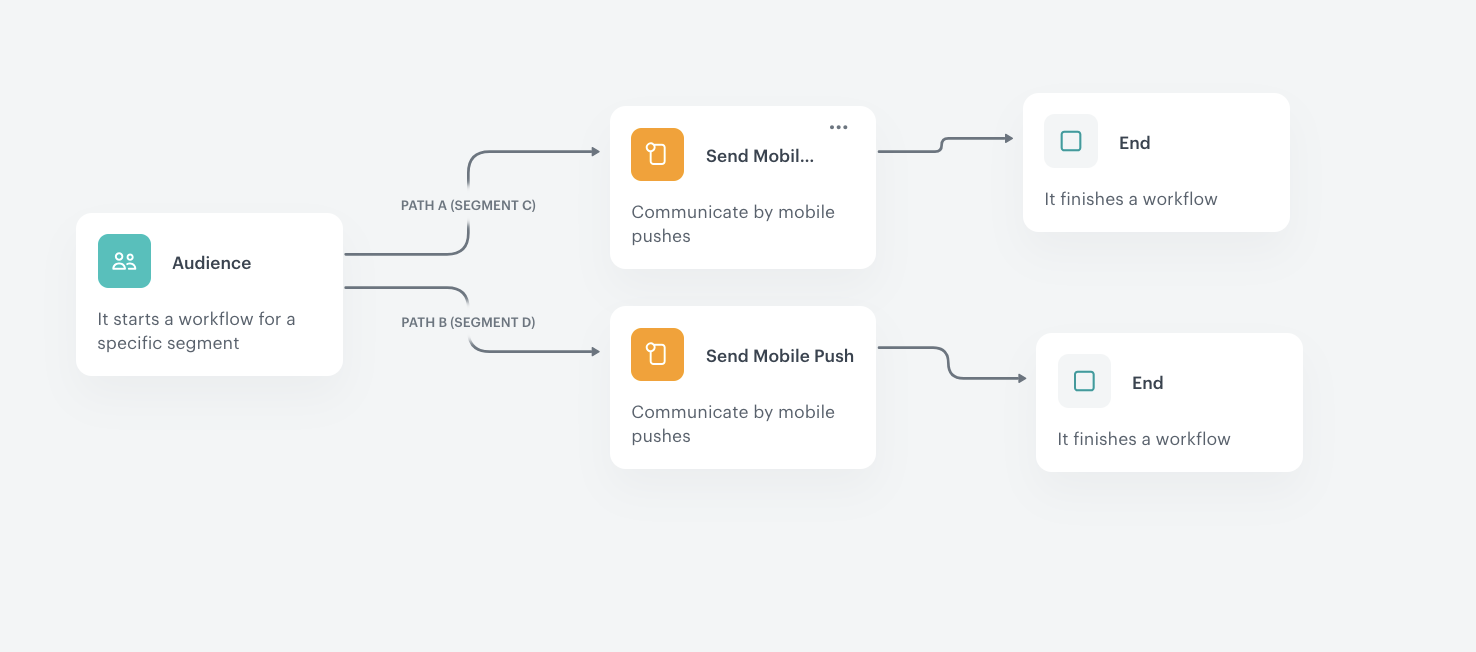
3. Configure the **Audience** node with the same settings as the high priority workflow:
- Action limit: `1`
- Repeat runs at an interval of `1 Hour`
- Begin at: the start of the campaign week
- Split audience using the `Split audience - medium priority` segmentation (to be created in a [later step](#create-the-medium-priority-split-audience-segmentation))
- Map Segment C → Path A, Segment D → Path B
4. On each path, add a **Send Mobile Push** node followed by an **End** node.
5. Click **Save & Run**.
**Automation Hub > Workflows > New workflow**.
2. Enter the name, for example `Split audience - medium priority`.
3. Configure the **Audience** node with the same settings as the high priority workflow:
- Action limit: `1`
- Repeat runs at an interval of `1 Hour`
- Begin at: the start of the campaign week
- Split audience using the `Split audience - medium priority` segmentation (to be created in a [later step](#create-the-medium-priority-split-audience-segmentation))
- Map Segment C → Path A, Segment D → Path B
4. On each path, add a **Send Mobile Push** node followed by an **End** node.
5. Click **Save & Run**.
 **Automation Hub > Workflows > New workflow**.
2. Enter the name, for example `Split audience - low priority`.
3. Configure the **Audience** node with the same settings:
- Action limit: `1`
- Repeat runs at an interval of `1 Hour`
- Begin at: the start of the campaign week
- Select the `Split audience - low priority` segmentation (to be created in a [later step](#create-the-low-priority-split-audience-segmentation))
4. Add a **Send Mobile Push** node followed by an **End** node.
5. Click **Save & Run**.
**Automation Hub > Workflows > New workflow**.
2. Enter the name, for example `Split audience - low priority`.
3. Configure the **Audience** node with the same settings:
- Action limit: `1`
- Repeat runs at an interval of `1 Hour`
- Begin at: the start of the campaign week
- Select the `Split audience - low priority` segmentation (to be created in a [later step](#create-the-low-priority-split-audience-segmentation))
4. Add a **Send Mobile Push** node followed by an **End** node.
5. Click **Save & Run**.
 **Behavioral Data Hub > Live Aggregates > Create aggregate**.
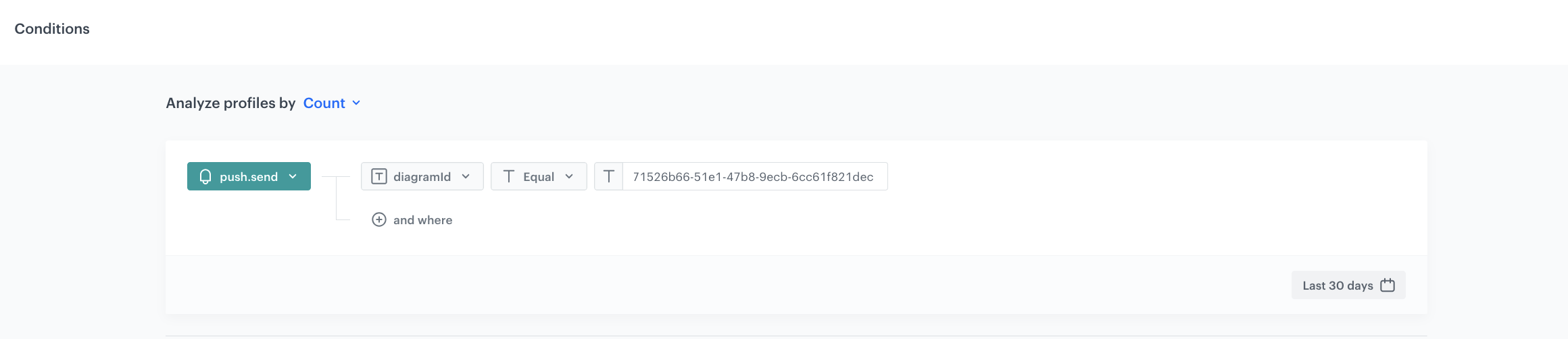
2. As the aggregate type, select **Profile**.
3. Enter the name of the aggregate, for example `Number of sent pushes - high priority`.
4. Click **Analyze profiles by** and select **Count**.
5. From the **Choose event** dropdown list, select the `push.send` event.
6. Click the **+ where** button.
7. From the **Choose parameter** dropdown list, select **diagramId**.
8. From the **Choose operator** dropdown list, select **Equal**.
9. In the value field, enter the diagram ID of the high priority workflow (for example, `71526b66-51e1-47b8-9ecb-6cc61f821dec`). You can find this ID in the URL of the workflow in the Automation Hub.
10. Define the period to **Last 30 days**.
11. Save the aggregate.
**Behavioral Data Hub > Live Aggregates > Create aggregate**.
2. As the aggregate type, select **Profile**.
3. Enter the name of the aggregate, for example `Number of sent pushes - high priority`.
4. Click **Analyze profiles by** and select **Count**.
5. From the **Choose event** dropdown list, select the `push.send` event.
6. Click the **+ where** button.
7. From the **Choose parameter** dropdown list, select **diagramId**.
8. From the **Choose operator** dropdown list, select **Equal**.
9. In the value field, enter the diagram ID of the high priority workflow (for example, `71526b66-51e1-47b8-9ecb-6cc61f821dec`). You can find this ID in the URL of the workflow in the Automation Hub.
10. Define the period to **Last 30 days**.
11. Save the aggregate.
 **Behavioral Data Hub > Live Aggregates > Create aggregate**.
2. As the aggregate type, select **Profile**.
3. Enter the name of the aggregate, for example `Number of sent pushes - medium priority`.
4. Click **Analyze profiles by** and select **Count**.
5. From the **Choose event** dropdown list, select the `push.send` event.
6. Click the **+ where** button.
7. From the **Choose parameter** dropdown list, select **diagramId**.
8. From the **Choose operator** dropdown list, select **Equal**.
9. In the value field, enter the diagram ID of the medium priority workflow.
10. Define the period to **Last 30 days**.
11. Save the aggregate.
### Create the aggregate for all sent pushes
---
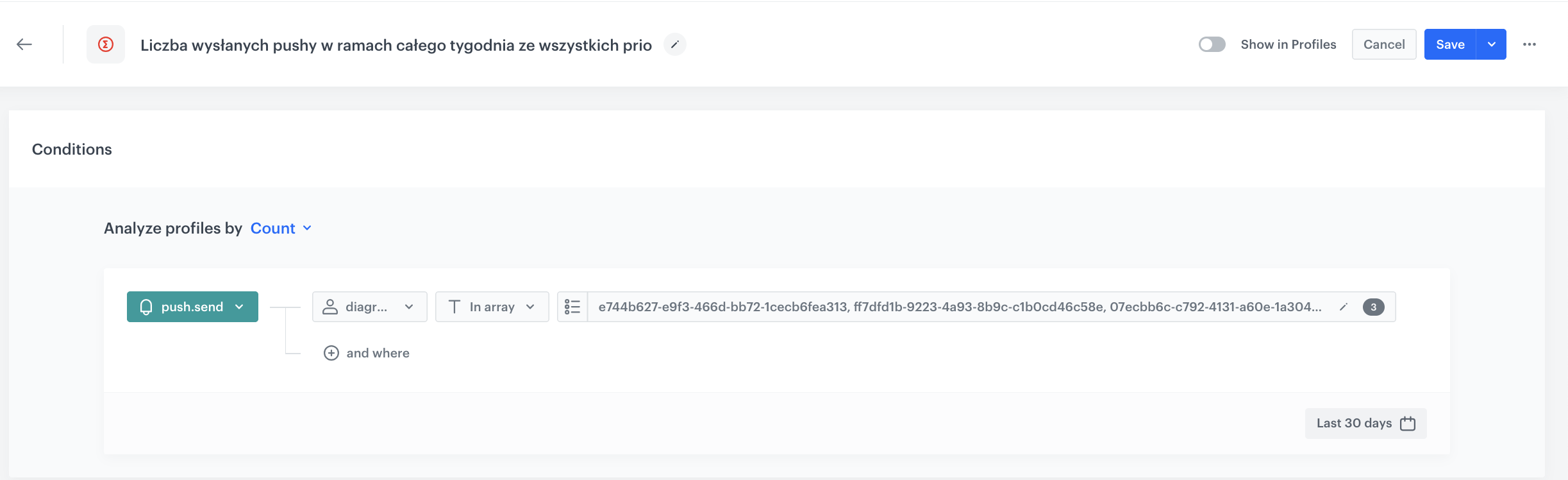
This aggregate counts how many push notifications were sent to a customer across all campaign workflows combined. Unlike the per-priority aggregates, this one uses the **In array** operator to match against the diagram IDs of all three priority workflows at once.
1. Go to **Behavioral Data Hub > Live Aggregates > Create aggregate**.
2. As the aggregate type, select **Profile**.
3. Enter the name of the aggregate, for example `Number of sent pushes - all`.
4. Click **Analyze profiles by** and select **Count**.
5. From the **Choose event** dropdown list, select the `push.send` event.
6. Click the **+ where** button.
7. From the **Choose parameter** dropdown list, select **diagramId**.
8. From the **Choose operator** dropdown list, select **In array**.
9. In the value field, enter the diagram IDs of all three priority workflows (the high priority workflow ID, the medium priority workflow ID, and the low priority workflow ID).
10. Define the period to **Last 30 days**.
11. Save the aggregate.
**Behavioral Data Hub > Live Aggregates > Create aggregate**.
2. As the aggregate type, select **Profile**.
3. Enter the name of the aggregate, for example `Number of sent pushes - medium priority`.
4. Click **Analyze profiles by** and select **Count**.
5. From the **Choose event** dropdown list, select the `push.send` event.
6. Click the **+ where** button.
7. From the **Choose parameter** dropdown list, select **diagramId**.
8. From the **Choose operator** dropdown list, select **Equal**.
9. In the value field, enter the diagram ID of the medium priority workflow.
10. Define the period to **Last 30 days**.
11. Save the aggregate.
### Create the aggregate for all sent pushes
---
This aggregate counts how many push notifications were sent to a customer across all campaign workflows combined. Unlike the per-priority aggregates, this one uses the **In array** operator to match against the diagram IDs of all three priority workflows at once.
1. Go to **Behavioral Data Hub > Live Aggregates > Create aggregate**.
2. As the aggregate type, select **Profile**.
3. Enter the name of the aggregate, for example `Number of sent pushes - all`.
4. Click **Analyze profiles by** and select **Count**.
5. From the **Choose event** dropdown list, select the `push.send` event.
6. Click the **+ where** button.
7. From the **Choose parameter** dropdown list, select **diagramId**.
8. From the **Choose operator** dropdown list, select **In array**.
9. In the value field, enter the diagram IDs of all three priority workflows (the high priority workflow ID, the medium priority workflow ID, and the low priority workflow ID).
10. Define the period to **Last 30 days**.
11. Save the aggregate.
 **Decision Hub > Segmentations > New segmentation**.
2. Enter the name, for example `Split audience - high priority`.
#### Configure Segment A (Campaign A)
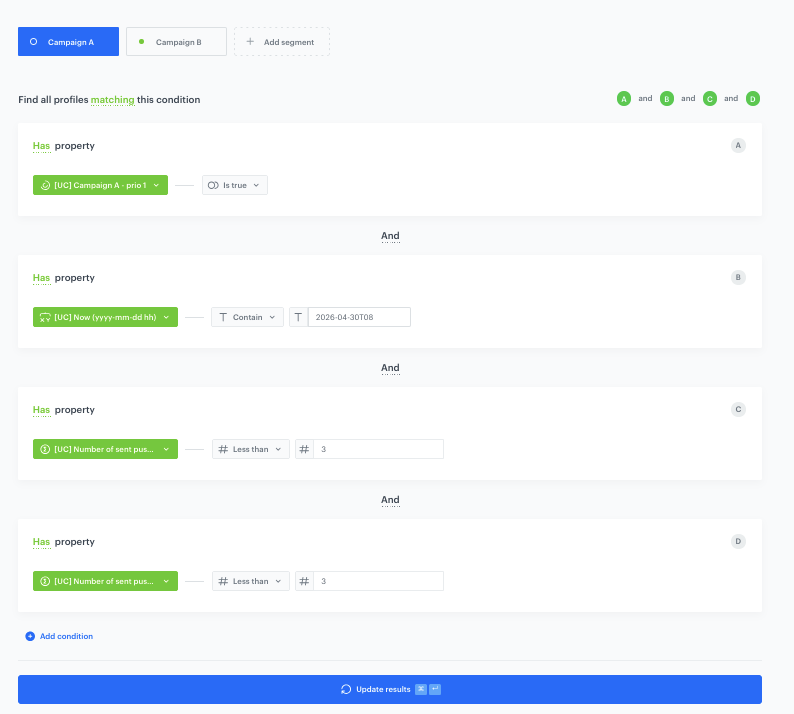
3. In the first segment, add the following conditions connected by the **AND** operator:
1. **Condition A** — Has property: `Campaign A - high priority` segmentation **Is true**. This checks if the customer qualifies for Campaign A.
2. **Condition B** — Has property: `Now (yyyy-mm-dd hh)` expression **Contain** the value representing Campaign A's planned send date and hour (for example, `2026-04-15T10`). This ensures the campaign only triggers at the exact scheduled hour.
3. **Condition C** — Has property: `Number of sent pushes - high priority` aggregate **Less than** `3`. This enforces the weekly contact limit within the high priority workflow.
4. **Condition D** — Has property: `Number of sent pushes - all` aggregate **Less than** `3`. This enforces the overall weekly contact limit.
4. Click **Apply**.
#### Configure Segment B (Campaign B)
5. Click **Add segment** and add the following conditions connected by the **AND** operator:
1. **Condition A** — Has property: `Campaign B - high priority` segmentation **Is true**.
2. **Condition B** — Has property: `Now (yyyy-mm-dd hh)` expression **Contain** the value representing Campaign B's planned send date and hour (for example, `2026-04-16T10`).
3. **Condition C** — Has property: `Number of sent pushes - all` aggregate **Less than** `3`.
4. **Condition D** — Has property: `Number of sent pushes - high priority` aggregate **Less than** `3`.
6. Save the segmentation.
**Decision Hub > Segmentations > New segmentation**.
2. Enter the name, for example `Split audience - high priority`.
#### Configure Segment A (Campaign A)
3. In the first segment, add the following conditions connected by the **AND** operator:
1. **Condition A** — Has property: `Campaign A - high priority` segmentation **Is true**. This checks if the customer qualifies for Campaign A.
2. **Condition B** — Has property: `Now (yyyy-mm-dd hh)` expression **Contain** the value representing Campaign A's planned send date and hour (for example, `2026-04-15T10`). This ensures the campaign only triggers at the exact scheduled hour.
3. **Condition C** — Has property: `Number of sent pushes - high priority` aggregate **Less than** `3`. This enforces the weekly contact limit within the high priority workflow.
4. **Condition D** — Has property: `Number of sent pushes - all` aggregate **Less than** `3`. This enforces the overall weekly contact limit.
4. Click **Apply**.
#### Configure Segment B (Campaign B)
5. Click **Add segment** and add the following conditions connected by the **AND** operator:
1. **Condition A** — Has property: `Campaign B - high priority` segmentation **Is true**.
2. **Condition B** — Has property: `Now (yyyy-mm-dd hh)` expression **Contain** the value representing Campaign B's planned send date and hour (for example, `2026-04-16T10`).
3. **Condition C** — Has property: `Number of sent pushes - all` aggregate **Less than** `3`.
4. **Condition D** — Has property: `Number of sent pushes - high priority` aggregate **Less than** `3`.
6. Save the segmentation.
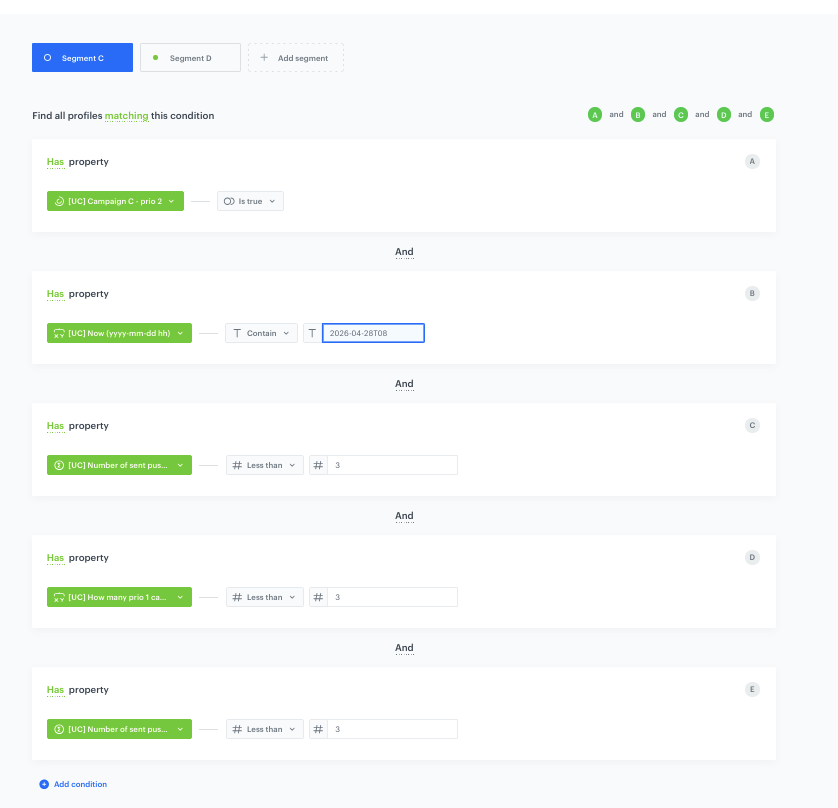
 **Decision Hub > Segmentations > New segmentation**.
2. Enter the name, for example `Split audience - medium priority`.
#### Configure Segment A (Campaign C)
3. In the first segment, add the following conditions connected by the **AND** operator:
1. **Condition A** — Has property: `Campaign C - medium priority` segmentation **Is true**.
2. **Condition B** — Has property: `Now (yyyy-mm-dd hh)` expression **Contain** the value representing Campaign C's planned send date and hour (for example, `2026-04-13T09`).
3. **Condition C** — Has property: `Number of sent pushes - all` aggregate **Less than** `3`.
4. **Condition D** — Has property: `How many high priority campaigns user qualifies for` expression **Less than** `3`. This ensures that the total number of potential high priority sends plus this send would not exceed the weekly limit.
5. **Condition E** — Has property: `Number of sent pushes - high priority` aggregate **Less than** `3`.
4. Click **Apply**.
#### Configure Segment B (Campaign D)
5. Click **Add segment** and add the following conditions connected by the **AND** operator:
1. **Condition A** — Has property: `Campaign D - medium priority` segmentation **Is true**.
2. **Condition B** — Has property: `Now (yyyy-mm-dd hh)` expression **Contain** the value representing Campaign D's planned send date and hour (for example, `2026-04-13T14`).
3. **Condition C** — Has property: `Number of sent pushes - all` aggregate **Less than** `3`.
4. **Condition D** — Has property: `How many high priority campaigns user qualifies for` expression **Less than** `3`.
5. **Condition E** — Has property: `Number of sent pushes - high priority` aggregate **Less than** `3`.
6. Save the segmentation.
**Decision Hub > Segmentations > New segmentation**.
2. Enter the name, for example `Split audience - medium priority`.
#### Configure Segment A (Campaign C)
3. In the first segment, add the following conditions connected by the **AND** operator:
1. **Condition A** — Has property: `Campaign C - medium priority` segmentation **Is true**.
2. **Condition B** — Has property: `Now (yyyy-mm-dd hh)` expression **Contain** the value representing Campaign C's planned send date and hour (for example, `2026-04-13T09`).
3. **Condition C** — Has property: `Number of sent pushes - all` aggregate **Less than** `3`.
4. **Condition D** — Has property: `How many high priority campaigns user qualifies for` expression **Less than** `3`. This ensures that the total number of potential high priority sends plus this send would not exceed the weekly limit.
5. **Condition E** — Has property: `Number of sent pushes - high priority` aggregate **Less than** `3`.
4. Click **Apply**.
#### Configure Segment B (Campaign D)
5. Click **Add segment** and add the following conditions connected by the **AND** operator:
1. **Condition A** — Has property: `Campaign D - medium priority` segmentation **Is true**.
2. **Condition B** — Has property: `Now (yyyy-mm-dd hh)` expression **Contain** the value representing Campaign D's planned send date and hour (for example, `2026-04-13T14`).
3. **Condition C** — Has property: `Number of sent pushes - all` aggregate **Less than** `3`.
4. **Condition D** — Has property: `How many high priority campaigns user qualifies for` expression **Less than** `3`.
5. **Condition E** — Has property: `Number of sent pushes - high priority` aggregate **Less than** `3`.
6. Save the segmentation.
 **Decision Hub > Segmentations > New segmentation**.
2. Enter the name, for example `Split audience - low priority`.
#### Configure Segment A (Campaign E)
3. In the first segment, add the following conditions connected by the **AND** operator:
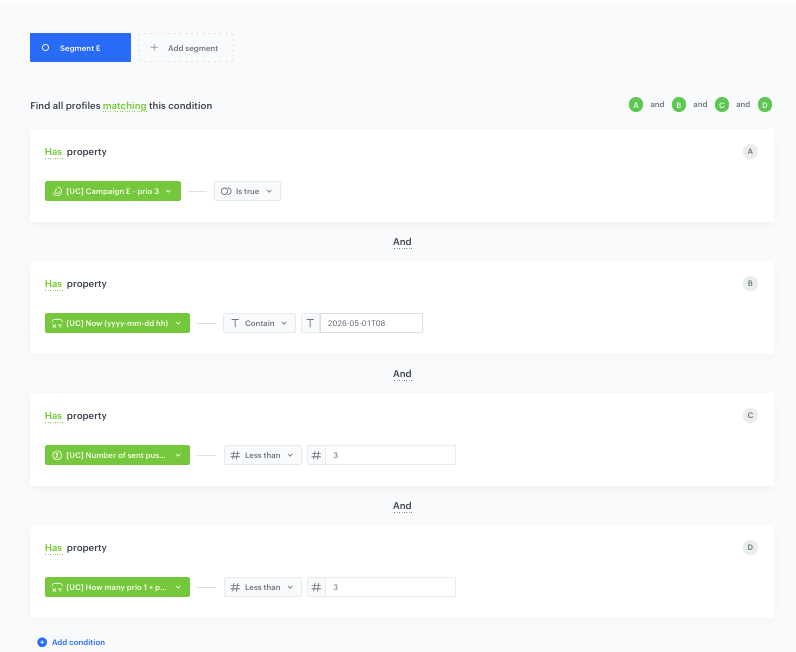
1. **Condition A** — Has property: `Campaign E - low priority` segmentation **Is true**.
2. **Condition B** — Has property: `Now (yyyy-mm-dd hh)` expression **Contain** the value representing Campaign E's planned send date and hour (for example, `2026-04-14T10`).
3. **Condition C** — Has property: `Number of sent pushes - all` aggregate **Less than** `3`.
4. **Condition D** — Has property: `How many high + medium priority campaigns user qualifies for` expression **Less than** `3`. This ensures that the combined potential sends from higher priorities plus this send would not exceed the weekly limit.
4. Save the segmentation.
**Decision Hub > Segmentations > New segmentation**.
2. Enter the name, for example `Split audience - low priority`.
#### Configure Segment A (Campaign E)
3. In the first segment, add the following conditions connected by the **AND** operator:
1. **Condition A** — Has property: `Campaign E - low priority` segmentation **Is true**.
2. **Condition B** — Has property: `Now (yyyy-mm-dd hh)` expression **Contain** the value representing Campaign E's planned send date and hour (for example, `2026-04-14T10`).
3. **Condition C** — Has property: `Number of sent pushes - all` aggregate **Less than** `3`.
4. **Condition D** — Has property: `How many high + medium priority campaigns user qualifies for` expression **Less than** `3`. This ensures that the combined potential sends from higher priorities plus this send would not exceed the weekly limit.
4. Save the segmentation.