By focusing on specific product categories, you can curate promotions that resonate with your customers' unique needs. Unlock the ability to connect with your customers during special occasions that matter most to them. Whether it's the back-to-school rush, festive holidays, or the start of barbecue season, category promotions allow you to deliver precisely timed offers that align with your audience's interests. Elevate your business promotional strategy with Synerise and harness the power of precision marketing to elevate customer engagement and enhance conversion rates.

In this use case, you will create a back-to-school promotion for electronics category, valid only once per customer.

## Prerequisites 
---
- Implement Promotions with [SDK mobile in your mobile application](/developers/mobile-sdk/loyalty) or through [API](https://developers.synerise.com/LoyaltyandEngagement/LoyaltyandEngagement.html#operation/profileLogin) in any channel.
- [Implement transactional events](/developers/web/methods-reference#tracking-transactions).
- [Import the product feed to a catalog](/use-cases/import-product-feed-to-catalog).
- Create a specific category filter in the product catalog to be reused while preparing the promotion.


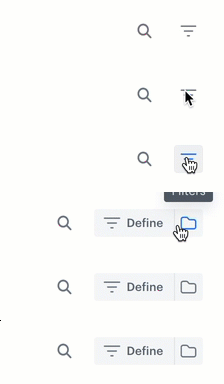
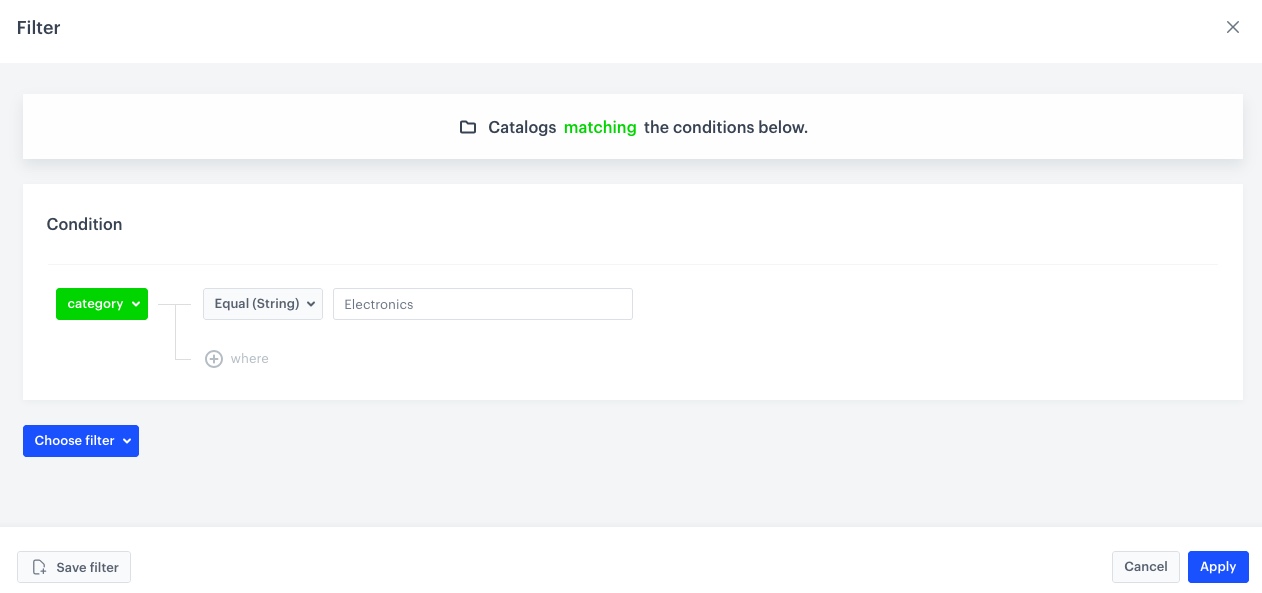
  <details class="accordion"><summary>Click here to see how to build the filter</summary><div class="accordion-content"><ol> <li><p>Go to <strong>Data Modeling Hub &gt; Catalogs</strong>.</p> </li> <li><p>On the list find the catalog in which you want to create the filter.</p> </li> <li><p>On the right side of the screen, click <figure><img src="/api/docs/image/54176ad07f146575310749eba44b7c2f42c1b327/docs/campaign/_gfx/promotion-filter-define.gif" alt="Clicking the filter icon" class="full"></figure></p> </li> <li><p>Click <strong>Define</strong>.</p> </li> <li><p>On the pop-up, define the conditions by clicking <strong>Choose filter</strong>. The list contains all parameters from the product feed. </p> <figure> <img src="/api/docs/image/54176ad07f146575310749eba44b7c2f42c1b327/use-cases/all-cases/_gfx/cat_prom_filter.png" alt="The view of filter configuration for category" class="full"> <figcaption>Filter configuration for category</figcaption> </figure> </li> <li><p>Name and save the filter by clicking <strong>Save filter</strong>.</p> </li> </ol></div></details>

## Create a promotion
---
Create a promotion for one specific category [using the catalog filter created as part of the prerequisites](#prerequisites). The promotion gives a 15% discount for items from the specified category and is valid only once per customer.

1. Go to <img src="/api/docs/image/54176ad07f146575310749eba44b7c2f42c1b327/icons/ai-hub-icon.svg" alt="Image presents the AI Hub icon" class="icon"> **AI Hub > Regular Promotions > Add Promotion**.
2. Enter a name for the promotion.
3. Select the **For selected items** type of promotion.
4. In the **Audience** section, choose **Everyone**.
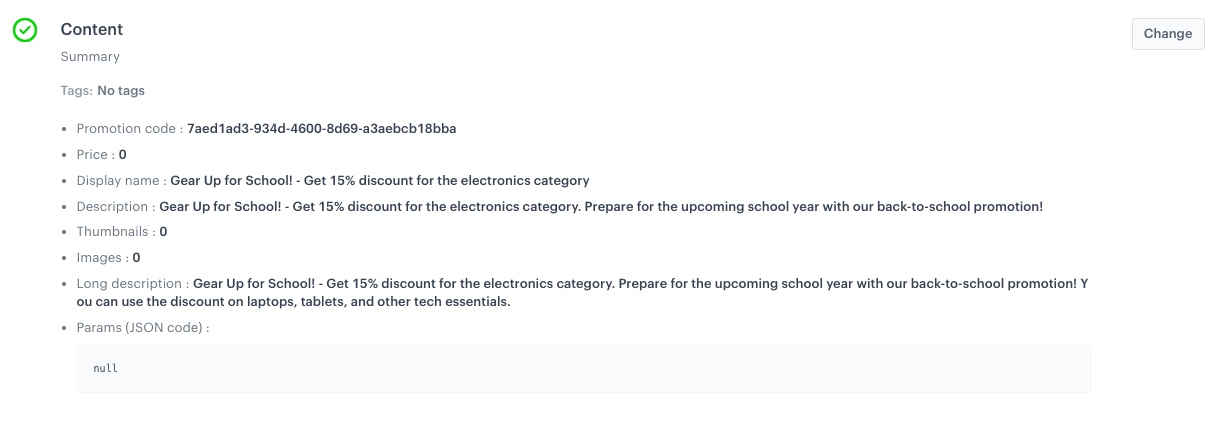
5. In the **Content** section:
    1. Define the name, descriptions, thumbnail and image of the promotion.
    3. Optionally, you can add tags to the promotion and JSON code with advanced parameters.
    2. Confirm the settings by clicking **Apply**.
    <figure>
    <img src="/api/docs/image/54176ad07f146575310749eba44b7c2f42c1b327/use-cases/all-cases/_gfx/cat_prom_content.png" alt="The view of Content configuration"  class="large">
    <figcaption>Content configuration</figcaption>
    </figure> 
6. In the **Type and limits** section:
    1. In **Type section**, leave the selection at default (**General**).
    2. In the **Priority** field, enter a number that defines the priority for the promotion.
    
       <div class="admonition admonition-note"><div class="admonition-icon"><svg xmlns="http://www.w3.org/2000/svg" fill="none" viewBox="0 0 24 24" stroke="currentColor" stroke-width="2.5"><path stroke-linecap="round" stroke-linejoin="round" d="M13 16h-1v-4h-1m1-4h.01M21 12a9 9 0 11-18 0 9 9 0 0118 0z" /></svg></div><div class="admonition-body"><div class="admonition-content">

       Priority defines the order of display in the customer’s view. 1 is the highest priority. If two or more promotions applicable to a customer have the same priority, the order of display is determined by the date of creation. The one that was created earlier takes the priority over the other promotion.

       </div></div></div>

    3. Select the **Single** tab (default).
    4. In the **Limit per profile** field, type 1.
    5. From the **Discount type** dropdown list, select **Percentage**.
    6. From the **Discount mode** dropdown list, select **Static**.
    7. In the **Value** field, type 15.
    8. Confirm the settings by clicking **Apply**.
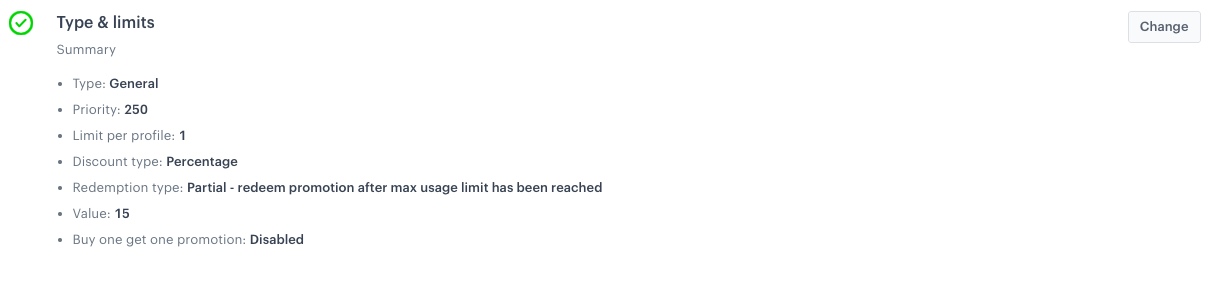
    <figure>
    <img src="/api/docs/image/54176ad07f146575310749eba44b7c2f42c1b327/use-cases/all-cases/_gfx/cat_prom_tl.png" alt="The view of Type and limits configuration"  class="large">
    <figcaption>Type and limits configuration</figcaption>
    </figure> 
7. In the **Schedule** section, specify the time, when you want to display your promotion according to your business needs.
8. In the **Items** section:
    1. From the **Source catalog** dropdown list, select a catalog of items.
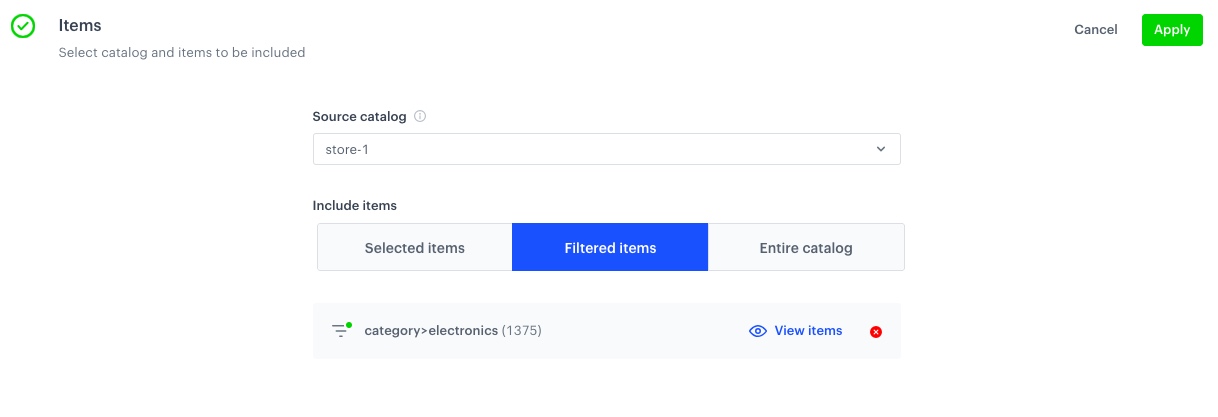
    2. In the **Include items** section, choose **Filtered items**.
    3. From the **Select filter** dropdown list, select [the filter created as a part of the prerequisites](#prerequisites).
    <figure>
    <img src="/api/docs/image/54176ad07f146575310749eba44b7c2f42c1b327/use-cases/all-cases/_gfx/cat_prom_items.png" alt="The view of Type and limits configuration"  class="large">
    <figcaption>Type and limits configuration</figcaption>
    </figure> 
9. To apply configuration and run the promotion, click **Publish**.

## Check the use case set up on the Synerise Demo workspace
---
You can check the [promotion configuration](https://app.synerise.com/campaigns/promotions/5486dfe0-92e2-4f2f-aa9b-901457489f47) directly in Synerise Demo workspace. 

If you’re our partner or client, you already have automatic access to the **Synerise Demo workspace (1590)**, where you can explore all the configured elements of this use case and copy them to your workspace.  

If you’re not a partner or client yet, we encourage you to fill out the contact [form](https://demo.synerise.com/request) to schedule a meeting with our representatives. They’ll be happy to show you how our demo works and discuss how you can apply this use case in your business. 

## Read more
---

- [Catalogs](/docs/assets/catalogs/introduction-to-catalogs)
- [Promotions](/docs/ai-hub/promotions)