It may happen that your implementation sends additional date information, such as the date of first time an app was launched, in the custom attributes of customers. If that date has a different format than the one required by Decision Hub, you can use Expressions to transform it.

The example in this article explains how to transform a date in `dd.mm.yyyy` format into a timestamp that can be used in Decision Hub. In the custom attributes of the customer profile, the parameter that stores the date is called `app_first_started`. If you're an advanced user, you can modify the regular expressions in the article to work with different formats of dates in the parameter.

## Prerequisites 
---
- Implementation of [tracking code](/developers/web/installation-and-configuration#creating-a-tracking-code) on your website.
- The attribute with the date (in this example, it's `app_first_started`) must be defined. This can be done in one of the following ways:
    - [Add the attribute in **Profile attributes**](/docs/crm/customer-properties#adding-profile-attributes-in-the-synerise-portal).
    - Create or update a customer with the attribute (using the API or SDK).

## Process
---
The process consists of three stages:
1. [Create expressions to extract elements of the date](#create-expressions-to-extract-elements-of-the-date).
2. [Create an expression to re-arrange the elements of the date into a format that can be converted into a timestamp](#create-an-expression-to-re-arrange-the-elements-of-the-date).
3. [Convert the date into a timestamp](#convert-into-a-timestamp).


   <div class="admonition admonition-note"><div class="admonition-icon"><svg xmlns="http://www.w3.org/2000/svg" fill="none" viewBox="0 0 24 24" stroke="currentColor" stroke-width="2.5"><path stroke-linecap="round" stroke-linejoin="round" d="M13 16h-1v-4h-1m1-4h.01M21 12a9 9 0 11-18 0 9 9 0 0118 0z" /></svg></div><div class="admonition-body"><div class="admonition-content">

   Due to event data retention, such attributes should be stored permanently in a customer's profile, not in event data.

   </div></div></div>


   <div class="admonition admonition-tip"><div class="admonition-icon"><svg xmlns="http://www.w3.org/2000/svg" fill="none" viewBox="0 0 24 24" stroke="currentColor" stroke-width="2.5"><path stroke-linecap="round" stroke-linejoin="round" d="M9.663 17h4.673M12 3v1m6.364 1.636l-.707.707M21 12h-1M4 12H3m3.343-5.657l-.707-.707m2.828 9.9a5 5 0 117.072 0l-.548.547A3.374 3.374 0 0014 18.469V19a2 2 0 11-4 0v-.531c0-.895-.356-1.754-.988-2.386l-.548-.547z" /></svg></div><div class="admonition-body"><div class="admonition-content">

   In the course of this procedure, you can use the **Show in profile card** toggle in each expression to preview the results in a test customer's profile.

   </div></div></div>


## Create expressions to extract elements of the date
---
Three separate expressions are used to extract the day, month, and year. The only difference between them is the regular expression used.
1. Go to <img src="/api/docs/image/54176ad07f146575310749eba44b7c2f42c1b327/icons/behavioral-data-hub-icon.svg" alt="Behavioral Data Hub icon" class="icon"> **Behavioral Data Hub > Expressions > New expression**.
2. From the **Expressions for** dropdown list, select **Attribute**.
3. In the **Formula definition** section, click **Select**.
4. From the list that opens, select **Function > Regexp**.
5. In the brackets, click the left **Select** button and from the list, select **Profile**.
7. Click the **unnamed** node that appeared.
8. At the bottom of the page, click **Choose attribute**.
9. In the list of attributes, find and select `app_first_started` (you can use the search field).
10. In the brackets, click the right **Select** button and from the list, select **Constant**.
11. Click the **0** node that appeared.
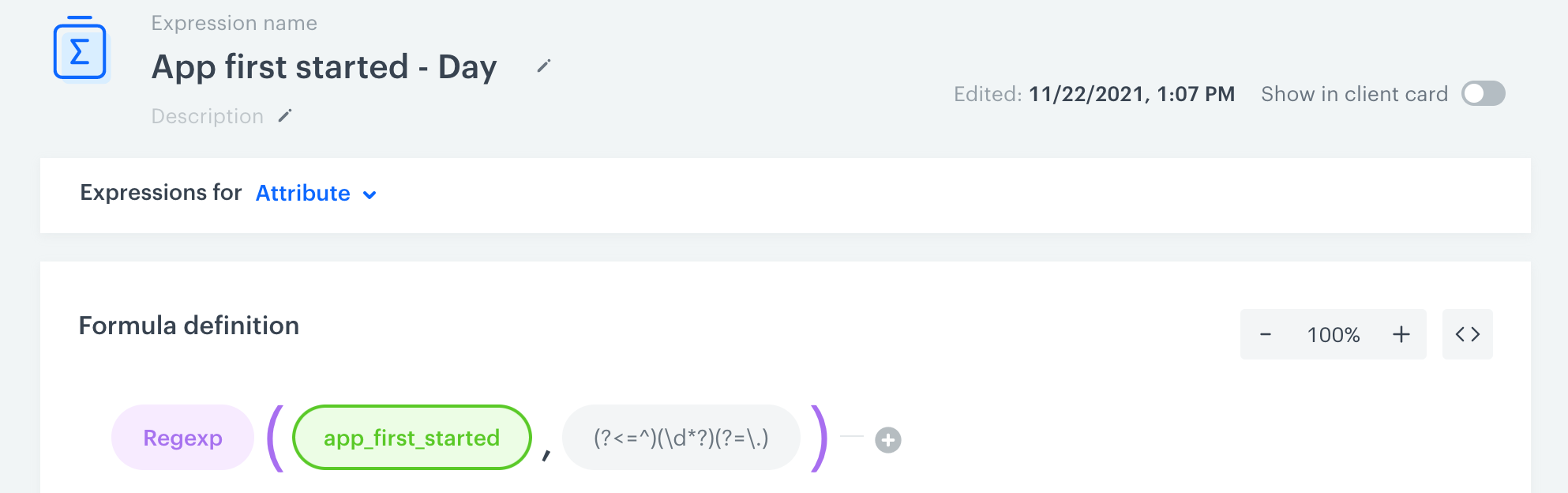
12. At the bottom of the page, in the input field, paste the regular expression that extracts the day: `(?<=^)(\d*?)(?=\.)`
13. Above the formula creator, enter a meaningful name for the expression.
    <figure><img src="/api/docs/image/54176ad07f146575310749eba44b7c2f42c1b327/use-cases/all-cases/_gfx/date-regex-day.png" class="full" alt="Expression to extract the day from a date"><figcaption>Expression to extract the day from a date in <code>dd.mm.yyyy</code> format</figcaption></figure>
14. In the upper-right corner, click **Save**.
15. In the upper-right corner, click **Publish**.
16. Create the month and year expression by performing the following steps twice:
    1.  Return to the list of expressions and locate the expression you created.
    2.  To the right, click the <img src="/api/docs/image/54176ad07f146575310749eba44b7c2f42c1b327/icons/threedoticon.png" alt="Three-dot icon" class="icon"> icon and select **Duplicate**.
    3.  Click the duplicated expression to open it for editing.
    4.  Change the name of the expression.
    5.  In the **Formula definition** section, click the node with the regular expression.
    6.  Change the regular expression to:
        - For month: `(?<=\.)(\d*?)(?=\.)`
        - For year: `(?<=\.)(\d*?)(?=$)`
    7. Click **Publish**.

## Create an expression to re-arrange the elements of the date
---
In this stage, you create an expression that concatenates (joins) the results of the three expressions above into a single string in `yyyy/mm/dd` format. This format can later be converted into a timestamp.
1. Go to <img src="/api/docs/image/54176ad07f146575310749eba44b7c2f42c1b327/icons/behavioral-data-hub-icon.svg" alt="Behavioral Data Hub icon" class="icon"> **Behavioral Data Hub > Expressions > New expression**.
2. Create the following attribute expression:

    <figure><img src="/api/docs/image/54176ad07f146575310749eba44b7c2f42c1b327/use-cases/all-cases/_gfx/expression-date-concat.png" class="full" alt="Expression to concatenate the elements of a date"><figcaption>Expression to concatenate the elements of a date</figcaption></figure>  

    **Explanation**:
    - **Concat** is a function.
    - Expression results (green nodes) are treated and inserted like customer attributes.
    - `/` is a constant.


    The expression takes three strings (year, month, day) that are the results of the expressions you created before and joins them into one string with `/` as the separator.

3. Click **Save**.
4. Click **Publish**.

## Convert into a timestamp
---
In this stage, convert the `yyyy/mm/dd` date into an Analytics-compatible timestamp.

1. Go to <img src="/api/docs/image/54176ad07f146575310749eba44b7c2f42c1b327/icons/behavioral-data-hub-icon.svg" alt="Behavioral Data Hub icon" class="icon"> **Behavioral Data Hub > Expressions > New expression**.
2. Create the following expression:
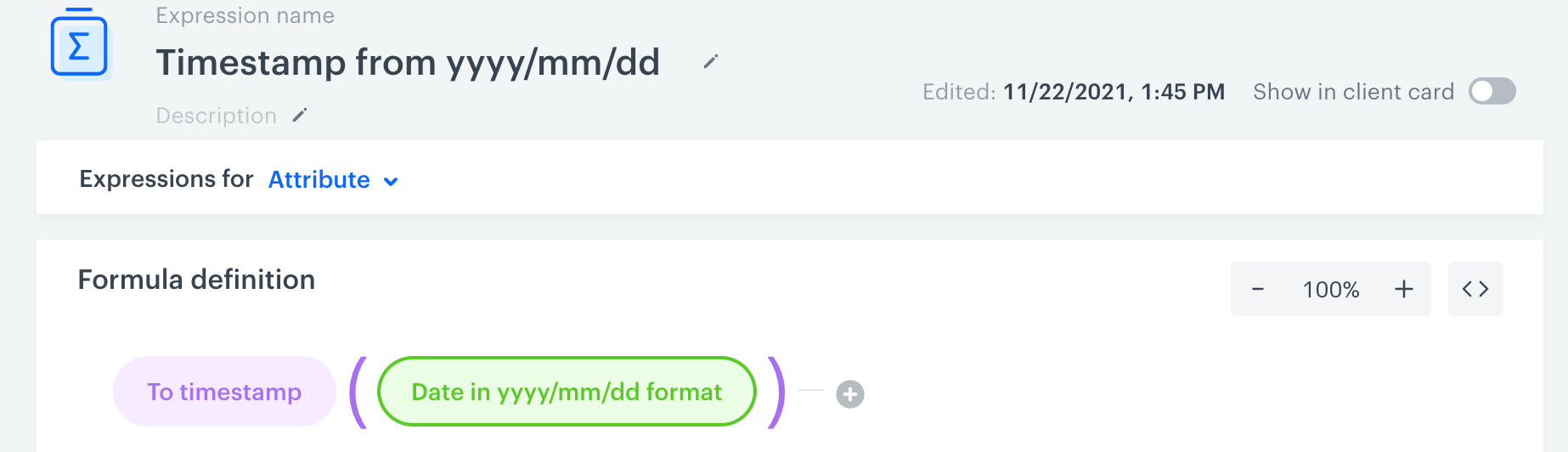
    <figure><img src="/api/docs/image/54176ad07f146575310749eba44b7c2f42c1b327/use-cases/all-cases/_gfx/date-to-timestamp.png" class="full" alt="Expression that converts yyyy/mm/dd into a timestamp"><figcaption>Expression that converts <code>yyyy/mm/dd</code> into a timestamp</figcaption></figure>  
    
    **Explanation:**
    - **To timestamp** is a function.
    - Expression results are treated and inserted like customer attributes.
3. Click **Save**.
4. Click **Publish**.

## What's next
---

You can now use the result of the last expression (called "Timestamp from yyyy/mm/dd" in this example) as a timestamp in analytics, for example to create a segmentation of customers who first started the app after a certain date or to find the transactions that a customer made before they first started the application.

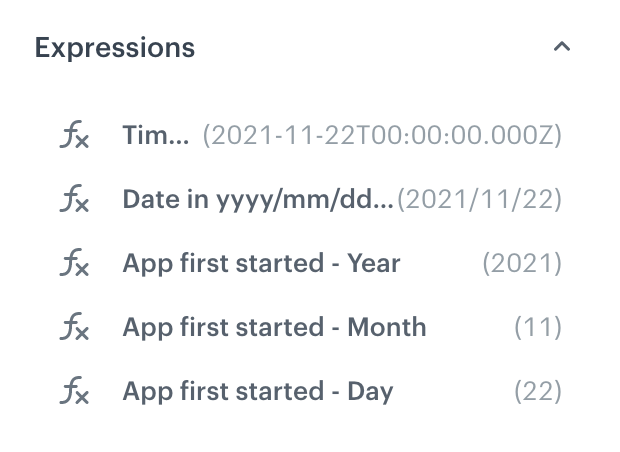
If you enabled the **Show in profile card** toggles, the expression results are visible in the right panel of a customer card in **Profiles**:
<figure><img src="/api/docs/image/54176ad07f146575310749eba44b7c2f42c1b327/use-cases/all-cases/_gfx/date-expressions-crm.png" class="medium" alt="Expression results in a customer profile"><figcaption>Expression results in a customer profile</figcaption></figure>

## Check the use case set up on the Synerise Demo workspace
---

You can find five expressions created in this use case in our Synerise Demo workspace at the links listed below: 
- [expression used to extract the day](https://app.synerise.com/analytics/expressions/4b67b443-c5bd-4637-9f52-a05b5d77ca33)
- [expression used to extract the month](https://app.synerise.com/analytics/expressions/f2e2409c-3dff-4205-89b6-5d0525b31e64)
- [expression used to extract the year](https://app.synerise.com/analytics/expressions/257b0362-a181-4d21-bfe7-82a8f89ba513)
- [expression to re-arrange the elements of the date](https://app.synerise.com/analytics/expressions/3f330b8a-7d11-4ab9-88c4-946a3c3d83b8)
- [expression for timestamp from yyyy/mm/dd](https://app.synerise.com/analytics/expressions/25677e70-e82f-4932-8329-1883fb00fe3d)

If you’re our partner or client, you already have automatic access to the **Synerise Demo workspace (1590)**, where you can explore all the configured elements of this use case and copy them to your workspace.  

If you’re not a partner or client yet, we encourage you to fill out the contact [form](https://demo.synerise.com/request) to schedule a meeting with our representatives. They’ll be happy to show you how our demo works and discuss how you can apply this use case in your business.

## Read more
---
- [Expressions](/docs/analytics/expressions)