In today's data-driven world, understanding user preferences is the key to effective marketing. Knowing whether your audience prefers the mobile or desktop channel helps you effectively reach a specific audience by connecting with customers through channels they love most.
In this use case, you will create aggregates and segmentations that will help identify user preferences between mobile and desktop channels, enabling more targeted and effective communication.
## Prerequisites
---
- [Implement a tracking code](/docs/settings/tool/tracking_codes).
- Integrate Synerise [mobile SDK](/developers/mobile-sdk) in your mobile application
## Process
---
In this use case, you will go through the following steps:
1. [Create two aggregates](#create-two-aggregates), one that returns the number of the `Visited page` events on desktop and the other that returns the number of `screen.view` events in a mobile application.
2. [Create a segmentation](#create-a-segmentation) based on these aggregates, so you can divide your customers according to their preferred communication channel.
## Create two aggregates
---
The first step is creating two aggregates that count page visits (based on the [`page.visit` event](/docs/assets/events/event-reference/web-and-app#pagevisit) on the website and views in the mobile application (based on the [`screen.view` event](/docs/assets/events/event-reference/web-and-app#screenview).
### Aggregate returning number of visits on the desktop
---
1. Go to **Behavioral Data Hub > Live Aggregates > Create aggregate**.
2. As the aggregate type, select **Profile**.
2. Enter the name of the aggregate.
3. Click **Analyze profiles by** and select **Count**.
4. From the **Choose event** dropdown list, select the **Visited page** event.
5. Set the period from which the aggregate will analyze the results. In our case, it's **last 30 days**.
6. Save the aggregate.
The aggregate counting visited pages
### Aggregate returning number of visits in the mobile application
---
1. Go to **Behavioral Data Hub > Live Aggregates > Create aggregate**.
2. As the aggregate type, select **Profile**.
2. Enter the name of the aggregate.
9. Click **Analyze profiles by** and select **Count**.
10. From the **Choose event** dropdown list, select the **mobile screen viewed** event.
11. Set the period from which the aggregate will analyze the results. In our case, it's **last 30 days**.
12. Save the aggregate.
The aggregate counting mobile screen views
## Create a segmentation
---
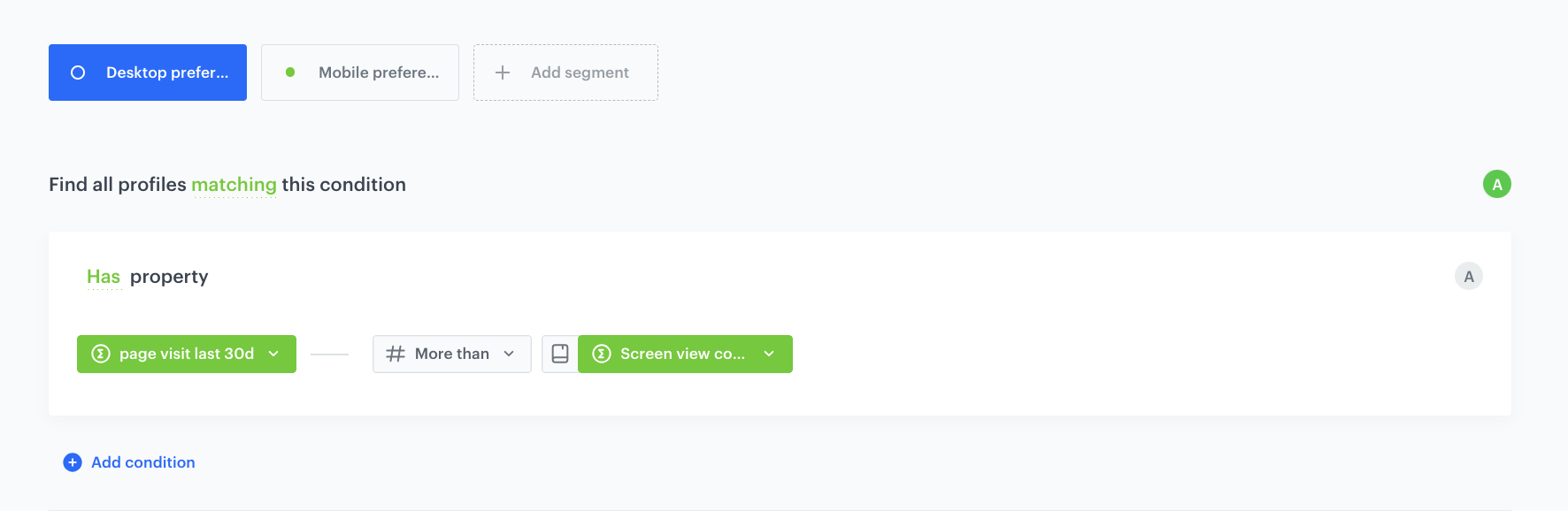
In this part of the process, we create a segmentation that consists of two segments. One segment comprises customers who have a higher number of website visits compared to visits on the mobile application, while the other segment consists of customers who have a lower number of page visits compared to visits on the mobile application.
1. Go to **Decision Hub > Segmentations > New Segmentation**.
2. Enter the name of the segmentation.
3. From the **Add condition** dropdown list, select the [aggregate counting page visits](#create-two-aggregates) you created in the previous part of the process.
4. Click the **Choose** button, and from the list of operators, choose **More than**.
5. Next to the opperator, change the **Number** to **Parameter**.
6. From the **Parameter** dropdown list, select the [aggregate counting screen views in the mobile application](#create-two-aggregates) you created in the previous part of the process.
7. Name the segment as follows: `Desktop preference`.
The segment with more website visits
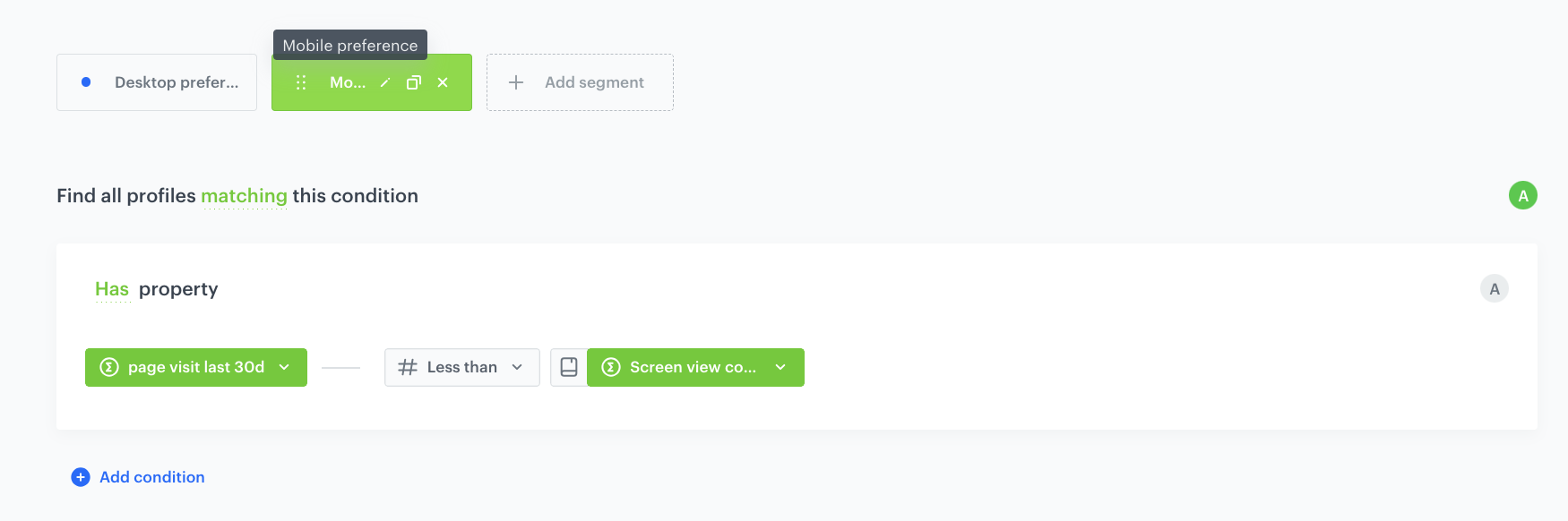
8. Duplicate the segment, and rename it as follows: `Mobile preference`.
9. In the new segment, change the opperator to **Less than**.
10. Next to the opperator, change the **Number** to **Parameter**.
11. From the **Parameter** dropdown list, select the [aggregate counting screen views in the mobile application](#create-two-aggregates) you created in the previous part of the process.
The segment with more mobile application visits
12. Save the segmentation.
## Check the use case set up on the Synerise Demo workspace
---
You can check the configuration of all elements used in the use case, directly in Synerise Demo workspace:
- [Agreggate counting website visits](https://app.synerise.com/analytics/aggregates/4cd80712-6463-3f55-ac5f-29b3abc08153)
- [Aggregate counting mobile visits](https://app.synerise.com/analytics/aggregates/61738e01-69c6-3864-ac1e-12ba9065a522)
- [Segmentation](https://app.synerise.com/analytics-v2/segmentations/ba36aeb9-1c69-4362-bbf1-ecbd7cfce590)
If you’re our partner or client, you already have automatic access to the **Synerise Demo workspace (1590)**, where you can explore all the configured elements of this use case and copy them to your workspace.
If you’re not a partner or client yet, we encourage you to fill out the contact [form](https://demo.synerise.com/request) to schedule a meeting with our representatives. They’ll be happy to show you how our demo works and discuss how you can apply this use case in your business.
## Read more
---
- [Aggregates](/docs/analytics/aggregates)
- [Segmentation](/docs/analytics/segmentations)

 **Behavioral Data Hub > Live Aggregates > Create aggregate**.
2. As the aggregate type, select **Profile**.
2. Enter the name of the aggregate.
3. Click **Analyze profiles by** and select **Count**.
4. From the **Choose event** dropdown list, select the **Visited page** event.
5. Set the period from which the aggregate will analyze the results. In our case, it's **last 30 days**.
6. Save the aggregate.
**Behavioral Data Hub > Live Aggregates > Create aggregate**.
2. As the aggregate type, select **Profile**.
2. Enter the name of the aggregate.
3. Click **Analyze profiles by** and select **Count**.
4. From the **Choose event** dropdown list, select the **Visited page** event.
5. Set the period from which the aggregate will analyze the results. In our case, it's **last 30 days**.
6. Save the aggregate.

 **Decision Hub > Segmentations > New Segmentation**.
2. Enter the name of the segmentation.
3. From the **Add condition** dropdown list, select the [aggregate counting page visits](#create-two-aggregates) you created in the previous part of the process.
4. Click the **Choose** button, and from the list of operators, choose **More than**.
5. Next to the opperator, change the **Number** to **Parameter**.
6. From the **Parameter** dropdown list, select the [aggregate counting screen views in the mobile application](#create-two-aggregates) you created in the previous part of the process.
7. Name the segment as follows: `Desktop preference`.
**Decision Hub > Segmentations > New Segmentation**.
2. Enter the name of the segmentation.
3. From the **Add condition** dropdown list, select the [aggregate counting page visits](#create-two-aggregates) you created in the previous part of the process.
4. Click the **Choose** button, and from the list of operators, choose **More than**.
5. Next to the opperator, change the **Number** to **Parameter**.
6. From the **Parameter** dropdown list, select the [aggregate counting screen views in the mobile application](#create-two-aggregates) you created in the previous part of the process.
7. Name the segment as follows: `Desktop preference`.