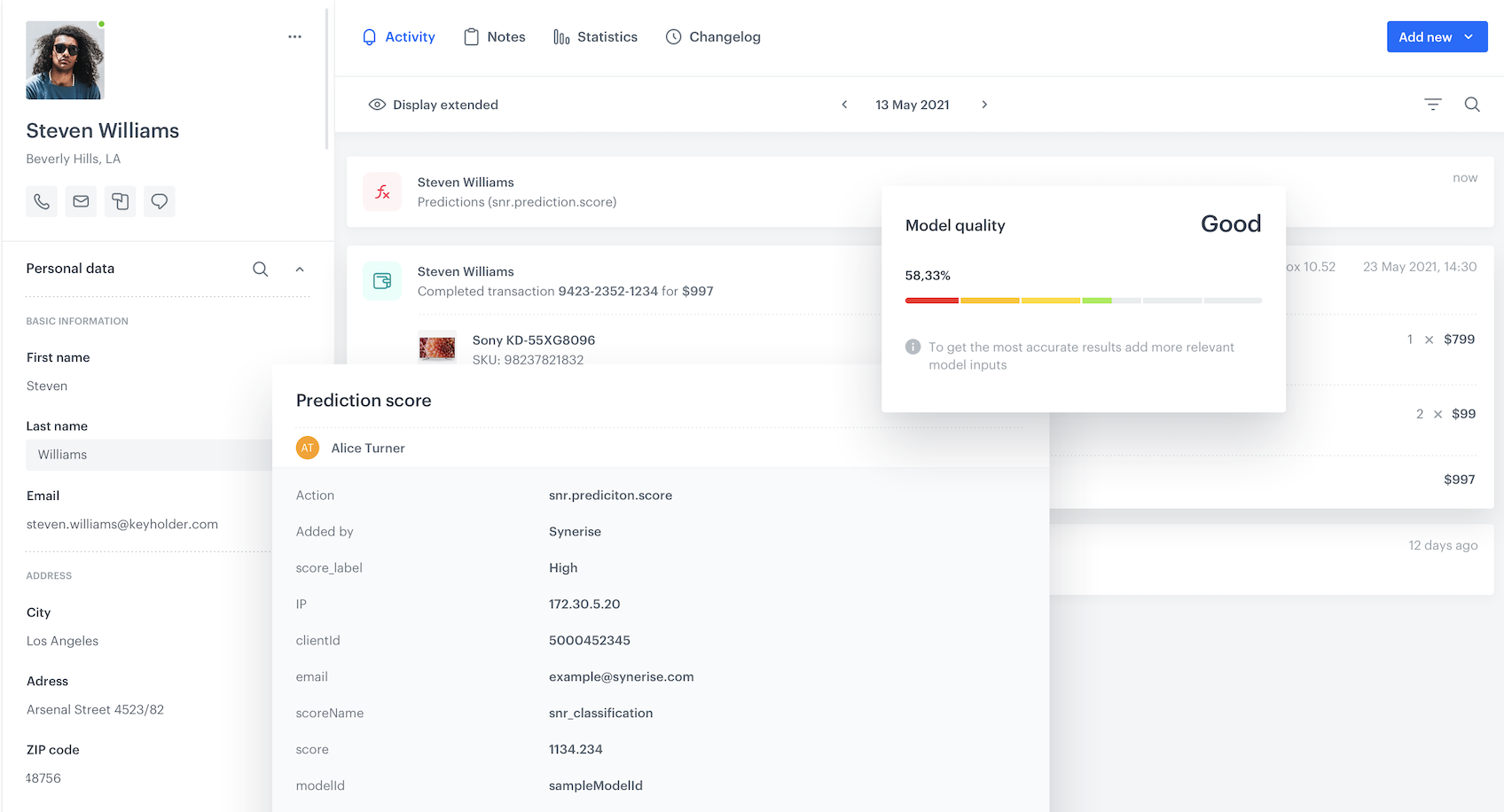
Churn prediction is a business strategy that involves identifying customers who are likely to stop using a product or service in the near future. Churn prediction can help businesses reduce customer churn rates, increase customer loyalty, and improve overall business performance. With the Prediction feature you can create predictive models that accurately forecast customer behavior, enabling you to take targeted actions to reduce churn and improve customer satisfaction.

In this use case, we will create a prediction which will help us identify customers likely to churn. As the prediction target we will use an expression with the segmentation of customers who had a transaction and have not visited our page in the last 30 days.

<figure><img src="/api/docs/image/54176ad07f146575310749eba44b7c2f42c1b327/use-cases/all-cases/_gfx/churn-prediction.png" class="full no-frame" alt="Churn prediction"><figcaption>Churn prediction</figcaption></figure>

## Prerequisites
---
- [Integrate JS SDK](/developers/web/installation-and-configuration).
- [Enable the Custom prediction model](/docs/ai-hub/predictions/enabling-predictions#enabling-regression-and-classification-predictions).

## Process
---

In this use case, you will go through the following steps:
1. [Create a segmentation](#create-a-segmentation).
2. [Create an expression](#create-an-expression).
2. [Create a prediction](#create-a-prediction).

## Create a segmentation
---
In this step, we create a group of customers who have made at least one transaction but have not visited the site in the last 30 days. This segmentation will be used in an expression in the next step.

1. Go to <img src="/api/docs/image/54176ad07f146575310749eba44b7c2f42c1b327/icons/decision-hub-icon.svg" alt="Decision Hub icon" class="icon">**Decision Hub > Segmentations > New Segmentation**.
2. Optionally, switch the **Show in profile card** toggle on.
3. Enter the name of the segmentation.
4. From the **Add condition** dropdown list, select the `transaction.charge` event.
    
   <div class="admonition admonition-tip"><div class="admonition-icon"><svg xmlns="http://www.w3.org/2000/svg" fill="none" viewBox="0 0 24 24" stroke="currentColor" stroke-width="2.5"><path stroke-linecap="round" stroke-linejoin="round" d="M9.663 17h4.673M12 3v1m6.364 1.636l-.707.707M21 12h-1M4 12H3m3.343-5.657l-.707-.707m2.828 9.9a5 5 0 117.072 0l-.548.547A3.374 3.374 0 0014 18.469V19a2 2 0 11-4 0v-.531c0-.895-.356-1.754-.988-2.386l-.548-.547z" /></svg></div><div class="admonition-body"><div class="admonition-content">

   Events may have different labels between workspace, but you can always find them by their action name (in this step, it's **transaction.charge**).

   </div></div></div>

5. Using the date picker in the lower-right corner, set the time range to **Relative time range > More > Lifetime**.
6. From the **Add condition** dropdown list, select the `Visited page` event.
7. Change **Performed** action to **Not performed**.
8. Using the date picker in the lower-right corner, set the time range to **Relative time range > Custom > Last 30 days**.
9. Save the segmentation.

## Create an expression
---
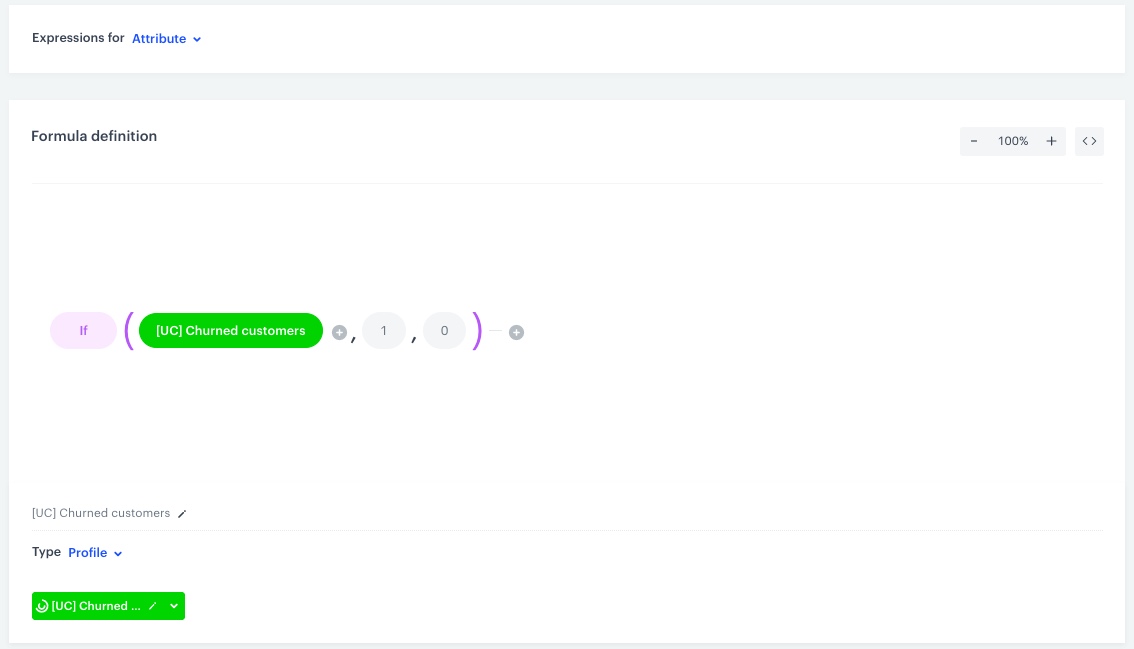
In this part of the process, create an expression that will serve as the target for the prediction model. The expression will return `1` if a customer belongs to the previously defined segmentation and `0` if they don't.

10. Go to <img src="/api/docs/image/54176ad07f146575310749eba44b7c2f42c1b327/icons/behavioral-data-hub-icon.svg" alt="Behavioral Data Hub icon" class="icon"> **Behavioral Data Hub > Expressions > New expression**.
11. Enter the name of the expression.
12. From the **Expressions for** dropdown list, select **Attribute**.  
    Predictions work only with attribute expressions.
13. In the formula creator, click the **Select** node and from the drop-down list select **Function > If**.
14. As the first argument, select the segmentation you created earlier.  
15. As the second argument, select **Constant** and set its value to `1`.
16. As the third argument, select **Constant** and set its value to `0`.
16. Save the expression.
<figure>
<img src="/api/docs/image/54176ad07f146575310749eba44b7c2f42c1b327/use-cases/all-cases/_gfx/exp-churn.png" alt="The view of the configuration of the expression"  class="large">
<figcaption>Configuration of the expression</figcaption>
</figure>

## Create a prediction
---
1. Go to <img src="/api/docs/image/54176ad07f146575310749eba44b7c2f42c1b327/icons/ai-hub-icon.svg" class="icon" alt="AI Hub icon in left menu"> **(AI Predictions) Models > New prediction**.
2. In the upper-right corner, enter a name for the prediction.
3. In the **Prediction type** section, click **Define**.
4. Select **Classification** and click **Apply**

### Select the audience

In this section you decide which segment of the customers should be taken into account while making a prediction. For every individual in the segment, Synerise produces a single prediction.  

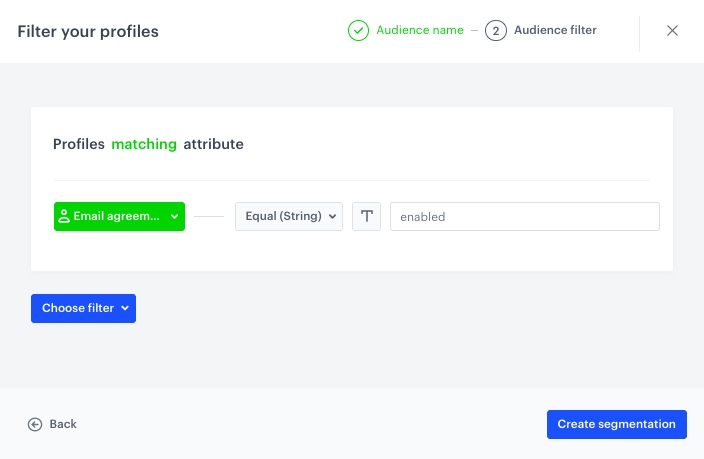
Segmentations can be very complex and the possibilities of building the conditions are practically unlimited. In this example, a simple segmentation will include customers who have a marketing agreement.

1. In the **Audience** section, click **Define**.  
    You can use existing segmentations. This example shows how to create a new one.
2. Click **Choose segmentation > Create new**.
3. Enter a segmentation name and click **Next step**.
4. Click **Choose filter**, from the dropdown list, select **Attribute> Email agreement**.
5. From the **choose operator** dropdown list, select **Equal (String)**.
6. In the text field, enter `enabled`.
7. Click **Create segmentation**.  
    **Result**: The segmentation is saved as the audience of the prediction and also becomes available in the **Decision Hub** for other uses.
8. Click **Apply**.
<figure>
<img src="/api/docs/image/54176ad07f146575310749eba44b7c2f42c1b327/use-cases/all-cases/_gfx/churn_audience.png" alt="The view of the configuration of the Audience"  class="large">
<figcaption>Audience configuration.</figcaption>
</figure>

### Select prediction target

1. In the **What would you like to predict?** section, click **Define**.
2. Click **Select expression** and select the [expression created earlier](#create-an-expression).
3. Click **Apply**.
### Select inputs

In this section, you set up input [features](/docs/glossary#feature) based on which the prediction model will be trained. 

It is possible to select feature inputs manually, but we recommend using the automatic selection, as explained below. Our algorithms evaluate feature relevance in context of the prediction target and are, in most cases, more effective than manual selection.

1. In the **Model inputs** section, click **Define**.
2. Click **Add feature > Automatically**.  
    **Result:** The list is populated with input features.
3. Click **Apply**.

### Configure additional settings

The additional settings define how often re-calculations are made and the content of events produced by the prediction.

1. In the **Settings** section, click **Define**.
2. From the **How many days in advance do you want to make a prediction** list, select **30 days**.  
3. In the **Calculation frequency** section, select **Recurring calculation**.
4. From the **How frequently should the model be trained?** list, select **30 days**. 
5. In the **Prediction start** section, select **Immediately**.
6. In **How would you like to display results**, select **5-point scale**.  
    The algorithm detects the importance of a prediction.
7. In the **Define the value of the score name parameter** section, enter a user-friendly name for the prediction score.  
    The name is shown as the value of the `scoreName` parameter in the `snr.prediction.score` event.
8. Click **Apply**.
9. To finish and calculate the prediction, click **Save & Calculate**.

**Result:**  
The prediction results are saved as `snr.prediction.score` events in customer profiles.

## What's next
---

You can use the prediction results in your work, for example to [Automated Emails for Customer Retention Using Churn Predictions](/use-cases/predictions-automation) or [Evaluate results of churn prediction](/use-cases/predictions-dashboard).

A more advanced example of using a segmentation created from a churn prediction is described in [Promote discounted items to customers at risk of churn](/use-cases/boost-discounts-for-churn-risk).

## Check the use case set up on the Synerise Demo workspace
---
You can check all configurations directly in Synerise Demo workspace:
- [Segmentation](https://app.synerise.com/analytics/segmentations/81b51633-7dea-4c03-9d6a-9e385d337085)
- [Expression](https://app.synerise.com/analytics/expressions/2f5a598f-56db-4aa3-914e-567ec5de135b)
- [Audience segmentation](https://app.synerise.com/analytics-v2/segmentations/bd85a7e3-6700-4367-9906-471811dd1c76)
- [Prediction](https://app.synerise.com/ai-v2/predictions/generic-scoring/bgycsoovxgby) 

If you’re our partner or client, you already have automatic access to the **Synerise Demo workspace (1590)**, where you can explore all the configured elements of this use case and copy them to your workspace.  

If you’re not a partner or client yet, we encourage you to fill out the contact [form](https://demo.synerise.com/request) to schedule a meeting with our representatives. They’ll be happy to show you how our demo works and discuss how you can apply this use case in your business. 

## Read more 
---

- [Automation Hub](/docs/automation)
- [Expressions](/docs/analytics/expressions)
- [Predictions](/docs/ai-hub/predictions)
- [Segmentation](/docs/analytics/segmentations)
