Importing your customer database to Synerise is a great way to get started with your email marketing efforts, as it will allow you to immediately start building relationships with your customers. 

In this use case, we will focus on how to use Automation Hub to easily import a ready-to-use data base from a CSV file without any transformation. 

## Prerequisites 
---
- Create a CSV file with your customer database. You can add a few basic columns: `firstName,lastName,email`. Prepare your file based on [this document](/docs/automation/actions/synerise-integrations/import-customers). You can also find the general requirements for the `.CSV` file format [here](/docs/assets/catalogs/creating-catalogs#requirements).

**Example CSV file might look like this:**
```
firstName,lastName,email,
Dwight,Addams,dwight.addams@test.com,
Martin,Smith,martin.smith@test.com,
Kurt,Doe,kurt.doe@test.com,
John,Smith,john.smith@website.com,
```


<div class="admonition admonition-important"><div class="admonition-icon"><svg xmlns="http://www.w3.org/2000/svg" fill="none" viewBox="0 0 24 24" stroke="currentColor" stroke-width="2.5"><path stroke-linecap="round" stroke-linejoin="round" d="M12 8v4m0 4h.01M21 12a9 9 0 11-18 0 9 9 0 0118 0z" /></svg></div><div class="admonition-body"><div class="admonition-content">

If you decide to import without a transformation diagram (without data transformation), it is very important to name the columns in the file appropriately, because they will later be connected with client's attributes. The column names should correspond with the API fields [described here](https://developers.synerise.com/ProfileManagement/ProfileManagement.html#operation/BatchAddOrUpdateClients). Any additional column outside this list in the API documentation will be treated as a custom client attribute.
</div></div></div>


<div class="admonition admonition-tip"><div class="admonition-icon"><svg xmlns="http://www.w3.org/2000/svg" fill="none" viewBox="0 0 24 24" stroke="currentColor" stroke-width="2.5"><path stroke-linecap="round" stroke-linejoin="round" d="M9.663 17h4.673M12 3v1m6.364 1.636l-.707.707M21 12h-1M4 12H3m3.343-5.657l-.707-.707m2.828 9.9a5 5 0 117.072 0l-.548.547A3.374 3.374 0 0014 18.469V19a2 2 0 11-4 0v-.531c0-.895-.356-1.754-.988-2.386l-.548-.547z" /></svg></div><div class="admonition-body"><div class="admonition-content">

If you are importing a newsletter database, apart from the email attribute, we suggest that you should also add columns with a marketing agreement called `agreements.email` with a value `1` or `0`.

</div></div></div>


## Prepare a workflow 
---

The scenario for this use case involves a one-time import of `.csv` file with a customer database directly to Synerise.

1. Go to <img src="/api/docs/image/54176ad07f146575310749eba44b7c2f42c1b327/icons/automation-hub-icon.svg" alt="Automation Hub icon" class="icon" > **Automation Hub > Workflows > New workflow**.  
2. Enter the name of the workflow.  

### Define the launch date

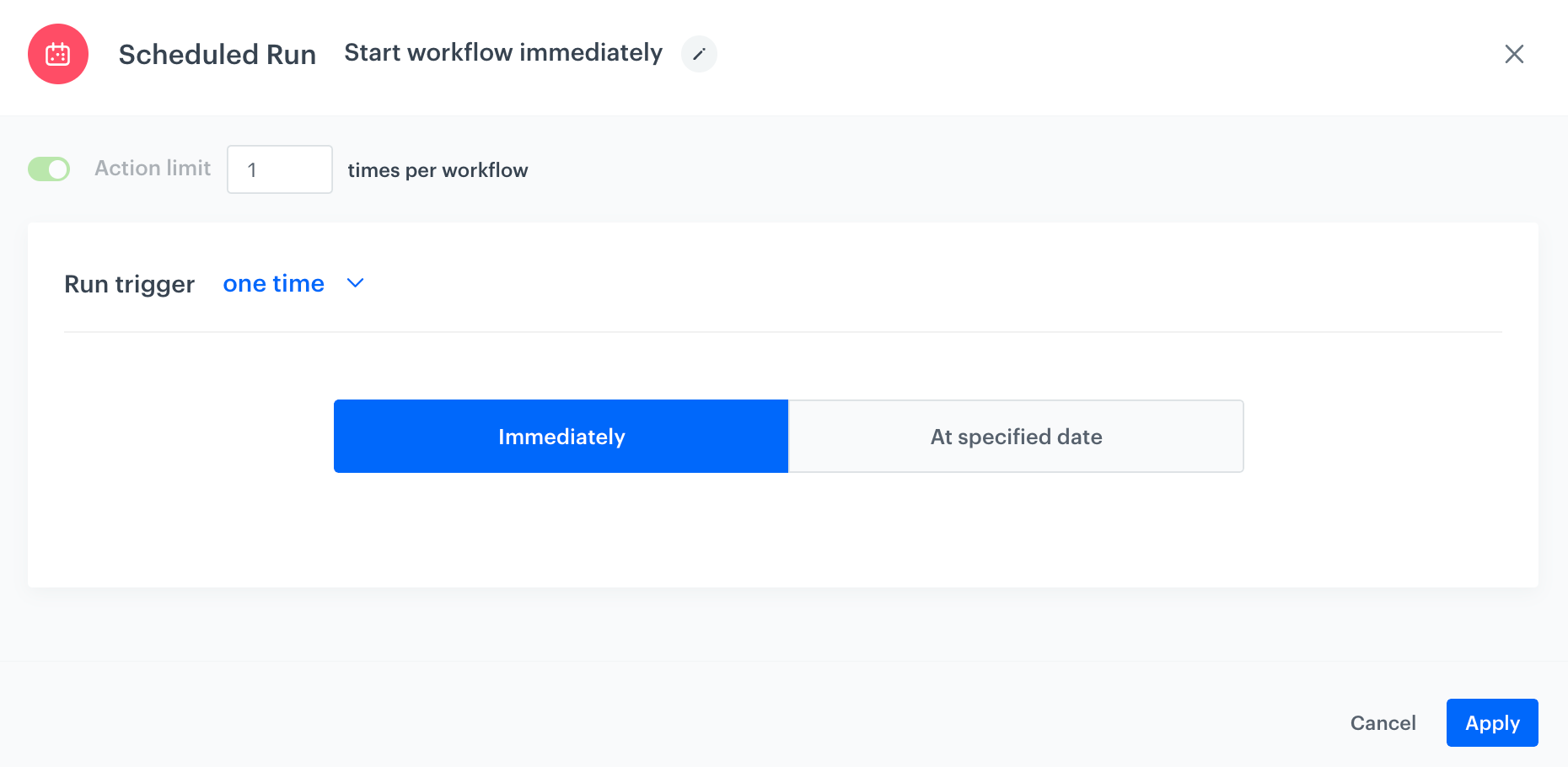
3. As the trigger node, add **Scheduled Run**.  
4. In the configuration of the node:  
    1. Change the **Run trigger** option to **one time**.  
    2. Select **Immediately**.
    3. Confirm by clicking **Apply**.
     <figure><img src="/api/docs/image/54176ad07f146575310749eba44b7c2f42c1b327/use-cases/all-cases/_gfx/scheduled-run-dt.png" class="full" alt="The configuration of the Scheduled Run node"><figcaption>The configuration of the Scheduled Run node</figcaption></figure>

### Select file to import

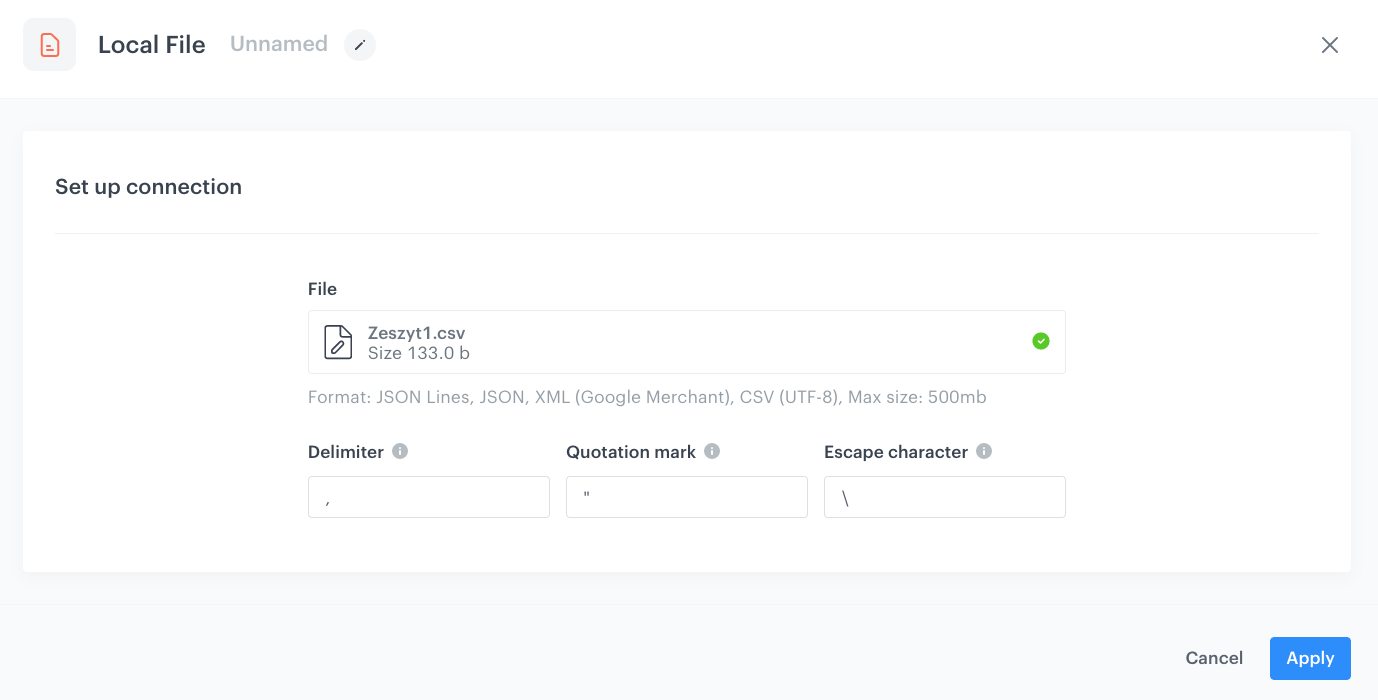
1. Add a **Local File** node.  
2. In the configuration of the node:  
    1. Upload the file. 
    2. Confirm by clicking **Apply**.  

 <figure><img src="/api/docs/image/54176ad07f146575310749eba44b7c2f42c1b327/use-cases/all-cases/_gfx/local-file.png" class="full" alt="Local File transfer"><figcaption>Local File transfer</figcaption></figure>  

### Add Import Profiles node

1. Choose **Synerise** node.
1. On the **Local File** node, click **THEN**.
2. From the list that opens, select **Synerise > Import Profiles**.


### Add the finishing node

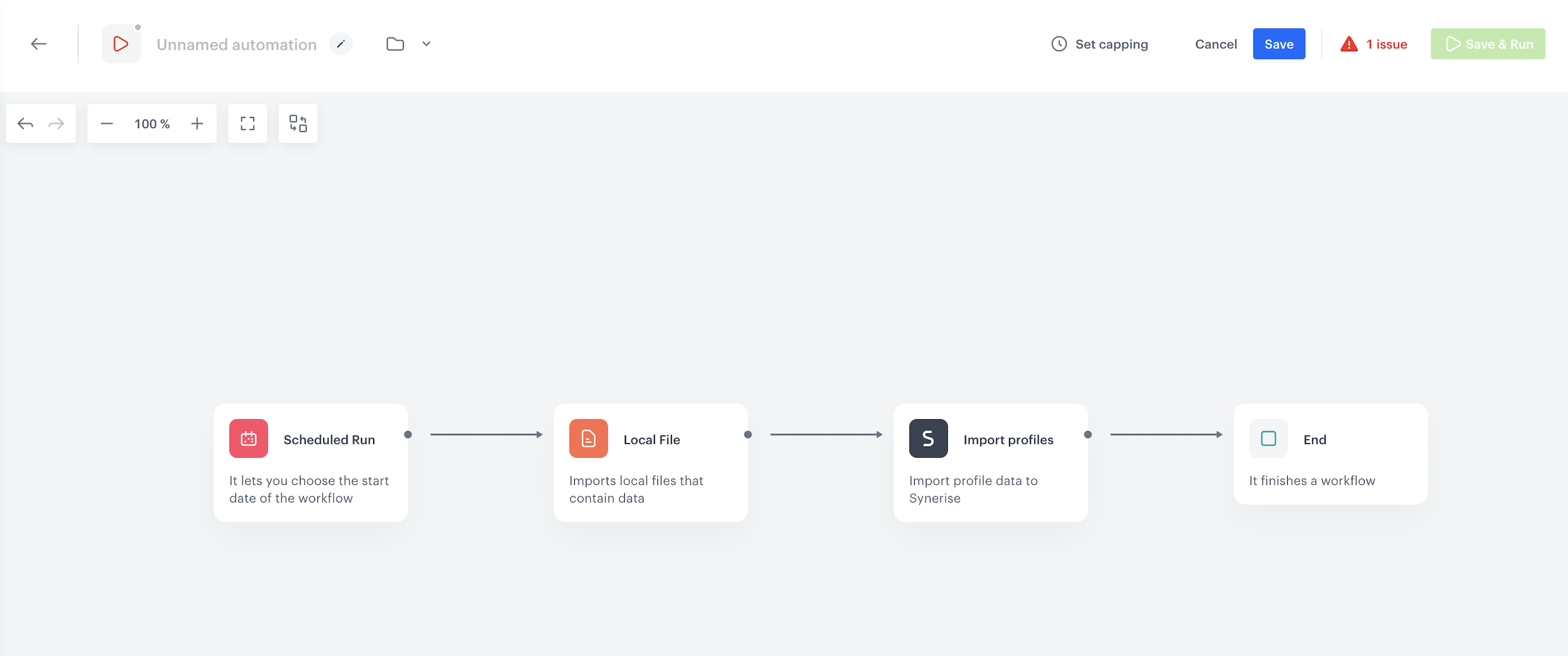
1. Add the **End** node. 
2. In the upper right corner, click **Save & Run**.  
    <figure><img src="/api/docs/image/54176ad07f146575310749eba44b7c2f42c1b327/use-cases/all-cases/_gfx/dt-import.png" class="full" alt="The workflow configuration"><figcaption>Imported profile</figcaption></figure>

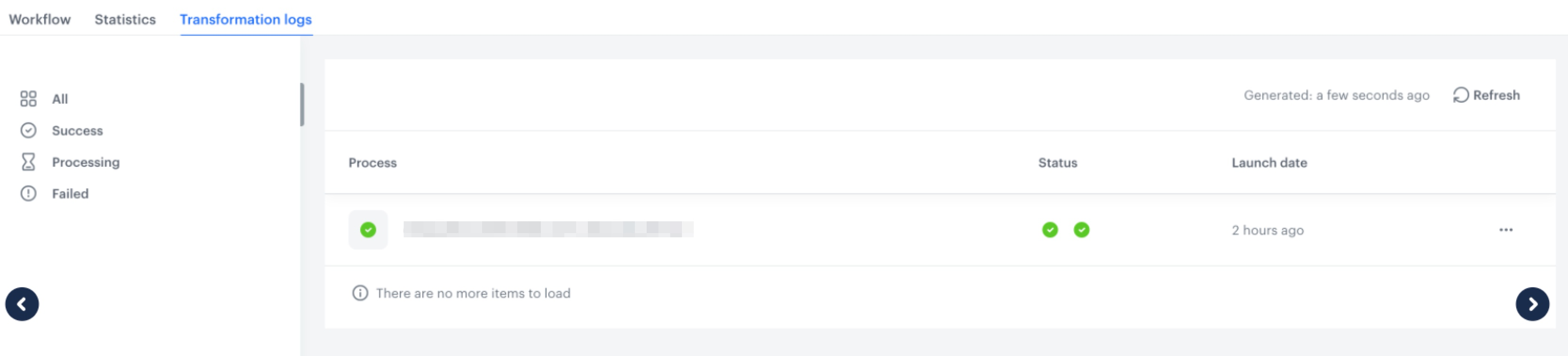
You can monitor the flow of the workflow in the **Transformation logs** tab. It contains information about each execution of the workflow.  
    <figure><img src="/api/docs/image/54176ad07f146575310749eba44b7c2f42c1b327/use-cases/all-cases/_gfx/synchronize-logs.png" class="full" alt="The logs for the workflow"><figcaption>The logs for the workflow</figcaption></figure>

**Result:** New imported profiles can be visible in **Behavioral Data Hub > Profiles**.


## Check the use case set up on the Synerise Demo workspace
---
You can check the [workflow configuration](https://app.synerise.com/automations/automation-diagram/9c4e1942-6751-45b7-b783-ee1389f59ab2) directly in Synerise Demo workspace. 

If you’re our partner or client, you already have automatic access to the **Synerise Demo workspace (1590)**, where you can explore all the configured elements of this use case and copy them to your workspace.  

If you’re not a partner or client yet, we encourage you to fill out the contact [form](https://demo.synerise.com/request) to schedule a meeting with our representatives. They’ll be happy to show you how our demo works and discuss how you can apply this use case in your business. 

## Read more
---

- [Automation Hub](/docs/automation)
- [Behavioral Data Hub](/docs/crm)