A/B testing is a powerful tool for businesses to optimize their marketing campaigns. By testing different versions of a campaign with a randomly split audience, businesses can determine which version is more effective at achieving their desired outcome, such as increased conversions or engagement. This data-driven approach enables businesses to make informed decisions about their campaigns, improve their return on investment, and grow. Whether it's testing different ad copy, visuals, or call-to-actions, A/B testing can help businesses fine-tune their marketing strategies and achieve greater success.
With our predefined Dynamic Content (DC) templates, you can easily create your own control group dispatcher. In this use case, we will use the DC campaign to run the dispatcher. The ready-to-use Java Script in the template will update the page body with `data-test-snrs` attribute according to predefined user allocation. The attribute can be later found in the customer profile with value A or B.
## Prerequisites
---
- [Implement a tracking code](/docs/settings/tool/tracking_codes) into your website.
## Create dynamic content
---
The dispatcher will assign users to 2 groups in 2 areas:
- The group will be assigned as an attribute in the customer profiles. The attribute is called `test-snrs` and takes the following values:
- **A** - recommendation group (people in this group are able to see recommendations and personalized content),
- **B** - control group (people in this group should not get any recommendations and personalized content).
- It will add a `data-test-snrs` (=”A” or =”B”) attribute to the page body, which you must use in any later campaign settings. You can find out more about this in the [What's next](#whats-next) section.
1. Go to **Experience Hub > Dynamic content > Create new**.
2. Enter the name of the dynamic content.
3. Choose the **Insert Object** type.
4. As the Audience, leave **Everyone**.
### Define content
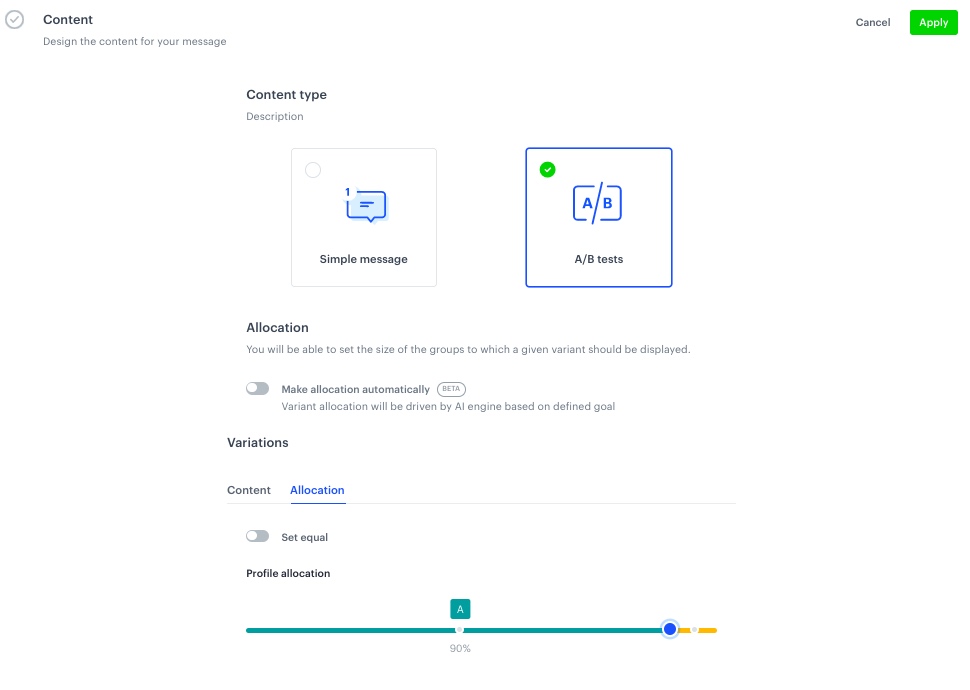
1. In the **Content** section, select **A/B tests**.
2. In the **Variations** section, click **Allocation**.
1. Switch off the **Set equal** toggle.
2. Set the **Profile allocation** to A-90% / B- 10%.
Manual profile allocation
3. Switch back to **Content** and specify the CSS selector as **Before (in div)**: `body > div `.
4. Click **Create Message**.
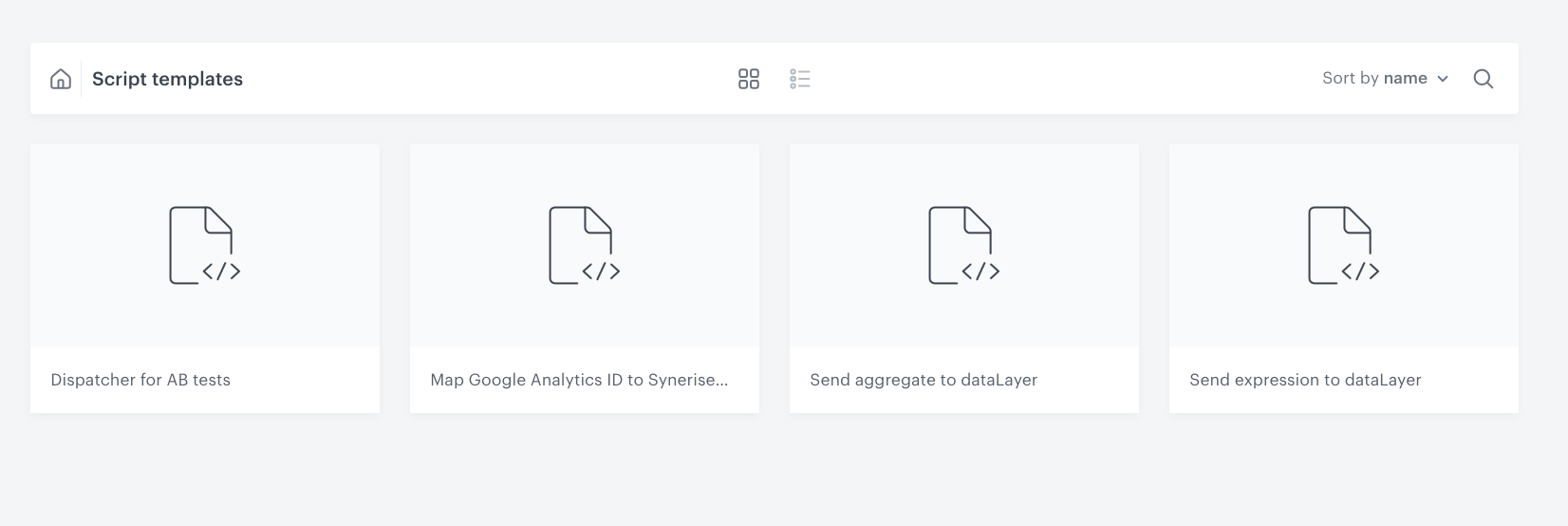
5. From the list of template folders, select a folder with the predefined script templates.
**Result**: You are redirected to the list of predefined templates.
Script templates folder
6. Select the **Dispatcher for AB tests** template.
**Result**: You are redirected to the template builder.
This template consists only of predifined JavaScript. When the customer is assigned to a group, there is always an attribute added to the body in your website HTML code that identifies in which group the customer is.
7. Edit the form in the Config tab:
1. From **Variant to be assigned** choose **A**.
2. Click **Next**.
8. In the **Content** section, click **Variant B** and specify the CSS selector as **Before (in div)**: `body > div `.
9. Click **Create Message**.
10. Repeat steps 5-6.
11. Edit the form in the Config tab:
1. From **Variant to be assigned** choose **B**.
2. Click **Next**.
12. Click **Apply**.
### Define schedule and display settings
The dispatcher needs to be active all the time.
1. In the **Schedule** section, click **Define** and choose **Display immediately**.
If you have more that one dispatcher configured in your business profile (ex. for different percentages of audience) remember that two dispatchers cannot render on the website at the same time. In such case you need to make a delay for one of them. 1 second should be enough.
2. Click **Apply**.
3. In the **Display Settings** section, click **Define**.
4. As the trigger, leave **On landing**.
5. Skip the **Advanced options** configuration.
6. Click **Apply**.
7. Click **Activate**.
## What's next
---
The [above DC campaign](#create-dynamic-content) gives the `data-test-snrs` (=”A” or =”B”) attribute to the page body.
You can see the attributes in client profile in **Behavioral Data Hub > Profiles**. You can use this attribute in all sorts of analytics.
In order to send any DC campaigns to a recommendation group (group A), selector `body[data-test-snrs="A"]` should be placed in the campaign **Content** section, before the place where you want to render your DC campaign.
CSS selector configuration
There must be a space after `body[data-test-snrs="A"].`
**Example:**
```
body[data-test-snrs="A"] .catalogsearch-result-index .message.notice
```
**After (in div)** can be modified depending on your business needs.
## Check the use case set up on the Synerise Demo workspace
---
You can check the [dynamic content configuration](https://app.synerise.com/campaigns/create/7a237c5c-61af-426c-95d4-c5d2101c1156) directly in Synerise Demo workspace.
If you’re our partner or client, you already have automatic access to the **Synerise Demo workspace (1590)**, where you can explore all the configured elements of this use case and copy them to your workspace.
If you’re not a partner or client yet, we encourage you to fill out the contact [form](https://demo.synerise.com/request) to schedule a meeting with our representatives. They’ll be happy to show you how our demo works and discuss how you can apply this use case in your business.
## Read more
---
- [AB tests](/docs/ai-hub/ai-search/configuring-ab-test)
- [Dynamic content](/docs/campaign/dynamiccontent)