Countdown timers in email campaigns are a proven way to create urgency, boosting engagement and driving conversions for limited-time offers.
In this use case, we will describe how to send an email campaign for a 48-hour special sale.
To emphasize urgency, it will embed a live countdown timer created using Sendtric.
This visual element dynamically updates in real-time, showing customers how much time remains to take advantage of the sale, increasing click-through and purchase rates.
## Prerequisites
---
- [Email account](/docs/settings/configuration/email-account) configured.
- Create an account on [Sendtrick](https://www.sendtric.com/).
- In Sendrtick, configure a timer. You can personalize it based on your business needs. Copy the timer's code for use later in the process.
- Create a segmentation for the target audience.
## Prepare an email campaign
---
In this part of the process, you create an email campaign, targeted to [the segment you created in the prerequisites](#prerequisites) with the countdown prepared as a part of [prerequisites](#prerequisites)
1. Go to **Experience Hub > Email campaign > Create new**.
2. In the **Audience** section, choose the segment created in the [prerequisites](#prerequisites)
3. Configure the **Content** section.
1. Choose the email account from which you want to send your message.
2. In the **Subject** field, enter your message subject.
2. Click **Create message** and create or choose an email template from default projects.
### Create the email template using Visual Builder
---
1. Prepare the email template based on your business needs.
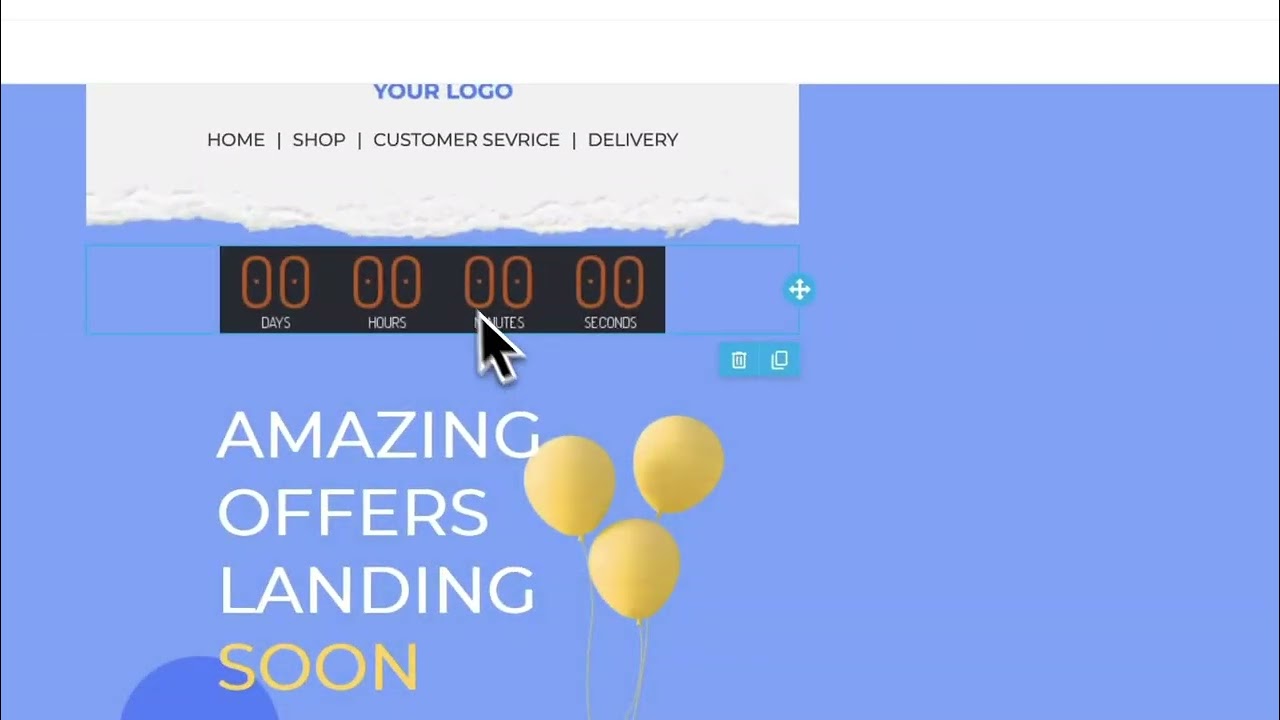
2. Drag and drop the **Image** component where you want the countdown to appear.
3. In the image settings, in the **URL** field, paste the image address from the Sendtric code generated when you created the timer. The address is in the `src` parameter of the code.
6. Apply the changes.
**Watch the video below to see how to add the sendtric code step by step.**
### Create the email template using Code Editor
---
1. Prepare the email template based on your business needs.
2. Insert an **img** tag into your email template at the desired location:
Remembert to replace **URL** and paste the image address from the Sendtric code generated when you created the timer.
3. Save your changes.
### Add additional settings
---
4. In the **Schedule** section, specify the time when you want to send your communication.
4. Optionally, you can define **UTM & URL parameters**. If you don't need them, click **Skip step**.
4. Confirm by clicking **Apply**.
## Check the use case set up on the Synerise Demo workspace
---
Check the [email campaign settings](https://app.synerise.com/campaigns/email/create/6c598f2a-96c1-4a13-bd85-c477c313a284) in the Synerise Demo workspace.
If you’re our partner or client, you already have automatic access to the **Synerise Demo workspace (1590)**, where you can explore all the configured elements of this use case and copy them to your workspace.
If you’re not a partner or client yet, we encourage you to fill out the contact [form](https://demo.synerise.com/request) to schedule a meeting with our representatives. They’ll be happy to show you how our demo works and discuss how you can apply this use case in your business.
## Read more
---
- [Creating emails](/docs/campaign/e-mail/creating-email-campaigns)
- [Jinjava inserts](/developers/inserts/insert-usage)
- [Personalized recommendations](/docs/ai-hub/recommendations-v2/recommendation-types#personalized)
- [Segmentation](/docs/analytics/segmentations/creating-segmentations)
 **Experience Hub > Email campaign > Create new**.
2. In the **Audience** section, choose the segment created in the [prerequisites](#prerequisites)
3. Configure the **Content** section.
1. Choose the email account from which you want to send your message.
2. In the **Subject** field, enter your message subject.
2. Click **Create message** and create or choose an email template from default projects.
### Create the email template using Visual Builder
---
1. Prepare the email template based on your business needs.
2. Drag and drop the **Image** component where you want the countdown to appear.
3. In the image settings, in the **URL** field, paste the image address from the Sendtric code generated when you created the timer. The address is in the `src` parameter of the code.
6. Apply the changes.
**Watch the video below to see how to add the sendtric code step by step.**
**Experience Hub > Email campaign > Create new**.
2. In the **Audience** section, choose the segment created in the [prerequisites](#prerequisites)
3. Configure the **Content** section.
1. Choose the email account from which you want to send your message.
2. In the **Subject** field, enter your message subject.
2. Click **Create message** and create or choose an email template from default projects.
### Create the email template using Visual Builder
---
1. Prepare the email template based on your business needs.
2. Drag and drop the **Image** component where you want the countdown to appear.
3. In the image settings, in the **URL** field, paste the image address from the Sendtric code generated when you created the timer. The address is in the `src` parameter of the code.
6. Apply the changes.
**Watch the video below to see how to add the sendtric code step by step.**
