 **Behavioral Data Hub > Expression > New expression**.
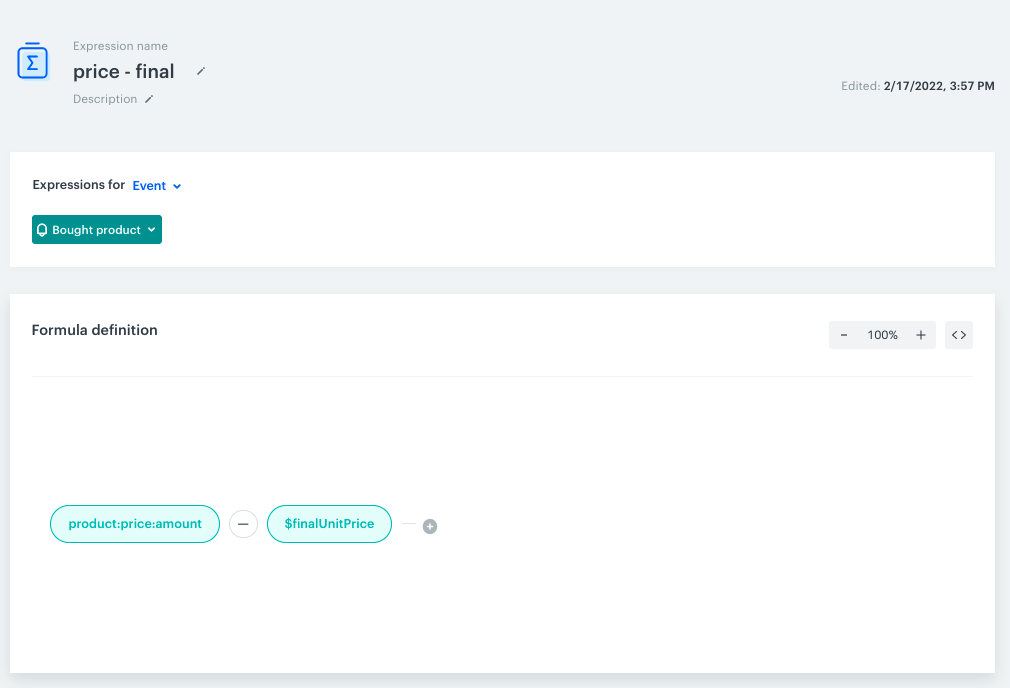
2. Enter the name of the expression.
3. Set the Expression for option to **Event**.
4. From the dropdown list, select **Bought products**.
5. Click the **unnamed** node.
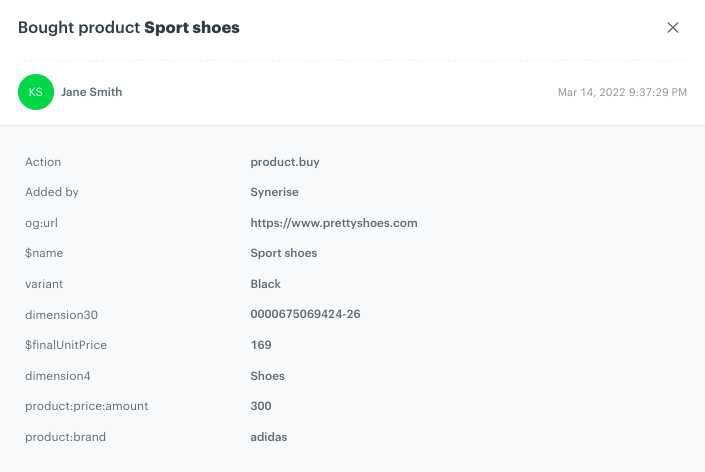
6. From the **Choose attribute** dropdown list, select **product:price:amount**.
7. Click the plus icon.
8. From the dropdown list, select **Event attribute**.
9. From the **Choose attribute** dropdown list, select **$finalUnitPrice**.
10. Change the mathematical operator between these two parameters to minus.
11. Save the expression.
**Behavioral Data Hub > Expression > New expression**.
2. Enter the name of the expression.
3. Set the Expression for option to **Event**.
4. From the dropdown list, select **Bought products**.
5. Click the **unnamed** node.
6. From the **Choose attribute** dropdown list, select **product:price:amount**.
7. Click the plus icon.
8. From the dropdown list, select **Event attribute**.
9. From the **Choose attribute** dropdown list, select **$finalUnitPrice**.
10. Change the mathematical operator between these two parameters to minus.
11. Save the expression.
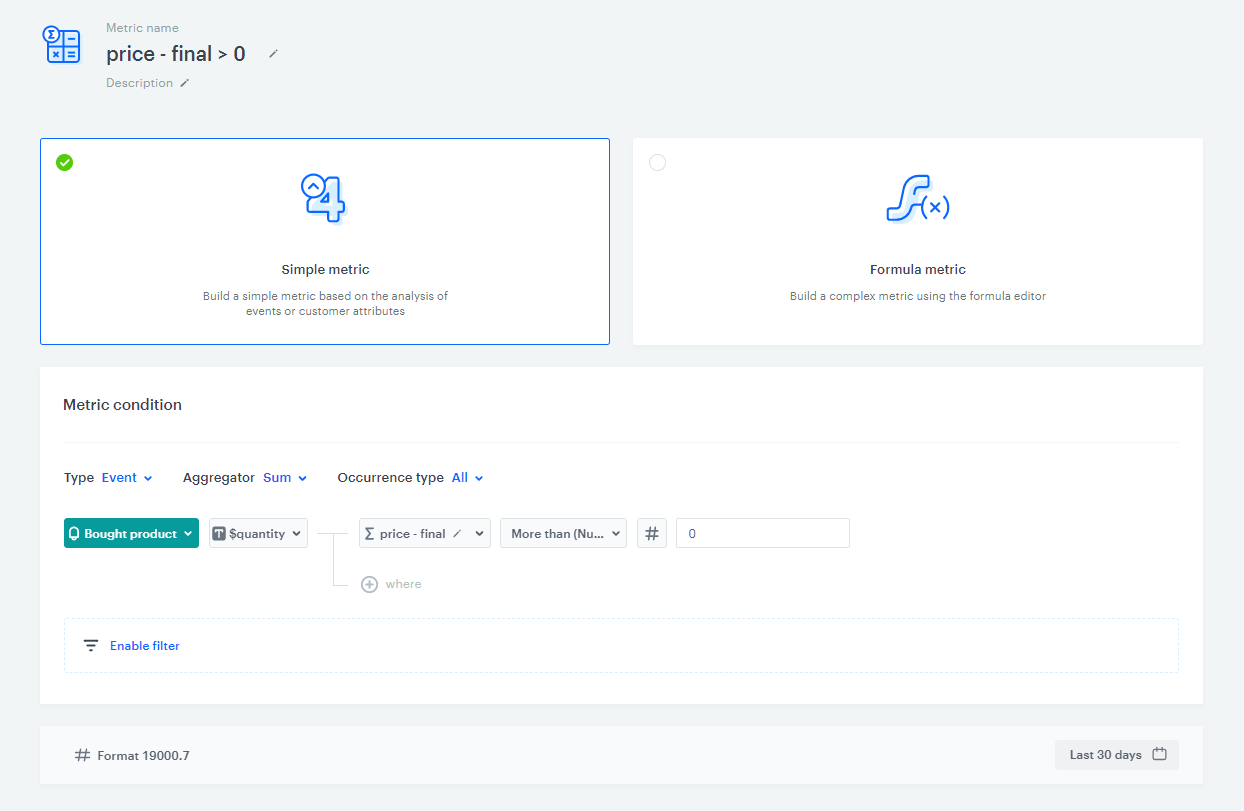
 **Decision Hub > Metrics > New metric**.
2. Enter a meaningful metric name.
3. Leave the metric kind at default (**Simple**).
4. As the aggregator type, select **Sum**.
5. Select the **Bought product** event.
6. Add the **$quantity** parameter.
7. Select the **where** input that appeared on the canvas.
8. Select the expression created in the [previous step](/use-cases/create-event-attribute#create-an-expression).
8. Choose the **More than** number operator.
9. Keep clicking the icon next to the logical operator until you get **#** icon.
10. In the blank field, enter `0`.
11. Select the date range of the metric (for example, last 30 days)
11. Save the metric.
**Decision Hub > Metrics > New metric**.
2. Enter a meaningful metric name.
3. Leave the metric kind at default (**Simple**).
4. As the aggregator type, select **Sum**.
5. Select the **Bought product** event.
6. Add the **$quantity** parameter.
7. Select the **where** input that appeared on the canvas.
8. Select the expression created in the [previous step](/use-cases/create-event-attribute#create-an-expression).
8. Choose the **More than** number operator.
9. Keep clicking the icon next to the logical operator until you get **#** icon.
10. In the blank field, enter `0`.
11. Select the date range of the metric (for example, last 30 days)
11. Save the metric.
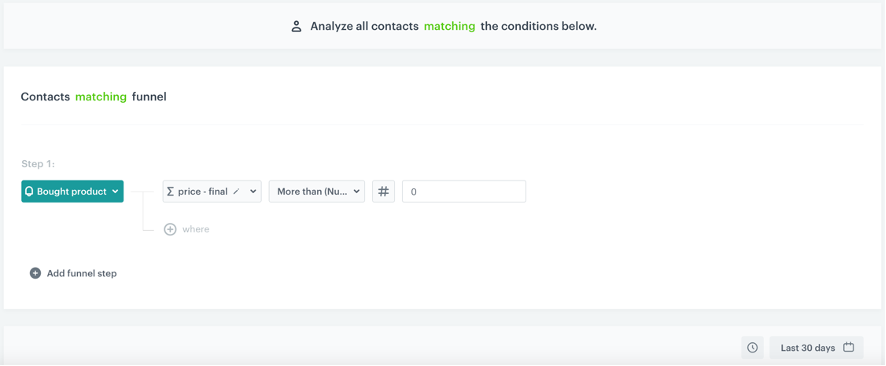
 **Decision Hub > Segmentation > New Segmentation**.
2. Enter the name of segmentation.
3. On the canvas, click **Choose filter**.
4. From the dropdown list, select the **Bought product** event.
5. Select the **where** input that appeared on the canvas.
6. Select the expression created in the [previous step](/use-cases/create-event-attribute#create-an-expression).
7. Choose the **More than** number operator.
8. Keep clicking the icon next to the logical operator until you get **#** icon.
9. In the blank field, enter `0`.
10. Select the date range of the segmentation (for example, last 30 days).
11. Save the segmentation.
**Decision Hub > Segmentation > New Segmentation**.
2. Enter the name of segmentation.
3. On the canvas, click **Choose filter**.
4. From the dropdown list, select the **Bought product** event.
5. Select the **where** input that appeared on the canvas.
6. Select the expression created in the [previous step](/use-cases/create-event-attribute#create-an-expression).
7. Choose the **More than** number operator.
8. Keep clicking the icon next to the logical operator until you get **#** icon.
9. In the blank field, enter `0`.
10. Select the date range of the segmentation (for example, last 30 days).
11. Save the segmentation.
 **Decision Hub > Report > New report**.
2. Enter the name of the report.
3. Select the metric you created in [this part](/use-cases/create-event-attribute#create-a-metric) of the process.
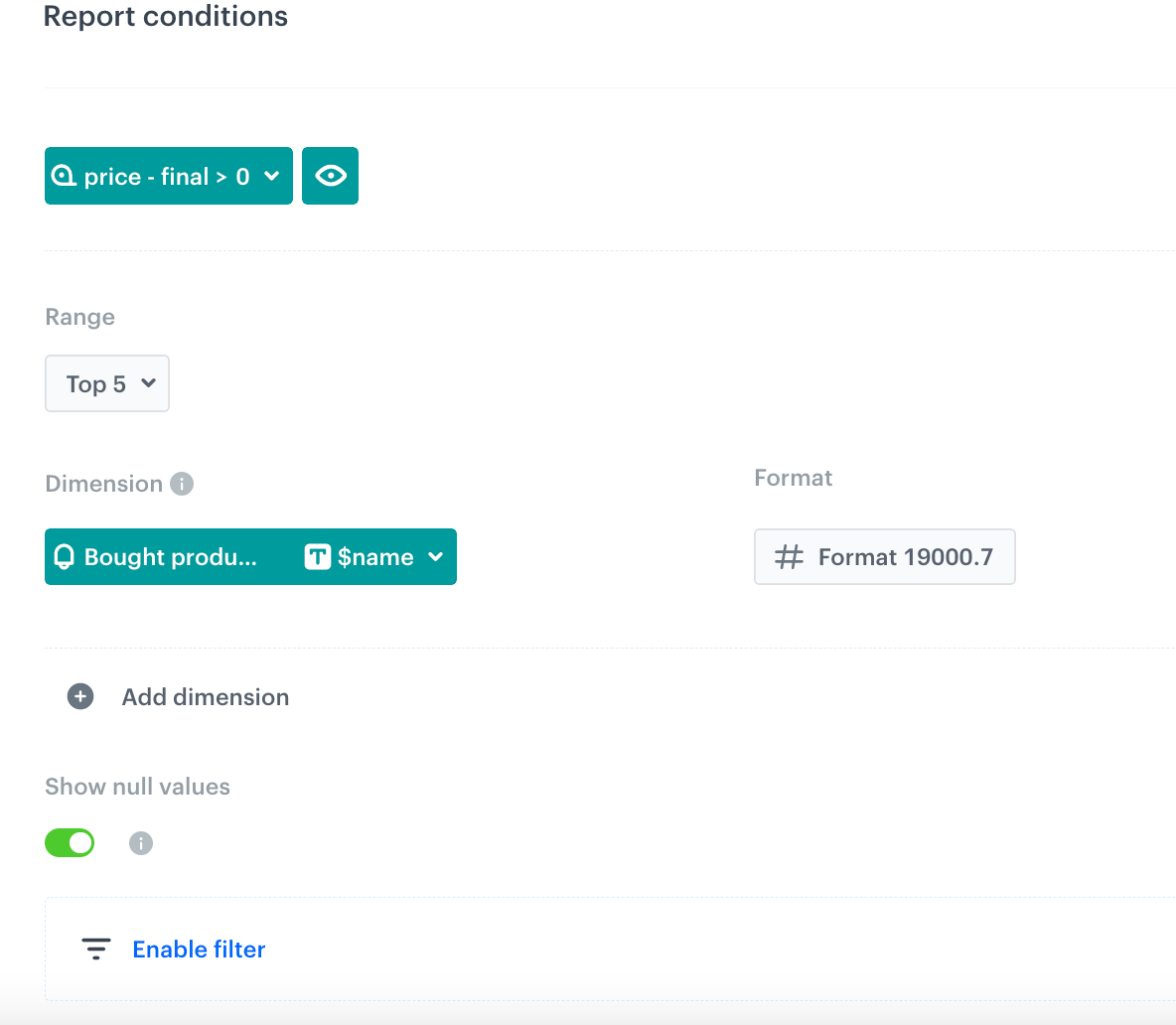
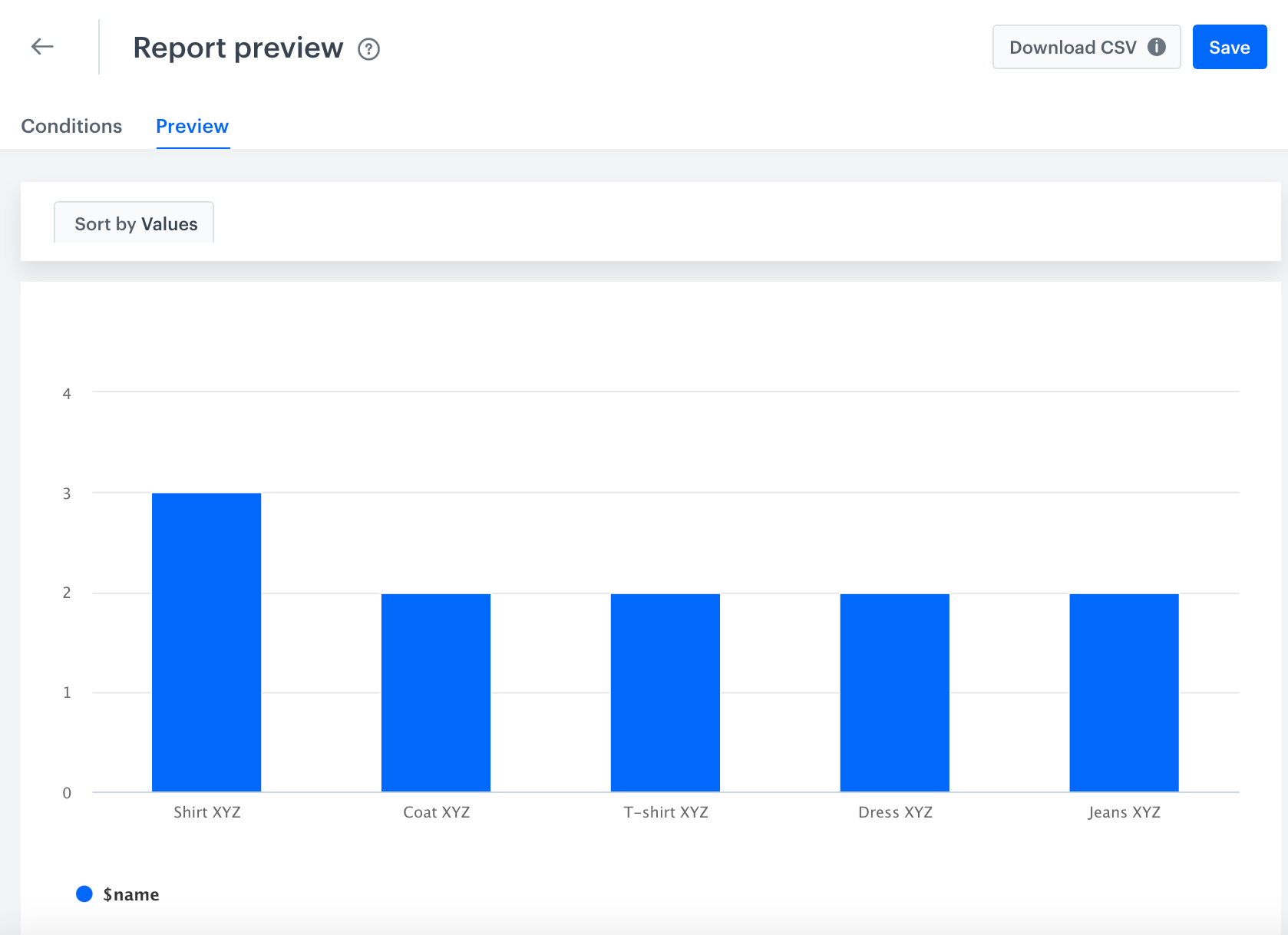
4. From the **Range** dropdown list, select the number of top (the most frequently bought products) to be shown in the preview of the report.
5. In the **Dimension** section, choose a parameter from **product.buy** suggesting what the product is. Among the most common parameters, you can choose **$name** or **$sku**.
6. In the date range, select the time that will be analyzed.
**Decision Hub > Report > New report**.
2. Enter the name of the report.
3. Select the metric you created in [this part](/use-cases/create-event-attribute#create-a-metric) of the process.
4. From the **Range** dropdown list, select the number of top (the most frequently bought products) to be shown in the preview of the report.
5. In the **Dimension** section, choose a parameter from **product.buy** suggesting what the product is. Among the most common parameters, you can choose **$name** or **$sku**.
6. In the date range, select the time that will be analyzed.