Cross-sell recommendations are designed to surface complementary products that can be used together with the item currently viewed. Instead of showing similar or alternative items, it focuses on cross-selling by selecting products from different categories, encouraging broader exploration and potential basket building.

In this use case, the recommendation returns from 6 to 12 items. A static filter ensures that **none of the recommended products share the same category as the context product**. For example, if the user is viewing a table, the system may suggest chairs, bookshelf — but not other tables. This approach helps avoid redundancy and instead promotes useful add-ons or combinations across categories. 

What is more we will promote and demote specific categories from search results.

## Prerequisites 
---
- Implement a [tracking code](/developers/web/installation-and-configuration) into your website.
- [Configure AI engine](/docs/settings/configuration/ai-engine-configuration/engine-configuration-for-recommendations). Enable cross-sell recommendation model.
- Implement the [transaction events](/developers/web/transactions-sdk).

## Prepare an AI recommendations
---

We will configure a cross-sell recommendation which returns up to 12 items. A static filter ensures that **none of the recommended products share the same category as the context product**.

1. Go to <img src="/api/docs/image/54176ad07f146575310749eba44b7c2f42c1b327/icons/ai-hub-icon.svg" alt="AI Hub icon" class="icon" > **AI Hub > (AI Recommendations) Models > Add recommendation**.
2. Enter the name of the recommendation (it is only visible on the list of recommendations).
3. In the **Type & Items Feed** section, click **Define**.
4. From the **Items Feed** dropdown list, select an item feed.
5. In the **Type** section, choose the **Cross-sell** recommendation type.
6. Confirm the settings by clicking **Apply**.
7. In the **Items** section, click **Define**.
    2. Define the minimum and maximum number of items that will be recommended to the customer in each slot - here it will be from 6 to 12 items.
    3. Define [Static filters](/docs/ai-hub/recommendations-v2/creating-recommendation-campaign#static-filters).
    4. In our case, in the **Static filter** section, click **Define filter**.  
    5. Select **Visual Builder**.  
    6. Click **Select value**.
    5. Choose **category**.
    6. As an operator, choose **Not in**.
    7. Click the icon which appeared next to the field with operator and from the dropdown list, select **Context** (eye icon). 
    7. As the value, choose `category`, to be sure that the category of recommended products will not be the same as the category of the currently viewed item.
    8. In the **Category level** input area that appear, define the category level as a numeric value.  
    
       <div class="admonition admonition-note"><div class="admonition-icon"><svg xmlns="http://www.w3.org/2000/svg" fill="none" viewBox="0 0 24 24" stroke="currentColor" stroke-width="2.5"><path stroke-linecap="round" stroke-linejoin="round" d="M13 16h-1v-4h-1m1-4h.01M21 12a9 9 0 11-18 0 9 9 0 0118 0z" /></svg></div><div class="admonition-body"><div class="admonition-content">

       If your products categories have a `X > Y > Z` structure, level 0 will be `X > Y > Z`. Level 1 will be `X > Y` and so on. Here, you define how granular the category recommendations will be. For example, if you are selling shoes, you will have a `Outdoor > Sport > Running` category and a `Outdoor > Sport > Football` category. If level 0 is provided, both categories can be recommended. If level 1 is provided `Outdoor > Sport` category will be recommended to the user.

       </div></div></div>
 
   
    4. Confirm by clicking **Apply**. 

8. Define the boosting rules by clicking **Define** in the **Boosting** section.
9. Click **Add rule**.
10. Click **Define rule** and choose **Visual builder**.
11. Click **Select value** and choose the **category**.
12. As an operator select **Not in**.
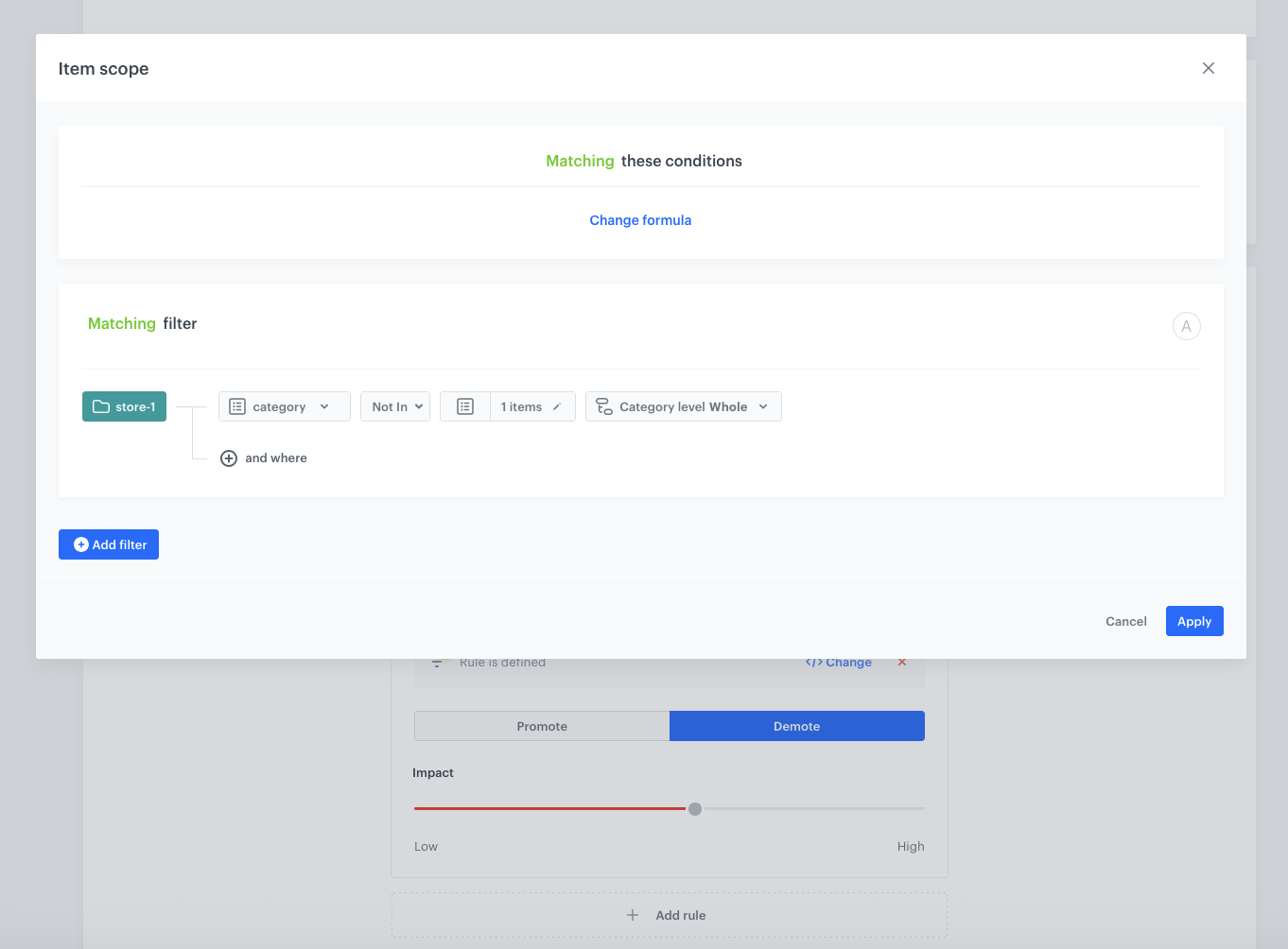
13. Click on **0 items** and select the categories you want to demote from the recommendatons results from the list. 
14. Click **Apply**.
15. In the **Promote/Demote** selector, select **Demote**.
12. Use the slider to adjust how much you want the rule to affect the results.

    <figure>
    <img src="/api/docs/image/54176ad07f146575310749eba44b7c2f42c1b327/use-cases/all-cases/_gfx/boosting1.png" class="full" alt="Boosting itemsr">
    <figcaption>Boosting items</figcaption>
    </figure>

9. Click **Add rule**.
10. Click **Define rule** and choose **Visual builder**.
11. Click **Select value** and choose the **category**.
12. As an operator select **In**.
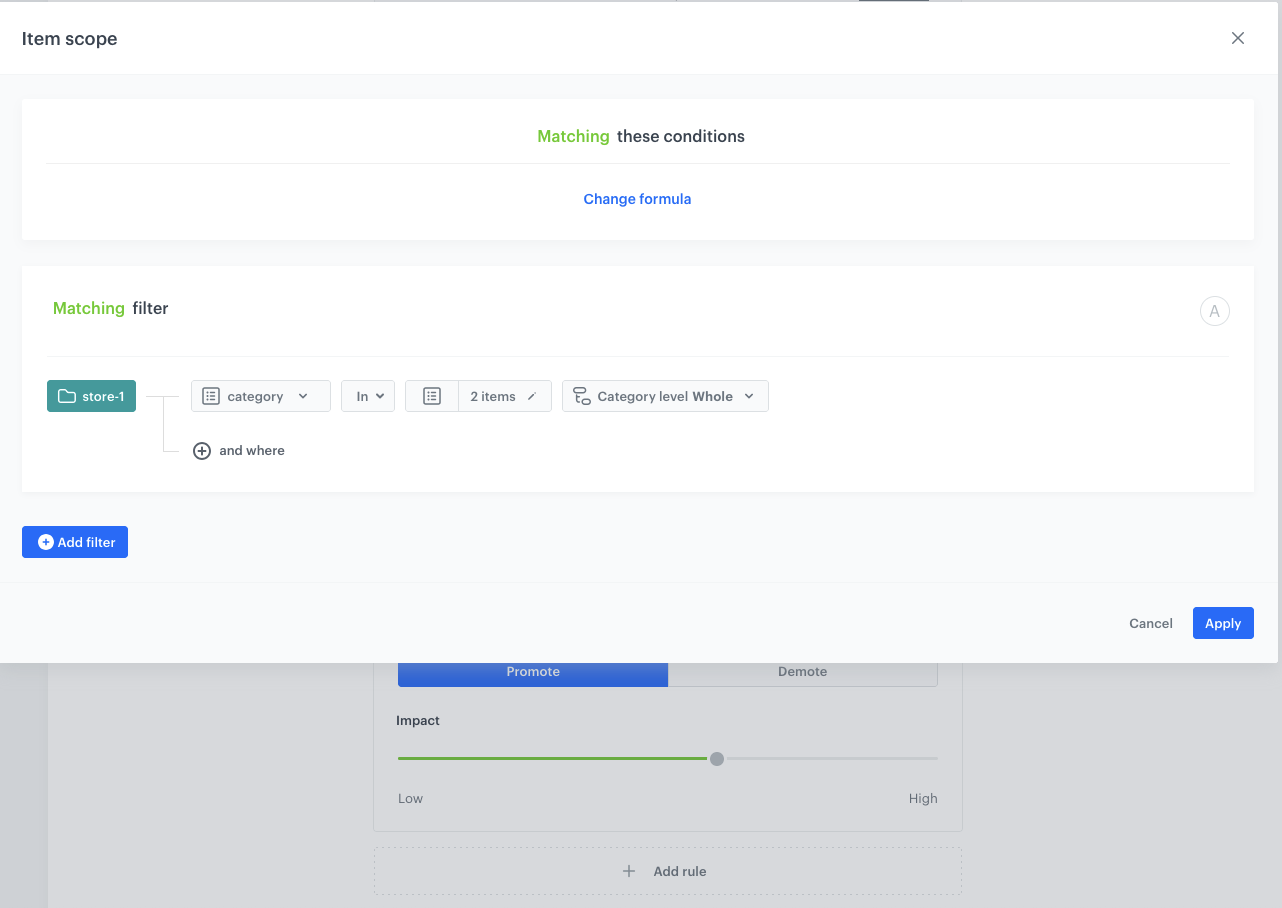
13. Click on **0 items** and select the categories you want to promote from the recommendatons results from the list. 
14. Click **Apply**.
15. In the **Promote/Demote** selector, select **Promote** (default value).
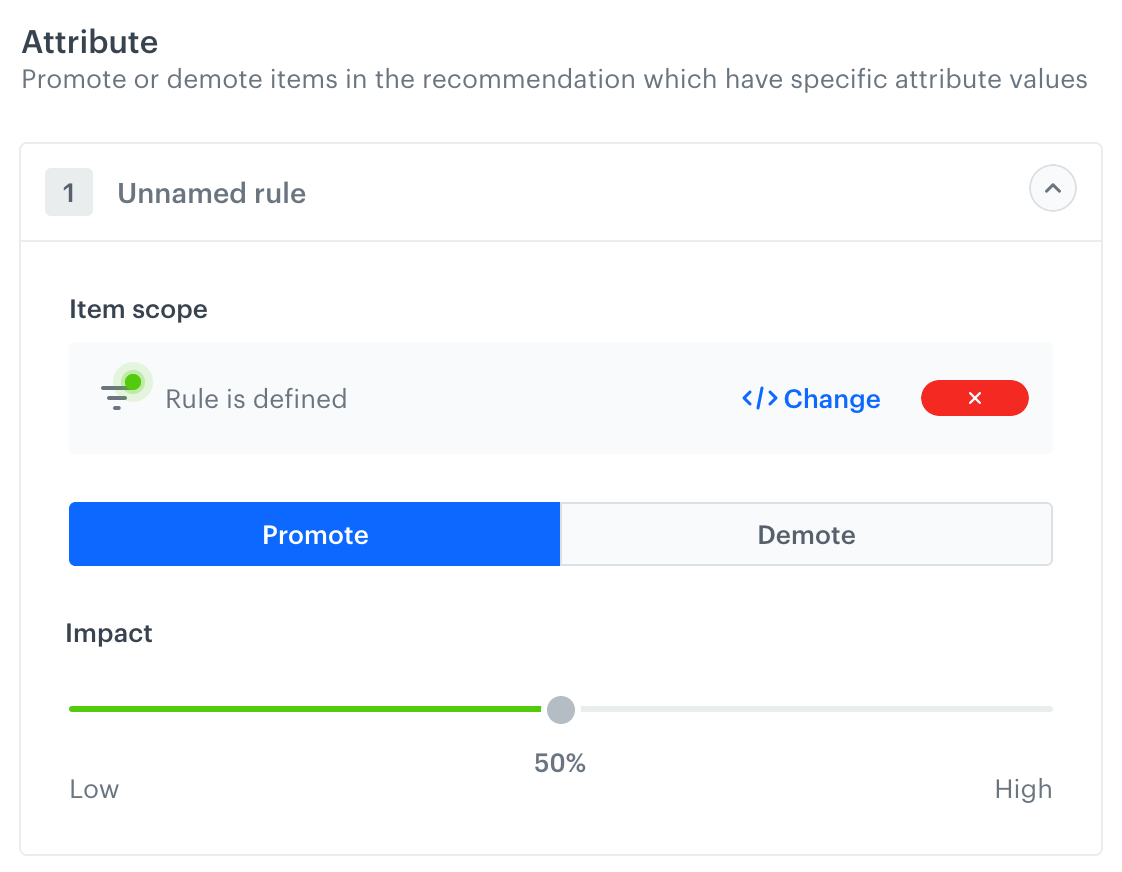
12. Use the slider to adjust how much you want the rule to affect the results.
    <figure><img src="/api/docs/image/54176ad07f146575310749eba44b7c2f42c1b327/use-cases/all-cases/_gfx/boost-promo-slider.png" class="large" alt="Screenshot of the boosting strength slider"><figcaption>The boosting strength slider</figcaption></figure>
13. Click **Apply** to save changes.

     <figure>
    <img src="/api/docs/image/54176ad07f146575310749eba44b7c2f42c1b327/use-cases/all-cases/_gfx/boosting2.png" class="full" alt="Boosting itemsr">
    <figcaption>Boosting items</figcaption>
    </figure> 
9. In the **Additional settings** section, choose **Exclude already bought products**. If your company sells replenishable products, you can set exclusion for specific number of days, for example, exclude products bought not later than 30 days ago.
9. In the right upper corner, click **Save**.

## Check the use case set up on the Synerise Demo workspace
---
You can check the configuration of the [AI Recommendation](https://app.synerise.com/ai-v2/recommendations/76urzbmYEpFE) in our Synerise Demo workspace.

If you’re our partner or client, you already have automatic access to the **Synerise Demo workspace (1590)**, where you can explore all the configured elements of this use case and copy them to your workspace.  

If you’re not a partner or client yet, we encourage you to fill out the contact [form](https://demo.synerise.com/request) to schedule a meeting with our representatives. They’ll be happy to show you how our demo works and discuss how you can apply this use case in your business. 

## Read more
---
- [Aggregates](/docs/analytics/aggregates)
- [Recommendations](/docs/ai-hub/recommendations-v2)