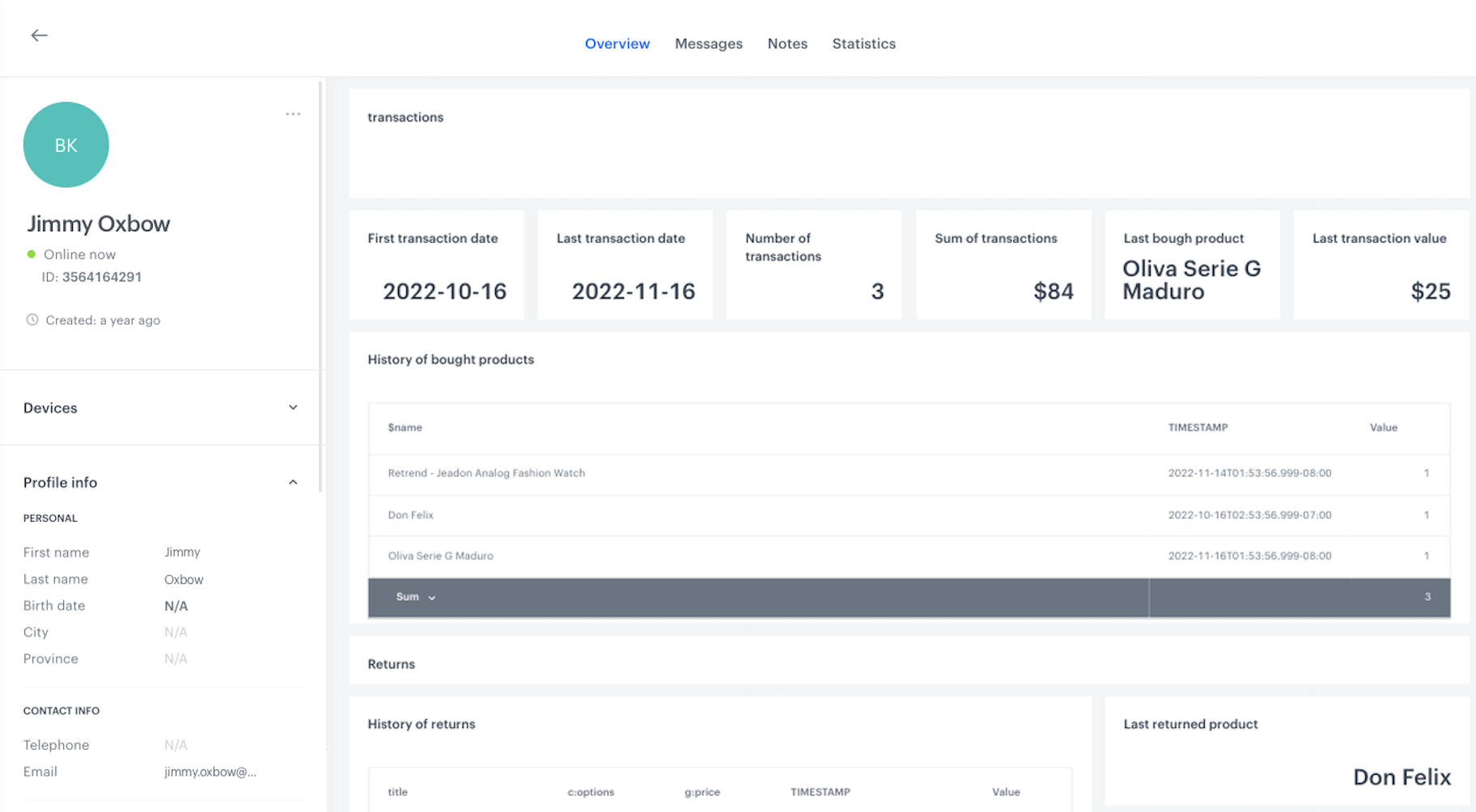
 **Behavioral Data Hub > Expressions > New expression**.
2. Enter the name of the expression.
3. Set the **Expression for** option to **Event**.
4. From the **Choose event** dropdown list, select `transaction.charge` event.
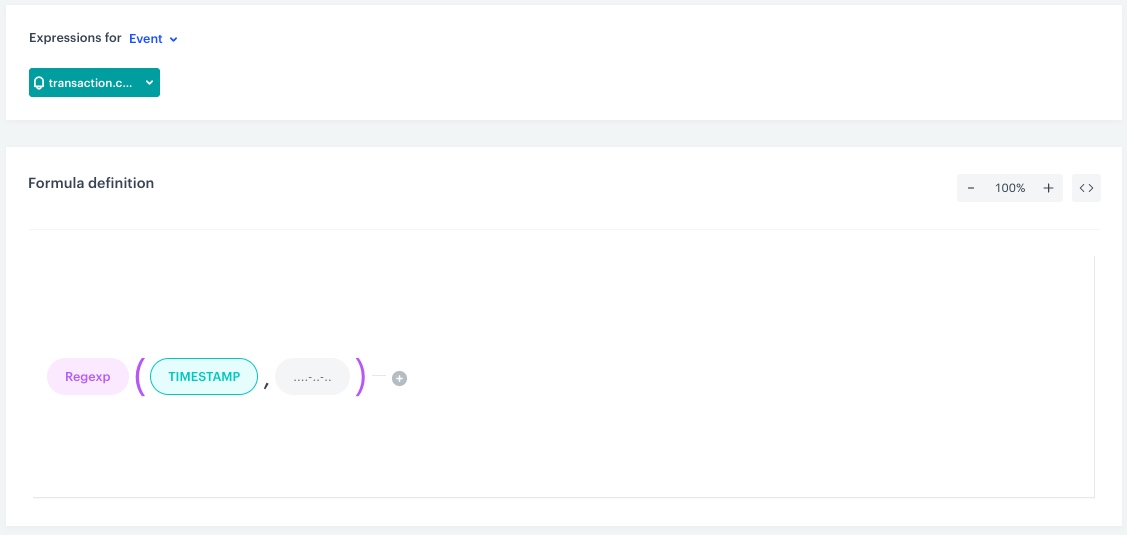
5. In the **Formula definition** section, click **Select**.
6. From the list that opens, select **Function > Regexp**.
7. In the brackets, click the **Select** button and from the list, select **Event attribute**.
1. Click the **Unnamed** node that appeared.
9. At the bottom of the page, click **Choose parameter**.
10. In the list of attributes, find and select **TIMESTAMP**.
8. Click the next **Select** button in the brackets and from the list, select **Constant**.
1. Click the **0** node that appeared.
2. At the bottom of the page, type `....-..-..` for date format.
9. Save the expression.
10. Create a second expression and repeat all steps for `page.visit` event.
**Behavioral Data Hub > Expressions > New expression**.
2. Enter the name of the expression.
3. Set the **Expression for** option to **Event**.
4. From the **Choose event** dropdown list, select `transaction.charge` event.
5. In the **Formula definition** section, click **Select**.
6. From the list that opens, select **Function > Regexp**.
7. In the brackets, click the **Select** button and from the list, select **Event attribute**.
1. Click the **Unnamed** node that appeared.
9. At the bottom of the page, click **Choose parameter**.
10. In the list of attributes, find and select **TIMESTAMP**.
8. Click the next **Select** button in the brackets and from the list, select **Constant**.
1. Click the **0** node that appeared.
2. At the bottom of the page, type `....-..-..` for date format.
9. Save the expression.
10. Create a second expression and repeat all steps for `page.visit` event.
 Behavioral Data Hub > Live Aggregates > Create aggregate.
transaction.charge event. Behavioral Data Hub > Live Aggregates > Create aggregate.
product.buy event.$name parameter. Behavioral Data Hub > Live Aggregates > Create aggregate.
transaction.charge event.$totalAmount parameter. Behavioral Data Hub > Live Aggregates > Create aggregate.
transaction.charge event. Behavioral Data Hub > Live Aggregates > Create aggregate.
transaction.charge event.$totalAmount parameter. Behavioral Data Hub > Live Aggregates > Create aggregate.
product.return event.name parameter. Behavioral Data Hub > Live Aggregates > Create aggregate.
product.return event.price parameter. **Behavioral Data Hub > Live Aggregates > Create aggregate**.
2. As the aggregate type, select **Profile**.
2. Enter a meaningful name of the aggregate.
3. Switch the **Show in profile card** option on.
3. Click **Analyze profiles by** and select **First** or **Last** to return the date of the first or last date customer visited the web page.
4. Click the **Choose event** dropdown list.
5. From the dropdown list, select the `page.visit` event.
6. Click **choose parameter** and search for the [expression created in the previous part of the process](#create-expressions) regarding the chosen event.
7. Using the date picker in the lower-right corner, set the time range to **Lifetime**.
8. Click **Apply**.
9. Save the aggregate.
**Behavioral Data Hub > Live Aggregates > Create aggregate**.
2. As the aggregate type, select **Profile**.
2. Enter a meaningful name of the aggregate.
3. Switch the **Show in profile card** option on.
3. Click **Analyze profiles by** and select **First** or **Last** to return the date of the first or last date customer visited the web page.
4. Click the **Choose event** dropdown list.
5. From the dropdown list, select the `page.visit` event.
6. Click **choose parameter** and search for the [expression created in the previous part of the process](#create-expressions) regarding the chosen event.
7. Using the date picker in the lower-right corner, set the time range to **Lifetime**.
8. Click **Apply**.
9. Save the aggregate.
 **Behavioral Data Hub > Live Aggregates > Create aggregate**.
2. As the aggregate type, select **Profile**.
2. Enter a meaningful name of the aggregate.
3. Switch the **Show in profile card** option on.
3. Click **Analyze profiles by** and select **Sum** to return the time of call center calls.
4. Click the **Choose event** dropdown list.
5. From the dropdown list, select the `callcenter.call` event.
6. Click **choose parameter** and choose the `callDuration` parameter.
7. Using the date picker in the lower-right corner, set the time range to **Custom** and set to **30 days** or according to your business needs.
8. Click **Apply**.
9. Save the aggregate.
**Behavioral Data Hub > Live Aggregates > Create aggregate**.
2. As the aggregate type, select **Profile**.
2. Enter a meaningful name of the aggregate.
3. Switch the **Show in profile card** option on.
3. Click **Analyze profiles by** and select **Sum** to return the time of call center calls.
4. Click the **Choose event** dropdown list.
5. From the dropdown list, select the `callcenter.call` event.
6. Click **choose parameter** and choose the `callDuration` parameter.
7. Using the date picker in the lower-right corner, set the time range to **Custom** and set to **30 days** or according to your business needs.
8. Click **Apply**.
9. Save the aggregate.

 **Decision Hub > Metrics > New metric**.
2. Enter the name of the metric.
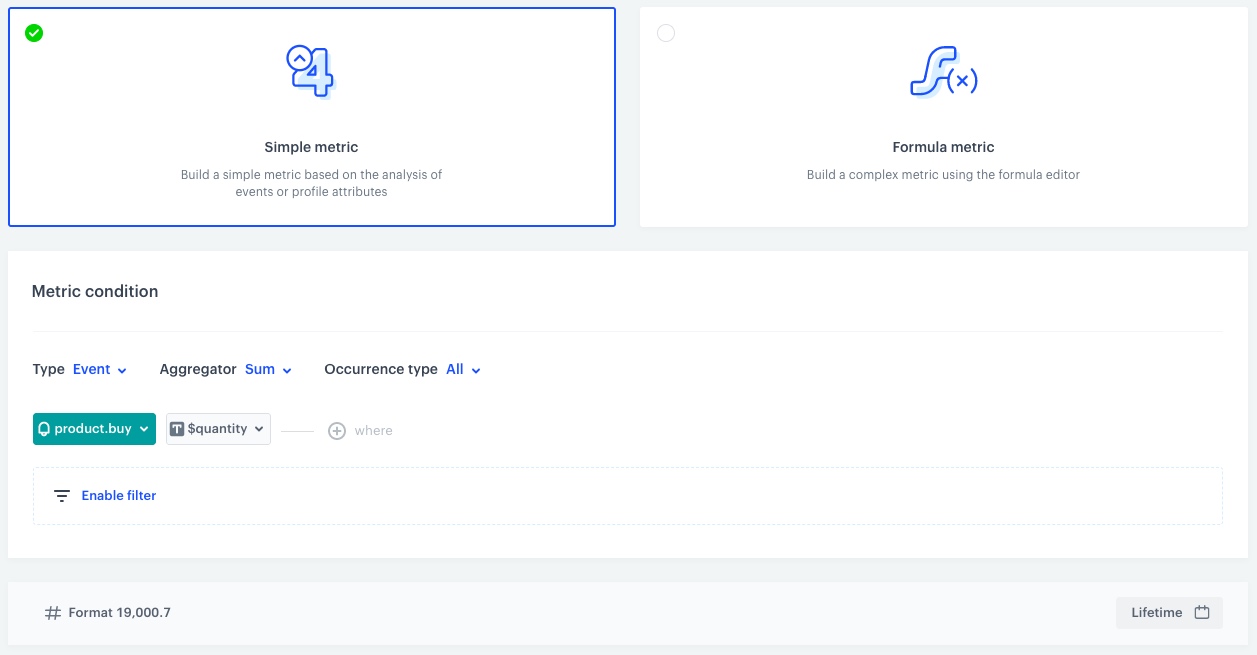
3. As a metric kind, select **Simple metric**.
4. As the type, set **Event**.
5. As the aggregator, set **Sum**.
4. As the occurrence type, set **All**.
5. From the **Choose event** dropdown list, select `product.buy`.
6. Click
**Decision Hub > Metrics > New metric**.
2. Enter the name of the metric.
3. As a metric kind, select **Simple metric**.
4. As the type, set **Event**.
5. As the aggregator, set **Sum**.
4. As the occurrence type, set **All**.
5. From the **Choose event** dropdown list, select `product.buy`.
6. Click  button.
**Result**: The **Choose parameter** button appears.
7. From the **Choose parameter** dropdown list, choose `$quantity`.
8. To select a specific time range, click the calendar icon. In our case it will be **Lifetime**. Confirm your choice with the **Apply** button.
9. Click **Save**.
button.
**Result**: The **Choose parameter** button appears.
7. From the **Choose parameter** dropdown list, choose `$quantity`.
8. To select a specific time range, click the calendar icon. In our case it will be **Lifetime**. Confirm your choice with the **Apply** button.
9. Click **Save**.
 **Decision Hub > Metrics > New metric**.
2. Enter the name of the metric.
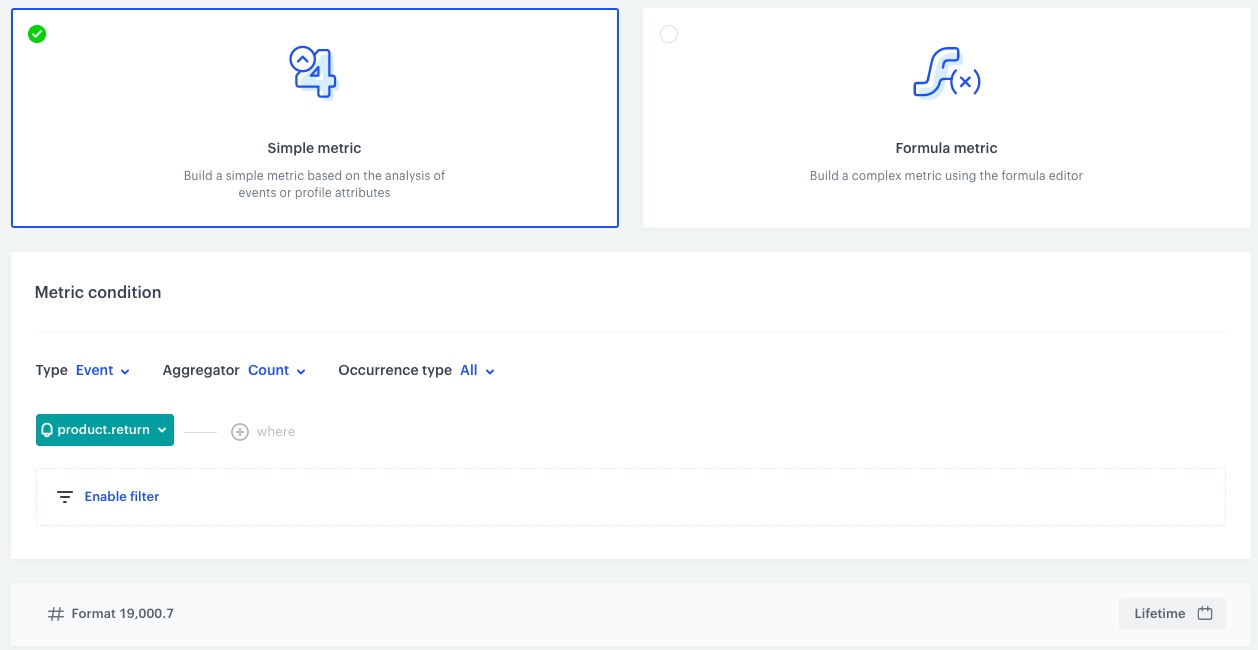
3. As a metric kind, select **Simple metric**.
4. As the type, set **Event**.
5. As the aggregator, set **Count**.
4. As the occurrence type, set **All**.
5. From the **Choose event** dropdown list, select `product.return`.
6. To select a specific time range, click the calendar icon. In our case it will be **Lifetime**. Confirm your choice with the **Apply** button.
7. Click **Save**.
**Decision Hub > Metrics > New metric**.
2. Enter the name of the metric.
3. As a metric kind, select **Simple metric**.
4. As the type, set **Event**.
5. As the aggregator, set **Count**.
4. As the occurrence type, set **All**.
5. From the **Choose event** dropdown list, select `product.return`.
6. To select a specific time range, click the calendar icon. In our case it will be **Lifetime**. Confirm your choice with the **Apply** button.
7. Click **Save**.
 **Decision Hub > Metrics > New metric**.
2. Enter the name of the metric.
3. As a metric kind, select **Simple metric**.
4. As the type, set **Event**.
5. As the aggregator, set **Count**.
4. As the occurrence type, set **All**.
5. From the **Choose event** dropdown list, select `page.visit`.
6. To select a specific time range, click the calendar icon. In our case it will be **Lifetime**. Confirm your choice with the **Apply** button.
7. Click **Save**.
**Decision Hub > Metrics > New metric**.
2. Enter the name of the metric.
3. As a metric kind, select **Simple metric**.
4. As the type, set **Event**.
5. As the aggregator, set **Count**.
4. As the occurrence type, set **All**.
5. From the **Choose event** dropdown list, select `page.visit`.
6. To select a specific time range, click the calendar icon. In our case it will be **Lifetime**. Confirm your choice with the **Apply** button.
7. Click **Save**.
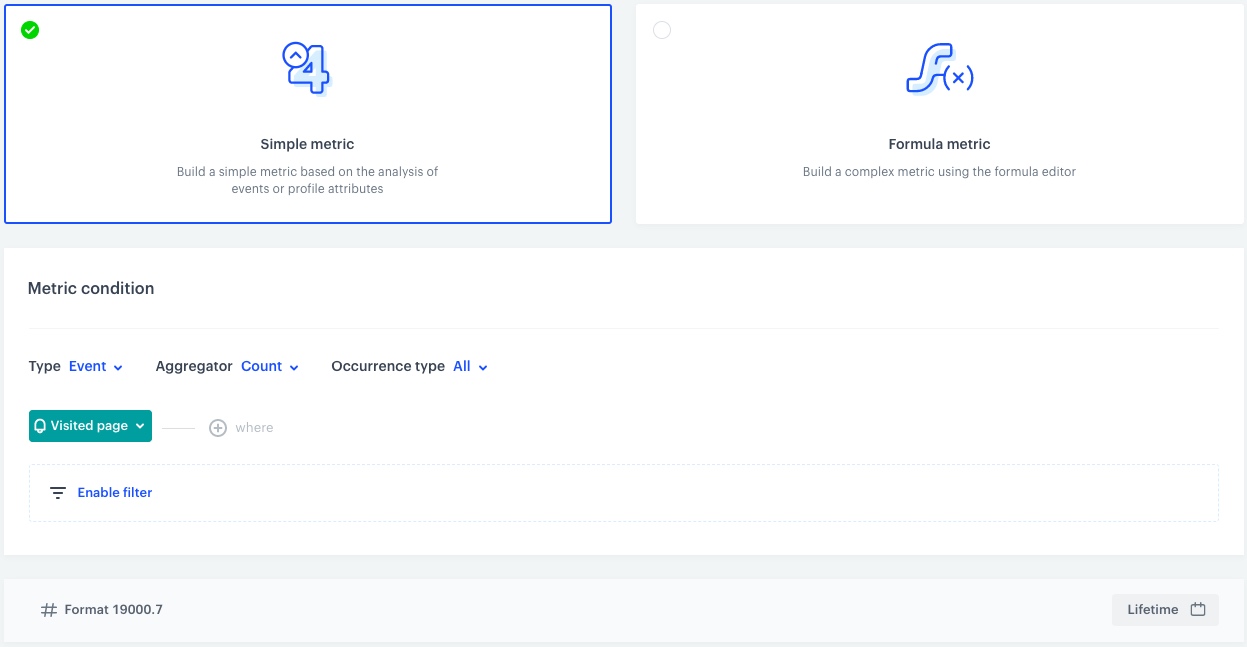 **Decision Hub > Metrics > New metric**.
2. Enter the name of the metric.
3. As a metric kind, select **Simple metric**.
4. As the type, set **Event**.
5. As the aggregator, set **Count**.
4. As the occurrence type, set **All**.
5. From the **Choose event** dropdown list, select `page.visit`.
6. Click button.
**Result**: The **Choose parameter** button appears.
7. From the **Choose parameter** dropdown list, choose `product:retailer_part_no`.
5. From the **Choose operator** dropdown list, select **String** and **Is not empty**.
6. Using the date picker in the lower-right corner, set the time range to **Lifetime**. Confirm your choice with the **Apply** button.
7. Click **Save**.
**Decision Hub > Metrics > New metric**.
2. Enter the name of the metric.
3. As a metric kind, select **Simple metric**.
4. As the type, set **Event**.
5. As the aggregator, set **Count**.
4. As the occurrence type, set **All**.
5. From the **Choose event** dropdown list, select `page.visit`.
6. Click button.
**Result**: The **Choose parameter** button appears.
7. From the **Choose parameter** dropdown list, choose `product:retailer_part_no`.
5. From the **Choose operator** dropdown list, select **String** and **Is not empty**.
6. Using the date picker in the lower-right corner, set the time range to **Lifetime**. Confirm your choice with the **Apply** button.
7. Click **Save**.
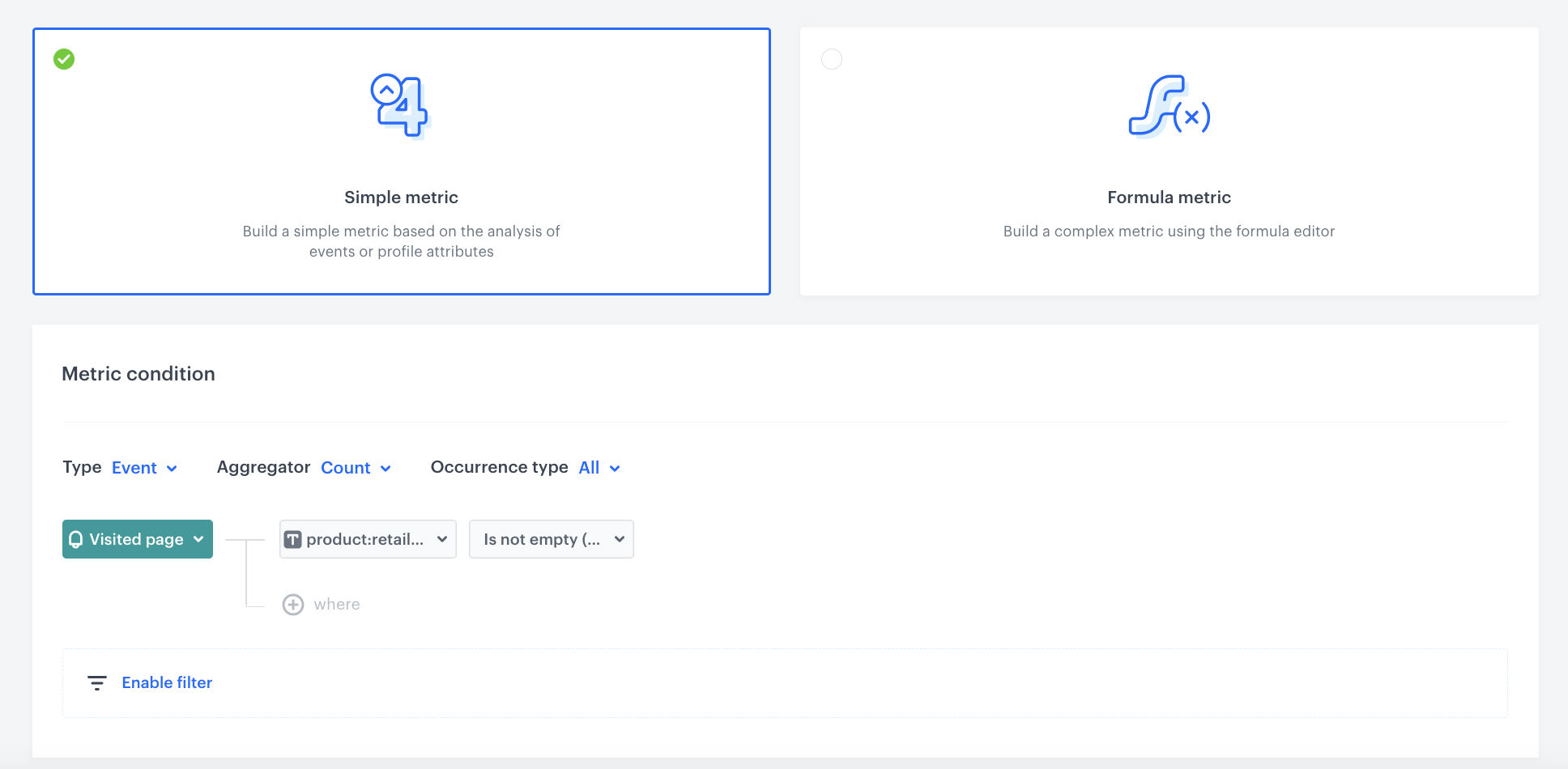 **Decision Hub > Metrics > New metric**.
2. Enter the name of the metric.
3. As a metric kind, select **Simple metric**.
4. As the type, set **Event**.
5. As the aggregator, set **Count**.
4. As the occurrence type, set **All**.
5. From the **Choose event** dropdown list, select `item.search`.
6. Using the date picker in the lower-right corner, set the time range to **Custom** and set to **30 days** or according to your business needs. Confirm your choice with the **Apply** button.
7. Click **Save**.
**Decision Hub > Metrics > New metric**.
2. Enter the name of the metric.
3. As a metric kind, select **Simple metric**.
4. As the type, set **Event**.
5. As the aggregator, set **Count**.
4. As the occurrence type, set **All**.
5. From the **Choose event** dropdown list, select `item.search`.
6. Using the date picker in the lower-right corner, set the time range to **Custom** and set to **30 days** or according to your business needs. Confirm your choice with the **Apply** button.
7. Click **Save**.
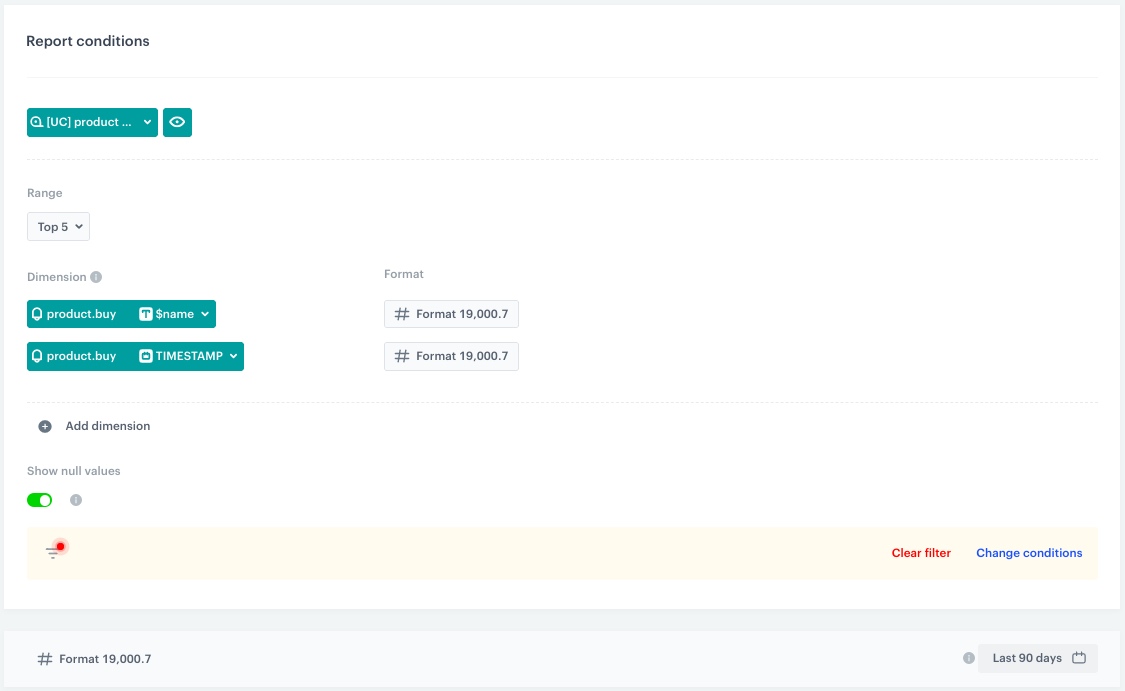
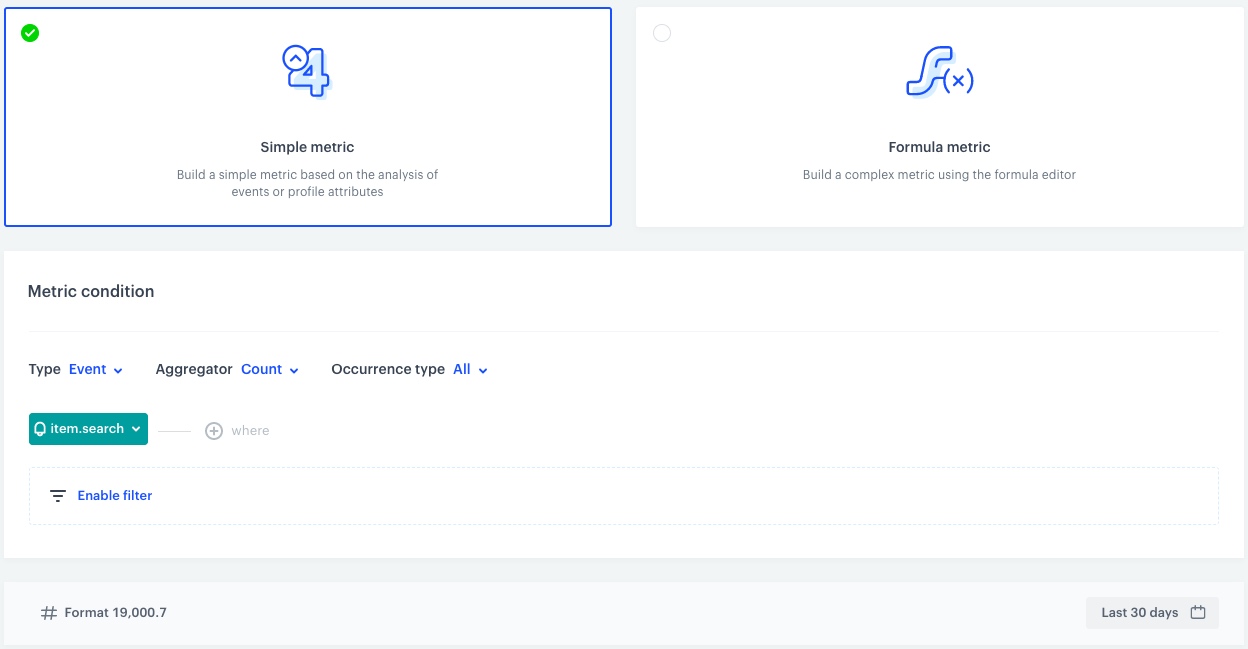 **Decision Hub > Reports > New report**.
2. Enter a meaningful name of the report.
3. Click the **Choose metric** and from the dropdown list, select [a metric for number of bought products, created in the previous part of the process](#number-of-bought-products).
4. From the **Range** dropdown list, select the number of top (the most frequently bought) products to be shown in the preview of the report. In this case it will be **TOP 5** products.
5. In the **Dimension** section, from the dropdown list, select **Event > Parameters**. To be able to show products name in the report, choose `$name`.
6. Click **Add dimension**.
1. Click **Choose dimension** and from the dropdown list, select **Event > Specials**. To be able to show when the product wast bought, choose `TIMESTAMP`.
8. Click **Enable filter**.
1. Click **Choose filter** and from the dropdown list, select **CLIENT_ID**.
2. Click **Choose operator** and from the dropdown list, select **Equal (String)**.
3. Change the type of value by clicking the icon until you get
**Decision Hub > Reports > New report**.
2. Enter a meaningful name of the report.
3. Click the **Choose metric** and from the dropdown list, select [a metric for number of bought products, created in the previous part of the process](#number-of-bought-products).
4. From the **Range** dropdown list, select the number of top (the most frequently bought) products to be shown in the preview of the report. In this case it will be **TOP 5** products.
5. In the **Dimension** section, from the dropdown list, select **Event > Parameters**. To be able to show products name in the report, choose `$name`.
6. Click **Add dimension**.
1. Click **Choose dimension** and from the dropdown list, select **Event > Specials**. To be able to show when the product wast bought, choose `TIMESTAMP`.
8. Click **Enable filter**.
1. Click **Choose filter** and from the dropdown list, select **CLIENT_ID**.
2. Click **Choose operator** and from the dropdown list, select **Equal (String)**.
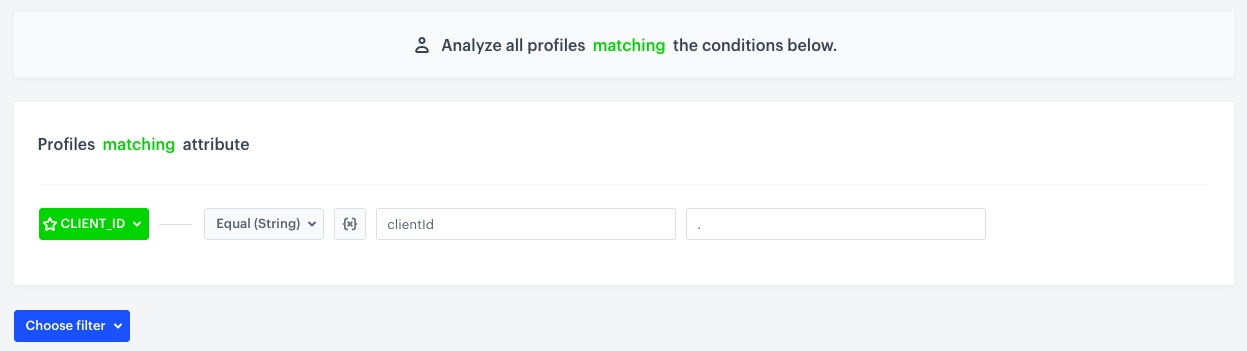
3. Change the type of value by clicking the icon until you get  .
3. In the first field, write `clientId` and in the second field enter `.`
4. Click **Apply**.
.
3. In the first field, write `clientId` and in the second field enter `.`
4. Click **Apply**.
 **Decision Hub > Reports > New report**.
2. Enter a meaningful name of the report.
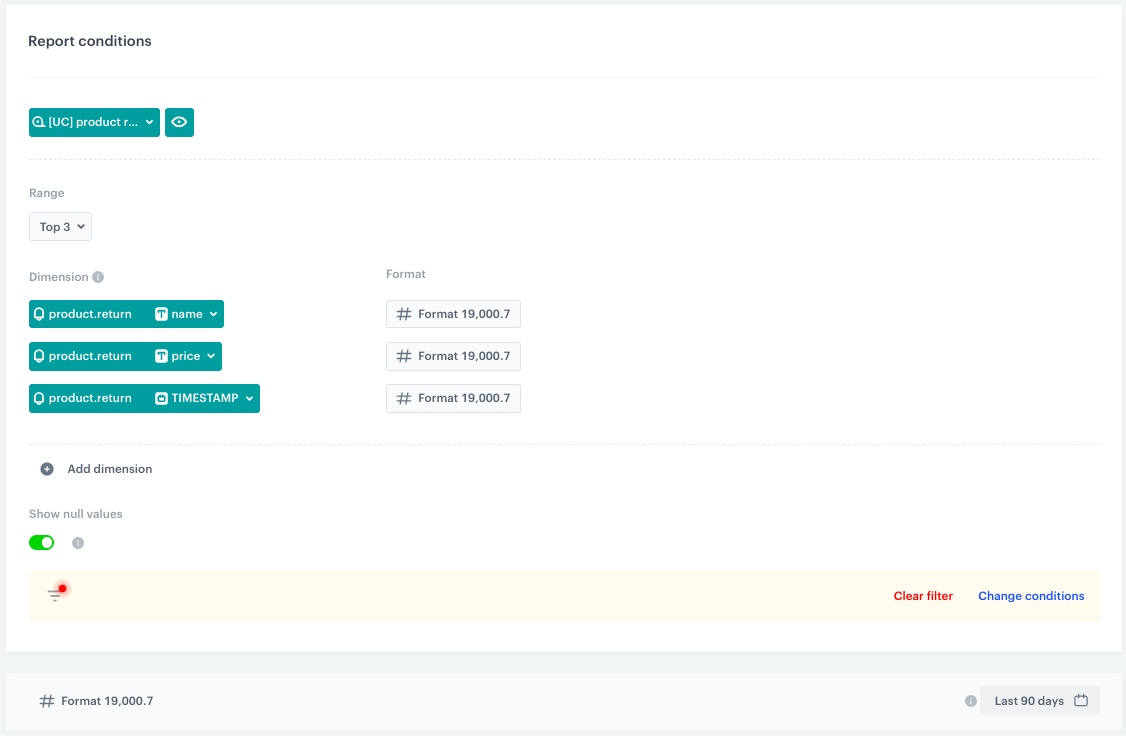
3. Click the **Choose metric** and from the dropdown list, select [a metric for number of returned products, created in the previous part of the process](#number-of-returned-products).
4. From the **Range** dropdown list, select the number of top (the most frequently returned) products to be shown in the preview of the report. In this case, it will be **TOP 3** products.
5. In the **Dimension** section, from the dropdown list, select **Event > Parameters**. To be able to show products name in the report, choose `name`.
6. Click **Add dimension**.
1. Click **Choose dimension** and from the dropdown list, select **Event > Parameters**. To be able to show what the product price is, choose `price`.
6. Click **Add dimension**.
1. Click **Choose dimension** and from the dropdown list, select **Event > Specials**. To be able to show when the product was returned, choose `TIMESTAMP`.
8. Click **Enable filter**.
1. Click **Choose filter** and from the dropdown list, select **CLIENT_ID**.
2. Click **Choose operator** and from the dropdown list, select **Equal (String)**.
3. Change the type of value by clicking the icon until you get .
3. In the first field, write `clientId` and in the second field enter `.`
4. Click **Apply**.
8. Using the date picker in the lower-right corner, set the time range to **Custom** and set to **90 days** or according to your business needs. Confirm your choice with the **Apply** button.
9. Save the report.
**Decision Hub > Reports > New report**.
2. Enter a meaningful name of the report.
3. Click the **Choose metric** and from the dropdown list, select [a metric for number of returned products, created in the previous part of the process](#number-of-returned-products).
4. From the **Range** dropdown list, select the number of top (the most frequently returned) products to be shown in the preview of the report. In this case, it will be **TOP 3** products.
5. In the **Dimension** section, from the dropdown list, select **Event > Parameters**. To be able to show products name in the report, choose `name`.
6. Click **Add dimension**.
1. Click **Choose dimension** and from the dropdown list, select **Event > Parameters**. To be able to show what the product price is, choose `price`.
6. Click **Add dimension**.
1. Click **Choose dimension** and from the dropdown list, select **Event > Specials**. To be able to show when the product was returned, choose `TIMESTAMP`.
8. Click **Enable filter**.
1. Click **Choose filter** and from the dropdown list, select **CLIENT_ID**.
2. Click **Choose operator** and from the dropdown list, select **Equal (String)**.
3. Change the type of value by clicking the icon until you get .
3. In the first field, write `clientId` and in the second field enter `.`
4. Click **Apply**.
8. Using the date picker in the lower-right corner, set the time range to **Custom** and set to **90 days** or according to your business needs. Confirm your choice with the **Apply** button.
9. Save the report.
 **Decision Hub > Reports > New report**.
2. Enter a meaningful name of the report.
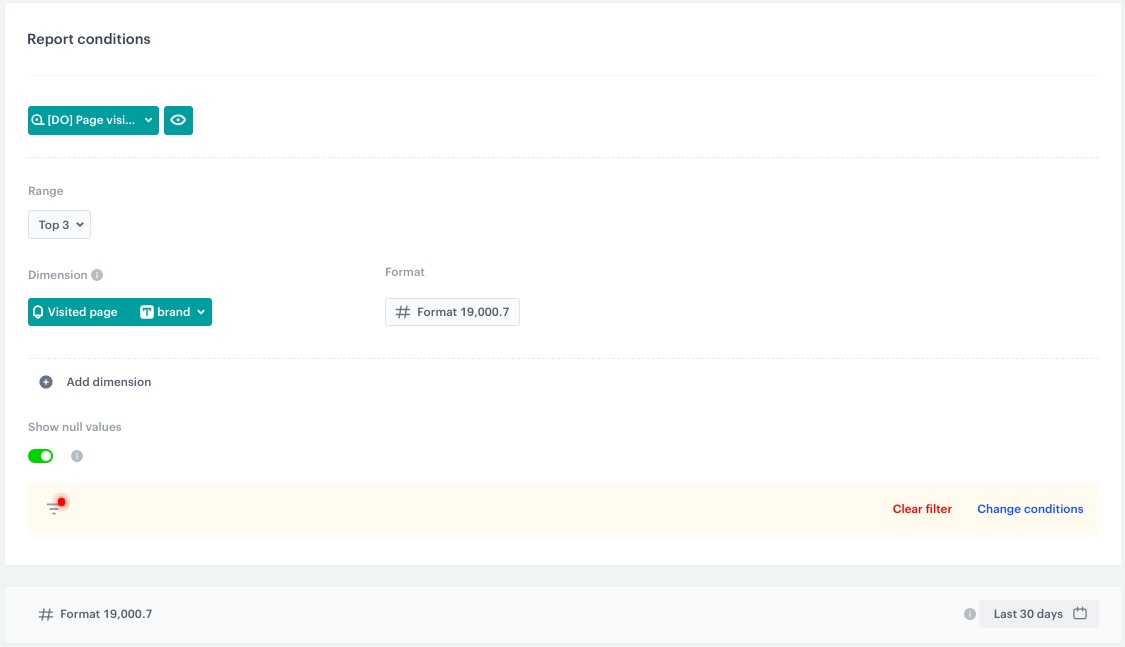
3. Click the **Choose metric** and from the dropdown list, select [a metric for number of all page visits, created in the previous step](#number-of-page-visits)
4. From the **Range** dropdown list, select the number of top (the most frequently viewed) products to be shown in the preview of the report. In this case it will be **TOP 5** products.
5. In the **Dimension** section, from the dropdown list select **Event > Parameters**. To be able to show product's brand in the report, choose `brand`.
8. Click **Enable filter**.
1. Click **Choose filter** and from the dropdown list, select **CLIENT_ID**.
2. Click **Choose operator** and from the dropdown list, select **Equal (String)**.
3. Change the type of value by clicking the icon until you get .
3. In the first field, write `clientId` and in the second field, enter `.`
4. Click **Apply**.
8. Using the date picker in the lower-right corner, set the time range to **Custom** and set to **30 days** or according to your business needs. Confirm your choice with the **Apply** button.
9. Save the report.
**Decision Hub > Reports > New report**.
2. Enter a meaningful name of the report.
3. Click the **Choose metric** and from the dropdown list, select [a metric for number of all page visits, created in the previous step](#number-of-page-visits)
4. From the **Range** dropdown list, select the number of top (the most frequently viewed) products to be shown in the preview of the report. In this case it will be **TOP 5** products.
5. In the **Dimension** section, from the dropdown list select **Event > Parameters**. To be able to show product's brand in the report, choose `brand`.
8. Click **Enable filter**.
1. Click **Choose filter** and from the dropdown list, select **CLIENT_ID**.
2. Click **Choose operator** and from the dropdown list, select **Equal (String)**.
3. Change the type of value by clicking the icon until you get .
3. In the first field, write `clientId` and in the second field, enter `.`
4. Click **Apply**.
8. Using the date picker in the lower-right corner, set the time range to **Custom** and set to **30 days** or according to your business needs. Confirm your choice with the **Apply** button.
9. Save the report.
 **Decision Hub > Reports > New report**.
2. Enter a meaningful name of the report.
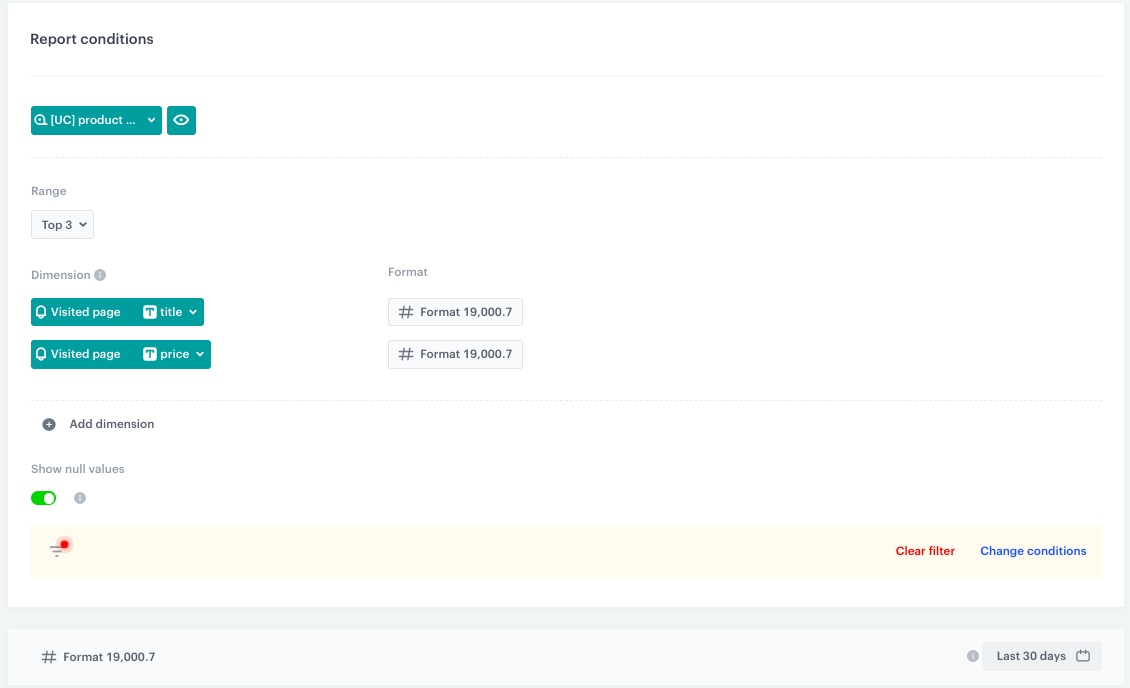
3. Click the **Choose metric** and from the dropdown list, select [a metric for number of all visited products, created in the previous step](#number-of-visited-products)
4. From the **Range** dropdown list, select the number of top (the most frequently visited) products to be shown in the preview of the report. In this case, it will be **TOP 5** products.
5. In the **Dimension** section, from the dropdown list, select **Event > Parameters**. To be able to show products name in the report, choose `title`.
6. 6. Click **Add dimension**.
1. Click **Choose dimension** and from the dropdown list, select **Event > Parameters**. To be able to show the product's price, choose `price`.
8. Click **Enable filter**.
1. Click **Choose filter** and from the dropdown list, select **CLIENT_ID**.
2. Click **Choose operator** and from the dropdown list, select **Equal (String)**.
3. Change the type of value by clicking the icon until you get .
3. In the first field, write `clientId` and in the second field, enter `.`
4. Click **Apply**.
8. Using the date picker in the lower-right corner, set the time range to **Custom** and set to **30 days** or according to your business needs. Confirm your choice with the **Apply** button.
9. Save the report.
**Decision Hub > Reports > New report**.
2. Enter a meaningful name of the report.
3. Click the **Choose metric** and from the dropdown list, select [a metric for number of all visited products, created in the previous step](#number-of-visited-products)
4. From the **Range** dropdown list, select the number of top (the most frequently visited) products to be shown in the preview of the report. In this case, it will be **TOP 5** products.
5. In the **Dimension** section, from the dropdown list, select **Event > Parameters**. To be able to show products name in the report, choose `title`.
6. 6. Click **Add dimension**.
1. Click **Choose dimension** and from the dropdown list, select **Event > Parameters**. To be able to show the product's price, choose `price`.
8. Click **Enable filter**.
1. Click **Choose filter** and from the dropdown list, select **CLIENT_ID**.
2. Click **Choose operator** and from the dropdown list, select **Equal (String)**.
3. Change the type of value by clicking the icon until you get .
3. In the first field, write `clientId` and in the second field, enter `.`
4. Click **Apply**.
8. Using the date picker in the lower-right corner, set the time range to **Custom** and set to **30 days** or according to your business needs. Confirm your choice with the **Apply** button.
9. Save the report.
 **Decision Hub > Reports > New report**.
2. Enter a meaningful name of the report.
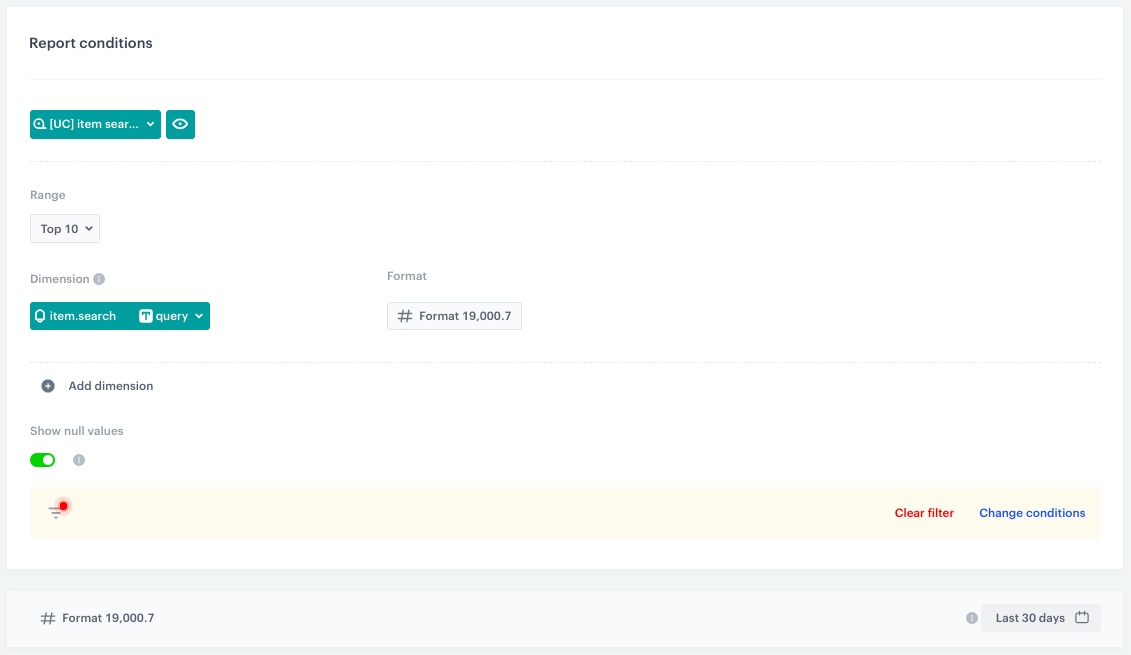
3. Click the **Choose metric** and from the dropdown list, select [a metric for number of all searched items, created in the previous step](#number-of-searched-items)
4. From the **Range** dropdown list, select the number of top (the most frequently searched) phrases to be shown in the preview of the report. In this case, it will be **TOP 10**.
5. In the **Dimension** section, from the dropdown list, select **Event > Parameters**. To be able to show the searched query in the report, choose `query`.
8. Click **Enable filter**.
1. Click **Choose filter** and from the dropdown list, select **CLIENT_ID**.
2. Click **Choose operator** and from the dropdown list, select **Equal (String)**.
3. Change the type of value by clicking the icon until you get .
3. In the first field, write `clientId` and in the second field, enter `.`
4. Click **Apply**.
8. Using the date picker in the lower-right corner, set the time range to **Custom** and set to **30 days** or according to your business needs. Confirm your choice with the **Apply** button.
9. Save the report.
**Decision Hub > Reports > New report**.
2. Enter a meaningful name of the report.
3. Click the **Choose metric** and from the dropdown list, select [a metric for number of all searched items, created in the previous step](#number-of-searched-items)
4. From the **Range** dropdown list, select the number of top (the most frequently searched) phrases to be shown in the preview of the report. In this case, it will be **TOP 10**.
5. In the **Dimension** section, from the dropdown list, select **Event > Parameters**. To be able to show the searched query in the report, choose `query`.
8. Click **Enable filter**.
1. Click **Choose filter** and from the dropdown list, select **CLIENT_ID**.
2. Click **Choose operator** and from the dropdown list, select **Equal (String)**.
3. Change the type of value by clicking the icon until you get .
3. In the first field, write `clientId` and in the second field, enter `.`
4. Click **Apply**.
8. Using the date picker in the lower-right corner, set the time range to **Custom** and set to **30 days** or according to your business needs. Confirm your choice with the **Apply** button.
9. Save the report.
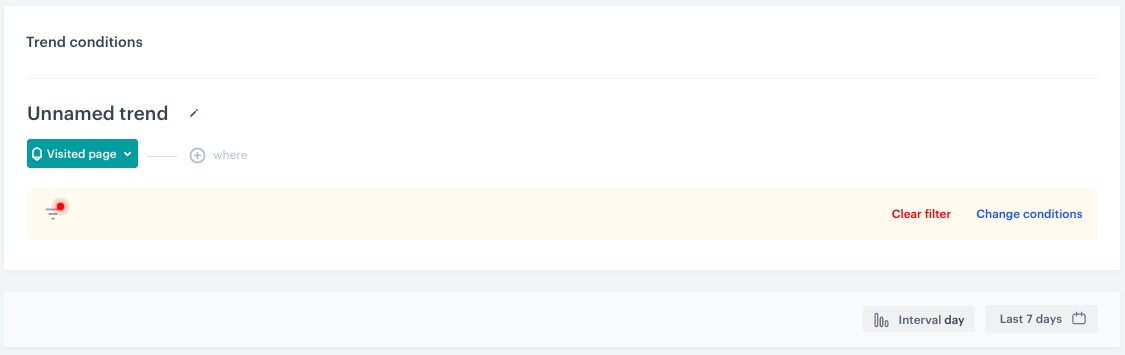
 **Decision Hub > Trends > New trends**.
2. Enter a meaningful name of the trend.
3. Click the **Choose event** button and from the dropdown list, select `page.visit`.
8. Click **Enable filter**.
1. Click **Choose filter** and from the dropdown list, select **CLIENT_ID**.
2. Click **Choose operator** and from the dropdown list, select **Equal (String)**.
3. Change the type of value by clicking the icon until you get .
3. In the first field, write `clientId` and in the second field, enter `.`
4. Click **Apply**.
9. Set the **Interval** in the lower-right conrer to **day**.
8. Using the date picker in the lower-right corner, set the time range to **Last 7 days** or according to your business needs. Confirm your choice with the **Apply** button.
9. Save the trend.
**Decision Hub > Trends > New trends**.
2. Enter a meaningful name of the trend.
3. Click the **Choose event** button and from the dropdown list, select `page.visit`.
8. Click **Enable filter**.
1. Click **Choose filter** and from the dropdown list, select **CLIENT_ID**.
2. Click **Choose operator** and from the dropdown list, select **Equal (String)**.
3. Change the type of value by clicking the icon until you get .
3. In the first field, write `clientId` and in the second field, enter `.`
4. Click **Apply**.
9. Set the **Interval** in the lower-right conrer to **day**.
8. Using the date picker in the lower-right corner, set the time range to **Last 7 days** or according to your business needs. Confirm your choice with the **Apply** button.
9. Save the trend.
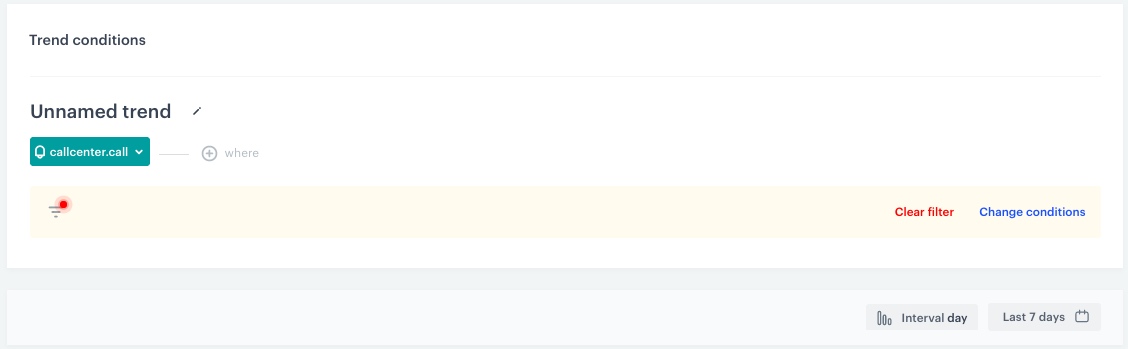
 **Decision Hub > Trends > New trends**.
2. Enter a meaningful name of the trend.
3. Click the **Choose event** and from the dropdown list, select `callcenter.call`.
8. Click **Enable filter**.
1. Click **Choose filter** and from the dropdown list, select **CLIENT_ID**.
2. Click **Choose operator** and from the dropdown list, select **Equal (String)**.
3. Change the type of value by clicking the icon until you get .
3. In the first field write `clientId` and in the second field enter `.`
4. Click **Apply**.
9. Set the **Interval** in the lower-right conrer to **day**.
8. Using the date picker in the lower-right corner, set the time range to **Last 7 days** or according to your business needs. Confirm your choice with the **Apply** button.
9. Save the trend.
**Decision Hub > Trends > New trends**.
2. Enter a meaningful name of the trend.
3. Click the **Choose event** and from the dropdown list, select `callcenter.call`.
8. Click **Enable filter**.
1. Click **Choose filter** and from the dropdown list, select **CLIENT_ID**.
2. Click **Choose operator** and from the dropdown list, select **Equal (String)**.
3. Change the type of value by clicking the icon until you get .
3. In the first field write `clientId` and in the second field enter `.`
4. Click **Apply**.
9. Set the **Interval** in the lower-right conrer to **day**.
8. Using the date picker in the lower-right corner, set the time range to **Last 7 days** or according to your business needs. Confirm your choice with the **Apply** button.
9. Save the trend.
 **Decision Hub > Dashboards > Add dashboard**.
2. Enter the name of the dashboard.
3. To add a widget to the dashboard, click an icon on the
**Decision Hub > Dashboards > Add dashboard**.
2. Enter the name of the dashboard.
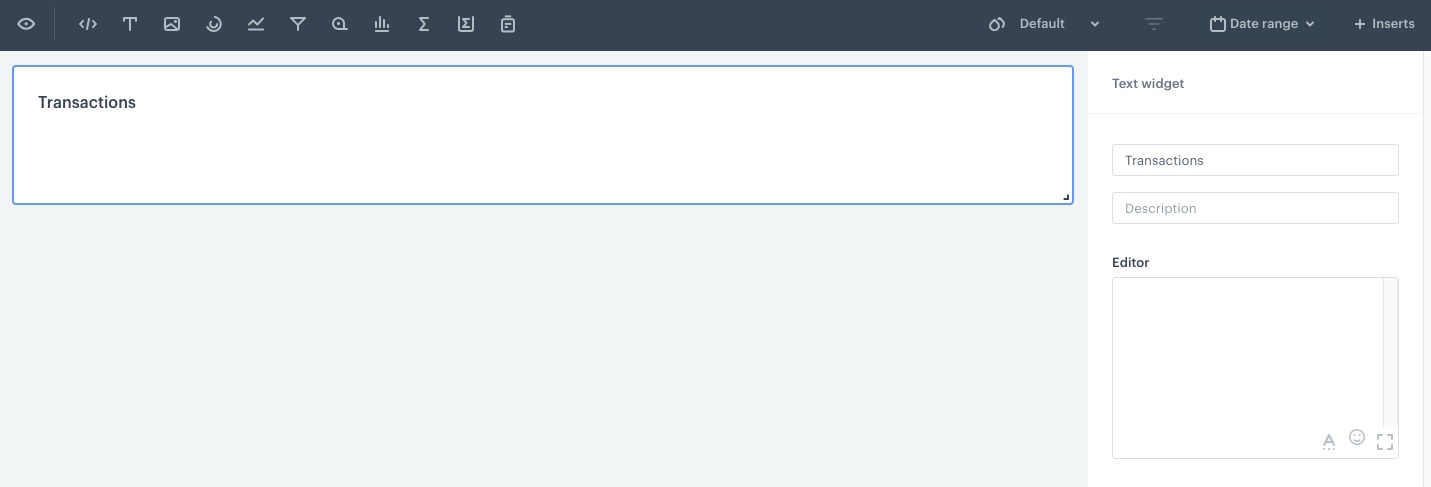
3. To add a widget to the dashboard, click an icon on the  panel. The icons are (left to right): HTML code, text field, image, [segmentation](/docs/analytics/segmentations/creating-segmentations), [trend](/docs/analytics/trends/creating-trends), [funnel](/docs/analytics/funnels/creating-funnels), [metric](/docs/analytics/metrics/creating-simple-metrics), [histogram](/docs/analytics/histograms/creating-histograms), [aggregate](/docs/analytics/aggregates/creating-aggregates), [expression](/docs/analytics/expressions), and a [report](/docs/analytics/reports/creating-reports).
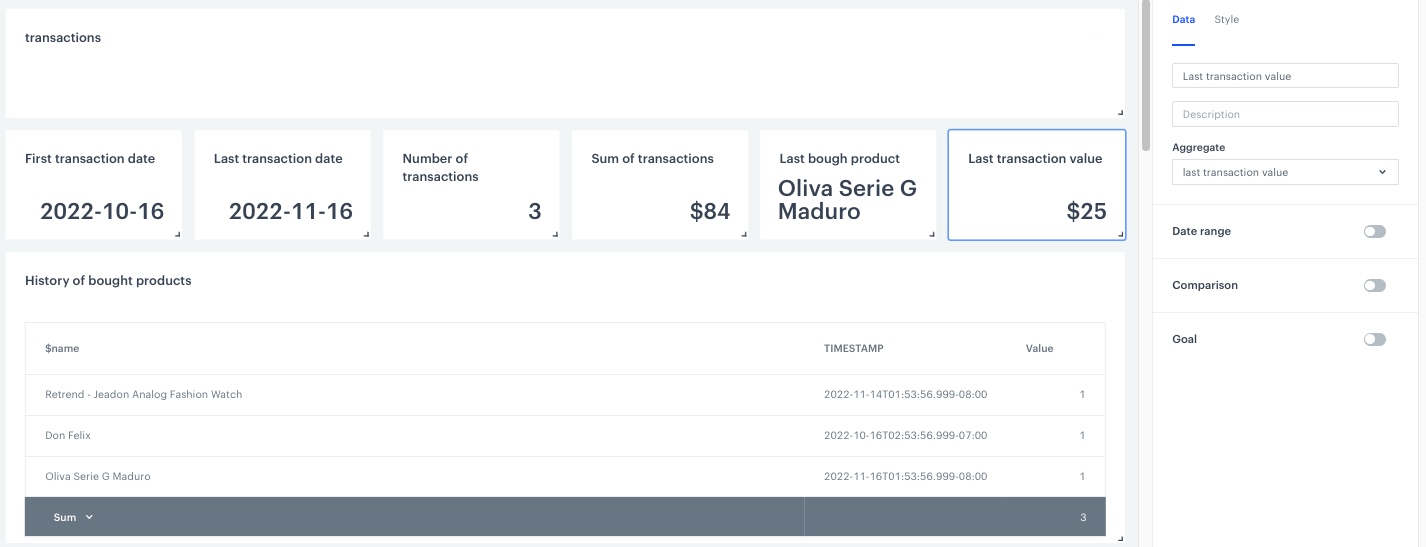
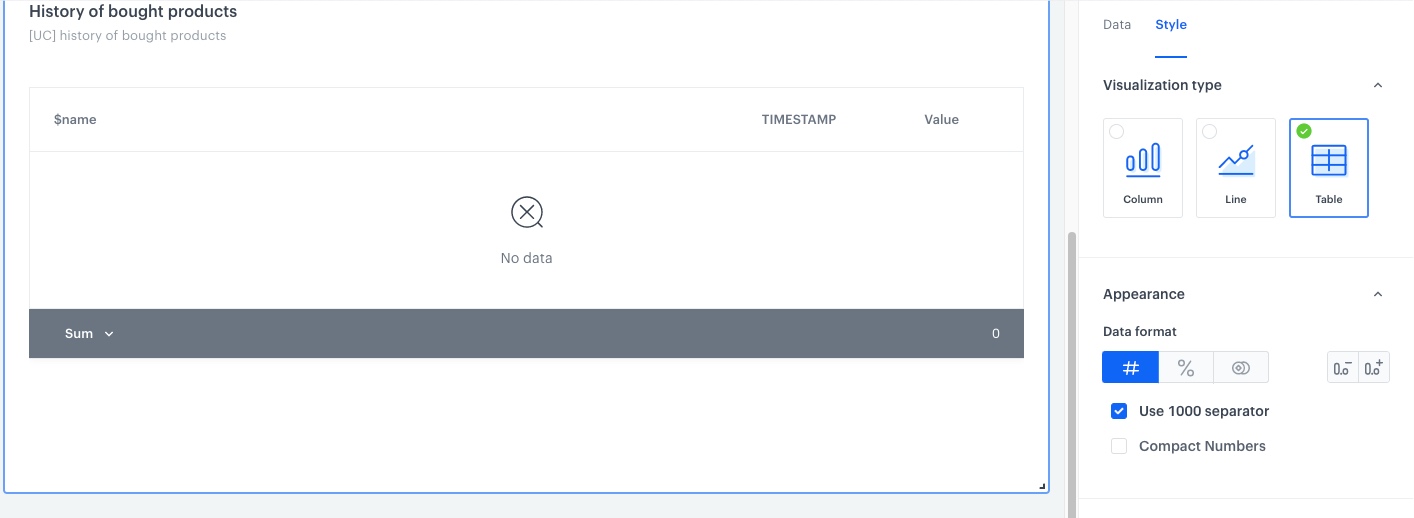 **Profiles** and select a customer on the list.
2. On the top of the activity list, click **Statistics**.
**Result**: A set of statistics appears.
4. On the top of statistics, click the
**Profiles** and select a customer on the list.
2. On the top of the activity list, click **Statistics**.
**Result**: A set of statistics appears.
4. On the top of statistics, click the  icon.
**Result**: A dropdown list appears.
5. Select **Manage dashboards**.
**Result**: A pop up appears.
6. On the top of the pop-up, click **Add dashboard**.
**Result**: A dropdown list appears.
7. From the dropdown list, select a dashboard.
8. To confirm your choice, click **Add**.
**Result**: The dashboard appears on the bottom of the list.
9. To manage the order of the dashboards added to the customer's profile, drag and drop them in the preferred order.
10. To save the changes, click **Apply**.
## Check the use case set up on the Synerise Demo workspace
---
You can check all configurations directly in Synerise Demo workspace:
- Expressions
- [Transaction date](https://app.synerise.com/analytics/expressions/0d844720-6bb7-4776-a661-52cc81577b06)
- [Page visit date](https://app.synerise.com/analytics/expressions/d31828b7-ef9c-4c7d-8316-3769eb8612c2)
- Aggregates
- [First transaction date](https://app.synerise.com/analytics/aggregates/7380e558-3d44-30b7-ac26-b1e233e9b16e)
- [Last transaction date](https://app.synerise.com/analytics/aggregates/d6baacd7-684e-31f6-b3c4-76376090c061)
- [Last bought product name](https://app.synerise.com/analytics/aggregates/ccbd08cc-1cd0-3b44-bc39-eb2dcd0998e5)
- [Last transaction value](https://app.synerise.com/analytics/aggregates/8a459dea-e2e7-3c99-8e9b-1b7e12f850e0)
- [Number of transactions](https://app.synerise.com/analytics/aggregates/24011aa2-632d-319f-9047-8f13712105c8)
- [Sum of all transactions](https://app.synerise.com/analytics/aggregates/55cf86a5-acd9-3540-8293-13737a495300)
- [Last returned product name](https://app.synerise.com/analytics/aggregates/d36783fa-382d-3141-8537-9c70ff53ba97)
- [Last returned product price](https://app.synerise.com/analytics/aggregates/2aee5c1f-2cbc-3961-9d07-cc15ef8550e1)
- [First page visit date](https://app.synerise.com/analytics/aggregates/b75f9b8f-01b8-3733-80cf-b31a35c46da7)
- [Last page visit date](https://app.synerise.com/analytics/aggregates/3ff1c746-488c-3f4f-b0ef-2ca09f0b593a)
- [Call center calls duration](https://app.synerise.com/analytics/aggregates/36bf88a6-e646-36cd-957e-a87c5f32a11e)
- Metrics
- [Bought products](https://app.synerise.com/analytics/metrics/077074e8-db7c-4e46-bd2e-24e292bee839)
- [Returned products](https://app.synerise.com/analytics/metrics/5772cbe8-5cef-4659-b049-383747f4a355)
- [Product page visits](https://app.synerise.com/analytics/metrics/ec561bb7-8227-4f56-9d9c-6979437fed51)
- [Page visits](https://app.synerise.com/analytics/metrics/4afbcbc7-ab8f-4bc9-8b73-2547b2dfeee2)
- [Number of searched items](https://app.synerise.com/analytics/metrics/e40f03f4-58d3-4156-9a41-776b3b2c2b24)
- Reports
- [History of bought products](https://app.synerise.com/analytics/reports/08639f32-0d6c-4b4b-a78e-4eec7a8d00cb)
- [History of returned products](https://app.synerise.com/analytics/reports/9e92b281-ef93-4cfb-9fd0-916334ef8df9)
- [Top visited brands](https://app.synerise.com/analytics/reports/2de0ad6c-3fb4-434f-8de9-1bf6b6528504)
- [Top searched queries](https://app.synerise.com/analytics/reports/1c09d8b2-fdfe-465a-b030-78f3593860e9)
- Trends
- [Page visits](https://app.synerise.com/analytics/trends/1bfa16b9-9518-4c1a-af12-9c4671048800)
- [Call center calls](https://app.synerise.com/analytics/trends/d813b0ae-aa02-4cb1-929b-de75fdbb46ac)
- [Dashboard](https://app.synerise.com/analytics/dashboards/33651c9f-666e-4a48-aa6d-7dc1cfd0d9f8?clientId=0)
If you’re our partner or client, you already have automatic access to the **Synerise Demo workspace (1590)**, where you can explore all the configured elements of this use case and copy them to your workspace.
If you’re not a partner or client yet, we encourage you to fill out the contact [form](https://demo.synerise.com/request) to schedule a meeting with our representatives. They’ll be happy to show you how our demo works and discuss how you can apply this use case in your business.
## Read more
---
- [Aggregates](/docs/analytics/aggregates)
- [Dashboards](/docs/analytics/analytics-dashboard)
- [Expressions](/docs/analytics/expressions)
- [Metrics](/docs/analytics/metrics)
- [Behavioral Data Hub](/docs/crm)
- [Reports](/docs/analytics/reports)
- [Trends](/docs/analytics/trends)
icon.
**Result**: A dropdown list appears.
5. Select **Manage dashboards**.
**Result**: A pop up appears.
6. On the top of the pop-up, click **Add dashboard**.
**Result**: A dropdown list appears.
7. From the dropdown list, select a dashboard.
8. To confirm your choice, click **Add**.
**Result**: The dashboard appears on the bottom of the list.
9. To manage the order of the dashboards added to the customer's profile, drag and drop them in the preferred order.
10. To save the changes, click **Apply**.
## Check the use case set up on the Synerise Demo workspace
---
You can check all configurations directly in Synerise Demo workspace:
- Expressions
- [Transaction date](https://app.synerise.com/analytics/expressions/0d844720-6bb7-4776-a661-52cc81577b06)
- [Page visit date](https://app.synerise.com/analytics/expressions/d31828b7-ef9c-4c7d-8316-3769eb8612c2)
- Aggregates
- [First transaction date](https://app.synerise.com/analytics/aggregates/7380e558-3d44-30b7-ac26-b1e233e9b16e)
- [Last transaction date](https://app.synerise.com/analytics/aggregates/d6baacd7-684e-31f6-b3c4-76376090c061)
- [Last bought product name](https://app.synerise.com/analytics/aggregates/ccbd08cc-1cd0-3b44-bc39-eb2dcd0998e5)
- [Last transaction value](https://app.synerise.com/analytics/aggregates/8a459dea-e2e7-3c99-8e9b-1b7e12f850e0)
- [Number of transactions](https://app.synerise.com/analytics/aggregates/24011aa2-632d-319f-9047-8f13712105c8)
- [Sum of all transactions](https://app.synerise.com/analytics/aggregates/55cf86a5-acd9-3540-8293-13737a495300)
- [Last returned product name](https://app.synerise.com/analytics/aggregates/d36783fa-382d-3141-8537-9c70ff53ba97)
- [Last returned product price](https://app.synerise.com/analytics/aggregates/2aee5c1f-2cbc-3961-9d07-cc15ef8550e1)
- [First page visit date](https://app.synerise.com/analytics/aggregates/b75f9b8f-01b8-3733-80cf-b31a35c46da7)
- [Last page visit date](https://app.synerise.com/analytics/aggregates/3ff1c746-488c-3f4f-b0ef-2ca09f0b593a)
- [Call center calls duration](https://app.synerise.com/analytics/aggregates/36bf88a6-e646-36cd-957e-a87c5f32a11e)
- Metrics
- [Bought products](https://app.synerise.com/analytics/metrics/077074e8-db7c-4e46-bd2e-24e292bee839)
- [Returned products](https://app.synerise.com/analytics/metrics/5772cbe8-5cef-4659-b049-383747f4a355)
- [Product page visits](https://app.synerise.com/analytics/metrics/ec561bb7-8227-4f56-9d9c-6979437fed51)
- [Page visits](https://app.synerise.com/analytics/metrics/4afbcbc7-ab8f-4bc9-8b73-2547b2dfeee2)
- [Number of searched items](https://app.synerise.com/analytics/metrics/e40f03f4-58d3-4156-9a41-776b3b2c2b24)
- Reports
- [History of bought products](https://app.synerise.com/analytics/reports/08639f32-0d6c-4b4b-a78e-4eec7a8d00cb)
- [History of returned products](https://app.synerise.com/analytics/reports/9e92b281-ef93-4cfb-9fd0-916334ef8df9)
- [Top visited brands](https://app.synerise.com/analytics/reports/2de0ad6c-3fb4-434f-8de9-1bf6b6528504)
- [Top searched queries](https://app.synerise.com/analytics/reports/1c09d8b2-fdfe-465a-b030-78f3593860e9)
- Trends
- [Page visits](https://app.synerise.com/analytics/trends/1bfa16b9-9518-4c1a-af12-9c4671048800)
- [Call center calls](https://app.synerise.com/analytics/trends/d813b0ae-aa02-4cb1-929b-de75fdbb46ac)
- [Dashboard](https://app.synerise.com/analytics/dashboards/33651c9f-666e-4a48-aa6d-7dc1cfd0d9f8?clientId=0)
If you’re our partner or client, you already have automatic access to the **Synerise Demo workspace (1590)**, where you can explore all the configured elements of this use case and copy them to your workspace.
If you’re not a partner or client yet, we encourage you to fill out the contact [form](https://demo.synerise.com/request) to schedule a meeting with our representatives. They’ll be happy to show you how our demo works and discuss how you can apply this use case in your business.
## Read more
---
- [Aggregates](/docs/analytics/aggregates)
- [Dashboards](/docs/analytics/analytics-dashboard)
- [Expressions](/docs/analytics/expressions)
- [Metrics](/docs/analytics/metrics)
- [Behavioral Data Hub](/docs/crm)
- [Reports](/docs/analytics/reports)
- [Trends](/docs/analytics/trends)