Take your email performance tracking to the next level using the data context Jinjava tag. Automate the delivery of a detailed weekly report summarizing key metrics from your sent email campaigns, ensuring you stay informed and can take timely action.

An alert can be sent through any channel, for example as an email, SMS or to an external tool such as Microsoft Teams or Slack. This particular use case shows how to send once a week an alert with data referencing email performance in the form of an email. To streamline implementation, a ready-made email template is included for a quick setup.

## Prerequisites
---
- [Implement a tracking code](/docs/settings/tool/tracking_codes).
- [Configure email account](/docs/campaign/e-mail/configuring-email-account).

## Process
---
In this use case, you will go through the following steps:

1. [Create an email template](#create-an-email-template) with the HTML block with accurate Jinjava tag.
2. [Create a workflow](#create-a-workflow) sending the notification.

## Create an email template
---
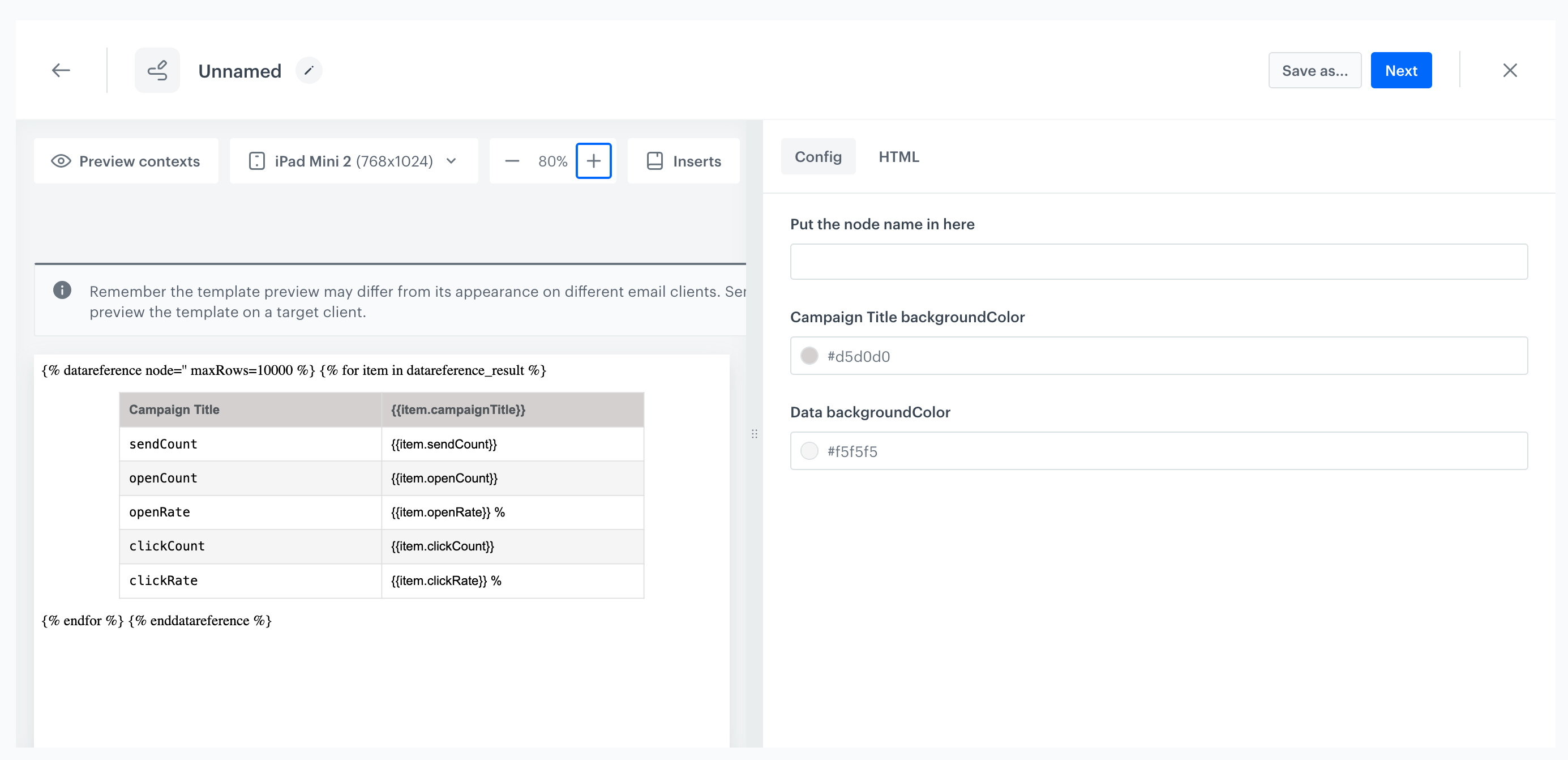
You can use a [ready-made template with an HTML block](https://app.synerise.com/campaigns/email/content-manager/template/158990) (available on the Synerise Demo workspace) that inserts the data you want to send in a table format. Just copy it and edit according to your needs.

1. Click the table in the template, and then **Configure** on the right panel.

    <figure>
    <img src="/api/docs/image/54176ad07f146575310749eba44b7c2f42c1b327/use-cases/all-cases/_gfx/dr_template.png" alt="Email notification on email performance template"  class="full">
    <figcaption>The configuration of the Email notification on email performance template</figcaption>
    </figure> 

2. You can provide the name of the node and change the colors of the table in the configuration.
1. Click **Next**.
3. Edit the template according to your needs.
4. Click **Save as**.
5. On the pop-up, you can change the name and select the folder where the template will be saved.  
    **Result**: The template is saved in the selected folder. 


   <div class="admonition admonition-tip"><div class="admonition-icon"><svg xmlns="http://www.w3.org/2000/svg" fill="none" viewBox="0 0 24 24" stroke="currentColor" stroke-width="2.5"><path stroke-linecap="round" stroke-linejoin="round" d="M9.663 17h4.673M12 3v1m6.364 1.636l-.707.707M21 12h-1M4 12H3m3.343-5.657l-.707-.707m2.828 9.9a5 5 0 117.072 0l-.548.547A3.374 3.374 0 0014 18.469V19a2 2 0 11-4 0v-.531c0-.895-.356-1.754-.988-2.386l-.548-.547z" /></svg></div><div class="admonition-body"><div class="admonition-content">

   If you want to make your own template, you can switch to the html editing mode of this ready-made template, where you will find an example of jinjava syntax using data reference

   </div></div></div>


## Create a workflow
---
In this part of the process, prepare a workflow that sends an email message with a weekly report summarizing the key statistics of your sent email campaigns.

1. Go to <img src="/api/docs/image/54176ad07f146575310749eba44b7c2f42c1b327/icons/automation-hub-icon.svg" alt="Automation Hub icon" class="icon" > **Automation Hub > Workflows > New workflow**.  
2. Enter the name of the workflow.

## Define the trigger node
---
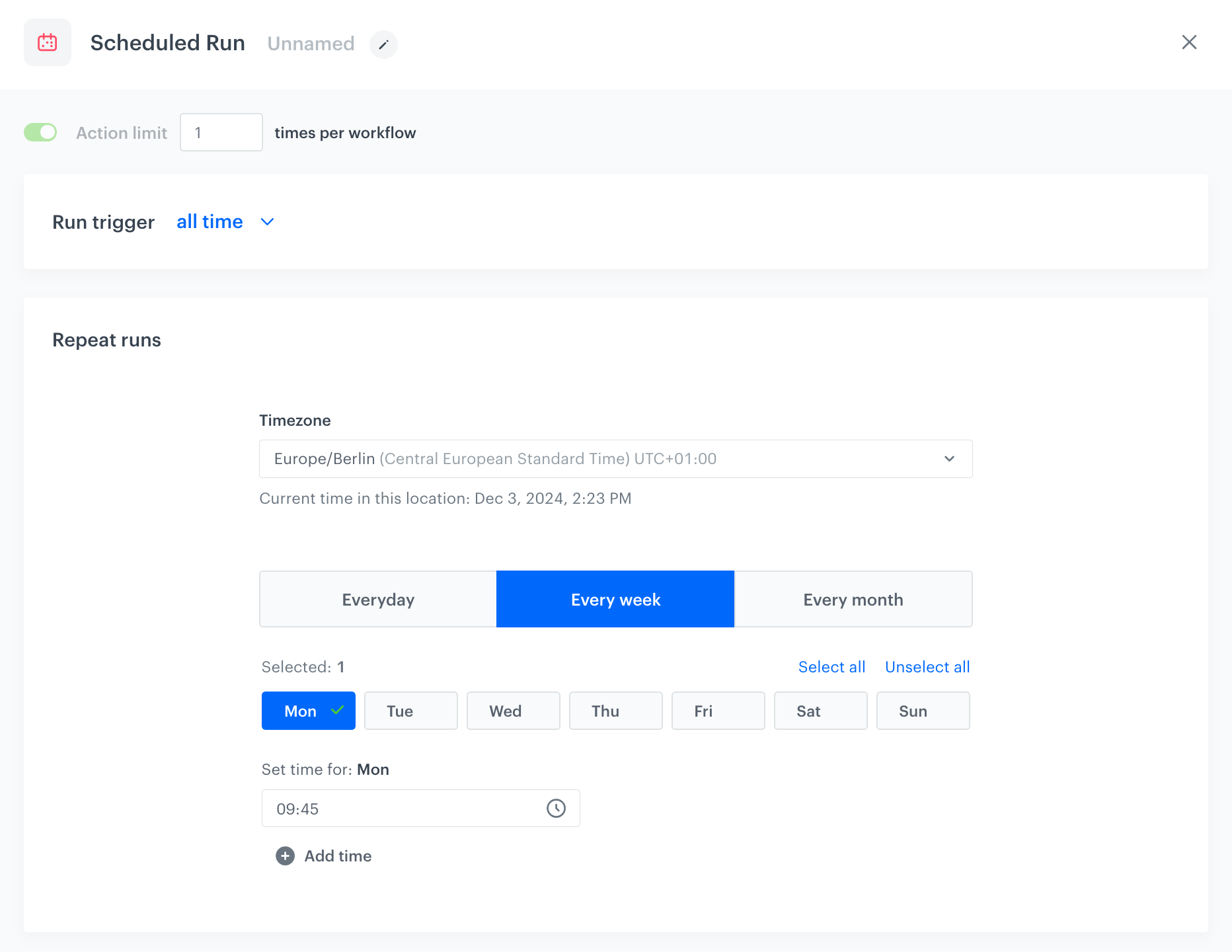
At this stage, we will configure the conditions that launch the workflow. We will create a scheduled workflow, that starts every week on Monday at 9:45 A.M.

1. As the first node of the workflow, add **Scheduled Run**. In the configuration of the node:
    1. In the **Run trigger** section, leave the default **all time** option.
    2. In the **Repeat runs** section, choose suitable timezone.
    3. To launch the workflow every week at the defined time, click the **Every week** tab below.
    4. Select the desired day, in our case **Monday**.
    5. Click **Add time** and set it according to your needs, in our case to `9:45`.
    5. Confirm by clicking **Apply**.

<figure>
    <img src="/api/docs/image/54176ad07f146575310749eba44b7c2f42c1b327/use-cases/all-cases/_gfx/data-reference-schedule-run.png" alt="Scheduled Run Node"  class="full">
    <figcaption>The configuration of the Scheduled Run node</figcaption>
    </figure> 

## Configure the Get Statistics Node
---
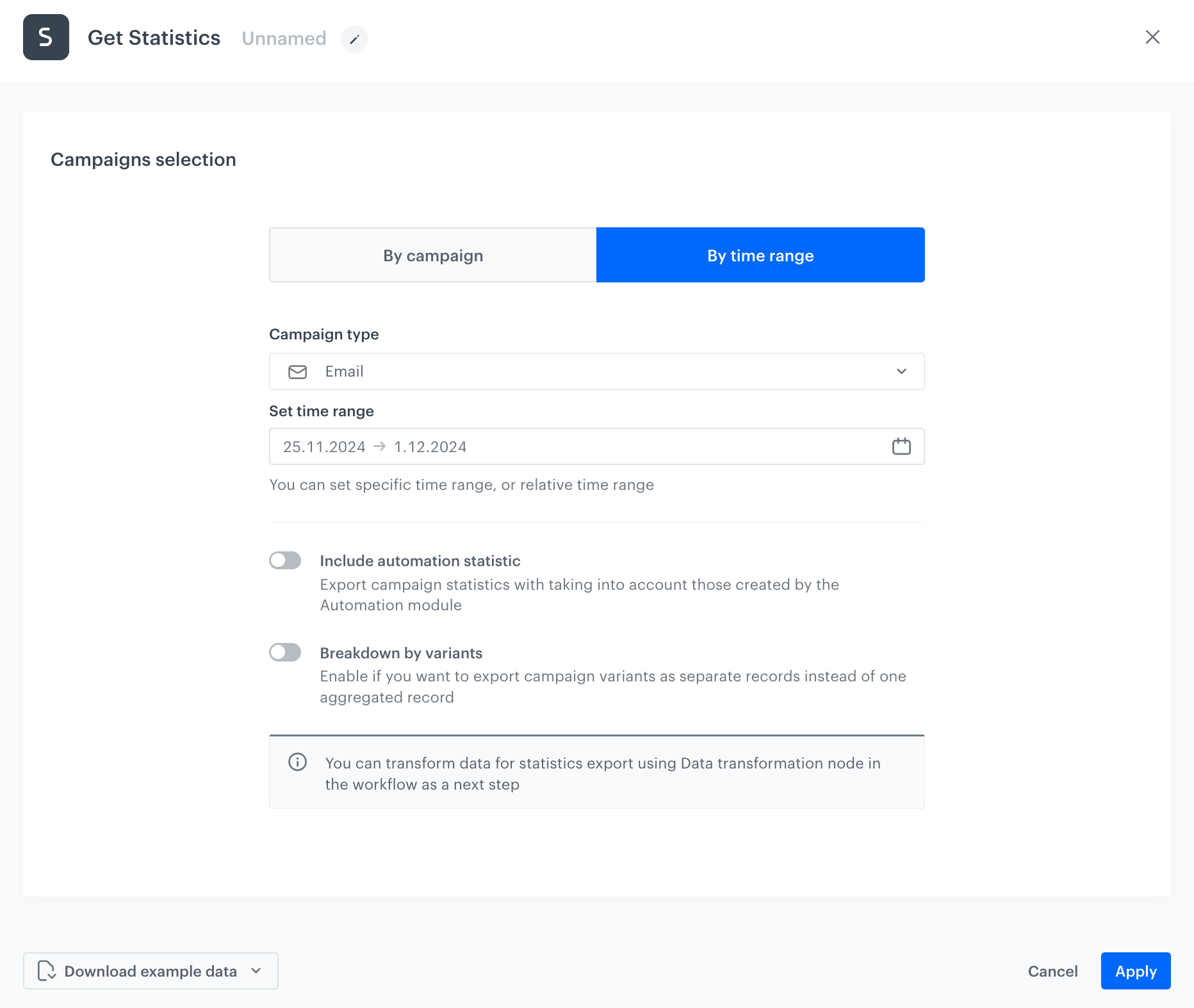
As the next node, choose **Get Statistics** to retrieve email campaign statistics from a specified  time range.

1.	Click **Then** and add the **Get statistic** node. In the configuration of the node:
    1. Select the **By time range** tab.
    2. From the **Campaign type** dropdown list, select **Email**.
    3. In the **Set time range** field, select the time range from which you would like to export the statistics. In our case, in the **Relative time range** section, select the **Last week** option. 
    5. The default setting includes statistics exclusively for campaigns sent through Experience Hub. If you also want to include statistics for campaigns launched through Automation Hub, enable the **Include automation statistics** option. If this option is selected, the output will include campaigns set up by Automation Hub that meet one of the following criteria:
        - the date of creation is within the indicated time range,
        - at least one sending event has occurred in the indicated time range.
    6.	Optionally, if you want to export variants of one campaign as separate records, enable the **Breakdown by variants** toggle.

    
                                                      <div class="admonition admonition-note"><div class="admonition-icon"><svg xmlns="http://www.w3.org/2000/svg" fill="none" viewBox="0 0 24 24" stroke="currentColor" stroke-width="2.5"><path stroke-linecap="round" stroke-linejoin="round" d="M13 16h-1v-4h-1m1-4h.01M21 12a9 9 0 11-18 0 9 9 0 0118 0z" /></svg></div><div class="admonition-body"><div class="admonition-content">

                                                      By default, if statistics of a campaign selected for export contains more than one version (due to A/B testing), the statistics for each variant are a single aggregated record.
                                                      <br><br>
                                                      Campaign statistics data retrieved through the **Get Statistics** node before sending can be [transformed](/docs/automation/data-transformation-and-imports/introduction) to better align their format with specific requirements. To simplify building validation rules, you can download sample data in various formats (.csv, .json, .jsonl).
                                                      </div></div></div>


8.	Confirm by clicking **Apply**.
<figure>
    <img src="/api/docs/image/54176ad07f146575310749eba44b7c2f42c1b327/use-cases/all-cases/_gfx/data-ref-get-stat.png" alt="Get Statistics Node"  class="full">
    <figcaption>The configuration of the Get Statistics node</figcaption>
    </figure> 


## Define the Email Alert Node
---
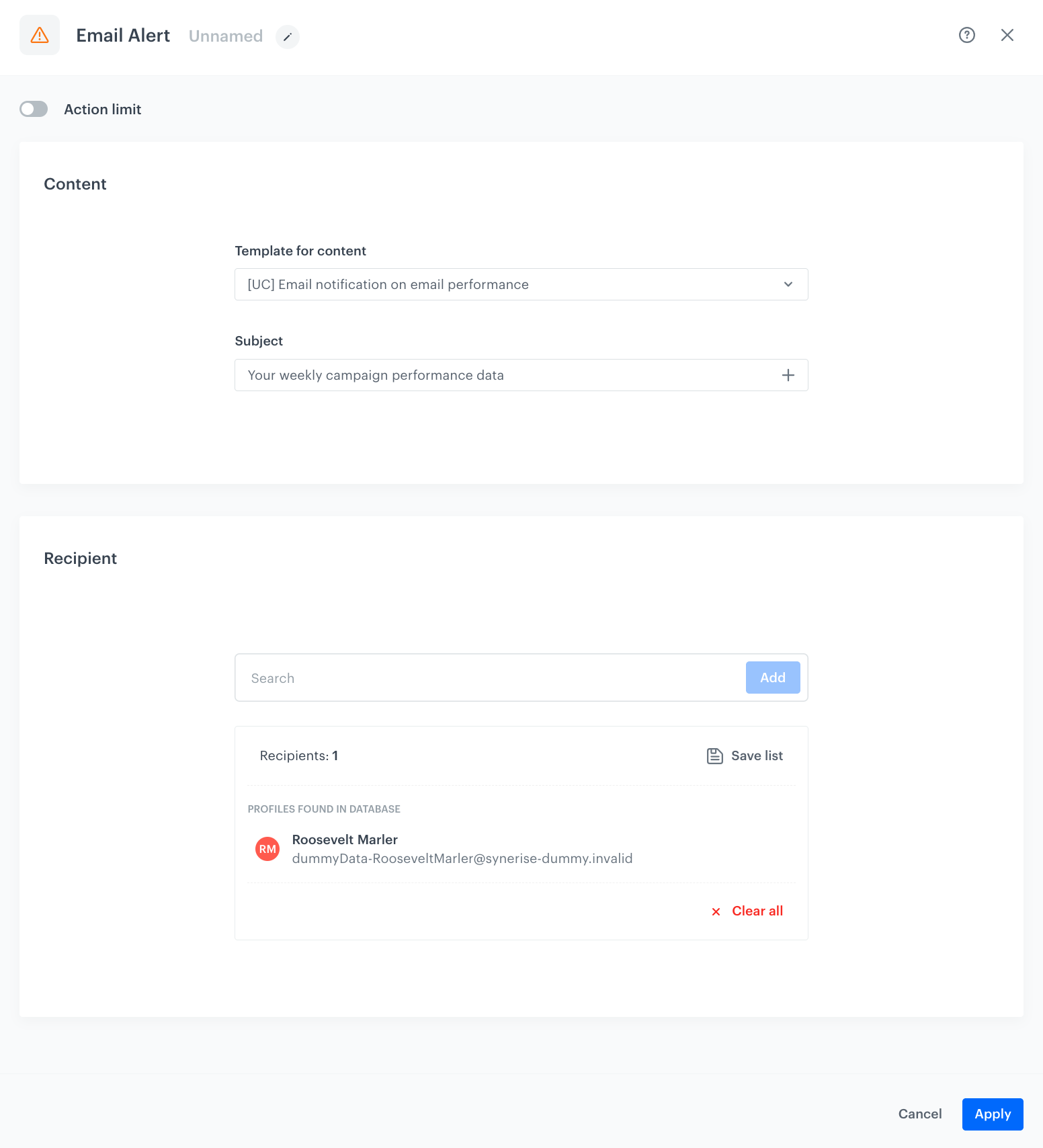
1.	Click **Then** and add the **Email Alert** node. In the configuration of the node:
    1. In the **Content** section, select [the email template created in the previous step](#create-an-email-template) and in the **Subject** field, enter your message subject.
    2. In the **Recipient** section, use the text field to find recipients or enter an email address to add recipients outside the contact base.
    3. Confirm the selection by clicking **Add**.
    4. Optionally, you can save the list by clicking **Save list**. This way you can use this list in the future.
    3.	Confirm by clicking **Apply**.

<figure>
    <img src="/api/docs/image/54176ad07f146575310749eba44b7c2f42c1b327/use-cases/all-cases/_gfx/dr_node_email.png" alt="Email Alert Node"  class="full">
    <figcaption>The configuration of the Email Alert Node</figcaption>
    </figure> 

## Add the finishing node
---

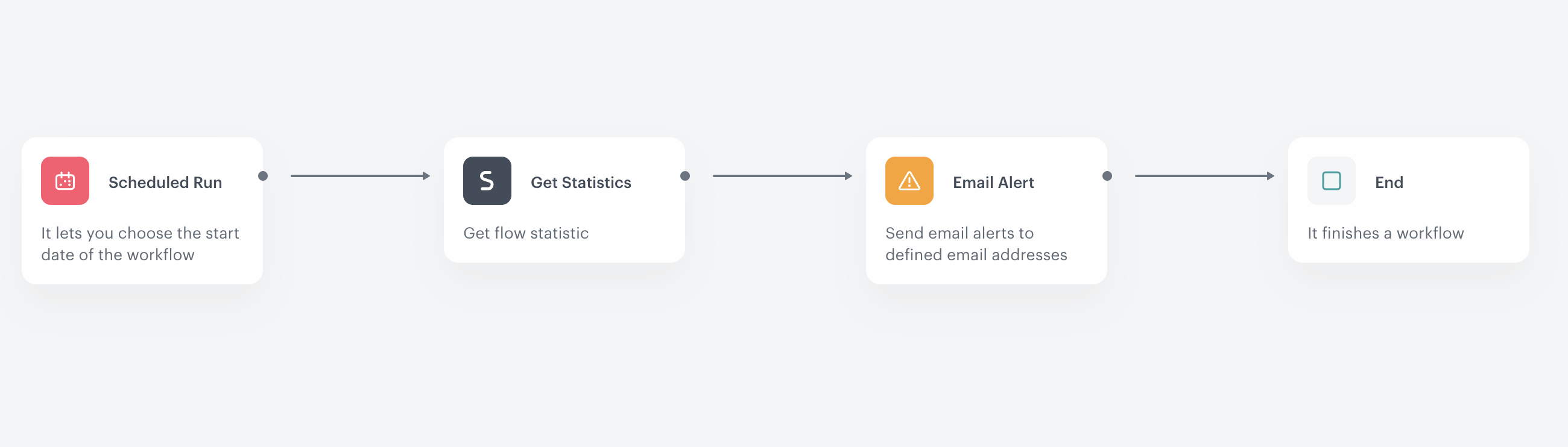
5.	Add the **End** node.
6.	In the upper right corner, click **Save & Run**.

<figure>
    <img src="/api/docs/image/54176ad07f146575310749eba44b7c2f42c1b327/use-cases/all-cases/_gfx/data-reference-workflow.png" alt="Data Reference Workflow"  class="full">
    <figcaption>Workflow configuration</figcaption>
    </figure> 

## Check the use case set up on the Synerise Demo workspace
---
You can check the configuration of every element of this process directly in Synerise Demo workspace:
- [Configuration of the email template](https://app.synerise.com/campaigns/email/content-manager/template/158990),
- [Configuration of the workflow](https://app.synerise.com/automations/workflows/automation-diagram/bbb24d8a-f1ae-44ac-a614-36d1f6f37667).

If you’re our partner or client, you already have automatic access to the **Synerise Demo workspace (1590)**, where you can explore all the configured elements of this use case and copy them to your workspace.  

If you’re not a partner or client yet, we encourage you to fill out the contact [form](https://demo.synerise.com/request) to schedule a meeting with our representatives. They’ll be happy to show you how our demo works and discuss how you can apply this use case in your business. 

## Read more
---
- [Automation Inserts](/developers/inserts/automation#data-context)
- [Creating email templates](/docs/campaign/e-mail/creating-email-templates)
- [Creating workflows](/docs/automation/creating-automation)
- [Get Statistics node](/docs/automation/actions/synerise-integrations/get-statistics)