
---
Mobile app can be used to **increase customer loyalty** because it allows businesses to communicate directly with their customers using ads, promotions, and notifications. 

As a primary channel of communication with customers, it is very important to increase the number of application users. It is a good idea to encourage users to install the app using special benefits as an incentive. This not only helps to convince users to download and install the app, but also creates more positive engagement right from the start.  

## Example of use - Retail industry

**Challenge**

A customer from the fashion industry has decided to increase the number of users of their mobile application.  

To achieve this, they prepared a special promotion — a 5% discount for online shopping and in physical stores for new users of the application. After downloading it, the customer received a unique discount code available in one of the application screens, valid for 30 days. To use it efficiently and to not extend the queues at the checkout, the discount took the form of a bar code that could be easily scanned. The campaign was promoted with leaflets in physical stores and online using banners. 

![Screenshot presenting discount for installig the application](/api/docs/image/54176ad07f146575310749eba44b7c2f42c1b327/use-cases/all-cases/_gfx/discount-for-app.png)

## Prerequisites 
---
- Integration of Synerise [mobile SDK](/developers/). 
- Integration of promotions.
- Import of [code pools](/docs/assets/code-pools).

## Process
---

1. [Create an aggregate](/use-cases/discount-for-app#create-an-aggregate).
2. [Create a segment](/use-cases/discount-for-app#create-a-segment).
3. [Prepare a workflow](/use-cases/discount-for-app#prepare-a-workflow).
4. [Build a segment](/use-cases/discount-for-app#build-a-segment).

## Create an aggregate
---
1. Go to <img src="/api/docs/image/54176ad07f146575310749eba44b7c2f42c1b327/icons/behavioral-data-hub-icon.svg" alt="Behavioral Data Hub icon" class="icon"> **Behavioral Data Hub > Live Aggregates > Create aggregate**.
2. As the aggregate type, select **Profile**.  
2. Enter the name of the aggregate.
3. Click **Analyze profiles by** and select **Count**.  
4. Select the `client.applicationStarted` event.
5. Define the period from which the aggregate will return products from the event. 
6. Save the aggregate.

 ![Screenshot presenting discount for installig the application](/api/docs/image/54176ad07f146575310749eba44b7c2f42c1b327/use-cases/all-cases/_gfx/discount-for-app2.png)

## Create a segment
---
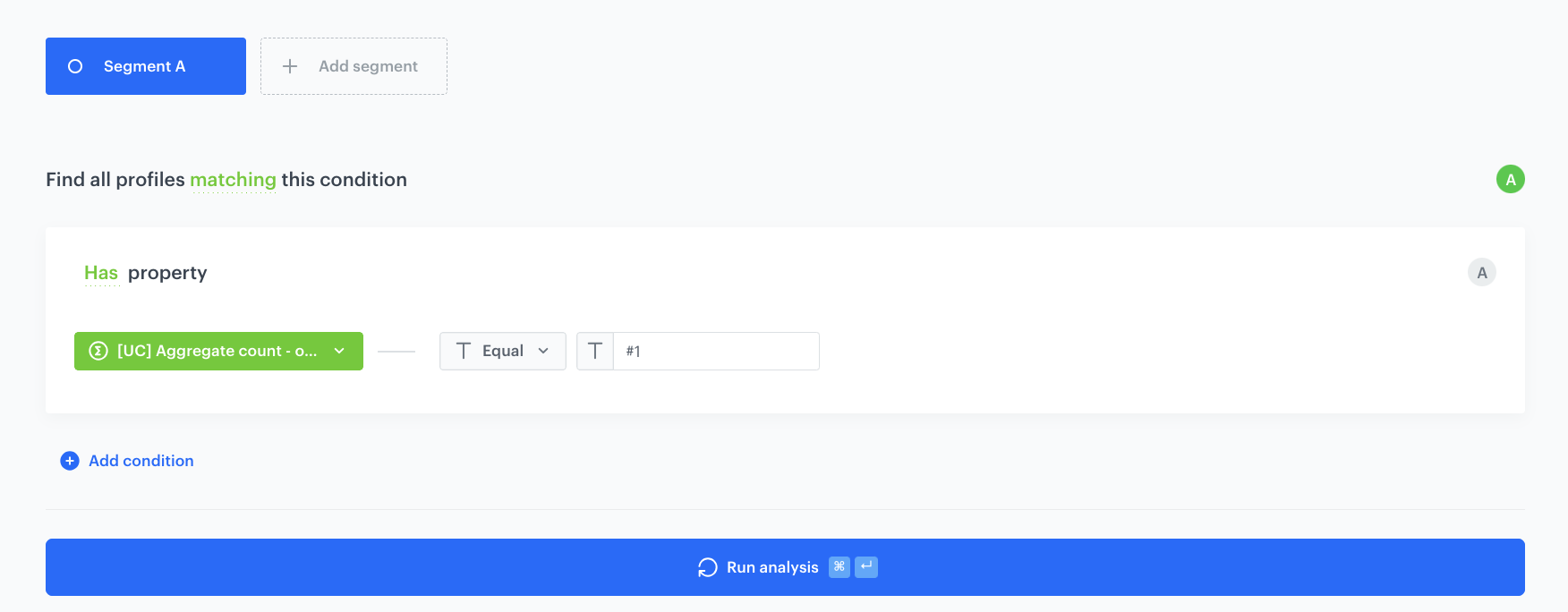
Prepare a customer segment for which the aggregate value is 1.

1. Go to <img src="/api/docs/image/54176ad07f146575310749eba44b7c2f42c1b327/icons/decision-hub-icon.svg" alt="Decision Hub icon" class="icon"> **Decision Hub > Segmentations > New segmentation**.
2. Give the segmentation a meaningful name.
3. Click **Choose filter** and select an aggregate created in previous step.
4. As a operator choose **equal**.
5. As the value of aggregate add `#1`.
4. Click **Save**.  
  ![Screenshot presenting discount for installig the application](/api/docs/image/54176ad07f146575310749eba44b7c2f42c1b327/use-cases/all-cases/_gfx/discount-for-app3.png)

## Prepare a workflow
---
Prepare a segment of people who will be able to view the promotion in the application, ie. people who installed the application only after the promotion has started. To do this, prepare an automation that will give new users of the application a unique event (it is important because the rebate code will be available to the customers only for 30 days). 

1. Go to **Automation Hub > Workflows > New workflow**.
2. Choose **Audience** as a trigger.
3. In the **Audience** node, choose segment prepared in previous step.
4. As the action node choose **Generate Event**.
5. Add json with a custom event that can be built, e.g. in this way:    

    
   <pre><code class="language-json">{
     "action": "install.app",
     "category": "category.automation.event",
     "label": "App installed",
     "params": {
       "app-started": "first"
     }
   }</code></pre>


    In this case the action event is the key - here it will be: install.app - it will be used to prepare the proper segment.
6. Add the **End** node and save your workflow.

## Build a segment
---
Based on event created before, prepare a segment of customers who will see the promotion in the application - people who get the specific event from the automation from previous step during last 30 days. 

1. Go to <img src="/api/docs/image/54176ad07f146575310749eba44b7c2f42c1b327/icons/decision-hub-icon.svg" alt="Decision Hub icon" class="icon"> **Decision Hub > Segmentations > New segmentation**.
2. Give the segmentation a meaningful name.
3. Click **Choose filter** and select the event from the automation from previous step.
4. Define the time range as last 30 days.
4. Click **Save**.  


## What's next
---
Prepare the new promotion for this segment. Complete the promotion content and enter in the additional parameters a json containing a pool of previously imported codes:  

    
<pre><code class="language-jinja">{“poolUuid": “XXXXXXX-XXXX-XXXX-XXXX-XXXXXXXXX"}. // uuid from the link of your code pool"</code></pre>


<div class="admonition admonition-important"><div class="admonition-icon"><svg xmlns="http://www.w3.org/2000/svg" fill="none" viewBox="0 0 24 24" stroke="currentColor" stroke-width="2.5"><path stroke-linecap="round" stroke-linejoin="round" d="M12 8v4m0 4h.01M21 12a9 9 0 11-18 0 9 9 0 0118 0z" /></svg></div><div class="admonition-body"><div class="admonition-content">

In order for the code to be displayed as a barcode, this option must be supported on the application side.

</div></div></div>
 

## Check the use case set up on the Synerise Demo workspace
---
You can check the configuration of use case in Synerise Demo workspace:
- [Aggregate](https://app.synerise.com/analytics/aggregates/b1e036fd-aebd-3fce-afe9-c24b273f492d)
- [Segmentation based on an aggregate that returns the number of times a customer started the mobile application ](https://app.synerise.com/analytics-v2/segmentations/6246814c-3578-4d77-8630-f4d8a0697664) 
- [Workflow configuration](https://app.synerise.com/automations/workflows/automation-diagram/7bf1f995-56ca-4a12-85bf-24256a4fda1e) 
- [Segmentation based on the event defined in the Generate Event node in a workflow](https://app.synerise.com/analytics-v2/segmentations/6ee14466-c3a1-4f20-9eb2-d2e3c6950148)


If you’re our partner or client, you already have automatic access to the **Synerise Demo workspace (1590)**, where you can explore all the configured elements of this use case and copy them to your workspace.  

If you’re not a partner or client yet, we encourage you to fill out the contact [form](https://demo.synerise.com/request) to schedule a meeting with our representatives. They’ll be happy to show you how our demo works and discuss how you can apply this use case in your business. 

## Read more
---
- [Automation Hub](/docs/automation) 
- [Import code pools](/docs/assets/code-pools)
- [Segmentation](/docs/analytics/segmentations/creating-segmentations)
- [Setting a promotions](/docs/ai-hub/promotions/creating-promotions-for-entire-basket)

