It is very important to engage new users who have just joined your in-app loyalty program and encourage them to make purchases. For this purpose, you can use a push notification that will automatically notify them about a promotion in the application that will give them a discount on their first purchase. This is a good way to generate profits, especially if the promotion is time limited and the first purchases must be made within a certain period.

This approach can lead to boosting customer satisfaction, increasing revenue and customer loyalty to your business.

In this use case, we will create a promotion for new loyalty program members and a workflow which will send a mobile push notification with the information about the special promotion in the mobile app (10% discount for the whole cart). The promotion will be available for 14 days from the date of joining the loyalty program and can be used only once.

## Prerequisites 
---
- [Implement Synerise SDK in your mobile app](/developers/mobile-sdk).
- [Implement promotions in your mobile application](/developers/mobile-sdk/loyalty) and through [API](https://developers.synerise.com/LoyaltyandEngagement/LoyaltyandEngagement.html#operation/profileLogin).
- Implement mobile pushes in your mobile application: [iOS](/developers/mobile-sdk/configuring-push-notifications/ios), [Android](/developers/mobile-sdk/configuring-push-notifications/android).
- Collect the [custom event](/developers/mobile-sdk/event-tracking) which sends information to Synerise about joining a loyalty program (for example `account.status` with parameter `accountStatus` equal to `active`). Such an event with the appropriate status should be sent each time the membership status changes (when the customer resigns from the program or joins again).


  <div class="admonition admonition-tip"><div class="admonition-icon"><svg xmlns="http://www.w3.org/2000/svg" fill="none" viewBox="0 0 24 24" stroke="currentColor" stroke-width="2.5"><path stroke-linecap="round" stroke-linejoin="round" d="M9.663 17h4.673M12 3v1m6.364 1.636l-.707.707M21 12h-1M4 12H3m3.343-5.657l-.707-.707m2.828 9.9a5 5 0 117.072 0l-.548.547A3.374 3.374 0 0014 18.469V19a2 2 0 11-4 0v-.531c0-.895-.356-1.754-.988-2.386l-.548-.547z" /></svg></div><div class="admonition-body"><div class="admonition-content">

  In this case, when a customer joins the loyalty program, a custom event is generated on their card. However, these conditions and the scenario can be adapted to your business needs, for example, you can count the customers who joined the loyalty program using the registration event in the mobile application.

  </div></div></div>


## Process
---

In this use case, you will go through the following steps:
1. [Create aggregates](/use-cases/discount-promotion-for-first-transaction#create-aggregates) which return the time of joining the loyalty program and current status of customer's membership. 
2. [Create a segmentation](/use-cases/discount-promotion-for-first-transaction#create-a-segmentation) of customers who have your mobile app and joined the loyalty program during last 14 days.
3. [Create a promotion](/use-cases/discount-promotion-for-first-transaction#create-a-promotion).
4. [Prepare a mobile push notification](/use-cases/discount-promotion-for-first-transaction#prepare-a-mobile-push-notification) with information about the promotion.
5. [Create a workflow](/use-cases/discount-promotion-for-first-transaction#create-a-workflow) to send the mobile push. 


## Create aggregates 
---
### Time of joining the loyalty program
Start with creating an aggregate that returns the time of the first occurrence of the `account.status` event.

1. Go to <img src="/api/docs/image/54176ad07f146575310749eba44b7c2f42c1b327/icons/behavioral-data-hub-icon.svg" alt="Behavioral Data Hub icon" class="icon"> **Behavioral Data Hub > Live Aggregates > Create aggregate**.
2. As the aggregate type, select **Profile**.  
2. Enter the name of the aggregate.
3. Click **Analyze profiles by** and select **First**.  
4. Select the event `account.status`.
5. As a parameter choose **Timestamp**.
6. Select the **accountStatus**.
7. Use operator **equal** and add as the value `active`.
8. Define the period for the event as **Lifetime**. 
9. **Save** the aggregate.

<figure>
    <img src="/api/docs/image/54176ad07f146575310749eba44b7c2f42c1b327/use-cases/all-cases/_gfx/time-of-the-first-account-status.png" class="full" alt="Configuration of the aggregate">
    <figcaption>Configuration of the aggregate</figcaption>
    </figure>

### Current status of the membership
Create the second aggregate analyzing the current status of the customer's membership.

1. Go to <img src="/api/docs/image/54176ad07f146575310749eba44b7c2f42c1b327/icons/behavioral-data-hub-icon.svg" alt="Behavioral Data Hub icon" class="icon"> **Behavioral Data Hub > Live Aggregates > Create aggregate**.
2. As the aggregate type, select **Profile**.  
2. Enter the name of the aggregate.
3. Click **Analyze profiles by** and select **Last**.  
4. Select the event **account.status**.
5. As a parameter choose **accountStatus**.
6. Define the period for the event as **Lifetime**. 
7. To save the aggregate, click **Save**.

<figure>
    <img src="/api/docs/image/54176ad07f146575310749eba44b7c2f42c1b327/use-cases/all-cases/_gfx/current-status-of-account.png" class="full" alt="Configuration of the aggregate">
    <figcaption>Configuration of the aggregate</figcaption>
    </figure>


## Create a segmentation
---
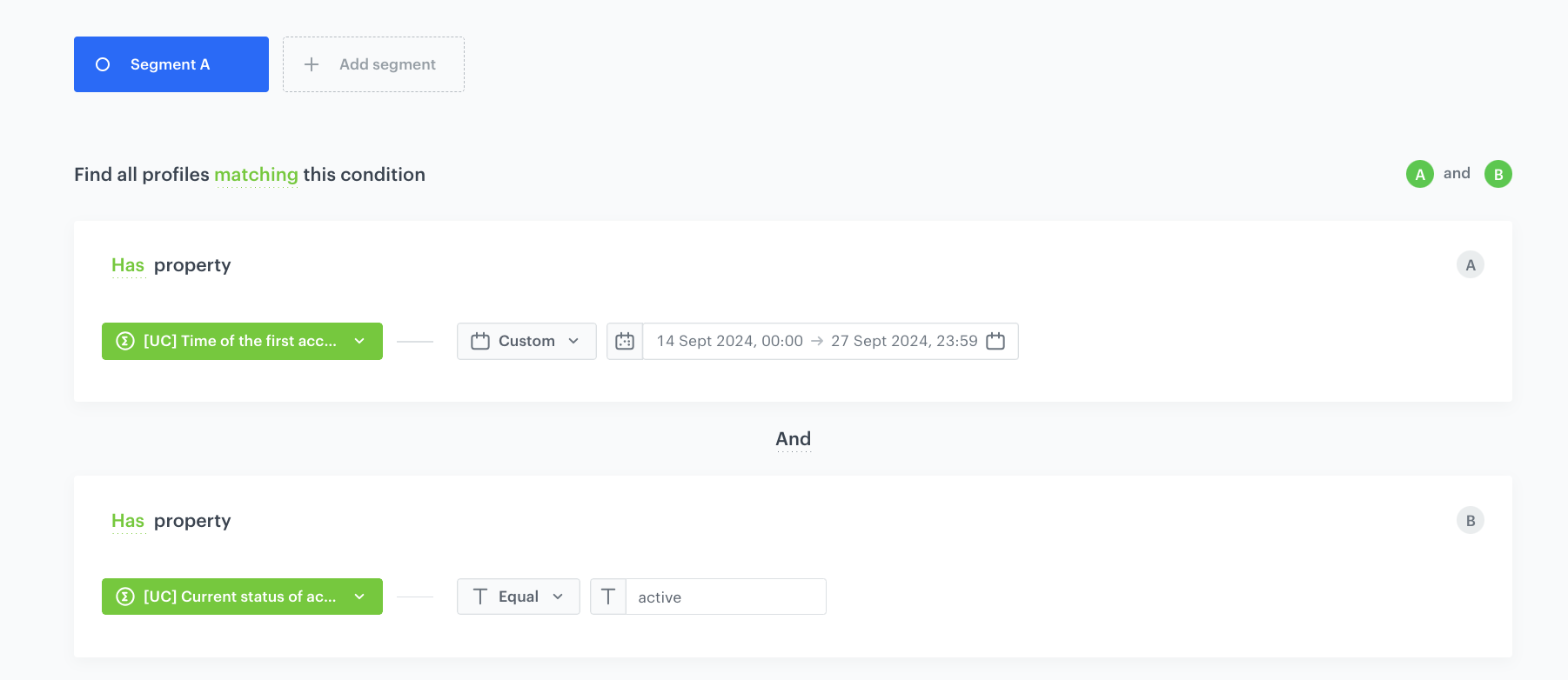
In this part of the process, you create a segmentation of customers who installed your mobile app and joined the loyalty program during last 14 days.

1. Go to <img src="/api/docs/image/54176ad07f146575310749eba44b7c2f42c1b327/icons/decision-hub-icon.svg" alt="Behavioral Data Hub icon" class="icon"> **Decision Hub > Segmentations > New segmentation**.
2. Enter the name of segmentation. 
3. Choose **Add condition** and find the [aggregate counting the time of joining the loyalty program](/use-cases/discount-promotion-for-first-transaction#time-of-joining-the-loyalty-program), created in the previous step. 
4. Choose option **Custom** and select the date range as last 14 days. This way we can be sure that we analyze only the customers who joined the loyalty club for the first time during last 14 days (time in which the promotion is available), and we exclude the customers who join the club, resign and try to join another time to use the promotion for the second time. 
5. Choose **Add condition** and find the [aggregate analyzing the active status of the customer's membership](/use-cases/discount-promotion-for-first-transaction#current-status-of-the-membership), created in the previous step. 
6. As an operator, choose **Equal** and add the value `active`.
7. Save the aggregate.
 <figure>
    <img src="/api/docs/image/54176ad07f146575310749eba44b7c2f42c1b327/use-cases/all-cases/_gfx/promotion-first-transaction.png" alt="The segmentation settings" class="full" >
    <figcaption>The segmentation settings</figcaption>
    </figure>

## Create a promotion
---

Create a promotion for customers who joined the loyalty program.
The promotion gives a 10% discount for the entire transaction and is valid only once per user. It will be targeted for the audience created in the previous step.

1. Go to <img src="/api/docs/image/54176ad07f146575310749eba44b7c2f42c1b327/icons/ai-hub-icon.svg" alt="AI Hub icon" class="icon" > **AI Hub > Regular Promotions > Add promotion**.
2. Select the **For entire cart** option.
3. In the **Audience** section, select the segmentation created in [this step](/use-cases/discount-promotion-for-first-transaction#create-a-segmentation). Your promotion will be activated only for this group of customers. Confirm your selection, by clicking **Apply**.  
4. In the **Content** section, define the name, description, and an image of the promotion. Confirm the settings by clicking **Apply**.
5. In the **Limit per profile** field, enter `1` to make sure that this discount can be used only once.
6. In **Type & limits** section:  
    1. As a Discount type, choose **Percentage**.
    2. In the Cart section, as the minimum value, enter `10`, and click **Apply**.
6. In the **Schedule** section, define the distribution period.
7. **Optional**: In the **Stores** section, specify stores where the promotion is available. 
    
   <div class="admonition admonition-note"><div class="admonition-icon"><svg xmlns="http://www.w3.org/2000/svg" fill="none" viewBox="0 0 24 24" stroke="currentColor" stroke-width="2.5"><path stroke-linecap="round" stroke-linejoin="round" d="M13 16h-1v-4h-1m1-4h.01M21 12a9 9 0 11-18 0 9 9 0 0118 0z" /></svg></div><div class="admonition-body"><div class="admonition-content">

   This is possible only if the list of stores is imported into a [catalog](/docs/assets/catalogs).

   </div></div></div>
 

8. In **Items** section, choose the main product catalog with all products a customer can buy with this discount. If you want to narrow down the list of categories a customer can choose from, use one of the options presented below (Selected items/Filtered items). If discount should be active for all products, choose **Entire catalog**.
9. In **Exclude items** section, you can exclude a specific product or categories for which the discount is not active.
10. To apply all changes and run the promotion, click **Publish**.

Once the promotion is published, it will be visible immediately to all customers defined in the **Audience** section in your mobile app (users who joined loyalty program during last 14 days).

## Prepare a mobile push notification
---
1. Go to **Experience Hub > Mobile > Templates**.
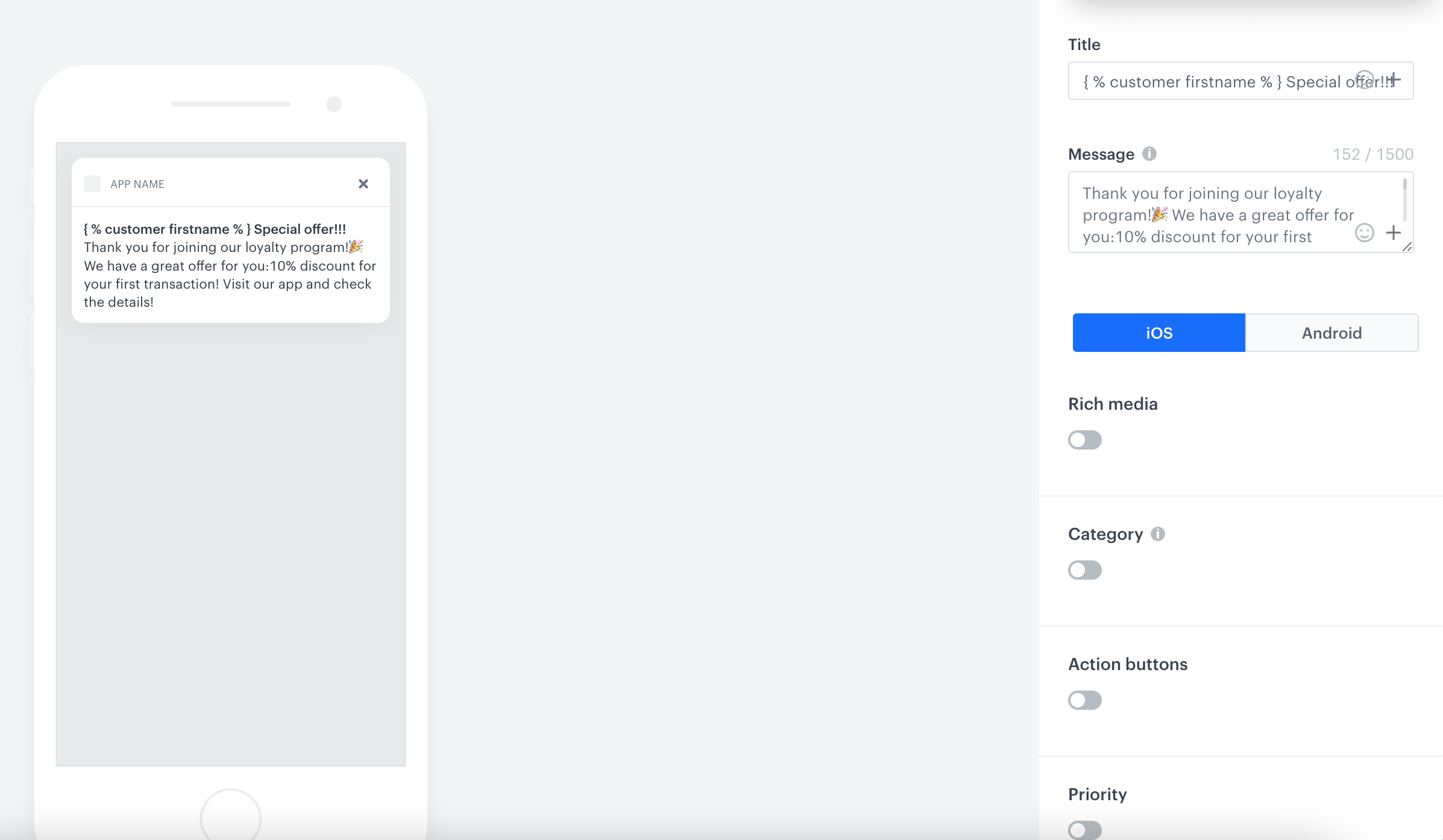
2. Create your mobile push in the code editor.

For more information on creating a simple mobile push, visit our [User Guide](/docs/campaign/Mobile/simple_push).

<figure>
<img src="/api/docs/image/54176ad07f146575310749eba44b7c2f42c1b327/use-cases/all-cases/_gfx/discount-for-first.png" class="large" alt="Example of mobile push notification">
<figcaption>Example of mobile push notification</figcaption>
</figure>

## Create a workflow
---
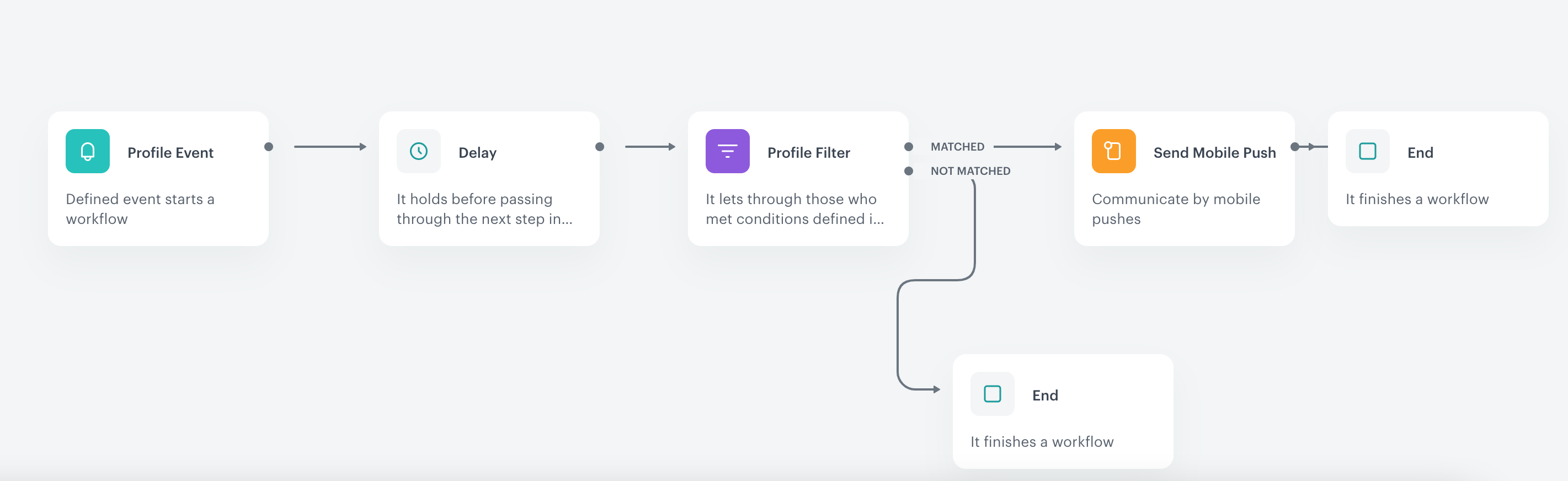
In this part of the process, prepare a workflow that notifies customers who joined loyalty program about the promotion in the mobile app. 

1. Go to **Automation Hub > Workflows > New workflow**.
2. Enter the name of the workflow. 
3. As the first node of the workflow, add **Profile Event**, and choose the event which signifies joining the loyalty program.
4. As the next node, choose **Delay**. In the settings of the node, set the delay period to 10 minutes.
5. Add **Profile Filter** to check if the user made a transaction during last 10 minutes. To do it, select the `transaction.charge` event and set up the time range as last 10 minutes. Mark this filter as not matched.
6. As the last node, add **Send Mobile Push** for users who matched used Profile Filter. In the configuration of the **Send Mobile Push** node:
    1. Select the type of the mobile push notification..
    2. Select the push template created in [this part](/use-cases/discount-promotion-for-first-transaction#prepare-a-mobile-push-notification) of the process.
6. Set up the Action limit for the Send Mobile Push as one time per workflow.
7. Set the capping for the workflow to make sure that it will be available once for every user (choose very distant date for example, once in 1000 months).
7. Confirm the settings by clicking **Apply**.
7. Add the **End** node to finish the workflow.
8. Click **Save & Run**. 

<figure>
<img src="/api/docs/image/54176ad07f146575310749eba44b7c2f42c1b327/use-cases/all-cases/_gfx/discount-promotion-workflow.png" alt="Workflow configuration"  class="full">
<figcaption>Workflow configuration</figcaption>
</figure> 

## Check the use case set up on the Synerise Demo workspace
---

In the Synerise Demo workspace, you can check: 
- [Segmentation](https://app.synerise.com/analytics-v2/segmentations/e87b4f75-803a-4593-9649-9c35bae5b377) 
- [Aggregate returning the time of joining the loyalty program](https://app.synerise.com/analytics/aggregates/9b862d15-7301-31c1-a830-ea6b5c3e392d) 
- [Aggregate returning current status of membership](https://app.synerise.com/analytics/aggregates/4538a92b-b5e7-338e-a7f0-a4c690b63272).
- [Promotion](https://app.synerise.com/campaigns/promotions/de7a11c5-795f-4eda-ade6-cc45f021022c) 
- [Workflow](https://app.synerise.com/automations/automation-diagram/3b673608-34c4-4013-8d60-99f01b0a8cf1) 

If you’re our partner or client, you already have automatic access to the **Synerise Demo workspace (1590)**, where you can explore all the configured elements of this use case and copy them to your workspace.  

If you’re not a partner or client yet, we encourage you to fill out the contact [form](https://demo.synerise.com/request) to schedule a meeting with our representatives. They’ll be happy to show you how our demo works and discuss how you can apply this use case in your business.


## Read more
---
- [Creating promotions](/docs/ai-hub/promotions)
- [Loyalty programs basics](/use-cases/loyalty-programs-basics)
- [Mobile push notifications](/docs/campaign/Mobile)
- [Workflow](/docs/automation/creating-automation)