Privacy regulations may require that users who decline cookie consent still have the ability to subscribe to communications such as a newsletter. In this use case, we’ll show you how to collect newsletter signups **without using tracking mechanisms**, and still create a compliant user profile in Synerise.

This setup ensures you're not violating privacy preferences while still growing your subscriber base.


## Prerequisites
--- 
A privacy-compliant form on your website that works independently of the SDK.

## Process
---
In this use case, you’ll go through the following steps:
1. [Create an incoming integration](/use-cases/do-not-track#create-an-incoming-integration) (webhook) to receive form data.
2. [Create a workflow](/use-cases/do-not-track#create-a-workflow) that listens to incoming events.


## Create an incoming integration
---
In this part of the process, you will create an incoming integration to securely receive form submissions from the newsletter form, from users who have opted out of cookies or tracking.

1. Go to <img src="/api/docs/image/54176ad07f146575310749eba44b7c2f42c1b327/icons/automation-hub-icon.svg" alt="Automation Hub icon" class="icon" > **Automation Hub > Incoming > New integration**. 
2. On the pop-up, select **without authentication**, **JWT authentication** or **Webhook from Meta** based on your business needs.
3. Enter the name of the webhook. 
3. In the **Endpoint** section, click **Define**.  
        
   <div class="admonition admonition-important"><div class="admonition-icon"><svg xmlns="http://www.w3.org/2000/svg" fill="none" viewBox="0 0 24 24" stroke="currentColor" stroke-width="2.5"><path stroke-linecap="round" stroke-linejoin="round" d="M12 8v4m0 4h.01M21 12a9 9 0 11-18 0 9 9 0 0118 0z" /></svg></div><div class="admonition-body"><div class="admonition-content">

   The URL field is already is filled in with the endpoint to which the data will be sent.

   </div></div></div>
 
    1. Optionally, you can add an icon to this integration.
    3. Confirm by clicking **Apply**.  
4. In the **Incoming data** section, click **Define**.
5. Click **Retrieve data**. Right after you click the button, send a request to the endpoint in the **Endpoint** section with the sample of data that will be sent through forms. Example request:  

    
   <pre><code class="language-json">{"firstname": "test",
       "lastname": "test",
       "email": "user@example.com",
       "newsletterAgreement": "true"
       }</code></pre>


   <div class="admonition admonition-note"><div class="admonition-icon"><svg xmlns="http://www.w3.org/2000/svg" fill="none" viewBox="0 0 24 24" stroke="currentColor" stroke-width="2.5"><path stroke-linecap="round" stroke-linejoin="round" d="M13 16h-1v-4h-1m1-4h.01M21 12a9 9 0 11-18 0 9 9 0 0118 0z" /></svg></div><div class="admonition-body"><div class="admonition-content">

   You can retrieve the data and parameters you need for your business. An example is shown above.

   </div></div></div>


6. When the endpoint receives data from the request, verify the list of variables available in the **Incoming data** section. If the variables include those which are in the payload click **Apply**. If not, click **Start again** re-send request, and wait for the results.
7. Click **Save & publish**.  
    
   <div class="admonition admonition-tip"><div class="admonition-icon"><svg xmlns="http://www.w3.org/2000/svg" fill="none" viewBox="0 0 24 24" stroke="currentColor" stroke-width="2.5"><path stroke-linecap="round" stroke-linejoin="round" d="M9.663 17h4.673M12 3v1m6.364 1.636l-.707.707M21 12h-1M4 12H3m3.343-5.657l-.707-.707m2.828 9.9a5 5 0 117.072 0l-.548.547A3.374 3.374 0 0014 18.469V19a2 2 0 11-4 0v-.531c0-.895-.356-1.754-.988-2.386l-.548-.547z" /></svg></div><div class="admonition-body"><div class="admonition-content">

   The full documentation of the incoming integration feature is available in the [Incoming Integration](/docs/automation/integration/incoming-webhook-node) article.

   </div></div></div>


## Create a workflow
---
In this part of the process, you will build a workflow that triggers automatically each time new user data is received through the webhook. Make sure the email field is present and valid (in our case, it contains an `@` symbol). The workflow sends the email address through the Outgoing Integration node to the endpoint that creates or updates a user profile in Synerise.

1. Go to <img src="/api/docs/image/54176ad07f146575310749eba44b7c2f42c1b327/icons/automation-hub-icon.svg" alt="Automation Hub icon" class="icon" > **Automation Hub > Workflows > New workflow**.
2. Enter the name of the workflow.

### Define the Business Event node

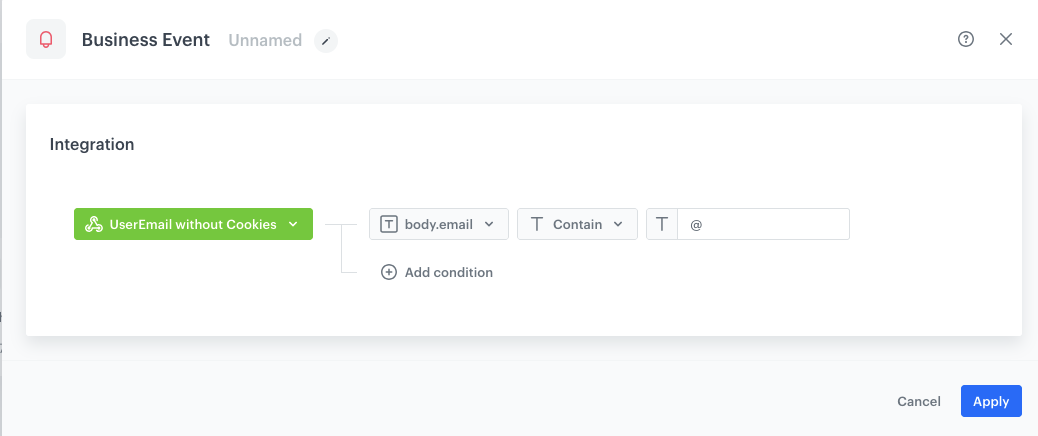
3. As the trigger, select **Business Event**. In the configuration of the node:
    1. Select the [incoming integration for customer's data](#create-an-incoming-integration) you created as the first part of the process.
    2. Add the condition which checks the email address is provided and correct:
        1. From the **Add condition** dropdown list, select the **body.email**.
        2. As the logical operator, select **Contains**.
        3. In the text field, enter `@` 
4. Confirm by clicking **Apply**.

    <figure> 
    <img src="/api/docs/image/54176ad07f146575310749eba44b7c2f42c1b327/use-cases/all-cases/_gfx/business-event3.png" alt="Business Event node configuration" class="large"> 
    <figcaption>Business Event node configuration</figcaption> 
    </figure>  


### Define the Outgoing Integration node
In this step, you’ll make an API call to create or update a Synerise profile using just the provided email address—no tracking needed. Call the endpoint that handles creating or updating user profiles in Synerise.

5. From the dropdown list, select the **Outgoing Integration** node.
6. Click the node. In the configuration of the node:  
    1. Select the **Custom webhook**.
    2. Enter the name of the webhook.
    3. Choose webhook connection type - select **By API key**.
        
       <div class="admonition admonition-tip"><div class="admonition-icon"><svg xmlns="http://www.w3.org/2000/svg" fill="none" viewBox="0 0 24 24" stroke="currentColor" stroke-width="2.5"><path stroke-linecap="round" stroke-linejoin="round" d="M9.663 17h4.673M12 3v1m6.364 1.636l-.707.707M21 12h-1M4 12H3m3.343-5.657l-.707-.707m2.828 9.9a5 5 0 117.072 0l-.548.547A3.374 3.374 0 0014 18.469V19a2 2 0 11-4 0v-.531c0-.895-.356-1.754-.988-2.386l-.548-.547z" /></svg></div><div class="admonition-body"><div class="admonition-content">

       You can read more about API keys [here](/docs/settings/tool/api) and you can find more information about the endpoint and required API key permissions [here](https://developers.synerise.com/ProfileManagement/ProfileManagement.html#operation/CreateAClientInCrm).

       </div></div></div>

    1. In the **Webhook name** field, enter the value that will be displayed in the `name` parameter of the event which will contain the request response.
    2. Optionally, in the **Event name** field, choose an action name for the event that contains the request response from the endpoint.  
    If you leave the field blank, the action defaults to `webhook.response`.
    3. Select the **POST** method.
    3. In the URL address, enter `https://api.synerise.com/v4/clients/batch`. 
    Read more about the [Batch add ord update clients method](https://developers.synerise.com/DataManagement/DataManagement.html#tag/Profile-management/operation/BatchAddOrUpdateClients)
    4. Enter the following headers:  
        - set the `Content-Type` header to `application/json` (default),
        - set the `Api-Version` header to `4.4`
    5. Enter the request body. For the scenario described in this use case, the body is as follows:  

        
       <pre><code class="language-json">[
       {
            "email": "{{ request.body.email }}",
            "agreements": {
               "email": {{ request.body.newsletterAgreement }}
            }
            }
       ]</code></pre>

        
   <div class="admonition admonition-note"><div class="admonition-icon"><svg xmlns="http://www.w3.org/2000/svg" fill="none" viewBox="0 0 24 24" stroke="currentColor" stroke-width="2.5"><path stroke-linecap="round" stroke-linejoin="round" d="M13 16h-1v-4h-1m1-4h.01M21 12a9 9 0 11-18 0 9 9 0 0118 0z" /></svg></div><div class="admonition-body"><div class="admonition-content">

   This is just an example, you can create JSON according to your business needs. <p>

   </div></div></div>
     

6. Confirm by clicking **Apply**.  


   <div class="admonition admonition-note"><div class="admonition-icon"><svg xmlns="http://www.w3.org/2000/svg" fill="none" viewBox="0 0 24 24" stroke="currentColor" stroke-width="2.5"><path stroke-linecap="round" stroke-linejoin="round" d="M13 16h-1v-4h-1m1-4h.01M21 12a9 9 0 11-18 0 9 9 0 0118 0z" /></svg></div><div class="admonition-body"><div class="admonition-content">

   This operation is safe to repeat — if the profile exists (matched by email or ID), it will be updated; if not, a new one will be created.

   </div></div></div>


### Add final setting to your workflow
---
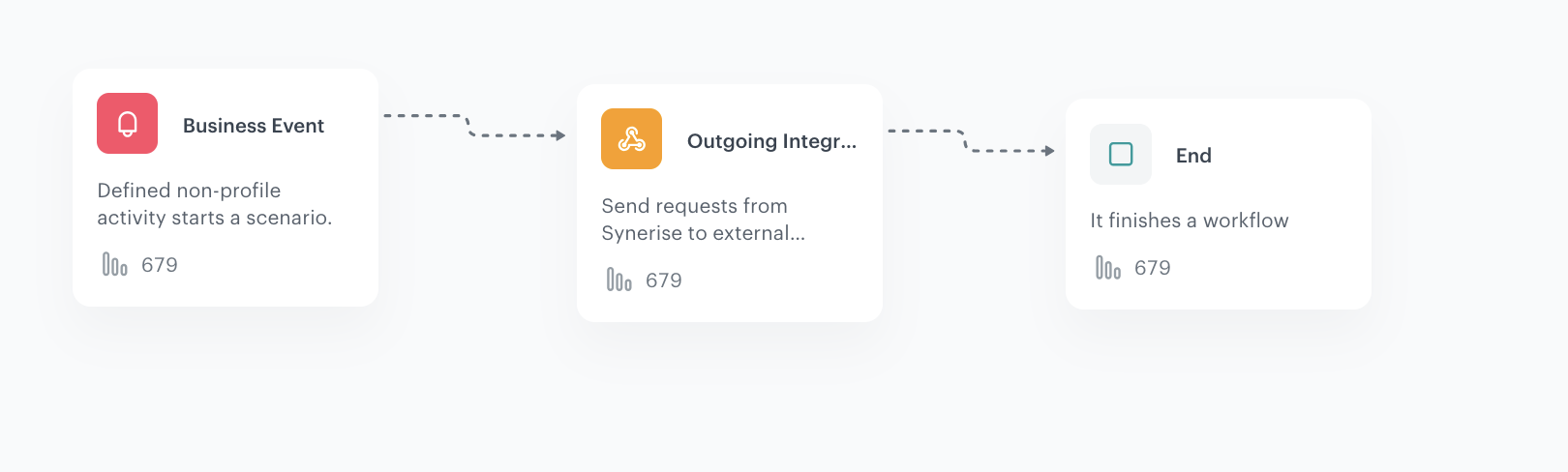
1. Add the **End** node. 
2. Launch the workflow by clicking **Save & Run**.

    <figure> 
    <img src="/api/docs/image/54176ad07f146575310749eba44b7c2f42c1b327/use-cases/all-cases/_gfx/business-automation4.png" alt="Final view of the workflow configuration" class="full"> 
    <figcaption>Final view of the workflow configuration</figcaption> 
    </figure>  


   <div class="admonition admonition-note"><div class="admonition-icon"><svg xmlns="http://www.w3.org/2000/svg" fill="none" viewBox="0 0 24 24" stroke="currentColor" stroke-width="2.5"><path stroke-linecap="round" stroke-linejoin="round" d="M13 16h-1v-4h-1m1-4h.01M21 12a9 9 0 11-18 0 9 9 0 0118 0z" /></svg></div><div class="admonition-body"><div class="admonition-content">

   **Process logic:**
   - For users who did not give consent to tracking – use the webhook + automation method described above.
   - For users who gave tracking consent – submit form data as per usual.
   For implementation details of form tracking, see the [documentation](/developers/web/tracking-form-data).

   </div></div></div>


Learn more about the process from the [Do Not Track documentation](/developers/web/do-not-track).


## Read more
---
- [Automation Hub](/docs/automation)
- [Business Event node](/docs/automation/triggers/businees-event-trigger)
- [Do Not Track documentation](/developers/web/do-not-track)
- [Incoming integration](/docs/automation/integration/incoming-webhook-node)
- [Outgoing Integration](/docs/automation/actions/webhook-node)
- [Outgoing integration node](/docs/automation/actions/webhook-node)